...

Tag: Pomodoro

  • Timebox Social Media With Timers and Focus Modes

    Timebox Social Media With Timers and Focus Modes

    Last reviewed: September 1, 2026. Editorial responsibility: the Mind Clarity Hub team. This guide was researched and written by our editorial staff; it is not a substitute for medical or clinical care.

    If you want to timebox social media without deleting the apps you actually enjoy, the trick is to put a clock, a focus mode, and a small backstop around the same habit. The timer tells you when the session starts and when it ends. Focus mode silences the pull of new notifications. Meanwhile, a backstop catches the moment you forget the plan and reach for the app anyway. Together, those three layers turn a fuzzy habit into a contained one. That is the whole point of the routine this guide walks through.

    If this post is describing your situation with focus, I built FocusFix: The Emotional Clarity Kit for Real-World Distraction Killers as the step-by-step version of what this article covers. It is my own product, and it goes considerably deeper than a blog post can.

    The pages below cover the setup step by step. You will see how to choose a sensible interval, how to use the focus tools that ship with iOS, Android, Windows. And macOS, how to wire quick shortcut automations that start and end a session for you. And what to do when the timer rings and you still want to keep scrolling. There is also a comparison table, a checklist, a generated graphic you can screenshot, and an FAQ at the end. Read it once, copy the setup that fits your device, and you will have a working timebox by the end of the afternoon.

    What β€œtimebox social media” actually means

    To timebox social media is to give each app a fixed slot on the clock instead of letting it run in the background all day. The slot has a clear start, a clear end, and a clear reason for existing. When the timer ends, the session ends with it, and the rest of the hour goes back to your real work.

    Two ideas carry the routine. The first is that attention behaves like a budget, and untracked scrolling spends it without you noticing. The second is that any tool that opens a feed will keep trying to pull you back in. So the routine has to assume that pull is always there. Timers and focus modes are not willpower; they are guardrails that make willpower less important.

    Why a focus mode is the spine of the timebox

    A focus mode on its own is just a quieter phone. Inside a timebox, it becomes a boundary. It switches on at the start of the slot and switches off at the end, so the slot has clear borders. On iOS, Android, Windows, and macOS, the focus or Do Not Disturb setting can be scheduled, tied to a location, or triggered by a shortcut. That scheduling is what lets a timer and a focus mode act as one habit.

    The behavior change is small but real. Instead of opening an app and then trying to remember to leave, you start a timer, the focus mode mutes the noise. And a closing notification tells you the slot is over. The reader’s job is to set the slot, not to police the slot.

    Pick a sensible social-media timebox interval

    Most readers do well with a short interval the first week and a slightly longer one once the routine feels natural. The list below gives a starting point you can tune. Pick one, write it on a sticky note, and run it for seven days before you change it.

    • 15 minutes, twice a day. Good for the first week if your current habit is heavy.
    • 20 minutes, twice a day. A common default for news feeds and short-form video.
    • 25 minutes, twice a day. Pairs naturally with a pomodoro-style work block.
    • 30 minutes, once a day. A flatter pattern for people who want one check-in window.
    • 45 minutes, once a day. Useful on weekends when you actually want a longer catch-up.

    Two cautions matter. First, do not start with the longest interval. Longer windows feel generous but usually slide into longer scrolling. Second, do not split the day into five small slots. The point is fewer, clearer windows, not more of them.

    The four-layer setup that makes the habit stick

    The setup that works in practice has four layers, and each layer covers a failure mode of the layer below it. Skip one and the routine wobbles.

    1. Timer. Names the start, names the end, and counts down.
    2. Focus mode. Mutes the noise during the slot and removes badges.
    3. Shortcut or automation. Starts the timer and the focus mode in the same tap.
    4. Backstop. Catches the moment you forget the plan.

    Read the rest of the guide as a tour of those four layers, in that order.

    Timebox social media, layer 1: set the timer

    You do not need a special app to start. The Clock app on iOS and Android has a countdown timer that survives when you leave the app. And a third-party timer like the pomodoro apps in the comparison table below adds session counts and break reminders. The job of the timer is simple. When it ends, the social-media slot ends with it.

    How to set the timer on iPhone

    Open the Clock app, switch to the Timer tab, set the duration to your chosen interval, and tap When Timer Ends. Scroll to the bottom of the sound list and choose Stop Playing. This turns the timer into a hard stop rather than a sound that fades out. Then tap Start.

    How to set the timer on Android

    Open the Clock app, choose Timer, set the duration, and tap the three-dot menu to confirm the timer keeps running in the background. Android timers do not always play a sound after the screen sleeps, so enable a sound or a vibration in the timer settings. A hard-stop option exists on Pixel Clock and on Samsung Clock; otherwise a third-party timer app is the simplest path.

    How to set the timer on Windows and macOS

    On Windows 11, open Settings > System > Focus, set a focus session length, and pair it with the Clock app timer that counts down on the desktop. On macOS, the built-in Timer in the Clock menu bar runs a countdown that notifies you when it ends. Pair either with the social-media site you want to limit, and the timer becomes the closing bell for the session.

    Layer 2: Tie a focus mode to the social-media timebox

    The focus mode is what keeps the slot clean while it runs. Without it, the timer is counting down while your phone is still buzzing with new posts from accounts you do not follow. With it, the timer and the silence work together.

    How to schedule a focus mode on iOS

    Open Settings > Focus, choose an existing mode such as Do Not Disturb or create a new Social mode. Under Allowed Notifications, allow only the people you actually need to hear from. Under Apps, silence every social app. Then add a schedule that matches your social-media window. When the schedule starts, the focus mode mutes new posts; when the schedule ends, normal delivery returns.

    How to schedule Focus mode on Android

    On Android 13 and later, open Settings > Digital Wellbeing > Focus modes. Create a mode called Social and pick the apps it pauses. You can set a schedule that turns it on and off at fixed times. To pause the apps inside the slot, you still need to start the mode manually or with a shortcut, since scheduling only governs the start.

    How to schedule Focus on Windows and macOS

    On Windows, the same Settings > System > Focus panel from the timer section accepts a schedule. On macOS, System Settings > Focus lets you create a focus filter that hides notifications from specific apps during a window. Pair the schedule with the timer so the two start and end together.

    Layer 3: Build a one-tap shortcut for the social-media timebox

    A shortcut is the layer that makes the routine stick. One tap starts the timer, the focus mode, and the slot. One tap at the end of the slot turns the focus mode off. The shortcuts below are starting points; the exact names of your apps may differ.

    iPhone Shortcuts: a Social Slot routine

    Open the Shortcuts app, tap the plus icon to create a new shortcut, and add three actions in this order. Set Timer with your chosen duration and the When Timer Ends sound set to Stop Playing. Set Focus with the focus mode turned on. Speak Text with a phrase like β€œsocial slot started.” Save the shortcut to your Home Screen as Start Social Slot. Create a second shortcut that turns the focus mode off and calls it End Social Slot.

    Android Tasker or MacroDroid: a Social Slot routine

    Open your automation app and create a macro called Start Social Slot. The first action starts a timer of your chosen length. Next, turn on Focus mode with your Social profile. Finally, open the social app you want to use. Save the macro and pin it to a widget. Create a matching macro called End Social Slot that turns the focus mode off and returns you to your home screen.

    Windows and macOS: a one-click focus session

    On Windows 11, open the Focus panel, choose a session length, and add it to the taskbar. The button starts the session and silences notifications from the apps you have paused. On macOS, create a Timer shortcut in the Shortcuts app that starts a countdown and turns on a focus filter for your social apps. Both flows replace the manual steps with one click.

    Layer 4: Add a backstop to the social-media timebox

    Every routine breaks at one moment. And for timebox social media that moment is the one where you meant to open a calendar and tapped the feed instead. A backstop catches that moment without needing you to notice it.

    • App Timer. On iOS, set an App Limit for the social app at five minutes below your chosen interval so the timer is the second warning.
    • Digital Wellbeing app timer. On Android, set a Timer for each social app. When the app’s own timer expires, the home screen locks the app for the rest of the day.
    • Website blocker. On desktop, install a blocker such as LeechBlock or Cold Turkey and set a daily allowance that matches your interval.
    • DNS-level filter. Services like NextDNS or CleanBrowsing can throttle social domains during your focus window on every device on the network.

    The backstop is not a punishment. It is a guardrail that gives you a second chance to notice the timer.

    Comparison table: which timer and focus setup fits which reader

    The table below compares common setups. The features are taken from each tool’s published documentation; pick the column that matches your device and your tolerance for setup time.

    Setup Best for Time to configure Hard stop Focus integration
    iPhone Shortcuts + Clock + Focus Readers on iOS 16 and later About 10 minutes Yes, when timer sound is set to Stop Playing Native
    Android Focus modes + Digital Wellbeing Readers on Android 13 and later About 8 minutes Yes, via app timer lockout Native
    Tasker or MacroDroid macro Readers who want one-tap routines on Android About 20 minutes Yes, via tasker alert and app killer Yes, via system intent
    Windows 11 Focus + Clock Readers who use a desktop browser About 6 minutes Yes, when paired with a website blocker Native
    macOS Focus filter + Shortcuts Readers on Sonoma and later About 10 minutes Yes, when the Shortcut turns off the filter at the end Native
    Dedicated pomodoro app Readers who want session counts and break reminders About 15 minutes Depends on the app Via automation hooks
    LeechBlock or Cold Turkey on desktop Readers whose main feed is the browser About 12 minutes Yes, the block holds until the timer ends Not native, can pair with OS focus

    Sources used to build this comparison include Apple’s user guide for Focus on iPhone, the Android Help page for Focus modes, and Microsoft Support for Windows Focus sessions. Each tool’s hard-stop behavior is described in its own documentation.

    Keep the social-media timebox visible

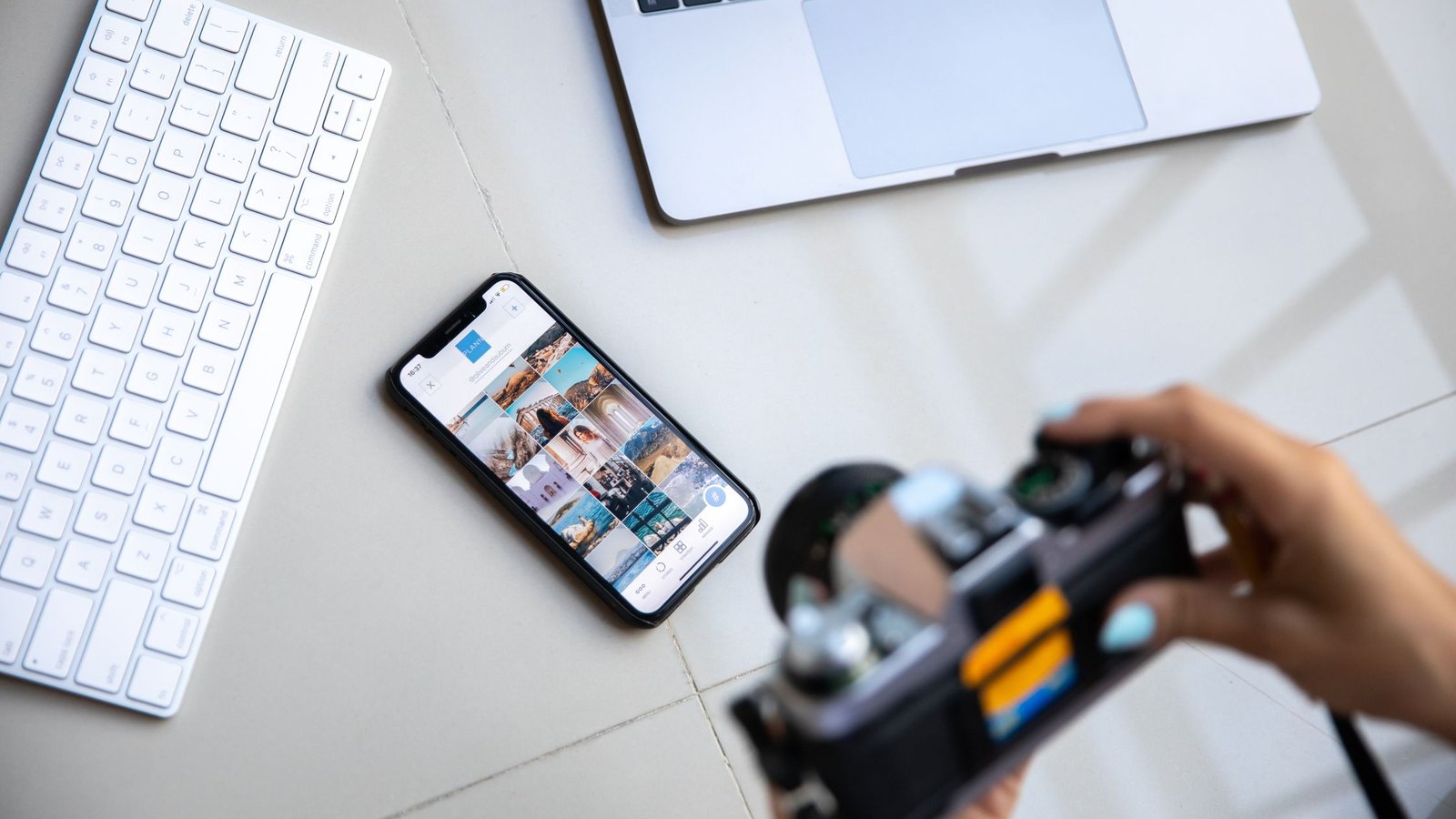
    Person setting a social-media timebox on a smartphone beside a computer
    A visible timer makes the boundary easier to follow. Photo: Darlene Alderson via Pexels.

    The Social Slot checklist you can print

    Print this list, run through it once, and pin it near your desk. It covers the four layers in the order they appear in this guide.

    • Pick a slot length from the list above. Write it on the sticky note.
    • Open the Clock app, set the countdown, and set the timer sound to Stop Playing on iPhone.
    • Create a Focus mode or Do Not Disturb profile that pauses the social apps and silences their notifications.
    • Schedule the focus mode to match the slot, or wire it to a Shortcut or Tasker macro.
    • Save the Start Social Slot shortcut or macro on your Home Screen.
    • Save the End Social Slot shortcut or macro right next to it.
    • Set an App Timer five minutes below the slot, or install a website blocker for the same window.
    • Run the routine for seven days before changing the slot length.

    How to handle the moment the timer rings

    The hardest part of any timebox is the moment it ends. The slot is over, the feed is still interesting, and your thumb is still hovering. Decide in advance what you will do, because deciding in the moment is the trap.

    Pick one of the three patterns below and stick with it for the first two weeks.

    1. Hard close. Put the device down, turn the focus mode off, and switch to a five-minute stretch or a glass of water. This pattern trains the easiest closing reflex.
    2. Soft close. Finish the post you are reading, leave one comment, and close the app. The point is to land the plane, not to add a new take-off.
    3. Defer. Add the post or video to a reading list and leave the app. Most reels and posts are still there next slot.

    Whichever pattern you choose, run it for at least two weeks before you judge it. The first week is the week you are learning the closing reflex, not the week you are judging it.

    How the routine changes by device

    Each platform has its own quirks, and a routine that works on one phone does not always work on another. The subsections below call out the small differences that matter.

    Use the Shortcuts app for the one-tap slot, the Focus setting for the silence. And an App Limit set five minutes below the slot for the backstop. The Screen Time setting lives in Settings, and the App Limit is what locks the app for the rest of the day once the timer expires.

    Android phones

    Use Focus modes for the silence, the Digital Wellbeing app timer for the backstop. And either a MacroDroid macro or a Tasker task for the one-tap slot. The Pixel Clock app includes a hard-stop option that other Android clocks do not always include. So on non-Pixel devices a third-party pomodoro app is a reasonable swap.

    Windows 11 and macOS

    Use the built-in Focus session for the silence, a website blocker for the backstop. And a Shortcuts app shortcut on macOS or a Power Automate flow on Windows for the one-tap slot. The browser is the social-media app on most desktops, so the blocker carries most of the weight.

    What changes the answer: tradeoffs to weigh

    The same routine is not right for every reader. The four tradeoffs below are the ones that change the answer most often.

    • Length of the work day. A short work day pairs with one slot; a long work day pairs with two.
    • Type of feed. Short-form video slots end faster than long-form reading. Adjust the interval accordingly.
    • Shared device. A shared family tablet or a partner’s laptop should use an account-level focus filter, not just a personal one.
    • Notifications during emergencies. Allow a small list of people through every focus mode so emergencies still reach you.

    Common mistakes when readers first try to timebox social media

    Most readers trip on the same small mistakes. The list below names each one and what to do instead.

    • Setting the timer and forgetting the focus mode. The timer ends, but the phone keeps buzzing, and the slot bleeds.
    • Skipping the backstop. The backstop is what catches the accidental tap. Without it, the routine wobbles.
    • Adding too many slots. Three slots a day is not a timebox; it is the original habit with a clock on it.
    • Starting too long. A 45-minute slot in week one is a kindness to your future regret.
    • Editing the routine daily. Run it for a week, then change one thing. Frequent edits prevent learning.

    How to know the routine is working

    You do not need a metric to know the routine is working, but a few small signals help. The screen-time report on the device should show the chosen app hovering near the slot length on most days, not blowing past it. Unplanned reaches for the app should become less frequent. Ending the slot should feel like a normal stopping point instead of a fight.

    If two of those three signals are present after two weeks, the routine is doing its job. If none are present, shorten the slot, simplify the shortcut, and timebox social media again for one week.

    Where to go next on Mind Clarity Hub

    This guide is one of a small set of routines built around the same idea: keep the digital layer useful. And let the rest of the day have more of your attention. Other posts on the site cover reading plans, focus routines, screen-time reduction without deleting timebox social media, and remote-work clarity. The Mind Clarity Hub home page collects them in one place, and the supporting posts in the digital-clarity cluster point back to this routine as a complement to a focus block.

    How this guide was researched

    This guide is built from published sources: official guidance from Apple, Google, and Microsoft on Focus modes and timer behavior, plus published documentation for the website blockers and automation apps mentioned above. It is research, not first-hand testing, travel, or ownership by this site. Where a setting, limit, or menu path is named, it is what the source published at the time of review. So confirm the current terms with the provider before you act on them.

    FAQ: timeboxing social media with timers and focus modes

    What does it mean to timebox social media?

    To timebox social media means giving each app a fixed slot on the clock instead of letting it run all day. The slot has a clear start, a clear end, and a clear reason for existing. When the timer ends, the session ends with it.

    How long should my social-media timebox be?

    Most readers do well with a 20- to 25-minute slot, twice a day. Heavy users often start with 15 minutes, twice a day, and stretch the slot once the routine feels natural. The exact length matters less than sticking to it for at least a week.

    Do focus modes actually reduce scrolling?

    Focus modes reduce the pull of new notifications while the slot runs, which removes a large part of the accidental scrolling. They do not, on their own, close the app when the timer ends. That is why the timer and the focus mode work as a pair.

    Can I timebox social media without an app?

    Yes. The Clock app on iOS and Android includes a countdown timer, and Windows 11 and macOS both include a built-in focus session. A website blocker is the only extra piece most readers need on a desktop.

    What is the difference between a focus mode and a website blocker?

    A focus mode silences notifications and pauses apps inside the slot. A website blocker closes the page or the app when the timer expires. The two work as a pair: the focus mode keeps the slot quiet, and the blocker makes sure the slot actually ends.

    How do I avoid breaking the routine the first week?

    Decide in advance how you will close the slot, save the End Social Slot shortcut or macro next to the Start one. And set an App Timer five minutes below the slot as the backstop. After seven days, change one setting at a time.

    What if my job requires me to use social apps?

    Allow the social apps you need for work through the focus mode, and set the slot for personal use at a different window. The routine separates personal scrolling from work use, which is often the missing piece.

    Helpful resources for your next step

    Affiliate disclosure: As an Amazon Associate, Mind Clarity Hub may earn from qualifying purchases at no extra cost to you. Use this link only if it genuinely helps your planning.

    If Timebox Social Media With Timers and Focus Modes is a routine you want to keep using, a simple workbook, planner, or desk tool can make the steps easier to repeat.

    Compare related planners, workbooks, and organization tools on Amazon.

  • How to Stop Overcomplicating Productivity and Pick a System You Will Use

    How to Stop Overcomplicating Productivity and Pick a System You Will Use

    If you came here to learn how to stop overcomplicating productivity, you are not alone. Many smart people turn work into a maze of apps, tags, colors, and rules. The result is extra friction, slow starts, and unfinished tasks. This guide gives you a clear path to choose one simple system, reduce decision drag, and make steady progress every week.

    Key takeaways

    • Pick one capture tool, one planning cadence, and one execution method. Keep it stable for four weeks.
    • Reduce choices at the point of work. Use timeboxing and short daily check-ins to stay honest.
    • Measure your system by consistency and finish rate, not by features or how β€œbusy” it looks.

    How to stop overcomplicating productivity: quick answer

    If you want to know how to stop overcomplicating productivity, start by shrinking your stack. Choose one place to capture tasks, one calendar or timebox to plan, and one method to execute (for example, a daily 3-item focus). Then run it unchanged for 28 days. During that time, remove low-value tags and labels, limit projects in play, and review once per week. Finally, judge the system by outcomes you care about: tasks finished, stress reduced, and energy left for deep work.

    Do this today in 10 minutes:

    • Write your one-page stack: Capture = (tool), Plan = (calendar), Execute = (method).
    • Schedule 2–4 focus blocks for tomorrow. Put your hardest task in the first block.
    • Set a daily 4:30 p.m. reminder: β€œPlan tomorrow. Stage first task.”

    Small moves compound. A short daily reset, plus a weekly review, will keep the system light and honest.

    What causes complexity and how to simplify productivity

    Several predictable forces push us toward complexity. When you see them, it becomes easier to simplify productivity on purpose:

    • Choice overload. More options increase decision time and doubt. UX researchers have documented β€œchoice overload” and how fewer, clearer options help people act with confidence. See Nielsen Norman Group’s overview for a practical summary of this effect.
    • Decision fatigue. Decisions drain mental energy, especially late in the day. As decisions stack up, the quality of later choices can fall. The American Psychological Association describes this as decision fatigue.
    • Cognitive load. Our working memory is limited. Too many steps, rules, or tools increase load and reduce follow-through. Cognitive load theory explains why simpler instructions lead to better learning and execution.
    • Dopamine chasing. New tools feel exciting. However, chasing novelty often replaces the boring, repeatable routines that actually finish work.
    • Status signaling. Fancy dashboards can signal effort, but they may hide the truth: steady, simple routines deliver more finished work.

    Because of these forces, many people who search for how to stop overcomplicating productivity end up adding even more steps. Instead, cut options where you work and build lightweight defaults you can trust every day. Put another way: reduce productivity complexity until next actions are obvious.

    Practical desk setup that shows how to stop overcomplicating productivity with a single notebook and calendar
    Keep your setup boring on purpose: one capture tool, one calendar. Photo by Anastasia Shuraeva on Pexels.

    Why simple wins: simplify productivity that sticks

    Simple systems reduce choices where it matters, so you can start fast and keep going. Hick’s Law in UX points out that the time to make a decision rises with the number and complexity of choices. The same is true at your desk. Fewer options mean quicker starts. Then, a short daily review and a weekly reset help your system recover from messy days without a full reboot.

    Two design ideas make simplicity practical:

    • Progressive disclosure: Show only what you need now; hide the rest until it’s relevant. This limits noise while keeping depth available.
    • Defaults: Standard choices (like β€œplan tomorrow at 4:30 p.m.”) help you avoid fresh decisions every day.

    To simplify productivity, combine those ideas with steady rhythms:

    • Daily start cue: Open calendar, glance at Today 3, start Block 1. No browsing first.
    • Midday course check: After lunch, confirm Block 3 still matters. Swap only if needed.
    • Shutdown reset: Clear inboxes for five minutes, plan tomorrow, then stop.

    When your day runs on rails like these, you trade drama for dependable output.

    Red flags and how to reduce productivity complexity

    Signal Complexity Red Flag Simpler Alternative
    Task metadata 10+ tags, custom fields, color codes 2–3 priorities max; due date only when real
    Apps Five tools for tasks, notes, and calendar One capture + one calendar + one archive
    Planning Daily re-plans, big rolls of carry-overs Weekly plan; small daily adjustments
    Execution Long shuffled lists, constant context switches Timeboxing or 25–50 min focus blocks
    Reviews Skipped for weeks or bloated checklists 15–30 min weekly sweep with short prompts

    If your day starts with color choices, you are already behind. Reduce clicks between β€œsee task” and β€œstart task.” For example, pin your Today list next to the calendar and collapse every other view. That single change can reduce productivity complexity without a new app.

    Likewise, if you need a decoder ring to parse tags, drop them. Keep only three labels: Today, This Week, Later. When everything is urgent, nothing is. Let dates and timeboxes do the heavy lifting.

    Pick a system you will use to simplify productivity

    Start with the smallest set that can guide your day, not the β€œperfect” all-in-one. Here is a proven three-piece model:

    1. Capture: Choose one place for tasks and ideas (paper notebook, Apple Notes, Google Tasks, or Todoist). Do not split capture between devices or apps.
    2. Plan: Use your calendar to timebox key tasks. Protect 2–4 blocks for deep work each day. Keep a short Today list (top 3) beside your calendar.
    3. Execute: Work in 25–50 minute focus blocks with short breaks. End the day by staging tomorrow’s top 3 and first work block.

    To make this real, run the system unchanged for 28 days. During that test, resist the urge to add new tags, plugins, or tools. Your goal is not to perfect it but to prove that you can do the work with less friction. That is how you stop overcomplicating productivity in practice.

    28-day test protocol (simple and strict):

    • Day 0 setup: Pick your capture tool, calendar, and execution method. Archive everything else. Print or pin your one-page stack.
    • Daily log: At shutdown, note Finish Rate (% of planned tasks done), Start Time (minutes to begin Block 1), and Stress (1–5).
    • Weekly review: 20 minutes. What finished? What slipped? One fix for next week.
    • Change limit: One tweak per week, max. No tool changes during the 28 days.

    Define your metrics in plain terms so you can act:

    • Finish rate: If you planned 15 tasks and finished 12, that’s 80%.
    • Start time: If it takes 18 minutes to begin Block 1, your start friction is high. Aim for under five minutes.
    • Stress score: A 1–5 quick check at shutdown. Trend, not perfection, is what matters.

    Minimum viable stack to reduce productivity complexity

    The simplest stack fits on one page. Use the table below to pick one element per row and then stop.

    Function Pick One Notes
    Capture Paper notebook, Apple Notes, Google Tasks, Todoist Pick what you can open in under 2 seconds
    Plan Google Calendar, Outlook, Apple Calendar Timebox 2–4 deep-work blocks; protect them
    Execute Pomodoro (25/5), 50/10 focus blocks, or single-task sprints Match block length to the task’s cognitive load
    Review 15–30 min weekly review Close loops, plan next week, clean inboxes

    Fit the stack to your context:

    • Manager: Protect at least one 90-minute block per day for writing, strategy, or hiring. Batch 1:1 prep and notes in the same capture tool.
    • IC/engineer: Use 50/10 blocks for code and 25/5 for reviews. Group meetings after lunch when possible.
    • Student: Timebox readings and problem sets. Stage materials the night before so Block 1 starts fast.
    • Freelancer: Keep a single pipeline list. Every Friday, review leads, proposals, and invoices in one sweep.

    How to stop overcomplicating productivity at work

    Workplaces amplify complexity with shared tools, policies, and meetings. Keep your personal system small even if the organization uses many platforms. Sync only what must be shared (deadlines, deliverables, meeting notes). Then keep a private Today list and a personal timebox schedule. Your day should have clear start cues, protected focus blocks, and a short shutdown routine.

    Try simple scripts that reduce meetings and pings without drama:

    • Calendar defense: β€œI can deliver X by Friday if I keep my morning focus blocks. Can we meet after 2 p.m.?”
    • Clarify ask: β€œWhat is the latest acceptable date? I’ll plan it into my next deep-work block.”
    • Batch by default: β€œI read email twice daily. If urgent, call.”

    Also, link tasks to time. Do not leave work items as floating bullets. If something matters, it gets a block.

    When to switch tools to simplify productivity

    Switch tools when your current choice blocks critical work, not when a new feature looks exciting. Use these checks first:

    • Friction test: Does the tool open fast? Can you add a task in under five seconds?
    • Recall test: Can you find anything in two steps or less?
    • Stability test: Have you run the same setup for at least 28 days?

    If the tool fails these tests after you clean it up, then consider switching. Otherwise, keep going. This is another way to practice how to stop overcomplicating productivity over the long term.

    90-minute migration plan (only if you must switch):

    • Export active projects and the next two actions per project. Ignore old archives for now.
    • Recreate only Today, This Week, and Later. Leave everything else as plain text.
    • Rebuild your calendar timeboxes exactly. Blocks are the engine; lists are the map.
    • Run a 7-day smoke test before importing anything else.

    Constraints that stop productivity tool bloat

    Constraints free you to act. They reduce decisions, which protects energy for hard problems. Try these:

    • Daily cap: No more than five open tasks today; only three are must-do items.
    • Block guardrails: 2–4 protected deep-work blocks; one admin block.
    • If–then plans: β€œIf it’s 4:30 p.m., then I plan tomorrow and stage my first task.” Research on implementation intentions shows these plans improve follow-through.

    More helpful constraints:

    • Default durations: Set your calendar to 25 or 50 minutes by default. Force breaks.
    • One-in, one-out: If you add a new tool or tag, remove one.
    • Two-touch rule: Touch each task twice at most before starting or shelving it.

    By setting defaults and simple if–then plans, you practice how to stop overcomplicating productivity even on chaotic days.

    7‑day reset to simplify productivity

    Use this one-week reset to trim your setup without losing momentum.

    • Day 1 β€” Choose your stack: One capture tool, one calendar, one execution method. Write it on a sticky note.
    • Day 2 β€” Clean capture: Archive old lists. Keep only active projects and next actions.
    • Day 3 β€” Timebox anchors: Add 2–4 deep-work blocks to your calendar for the rest of the week.
    • Day 4 β€” Today list: Start each morning with your top 3. Protect the first focus block.
    • Day 5 β€” Remove decoration: Delete extra tags, colors, and vanity boards. Focus on finish rate.
    • Day 6 β€” Review loop: 20 minutes: what finished, what is stuck, what’s next?
    • Day 7 β€” Adjust once: Make one tweak, then hold steady for the next three weeks.

    Micro-challenges for each day:

    • Time your β€œsit down to start” on Days 1–3. Try to beat yesterday’s time.
    • Move one recurring meeting to protect a deep-work block.
    • Delete or archive 50 notes or emails you will never use.

    This cadence helps you learn how to stop overcomplicating productivity by testing one change at a time.

    Meetings, email, and chat: reduce productivity complexity

    Meetings and messages multiply interruptions. Use clear rules:

    • Batching: Handle email and chat twice per day in 25–30 minute windows.
    • Default no-meeting blocks: Protect your deep-work windows on shared calendars.
    • One list to rule them all: Convert pings to tasks in your single capture tool; do not track work in inboxes.

    Practical filters and templates:

    • Inbox filters: Auto-archive newsletters to a β€œRead Friday” label. Star only items that demand action this week.
    • Decision template: β€œTo move forward, I need A, B, and C. If I get them by Wednesday, I’ll ship Friday.”
    • Agenda-first invites: Decline meetings without a goal or outcome. Suggest a 10-minute doc review instead.

    These shifts cut context switches and create space to focus.

    Team agreements to simplify productivity

    Align as a group on the minimum set of shared tools. Then agree on a simple team review rhythm. For example: weekly 30-minute standup to confirm priorities, risks, and blockers; monthly 60-minute retrospective to decide one improvement. Keep dashboards plain and narrow the number of β€œin-progress” items to match team capacity.

    Draft a one-page team charter:

    • Tools: Name the single source of truth for tasks, docs, and decisions.
    • Cadence: List recurring meetings, who attends, and the decision each meeting must enable.
    • WIP limits: Cap simultaneous projects and tickets. Finishing beats starting.
    • Response norms: Define β€œfast” vs β€œurgent” so chat does not become the work.
    Quiet desk with a simple notebook, glasses, and a laptop for a calm planning routine
    Reduce inputs to restore attention. A cleaner desk supports faster starts. Photo by Kaboompics on Pexels.

    Why complexity traps us

    For a quick primer on the psychology behind complexity and how to escape it, this short video is helpful.

    If the embed does not load, you can open the video on YouTube.

    Benchmarks to track (so you know it’s working)

    • Start time to first task: How many minutes from sit-down to focused work?
    • Finish rate: Percent of planned tasks completed per week.
    • Context switches: Average tool/app changes during a focus block.
    • Stress and clarity: Quick self-score 1–5 at end of day.

    How to measure without fuss:

    • Use a simple row per day: β€œStart 6m | Finish 10/12 | Switches 3 | Stress 2.”
    • Look for trends. If start time falls and finish rate rises, you are on track.
    • Change one variable at a time. Extend a block or move a meeting, not both.

    Track these for four weeks. If they improve, keep the system. If not, adjust one variable and run another four-week test. That restraint is the core of how to stop overcomplicating productivity without getting lost in experiments.

    Common mistakes to avoid

    • Planner hopping: New tools feel like progress. They often erase momentum.
    • Tag soup: Excess labels add work and hide what matters.
    • Endless daily re-plans: Plan the week; adjust the day.
    • Ignoring energy: Put your hardest task in your best block.
    • Skipping weekly review: Without this, clutter returns fast. Use a 15–30 minute sweep.
    • Mixing personal and team tasks: Keep a clean personal layer. Sync only what must be shared.
    • Tool stacking: If you need a plugin to use a feature, the feature may not be needed.

    Avoiding these mistakes is yet another way to practice how to stop overcomplicating productivity day to day.

    Recommended next steps

    • Try a simple focus routine using our focus routines that stick guide.
    • Compare timeboxing vs. Pomodoro and pick one method for your next 28 days.
    • Clean digital noise with our digital declutter checklist.
    • Protect attention by reducing screen time without deleting social media.
    • Print your one-page stack. Put it where you plan each day.

    How to stop overcomplicating productivity at home

    Home life adds chores, family needs, and shifting schedules. Keep the same three-part system. Capture to-dos in one place, timebox weekly anchors (meals, laundry, bills), and choose one daily top-3 across work and home. Share only the parts others need (events, errands) on a family calendar. Keep your personal Today list private and short.

    Run a family weekly review in 15 minutes:

    • Calendar check: Look ahead two weeks. Add fixed events to the shared calendar.
    • Top 3 for the household: Repairs, bills, and any deadlines.
    • Resource plan: Who owns what? What can wait?

    At home, the same rule applies: fewer tools, clearer plans, calmer days.

    Frequently asked questions

    Why does a smaller system help me finish more?

    Because it reduces cognitive load and decision fatigue. Fewer choices at the point of work mean you can start faster and keep attention on the task, not the tool. That is the heart of how to stop overcomplicating productivity.

    How long should I test a new workflow before changing it?

    Run it for 28 days with no major changes. This gives you enough stable data to judge finish rate, energy, and stress. Then tweak one element at a time.

    What if my team uses a complicated platform?

    Keep your personal layer small. Use the team tool for shared items only, and route your own tasks into a private Today list and calendar blocks.

    Do I need tags and priorities?

    Use the lightest labels that help you choose the next task. Many people do fine with only three: Today, This Week, and Later.

    Sources and further reading

    • Nielsen Norman Group on choice overload and design simplicity: https://www.nngroup.com/articles/choice-overload/
    • American Psychological Association on decision fatigue: https://dictionary.apa.org/decision-fatigue
    • Interaction Design Foundation on Hick’s Law: https://www.interaction-design.org/literature/topics/hick-s-law
    • Francesco Cirillo’s official overview of the Pomodoro Technique: https://francescocirillo.com/pages/pomodoro-technique
    • British Psychological Society on implementation intentions (if–then planning): https://digest.bps.org.uk/2016/07/14/if-then-plans/

    Conclusion: Choose once, then do the work

    Pick one capture tool, one calendar, and one execution method. Hold it steady for four weeks. Protect your focus blocks and review weekly. That is how to stop overcomplicating productivity and move from busy to done.

    Helpful resources for your next step

    Affiliate disclosure: As an Amazon Associate, Mind Clarity Hub may earn from qualifying purchases at no extra cost to you. Use this link only if it genuinely helps your planning.

    If How to Stop Overcomplicating Productivity and Pick a System You Will Use is a routine you want to keep using, a simple workbook, planner, or desk tool can make the steps easier to repeat.

    Compare related planners, workbooks, and organization tools on Amazon.

    Related guides

  • Best Focus Recovery Routine For Knowledge Workers

    Best Focus Recovery Routine For Knowledge Workers

    If you handle complex work on a screen, the best focus recovery routine for knowledge workers can help you regain momentum without burning out. This guide gives you a clear framework, short resets you can run today, and evidence-backed habits that protect your attention over time. You will also find decision trees, checklists, and a few tools to make recovery fast and repeatable.

    Key takeaways and quick start

    • Use the best focus recovery routine for knowledge workers daily and adjust weekly.
    • Run the 5–15–30 reset rule: 5 minutes for a micro-stall, 15 minutes for mental fog, 30 minutes for full reboot.
    • Protect one deep-work block each morning; triage, then re-enter work with a single-task commitment.
    • Move, breathe, hydrate, and rest your eyes: short body resets restore cognitive control.
    • End the day with a 7-minute shutdown to lower mental load and improve recovery while you sleep.

    What is the best focus recovery routine for knowledge workers?

    The best focus recovery routine for knowledge workers is a simple, testable playbook that you run whenever your attention slips. It has three parts you can remember under pressure:

    • Recognize the stall: name the state (frazzled, foggy, frozen) and what triggered it.
    • Reset your body and inputs: brief movement, breathing, light change, hydration, and a screen reset.
    • Re-enter with one small, certain step: a 3–10 minute starter task that reboots momentum.

    How to use this advice well

    This routine is educational and practical. It does not diagnose or treat any condition. If you suspect a medical issue (for example, sleep disorders, anxiety, or ADHD), talk with a qualified clinician. Use this guide as a daily operating system for your attention at work.

    Why short resets actually work

    Brief breaks prevent vigilance fatigue. Research from the University of Illinois shows that short diversions can restore attention on sustained tasks by resetting how the brain monitors stimuli over time (University of Illinois).

    Also, light physical activity is linked with better cognition and executive function, which supports faster re-entry after a stall (CDC on physical activity and brain health).

    Meanwhile, your eyes need recovery, too. The American Optometric Association notes that following the 20-20-20 rule (every 20 minutes, look at something 20 feet away for 20 seconds) helps reduce digital eye strain that can sap attention (AOA: Computer Vision Syndrome).

    5–15–30: The timed reset protocol

    Start with the smallest intervention that works. If it fails, step up.

    5-minute micro-reset (for light distraction)

    • Stand, roll shoulders, and do 10 slow breaths (4–6 second exhales).
    • Hydrate and do a 20–20–20 eye break.
    • Mute notifications for 25 minutes. Park every open window into one tab group.
    • Set a 10-minute timer and do the first ugly draft or outline only.

    This 5-minute reset is part of the best focus recovery routine for knowledge workers. Because it is brief, you can run it many times each day without losing momentum.

    15-minute reboot (for mental fog or context overload)

    • Five minutes of brisk walking or light mobility.
    • Two minutes of box breathing (4–4–4–4 count).
    • Five minutes to clear your desk and write a one-sentence outcome for the next block.
    • Three minutes to set up a single-task workspace: one tab, one app, one note.

    30-minute deep reset (for full drain or repeated stalls)

    • Move outside if possible. Walk without earbuds or calls.
    • Grab a protein-rich snack and water. Avoid a second large coffee late in the day.
    • Write a short plan: the next three tasks and the first tiny step for each.
    • Re-enter with a 25-minute deep-work timer, then take a 5-minute break.

    Which reset should you choose right now?

    Match your state to the smallest reset that will help. Use this quick map.

    Your current state Pick this reset First action
    Distracted by pings 5-minute Mute, breathe 10x, 10-minute starter
    Mental fog, slow recall 15-minute Walk 5 minutes, box-breathe, clear desk
    Stalled twice in a row 30-minute Outside walk and plan the next three tasks
    Eye strain or headache 5–15-minute 20–20–20 eye rest, dim screen, water
    Late-day slump 15–30-minute Movement, protein snack, plan shutdown

    Morning deep-work anchor

    Because mornings often hold your best cognitive energy, protect one 60–90 minute block for your highest-leverage work. Therefore, front-load one task that moves a goal, not just your inbox. Also, put communication at the bookends (first 10–15 minutes and last 10–15 minutes) if your role allows it.

    How do you test the best focus recovery routine for knowledge workers?

    • Pick one metric for the week: number of 25-minute deep blocks or time to re-enter after a stall.
    • Run the same reset recipe for four days before you change it.
    • Review on Friday: What worked, what dragged, what to keep.
    Planning the best focus recovery routine for knowledge workers during a coffee break.
    Coffee break between deep-work blocks. Photo by Alena Darmel via Pexels.

    Midday recovery block

    Use a 20–30 minute block as part of the best focus recovery routine for knowledge workers when your energy dips after lunch. Instead of a second heavy coffee, try this:

    • 10 minutes of outside light and a short walk.
    • 5 minutes of stretching the hip flexors, neck, and thoracic spine.
    • 2–3 minutes of nasal breathing with long exhales.
    • 5–10 minutes of silent planning: write tomorrow’s top one task if needed.

    As a result, you will often return calmer and more certain about your next step.

    End-of-day shutdown ritual

    Your shutdown ritual anchors the best focus recovery routine for knowledge workers. Keep it under 7 minutes so you actually do it.

    • Scan calendar and tasks for tomorrow. Decide your top one task.
    • Capture any open loops on paper. Put each on a later list or a calendar slot.
    • Close all tabs and windows. Leave only the one file you will start tomorrow.
    • Place a sticky note on your keyboard with your starting action.

    Because you clear mental residue, your sleep and next-morning focus improve (HBR: Manage Your Energy, Not Your Time; see the concept of recovery and ultradian cycles).

    Weekly review and refuel

    A weekly review locks in the best focus recovery routine for knowledge workers. Keep it light but honest.

    Review prompt What to note
    What threw my focus? Time of day, app, person, type of task
    Which reset worked fastest? 5 / 15 / 30 minutes and why
    What will I test next week? One habit: earlier start, strict tab rule, outside light
    What will I remove? One meeting, one alert, one low-value task

    What should you do in the first 90 seconds of any reset?

    Start with the body. It is the shortest route to calmer cognition.

    • Posture: Stand tall or sit upright; expand your chest.
    • Breath: Ten slow breaths (inhale through the nose, long exhale).
    • Eyes: Look at distant objects for 60 seconds; blink gently.
    • Water: Drink a glass.

    Because your nervous system governs attention, these actions create conditions where focus can return.

    How long should a recovery cycle take?

    Most stalls resolve with a 5- or 15-minute reset. If you stall twice in a row, go to a 30-minute deep reset and protect a 25-minute single-task sprint afterward. Meanwhile, schedule at least one 60–90 minute deep block daily to reduce the number of stalls you face.

    Is caffeine helping or hurting your resets?

    It depends on timing and dose. A small morning coffee can help alertness. However, caffeine late in the afternoon can harm sleep, which reduces tomorrow’s focus (CDC: Sleep and alertness). Therefore, pair a midday walk and water before you reach for more caffeine.

    How do you stop constant context switching?

    Create single-task β€œscenes.” For example, place one window in full screen, hide the dock, and keep only the single file needed. Also, move chat and email into two short windows per day if your role allows it. Finally, use a visible timer so you protect the boundary.

    For a practical walkthrough, see our step-by-step guide on reducing app and tab thrash: Stop context switching in 5 steps.

    Common focus leaks and quick fixes

    • Leak: Slack and email drive your day. Fix: Two communication windows + VIP alerts only.
    • Leak: You chase small wins. Fix: Morning deep block on one needle-moving task.
    • Leak: Visual clutter. Fix: Clear desk + one-screen rule for 25 minutes.
    • Leak: Eye strain. Fix: 20–20–20 rule and softer, warmer light in late afternoon.
    Man enjoying quiet reading time at home with coffee and pastry while planning a calmer workday.
    Low-stimulus breaks restore mental energy. Photo by Polina Tankilevitch via Pexels.

    Reset recipes by time and trigger

    Time you have Trigger Recipe
    3–5 min Ping storm Silence alerts, 10 breaths, eye rest, 10-min starter
    10–15 min Mental fog Walk 5, box breathe 2, desk clear 5, write one-sentence goal
    25–30 min Stalled twice Outside walk, water + protein, write next 3, 25-min focus
    60–90 min Strategic work Deep block: one task, one app, timer, visible do-not-disturb

    Checklist: Your single-task workspace

    • One app or one browser tab only; hide everything else.
    • Phone out of reach and face down (or in another room).
    • Physical note with the next tiny step in view.
    • Timer started, end time visible.
    • Water within reach; light adjusted.

    Light, posture, and ergonomics for faster resets

    Small physical tweaks reduce friction and speed re-entry. First, set your body up for calm control. Then, shape light and sound so your brain has fewer pulls.

    • Chair height: hips slightly above knees; feet flat or on a footrest.
    • Monitor top at or just below eye level; screen about an arm’s length away.
    • Keyboard near elbow height; wrists neutral; shoulders relaxed.
    • Light from the side, not behind your screen; reduce glare and harsh contrast.
    • Use warmer light late in the day; dim brightness to match the room.
    • Place a distant visual target in view to support quick eye breaks.
    • Stand for short stints: 5–10 minutes each hour if it feels good.
    • Lower noise with over-ear headphones or soft room treatments.

    Because these changes are simple, you can test them today and keep only what helps.

    App and device settings that help re-entry

    Next, tune your tools so resets stick. You do not need a new app. Instead, make the defaults calmer.

    • Use built-in Focus or Do Not Disturb modes on your phone and computer.
    • Schedule notification summaries and allow VIP exceptions only.
    • Batch email fetch to every 30–60 minutes instead of push.
    • Pin a timer app; keep it visible during deep blocks.
    • Create a β€œone-task” desktop: full-screen app + dock hidden.
    • Save tab groups by project; close everything else in one click.
    • Set Slack/Teams status to β€œHeads down until :30” with auto-clear.
    • Use keyboard shortcuts to open today’s file and start a 25-minute timer.
    • Turn off badges (red dots) on non-critical apps.
    • Make a two-click offline mode for writing and analysis apps.

    As a result, you spend less willpower suppressing pings and more on the work.

    Meeting and team norms that protect focus

    Focus is social. Clear norms make your routine easier. Here are scripts you can try.

    • Calendar holds: β€œFocus block 9:00–10:15. I’ll reply after 10:30.”
    • Status note: β€œHeads down for 25 minutes. Ping if urgent; I’ll check on the break.”
    • Batching ask: β€œCan we collect non-urgent items for one 2:30 check-in?”
    • Meeting trim: β€œWhat is the single decision? Can we decide async with a 5-bullet brief?”
    • Office hours: β€œI’m open 3:00–4:00 daily for quick questions.”
    • Escalation path: β€œIf it blocks a customer today, text me; otherwise add it to the doc.”

    When your team shares these patterns, interruptions drop and deep blocks hold.

    Environment playbook: office, home, and travel

    Different spaces create different friction. Use a small playbook to adapt fast.

    Environment Top friction Fast fix Backup plan
    Open office Noise and walk-ups Noise-canceling headphones; status card on desk Quiet huddle room for the first deep block
    Home Household tasks Visual boundary (door sign; timer on table) Short sprints: 20 on, 5 off, repeat 3x
    Travel Unstable Wi‑Fi Offline pack: docs, briefs, reading queue Phone hotspot for one upload window per hour
    Hot desk Clutter and setup time Go-bag: laptop stand, mouse, earbuds Pre-saved workspace photo to rebuild fast
    Shared home office Overlapping calls Staggered focus blocks on a shared calendar Text cue to toggle β€œquiet minutes” as needed

    Metrics that show recovery is working

    Measure a little so you can improve a lot. Track outcomes, not vanity stats.

    Metric How to track Weekly target
    Time to re-enter (TTR) Minutes from reset start to first focused minute ≀ 3 minutes after micro-resets
    Deep blocks per day Count 60–90 minute sessions protected 1–2 per day
    Interruptions per block Tally external pings during deep work 0–2 per block
    Eye-rest count 20-second breaks each hour 3+ per hour
    Shutdown completion Did you run the 7-minute list? 4–5 days per week

    Review once per week. Then, choose one lever to nudge next week.

    14-day focus recovery sprint

    Run a short sprint to embed these habits. Keep it simple and visible.

    • Days 1–3: Set a morning deep block. Practice the 5-minute reset twice per day. Log TTR.
    • Days 4–6: Add the 15-minute reboot after lunch. Turn on Focus mode and trim two notifications.
    • Day 7: Review your notes. Keep what worked. Drop what did not.
    • Days 8–10: Protect one meeting-free hour. Test a single-task scene. Track interruptions per block.
    • Days 11–13: Add the 7-minute shutdown. Create tomorrow’s sticky note each evening.
    • Day 14: Score the sprint. Decide one change to keep for the month.

    By the end, your reset steps feel automatic, and your team knows your pattern.

    Example day and week templates

    Use these as starting points. Adjust for your role and time zone.

    • Example day: 8:30 scan and triage (10 min) β†’ 9:00–10:15 deep block β†’ 10:15 messages (10 min) β†’ 10:30–12:00 collaborate β†’ 12:00 lunch + walk (20 min) β†’ 1:00–1:30 recovery block β†’ 1:30–3:30 project work (with one 5-min reset) β†’ 3:30 messages (15 min) β†’ 4:30 shutdown (7 min).
    • Example week: Mon ship plan; Tue/Tue AM deep research; Wed collaborate; Thu maker day; Fri review + admin. Add one 30-minute reset on your hardest day.

    If your calendar is heavy, thread 20-minute sprints between calls and keep a visible timer.

    Nutrition and hydration guardrails

    You do not need a strict plan. You do need steady energy. Try these simple moves.

    • Keep water within reach; sip before you add another coffee.
    • Choose a light, protein-forward snack when you feel a slump.
    • Set a caffeine cut-off in the afternoon to protect sleep.
    • Avoid a heavy sugar hit before deep work; pick steady fuel instead.
    • Pair long meetings with a short walk or stretch before and after.

    Because your brain runs on your body’s rhythm, gentle guardrails help attention last.

    Sleep and evening wind-down

    Sleep pays tomorrow’s focus. A short evening routine helps recovery.

    • Keep a regular sleep window when possible.
    • Dim lights one hour before bed; set screens to warmer tones.
    • Write tomorrow’s first step on a sticky note; place it on your keyboard.
    • Do two minutes of slow breathing or a light stretch.

    As you sleep better, resets get shorter and deep blocks get easier.

    Troubleshooting: if this, then try

    When a reset falls flat, match the symptom to a simple next step.

    Symptom Likely cause Try next Measure
    Can’t start Fear of messy first step 2-minute ugly draft + 10-minute timer TTR under 3 minutes
    Keep checking chat App pull and habit loop Full-screen one app + status + timer visible Interruptions per block ≀ 2
    Eyes burn Screen glare and no breaks 20–20–20 + dim screen + blink more 3 eye rests per hour
    Afternoon crash Light, food, and posture Outside light + protein snack + short walk Energy stable 2–4 p.m.
    Task hopping Unclear outcome Write one-sentence goal before each block Blocks finished as planned
    Meeting fatigue No buffer or variety 5-minute movement between calls Less end-of-day fog
    Resets take too long Wrong tier for the stall Step up from 5 β†’ 15 β†’ 30 minutes Reset success within 2 tries

    When should you take a longer break?

    If you hit a pattern of stalls that do not respond to a 30-minute reset, you may be over your daily cognitive load. Therefore, stop for today’s deep work and shift into admin tasks, or wind down. As a result, you protect tomorrow’s energy and avoid spirals of frustration.

    How does mindfulness fit in?

    Brief mindfulness practices can improve attention regulation, which helps you notice and interrupt stalls faster. Evidence reviews suggest mindfulness can support executive control and working memory, which are central to task switching and sustained focus (Systematic review: Mindfulness and attention).

    Should you nap?

    Short, early afternoon naps (10–20 minutes) can improve alertness without harming nighttime sleep for many people. However, avoid late, long naps if they impair sleep. If a nap is impractical, choose a 15-minute walk outside to leverage light and movement.

    Putting it all together

    In short, run a small reset, protect one deep block, and close your day cleanly. Then, improve one lever each week. Over time, this becomes your best focus recovery routine for knowledge workers embedded in your calendar, your tools, and your team norms.

    Books and deeper practice

    Want a deeper system for sustained attention and healthier inputs? Explore our curated reading hub and a focused detox playbook that pairs well with this routine:

    Build your own best focus recovery routine for knowledge workers with one book-backed experiment each week.

    Helpful video on burnout recovery basics

    Burnout and depleted energy often sit underneath attention stalls. This short overview covers simple recovery actions you can start today.

    If the embed does not load, watch on YouTube: 3 Tips For Burnout Recovery.

    FAQ

    What is the best focus recovery routine for knowledge workers if I only have 10 minutes?

    Run a 10-minute re-entry: silence alerts, take 10 slow breaths, do a 60-second eye reset, write a one-sentence goal, and start a 7-minute timer for the first ugly draft.

    How many deep-work blocks should I aim for each day?

    For most roles, one to two 60–90 minute blocks are plenty. Quality beats quantity. Protect them, and use the rest of the day for collaboration and admin.

    What if I cannot stop notifications due to my job?

    Create micro-windows. For example, 15–20 minutes of heads-down time followed by a 3–5 minute message check. Align with your team so expectations match the pattern.

    How do I make this routine stick?

    Attach it to triggers you already have: first coffee, after lunch, end of day. Keep a visible checklist. Review weekly and adjust one element at a time.

    Does the environment matter?

    Yes. Softer late-day light, less clutter, and a comfortable posture reduce friction. If you cannot change your workspace, use headphones, a single full-screen window, and a visible timer.


    More guides for building your reading plan

    Sources and further reading

    • University of Illinois: brief diversions can restore focus on sustained tasks β€” link
    • CDC: Physical activity and brain health β€” link
    • American Optometric Association: Computer Vision Syndrome and 20-20-20 β€” link
    • Harvard Business Review: Manage Your Energy, Not Your Time β€” link
    • NIH/PMC review: Mindfulness-based interventions and attention β€” link
    Free download: 7-Day Mind Clarity Reset preview

    Free download: 7-Day Mind Clarity Reset

    A short daily reset you can actually stick with (no fluff).

    Helpful resources for your next step

    Affiliate disclosure: As an Amazon Associate, Mind Clarity Hub may earn from qualifying purchases at no extra cost to you. Use this link only if it genuinely helps your planning.

    If Best Focus Recovery Routine For Knowledge Workers is a routine you want to keep using, a simple workbook, planner, or desk tool can make the steps easier to repeat.

    Compare related planners, workbooks, and organization tools on Amazon.