
...

Tag: workflow

  • Ai Productivity System For Beginners

    Ai Productivity System For Beginners


    Looking for an AI productivity system for beginners that you can set up today? You are in the right place. This guide gives you a simple stack, a 60‑minute setup, and a weekly rhythm you can repeat. As a result, you will save time on email, notes, and planning without feeling lost or overwhelmed.

    Quick answer: Build an AI productivity system for beginners in one hour

    Follow this one‑hour plan to go from zero to a working setup:

    1. Pick one primary AI assistant inside your current ecosystem (Microsoft Copilot, Google Gemini, or ChatGPT).
    2. Connect it to your calendar, notes, and email if your plan allows it.
    3. Adopt three starter prompts for email triage, meeting notes, and daily planning.
    4. Use a single capture inbox for tasks and ideas (Notion, Obsidian, or your notes app).
    5. Build one small automation that runs daily (e.g., summarize your inbox labels to a note).
    6. Set a weekly review to refine prompts, clear your inbox, and plan next week.

    Key takeaways

    • Start with one assistant and one capture place. Keep the stack light.
    • Use prompts you can memorize. Reuse them as templates.
    • Protect private data. Turn on data controls and read provider policies.
    • Review your workflow weekly. Improve one tiny thing each cycle.

    This AI productivity system for beginners focuses on quick wins and compounding skills, not hype.

    Editor’s note — last reviewed: April 2026. AI tools, privacy settings, and integrations change fast. We link official sources below and keep this page updated with stable, low‑risk practices.

    If your browser blocks embeds, watch here: 99% of Beginners Don’t Know the Basics of AI.

    What is an AI productivity system for beginners?

    At its core, an AI system for work is a tiny set of tools and rules that helps you think, draft, and decide faster. It is not about replacing judgment. Instead, you offload pattern tasks to a tireless helper, then you review and refine the output.

    Think of an AI productivity system for beginners as a loop: capture, clarify, co‑create, check, and commit. Because you run the same loop on email, notes, and planning, you gain speed without losing control.

    How does this differ from “just using AI”?

    • A system defines where AI fits in your day. Random usage does not.
    • A system sets safety rules for data. Ad‑hoc prompts may leak context.
    • A system keeps results in your notes and tasks. One‑off chats vanish.

    Use this 60‑minute setup to get results today

    Use this AI productivity system for beginners to get results in 60 minutes. Work through the steps and park any advanced ideas for later.

    1. Decide your home base (10 min). In Microsoft 365, pick Copilot. In Google Workspace, choose Gemini. For a mixed toolset, use ChatGPT in the browser. You want the assistant that sits closest to your files and calendar.
    2. Enable privacy controls (5 min). Turn off training on your chats where possible, and review workspace data settings. See Microsoft’s Copilot privacy overview, Google’s Gemini for Workspace help, and OpenAI’s data controls in the sources below.
    3. Connect essentials (10 min). Calendar, email, and notes. If direct connections are not available in your plan, copy‑paste context into prompts. Also, save one secure document with your role, goals, projects, and recurring meetings. You will reuse it as a context pack.
    4. Create three reusable prompts (15 min). One for email triage, one for meeting notes, and one for daily focus. Store them in your notes app and pin them in your AI chat sidebar.
    5. Build one tiny daily automation (10 min). For example, send a labeled email summary to notes each morning. Use built‑in rules or a tool like Zapier if allowed by your security rules.
    6. Schedule a weekly review (10 min). Friday afternoon or Monday morning. In the review, refine your prompts, archive stale tasks, and choose one friction to fix.
    Modern home office setup for an AI productivity system for beginners
    Keep your stack light. One assistant, one notes inbox, one task view. Photo: Alpha En via Pexels.

    Provenance: Photo by Alpha En, via Pexels (source).

    Which AI tools should beginners start with?

    Pick one primary assistant and keep the rest optional. Pick one platform to anchor your AI productivity system for beginners. The right answer is usually the assistant that already lives where your documents and meetings live.

    Starter option Best if you already use Core strengths Cost overview Privacy & data notes
    Microsoft Copilot (M365) Outlook, Teams, OneDrive, Word In‑document help, meeting recap, enterprise controls Free and paid plans exist via Microsoft 365 tiers Copilot privacy
    Google Gemini (Workspace) Gmail, Docs, Sheets, Meet Native drafts in Gmail/Docs, data in Drive Free and paid add‑ons in Workspace Gemini privacy
    ChatGPT (web/app) Mixed tools, browser work Flexible chat, custom instructions, plugins Free and paid plans available OpenAI data controls

    Tip: pair your assistant with a notes system you like (Notion, Obsidian, Evernote, or Apple Notes). Then keep tasks visible in a single list or your calendar. Simplicity beats features at the start.

    Minimal stack recipes

    • Microsoft‑centric: Copilot + OneNote + Outlook tasks + OneDrive.
    • Google‑centric: Gemini + Google Keep/Docs + Tasks + Drive.
    • Mixed browser stack: ChatGPT + Notion + Google Calendar + a light email client rule.

    Visual: The 6‑step beginner AI workflow

    Starter prompts you can trust

    These starter prompts fit any AI productivity system for beginners. Copy them into your notes and tweak the bracketed parts.

    • Email triage (10‑minute block): “You are my inbox coach. Today I have [X] messages. Summarize themes, list 3 urgent replies, and draft short replies in a calm, clear tone. Ask me for any missing facts.”
    • Meeting notes to actions: “Convert these raw notes into decisions, next actions (owner + due date), and open questions. Keep it concise. Ask me to verify ambiguous items.”
    • Daily plan from calendar: “Given this schedule and my top 3 outcomes, design a realistic plan with time blocks and a 3‑item focus list. Flag risky overbookings.”

    Because prompts are templates, you improve them weekly. Also, save context you reuse (role, goals, projects) and paste it in as needed. Therefore, your assistant learns your style without exposing private data.

    Prompt patterns at a glance

    Pattern Why it helps Try this phrasing
    Role + Task + Constraints Gives the model context and limits “You are my [role]. Do [task]. Keep it under [limit].”
    Ask‑back Reduces wrong guesses “Ask me 3 clarifying questions before you draft.”
    Checklist output Makes review easy “Return a checklist with owners and due dates.”

    Daily flows you can repeat

    Below are simple routines you can run each day. They keep the loop tight and your mind clear.

    Morning focus (15 minutes)

    1. Pull today’s meetings and tasks.
    2. Ask your assistant for a 3‑item focus plan.
    3. Block time on your calendar for deep work.

    Email triage (10 minutes, twice a day)

    1. Skim new mail and label what matters.
    2. Run the triage prompt on the labeled set.
    3. Send short, kind replies. Defer the rest.

    Meeting wrap (5 minutes)

    1. Paste raw notes into your assistant.
    2. Convert to actions and decisions.
    3. Commit tasks to your single list.
    Workflow Assistant Notes app Task destination
    Morning focus Copilot / Gemini / ChatGPT OneNote / Docs / Notion Outlook Tasks / Google Tasks / Notion
    Email triage Copilot in Outlook / Gemini in Gmail Notes page called “Inbox summaries” Pin 3 replies; defer others
    Meeting wrap Assistant with “actions” prompt Project note Task list with owners + due dates

    Set your weekly cadence

    A weekly reset cements your AI productivity system for beginners. Also, it keeps your notes and tasks clean so the assistant has clear inputs.

    • Review your focus list. Remove or delegate stale items.
    • Refine two prompts. Add examples, cut fluff, and clarify your tone.
    • Archive notes. Move closed loops to an archive page.
    • Plan next week. Ask the assistant to draft a plan. Then edit.
    Focused professional reviewing notes and tasks at a desk
    Weekly rhythm: refine prompts, clear tasks, and plan the next sprint. Photo: Anastasia Shuraeva via Pexels.

    Provenance: Photo by Anastasia Shuraeva, via Pexels (source).

    Is my data safe when I use AI tools?

    Security choices in an AI productivity system for beginners start with strong defaults. Because each platform has different policies, read the official pages and turn on the right toggles for your account or workspace.

    • Set data controls. Some tools let you opt out of training on your chats. Check your settings and workspace policy.
    • Keep sensitive data out of prompts. Use redacted versions or summaries when possible.
    • Store outputs in your system of record. Notes and tasks belong in your tools, not as one‑off chat threads.

    Helpful references:

    Where does AI actually create value?

    Use AI where pattern recognition and summarization shine. For example, triaging email, drafting a first pass, turning notes into actions, and summarizing research. Meanwhile, keep humans in the loop for choices with risk or nuance. This expectation setting helps avoid hype and helps you focus on real outcomes.

    Evidence: McKinsey’s analysis shows the most value clusters in activities like customer operations, marketing and sales, software development, and some back‑office tasks. It also notes that adoption does not always equal realized performance gains, which is why a small, disciplined workflow beats random experimentation.

    Read more: Where AI will create value—and where it won’t (McKinsey).

    Mistakes beginners should avoid

    • Too many tools. Do not try to build an AI productivity system for beginners with five tools at once. Start with one.
    • No review step. Always check outputs. Ask for sources, assumptions, and alternatives.
    • Leaky data. Never paste secrets or regulated data into public chats.
    • Big automations too soon. Automate tiny, boring steps first. Then expand.

    Deep setup: make the one‑hour plan stick

    Now that you have the outline, add a bit of structure so the setup lasts. The steps below extend the same plan with clear choices and examples.

    1) Privacy toggles to review

    • Account vs. workspace: Confirm whether settings apply to only you or the whole org. Ask IT if unsure. Therefore, you avoid surprise policy breaks.
    • Chat history and training: Turn it off for public accounts when possible. For managed plans, read the admin guide first.
    • Export and delete: Learn how to export your chats and how to delete threads. That knowledge saves time later.

    2) Build a one‑page context pack

    Create a single note you can paste when needed. Keep it brief. Use plain text:

    • Role and scope (two lines)
    • Top three goals this quarter
    • Active projects with owners and dates
    • Meeting rhythm (weekly, biweekly)
    • Style guide (tone, length, audience)

    Then add a small redaction key, like “[Client‑A]” instead of full names. As a result, you share context without exposing sensitive details.

    3) Pin prompts where you work

    • Docs and notes: Create a page named “Prompts · Live.” Put the three core prompts at the top, plus space for edits.
    • Email client: Save a draft called “Triage prompt.” It is always one click away.
    • Assistant sidebars: Use favorites or pinned chats so you do not search each time.

    4) Small daily automation ideas

    • Gmail label “To‑Summarize” → send subject lines to a daily note at 7 a.m.
    • Outlook rule “From: manager” → flag and add to a task list with today’s date.
    • Calendar digest → create a three‑point plan note before your first meeting.

    5) Weekly review script

    Use the same script every time. Consistency matters.

    1. Glance at last week’s three wins. Write one line per win.
    2. Clean your task list. Merge duplicates. Delete noise.
    3. Open “Prompts · Live.” Improve two lines. For instance, add a banned‑phrases list.
    4. Draft next week’s focus. Then block time for two deep‑work slots.

    Four‑week improvement plan

    Spread learning over four short sprints. Small, steady changes beat a big push.

    Week Focus Tiny win Prompt to refine Automation to try
    1 Setup + safety One assistant chosen, toggles reviewed Email triage clarity and tone Inbox label → daily summary note
    2 Notes → actions Meeting wrap in 5 minutes Actions format with owners and dates Calendar digest → plan template
    3 Writing quality First‑draft emails in your voice Style guide and banned phrases Auto title + tag notes by project
    4 Research loop One‑page brief per topic Research brief with sources and gaps Web clip → brief template

    Beginner automation recipes (safe and small)

    • Auto‑file receipts: When subject contains “receipt,” move to a folder and add a task “File receipt” due today.
    • Daily focus ping: At 8 a.m., create a note with today’s date and your three outcomes placeholders.
    • Meeting note template: On new event with keyword “1:1,” create a note with sections for decisions and actions.
    • Task rollover: Each Friday, copy any task without a due date to next week’s list. Then set a date.
    • Reading queue: Save starred links to a “Read later” page with a two‑line summary request.
    • Win log: Append one bullet to a “Wins” note when you complete a flagged task.
    • Template stamp: Type “/brief” in notes to insert your research brief shell.
    • Agenda builder: Two hours before a meeting, ask the assistant to propose a three‑item agenda from email threads.
    • Follow‑up nudges: Add a reminder two days after you send a key email.
    • Quiet hours: Mute notifications during your deep‑work blocks. Then unmute automatically.

    Research and writing flow

    Use a light loop to turn raw links into clear drafts. It works for memos, updates, and briefs.

    1. Collect: Clip two to five sources. Note dates and authors.
    2. Frame: Ask for a one‑paragraph outline. Include audience and purpose.
    3. Draft: Generate a short first pass (150–300 words). Keep tone and length limits.
    4. Check: Verify facts and quotes against sources. Remove anything you cannot confirm.
    5. Sharpen: Ask for plain‑language edits and shorter sentences. However, keep your key points.
    6. Decide: Add your take and the next step. Label open questions.
    7. Store: Save the brief and sources in your notes.

    Troubleshooting and edge cases

    • Vague outputs: Add constraints. For example, “3 bullets, 12 words each.”
    • Hallucinated facts: Ask for links or citations. Then verify before use.
    • Blocked content: Rephrase the task without sensitive details. Or use synthetic examples.
    • Token or length limits: Chunk long text. Summarize each chunk, then combine.
    • Access errors: Move files to the right folder or share path. Try again.
    • Style drift: Paste your mini style guide before drafting.
    • Multilingual tasks: Specify the target language and formality. For instance, “Spanish, neutral, business casual.”
    • Teams vs. personal accounts: Check which account is active in your browser. Switch if results look wrong.
    • Slow response: Trim the prompt and remove extra attachments. Then retry.
    • Version mismatch: If features differ across devices, fall back to copy‑paste. Keep momentum.

    Metrics and habit tracker

    Track a few signals so you see real gains. Simple beats perfect here.

    • Minutes saved per day: A rough guess is fine. Write one number.
    • Email replies drafted by AI: Count of first passes per day.
    • Meeting wraps under 5 minutes: Tally for the week.
    • Quality check: Rate outputs 1–5. Note one fix.
    • Prompt edits: Two changes each week. Log them.

    Then review the trend in your weekly reset. Therefore, you focus on what works and drop what does not.

    Team rollout (optional)

    If you work in a team, share patterns without sharing private data. Start light and align with policy.

    • Create a shared page named “Prompts · Team.” Add safe, generic templates.
    • Log wins and misses. One line each. As a result, your playbook improves fast.
    • Ask IT for approved integrations. Document what is allowed.
    • Set a channel rule: never paste secrets. Use redacted inputs only.

    Mobile and voice tips

    Stay consistent when you are away from your desk. Little changes help a lot.

    • Use voice memos for capture. Later, convert to actions with your notes prompt.
    • Pin your three prompts on mobile. Then you can run them in two taps.
    • Dictate short replies. Ask the assistant to clean tone and length.
    • Keep a single inbox. Do not start new chat threads for every idea.

    Mini glossary

    Context pack
    A one‑page note with your role, goals, and projects that you can paste into prompts.
    Human‑in‑the‑loop
    A review step where you check and edit AI output before using it.
    Redaction
    The act of removing or masking sensitive data before sharing text.
    Prompt template
    A reusable instruction with slots for details like dates or audience.

    How we chose these tools and workflows

    We prioritized assistants that live inside the suites many teams already use, so you gain context with fewer clicks. We also leaned on vendor privacy documentation and the NIST AI Risk Management Framework for safe defaults. Finally, we tested workflows that keep a human in the loop and store results in your notes and tasks, not in transient chats.

    Next steps

    Ready to go deeper? Download the quick‑start checklist for your AI productivity system for beginners and build your first week of prompts and automations. Also, explore our book picks for practical, non‑hype guidance.

    Sources and further reading

    FAQ

    What is the fastest way to start with AI at work?
    Pick the assistant in your current suite, save three prompts, and run a daily and weekly loop. Keep everything else simple for 30 days.
    Should beginners learn one tool or many?
    Start with one. Depth beats breadth early on. Add new tools only when your current flow feels stable.
    How do I keep private data safe?
    Turn on privacy controls, avoid pasting sensitive content into public chats, and store outputs in your notes and tasks.
    What if my company blocks AI tools?
    Ask IT for an approved path. If none exists, practice with non‑sensitive personal workflows at home and document safe patterns.
    How quickly will I see results?
    Usually within one week. The biggest wins come from email triage, meeting wrap‑ups, and planning.

    Because you will improve each week, your AI productivity system for beginners will evolve as you practice. Start small, stay safe, and keep the loop tight.

    Free download: 7-Day Mind Clarity Reset preview

    Free download: 7-Day Mind Clarity Reset

    A short daily reset you can actually stick with (no fluff).

  • Chatgpt Workflow For Daily Planning

    Chatgpt Workflow For Daily Planning

    Last updated: April 29, 2026

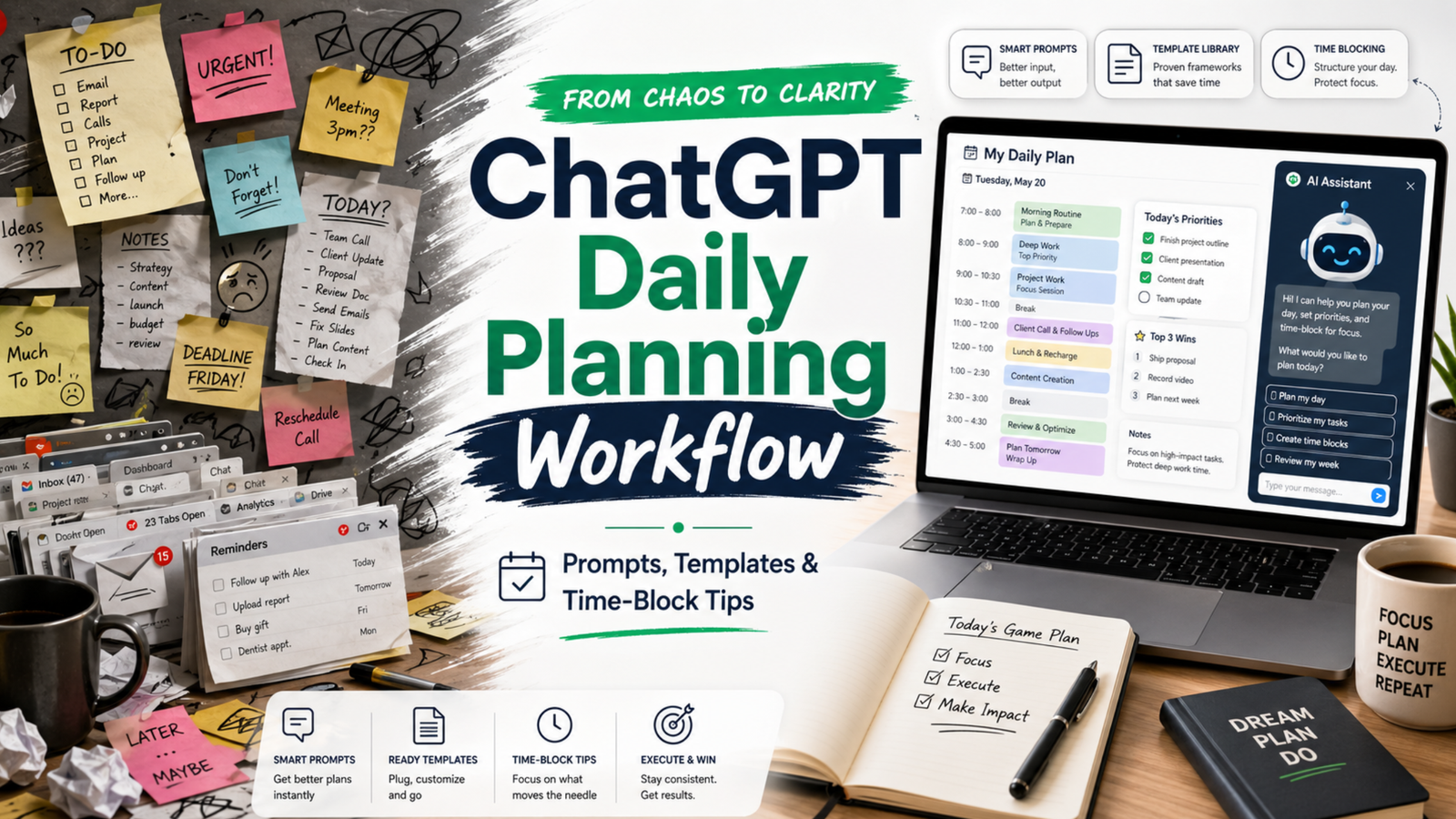
    If your day feels like a ping-pong match of pings, meetings, and shifting plans, this practical ChatGPT workflow for daily planning will help you turn noise into clear next steps. You will map what matters, time-block it, and review without spending all morning on the plan.

    Key takeaways

    • Plan in a short loop: capture, prioritize, estimate, block, and review.
    • Keep roles clear: you choose goals; ChatGPT drafts and checks; your calendar commits.
    • Use tight prompts, constraints, and tokens. Then edit for reality and energy.
    • Close the loop daily. Learn from slippage and adjust tomorrow’s plan.

    What is a ChatGPT workflow for daily planning?

    A ChatGPT workflow for daily planning is a repeatable, 15–25 minute loop that turns goals, tasks, and constraints into a time-blocked daily plan. You capture inputs, prioritize work, estimate effort, and draft a schedule. Then you sense-check the plan, commit the blocks to your calendar, and review at day’s end to improve tomorrow.

    Because it is a workflow, not a one-off prompt, it reduces friction and decision fatigue. Also, it frees your attention for deep work while still reacting to change.

    How does this fit with time blocking and GTD?

    Time blocking protects focus by giving each block a job. The approach matches the classic idea of planning your day before executing it, a practice advocated by productivity researchers and writers. For deeper context on the value of time blocking for focused work, see Cal Newport’s overview of the method and why it helps reduce context switching (Cal Newport).

    GTD (Getting Things Done) gives you trusted capture and clarity of next actions. You can use your GTD lists as the raw input for the plan (GTD basics). Meanwhile, prompt engineering guidance from vendors can improve the quality of your ChatGPT drafts (Microsoft Learn; OpenAI Custom Instructions).

    What do you need before you start?

    • A quick list of today’s candidates: meetings, deadlines, open loops, and 2–3 outcomes that matter.
    • Your calendar open, with room to block. If it is jammed, expect tradeoffs.
    • Access to ChatGPT (or any capable LLM) and your preferred note space.
    • Constraints ready: energy windows, hard stops, context limits, and must-do admin.
    Tablet showing a ChatGPT workflow for daily planning with a simple time-block layout.
    A light, clear layout makes your plan easier to trust. Photo: Jakub Zerdzicki via Pexels. Source: Pexels page.

    How to use this advice (and what to avoid)

    • Start small. Plan one key outcome plus 2–3 supporting blocks, not a perfect day.
    • Keep prompts short and specific. Limit scope and ask for estimates with a buffer.
    • Edit the draft. You own the plan; ChatGPT only offers a first pass.
    • Avoid dumping sensitive data. Use redacted text or summaries. Review your tool’s privacy policy first (OpenAI Privacy).
    • Close the loop. Do an honest review each evening in 5 minutes.

    Step-by-step daily loop

    Use this ChatGPT workflow for daily planning in five compact phases. The whole loop takes 15–25 minutes once you practice it.

    Phase 1 — Capture and clarify

    1. List hard commitments: meetings, deadlines, immovable errands.
    2. Write 1–3 outcomes that define a “good day.” Keep them specific and measurable.
    3. List possible tasks that support those outcomes. Note time guesses if you have them.

    Prompt template:

    Context: I have a standard 8-hour workday with two meetings (10:00–10:30, 14:00–15:00), and a hard stop at 17:30.
    Outcomes (ranked):
    1) Ship the draft of the product update email
    2) Make progress on Q2 roadmap (finish 2 tickets)
    3) Clear finance admin backlog (30 minutes)
    Tasks on deck (rough guess):
    - Draft email (60m), edit (30m)
    - Two roadmap tickets (60m each)
    - Finance admin (30m)
    - Inbox sweep (15m)
    - Lunch (30m)
    - Walk break (15m)
    Ask: Turn this into a prioritized plan with time estimates and 20% buffer. Ask me clarifying questions if needed.

    Phase 2 — Prioritize and right-size

    ChatGPT will return a first pass. Now guide it to sharpen the focus. Ask for tradeoffs and cuts. For example:

    Revise the plan so the top outcome is guaranteed. If needed, cut or shrink lower-value items.
    Constraints: protect one 90-minute deep work block before noon; add 20% buffer across the day.

    Reference note: Prompts that include role, task, constraints, and output format tend to perform better than vague asks. See vendor guidance for practical patterns (Microsoft Learn).

    Phase 3 — Estimate and buffer

    Ask ChatGPT for estimates only if the work is well-scoped. Otherwise, give your own base estimates and ask for a buffer suggestion. A rule of thumb is a 15–30% buffer for creative or cross-team work. Keep it simple.

    Given these tasks and my past velocity, propose conservative time estimates and a single 30-minute “overflow” block at 16:30.

    Phase 4 — Time-block the calendar

    Now move from plan to calendar. Use blocks that match the energy of the task. Put hard things earlier. Group similar work. Keep 5–10 minutes between blocks to reset. For a clear overview of time blocking’s benefits for deep work and reduced context switching, review Cal Newport’s write-up (Time blocking explained).

    Prompt template to draft blocks you will then paste into your calendar:

    Turn this prioritized plan into time blocks for 09:00–17:30 in 24-hour time.
    Rules:
    - 90m deep work on the top outcome before lunch
    - 10m buffers between blocks
    - 30m lunch at 12:30
    - 15m walk at 15:30
    Output as a table with start, end, block name, and goal.
    Core roles in a ChatGPT workflow for daily planning
    WhoOwnsExamples
    YouGoals, priorities, commitmentsPick top outcomes. Approve tradeoffs. Move blocks on the calendar.
    ChatGPTDrafts, estimates, structureSuggests order. Proposes buffers. Flags overload or conflicts.
    CalendarExecution contractHolds the blocks you commit to. Signals when to switch.

    Phase 5 — Review and learn

    Close the loop near day’s end. Compare the plan with what actually happened. Note where you under- or over-estimated. Then feed those notes into tomorrow’s planning prompt. This short review sharpens your future plans.

    Review prompt for 17:15:
    Compare the planned blocks with what I did (below). List 3 lessons about estimates or sequencing. Suggest one change for tomorrow’s plan.
    Data:
    - Planned vs. actual for each block
    - Interruptions and how long they took
    - Biggest win and biggest miss

    Prompts that work in the real world

    Use these short, constraint-first patterns. Edit names and times to fit your day.

    Prompt library for common planning moments
    SituationPromptOutput format
    Morning plan in 10 minutes Given these outcomes and meetings, propose a 09:00–17:30 plan with one 90m deep work block. Add 20% buffer and a 15m overflow at 16:30. Bullet plan + time table
    Midday course-correct It is 13:00. Rebuild the plan around these facts (below). Keep only what drives the top outcome. Put admin at the end or cut it. Revised table + cuts list
    Estimate reality check Here are my estimates. Apply a confidence score to each (high/med/low). Suggest one split or merge to improve flow. Table with confidence + notes
    Context protection Group tasks by context (design, writing, review). Order for minimal switching. Keep only 2 context types before lunch. Ordered groups + rationale
    End-of-day review Compare plan vs actual. Give 3 insights and one new rule for tomorrow (e.g., longer buffers, earlier deep work). Bullets + tomorrow rule

    What makes the plan realistic?

    • Protect one deep block early. Your energy is higher and interruptions are fewer.
    • Add a daily overflow block. Use it for spillover; if empty, pull a quick win.
    • Plan admin late. Keep your morning clean for work that moves the needle.
    • Use the Eisenhower lens. Ask: urgent or important? Cut what is neither (Matrix overview).
    • Match blocks to energy. Put creative or analytical work in your best hours.

    Reality checks that keep you honest

    1. Compare plan vs. actual weekly. Look for recurring 30–60 minute slips.
    2. Cut one thing daily. Replace it with margin, not another task.
    3. Use a simple rule: no more than 4 major blocks on a normal day.
    Focused person reviewing a time-blocked plan on dual screens after running a ChatGPT workflow for daily planning.
    Review builds judgment. Compare plan vs. actual while it is fresh. Photo: RDNE Stock project via Pexels. Source: Pexels page.

    Common mistakes and how to fix them

    • Over-planning: You draft 20 steps. Fix: plan at the outcome level, not micro-tasks.
    • No buffers: Your plan breaks on first contact. Fix: add 15–30% and one overflow block.
    • Vague prompts: ChatGPT guesses. Fix: state constraints, hour ranges, and a result format.
    • Too many contexts: You switch every 15 minutes. Fix: group by context and cap before lunch.
    • Calendar not updated: The plan lives in notes. Fix: commit blocks to your actual calendar.

    What about privacy and sensitive work?

    Do not paste confidential details. Summarize or mask names and numbers. Review your tool’s data use policy and team settings, especially if you work in a regulated role (OpenAI Privacy). If in doubt, keep sensitive planning in-house while still using the structure of this loop.

    How do I review a ChatGPT workflow for daily planning at day’s end?

    Keep it to five minutes:

    1. Mark blocks you finished, moved, or dropped. Note why.
    2. Log total time on the top outcome. Aim to protect it better tomorrow.
    3. Write one rule for tomorrow. For example, “longer buffer before 14:00 meeting.”

    Then feed those notes into your next morning prompt so your ChatGPT workflow for daily planning improves with each pass.

    Example day: turning inputs into a clear plan

    Inputs: two meetings, one key email to ship, two roadmap tickets, and finance admin. Constraints: early deep work, 20% buffer, 17:30 stop. A solid plan might look like this:

    Sample time-blocked day
    StartEndBlockGoal
    09:0010:30Deep work — draft product emailShip v1 draft
    10:3010:40BufferReset
    10:4011:10MeetingTeam sync
    11:1011:20BufferNotes
    11:2012:30Ticket 1Finish scope
    12:3013:00LunchRest
    13:0013:30Edit emailPolish and schedule
    13:3014:00Inbox sweepUnblock others
    14:0015:00MeetingStakeholder review
    15:0015:30Ticket 2Push to PR
    15:3015:45WalkReset brain
    15:4516:15Finance adminReconcile
    16:1516:30BufferPrep overflow
    16:3017:00OverflowCatch spillover
    17:0017:15ReviewPlan tomorrow

    Will this still work when the day explodes?

    Yes, if you replan fast. Use a 5-minute midday course-correct. Keep the top outcome alive and protect one block to move it forward. Push admin late. If needed, cut it.

    Can I automate parts of the loop?

    You can centralize inputs and reduce copy-paste:

    • Keep a pinned morning prompt in your notes app. Paste today’s inputs under it.
    • Save your ChatGPT workflow for daily planning as text snippets so you can load it fast.
    • Export meeting times from your calendar to paste as the day’s constraints.

    Automation helps, but do not automate judgment. You still pick the top outcomes and tradeoffs.

    Accessibility: make your plan easy to scan

    • Use short block names. Lead with the verb and the object: “Draft email v1.”
    • Keep a single cue per block. Do not cram three goals into one hour.
    • Color-code deep work, meetings, and admin.

    Daily planning checklist

    • List hard commitments and 1–3 outcomes that define success.
    • Draft a first pass with constraints and buffers.
    • Time-block the calendar and commit.
    • Do the work. Protect the top outcome.
    • Review in 5 minutes. Log one rule for tomorrow.

    Detailed examples for different days

    Not all days look the same. Therefore, build a plan that fits the shape of your hours. Here are two clear examples you can copy and adapt.

    Manager day with many meetings

    Goal: move one strategic item while keeping the team unblocked. Constraint: meetings at 09:30–10:00, 11:30–12:00, 14:00–15:30, and 16:30–17:00. Hard stop at 17:30.

    Manager prompt:

    Given these four meetings and a hard stop at 17:30, protect one 60–75m deep block before lunch to draft the QBR outline. Add 10m buffers around meetings. Push admin late. Output a table in 24-hour time.
    Manager-style sample plan
    StartEndBlockGoal
    08:4509:15Inbox triage (strict)Unblock team
    09:1509:25BufferPrep meeting
    09:3010:001:1Coaching
    10:0010:10BufferNotes
    10:1011:25Deep work — QBR outlineDraft v1
    11:2511:30BufferPrep
    11:3012:00Status meetingDecide blockers
    12:0012:30LunchRest
    12:3013:00QBR editPolish v1
    13:0013:20Slack sweepRespond
    13:2013:30BufferPrep
    14:0015:30Stakeholder reviewAlign
    15:3015:45WalkReset
    15:4516:15Admin & approvalsClose loops
    16:1516:25BufferPrep
    16:3017:00Team standupPriorities
    17:0017:20OverflowCatch spillover
    17:2017:30ReviewLessons

    Notice the early deep block and frequent buffers. As a result, the plan stays stable even with many handoffs.

    Maker day with deep focus

    Goal: ship a feature draft. Constraint: long focus windows, one demo at 15:00–15:30. Hard stop at 18:00.

    Maker prompt:

    Plan two long focus blocks for feature work (90–120m each) with a short break between them. Keep meetings wrapped in buffers. Put quick admin after the demo. Output a table in 24-hour time.
    Maker-style sample plan
    StartEndBlockGoal
    09:0011:00Deep work — implement module AWorking code
    11:0011:15BufferStretch
    11:1512:30Deep work — tests & refactorGreen tests
    12:3013:00LunchRest
    13:0013:20Inbox sweep (strict)Unblock
    13:2014:40Write docsDraft page
    14:4014:55BufferPrep demo
    15:0015:30DemoFeedback
    15:3015:45WalkReset
    15:4516:15Admin & PRsReviews
    16:1517:15Deep work — module BFinish core
    17:1517:45OverflowCatch slips
    17:4518:00ReviewPlan tomorrow

    Here the plan clusters similar work and protects long spans. Consequently, context switches drop and throughput rises.

    Troubleshooting playbook

    When the plan drifts, fix the root cause fast. Use these quick moves and prompts.

    • Estimates were off: Split the task and re-slot the next chunk. Prompt: Split “Draft whitepaper” into 2 smaller blocks with clear ends. Keep the first today, move the second to tomorrow morning.
    • Urgent interrupt: Insert a short triage block, then rebuild the next two hours. Prompt: I have a P1 issue (30–45m). Rebuild 13:00–15:00 with buffers and keep one deep block alive.
    • Low energy window: Swap in shallow work. Prompt: Replace the next 45 minutes of deep work with 2 admin tasks that still support the top outcome.
    • Meeting ran long: Cut nice-to-haves and keep the top outcome. Prompt: We lost 25 minutes. Remove the lowest-value item and add a 15m overflow at 16:45.
    • Task unclear: Add a 15-minute clarify block before you start. Prompt: Write a 5-bullet mini-brief for “Draft outreach email” so I can start fast.

    Metrics that make the habit stick

    Track a few simple numbers. Then adjust based on facts, not feelings.

    Simple weekly metrics
    MetricHow to measureTarget
    Protected deep workTotal minutes spent in planned deep blocks180–300 min/day
    Plan vs actual deltaTotal minutes off plan (over/under)< 60 min/day
    Overflow useTimes overflow saved a slip3–5/week
    Context switchesDistinct contexts before lunch≤ 2

    Review these on Friday. Therefore, next week’s plan will start stronger.

    Team workflow and handoffs

    This loop also helps teams. Share a short daily plan so others can align. Also, use the same review questions in standup.

    Standup share template:

    Top outcome today: ____
    Deep block protected: ____ (start–end)
    Risks: ____
    Asks: ____
    Overflow plan: ____

    When plans change, post a one-line update. For example: “Deep block moved to 11:00–12:15 due to incident; overflow extended.” Sharing your ChatGPT workflow for daily planning summary keeps the whole group in sync without long threads.

    Advanced tips: encode constraints for cleaner prompts

    It is easier to plan when inputs are tidy. So, hand ChatGPT a small, structured block of data. Then ask for a schedule from it.

    {
      "day": "Tue",
      "work_hours": ["09:00", "17:30"],
      "meetings": [
        {"start": "10:00", "end": "10:30", "name": "Team sync"},
        {"start": "14:00", "end": "15:00", "name": "Review"}
      ],
      "outcomes_ranked": [
        "Ship v1 of product email",
        "Finish ticket #482",
        "Finance admin (30m)"
      ],
      "rules": {
        "deep_block_before_lunch": 90,
        "buffers_minutes": 10,
        "overflow_at": "16:30",
        "lunch_at": "12:30"
      }
    }

    Follow-up prompt:

    Using this JSON, propose a time-block plan in 24-hour time. Include start, end, block name, and goal. Respect the rules and add a 20% buffer overall.

    Edge cases and how to adapt

    • Travel days: Treat transit as a long block. Then schedule low-cog tasks (inbox, notes, reading). Keep one small outcome to protect momentum.
    • Meeting-only days: Add 5–10 minute buffers after each call. Use a single 30-minute slot for one tangible outcome (even a draft).
    • Half day: Cut scope in half. However, still protect one deep block, even if it is just 45 minutes.
    • On-call or support: Plan in 60–90 minute horizons. Rebuild often. Keep a rolling overflow block for spikes.

    These tweaks keep the loop alive even when conditions are rough. In short, the habit is the power, not a perfect day.

    Source notes and further reading

    FAQs

    What is the best ChatGPT workflow for daily planning?

    The best one is the one you can run in under 25 minutes. Use five phases: capture, prioritize, estimate, time-block, and review. Protect one early deep block. Add a daily overflow block. Keep admin late.

    How many blocks should I plan in a normal day?

    Plan 3–4 major blocks and a few short ones. If you need more, your blocks are too small or your scope is too wide.

    How do I handle meetings that split my day?

    Wrap meetings with buffers and use the largest open span for deep work. If the day is chopped up, focus on smaller, high-value chunks and leave big creative work for a better window.

    Can I use this with a team?

    Yes. Share the plan summary in morning standup. Align on the top outcome. Ask teammates to flag blockers and timing risks first thing.

    Should I write prompts the night before or in the morning?

    Do a light setup the evening before, but draft the final plan in the morning when energy and context are fresh.


    Next steps

    If you want a deeper, book-length walkthrough with templates and examples, explore our AI productivity books. Start with the hub to see the full range, or jump straight to our focused guide on daily planning:

    Finally, write your rules while the day is fresh. This ChatGPT workflow for daily planning is simple, flexible, and fast—so you can plan with clarity and finish with focus.

    Free download: 7-Day Mind Clarity Reset preview

    Free download: 7-Day Mind Clarity Reset

    A short daily reset you can actually stick with (no fluff).