...

Tag: digital declutter

  • Digital Declutter Checklist: Reset Your Screens Without Overwhelm

    Digital Declutter Checklist: Reset Your Screens Without Overwhelm

    When your phone pings all day and tabs pile up, your mind never gets a true pause. This digital declutter checklist gives you a calm, step-by-step way to reset screens, files, and feeds without wiping your life. You will move from noise to clarity, one small, confident action at a time.

    Key takeaways before you start

    • Back up first so you can delete with confidence.
    • Cut notifications to only what you must act on now.
    • Use one simple folder system across devices.
    • Build tiny upkeep habits so clutter does not return.
    • Protect attention with Focus/Do Not Disturb modes and clear app limits.

    Digital Declutter Checklist: Quick Start

    If you only have 30 minutes, this digital declutter checklist gets you a fast win and visible relief.

    1. Silence the noise: Turn on Focus/Do Not Disturb for one hour.
    2. Close chaos: Bookmark open tabs you still need, then close all tabs.
    3. Clear space: Empty Trash/Recycle Bin and delete Downloads older than 30 days.
    4. Tame your phone: Move only your 4Γ’β‚¬β€œ6 daily apps to the dock; move the rest off your first screen.
    5. Email triage: Unsubscribe from 10 lowΓ’β‚¬β€˜value senders; archive the rest.
    6. Set a rule: Create one new inbox filter or rule that files newsletters automatically.

    What is a digital declutter checklist?

    A digital declutter checklist is a focused list of actions that reduces screen noise, cleans storage, and protects attention. It turns a fuzzy goalÒ€”Ò€œget organized onlineÒ€Ò€”into small moves you can finish today. Because interruptions and clutter tax working memory and raise error risk, a simple process helps you make fewer, better decisions. Research shows interruptions and task switching degrade performance and increase time to complete work (Nielsen Norman Group) and carry measurable switching costs (American Psychological Association).

    If your main goal is to cut total daily screen hours, start with our guide to ways to reduce screen time. This digital declutter checklist is narrower: it helps you clean the digital environment itself so your devices feel calmer and easier to use.

    Set your scope and rules up front

    Decide your limits before you sort. That way, choices get easier and faster. First, set a time box. Work in short passes: 25Γ’β‚¬β€œ30 minutes, then a break. Next, pick a target area for today: phone home screen, inbox, or filesÒ€”one at a time. Finally, write down three simple rules you will follow.

    Rule 1: One home screen, one dock. Only daily tools live here. Everything else moves to folders or the app library. Because this trims choice, you save time each unlock.

    Rule 2: One folder map across devices. Mirror the same topΓ’β‚¬β€˜level names on your computer and cloud drive. Consistency cuts search time and prevents reΓ’β‚¬β€˜sorting later.

    Rule 3: Two message windows per day. Check email and chat at set times (for example, 11:30 a.m. and 4:30 p.m.). Outside those windows, use Focus/DND. If you must stay reachable, allow exceptions for key people and calls.

    Before you touch apps, capture your digital declutter checklist in three rules like these. Put them on a sticky note or a note pinned in your task app. Then start. Small, steady moves win.

    Backup steps for your digital cleanup checklist

    Before bulk deletes, make a fresh backup so you can move faster with less fear.

    • Computer: Create a system image or full userΓ’β‚¬β€˜folder backup to an external drive.
    • Phone: Ensure iCloud or Google One backup is current.
    • Cloud: Export a copy of critical folders to local storage.

    Why it matters: Backups protect you from accidental loss and ransomware. See guidance on regular backups from CISA (U.S. Cybersecurity & Infrastructure Security Agency).

    Device and account audit for this screen declutter plan

    Start with the places that hit your attention every hour. Then sweep the rest.

    Phone home screen: Keep only everyday tools on page one; everything else moves to labeled folders.

    Notifications: Off by default. Turn on only for timeΓ’β‚¬β€˜critical people, calls, or logistics.

    Email: Unsubscribe and filter. Make your inbox a toΓ’β‚¬β€˜do, not a storage unit.

    Downloads/Desktop: Clear or file everything into a simple folder tree.

    Browser: Close stacks of tabs. Capture anything still needed into bookmarks or a reading queue.

    Photos: Remove obvious duplicates and screenshots. Add albums for key life areas.

    Security: Turn on 2FA. Update weak or reused passwords.

    How do you calm notifications without missing what matters?

    Notifications are not all equal. You need only a few to reach you now. The rest can wait in an inbox or app badge.

    Goal iPhone/iPad Android
    Silence nonΓ’β‚¬β€˜urgent alerts Use Focus to allow only specific people/apps (Apple Support) Use Do Not Disturb with exceptions (Android Help)
    Batch the rest Schedule a Summary for lowΓ’β‚¬β€˜priority apps Set Notification categories to Silent
    Stop lockΓ’β‚¬β€˜screen hijacks Turn off Time Sensitive for nonΓ’β‚¬β€˜essentials Disable popΓ’β‚¬β€˜ups; allow badges only

    Tip: Allow messages and calls from your inner circle. Also allow calendar alerts for travel or meetings. However, block social, shopping, and news pings; check them on your terms.

    Home screens: tidy layout in your device declutter guide

    Less on the screen means faster choices. Design your first screen like a calm desk.

    • Dock: Phone, messages, calendar, maps, notes, and your task appÒ€”no more than six.
    • First page: Create two rows of your top eight tools.
    • Folders: Group by verbÒ€”Read, Create, Money, LearnÒ€”instead of brand names.
    • Widgets: Keep one glanceable widget if it truly saves time (calendar, toΓ’β‚¬β€˜do, timer).
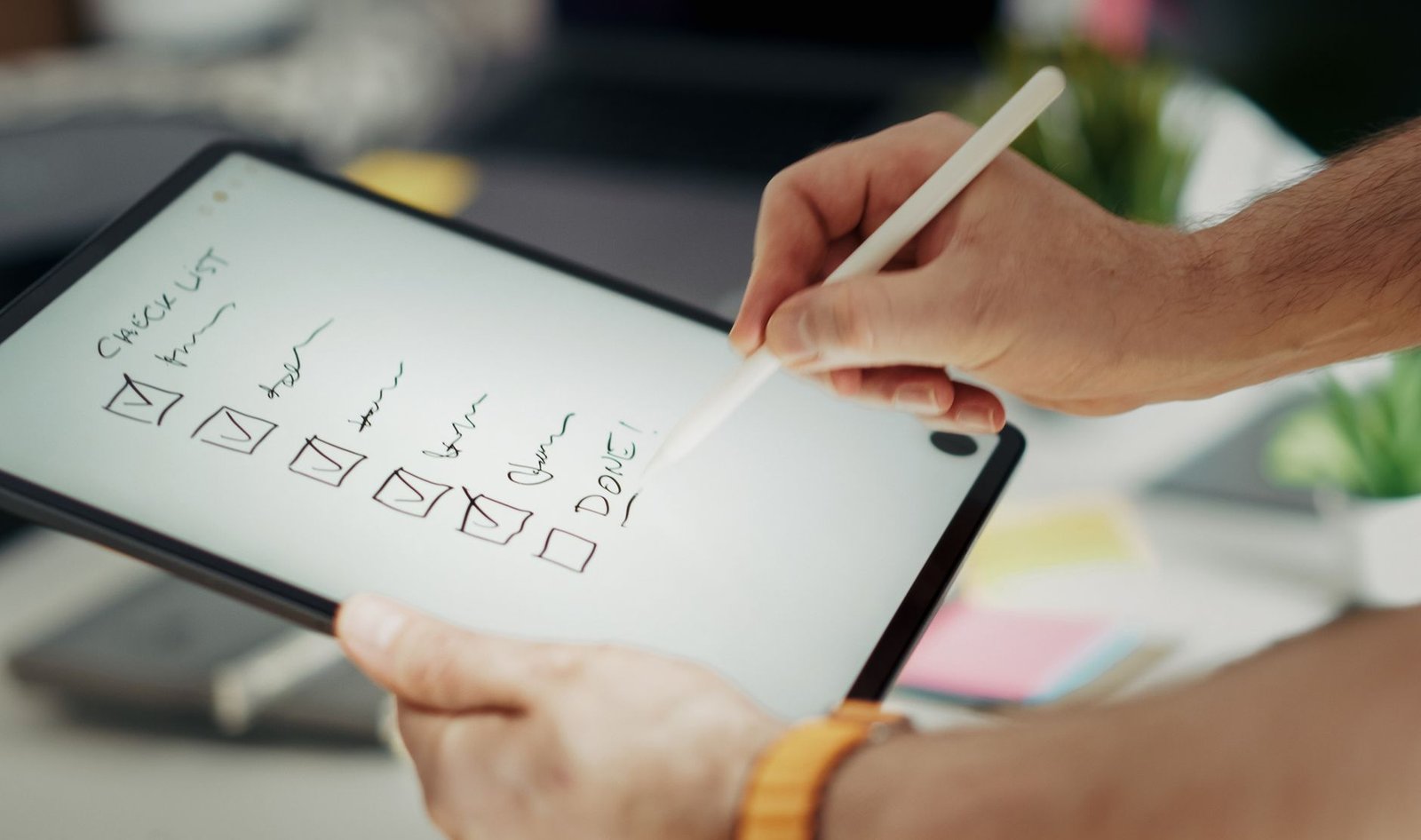
    Using a digital declutter checklist to streamline a tablet home screen with only essential apps.
    Streamline your first screen so choices are fast. Photo: Jakub Zerdzicki via Pexels (source).

    Use your email for action, not storage

    Email becomes calm when you make it automatic and shortΓ’β‚¬β€˜lived.

    • Create one filter that files newsletters to a β€œRead Later” label/folder (Gmail filters).
    • Unsubscribe from at least 10 senders today.
    • Archive messages after you act; do not keep a crowded inbox as a reminder list.
    • Use canned replies for routine requests.

    Templates you can copy:

    Goal Gmail example Outlook example
    Newsletters to Read Later Match: has:newsletter OR category:promotions; Action: Skip Inbox, Apply label β€œRead Later” Condition: Subject includes β€œunsubscribe”; Action: Move to β€œRead Later”
    Receipts and invoices to Finance Match: subject:(receipt OR invoice) OR from:(no-reply@paypal.com); Action: Apply label β€œFinance”, Mark as read Condition: Subject contains β€œreceipt” or β€œinvoice”; Action: Move to β€œFinance”
    VIP always visible Match: from:(boss@example.com OR team@company.com); Action: Star, Never send to Spam Condition: From contains key contacts; Action: Mark as Important

    Rule of thumb: If an email will take under two minutes, do it now. If it takes longer, move it to your task app with a due date.

    A digital declutter checklist for files and folders

    Files clutter drives your attention too. Build one simple structure, then stick to it across devices.

    Action Examples Result
    Delete Duplicates, installers, old screenshots Instant space gain and faster search
    Keep Active projects, legal docs, current receipts Easy access to what you use now
    Archive Past years, finished work, tax receipts Out of sight but safe for reference

    Folder map idea:

    • Home/Work split at the top level.
    • Inside each: 01-Admin, 02-Finance, 03-Projects, 04-Assets, 05-Archive.
    • Use dates like 2026-05-14 for sortable names.

    Now sweep: Clear Desktop into Projects or Archive. Empty Downloads except installers you still need.

    Naming rules that save clicks

    Clear, consistent names make search and sorting effortless. Use short words, dates, and versions. Avoid spaces when tools are picky; hyphens and underscores are safe. Most of all, keep the pattern the same everywhere.

    Pattern Example When to use
    YYYY-MM-DD_Project_Name 2026-05-14_Project-Brief.docx Daily notes, briefs, and logs you sort by date
    Area-Topic_v## ClientA-Proposal_v03.pdf Anything with versions; keeps the latest obvious
    Type_Project_Asset IMG_ProjectA_Header_1920x1080.png Design/media assets where size matters

    Tip: When you export files from apps, rename them at once. Then file them into your map. This twoΓ’β‚¬β€˜step loop keeps your system clean by default.

    Photos and media: a device declutter guide

    Photos should spark memory, not guilt. Start with easy wins.

    • Delete recent duplicates and throwaway screenshots.
    • Create three simple albums: Family & Friends, Work & Docs, Travel & Places (or your life roles).
    • Set automatic upload so you never think about backups.
    • Use Ò€œFree up spaceÒ€ after upload on your phone (Google Photos help).

    Do a 15Γ’β‚¬β€˜minute sweep each month. Small passes beat heroic onceΓ’β‚¬β€˜aΓ’β‚¬β€˜year efforts.

    Reviewing a digital declutter checklist while organizing photos and documents on a tablet.
    Keep photos meaningful. Remove duplicates and file the rest into a few clear albums. Photo: Jakub Zerdzicki via Pexels (source).

    Smarter browsing for your screen declutter plan

    Tabs are not a toΓ’β‚¬β€˜do list. They are a tax. Turn clutter into lists you control.

    • Close all tabs after saving active ones to a single β€œNext” folder.
    • Use a readΓ’β‚¬β€˜itΓ’β‚¬β€˜later app or your browserÒ€ℒs reading list for long articles.
    • Bookmark by verb or outcome (β€œResearch”, β€œBuy soon”, β€œLearn”) instead of site names.
    • Set your browser to open a calm start page, not yesterdayÒ€ℒs tab pile.

    Security basics in your digital cleanup checklist

    Peace of mind is part of clarity. A few moves raise your baseline security fast.

    • Use a password manager to create long, unique passwords; this aligns with modern guidance for memorized secrets (NIST SP 800Γ’β‚¬β€˜63B).
    • Turn on twoΓ’β‚¬β€˜factor authentication (2FA) wherever possible (National Cybersecurity Alliance).
    • Review app permissions quarterly; remove camera, mic, and location access that apps do not need.
    • Update your OS and apps; schedule autoΓ’β‚¬β€˜updates outside work hours.

    Also review recovery info. Confirm your recovery email and phone number are current. Store backup codes in your password managerÒ€ℒs secure notes.

    Platform recipes: Focus and Do Not Disturb

    iPhone and iPad: Open Settings > Focus. Create a Work Focus and a Personal Focus. Allow calls from Favorites and your team as needed. Add only essential apps to Allowed Notifications. Then, under Focus Filters, hide personal calendars during Work and mute work email in Personal. Finally, schedule each Focus to turn on at set times or when you arrive at key locations.

    Android: Open Settings > Notifications > Do Not Disturb. In Schedules, set work hours and sleep hours. Add exceptions for calls from starred contacts. Then visit perΓ’β‚¬β€˜app settings to demote social and shopping alerts to Silent. If your phone supports it, use Modes or Routines to switch wallpapers, enable Dark theme, and adjust volume when DND activates. This gives a clear visual cue and saves taps.

    After setup, test it. Ask a friend to message you from a nonΓ’β‚¬β€˜priority app. You should see nothing during DND. Then send a call from a priority contact. It should come through. Tweak until it fits your day.

    Calm your feeds: social, news, and subscriptions

    Unfollow and mute: Trim accounts that spark stress or lowΓ’β‚¬β€˜value scrolling. Keep a short list of people and topics you truly care about. Because your feed trains your attention, choose what it teaches you.

    Stop autoplay: Turn off autoplay video in each app. This one switch returns minutes per session and cuts the urge to binge.

    Replace doomscroll time: Keep a goalΓ’β‚¬β€˜tied reading list. Queue longΓ’β‚¬β€˜form pieces that serve your work or learning. Open that list when you catch yourself opening a feed.

    Consolidate newsletters: Send them to one folder with a rule. Review weekly. If you skip an author three weeks in a row, unsubscribe.

    Cloud cleanup and one clear folder tree

    Using one structure across services keeps your brain from context switching. Mirror your local folder map in your cloud drive.

    Top Folder Examples Action
    01-Admin ID scans, HR docs, policies Keep; set readΓ’β‚¬β€˜only for originals
    02-Finance Invoices, receipts, taxes Archive by year; encrypt sensitive files
    03-Projects Current work, drafts, assets Keep active; archive finished items
    04-Assets Logos, templates, photos Standardize names; dedupe
    05-Archive Past clients, old versions Zip and store; remove from search scope

    See the whole flow at a glance

    1. Pause

    Focus/DND on

    2. Backup

    Phone Ò€’ Computer Ò€’ Cloud

    3. Reduce

    Notifications Ò€’ Tabs Ò€’ Trash

    4. Organize

    Home screens Ò€’ Folders Ò€’ Filters

    5. Protect

    Password manager Ò€’ 2FA Ò€’ Updates

    6. Maintain

    Daily 5 Ò€’ Weekly 20 Ò€’ Monthly 60

    This simple visual mirrors the steps in your plan. Move left to right, then loop back for quick upkeep passes.

    Upkeep routines for your digital cleanup checklist

    Habits keep your gains. Make them tiny, timed, and tied to routines you already do.

    Daily 5 minutes

    • Clear todayÒ€ℒs screenshots and downloads.
    • Archive or reply to any email that takes under two minutes.
    • Check your calendar and top 3 tasks for tomorrow.

    Weekly 20 minutes

    • Run updates on phone and computer.
    • Sweep your desktop and inbox to zero or to a short action list.
    • Review Focus/DND exceptions; remove noisy apps.
    • Add the digital declutter checklist to a recurring reminder.

    Monthly 60 minutes

    • Photo sweep: delete dupes, file the rest into albums.
    • Cloud drive sweep: archive finished projects.
    • Browser sweep: clear old bookmarks and reading list items.
    • Security sweep: rotate any weak or reused passwords; verify 2FA backup codes.

    Measure your progress

    What you track improves. Pick a few simple metrics and review them after two weeks. Then adjust your rules. After two weeks, compare numbers to the day you started this digital declutter checklist.

    Metric How to measure Good target
    Notifications per day Check weekly average in Screen Time/Digital Wellbeing Down 30Γ’β‚¬β€œ50%
    Inbox at dayÒ€ℒs end Count messages in Inbox at 5 p.m. < 20, with rules handling the rest
    Files on Desktop Count items each Friday < 10, all current
    Open tabs Count before shutdown < 8, all active

    If a target feels hard, lower it. Then raise it again next month. Progress over perfection.

    Automation ideas: small helpers, big win

    Automation keeps clutter from growing back. Start with one helper per area.

    Email: Add a second rule that files shipping updates and receipts to Finance. Star VIPs. Everything else can wait for your two windows.

    Files: Use your OS to autoΓ’β‚¬β€˜move new screenshots to a Screenshots folder. On export, your editor can write to the right folder and name patternÒ€”set that once.

    Mobile routines: Schedule Focus/DND and Sleep modes. Let your device change wallpapers and hide badges at night. A visual shift lowers the urge to check.

    Notes and scans: Set your scanner app to save PDFs straight into 01Γ’β‚¬β€˜Admin or 02Γ’β‚¬β€˜Finance. Name them with dates by default. Less dragging, fewer piles.

    Example walkthrough: a one-hour reset

    Minutes 0Γ’β‚¬β€œ5: Turn on Focus/DND. Start a timer for 25 minutes. Open your cloud or external drive and confirm backups are current.

    Minutes 5Γ’β‚¬β€œ15: Home screen. Move only six daily apps to the dock. Create two rows of top tools. Everything else goes into four verbΓ’β‚¬β€˜named folders.

    Minutes 15Γ’β‚¬β€œ25: Notifications. Allow calls and messages from favorites. Demote social, shopping, and news to Silent. Turn off lockΓ’β‚¬β€˜screen banners for nonΓ’β‚¬β€˜essentials.

    Break 5 minutes: Stand, breathe, drink water. Short breaks help you think better.

    Minutes 30Γ’β‚¬β€œ45: Inbox. Create a Read Later rule for newsletters. Unsubscribe from ten senders. Archive everything older than last week that does not need action.

    Minutes 45Γ’β‚¬β€œ55: Files. Clear your Desktop into Projects or Archive. Delete junk from Downloads older than 30 days.

    Minutes 55Γ’β‚¬β€œ60: Browser. Save active tabs to a single Next folder. Close all tabs. Set a clean start page.

    Results: Fewer pings, a calmer first screen, and an inbox that can breathe. Next, schedule your weekly 20 and monthly 60. Small loops keep gains alive.

    Accessibility and energy settings that help focus

    Comfort supports attention. If screens feel harsh, try Dark mode or reduce white point (iOS) or enable Dark theme and color correction (Android). Lowering motion and parallax can also help some people feel calmer.

    Consider turning off icon badges for nonΓ’β‚¬β€˜essential apps. Badges act like red stop signs. If you need reachability, keep badges only for messages, calendar, and calls. Everything else can wait for your review windows.

    Finally, enable Low Power/Power Saving modes during deep work. You will get fewer background refreshes and, often, fewer distractions.

    When should you run a digital declutter checklist?

    Use it when friction rises. If you hesitate before tapping your phone or dread your inbox, it is time. Also, run it before a new season or big project. Fresh structure makes deep work easier.

    Troubleshooting: when clutter keeps coming back

    If your system drifts, the cause is usually scope or rules. First, your scope may be too big. Shrink it to one screen or one folder. Then schedule a 20Γ’β‚¬β€˜minute loop. Next, your rules may be unclear. Rewrite them in one line each and pin them. Finally, your devices may not match. Mirror your folder map and favorites across phone and computer so moves feel the same.

    When in doubt, return to the steps in your plan. Reset Focus/DND, clear one surface (screen, inbox, or desktop), and archive what is done. Repeat next week. Consistency beats intensity.

    Common pitfalls to avoid

    • Deleting before backing up. Always back up first.
    • Organizing before reducing. First remove, then sort.
    • OverΓ’β‚¬β€˜labeling folders. Names should be short and obvious.
    • Letting exceptions pile up. Review Focus/DND rules monthly.
    • Making it a weekend marathon. Short, regular passes win.

    Practical examples for fast wins

    Rename with dates: Use a YYYYΓ’β‚¬β€˜MMΓ’β‚¬β€˜DD prefix so files sort by day. Example: 2026Γ’β‚¬β€˜05Γ’β‚¬β€˜14_ProjectΓ’β‚¬β€˜Brief.docx.

    One Intake folder: Save all new files to a single Intake spot. Then sort during your weekly 20 minutes.

    One task app: Move todos out of notes and email. Create tasks with clear verbs and due dates.

    Close tabs with a timer: Set 10 minutes. Save the keepers to a Next folder. Close the rest without guilt.

    Will this work across work and personal life?

    Yes, because it is principleΓ’β‚¬β€˜based. You apply the same steps to both, but keep them separate in your folder tree and calendars. Boundaries reduce accidental leakage and stress.

    References and further reading

    The Cost of Interrupted Work (Nielsen Norman Group)

    Multitasking: Switching Costs (American Psychological Association)

    The Importance of Backing Up Your Data (CISA)

    Use Focus on iPhone (Apple Support)

    Use Do Not Disturb on Android (Google Support)

    Digital Identity Guidelines: Authentication and Lifecycle (NIST SP 800Γ’β‚¬β€˜63B)

    Enable TwoΓ’β‚¬β€˜Factor Authentication (NCA)

    Free Up Space in Google Photos (Google Support)

    Create Rules and Filters in Gmail (Google Support)

    FAQ: device declutter guide

    How often should I run a digital declutter checklist?

    Run a light pass weekly and a deeper pass monthly. Also, run it before large projects or season changes, when your tools and focus need a reset.

    What should I declutter first?

    Start with notifications and your first phone screen. Those hit your attention all day. Then sweep your inbox, desktop, and Downloads.

    Will deleting apps speed up my phone?

    It can help if storage is tight or background activity is heavy. The bigger win is fewer interruptions and faster choices on your home screen.

    How do I choose what to delete vs. archive?

    Delete duplicates, installers, and throwaway files. Archive finished projects and records you may need later. Keep only current work at hand.

    What if I work in a regulated industry?

    Follow your organizationÒ€ℒs retention rules first. When in doubt, archive with clear labels and dates, and confirm policies before deletion.

    Next steps for deeper focus

    Want to go further with calm attention and digital clarity? Explore our book recommendations and inΓ’β‚¬β€˜depth reviews for building a focused reading plan that sticks:

    WrapΓ’β‚¬β€˜up

    Clarity grows when your tools get simpler. Use this digital declutter checklist to reset, then protect your gains with tiny upkeep. As your screens quiet down, your mind gets room to think.

    Helpful resources for your next step

    Affiliate disclosure: As an Amazon Associate, Mind Clarity Hub may earn from qualifying purchases at no extra cost to you. Use this link only if it genuinely helps your planning.

    If Digital Declutter Checklist: Reset Your Screens Without Overwhelm is a routine you want to keep using, a simple workbook, planner, or desk tool can make the steps easier to repeat.

    Compare related planners, workbooks, and organization tools on Amazon.

  • A Quarterly Google Photos Declutter Workflow That Actually Sticks

    A Quarterly Google Photos Declutter Workflow That Actually Sticks

    If your camera roll feels like a bottomless pit, a quarterly google photos declutter workflow for overwhelmed libraries can change everything. This simple cycle helps you cut obvious waste, keep the best shots easy to find, and stop re-clutter before it starts. You will use one focused 45-minute sprint, clear rules, and light maintenance to make your library feel calm again.

    Key takeaways

    • Use one 45-minute sprint each quarter to reduce decision fatigue and make real progress.
    • Surface likely duplicates and near-duplicates with focused searches, face groups, and date ranges.
    • Prune bursts, choose a single best shot, and archive the rest so your timeline breathes.
    • Create seasonal albums and name them with year + season for fast recall and sharing.
    • Use Archive vs Delete on purpose: Archive hides clutter; Delete reclaims storage.
    • Clean shared albums each quarter so only the right people see the right photos.

    How to use this guide (and what to expect)

    This is a practical, repeatable plan. You will not catalog every image. Instead, you will reclaim control with a few high-impact moves and a timer. The first run may take a bit longer because you learn the moves. Later runs will be faster. Because the steps are clear, you can stop at any point and pick up next quarter without losing the thread. If you forget a step, scan the headings that mention the quarterly google photos declutter workflow for overwhelmed libraries and jump back in.

    What you need: A computer with Google Photos web, your phone with Google Photos app, a stable connection, and 45 minutes without interruptions. Optional: a second screen for reference.

    Quarterly cycle overview

    Quarterly cleanup mini-map: 5 fast passes in one 45-minute sprint
    Five-step loop: Duplicates, Bursts, Season Albums, Archive vs Delete, Shared Album Hygiene Duplicates Bursts Season Albums Archive vs Delete Shared Hygiene

    What is a quarterly google photos declutter workflow for overwhelmed libraries?

    It is a simple, repeatable set of actions you run every three months. You do five fast passes: find likely duplicates, prune bursts, file a few seasonal albums, choose Archive or Delete, and clean shared albums. Because it happens on a set cadence, you avoid constant micro-decisions. As a result, your library improves in steady steps.

    Why a quarterly google photos declutter workflow for overwhelmed libraries beats daily tinkering

    Daily tinkering feels busy but often changes little. A quarterly run gives you distance from the emotion of recent photos. Also, it packs momentum into one block so you notice progress. Finally, it leaves you free to enjoy taking pictures without guilt between sprints.

    Where this quarterly google photos declutter workflow for overwhelmed libraries fits in your year

    • Q1 (Jan–Mar): Clean the holidays and new-year energy. Start albuming winter and early spring.
    • Q2 (Apr–Jun): Cull spring events and travel. Name summer placeholders early.
    • Q3 (Jul–Sep): Trim summer bursts. Prep back-to-school/fall albums.
    • Q4 (Oct–Dec): Tighten fall events. Set a light plan for the holidays so you can be present.

    Before you start: safety checks and quick setup

    Do a quick risk check before you delete anything. Backups matter. Also, confirm space so you see wins.

    Prep Why it helps How
    Confirm backup status Protects you from one-tap mistakes See Google Photos Help: Back up your photos and videos official guide
    Check storage Motivates pruning and prevents sync errors Use Google One storage manager how to manage storage
    Optional export Gives you a safety snapshot before big cuts Download a copy with Google Takeout export your data
    Focused 45-minute photo cleanup to lower stress in Google Photos
    Set a 45-minute timer. Fewer choices creates calmer, better choices.

    Image credit: www.kaboompics.com via Pexels. Source: Pexels photo 5899096.

    Quarterly google photos declutter workflow for overwhelmed libraries: the 45‑minute sprint

    Use a single block. Keep your phone nearby for quick checks. Also, stay in Google Photos web for speed.

    Minute Focus Actions
    0–5 Warm-up Open Google Photos on web and set a 45-minute timer. Go to Search and scan face groups and categories to target the quarter you want.
    5–15 Surface likely duplicates Use Search filters (People, Places, Things, and type) to find near-duplicates. Sort by month or select a date range. Delete obvious dupes and keep one best.
    15–25 Burst pruning Open bursts and pick one keeper. Archive the rest to unclutter the main timeline.
    25–35 Seasonal albuming Create or update 2–3 seasonal albums with year + season names like β€œ2025 β€’ Spring”. Add only 20–40 shots per season.
    35–40 Archive vs Delete Send screenshots, receipts, or blurry photos to Archive or Delete. Use Archive to hide noise and Delete to free space.
    40–45 Shared album hygiene Review shared albums. Remove viewers who no longer need access and fix link sharing. Add captions to your top 5 photos while you still remember details.

    Stop when the timer ends. Because this is quarterly, you will pick up again in three months.

    Rules that make the quarterly google photos declutter workflow for overwhelmed libraries stick

    Clear rules reduce second-guessing. Therefore, decide once and use the same rules every quarter.

    • Keeper test: If a photo tells a story you would share next year, keep it. Otherwise, archive or delete.
    • One scene, one frame: If several frames show the same moment, keep the strongest and remove the rest.
    • Screenshots and receipts: Archive if you might need them; delete if they are one-off and redundant.
    • Star the β€œyear highlights”: Tap the star on your top 12 photos per year. Later, they are easy to find and print.
    • Captions beat tags: One line of context helps more than a pile of labels.
    • Two-touch rule: If an action needs more than two touches on mobile, defer it to the web sprint.

    Because your rules are simple, the quarterly google photos declutter workflow for overwhelmed libraries becomes a habit you can trust even when your library is huge.

    How do I surface duplicates fast without losing my mind?

    Most β€œduplicates” are near-duplicates: multiple angles of the same scene or burst sequences. Your goal is not to find every duplicate across time. Instead, cut the obvious ones in recent clusters so your best shots shine.

    Use targeted searches to pull clusters

    • Search by People, Places, or Things. This groups similar photos in seconds. See the official search features: Search in Google Photos.
    • On web, open a month from your quarter. Then scan rows for near-duplicates like multiple group shots taken back-to-back.
    • Use type filters like β€œScreenshots” to clear junk first. This quick win builds momentum.

    Batch-select with fewer clicks

    • On desktop, click the first photo, then Shift+Click the last to select a range.
    • On Windows or Mac, hold Ctrl (Windows) or Command (Mac) while clicking to toggle single images within a range.
    • For browser zoom, press Ctrl/Cmd with + or βˆ’ to adjust the view. Reset with Ctrl/Cmd+0.
    • Use the Trash icon to move selected items to the bin. Later, empty the bin when ready. Reference: Delete or restore photos and videos.

    Work in short sets of 20–40 images. Because your attention is fresh, you will choose the best faster and with less regret.

    What about bursts and live-action sequences?

    Bursts eat space and hide favorites. The fix is simple: choose one story-telling frame, then hide or delete the rest.

    1. Search your target month. Look for clusters of very similar thumbnails or items labeled as a burst.
    2. Open the set. Pick the sharpest frame with the best faces. If two are tied, choose the one that best tells the moment.
    3. Archive the rest. If you need one more for a quick comparison later, keep two and archive others so they stay out of the main view. Learn more about archiving: Archive photos & videos.

    Because Archive keeps images available for search and albums, you can still find those alternates when you need them.

    How do I album by season without sinking hours?

    Seasonal albums work because they set a natural cap. You resist turning every trip into a 400-photo highlight reel. You create a quick, human-sized summary instead.

    Fast album rules that stick

    • Name with year + season: β€œ2025 β€’ Spring”. Use a bullet or dash for clarity.
    • Cap at 20–40 photos per season. This forces focus.
    • Add only the best frame from any scene. Avoid near-duplicates.
    • Write 1–3 short captions on key moments so future you remembers context.

    You can create and manage albums on web or mobile. For official steps, see Create, find, and edit albums in Google Photos.

    Seasonal Google Photos declutter: cadence that feels natural

    • Begin each season with a placeholder album name like β€œ2025 β€’ Autumn” so it is ready when highlights appear.
    • After a big event, add only 3–5 anchors right away. Later, fill to 20–40 if it still feels meaningful.
    • Every quarter, swap the album cover to your favorite shot so sharing looks great.
    A quarterly google photos declutter workflow for overwhelmed libraries shown as a calm, well-ordered home library
    Seasonal albums create a calm β€œlibrary” inside your library.

    Image credit: Juan Pablo Serrano via Pexels. Source: Pexels photo 877971.

    Archive vs Delete: which should I use when?

    Use both on purpose. Each solves a different problem.

    Choice Best for Effect Reference
    Archive Hiding clutter (receipts, menus, whiteboard shots) you still may want Removes from main Photos view but keeps in search and albums Google Photos: Archive
    Delete Blurry shots, accidental snaps, true duplicates you do not need Moves to bin for 60 days, then frees storage permanently Google Photos: Delete or restore
    Free up space Clearing device copies safely after backup Removes local device copies already backed up; cloud copies stay Google Photos: Free up space

    When in doubt, Archive first. Then, use Delete for clear junk and confirmed duplicates. Because the bin holds items for a time, you can recover mistakes if needed.

    Shared album hygiene: how do I keep privacy and order?

    Shared albums drift over time. People change, groups change, and links leak. A five-minute check each quarter keeps things safe and tidy.

    • Open a shared album, tap or click the three-dot menu, and check Sharing options.
    • Turn off link sharing unless you need it. Then add only people who still need access.
    • Remove viewers who no longer need the album. This protects others’ privacy too.
    • Rename the album if the purpose changed. Then pin it if you use it often.

    For official steps across devices, see Google Photos Help on sharing albums: Create, find, edit, and share albums.

    Quarterly Google Photos cleanup workflow: speed boosts that matter

    Small input changes add flow. Moreover, a few habits make the sprint feel even lighter.

    • Use the Favorites star while you browse. Favorites are easy to batch-add to seasonal albums later.
    • Switch the grid size on web to see more at once. A wider view makes duplicates easier to spot.
    • Open the Info pane (i) to check dates and locations when frames look similar.
    • Sort by β€œRecently added” after importing old photos to spot clusters created by imports.

    What keyboard moves and taps speed this up?

    Use range selection and light-touch gestures.

    • On desktop, click the first image in a cluster, then Shift+Click the last to select a range.
    • On Windows or Mac, hold Ctrl (Windows) or Command (Mac) to add or remove single photos from a selection.
    • For browser zoom, press Ctrl/Cmd with + or βˆ’ to adjust your view. Reset with Ctrl/Cmd+0.
    • On mobile, long‑press the first photo, then drag to select more in a sweep.
    • On mobile, pinch to zoom your grid in or out while you scan.

    Because you work in batches, you reduce clicks and decision fatigue. Combine these moves with the 45-minute timer for fast focus.

    Set up a Google Photos quarterly declutter plan in Settings

    Light automation prevents re-clutter. First, review backup options. Next, tune what goes into your camera roll.

    • Backup quality: Choose the quality that fits your storage plan. Reference: Back up your photos and videos.
    • Messaging apps: Turn off auto-save from chats that flood your gallery with memes and forwards.
    • Screenshots: Clear them monthly so your quarterly sprint stays fun and small.
    • Pinned albums: Pin the current season so adding new highlights takes two taps.

    Example: run the quarterly google photos declutter workflow for overwhelmed libraries on a busy month

    Imagine you return from a weekend trip and a birthday party in the same month. Here is how to apply the plan end to end.

    1. First, target the month. Use People and Places to pull the trip and party clusters.
    2. Next, remove near-duplicates. For group photos with five similar shots, pick the one where most faces look relaxed.
    3. Then, open bursts from the party’s cake moment. Choose the single frame with the clearest candles and smiles. Archive the rest.
    4. After that, add 25–30 highlights to β€œ2025 β€’ Spring”. Mix home life with the trip so the season feels balanced.
    5. Now, archive screenshots, boarding passes, and menus. Delete blurry shots to free space.
    6. Finally, check the β€œFamily β€’ Spring Events” shared album. Remove old viewers and turn off the share link between events.

    Because you followed the quarterly google photos declutter workflow for overwhelmed libraries, you end with a tighter timeline, a solid seasonal album, and better privacy.

    Troubleshooting your quarterly google photos declutter workflow for overwhelmed libraries

    Snags happen. Fortunately, most issues are quick to fix.

    • Uploads feel stuck: Confirm Wi‑Fi, then pause/resume backup. Large videos can queue for a while.
    • Dates look wrong: Imported scans or files can have mismatched dates. Open Info (i) and edit the date so they group correctly.
    • Too many screenshots: Filter by type β€œScreenshots” first. Archive in bulk and move on.
    • Live Photos vs videos: If motion versions clutter your view, pick the still you like and archive alternates.
    • Duplicate imports: Avoid enabling two auto-uploaders on the same device. Choose one system to prevent echoes.

    Quarterly google photos declutter workflow for overwhelmed libraries: checklist you can print

    • Set a 45-minute timer.
    • Open Google Photos on web.
    • Target one quarter (Jan–Mar, Apr–Jun, Jul–Sep, Oct–Dec).
    • Search by People or Places to pull tight clusters.
    • Clear screenshots and receipts first (Archive or Delete).
    • Prune bursts: keep one, archive rest.
    • Create or update two seasonal albums.
    • Write 1–3 captions on key shots.
    • Review shared albums and fix access.
    • Empty the bin when ready and safe.

    Storage wins without stress

    When storage runs low, act calmly and in order.

    • Run the sprint first. Removing near-duplicates and blur often frees space quickly.
    • Use β€œFree up space” on devices after backup completes. Reference: Free up space.
    • Review large videos. If they do not matter, delete them to reclaim space fast.

    Can I automate anything so next quarter is easier?

    A few choices prevent re-clutter. They take minutes now and save hours later.

    • Review backup settings and quality. Choose the quality that fits your storage plan. Reference: Back up your photos and videos.
    • Turn off auto-save from messaging apps that dump images into your camera roll.
    • Add a monthly 5-minute micro-pass: clear screenshots and documents so your quarterly sprint stays fun.
    • Pin your seasonal albums so adding new favorites takes two taps.

    What if I have years of backlog?

    Start with the current quarter only. That gives you fresh wins and reduces new clutter. Next time, add a small β€œbacklog slice” like β€œ2018 β€’ Summer” for just 10 minutes. Because the sprint is time-bound, you will avoid overwhelm.

    Sample naming rules you can reuse

    Consistent names help future you find things in a second. Use short, predictable patterns.

    Item Naming pattern Examples
    Seasonal album YYYY β€’ Season 2025 β€’ Spring; 2025 β€’ Summer
    Event album YYYY‑MM Short event name 2025‑05 Maya Birthday; 2025‑09 Yosemite
    Shared album YYYY‑MM Group β€’ Purpose 2025‑06 Family β€’ Reunion; 2025‑12 Friends β€’ Holidays
    Caption One sentence. Who + where + why Sam’s first bike ride on the river trail

    Questions people ask

    Is this quarterly plan better than one huge cleanup?

    Yes, for most people. One huge cleanup feels heroic but drains energy and invites burnout. A quarterly plan creates a small habit. Also, it matches how we remember time: in seasons and events.

    Will Archive hide photos from shared albums?

    Archiving an item does not remove it from albums where you already added it. It hides it from your main Photos view. For how Archive works, see the official Help guide: Archive photos & videos.

    What if I delete something by accident?

    Google Photos moves deleted items to the bin for a time before permanent removal. You may be able to restore them if you act soon. See details and limits here: Delete or restore photos and videos.

    Quarterly google photos declutter workflow for overwhelmed libraries: a 3‑minute wrap‑up

    At the end of your sprint, do a short closeout.

    • Write one line about what worked. Next quarter, do more of that.
    • Note one friction point. Decide a tiny fix (pin an album, rename a cluster, or adjust a rule).
    • Set a reminder for the next quarter. Then, stop. You are done.

    A tiny bit of mindset goes a long way

    Great libraries are not perfect. They are calm, findable, and personal. Keep only what tells the story you want. Because you review quarterly, small choices compound. Your future self will thank you. Save this quarterly google photos declutter workflow for overwhelmed libraries and run it again next season.

    Optional: a short video on batch-organizing mindset

    Watch on YouTube if the embed is blocked.

    Next helpful steps

    • Build a calm reading routine that supports digital clarity. Visit our Books hub for curated picks.
    • Compare practical tools and guides to reduce digital noise. Explore our Reviews library.

    FAQ

    How often should I run this workflow?

    Run it once per quarter. If life gets busy, run it twice a year. The key is a steady cadence you can keep.

    Does this work if I also use iCloud Photos?

    Yes. Keep each system clean with the same rules. Avoid double auto-uploads from both apps on the same device to prevent duplicates.

    Can I trust face groups for fast culling?

    Face groups help you cluster review sessions. They are not perfect. Always open a few items to confirm before mass actions.

    What should I do with documents and receipts?

    Archive or export them to a documents system. Then, consider turning off auto-save from chat apps that flood your camera roll.

    How many albums is too many?

    Keep seasonal albums and a few event albums. If an album stops helping you find things, merge it into a season or delete it.

    Helpful resources for your next step

    Affiliate disclosure: As an Amazon Associate, Mind Clarity Hub may earn from qualifying purchases at no extra cost to you. Use this link only if it genuinely helps your planning.

    If A Quarterly Google Photos Declutter Workflow That Actually Sticks is a routine you want to keep using, a simple workbook, planner, or desk tool can make the steps easier to repeat.

    Compare related planners, workbooks, and organization tools on Amazon.

  • Mastering The Zero Inbox Method To Reclaim Your Focus

    Mastering The Zero Inbox Method To Reclaim Your Focus

    Heads up: This post contains affiliate links. If you buy something through a link, we may earn a small commission at no extra cost to you. We only recommend products we trust. Thanks for your support!

    The zero inbox method is a system for processing emails with one clear goal: keeping your inbox empty, or nearly empty, at all times.

    It’s not about deleting everything in sight. Instead, it’s about making a quick, decisive call on every single email that arrives: delete, delegate, respond, defer, or do. This simple practice stops your inbox from becoming a stressful, cluttered, and endless to-do list.

    Why the Zero Inbox Method Matters for Your Brain

    That wall of unread emails you stare at every morning? It’s more than just a messy digital habit. From a neuroscience perspective, it’s a silent drain on your brain’s resources. It directly sabotages your ability to do meaningful work.

    Every unread message represents an open loop. This is a micro-decision your brain feels compelled to process. It chips away at your mental energy before you’ve even had your coffee. This low-level, constant demand leads straight to what psychologists call decision fatigue. Behavioral research is clear: the quality of our decisions craters after a long session of making choices. Your cluttered inbox forces you to make hundreds of tiny, often meaningless, decisions before you even start your most important tasks for the day.

    The Real Cost of Context Switching

    Each time you even glance at an email notification, your brain performs a β€œcontext switch.” This yanks your attention from your main task over to the inbox. The problem isn’t just the interruption itself; it’s the long recovery time.

    Psychological studies show that after checking and handling emails, it can take several minutes to regain your previous level of focus. This constant back-and-forth fragments your attention. It also makes it nearly impossible to enter a state of deep work, a state of peak concentration.

    • Mini-Scenario: Sarah, a project manager, is finalizing a critical project plan with a deadline two hours away. As she works, notifications for new messages and unimportant CCs keep popping up. Even without opening them, her focus shatters. She sees a subject line from her boss. Her mind immediately starts wondering what it’s about, completely derailing her train of thought.

    This is a perfect, everyday example of how a chaotic inbox directly torpedoes productivity. The zero inbox method isn’t just a tidiness hack; it’s a strategic system for reclaiming your mental clarity. Understanding what is cognitive overload helps explain why managing this digital noise is so crucial. A huge part of reclaiming your focus also lies in implementing strong, proactive email communication best practices.

    Drowning in Digital Communication: The Zero Inbox Method Solution

    The sheer volume of email we face is staggering. Global email traffic is projected to hit 392.5 billion emails sent and received daily.

    For the average knowledge worker, this breaks down to around 117 emails hitting their inbox every single day. The cognitive cost is real and measurable. Microsoft data found that workers are interrupted about every two minutes. This leads to significant β€œcognitive recovery costs” as they struggle to refocus. You can explore more data on how email impacts focus on this detailed analysis.

    By adopting the zero inbox method, you’re not just cleaning up. You’re building a defensive strategy against this digital flood. It’s a necessary approach for anyone who wants to protect their focus and energy.

    The 5 Core Actions Of The Zero Inbox Method

    The real secret to Inbox Zero isn’t a complex new app. It’s a simple, decisive triage system built around 5 core actions. It’s not about getting to zero messages for the sake of it. It’s about making a quick, firm decision on every email you touch. Think of it less like a passive holding pen. Think of it more like an active processing station for your digital life. The goal is to spend less mental energy in your inbox so you have more for the work that matters.

    This idea was first mapped out by productivity expert Merlin Mann in 2006. His core insight was brilliant: the problem isn’t the volume of email, but the mental real estate it occupies. He famously defined β€˜zero’ not as zero messages, but as β€œthe amount of time an employee’s brain is in his inbox.” The five-action system he createdβ€”Delete, Delegate, Respond, Defer, and Doβ€”is still the gold standard. You can find more on the origin story over on Ohai.ai’s blog.

    Letting emails pile up has a real, tangible cost. It actively sabotages your focus and output.

    Infographic showing the cost of an unmanaged email inbox, leading to clutter, focus drain, and productivity loss when not using the zero inbox method.

    As the visual shows, an unchecked inbox creates a direct line from digital clutter to a serious drop in productivity. It’s an attention drain we can no longer afford.

    Delete or Archive Fearlessly

    Your first and most powerful move is to either delete or archive. Be ruthless here. A huge portion of your inbox is likely informational. This includes CC’d conversations, automated reports, or newsletters you’ve already skimmed. The β€œdelete” key is your new best friend for anything you’ll never need again.

    For anything you might need to reference later, hit β€œArchive.” This whisks the email out of your immediate view but keeps it safe and searchable. The psychological payoff is enormous. Every archived email is a closed mental loop, freeing up your cognitive bandwidth.

    • Mini-Scenario: An automated daily sales report lands in your inbox. You glance at the key metric, see everything is on track, and immediately hit β€œArchive.” The task is done. Total time spent: three seconds.

    Delegate to the Right Person

    Just because an email landed in your inbox doesn’t mean it’s your job. A critical skill for the zero inbox method is quickly spotting tasks that belong to someone else.

    When you do this, don’t just forward the email with a vague β€œFYI.” That just creates more work and confusion. Instead, add a single, clear sentence at the top explaining what needs to happen.

    • Mini-Scenario: A customer emails you with a technical bug report. You forward it straight to the support team with a note: β€œHi team, can you please help this customer with their login issue and CC me on the resolution? Thanks.” The task is now off your plate.

    Respond Immediately with the Two-Minute Rule

    The two-minute rule is a cornerstone of this system. It’s simple: if you can read, understand, and reply in under two minutes, do it right then and there.

    This simple habit prevents tiny, easy tasks from piling up into a mountain of dread. A quick response gets the item out of your inbox and, more importantly, out of your head. It never even gets a chance to fester on your to-do list.

    • Mini-Scenario: A colleague pings you: β€œAre you free for a quick 15-minute call tomorrow at 2 PM?” Instead of letting it sit, you glance at your calendar and reply instantly: β€œYep, 2 PM works. Sending an invite now.” Done.

    Defer for Deeper Work

    Of course, some emails require more thought than two minutes. These are the messages you defer. But here’s the crucial part: deferring does not mean leaving it in your inbox to β€œdeal with later.” Your inbox is a terrible to-do list.

    Instead, you need to move the task to a dedicated system. This could be your task manager, a calendar event, or even a simple productivity journal. This action clears the email from your inbox while guaranteeing the task won’t be forgotten.

    • Mini-Scenario: Your boss sends a detailed proposal and asks for feedback. You know this needs at least 30 minutes of focused attention. You immediately move the email to a β€œTo-Do” folder. Then you create a task in your planner: β€œFriday, 10 AM: Review and send feedback on X proposal.” Then you archive the original email, confident the work is captured.

    Do It Now

    Finally, there’s the β€œDo” category. These are tasks that are both important and can be completed relatively quickly, maybe a bit longer than two minutes. They’re high-priority items you can knock out during your scheduled email-processing time. Making these firm decisions is a core part of building mental clarity, a theme we explore in our book, The Power of Clarity.

    • Mini-Scenario: You get an urgent email to approve a small expense report that’s holding up a team member’s reimbursement. You open the link, review the items, click β€œapprove,” and archive the email. The whole thing takes five minutes and is done on the spot. For more strategies like this, read our guide on how to manage email overload.

    Setting Up Your Inbox for Automated Zero Inbox Method Success

    If you’re sorting every single email by hand, you’re on a fast track to decision fatigue. The real secret to a sustainable zero inbox method habit isn’t willpower; it’s smart automation. By teaching your email client what to do for you, you create a much calmer inbox. Only the truly important messagesβ€”the ones sent by actual humansβ€”will be waiting for your attention.

    The goal here is to build a system that pre-sorts all the digital noise. This lets you engage with your inbox on your own terms. Instead of constantly reacting to a flood of new messages, you get to manage it proactively. This is a foundational principle we explore in our book, Digital Clarity, because it shifts you from a reactive posture to an intentional one.

    A person using the zero inbox method on a laptop displaying an automated inbox, while holding a smartphone.

    Create Your Automatic Filing System

    Your first move is to set up a few simple filters and rules. Think of these as your own personal digital assistant. They work 24/7 to keep your primary inbox clean before you even see it. Both Gmail and Outlook have powerful, built-in tools for exactly this.

    The idea is simple: you identify a type of email and tell your inbox what to do with it. For example, you can create rules that:

    • Auto-Archive Newsletters: Any email from a mailing list can be set to β€œMark as Read” and β€œArchive.” It skips the inbox entirely but is still there if you need to search for it.
    • Label Client Communication: Emails from specific client domains (like @clientcompany.com) can be automatically tagged with a β€œClients” label, making them easy to spot.
    • Filter Low-Priority Notifications: Internal system alerts or project management pings (like β€œnew comment added”) can be filtered into a separate folder you only check once a day.

    Best Automation Rule for Beginners

    If you’re just starting your zero inbox method journey, one rule delivers an outsized impact. It is a filter for all your newsletters and marketing emails. These messages often make up the bulk of inbox clutter.

    To get started, just find a recent newsletter in your inbox. In Gmail, click the three-dot menu and select β€œFilter messages like these.” From there, you can create a filter that automatically archives these messages and applies a β€œNewsletters” label. This one move can dramatically quiet the noise in your inbox overnight.

    Mini-Scenario: A Freelancer’s Setup

    Alex, a freelance graphic designer, is constantly juggling emails. They receive messages from three active clients, pitches from potential leads, invoices from software subscriptions, and at least a dozen marketing newsletters. It’s a mess.

    To get a handle on it, Alex sets up these three rules:

    1. Rule 1 (Clients): Emails from @clientA.com, @clientB.com, and @clientC.com are automatically labeled β€œActive Clients” and stay in the inbox. These are top priority.
    2. Rule 2 (Admin): Emails with words like β€œinvoice,” β€œreceipt,” or β€œpayment” from services like Adobe or Dropbox get labeled β€œAdmin” and archived. Alex just reviews this folder once a week.
    3. Rule 3 (Marketing): Emails from known marketing lists are automatically marked as read, labeled β€œNewsletters,” and archived. They never even hit the main inbox.

    Instantly, Alex’s inbox is transformed. Instead of 50 mixed messages, only the 5-7 critical client emails are waiting. The mental load is lifted. You can find more strategies like this in our guide on how to automate repetitive tasks.

    How to Choose Your Automation Level

    Not everyone needs a complex web of rules. The right amount of automation depends on your role and how much email you get. A good way to decide is to observe your inbox for a day. What are the most common types of low-value emails you receive? Start by creating filters for those. Then, browse the library of options to see what fits your goal.

    Automation Level Comparison

    Automation LevelWho It’s ForExample Rule
    BasicPeople with low email volume or just starting with the zero inbox method.Auto-archive and label all newsletters.
    IntermediateFreelancers or managers juggling multiple projects.Separate rules for each client; filter internal notifications.
    AdvancedExecutives or those in high-volume communication roles.Complex rules for VIP senders, specific keywords, and team routing.

    You can always adjust your system as your workflow changes. The key is to start small and build on what works for you.

    Finally, remember that automation works best with solid time management. Once your inbox is calmer, you can schedule specific blocks for processing email. Using a time blocking planner helps you dedicate focused periods to your inbox. This prevents that constant, distracting β€œjust checking” habit that slowly drains your day.

    Choosing The Right Tools For The Zero Inbox Method

    While the zero inbox method is really a mindset, the right tools can act as powerful guardrails for your new habits. Think of it less as buying more gear and more as building a personalized support system. The goal here is to make smart, targeted choices that reinforce your focus and make automation feel seamless.

    This is all about creating an environment where your brain can do its best work. From a neuroscience perspective, that means reducing the external stimuli that trigger context switching. When you create dedicated blocks of time for email, you are far more effective if you can eliminate the distractions that constantly pull your attention away.

    Best Focus Tools for the Zero Inbox Method

    Protecting your scheduled email processing time is non-negotiable. This is where physical tools can be surprisingly effective. They create clear, tangible boundaries that both you and others can see.

    Investing in a good pair of noise canceling headphones is a game-changer. They create an instant bubble of concentration. This signals to your brainβ€”and just as importantly, to your colleaguesβ€”that you are in a deep work session. This simple act reduces the cognitive load of processing ambient sounds, freeing up mental resources.

    Another powerful ally is a visual timer for desk. Setting it for a 25-minute email sprint leverages a psychological principle known as timeboxing. The visual cue of a shrinking timer creates a healthy sense of urgency and commitment. It helps you stick to the task without getting sidetracked.

    Best Triage and Automation Tools

    Your primary tools are the email clients you already use, like Gmail and Outlook. Their built-in features for filters, labels, and rules are the foundation of your automated success. However, a few third-party apps and services can take this a step further.

    For those who find themselves constantly pulled away by technology, finding strategies to manage digital distractions is crucial. We explore this in-depth in our book, Burnout Interrupted. It offers practical roadmaps for creating healthier digital boundaries that stick.

    Your Zero Inbox Method Toolkit Comparison

    Choosing the right tool depends on your specific needs and email volume. This comparison breaks down the options to help you decide what to start with.

    Tool CategoryWhat It DoesBest for BeginnersBest for Busy Professionals
    Email Triage AppsOffers built-in snoozing, keyboard shortcuts, and fast triage features.Native Gmail/Outlook features are a great starting point.Apps like Superhuman or Spark are built for maximum speed.
    Time ManagementHelps you schedule and protect dedicated email processing sessions.A simple phone timer or blocking off time in your digital calendar works well.A physical visual timer for desk creates a clear and respected focus zone.
    Focus AidsHardware that helps you concentrate during your scheduled email time.Simply turning off all notifications on your computer and phone is highly effective.Investing in quality noise canceling headphones actively blocks out external noise.
    Automation ServicesServices like Unroll.me or SaneBox to automatically filter unimportant emails.Manually unsubscribing from newsletters each day helps build awareness of clutter.Using an automated service saves significant time by managing newsletter clutter for you.

    Β 

    Ultimately, the best tools integrate smoothly into your workflow without adding friction. You don’t need all of them. Start with one or two that address your biggest pain points. Compare options to find the best fit. For instance, many people find that exploring AI-powered assistants can be a significant step up in their productivity. You can learn more about how to leverage AI tools for productivity in our dedicated guide. Remember, every tool should serve the primary goal: spending less of your brain’s valuable time inside the inbox.

    Now that you have your tools, let’s look at what can go wrong.

    Common Inbox Zero Mistakes To Avoid

    Getting started with the zero inbox method is a huge step toward reclaiming your focus. But the journey almost always has a few bumps. Someone gets excited, tries the system, gets frustrated, and gives up, concluding it doesn’t work.

    But the problem usually isn’t the method itself. It’s a few common, fixable mistakes in how it’s applied. By understanding these pitfalls ahead of time, you can sidestep them and build a habit that actually sticks.

    A frustrated american man holds his head while a computer screen displays 'Avoid Mistakes' with an email icon, a common challenge with the zero inbox method.

    Chasing Perfection Over Progress

    The single biggest mistake is taking β€œzero” literally. This creates a perfectionistic obsession where even one email at the end of the day feels like a failure. Psychologically, this all-or-nothing thinking is a recipe for burnout. Your brain starts to see the task as impossibly rigid, which leads to anxiety and avoidance.

    The real goal isn’t an empty screen; it’s an empty mind. β€œZero” doesn’t mean zero messages; it means β€œzero time wasted thinking about email.” The true objective is to simply make a decision on every email and get it out of sight.

    Mini-Scenario: The Post-Vacation Avalanche

    Imagine returning from a week off to find 300+ emails. The perfectionist approach? Sit there for hours, trying to clear every single one. You’d quickly get overwhelmed and quit.

    A better way is to accept that it will take time. First, scan for anything truly urgent. Then, bulk archive or delete all the newsletters and non-critical CCs. Finally, schedule two or three dedicated 30-minute blocks over the next day to process the rest. That’s progress, not perfection.

    Using Your Inbox as a To-Do List

    Another critical error is letting important but non-urgent emails sit there as reminders. This turns your inboxβ€”a space for communicationβ€”into a disorganized, high-stress task list. Every time you open your email, you’re hit with a wall of pending work. This quietly fuels a state of chronic, low-level stress and may contribute to feelings of anxiety.

    The fix is to immediately move any email that requires real work (more than two minutes) into a dedicated system. This creates a clean separation between communication and tasks.

    • Move It Out: When an email with a real task lands, get it out of your inbox. Transfer the actual work to an external tool you trust.
    • Be Specific: A productivity journal or a task app is perfect for this. Write down the specific action and a deadline.
    • Archive Immediately: Once the task is captured somewhere else, archive the email. Your inbox is now clear, and the task is safely logged where it belongs.

    Failing to Schedule Email Time

    Finally, many people fail because they don’t treat email like a scheduled task. They leave their inbox open all day long, letting it constantly interrupt their real work. This reactive approach is the enemy of the zero inbox method, which is built on proactive, batch processing.

    By constantly reacting to pings, you’re fragmenting your attention and draining your cognitive resources. The mental cost of these constant choices is very realβ€”it’s a major contributor to what psychologists call decision fatigue.

    The only sustainable way forward is to schedule specific times to process email. This flips the script from reactive to proactive. It puts you back in control of your attention and energy.

    Key Takeaways: The Zero Inbox Method

    • It’s a Mindset, Not a Number: The goal is not a literal β€œzero” messages, but zero time wasted thinking about what’s in your inbox. Make a decision on every email.
    • Use the 5 Core Actions: Your strategy for every email is one of five things: Delete, Delegate, Respond (if under 2 mins), Defer (move to a task list), or Do.
    • Automation is Your Ally: Set up filters to automatically archive newsletters and sort low-priority mail. This keeps your main inbox for human-to-human communication.
    • Schedule Your Email Time: Process email in scheduled batches instead of reacting to notifications all day. This protects your focus and prevents context switching.
    • Your Inbox is Not a To-Do List: Move tasks out of your inbox and into a dedicated system like a planner or task app. This reduces mental clutter and stress.

    Disclaimer: This article contains affiliate links. Purchases may generate a small commission at no extra cost to you. The content provided is for educational and informational purposes only and is not a substitute for professional medical or psychological advice, diagnosis, or treatment.


    Editor’s Take

    So, what’s the real story with the zero inbox method? Let’s be honest: the true value isn’t a perfectly empty inbox. That’s just a side effect.

    The real win is the mental freedom that comes from building a decisive, scheduled processing habit. This system is a game-changer for knowledge workers, freelancers, and anyone feeling crushed by digital communication. It is a powerful tool to reduce cognitive load and the mental strain that can contribute to burnout.

    That said, it might be a tough fit for roles that demand constant, real-time email monitoring. Remember, this is a system, not a magic wand. It works best when you pair it with clear communication boundaries and smart time management.

    These are the core ideas we dive into in The Power of Clarity, which offers a full roadmap for building the decisive mindset needed to make the zero inbox method a lasting success.

    Frequently Asked Questions About the Zero Inbox Method

    As you start to put these ideas into practice, a few common questions always seem to pop up. Here are some honest answers based on helping people wrestle their inboxes into submission.

    How long does it take to reach inbox zero the first time?

    The initial clear-out is the biggest hurdle. If you have thousands of messages, set aside 2-3 hours for the first purge. Be ruthless. Bulk-archive anything older than a month. Aggressively delete old newsletters. The goal is momentum, not perfection. You are creating a clean slate so the new habits can stick.

    What if my job requires me to be in my email all day?

    You can still use the principles of the zero inbox method. Instead of staying in your inbox, schedule frequent but short β€œprocessing blocks.” Try a 20-minute email sprint every hour. During that sprint, apply the five core actions (Delete, Delegate, Respond, Defer, Do). This respects your job’s demands but stops email from hijacking your day.

    Is it okay to have a few emails in my inbox at the end of the day?

    Absolutely. β€œZero” is more a state of mind than a literal number. The real goal is to have zero unanswered questions about what’s left. If you sign off with three emails you’ve intentionally deferred to handle tomorrow, you’ve won. The problem isn’t having emails; it’s having a pile of undecided messages that create mental static and anxiety.

    What is the two-minute rule and should I always follow it?

    The two-minute rule is a guideline: if a task takes less than two minutes, do it immediately. It’s fantastic for clearing out quick hits. However, if you are in a state of deep focus, do not break your concentration for a trivial email. Protect your focus first. Let that quick reply wait for your next scheduled email block.

    Can I use the zero inbox method on my phone?

    Yes, and you should! Your phone is perfect for quick triageβ€”deleting, archiving, and fast replies. Use small pockets of downtime, like waiting in line, to clear out junk. For longer, more thoughtful replies, it’s almost always better to wait until you are at a proper keyboard. Some people even find a phone lock box timer useful for creating firm boundaries with their devices.

    For a broader look at how automation can supercharge these efforts, you might find some useful ideas in these answers to common business automation questions.


    Mind Clarity Hub helps readers find the perfect book to build focus and restore calm. If you’re struggling with distraction and information overload, the next step is building durable habits.

    See our book on building lasting focus systems.

    Free download: 7-Day Mind Clarity Reset preview

    Free download: 7-Day Mind Clarity Reset

    A short daily reset you can actually stick with (no fluff).

    Helpful resources for your next step

    Affiliate disclosure: As an Amazon Associate, Mind Clarity Hub may earn from qualifying purchases at no extra cost to you. Use this link only if it genuinely helps your planning.

    If Mastering The Zero Inbox Method To Reclaim Your Focus is a routine you want to keep using, a simple workbook, planner, or desk tool can make the steps easier to repeat.

    Compare related planners, workbooks, and organization tools on Amazon.