


Published:
When your phone pings all day and tabs pile up, your mind never gets a true pause. This digital declutter checklist gives you a calm, step-by-step way to reset screens, files, and feeds without wiping your life. You will move from noise to clarity, one small, confident action at a time.
Key takeaways before you start
- Back up first so you can delete with confidence.
- Cut notifications to only what you must act on now.
- Use one simple folder system across devices.
- Build tiny upkeep habits so clutter does not return.
- Protect attention with Focus/Do Not Disturb modes and clear app limits.
Digital Declutter Checklist: Quick Start
If you only have 30 minutes, this digital declutter checklist gets you a fast win and visible relief.
- Silence the noise: Turn on Focus/Do Not Disturb for one hour.
- Close chaos: Bookmark open tabs you still need, then close all tabs.
- Clear space: Empty Trash/Recycle Bin and delete Downloads older than 30 days.
- Tame your phone: Move only your 4–6 daily apps to the dock; move the rest off your first screen.
- Email triage: Unsubscribe from 10 low‑value senders; archive the rest.
- Set a rule: Create one new inbox filter or rule that files newsletters automatically.
What is a digital declutter checklist?
A digital declutter checklist is a focused list of actions that reduces screen noise, cleans storage, and protects attention. It turns a fuzzy goal—“get organized online”—into small moves you can finish today. Because interruptions and clutter tax working memory and raise error risk, a simple process helps you make fewer, better decisions. Research shows interruptions and task switching degrade performance and increase time to complete work (Nielsen Norman Group) and carry measurable switching costs (American Psychological Association).
If your main goal is to cut total daily screen hours, start with our guide to ways to reduce screen time. This digital declutter checklist is narrower: it helps you clean the digital environment itself so your devices feel calmer and easier to use.
Set your scope and rules up front
Decide your limits before you sort. That way, choices get easier and faster. First, set a time box. Work in short passes: 25–30 minutes, then a break. Next, pick a target area for today: phone home screen, inbox, or files—one at a time. Finally, write down three simple rules you will follow.
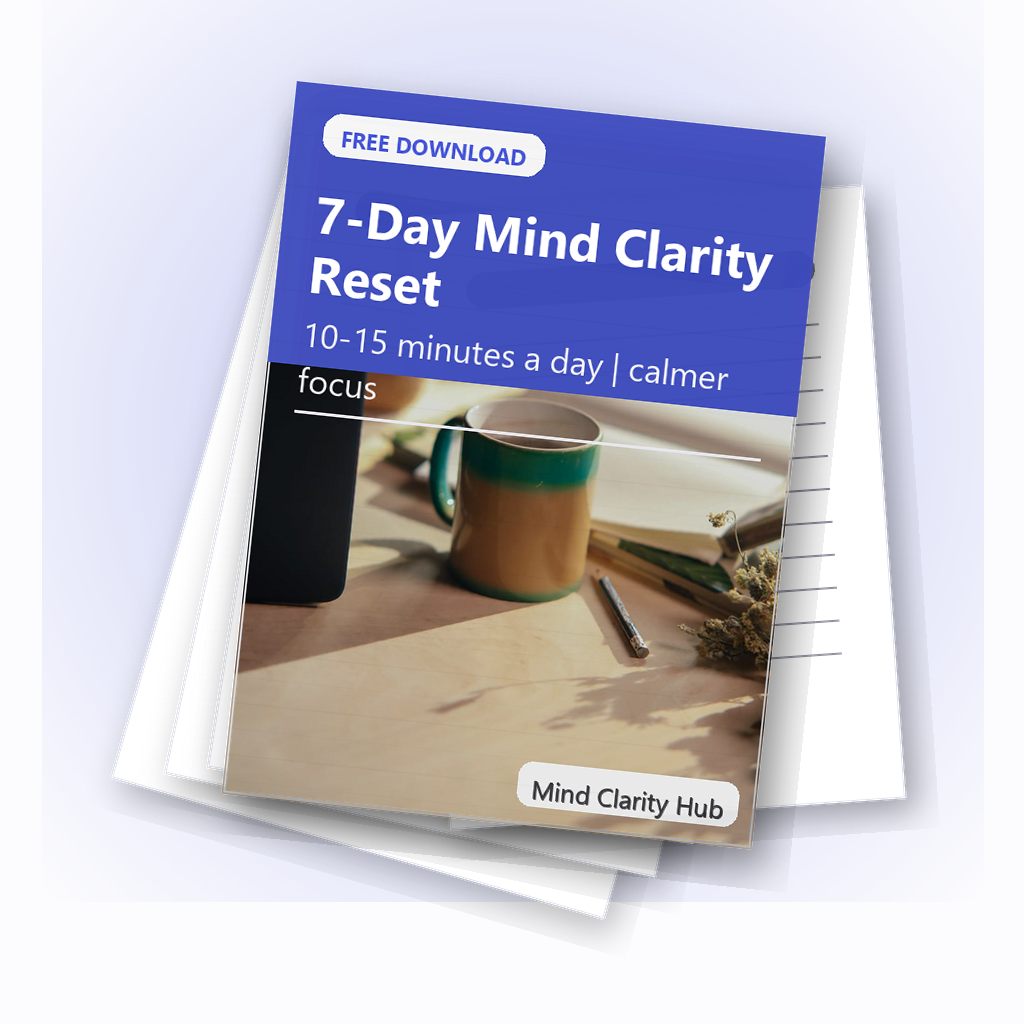
Free download: 7-Day Mind Clarity Reset
A short daily reset you can actually stick with (no fluff).
Rule 1: One home screen, one dock. Only daily tools live here. Everything else moves to folders or the app library. Because this trims choice, you save time each unlock.
Rule 2: One folder map across devices. Mirror the same top‑level names on your computer and cloud drive. Consistency cuts search time and prevents re‑sorting later.
Rule 3: Two message windows per day. Check email and chat at set times (for example, 11:30 a.m. and 4:30 p.m.). Outside those windows, use Focus/DND. If you must stay reachable, allow exceptions for key people and calls.
Before you touch apps, capture your digital declutter checklist in three rules like these. Put them on a sticky note or a note pinned in your task app. Then start. Small, steady moves win.
Backup steps for your digital cleanup checklist
Before bulk deletes, make a fresh backup so you can move faster with less fear.
- Computer: Create a system image or full user‑folder backup to an external drive.
- Phone: Ensure iCloud or Google One backup is current.
- Cloud: Export a copy of critical folders to local storage.
Why it matters: Backups protect you from accidental loss and ransomware. See guidance on regular backups from CISA (U.S. Cybersecurity & Infrastructure Security Agency).
Device and account audit for this screen declutter plan
Start with the places that hit your attention every hour. Then sweep the rest.
Phone home screen: Keep only everyday tools on page one; everything else moves to labeled folders.
Notifications: Off by default. Turn on only for time‑critical people, calls, or logistics.
Email: Unsubscribe and filter. Make your inbox a to‑do, not a storage unit.
Downloads/Desktop: Clear or file everything into a simple folder tree.
Browser: Close stacks of tabs. Capture anything still needed into bookmarks or a reading queue.
Photos: Remove obvious duplicates and screenshots. Add albums for key life areas.
Security: Turn on 2FA. Update weak or reused passwords.
How do you calm notifications without missing what matters?
Notifications are not all equal. You need only a few to reach you now. The rest can wait in an inbox or app badge.
| Goal | iPhone/iPad | Android |
|---|---|---|
| Silence non‑urgent alerts | Use Focus to allow only specific people/apps (Apple Support) | Use Do Not Disturb with exceptions (Android Help) |
| Batch the rest | Schedule a Summary for low‑priority apps | Set Notification categories to Silent |
| Stop lock‑screen hijacks | Turn off Time Sensitive for non‑essentials | Disable pop‑ups; allow badges only |
Tip: Allow messages and calls from your inner circle. Also allow calendar alerts for travel or meetings. However, block social, shopping, and news pings; check them on your terms.
Home screens: tidy layout in your device declutter guide
Less on the screen means faster choices. Design your first screen like a calm desk.
- Dock: Phone, messages, calendar, maps, notes, and your task app—no more than six.
- First page: Create two rows of your top eight tools.
- Folders: Group by verb—Read, Create, Money, Learn—instead of brand names.
- Widgets: Keep one glanceable widget if it truly saves time (calendar, to‑do, timer).
Use your email for action, not storage
Email becomes calm when you make it automatic and short‑lived.
- Create one filter that files newsletters to a “Read Later” label/folder (Gmail filters).
- Unsubscribe from at least 10 senders today.
- Archive messages after you act; do not keep a crowded inbox as a reminder list.
- Use canned replies for routine requests.
Templates you can copy:
| Goal | Gmail example | Outlook example |
|---|---|---|
| Newsletters to Read Later | Match: has:newsletter OR category:promotions; Action: Skip Inbox, Apply label “Read Later” | Condition: Subject includes “unsubscribe”; Action: Move to “Read Later” |
| Receipts and invoices to Finance | Match: subject:(receipt OR invoice) OR from:(no-reply@paypal.com); Action: Apply label “Finance”, Mark as read | Condition: Subject contains “receipt” or “invoice”; Action: Move to “Finance” |
| VIP always visible | Match: from:(boss@example.com OR team@company.com); Action: Star, Never send to Spam | Condition: From contains key contacts; Action: Mark as Important |
Rule of thumb: If an email will take under two minutes, do it now. If it takes longer, move it to your task app with a due date.
A digital declutter checklist for files and folders
Files clutter drives your attention too. Build one simple structure, then stick to it across devices.
| Action | Examples | Result |
|---|---|---|
| Delete | Duplicates, installers, old screenshots | Instant space gain and faster search |
| Keep | Active projects, legal docs, current receipts | Easy access to what you use now |
| Archive | Past years, finished work, tax receipts | Out of sight but safe for reference |
Folder map idea:
- Home/Work split at the top level.
- Inside each: 01-Admin, 02-Finance, 03-Projects, 04-Assets, 05-Archive.
- Use dates like 2026-05-14 for sortable names.
Now sweep: Clear Desktop into Projects or Archive. Empty Downloads except installers you still need.
Naming rules that save clicks
Clear, consistent names make search and sorting effortless. Use short words, dates, and versions. Avoid spaces when tools are picky; hyphens and underscores are safe. Most of all, keep the pattern the same everywhere.
| Pattern | Example | When to use |
|---|---|---|
| YYYY-MM-DD_Project_Name | 2026-05-14_Project-Brief.docx | Daily notes, briefs, and logs you sort by date |
| Area-Topic_v## | ClientA-Proposal_v03.pdf | Anything with versions; keeps the latest obvious |
| Type_Project_Asset | IMG_ProjectA_Header_1920x1080.png | Design/media assets where size matters |
Tip: When you export files from apps, rename them at once. Then file them into your map. This two‑step loop keeps your system clean by default.
Photos and media: a device declutter guide
Photos should spark memory, not guilt. Start with easy wins.
- Delete recent duplicates and throwaway screenshots.
- Create three simple albums: Family & Friends, Work & Docs, Travel & Places (or your life roles).
- Set automatic upload so you never think about backups.
- Use “Free up space” after upload on your phone (Google Photos help).
Do a 15‑minute sweep each month. Small passes beat heroic once‑a‑year efforts.
Smarter browsing for your screen declutter plan
Tabs are not a to‑do list. They are a tax. Turn clutter into lists you control.
- Close all tabs after saving active ones to a single “Next” folder.
- Use a read‑it‑later app or your browser’s reading list for long articles.
- Bookmark by verb or outcome (“Research”, “Buy soon”, “Learn”) instead of site names.
- Set your browser to open a calm start page, not yesterday’s tab pile.
Security basics in your digital cleanup checklist
Peace of mind is part of clarity. A few moves raise your baseline security fast.
- Use a password manager to create long, unique passwords; this aligns with modern guidance for memorized secrets (NIST SP 800‑63B).
- Turn on two‑factor authentication (2FA) wherever possible (National Cybersecurity Alliance).
- Review app permissions quarterly; remove camera, mic, and location access that apps do not need.
- Update your OS and apps; schedule auto‑updates outside work hours.
Also review recovery info. Confirm your recovery email and phone number are current. Store backup codes in your password manager’s secure notes.
Platform recipes: Focus and Do Not Disturb
iPhone and iPad: Open Settings > Focus. Create a Work Focus and a Personal Focus. Allow calls from Favorites and your team as needed. Add only essential apps to Allowed Notifications. Then, under Focus Filters, hide personal calendars during Work and mute work email in Personal. Finally, schedule each Focus to turn on at set times or when you arrive at key locations.
Android: Open Settings > Notifications > Do Not Disturb. In Schedules, set work hours and sleep hours. Add exceptions for calls from starred contacts. Then visit per‑app settings to demote social and shopping alerts to Silent. If your phone supports it, use Modes or Routines to switch wallpapers, enable Dark theme, and adjust volume when DND activates. This gives a clear visual cue and saves taps.
After setup, test it. Ask a friend to message you from a non‑priority app. You should see nothing during DND. Then send a call from a priority contact. It should come through. Tweak until it fits your day.
Calm your feeds: social, news, and subscriptions
Unfollow and mute: Trim accounts that spark stress or low‑value scrolling. Keep a short list of people and topics you truly care about. Because your feed trains your attention, choose what it teaches you.
Stop autoplay: Turn off autoplay video in each app. This one switch returns minutes per session and cuts the urge to binge.
Replace doomscroll time: Keep a goal‑tied reading list. Queue long‑form pieces that serve your work or learning. Open that list when you catch yourself opening a feed.
Consolidate newsletters: Send them to one folder with a rule. Review weekly. If you skip an author three weeks in a row, unsubscribe.
Cloud cleanup and one clear folder tree
Using one structure across services keeps your brain from context switching. Mirror your local folder map in your cloud drive.
| Top Folder | Examples | Action |
|---|---|---|
| 01-Admin | ID scans, HR docs, policies | Keep; set read‑only for originals |
| 02-Finance | Invoices, receipts, taxes | Archive by year; encrypt sensitive files |
| 03-Projects | Current work, drafts, assets | Keep active; archive finished items |
| 04-Assets | Logos, templates, photos | Standardize names; dedupe |
| 05-Archive | Past clients, old versions | Zip and store; remove from search scope |
See the whole flow at a glance
This simple visual mirrors the steps in your plan. Move left to right, then loop back for quick upkeep passes.
Upkeep routines for your digital cleanup checklist
Habits keep your gains. Make them tiny, timed, and tied to routines you already do.
Daily 5 minutes
- Clear today’s screenshots and downloads.
- Archive or reply to any email that takes under two minutes.
- Check your calendar and top 3 tasks for tomorrow.
Weekly 20 minutes
- Run updates on phone and computer.
- Sweep your desktop and inbox to zero or to a short action list.
- Review Focus/DND exceptions; remove noisy apps.
- Add the digital declutter checklist to a recurring reminder.
Monthly 60 minutes
- Photo sweep: delete dupes, file the rest into albums.
- Cloud drive sweep: archive finished projects.
- Browser sweep: clear old bookmarks and reading list items.
- Security sweep: rotate any weak or reused passwords; verify 2FA backup codes.
Measure your progress
What you track improves. Pick a few simple metrics and review them after two weeks. Then adjust your rules. After two weeks, compare numbers to the day you started this digital declutter checklist.
| Metric | How to measure | Good target |
|---|---|---|
| Notifications per day | Check weekly average in Screen Time/Digital Wellbeing | Down 30–50% |
| Inbox at day’s end | Count messages in Inbox at 5 p.m. | < 20, with rules handling the rest |
| Files on Desktop | Count items each Friday | < 10, all current |
| Open tabs | Count before shutdown | < 8, all active |
If a target feels hard, lower it. Then raise it again next month. Progress over perfection.
Automation ideas: small helpers, big win
Automation keeps clutter from growing back. Start with one helper per area.
Email: Add a second rule that files shipping updates and receipts to Finance. Star VIPs. Everything else can wait for your two windows.
Files: Use your OS to auto‑move new screenshots to a Screenshots folder. On export, your editor can write to the right folder and name pattern—set that once.
Mobile routines: Schedule Focus/DND and Sleep modes. Let your device change wallpapers and hide badges at night. A visual shift lowers the urge to check.
Notes and scans: Set your scanner app to save PDFs straight into 01‑Admin or 02‑Finance. Name them with dates by default. Less dragging, fewer piles.
Example walkthrough: a one-hour reset
Minutes 0–5: Turn on Focus/DND. Start a timer for 25 minutes. Open your cloud or external drive and confirm backups are current.
Minutes 5–15: Home screen. Move only six daily apps to the dock. Create two rows of top tools. Everything else goes into four verb‑named folders.
Minutes 15–25: Notifications. Allow calls and messages from favorites. Demote social, shopping, and news to Silent. Turn off lock‑screen banners for non‑essentials.
Break 5 minutes: Stand, breathe, drink water. Short breaks help you think better.
Minutes 30–45: Inbox. Create a Read Later rule for newsletters. Unsubscribe from ten senders. Archive everything older than last week that does not need action.
Minutes 45–55: Files. Clear your Desktop into Projects or Archive. Delete junk from Downloads older than 30 days.
Minutes 55–60: Browser. Save active tabs to a single Next folder. Close all tabs. Set a clean start page.
Results: Fewer pings, a calmer first screen, and an inbox that can breathe. Next, schedule your weekly 20 and monthly 60. Small loops keep gains alive.
Accessibility and energy settings that help focus
Comfort supports attention. If screens feel harsh, try Dark mode or reduce white point (iOS) or enable Dark theme and color correction (Android). Lowering motion and parallax can also help some people feel calmer.
Consider turning off icon badges for non‑essential apps. Badges act like red stop signs. If you need reachability, keep badges only for messages, calendar, and calls. Everything else can wait for your review windows.
Finally, enable Low Power/Power Saving modes during deep work. You will get fewer background refreshes and, often, fewer distractions.
When should you run a digital declutter checklist?
Use it when friction rises. If you hesitate before tapping your phone or dread your inbox, it is time. Also, run it before a new season or big project. Fresh structure makes deep work easier.
Troubleshooting: when clutter keeps coming back
If your system drifts, the cause is usually scope or rules. First, your scope may be too big. Shrink it to one screen or one folder. Then schedule a 20‑minute loop. Next, your rules may be unclear. Rewrite them in one line each and pin them. Finally, your devices may not match. Mirror your folder map and favorites across phone and computer so moves feel the same.
When in doubt, return to the steps in your plan. Reset Focus/DND, clear one surface (screen, inbox, or desktop), and archive what is done. Repeat next week. Consistency beats intensity.
Common pitfalls to avoid
- Deleting before backing up. Always back up first.
- Organizing before reducing. First remove, then sort.
- Over‑labeling folders. Names should be short and obvious.
- Letting exceptions pile up. Review Focus/DND rules monthly.
- Making it a weekend marathon. Short, regular passes win.
Practical examples for fast wins
Rename with dates: Use a YYYY‑MM‑DD prefix so files sort by day. Example: 2026‑05‑14_Project‑Brief.docx.
One Intake folder: Save all new files to a single Intake spot. Then sort during your weekly 20 minutes.
One task app: Move todos out of notes and email. Create tasks with clear verbs and due dates.
Close tabs with a timer: Set 10 minutes. Save the keepers to a Next folder. Close the rest without guilt.
Will this work across work and personal life?
Yes, because it is principle‑based. You apply the same steps to both, but keep them separate in your folder tree and calendars. Boundaries reduce accidental leakage and stress.
References and further reading
The Cost of Interrupted Work (Nielsen Norman Group)
Multitasking: Switching Costs (American Psychological Association)
The Importance of Backing Up Your Data (CISA)
Use Focus on iPhone (Apple Support)
Use Do Not Disturb on Android (Google Support)
Digital Identity Guidelines: Authentication and Lifecycle (NIST SP 800‑63B)
Enable Two‑Factor Authentication (NCA)
Free Up Space in Google Photos (Google Support)
Create Rules and Filters in Gmail (Google Support)
FAQ: device declutter guide
How often should I run a digital declutter checklist?
Run a light pass weekly and a deeper pass monthly. Also, run it before large projects or season changes, when your tools and focus need a reset.
What should I declutter first?
Start with notifications and your first phone screen. Those hit your attention all day. Then sweep your inbox, desktop, and Downloads.
Will deleting apps speed up my phone?
It can help if storage is tight or background activity is heavy. The bigger win is fewer interruptions and faster choices on your home screen.
How do I choose what to delete vs. archive?
Delete duplicates, installers, and throwaway files. Archive finished projects and records you may need later. Keep only current work at hand.
What if I work in a regulated industry?
Follow your organization’s retention rules first. When in doubt, archive with clear labels and dates, and confirm policies before deletion.
Next steps for deeper focus
Want to go further with calm attention and digital clarity? Explore our book recommendations and in‑depth reviews for building a focused reading plan that sticks:
- Read Break the Scroll for a deeper digital detox framework
- Explore the full Mind Clarity Hub books collection
- Use these screen time reduction ideas if you need behavior change after the declutter
Wrap‑up
Clarity grows when your tools get simpler. Use this digital declutter checklist to reset, then protect your gains with tiny upkeep. As your screens quiet down, your mind gets room to think.
Helpful resources for your next step
Affiliate disclosure: As an Amazon Associate, Mind Clarity Hub may earn from qualifying purchases at no extra cost to you. Use this link only if it genuinely helps your planning.
If Digital Declutter Checklist: Reset Your Screens Without Overwhelm is a routine you want to keep using, a simple workbook, planner, or desk tool can make the steps easier to repeat.
Compare related planners, workbooks, and organization tools on Amazon.
