

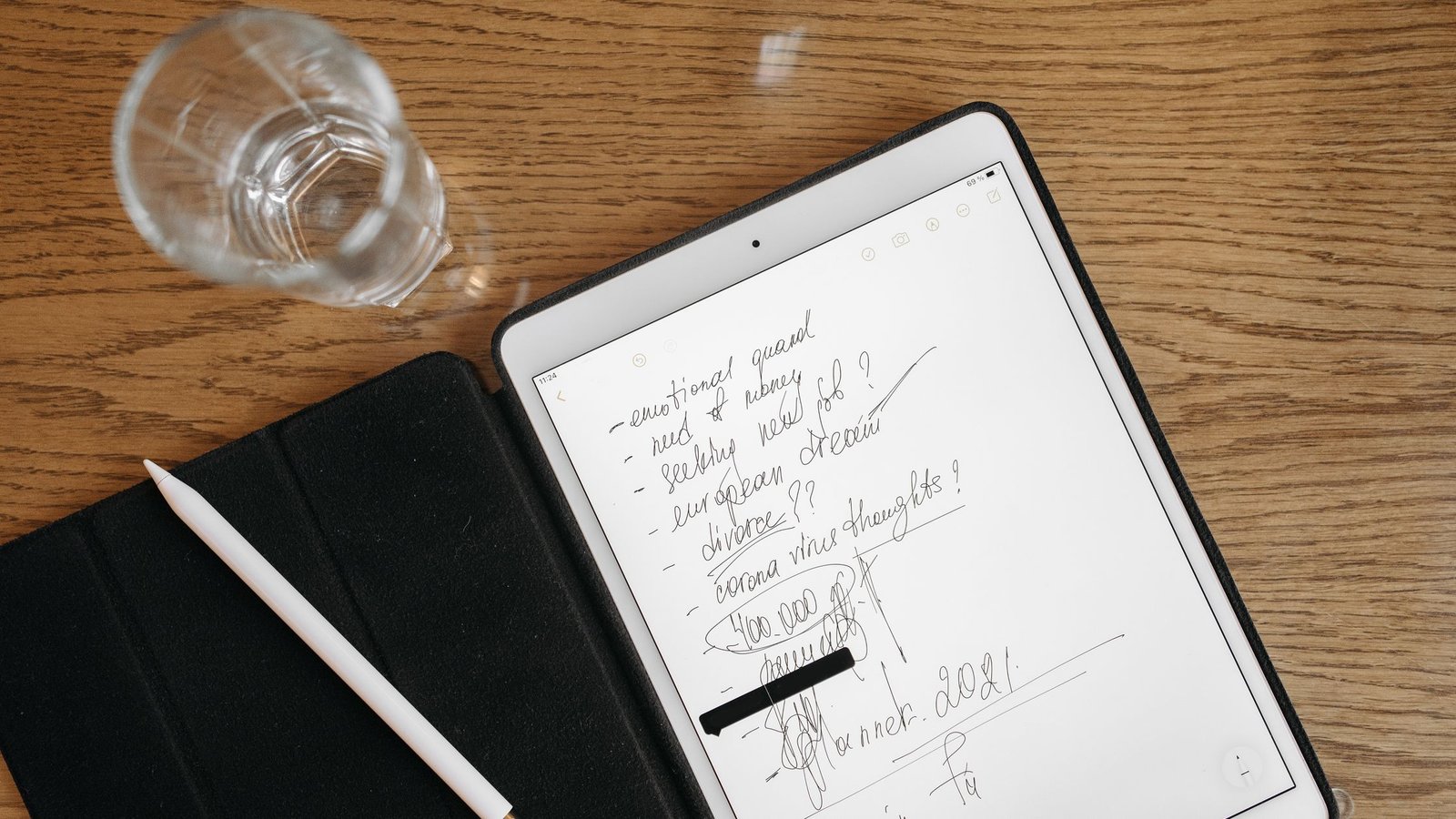
If you’ve ever wondered how to organize digital notes without building a maze of folders, you’re in the right place. This guide shows a small, durable setup that works in almost any app. It relies on one inbox, four top-level buckets, a clear naming rule, a short weekly review, and two or three saved searches. You will be able to capture fast and find things later—without learning a complex system.
How to organize digital notes: quick start
This 10-minute plan shows how to organize digital notes without overthinking. Start here:
- Create one capture inbox for everything.
- Set four top-level buckets: Projects, Areas, Resources, Archive.
- Name notes with a simple, consistent pattern.
- Tag lightly (3–7 tags total), only when it helps search.
- Process your inbox weekly in 15–20 minutes.
- Use two or three saved searches or smart folders to surface what matters.
- Automate one capture path (email-to-notes or web clipper).
Three principles tie this together: a small set of rules is enough for how to organize digital notes; folders give you a spine while tags and search do the fine work; and saved searches beat deep hierarchies when you need speed.
Why this works: Research on cognitive offloading shows that moving details out of your head reduces mental load and improves performance. You just need light structure, not a perfect taxonomy. See the review by Risko & Gilbert for a clear summary of how external notes support memory and planning (Risko & Gilbert, 2016).

Source: Pexels
Organize digital notes in 7 steps (minimum-viable system)
Before you learn how to organize digital notes, set one single capture point. Then add a clear but shallow structure. Keep it the same across devices. The goal is frictionless capture and fast retrieval, not elegance.
Step 1: Create one inbox for organizing digital notes
Put everything you capture—ideas, links, quotes, tasks—into a single default notebook or folder called “Inbox.” Make this the default on phone, tablet, and laptop so notes land in the same place. No choices at capture time means no friction and fewer lost thoughts.
On mobile, add a home-screen shortcut that opens a blank note in Inbox. Turn on any email‑to‑notes address your app offers and forward low‑value messages there. Finally, install the web clipper so articles and receipts land in Inbox by default.
Reduce capture friction further by keeping titles short at first. A fast “Idea — keyword” is enough. During your weekly review you can expand titles and sort items to the right bucket. The point of the inbox is to be a funnel, not a filing cabinet.
Step 2: Use four buckets to organize digital notes
Set up four top-level folders or notebooks: Projects, Areas, Resources, Archive. This mirrors the well-known PARA pattern and works in any tool (Forte Labs).
- Projects: Short-term efforts with a clear outcome (e.g., “Plan Q4 offsite”).
- Areas: Ongoing responsibilities without an end date (e.g., “Finances,” “Health”).
- Resources: Useful references you may need later (e.g., “Writing,” “Home maintenance”).
- Archive: Inactive or finished items from any of the above.
Use this as a shallow spine. Do not add subfolders until a folder has more than ~50 notes and you truly need a split.
When in doubt, file to Projects or Areas first. Those two buckets map to what is moving now (Projects) and what you’re responsible for over time (Areas). Resources are for background material and inspiration that does not demand action. Archive is a relief valve—send finished project notes there so your active views stay lean.
Step 3: Naming rules for digital note organization
Names matter more than tags. A good rule puts time and topic first so your list scans well. Here is a simple pattern:
| Pattern | Example | Why it helps |
|---|---|---|
| YYYY-MM-DD – Title — Keywords | 2026-07-10 – Sprint review — action items | Sorts by date and reads clearly. |
| ProjectCode – Title — YYYY-MM | Q4Offsite – Venue shortlist — 2026-07 | Groups project notes together. |
| Area – Title — Verb | Finances – Budget notes — adjust | Signals purpose at a glance. |
Keep punctuation simple (dash or em dash) and avoid long strings. A clear date-prefix is one of the easiest ways for how to organize digital notes consistently.
Make your titles searchable. Include names, places, or verbs you would actually type later. Avoid “Misc,” “Stuff,” or vague labels. If two notes have similar titles, add a date, a person, or a short qualifier to separate them.
Templates help. For recurring note types—like 1:1s or meetings—start with a title stub you reuse every time. Consistency turns your titles into an index you can trust.
Step 4: Tags that help digital note organization
Tags should be few, stable, and generic. Too many tags slow you down. Start with 3–7 tags such as #todo, #idea, #meeting, #reference, #waiting. Add a tag only if it helps you re-find the note later.
Prefer lowercase, one-word tags you can remember. Don’t mirror your folder names as tags—folders are the spine while tags are cross-cuts. If your app lacks statuses, a small workflow set like #next and #waiting can stand in without bloat.
When a tag stops earning its keep—meaning you rarely use or search for it—merge or delete it. Trimming keeps your tag set learnable.
Step 5: Weekly review to organize digital notes
Book a 15–20 minute slot each week. Move each Inbox item to Projects, Areas, or Resources; rename it; and add a tag only if helpful. Archive what’s done. Set reminders for time-bound notes in your calendar or task app.
A simple cadence works well: minutes 0–5 to clear obvious junk and rename quick wins; minutes 5–12 to file the rest into Projects, Areas, or Resources; minutes 12–20 to scan your “Next actions” smart folder and nudge two items forward. The same routine, every week, is what builds trust.
Set a time to practice how to organize digital notes each week. It builds trust in your system.
Step 6: Smart searches for organizing digital notes
Search is powerful. In fact, research from Microsoft suggests search is central in personal information management, often beating complex filing (Microsoft Research). Use saved searches or smart folders to surface what you need:
- Active this month: notes updated in the last 30 days.
- Next actions: notes tagged #todo or containing verbs like “call,” “send,” “draft.”
- Meetings: notes with #meeting or titles starting with a date.
Examples: Apple Notes smart folders can include notes with a specific tag and a date range; Evernote saved searches support updated:day-30 and tag:todo; Obsidian searches can look like path:Projects updated:month with a community plugin. Start with one or two saved views you’ll check daily.
Smart folders are the secret in how to organize digital notes you actually find later.
Step 7: One automation for digital note organization
Keep it simple. Automate only the highest-friction capture path.
- Email → Notes: Forward receipts or confirmations to Inbox.
- Web clipper: Save articles to Resources with a standard template.
- Template: Pre-fill “Meeting” notes with date, attendees, and bullets.
Favor built-in automations first—they are easier to maintain than third-party chains. Name your rules in plain language (for example, “Receipts → Inbox”) so you remember why they exist during quarterly cleanup.
Folders vs tags for digital note organization
Short answer: Use both. Let folders be your spine. Let tags and search do the fine work. When you plan how to organize digital notes, think of folders as containers for meaning and tags as spray paint to mark cross-cutting themes.
| Use this when… | Choose folders | Choose tags |
|---|---|---|
| You want a simple place to put things | Yes | No |
| You need cross-topic views (e.g., all meetings) | No | Yes |
| You collaborate and others expect a structure | Yes | Maybe |
| You re-find by search terms more than browsing | Maybe | Yes |
| You hate moving items around | No | Yes |
Studies in personal information management show most people still prefer folders for storing and retrieving items, even when tags exist (Bergman et al., 2013). But modern search is strong, and saved searches can remove the need for deep hierarchies (Microsoft Research).
As a rule of thumb, start with one level of folders (your four buckets) and let saved searches give you dynamic views across them. This hybrid keeps your system understandable to collaborators and your future self.
Note naming for digital note organization
Names should scan well and sort well. Use dates, short titles, and a few consistent keywords. Keep verbs up front for action. Avoid vague names like “Ideas” or “Misc.” Here is a quick cheat sheet you can copy:
| Type | Good name | Poor name |
|---|---|---|
| Meeting | 2026-07-10 – Client sync — decisions | Client meeting |
| Article notes | Read – Shallow work traps — quotes | Notes from reading |
| Idea | Idea – Habit cue stack — prototype | New idea |
| Task note | Send – Q3 goals draft — to Sam | Goals |
Because naming drives re-finding, keep words you would actually search for in the title. A clear name is a built-in reminder.
If you collaborate, align on one title pattern and share two examples per note type. Consistent titles make shared smart searches far more useful.
How often to review when you organize digital notes
Once per week is enough for most people. That cadence keeps Inbox small, files new notes where they belong, and updates smart folders. During your review, empty Inbox by moving and renaming what matters, archive stale notes older than 90 days, scan your “Next actions” view and move two items forward, and capture highlights from the week—wins, ideas, issues. You will trust your system more each week you follow the same flow.
Set up digital note organization in your favorite app
No matter the app, the steps for how to organize digital notes stay the same. Below are app-agnostic moves and one official reference where features differ.
Apple Notes
Create an “Inbox” folder and set it as the default for new notes (Settings → Notes). Add four folders—Projects, Areas, Resources, Archive—and avoid deep nesting. Add tags at the bottom of a note (for example, #meeting) and use Smart Folders to auto-collect notes by tag or date (Apple Support: Tags & Smart Folders).
Microsoft OneNote
Create one default notebook with a section called “Inbox.” Use sections for Projects, Areas, Resources, and Archive, and pages for individual notes. Lean on page titles for naming; OneNote search covers titles and content across notebooks, so clear titles pay off.
Evernote
Set “Inbox” as the default notebook (Preferences). Use notebooks or one notebook with stacks for Projects, Areas, Resources, and Archive. Tag sparingly and save searches like “updated:day-30,” “tag:todo,” and title-based meeting queries to surface recent work.
Obsidian
Choose one Inbox folder as the default location in Settings → Files & Links. Create top-level folders for Projects, Areas, Resources, and Archive. Rely on search and simple tags; consider a Dataview or saved search for “Active this month” if you use community plugins.
Notion
Build a “Notes” database with a simple template. Add properties such as Status (Inbox, Project, Area, Resource, Archive), Tags, and Updated. Create views that act like smart folders (for example, Status = Project AND Updated within 30 days) to replace deep nesting.
Minimal Notes System
- 1 Inbox → capture everything
- 4 Buckets → Projects • Areas • Resources • Archive
- 3 Rules → Name with date; Tag lightly; Review weekly
- 2 Smart Searches → Active this month; Next actions
Tip: Print or save this mini-map until the flow is second nature.
What does the science say about keeping it simple?
Two practical findings support this approach:
- Externalizing reduces mental load. Offloading details to notes helps you perform better on tasks and make fewer mistakes (Risko & Gilbert, 2016).
- People prefer folders, but search wins often. Users consistently rely on folders to store and browse, while search and saved queries help them re-find items fast (Bergman et al., 2013; Microsoft Research).
Therefore, a shallow folder spine plus a few saved searches is a sound default for most busy adults.
Common mistakes in digital note organization
- Over-tagging. If you have to scroll a tag list, it’s too long.
- Deep nesting. Three levels deep is a red flag; use search instead.
- Renaming every week. Pick a naming pattern and stick with it.
- Mixing tasks and notes without clarity. Give tasks a tag like #todo or send them to a task manager.
- Skipping the weekly review. That’s where trust is built.
When you feel friction, remove a rule rather than add one. Simpler beats perfect, because you will actually use it on your busiest days.
Capture tips for organizing digital notes
- Use a “Quick Note” or “New note in Inbox” shortcut on your phone.
- Start titles with a verb: “Decide”, “Draft”, “Call,” “Compare.”
- Clip web pages with a standard template (Summary, Quote, Next).
- Dictate short ideas while walking; rename them during review.
Keep capture atomic. One idea per note makes sorting and linking easier later.
Light automations for digital note organization
- Auto-tag by keyword: Some apps let you add a rule to tag notes with words like “invoice.”
- Calendar links: Paste a link to the calendar event into your meeting note (or vice versa).
- Email rules: Auto-forward receipts or statements to your notes app’s email address.
Test each automation for a week before adding another. Less is more. Also, avoid rules that silently delete content—prefer safe defaults you can review.

Source: Pexels
Watch: how to organize digital notes walkthrough
If the video does not load, open it here: How to organize your digital notes to remember, connect and create with ease by Greg Wheeler.
Collaboration patterns for digital note organization
Keep your personal spine (Inbox + four buckets) even inside shared spaces. For shared notes, agree on a naming rule and one or two shared tags. Use shared smart views to track “Active this month” or “Next actions” across the team. Keep ownership clear so notes do not drift. When confidentiality matters, store sensitive files in the approved storage tool and link from your note rather than attaching the file.
Keep your digital note organization flexible over time
As buckets grow beyond a few hundred notes, split them into two broad subfolders only where the split reduces decision time. Remove or merge tags that you haven’t used in 90 days. Review smart searches each quarter and prune anything you no longer check. Finally, export critical notes quarterly as a portable backup (PDF or Markdown) so you can move tools without stress.
FAQ on digital note organization
Should I keep tasks in my notes?
It depends. When tasks are small and tied to context in a note, keep them and tag #todo. For many or time-bound items, send them to a task app and link back to the note. Use one place to track deadlines.
How many tags are too many?
More than 7–10 tags is usually too many for a simple system. Tags should be stable and helpful. If you forget to use a tag, it is probably not worth keeping.
Can I migrate later without losing everything?
Yes. The structure here is app-agnostic. Folders (or notebook stacks), titles, and plain-text tags survive exports far better than complex databases. Keep a simple backbone and you can switch tools later.
How do I handle images, PDFs, or scans?
Store them as notes with the same naming rule. Use a keyword like “receipt,” “scan,” or “diagram” in the title. Add one tag if it improves search. If files are large, store the file in cloud storage and link it in your note.
What if I already have 1,000 messy notes?
Start fresh with the new spine. Leave old notes where they are. Each week, during your review, move 10–20 old notes into Projects, Areas, Resources, or Archive and rename them. In a month you will feel the difference.
Resources to support digital note organization
Mind Clarity Hub/Amazon Associate disclosure: Some links in this section may be affiliate links. If you buy through them, Mind Clarity Hub may earn a commission at no extra cost to you.
Want a concise primer on building a light, flexible knowledge system? Consider Building a Second Brain (book). Use its PARA framing to label your four buckets and keep your system consistent across tools.
Further reading on digital note organization
- Risko, E. F., & Gilbert, S. J. (2016). Cognitive offloading (PDF)
- Bergman, O., et al. (2013). Personal information management: Folders vs tags (JASIST)
- Microsoft Research: Searching to eliminate PIM (overview)
- Forte Labs: PARA Method (official explainer)
- Apple Support: Tags and Smart Folders in Notes (guide)
Next steps to master how to organize digital notes
Block 20 minutes to build your Inbox and four buckets. Rename your last 10 notes with the new pattern. Save two smart searches. Then schedule a weekly review. You now know how to organize digital notes with a simple, durable setup. Keep it small. Keep it steady. Your future self will thank you.
More resources from Mind Clarity Hub
- Browse our books and reading guides for focus and clarity.
- See our reviews hub for tools that reduce friction.