...

Tag: inbox zero

  • Inbox Zero, Without the Stress: A Routine for Freelance Creatives

    Inbox Zero, Without the Stress: A Routine for Freelance Creatives

    An inbox zero routine for freelance creatives is not about keeping email empty all day. It is a practical client-communication system that helps writers, designers, consultants, coaches, and creators see what needs a reply, what needs a decision, and what can wait without letting email take over the morning.

    The fastest version is simple: collect every message in one inbox, triage it into four action states, answer in two scheduled blocks, and end the day with a short client-proof review. You do not need a perfect app stack. You need a repeatable path from β€œnew message” to β€œhandled, scheduled, delegated, or archived.”

    Key Takeaways

    • Inbox zero means every message has a trusted next state, not that your inbox is always empty.
    • Freelance creatives need client-safe categories: urgent client, active project, money/admin, opportunity, reference, and waiting.
    • Batching email protects creative focus because it reduces constant context switching.
    • A morning triage block should decide, not deeply answer, every message.
    • A closing review keeps deadlines, invoices, revisions, and client expectations from hiding in email threads.

    What Is an Inbox Zero Routine for Freelance Creatives?

    An inbox zero routine for freelance creatives is a daily and weekly email workflow built around project trust. It turns an overflowing inbox into a clear set of next actions: reply today, schedule, add to the project system, file for reference, or remove. The routine works best when it is short enough to repeat on busy client days.

    For creative freelancers, email is not just communication. It is where scope changes arrive, deposits are confirmed, files are approved, interviews are scheduled, and prospects ask for rates. That makes a generic β€œarchive everything” system risky. The goal is calm visibility, not speed for its own sake.

    Why This Topic Is Different From Generic Email Management

    Search data from this workspace shows related demand around β€œbest ways to manage email overload,” β€œtriage your overloaded inbox,” and β€œzero inbox theory.” GA4 also shows traffic to Mind Clarity Hub pages about email overload, zero inbox, AI tools for freelancers, and The Focused Freelancer. That is why this article targets the practical gap: a client-safe email routine for independent creatives who cannot afford missed revisions, late invoices, or scattered project notes.

    Research on work interruptions and email use consistently points to a real attention cost. Microsoft Research has studied email duration and batching patterns, while peer-reviewed work on office interruptions connects frequent interruptions with workload strain. The practical takeaway is plain: if email is always open, the workday becomes a string of restarts.

    Quick Answer: The 20-Minute Inbox Zero Routine for Freelance Creatives

    Use this version on normal weekdays:

    1. Scan for client risk for 3 minutes. Look for deadlines, approvals, payment issues, and urgent project blockers.
    2. Triage for 7 minutes. Move each message to Reply Today, Waiting, Project Action, Money/Admin, Reference, or Archive.
    3. Answer only the fastest messages for 5 minutes. Two-minute replies are fine. Anything bigger becomes a task.
    4. Protect creative work for 2-4 hours. Close email, silence notifications, and work from your project list.
    5. Run a closing review for 5 minutes. Confirm what was promised, what is waiting, and what must be answered tomorrow.

    This is the core of an inbox zero routine for freelance creatives: make email trustworthy enough to close.

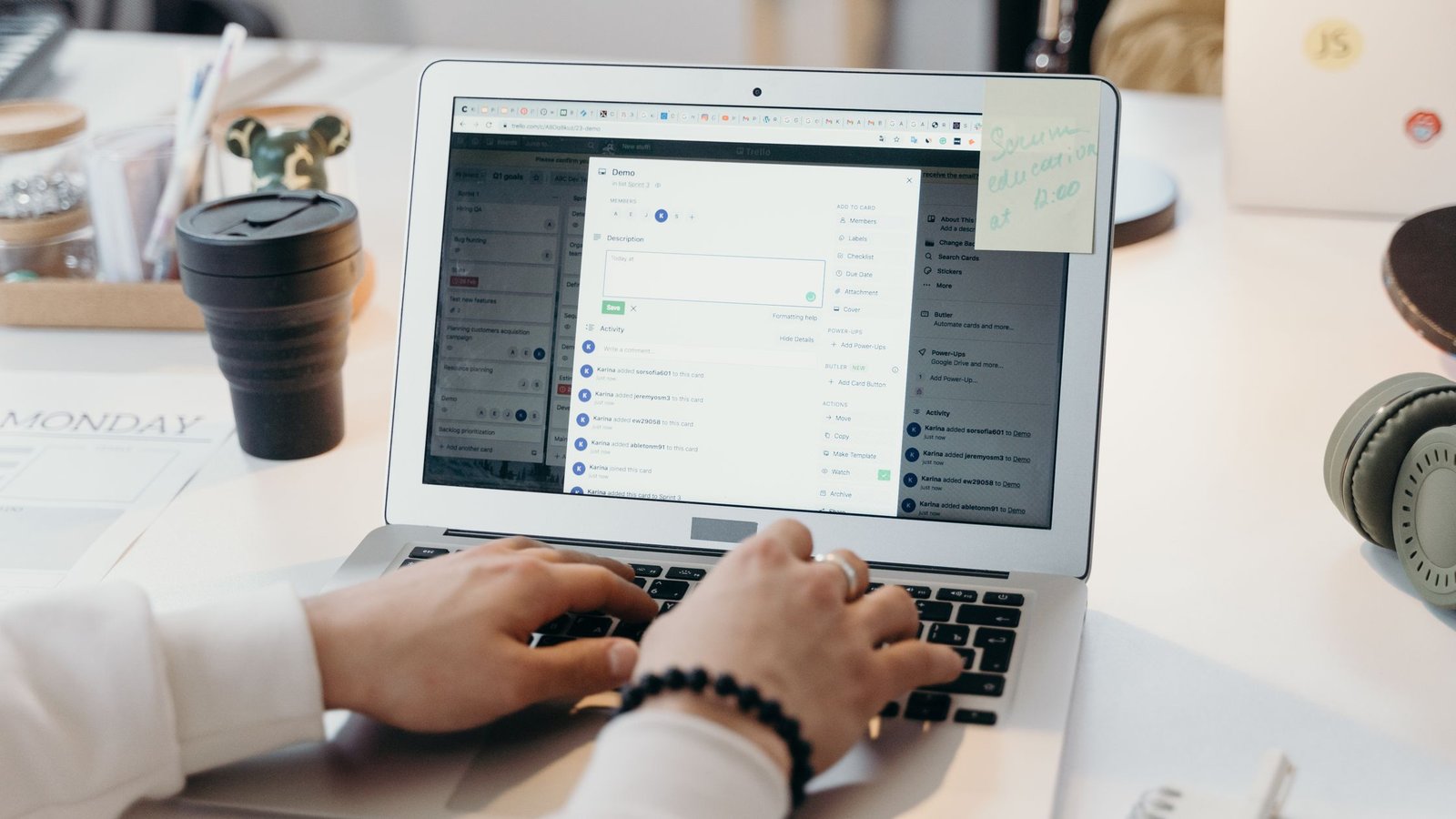
    Freelance creative writing a client email on a laptop as part of an inbox zero routine.
    A useful inbox routine lets you answer client messages in planned blocks instead of checking constantly. Photo by Vlada Karpovich via Pexels.

    Image source: Pexels photo by Vlada Karpovich.

    Search Intent and Content Direction

    The dominant search intent is how-to. A reader wants a usable routine, examples, categories, scripts, and a way to prevent missed work. This post avoids keyword cannibalization with the existing β€œHow to Manage Email Overload” and β€œZero Inbox Method” pages by focusing on freelance creative workflows: client approvals, revisions, pitches, invoices, and deep creative blocks.

    Related keywords include email overload, client inbox management, freelance productivity, email batching, inbox triage, creative workflow, project communication, and zero inbox method. Question keywords include: β€œHow do freelancers manage email overload?”, β€œWhat is inbox zero?”, β€œHow often should freelancers check email?”, and β€œHow do I stop email from interrupting creative work?”

    How the Inbox Zero Routine for Freelance Creatives Works

    Think of your inbox as an intake desk, not a storage room. Every message should leave intake with one of six labels or folders:

    State Use it for Next action
    Reply Today Client questions, approval requests, deadline issues Answer during the next email block
    Project Action Revision notes, assets, strategy decisions Move the task into your project board
    Waiting Messages where the next move belongs to someone else Review during closing check
    Money/Admin Invoices, receipts, contracts, tax forms Process in admin block
    Opportunity Pitches, referrals, collaboration requests Evaluate twice weekly
    Reference Logins, guidelines, brand files, research links File, then archive

    These states keep your system simple. They also prevent one common freelancer problem: treating every email like it deserves equal attention.

    Step 1: Set Two Email Windows for Your Inbox Zero Routine for Freelance Creatives

    The routine starts with two email windows. For most freelance creatives, the best pattern is a short morning triage and a longer afternoon reply block. This protects the early workday, when creative energy is often strongest.

    • Morning triage: 10-20 minutes. Decide what each message means.
    • Afternoon reply block: 25-45 minutes. Write the replies, send files, and update clients.
    • Closing review: 5-10 minutes. Check promises, waiting items, and tomorrow’s first message.

    If your client base expects fast replies, add a 5-minute emergency scan before lunch. Keep it strict. You are checking for true blockers, not reading newsletters or browsing offers.

    Step 2: Triage Without Writing Long Replies in Your Inbox Zero Routine for Freelance Creatives

    Morning triage is not the time to solve every thread. It is the time to sort. Open each unread message and ask one question: β€œWhat would happen if I did nothing until tomorrow?”

    If the answer is β€œa deadline slips, a client waits for approval, money stalls, or a project blocks,” mark it Reply Today or Project Action. If the answer is β€œnothing important,” archive it, file it, or move it to a later review.

    Use the 4D Filter Carefully

    • Do: Answer if it takes less than two minutes and does not derail you.
    • Defer: Schedule a task if it needs thought, files, or a real decision.
    • Delegate: Send it to the right collaborator or client owner.
    • Delete/archive: Remove anything that has no future value.

    The 4D filter works only when you keep β€œdo” small. If every message becomes a 20-minute reply, triage turns into a creative-work trap.

    Step 3: Build a Client-Safe Label Map for Your Inbox Zero Routine for Freelance Creatives

    An inbox zero routine for freelance creatives needs categories that match revenue risk. Use a small set of labels, folders, or saved searches. Do not create 40 folders. You want visible decisions, not a filing hobby.

    Label Examples Review cadence
    Client – Active Revision requests, approvals, assets, meeting notes Daily
    Client – Waiting Sent proposals, feedback requests, unpaid invoices Daily or every other day
    Admin – Money Invoices, receipts, contracts, tax forms Twice weekly
    Leads – Opportunity Discovery calls, referrals, collaboration requests Twice weekly
    Reference Brand files, style guides, login instructions As needed

    If you use Gmail or Outlook, labels, folders, stars, flags, and filters can all support this map. The tool matters less than the review habit.

    Step 4: Move Work Out of Email in Your Inbox Zero Routine for Freelance Creatives

    Email is a poor project manager. A client thread can contain seven different tasks, three files, a scope decision, and an invoice question. If you leave all of that in the inbox, you will keep rereading the same thread to remember what it means.

    During triage, move real work into your project system. That could be Trello, Notion, Asana, Todoist, a paper planner, a spreadsheet, or a simple task list. Each moved task should include a verb, a deadline, and a source link back to the email if needed.

    • β€œRevise homepage hero copy using Maria’s comments by Thursday.”
    • β€œSend design round 2 PDF to Ridge Studio by 3 p.m.”
    • β€œFollow up on unpaid invoice 1042 Friday morning.”
    • β€œPull testimonial quote from client approval email into case-study draft.”

    Example: A Tuesday Inbox Zero Routine for Freelance Creatives

    Here is a realistic Tuesday for a freelance copywriter or brand designer. At 8:45 a.m., they open email for triage only. One client has approved a draft, one prospect wants a proposal, one invoice reminder has arrived, and three newsletters are unread. The approved draft becomes a Project Action. Next, the prospect becomes Opportunity. From there, the invoice goes to Money/Admin. Finally, newsletters are archived into Read Later.

    At 9:05 a.m., email closes. The first creative block starts from the project board, not from the inbox. That is the point of the system. The freelancer is not ignoring clients; they have already captured the client risk and moved real work to a visible place.

    At 1:30 p.m., the reply block begins. The client gets a short confirmation with the next delivery time. Next, the prospect gets a discovery-call link and a boundary around project fit. Because it is not urgent, the invoice reminder is scheduled for the Friday admin block. By 2:05 p.m., the inbox is clear enough to close again.

    At 4:50 p.m., the closing review checks Waiting, Reply Today, and Money/Admin. No project promise is hidden in email. Tomorrow’s first message is already drafted as a task: β€œSend Ridge Studio revised homepage copy by 10 a.m.”

    Step 5: Use Human Reply Templates in Your Inbox Zero Routine for Freelance Creatives

    Templates help when they protect clarity, not when they make you sound cold. Keep a few short scripts for common freelance situations.

    Client Revision Acknowledgment

    β€œThanks, I have the revision notes. I am moving these into the project plan now and will send the next draft by [day/time]. If anything changes before then, please add it to this thread by [cutoff].”

    Scope Boundary

    β€œThat can be added. It is outside the current scope, so I can either swap it for [current item] or quote it as an add-on. Which path works best?”

    Delayed Reply Reset

    β€œThanks for your patience. I have reviewed this and the next clear step is [action]. I will handle [specific item] by [day/time].”

    Waiting Follow-Up

    β€œQuick check-in: I am waiting on [asset/approval/answer] before I can move the next step. If you can send it by [date], I can keep the current timeline.”

    These scripts reduce decision fatigue and keep client expectations clear.

    Step 6: Protect Deep Creative Blocks With an Inbox Zero Routine for Freelance Creatives

    The main benefit of an inbox zero routine for freelance creatives is not a clean inbox. It is a clean work block. After triage, close email. Turn off desktop alerts. Put your phone away or set focus mode. Then work from the project list you just created.

    This matters because creative work often requires slow context building. A writer needs to hold voice, outline, and argument in mind. Designers need visual comparisons and constraints. Consultants need client goals and strategic tradeoffs. Interruptions break that context.

    What Should You Do With Newsletters, Receipts, and AI Tool Alerts?

    Separate messages that inform you from messages that require you. Newsletters, software updates, receipts, and AI tool alerts should not compete with client approvals.

    • Send newsletters to a β€œRead Later” label automatically.
    • Send receipts to Money/Admin with a filter.
    • Unsubscribe from repeated low-value lists during Friday review.
    • Keep AI tool alerts only if they affect billing, privacy, or a workflow you use weekly.

    For readers working through AI productivity systems, this pairs well with the Mind Clarity Hub books hub and AI-focused book pages. Keep learning resources available, but do not let them invade your client inbox.

    Weekly Reset: The 30-Minute Inbox Zero Routine for Freelance Creatives

    Once a week, run a deeper review. Friday afternoon or Monday morning usually works best.

    1. Clear all unread messages older than two days.
    2. Open Waiting and decide who needs a follow-up.
    3. Open Money/Admin and confirm invoices, deposits, and receipts.
    4. Review opportunities and decide which leads deserve a reply.
    5. Archive completed project threads after moving useful assets to storage.
    6. Write one improvement note: β€œWhat created inbox drag this week?”

    The weekly reset is where the system gets stronger. If the same type of message keeps causing stress, make a template, filter, or project-board rule for it.

    How to Handle Common Freelance Inbox Scenarios

    Different messages deserve different treatment. A good system helps you choose without rereading the thread five times.

    Scenario Best state Why it works
    A client sends scattered revision notes Project Action Convert the notes into one task list before replying
    A prospect asks for your rate card Opportunity Reply in the sales block, not during deep work
    A platform sends a receipt Money/Admin Keep tax and expense messages away from client work
    A collaborator says they are waiting on you Reply Today Protects trust and prevents stalled delivery
    A newsletter includes a useful resource Reference or Read Later Preserves the resource without hijacking the morning

    This extra layer is why a freelancer-specific routine beats a generic empty-inbox habit. Your inbox is part sales desk, part support desk, part finance desk, and part creative intake. The routine has to respect all four roles.

    Comparison: Always-Open Email vs. Inbox Zero Routine

    Issue Always-open email Inbox zero routine
    Client urgency Everything feels urgent Real blockers get marked Reply Today
    Creative focus Broken by pings and preview text Protected by scheduled email windows
    Project work Hidden inside threads Moved into task/project system
    Money/admin Mixed with newsletters and comments Processed in a separate admin block
    End of day Vague worry about missed messages Waiting and promises are reviewed

    Visual Workflow: From Message to Next Action

    This visual map is intentionally plain. The best workflow is the one you can remember when you are tired, late, or between client calls.

    How Often Should Freelancers Check Email in an Inbox Zero Routine for Freelance Creatives?

    Most freelancers can start with two to three checks per workday: a morning triage, an afternoon reply block, and a short closing review. If you manage active launches, live events, support-sensitive accounts, or same-day production deadlines, add a brief midday scan for true blockers.

    The key is to define what counts as an emergency before the day starts. A client saying β€œquick question” is not always urgent. A client saying β€œthe launch page is broken” may be.

    What If Clients Expect Instant Replies?

    Set expectations in advance. Add a line to your onboarding notes: β€œI check email in focused windows during the day so I can protect project work. For urgent same-day blockers, use [approved channel].” Then honor the pattern.

    You can also use a lightweight autoresponder during deep work:

    β€œThanks for your note. I am in a focused production block and will reply during my next email window. If this blocks a same-day launch or approved urgent deliverable, please text [channel] with β€˜urgent’ and the project name.”

    How This Supports AI Search Visibility

    This post is structured for extractable answers. It uses direct question headings, short definitions, comparison tables, step lists, and FAQ answers. The schema matches the visible content: BlogPosting, ImageObject, BreadcrumbList, and FAQPage. That makes the page easier for search engines and AI answer systems to understand without overstating claims.

    Helpful Internal Links for Your Next Step

    If email is only one part of a bigger focus problem, read the guide to managing email overload and the zero inbox method overview. Freelancers can also visit The Focused Freelancer for a book-level system and the Mind Clarity Hub books page for more practical productivity guides.

    Source-Backed Notes and Limits

    This article is practical productivity guidance, not medical, legal, or financial advice. The external research below supports the general idea that interruptions, email patterns, and work-from-home context shape focus and workload. It does not prove that any single routine works for every freelancer.

    Common Mistakes in an Inbox Zero Routine for Freelance Creatives

    • Trying to clear the whole inbox before creative work. Decide what matters, then leave.
    • Using too many labels. More labels can create more decisions.
    • Keeping tasks inside threads. Move real work into your project system.
    • Checking email to avoid hard work. If you are stuck, write the next tiny project action instead.
    • Skipping the closing review. That is where waiting items and promises stay visible.

    FAQ

    Does inbox zero mean my inbox has to stay empty?

    No. Inbox zero means every message has a trusted next state. Your inbox may have new mail during the day, but it should not be your only project list.

    What is the best inbox zero routine for freelance creatives who hate email?

    Use the 20-minute version: scan for client risk, label messages by next state, answer fast replies, move real tasks to your project system, and close email until the next block.

    How do I stop email from interrupting creative work?

    Schedule email windows, turn off desktop previews, silence phone notifications, and keep a clear urgent channel for true client blockers. Then work from your project list, not your inbox.

    Should I use Gmail labels, Outlook folders, or a task app?

    Use whatever you already trust. Gmail labels and Outlook folders work well for message states. A task app or project board is better for work that needs deadlines, files, and multiple steps.

    How many labels should a freelancer use?

    Start with six: Reply Today, Project Action, Waiting, Money/Admin, Opportunity, and Reference. Add a client-specific label only if it helps you find active work faster.

    What should I do if I have thousands of unread emails?

    Create a cutoff. Search for unread messages from the last 14-30 days, triage those first, and archive older low-risk messages into a dated folder. Then run the routine going forward.

    Final Takeaway

    An inbox zero routine for freelance creatives should make client work safer and creative work calmer. Use two email windows, six message states, a weekly reset, and a closing review. After that, close the inbox with confidence and return to the work clients actually hired you to do.

    Helpful resources for your next step

    Affiliate disclosure: As an Amazon Associate, Mind Clarity Hub may earn from qualifying purchases at no extra cost to you. Use this link only if it genuinely helps your planning.

    If Inbox Zero, Without the Stress: A Routine for Freelance Creatives is a routine you want to keep using, a simple workbook, planner, or desk tool can make the steps easier to repeat.

    Compare related planners, workbooks, and organization tools on Amazon.
  • Digital Declutter Checklist: Reset Your Screens Without Overwhelm

    Digital Declutter Checklist: Reset Your Screens Without Overwhelm

    When your phone pings all day and tabs pile up, your mind never gets a true pause. This digital declutter checklist gives you a calm, step-by-step way to reset screens, files, and feeds without wiping your life. You will move from noise to clarity, one small, confident action at a time.

    Key takeaways before you start

    • Back up first so you can delete with confidence.
    • Cut notifications to only what you must act on now.
    • Use one simple folder system across devices.
    • Build tiny upkeep habits so clutter does not return.
    • Protect attention with Focus/Do Not Disturb modes and clear app limits.

    Digital Declutter Checklist: Quick Start

    If you only have 30 minutes, this digital declutter checklist gets you a fast win and visible relief.

    1. Silence the noise: Turn on Focus/Do Not Disturb for one hour.
    2. Close chaos: Bookmark open tabs you still need, then close all tabs.
    3. Clear space: Empty Trash/Recycle Bin and delete Downloads older than 30 days.
    4. Tame your phone: Move only your 4Γ’β‚¬β€œ6 daily apps to the dock; move the rest off your first screen.
    5. Email triage: Unsubscribe from 10 lowΓ’β‚¬β€˜value senders; archive the rest.
    6. Set a rule: Create one new inbox filter or rule that files newsletters automatically.

    What is a digital declutter checklist?

    A digital declutter checklist is a focused list of actions that reduces screen noise, cleans storage, and protects attention. It turns a fuzzy goalÒ€”Ò€œget organized onlineÒ€Ò€”into small moves you can finish today. Because interruptions and clutter tax working memory and raise error risk, a simple process helps you make fewer, better decisions. Research shows interruptions and task switching degrade performance and increase time to complete work (Nielsen Norman Group) and carry measurable switching costs (American Psychological Association).

    If your main goal is to cut total daily screen hours, start with our guide to ways to reduce screen time. This digital declutter checklist is narrower: it helps you clean the digital environment itself so your devices feel calmer and easier to use.

    Set your scope and rules up front

    Decide your limits before you sort. That way, choices get easier and faster. First, set a time box. Work in short passes: 25Γ’β‚¬β€œ30 minutes, then a break. Next, pick a target area for today: phone home screen, inbox, or filesÒ€”one at a time. Finally, write down three simple rules you will follow.

    Rule 1: One home screen, one dock. Only daily tools live here. Everything else moves to folders or the app library. Because this trims choice, you save time each unlock.

    Rule 2: One folder map across devices. Mirror the same topΓ’β‚¬β€˜level names on your computer and cloud drive. Consistency cuts search time and prevents reΓ’β‚¬β€˜sorting later.

    Rule 3: Two message windows per day. Check email and chat at set times (for example, 11:30 a.m. and 4:30 p.m.). Outside those windows, use Focus/DND. If you must stay reachable, allow exceptions for key people and calls.

    Before you touch apps, capture your digital declutter checklist in three rules like these. Put them on a sticky note or a note pinned in your task app. Then start. Small, steady moves win.

    Backup steps for your digital cleanup checklist

    Before bulk deletes, make a fresh backup so you can move faster with less fear.

    • Computer: Create a system image or full userΓ’β‚¬β€˜folder backup to an external drive.
    • Phone: Ensure iCloud or Google One backup is current.
    • Cloud: Export a copy of critical folders to local storage.

    Why it matters: Backups protect you from accidental loss and ransomware. See guidance on regular backups from CISA (U.S. Cybersecurity & Infrastructure Security Agency).

    Device and account audit for this screen declutter plan

    Start with the places that hit your attention every hour. Then sweep the rest.

    Phone home screen: Keep only everyday tools on page one; everything else moves to labeled folders.

    Notifications: Off by default. Turn on only for timeΓ’β‚¬β€˜critical people, calls, or logistics.

    Email: Unsubscribe and filter. Make your inbox a toΓ’β‚¬β€˜do, not a storage unit.

    Downloads/Desktop: Clear or file everything into a simple folder tree.

    Browser: Close stacks of tabs. Capture anything still needed into bookmarks or a reading queue.

    Photos: Remove obvious duplicates and screenshots. Add albums for key life areas.

    Security: Turn on 2FA. Update weak or reused passwords.

    How do you calm notifications without missing what matters?

    Notifications are not all equal. You need only a few to reach you now. The rest can wait in an inbox or app badge.

    Goal iPhone/iPad Android
    Silence nonΓ’β‚¬β€˜urgent alerts Use Focus to allow only specific people/apps (Apple Support) Use Do Not Disturb with exceptions (Android Help)
    Batch the rest Schedule a Summary for lowΓ’β‚¬β€˜priority apps Set Notification categories to Silent
    Stop lockΓ’β‚¬β€˜screen hijacks Turn off Time Sensitive for nonΓ’β‚¬β€˜essentials Disable popΓ’β‚¬β€˜ups; allow badges only

    Tip: Allow messages and calls from your inner circle. Also allow calendar alerts for travel or meetings. However, block social, shopping, and news pings; check them on your terms.

    Home screens: tidy layout in your device declutter guide

    Less on the screen means faster choices. Design your first screen like a calm desk.

    • Dock: Phone, messages, calendar, maps, notes, and your task appÒ€”no more than six.
    • First page: Create two rows of your top eight tools.
    • Folders: Group by verbÒ€”Read, Create, Money, LearnÒ€”instead of brand names.
    • Widgets: Keep one glanceable widget if it truly saves time (calendar, toΓ’β‚¬β€˜do, timer).
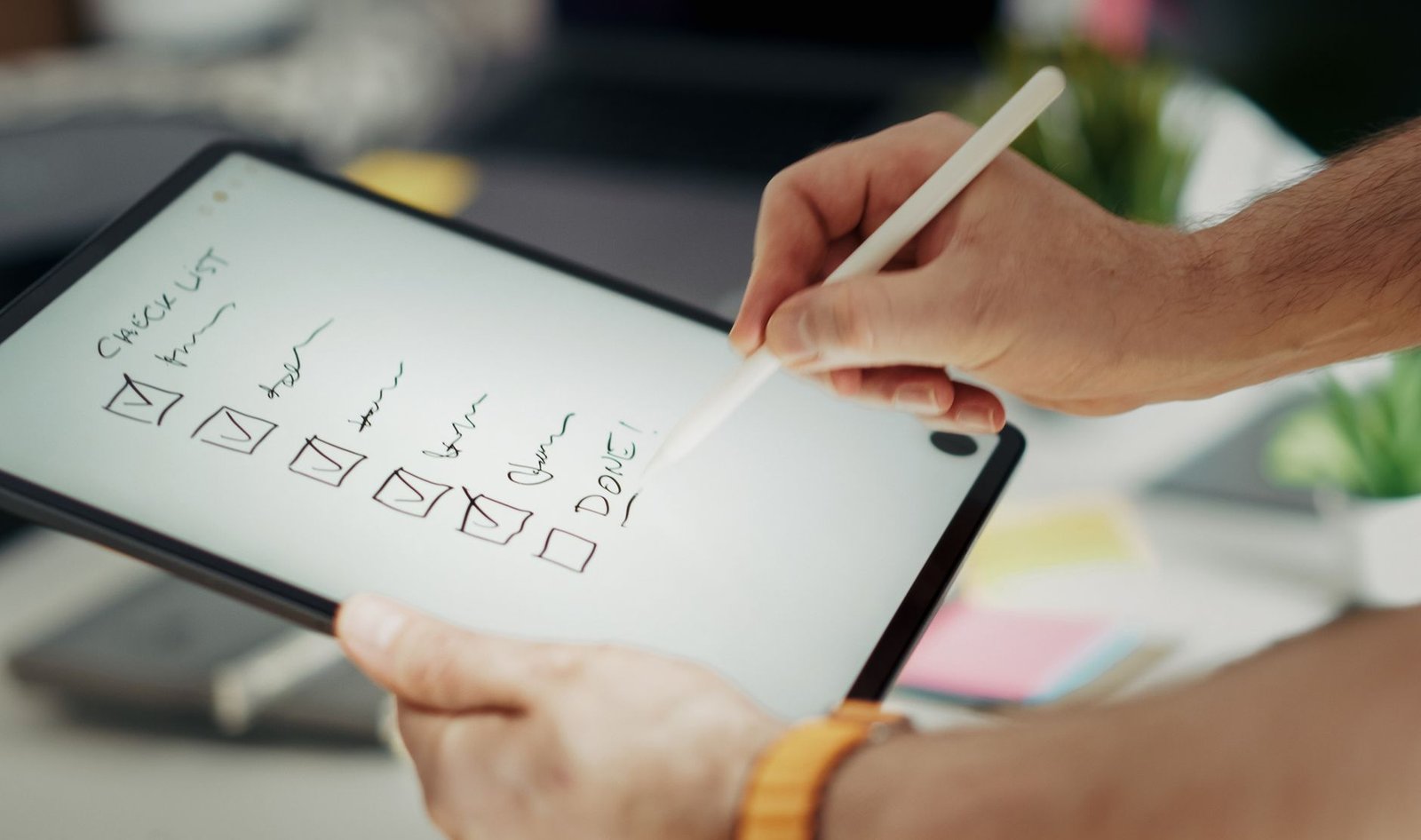
    Using a digital declutter checklist to streamline a tablet home screen with only essential apps.
    Streamline your first screen so choices are fast. Photo: Jakub Zerdzicki via Pexels (source).

    Use your email for action, not storage

    Email becomes calm when you make it automatic and shortΓ’β‚¬β€˜lived.

    • Create one filter that files newsletters to a β€œRead Later” label/folder (Gmail filters).
    • Unsubscribe from at least 10 senders today.
    • Archive messages after you act; do not keep a crowded inbox as a reminder list.
    • Use canned replies for routine requests.

    Templates you can copy:

    Goal Gmail example Outlook example
    Newsletters to Read Later Match: has:newsletter OR category:promotions; Action: Skip Inbox, Apply label β€œRead Later” Condition: Subject includes β€œunsubscribe”; Action: Move to β€œRead Later”
    Receipts and invoices to Finance Match: subject:(receipt OR invoice) OR from:(no-reply@paypal.com); Action: Apply label β€œFinance”, Mark as read Condition: Subject contains β€œreceipt” or β€œinvoice”; Action: Move to β€œFinance”
    VIP always visible Match: from:(boss@example.com OR team@company.com); Action: Star, Never send to Spam Condition: From contains key contacts; Action: Mark as Important

    Rule of thumb: If an email will take under two minutes, do it now. If it takes longer, move it to your task app with a due date.

    A digital declutter checklist for files and folders

    Files clutter drives your attention too. Build one simple structure, then stick to it across devices.

    Action Examples Result
    Delete Duplicates, installers, old screenshots Instant space gain and faster search
    Keep Active projects, legal docs, current receipts Easy access to what you use now
    Archive Past years, finished work, tax receipts Out of sight but safe for reference

    Folder map idea:

    • Home/Work split at the top level.
    • Inside each: 01-Admin, 02-Finance, 03-Projects, 04-Assets, 05-Archive.
    • Use dates like 2026-05-14 for sortable names.

    Now sweep: Clear Desktop into Projects or Archive. Empty Downloads except installers you still need.

    Naming rules that save clicks

    Clear, consistent names make search and sorting effortless. Use short words, dates, and versions. Avoid spaces when tools are picky; hyphens and underscores are safe. Most of all, keep the pattern the same everywhere.

    Pattern Example When to use
    YYYY-MM-DD_Project_Name 2026-05-14_Project-Brief.docx Daily notes, briefs, and logs you sort by date
    Area-Topic_v## ClientA-Proposal_v03.pdf Anything with versions; keeps the latest obvious
    Type_Project_Asset IMG_ProjectA_Header_1920x1080.png Design/media assets where size matters

    Tip: When you export files from apps, rename them at once. Then file them into your map. This twoΓ’β‚¬β€˜step loop keeps your system clean by default.

    Photos and media: a device declutter guide

    Photos should spark memory, not guilt. Start with easy wins.

    • Delete recent duplicates and throwaway screenshots.
    • Create three simple albums: Family & Friends, Work & Docs, Travel & Places (or your life roles).
    • Set automatic upload so you never think about backups.
    • Use Ò€œFree up spaceÒ€ after upload on your phone (Google Photos help).

    Do a 15Γ’β‚¬β€˜minute sweep each month. Small passes beat heroic onceΓ’β‚¬β€˜aΓ’β‚¬β€˜year efforts.

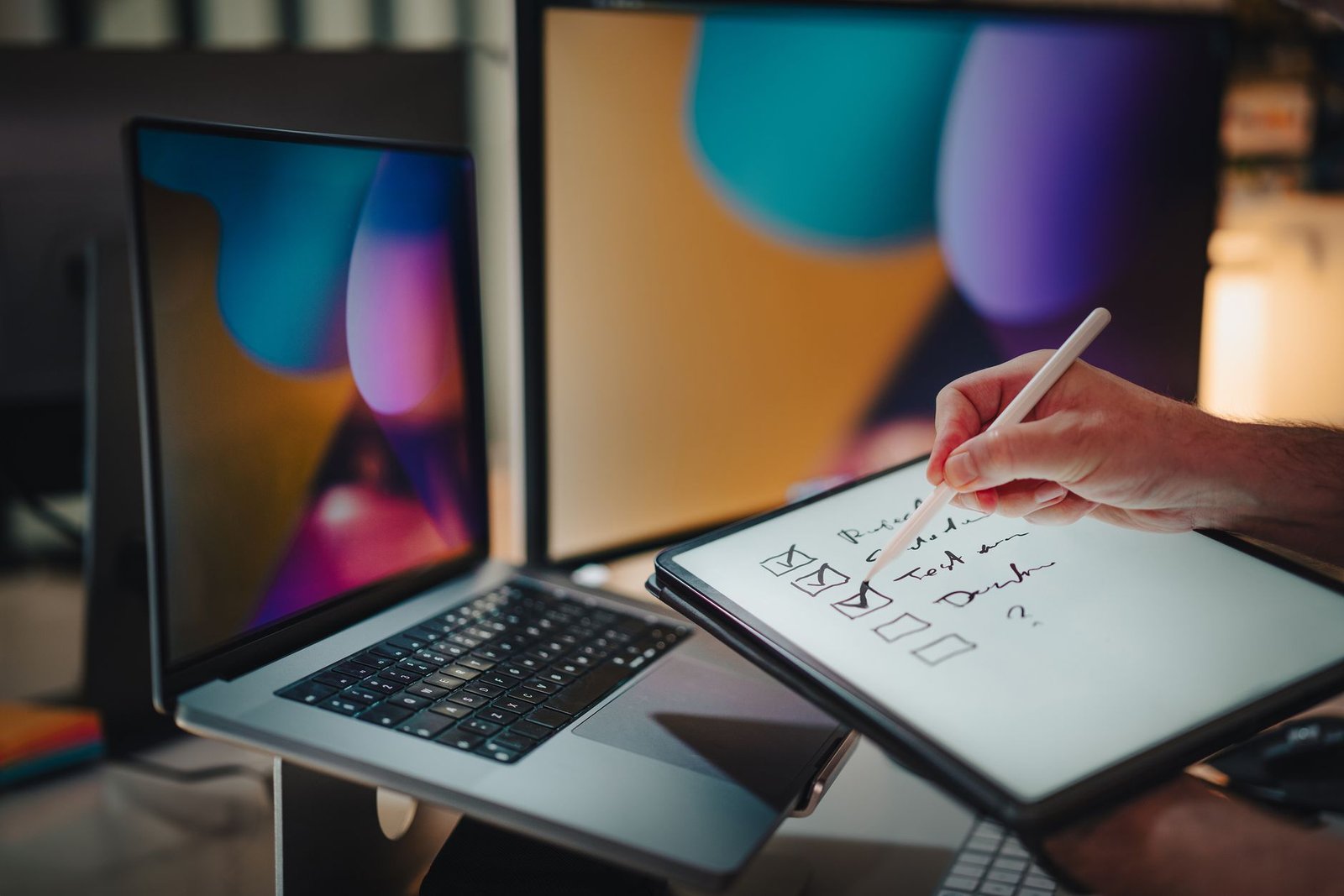
    Reviewing a digital declutter checklist while organizing photos and documents on a tablet.
    Keep photos meaningful. Remove duplicates and file the rest into a few clear albums. Photo: Jakub Zerdzicki via Pexels (source).

    Smarter browsing for your screen declutter plan

    Tabs are not a toΓ’β‚¬β€˜do list. They are a tax. Turn clutter into lists you control.

    • Close all tabs after saving active ones to a single β€œNext” folder.
    • Use a readΓ’β‚¬β€˜itΓ’β‚¬β€˜later app or your browserÒ€ℒs reading list for long articles.
    • Bookmark by verb or outcome (β€œResearch”, β€œBuy soon”, β€œLearn”) instead of site names.
    • Set your browser to open a calm start page, not yesterdayÒ€ℒs tab pile.

    Security basics in your digital cleanup checklist

    Peace of mind is part of clarity. A few moves raise your baseline security fast.

    • Use a password manager to create long, unique passwords; this aligns with modern guidance for memorized secrets (NIST SP 800Γ’β‚¬β€˜63B).
    • Turn on twoΓ’β‚¬β€˜factor authentication (2FA) wherever possible (National Cybersecurity Alliance).
    • Review app permissions quarterly; remove camera, mic, and location access that apps do not need.
    • Update your OS and apps; schedule autoΓ’β‚¬β€˜updates outside work hours.

    Also review recovery info. Confirm your recovery email and phone number are current. Store backup codes in your password managerÒ€ℒs secure notes.

    Platform recipes: Focus and Do Not Disturb

    iPhone and iPad: Open Settings > Focus. Create a Work Focus and a Personal Focus. Allow calls from Favorites and your team as needed. Add only essential apps to Allowed Notifications. Then, under Focus Filters, hide personal calendars during Work and mute work email in Personal. Finally, schedule each Focus to turn on at set times or when you arrive at key locations.

    Android: Open Settings > Notifications > Do Not Disturb. In Schedules, set work hours and sleep hours. Add exceptions for calls from starred contacts. Then visit perΓ’β‚¬β€˜app settings to demote social and shopping alerts to Silent. If your phone supports it, use Modes or Routines to switch wallpapers, enable Dark theme, and adjust volume when DND activates. This gives a clear visual cue and saves taps.

    After setup, test it. Ask a friend to message you from a nonΓ’β‚¬β€˜priority app. You should see nothing during DND. Then send a call from a priority contact. It should come through. Tweak until it fits your day.

    Calm your feeds: social, news, and subscriptions

    Unfollow and mute: Trim accounts that spark stress or lowΓ’β‚¬β€˜value scrolling. Keep a short list of people and topics you truly care about. Because your feed trains your attention, choose what it teaches you.

    Stop autoplay: Turn off autoplay video in each app. This one switch returns minutes per session and cuts the urge to binge.

    Replace doomscroll time: Keep a goalΓ’β‚¬β€˜tied reading list. Queue longΓ’β‚¬β€˜form pieces that serve your work or learning. Open that list when you catch yourself opening a feed.

    Consolidate newsletters: Send them to one folder with a rule. Review weekly. If you skip an author three weeks in a row, unsubscribe.

    Cloud cleanup and one clear folder tree

    Using one structure across services keeps your brain from context switching. Mirror your local folder map in your cloud drive.

    Top Folder Examples Action
    01-Admin ID scans, HR docs, policies Keep; set readΓ’β‚¬β€˜only for originals
    02-Finance Invoices, receipts, taxes Archive by year; encrypt sensitive files
    03-Projects Current work, drafts, assets Keep active; archive finished items
    04-Assets Logos, templates, photos Standardize names; dedupe
    05-Archive Past clients, old versions Zip and store; remove from search scope

    See the whole flow at a glance

    1. Pause

    Focus/DND on

    2. Backup

    Phone Ò€’ Computer Ò€’ Cloud

    3. Reduce

    Notifications Ò€’ Tabs Ò€’ Trash

    4. Organize

    Home screens Ò€’ Folders Ò€’ Filters

    5. Protect

    Password manager Ò€’ 2FA Ò€’ Updates

    6. Maintain

    Daily 5 Ò€’ Weekly 20 Ò€’ Monthly 60

    This simple visual mirrors the steps in your plan. Move left to right, then loop back for quick upkeep passes.

    Upkeep routines for your digital cleanup checklist

    Habits keep your gains. Make them tiny, timed, and tied to routines you already do.

    Daily 5 minutes

    • Clear todayÒ€ℒs screenshots and downloads.
    • Archive or reply to any email that takes under two minutes.
    • Check your calendar and top 3 tasks for tomorrow.

    Weekly 20 minutes

    • Run updates on phone and computer.
    • Sweep your desktop and inbox to zero or to a short action list.
    • Review Focus/DND exceptions; remove noisy apps.
    • Add the digital declutter checklist to a recurring reminder.

    Monthly 60 minutes

    • Photo sweep: delete dupes, file the rest into albums.
    • Cloud drive sweep: archive finished projects.
    • Browser sweep: clear old bookmarks and reading list items.
    • Security sweep: rotate any weak or reused passwords; verify 2FA backup codes.

    Measure your progress

    What you track improves. Pick a few simple metrics and review them after two weeks. Then adjust your rules. After two weeks, compare numbers to the day you started this digital declutter checklist.

    Metric How to measure Good target
    Notifications per day Check weekly average in Screen Time/Digital Wellbeing Down 30Γ’β‚¬β€œ50%
    Inbox at dayÒ€ℒs end Count messages in Inbox at 5 p.m. < 20, with rules handling the rest
    Files on Desktop Count items each Friday < 10, all current
    Open tabs Count before shutdown < 8, all active

    If a target feels hard, lower it. Then raise it again next month. Progress over perfection.

    Automation ideas: small helpers, big win

    Automation keeps clutter from growing back. Start with one helper per area.

    Email: Add a second rule that files shipping updates and receipts to Finance. Star VIPs. Everything else can wait for your two windows.

    Files: Use your OS to autoΓ’β‚¬β€˜move new screenshots to a Screenshots folder. On export, your editor can write to the right folder and name patternÒ€”set that once.

    Mobile routines: Schedule Focus/DND and Sleep modes. Let your device change wallpapers and hide badges at night. A visual shift lowers the urge to check.

    Notes and scans: Set your scanner app to save PDFs straight into 01Γ’β‚¬β€˜Admin or 02Γ’β‚¬β€˜Finance. Name them with dates by default. Less dragging, fewer piles.

    Example walkthrough: a one-hour reset

    Minutes 0Γ’β‚¬β€œ5: Turn on Focus/DND. Start a timer for 25 minutes. Open your cloud or external drive and confirm backups are current.

    Minutes 5Γ’β‚¬β€œ15: Home screen. Move only six daily apps to the dock. Create two rows of top tools. Everything else goes into four verbΓ’β‚¬β€˜named folders.

    Minutes 15Γ’β‚¬β€œ25: Notifications. Allow calls and messages from favorites. Demote social, shopping, and news to Silent. Turn off lockΓ’β‚¬β€˜screen banners for nonΓ’β‚¬β€˜essentials.

    Break 5 minutes: Stand, breathe, drink water. Short breaks help you think better.

    Minutes 30Γ’β‚¬β€œ45: Inbox. Create a Read Later rule for newsletters. Unsubscribe from ten senders. Archive everything older than last week that does not need action.

    Minutes 45Γ’β‚¬β€œ55: Files. Clear your Desktop into Projects or Archive. Delete junk from Downloads older than 30 days.

    Minutes 55Γ’β‚¬β€œ60: Browser. Save active tabs to a single Next folder. Close all tabs. Set a clean start page.

    Results: Fewer pings, a calmer first screen, and an inbox that can breathe. Next, schedule your weekly 20 and monthly 60. Small loops keep gains alive.

    Accessibility and energy settings that help focus

    Comfort supports attention. If screens feel harsh, try Dark mode or reduce white point (iOS) or enable Dark theme and color correction (Android). Lowering motion and parallax can also help some people feel calmer.

    Consider turning off icon badges for nonΓ’β‚¬β€˜essential apps. Badges act like red stop signs. If you need reachability, keep badges only for messages, calendar, and calls. Everything else can wait for your review windows.

    Finally, enable Low Power/Power Saving modes during deep work. You will get fewer background refreshes and, often, fewer distractions.

    When should you run a digital declutter checklist?

    Use it when friction rises. If you hesitate before tapping your phone or dread your inbox, it is time. Also, run it before a new season or big project. Fresh structure makes deep work easier.

    Troubleshooting: when clutter keeps coming back

    If your system drifts, the cause is usually scope or rules. First, your scope may be too big. Shrink it to one screen or one folder. Then schedule a 20Γ’β‚¬β€˜minute loop. Next, your rules may be unclear. Rewrite them in one line each and pin them. Finally, your devices may not match. Mirror your folder map and favorites across phone and computer so moves feel the same.

    When in doubt, return to the steps in your plan. Reset Focus/DND, clear one surface (screen, inbox, or desktop), and archive what is done. Repeat next week. Consistency beats intensity.

    Common pitfalls to avoid

    • Deleting before backing up. Always back up first.
    • Organizing before reducing. First remove, then sort.
    • OverΓ’β‚¬β€˜labeling folders. Names should be short and obvious.
    • Letting exceptions pile up. Review Focus/DND rules monthly.
    • Making it a weekend marathon. Short, regular passes win.

    Practical examples for fast wins

    Rename with dates: Use a YYYYΓ’β‚¬β€˜MMΓ’β‚¬β€˜DD prefix so files sort by day. Example: 2026Γ’β‚¬β€˜05Γ’β‚¬β€˜14_ProjectΓ’β‚¬β€˜Brief.docx.

    One Intake folder: Save all new files to a single Intake spot. Then sort during your weekly 20 minutes.

    One task app: Move todos out of notes and email. Create tasks with clear verbs and due dates.

    Close tabs with a timer: Set 10 minutes. Save the keepers to a Next folder. Close the rest without guilt.

    Will this work across work and personal life?

    Yes, because it is principleΓ’β‚¬β€˜based. You apply the same steps to both, but keep them separate in your folder tree and calendars. Boundaries reduce accidental leakage and stress.

    References and further reading

    The Cost of Interrupted Work (Nielsen Norman Group)

    Multitasking: Switching Costs (American Psychological Association)

    The Importance of Backing Up Your Data (CISA)

    Use Focus on iPhone (Apple Support)

    Use Do Not Disturb on Android (Google Support)

    Digital Identity Guidelines: Authentication and Lifecycle (NIST SP 800Γ’β‚¬β€˜63B)

    Enable TwoΓ’β‚¬β€˜Factor Authentication (NCA)

    Free Up Space in Google Photos (Google Support)

    Create Rules and Filters in Gmail (Google Support)

    FAQ: device declutter guide

    How often should I run a digital declutter checklist?

    Run a light pass weekly and a deeper pass monthly. Also, run it before large projects or season changes, when your tools and focus need a reset.

    What should I declutter first?

    Start with notifications and your first phone screen. Those hit your attention all day. Then sweep your inbox, desktop, and Downloads.

    Will deleting apps speed up my phone?

    It can help if storage is tight or background activity is heavy. The bigger win is fewer interruptions and faster choices on your home screen.

    How do I choose what to delete vs. archive?

    Delete duplicates, installers, and throwaway files. Archive finished projects and records you may need later. Keep only current work at hand.

    What if I work in a regulated industry?

    Follow your organizationÒ€ℒs retention rules first. When in doubt, archive with clear labels and dates, and confirm policies before deletion.

    Next steps for deeper focus

    Want to go further with calm attention and digital clarity? Explore our book recommendations and inΓ’β‚¬β€˜depth reviews for building a focused reading plan that sticks:

    WrapΓ’β‚¬β€˜up

    Clarity grows when your tools get simpler. Use this digital declutter checklist to reset, then protect your gains with tiny upkeep. As your screens quiet down, your mind gets room to think.

    Helpful resources for your next step

    Affiliate disclosure: As an Amazon Associate, Mind Clarity Hub may earn from qualifying purchases at no extra cost to you. Use this link only if it genuinely helps your planning.

    If Digital Declutter Checklist: Reset Your Screens Without Overwhelm is a routine you want to keep using, a simple workbook, planner, or desk tool can make the steps easier to repeat.

    Compare related planners, workbooks, and organization tools on Amazon.
2b raymond grove, caulfield south vic 3162.