


If your inbox feels less like a tool and more like a battleground, you’re not alone. Learning how to manage email overload is a critical skill in today’s digital world. That sinking feeling of being buried under an avalanche of messages is a shared modern experience. Consequently, it’s not a personal failing—it’s a systemic problem of scale, and the first step to fixing it is understanding why it’s so draining.
Affiliate Disclosure: This post may contain affiliate links. If you make a purchase through these links, we may earn a small commission at no extra cost to you. We only recommend products we trust and believe will add value to our readers.
Why Email Overload Feels Like a Constant Battle
The numbers behind the overwhelm are staggering. We’re closing in on 4.9 billion email users worldwide, and the daily flood of messages is expected to hit nearly 400 billion by 2027. For the average professional, that consequently breaks down to over 100 messages hitting your inbox every single day.
But this constant digital deluge isn’t just a logistical headache; it’s a cognitive one. Every notification, every unread count, and every interruption pulls at your mental resources. This is where the real fight for focus begins.
The Hidden Cognitive Cost of Constant Switching
Your brain isn’t built for the relentless task-switching that modern email demands. From a neuroscience perspective, each time you glance at a new message while working on something else, you trigger a psychological phenomenon known as “attention residue.” This term describes how thoughts about the previous task linger in your working memory, which in turn degrades your focus on the new one.
Even a quick 30-second check can leave a mental fog that drags down your cognitive performance for minutes. This constant switching drains your prefrontal cortex, the part of the brain responsible for executive functions like decision-making and impulse control. It’s the fast track to a state of digital overwhelm, where your brain’s attention systems are perpetually hijacked.
The Real-World Impact of Email Chaos
The consequences of a chaotic inbox stretch far beyond just feeling “busy.” An out-of-control email habit quietly chips away at your productivity, your mood, and even your ability to think clearly.
It’s one thing to feel this anecdotally, but seeing the contrast laid out can be a powerful motivator for change.
The Hidden Costs of an Overloaded Inbox vs The Gains of Control
| Area of Impact | Cost of Overload | Benefit of Management |
|---|---|---|
| Mental Focus | Constant interruptions create “attention residue,” making deep work difficult and leading to more errors. | Scheduled email blocks protect long periods of uninterrupted focus, improving work quality. |
| Decision Fatigue | Making hundreds of small, repetitive decisions about emails depletes mental energy for important tasks. | A clear triage system (like the one we’ll cover) automates decisions, preserving cognitive resources. |
| Productivity | Time is lost not just to reading emails, but to refocusing afterward. This “switching cost” adds up. | Batch processing similar emails together minimizes context switching and gets more done in less time. |
| Well-being & Mood | An ever-present “unread” count can be a source of chronic, low-level anxiety and a feeling of being behind. | Achieving “inbox zero” provides a sense of accomplishment and control, reducing work-related stress. |
Once you truly grasp this “why,” the path forward becomes much clearer. You’re not just organizing messages; you’re redesigning your relationship with a tool that has come to dominate your time and attention. By acknowledging the psychological weight of it all, you can finally build a system that works with your brain, not against it.
The Triage Framework: A Key to Managing Email Overload
Now that you know the cognitive price of email chaos, it’s time to build a system that protects your brain. To get a handle on email overload, you need a simple, repeatable process for making quick, decisive choices. Forget staring at an email and wondering what to do. This triage framework gives you a clear path for every single message that lands in your inbox.
This approach is a modern take on the classic “4Ds” of productivity—Delete, Delegate, Do, and Defer. Each category acts as a mental bucket, helping you make a final decision on an email the first time you touch it. The goal here is to stamp out decision fatigue, which is that drained feeling you get when a long string of choices erodes your willpower. When you systematize your inbox decisions, you save that precious mental energy for the work that actually moves the needle.
This simple decision tree shows you how to filter any new message.
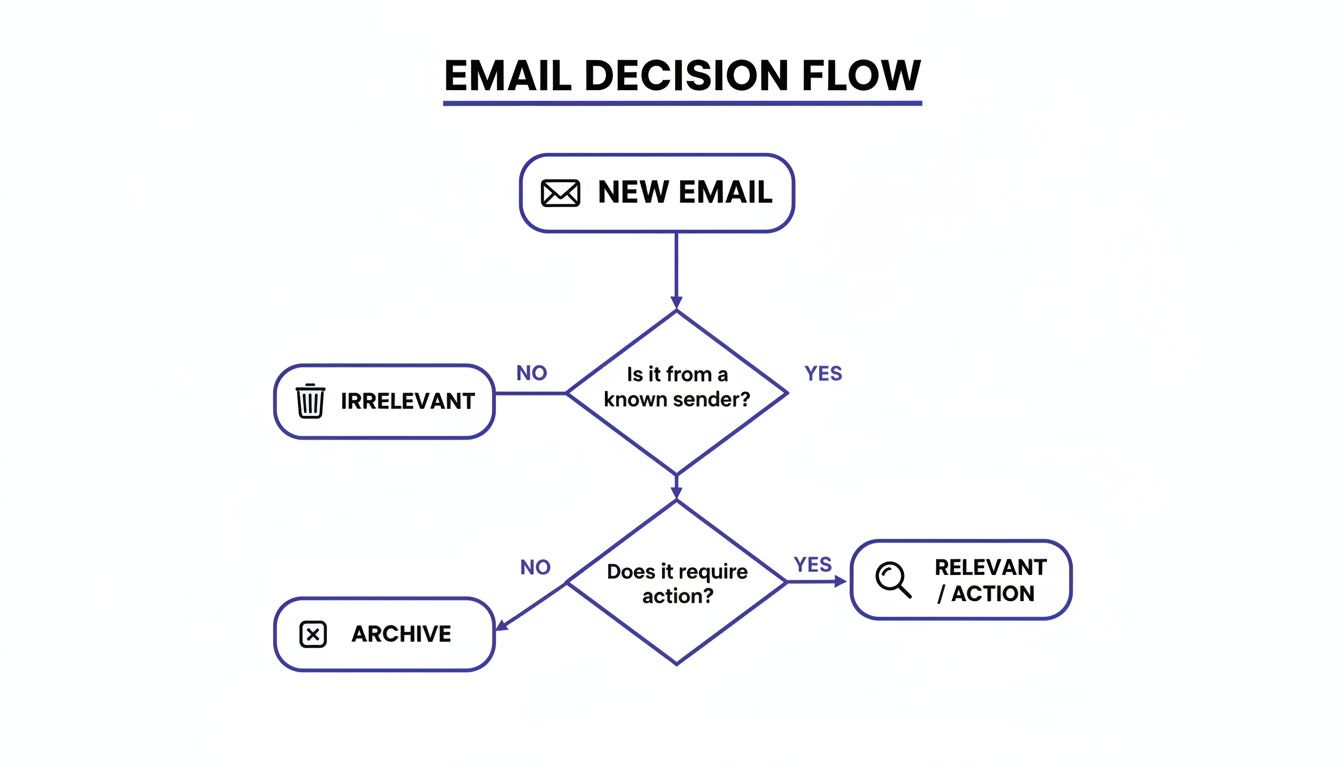
As the visual shows, every email forces a choice. Having a clear system takes a huge load off your mind.
Category 1: Delete and Unsubscribe Aggressively
The most powerful action you can take is hitting ‘delete.’ This isn’t just about clearing clutter; it’s about reclaiming your attention from things that don’t serve your goals.
Your new rule is simple: if an email is irrelevant, unhelpful, or from a list you don’t remember joining, get rid of it. But don’t just delete it. Take the extra five seconds to unsubscribe. This is a high-leverage move that prevents dozens of future emails from ever reaching you, stopping the problem at its source.
- Mini-Scenario: A project manager gets daily promo emails from a software tool her team tested six months ago. Instead of deleting it every morning, she scrolls to the bottom, hits “unsubscribe,” and permanently removes that distraction.
Category 2: Delegate with Clarity
Not every email that lands in your inbox is actually your responsibility. Many messages are tasks disguised as information, and your job is to route them to the right person.
Effective delegation means forwarding the email with clear, concise instructions. Don’t just forward it and hope for the best. Briefly state what needs to be done, who owns it, and when it’s due. Once you’ve sent it off, archive the original email so it’s no longer a mental distraction.
- Mini-Scenario: A small business owner gets an email from a customer with a technical question. She forwards it to her support specialist with a quick note: “Can you handle this and reply by EOD? Let me know if you need anything.” Then, she archives it.
Category 3: Do It Now with the Two-Minute Rule
This category is all about quick wins. The “two-minute rule” is a cornerstone of getting your email under control. The rule is simple: if you can read, understand, and act on an email in two minutes or less, do it immediately.
Putting off these small tasks just creates a backlog of mental clutter. A quick reply prevents it from lingering in your inbox and your mind. This rapid-fire action helps build momentum and gives you a satisfying sense of progress. For anyone who struggles with getting started, learning to improve your executive function skills can make applying rules like this feel much more automatic.
- Mini-Scenario: A team member emails their manager to confirm a meeting time. The manager sees it, replies “Confirmed, thanks for setting it up!” and archives the thread. The entire interaction takes less than 30 seconds.
Category 4: Defer to Your System
This is for everything else—the emails that demand more than two minutes of thought or action. These are the messages that usually sit in your inbox, creating low-grade anxiety. The key here is to defer them to the right place, which is not your inbox.
Your inbox is a terrible to-do list. Instead of letting complex emails fester, move them into a system built for action.
- If it requires a chunk of time: Turn it into a calendar event. Block out a specific time to work on the task requested in the email.
- If it’s a task or project: Add it to your task management app (like Todoist, Asana, or Trello) and give it a deadline.
- If you need it for reference later: Archive it in a specific folder so you can find it when you actually need it.
Once you’ve moved the task to its proper home, archive the email. Your inbox stays clean, and the task is captured in a system you trust. This is how you finally stop living out of your inbox and start managing your commitments with intention.
Building Your Digital Fortress: Automation for Email Overload
A smart triage framework is your strategy, but technology is what makes it stick. Manually sorting every single message is a one-way ticket to burnout. The real key to sustainable inbox control is teaching your email client to do the heavy lifting for you.
This is where you build a digital fortress—an automated system that manages the incoming flood before it ever has a chance to demand your attention.
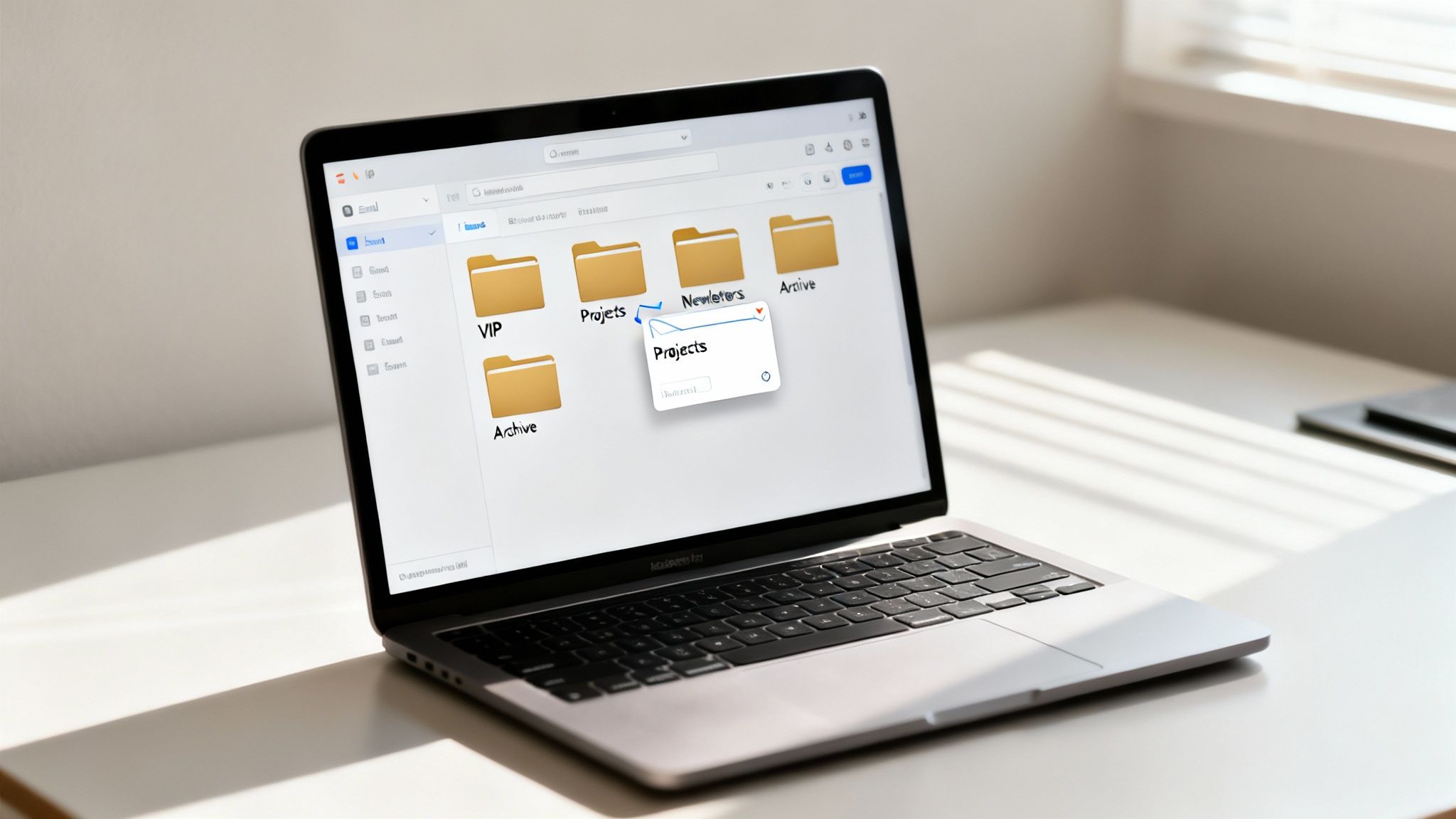
This whole process is grounded in a core psychological principle: reducing stimulus overload. When your brain is constantly hit with a wall of undifferentiated information (like a messy inbox), it burns through precious mental energy just trying to figure out what matters. Filters and rules act as your personal pre-screening system, presenting you with a cleaner, calmer environment that fiercely protects your focus.
Automating Your Triage with Smart Filters
Smart filters are the bedrock of an automated inbox. They’re just simple “if-then” commands that you set up once and let run forever. Think of them as loyal gatekeepers who sort your mail according to your exact instructions, no questions asked.
The goal isn’t to create dozens of complex rules overnight. That’s just another form of overwhelm. Instead, start with the biggest sources of noise and work your way down.
Here are the most impactful filters to set up first:
- The Newsletter Rule: Create a filter that looks for common newsletter phrases like “unsubscribe” or “manage your subscription.” Set it to automatically move these messages to a “Reading List” folder and mark them as read. This gets them out of your primary inbox so you can batch-read them later.
- The Notification Rule: Hunt down all those automated notifications from project tools, Google Docs, or social media (think
noreply@project-tool.com). Make a rule that sends them straight to a “Notifications” folder, skipping the inbox entirely. - The Receipt Rule: Filter for keywords like “receipt,” “invoice,” or “order confirmation.” Automatically apply a “Receipts” label and archive them. This keeps your main inbox clear of all that transactional clutter.
Create a VIP Inbox for Undivided Attention
While filtering out the noise is critical, highlighting the signal is just as important. A VIP (or Priority) Inbox is an absolute game-changer. It’s a special view that only shows you messages from your most important contacts, ensuring you never miss a critical update from your boss, key clients, or family.
Most email clients, including Gmail (with its “Priority Inbox” feature) and Outlook (with “Focused Inbox”), make this easy. You’re essentially creating a whitelist of senders whose messages always get front-and-center treatment.
Why This Works: By creating a VIP list, you’re telling your brain which stimuli deserve immediate attention. This works with your brain’s natural filtering mechanisms, allowing you to ignore the background chatter and conserve mental energy for high-stakes communication.
Real-World Scenarios Putting Rules into Action
Let’s see how this actually plays out.
Scenario 1: The Project Manager
Maria is juggling three huge projects: Alpha, Bravo, and Charlie. She’s constantly digging through her inbox trying to find client-specific emails. To fix this, she creates three dead-simple rules:- Rule 1: If an email is from
@client-alpha.com, move it to the “Project Alpha” folder. - Rule 2: If an email is from
@client-bravo.com, move it to the “Project Bravo” folder. - Rule 3: If an email is from
@client-charlie.com, move it to the “Project Charlie” folder. - The Result: Her main inbox is now reserved for internal team messages and unassigned items. All client communication is neatly pre-sorted, saving her tons of time and reducing the mental load of constant searching.
- Rule 1: If an email is from
Scenario 2: The Freelance Designer
David works with five regular clients who are his bread and butter. He also gets dozens of inquiries, newsletters, and promotional emails every day. He sets up a simple VIP system:- Action 1: He adds the email addresses of his five key clients to his “VIP” or “Favorites” list.
- Action 2: He configures his email client to send a notification only when a VIP email arrives. All other notifications are silenced.
- The Result: David is no longer distracted by every single incoming message. He can focus on deep work, confident that he won’t miss a truly urgent note from a high-priority client. This simple setup is a powerful way to increase productivity at work by protecting your most valuable asset: your attention.
The Art of Batching and Scheduling to Manage Email
Automating your inbox is a huge leap forward, but to really beat email overload, you have to change your habits, not just your settings. This means breaking free from the reactive cycle of checking your inbox every time a new message hits.
The single most powerful way to do this? Email batching.

Batching is simple: you process email at specific, scheduled times instead of responding the second messages arrive. It sounds minor, but this small shift has a profound effect on your ability to focus.
The High Cognitive Cost of Constant Interruptions
Every time you switch from a task to check an email—even for a few seconds—you pay a heavy cognitive price. This isn’t just a feeling; it’s a real, measurable loss.
Some studies show that office workers can spend a staggering 20% to 28% of their week just on email. The raw hours are bad enough, but the real damage comes from interruptions. A single email check can derail your focus, and it can take your brain another 10-20 minutes to get back into a deep-work state.
Batching groups all your email activity into dedicated windows. This lets your brain stay in a single “mode,” processing similar tasks efficiently without the jarring cost of context-switching. You can dive deeper into the powerful cognitive benefits by understanding the neuroscience of single-tasking.
Designing Your Email Schedule
There’s no magic, one-size-fits-all schedule here. The right rhythm depends entirely on your role and your team’s needs. The key is to be intentional about it.
Here are a few popular schedules to get you started:
- The Three-Block Day (Most Common): Process email at 10:00 AM, 1:00 PM, and 4:00 PM. This carves out long, uninterrupted work blocks in the morning and afternoon, which works for most professionals.
- The Bookend Day (For Deep Workers): Hit your inbox once at the start of the day (9:00 AM) and once before you wrap up (4:30 PM). This is perfect for roles that demand deep concentration, like writing, coding, or analysis.
- The Manager’s Pulse (For Team Leads): Use shorter, more frequent checks. Think four 15-minute blocks spread throughout the day. This keeps you responsive to your team without getting stuck in the inbox.
Communicating Your New Boundaries
A new schedule only works if you communicate it. People are used to near-instant replies, so you have to gently reset their expectations. You don’t want them thinking you’re ignoring them.
Here are two easy ways to do this:
- Update Your Email Signature: Add a simple, friendly line to your signature.
- Example: “Please note: I check emails at 10 AM and 4 PM to focus on my work. For urgent matters, please call or text.”
- Use a Temporary Auto-Responder: If you’re heading into a deep-work session, flip on an auto-responder.
- Example: “Thanks for your message! I’m in a focused work session until 2 PM and will respond then. If this is an emergency, you can reach me at [phone number].”
This proactive communication prevents misunderstandings and reinforces your commitment to managing your time effectively. It shows respect for their needs and your own.
Using Technology and AI to Your Advantage
Once you’ve nailed down a consistent email schedule, the next real leap forward comes from letting technology handle the boring, repetitive stuff for you. Automation and AI aren’t just buzzwords for Silicon Valley anymore; they’re practical tools anyone can use to claw back time and mental energy from their inbox.
Think about it: every time you manually sort a newsletter, summarize a long thread, or type out a routine reply, you’re burning through your brain’s limited daily supply of focus. By offloading those predictable tasks to a machine, you get to save that precious cognitive fuel for the kind of deep, creative thinking that actually moves the needle in your work.
Speed Up Replies with Email Templates
How many times a day do you type out the exact same email? Whether you’re sending a new client your welcome packet, confirming a meeting time, or just answering a frequently asked question, these messages are prime candidates for automation.
Creating a handful of email templates for your most common replies is one of the simplest, highest-impact changes you can make. Nearly every modern email client, from Gmail to Outlook, has this feature built right in.
- Here’s a real-world example: A freelance graphic designer gets asked for her portfolio and pricing multiple times a week. Instead of retyping that info every single time, she created a template with a friendly greeting, a link to her work, and her attached rate sheet. What used to take her ten minutes now takes ten seconds. That’s a huge win.
Let AI Do the Heavy Lifting
Artificial intelligence is quickly becoming an indispensable email assistant. AI tools—either built into your email client or available as add-ons—can help you process information faster and draft replies without staring at a blank screen.
This isn’t about letting a robot take over your voice. It’s about giving yourself a running start. When you’re faced with a ridiculously long email thread, you can ask an AI to pull out the key points and action items. When you need to send a tricky email, you can ask it to draft a polite, professional starting point.
Why This Works: Using AI to summarize a long thread offloads the cognitive task of synthesis from your brain. This act conserves your executive functions—like planning and decision-making—for the actual work that follows, rather than depleting them on just understanding the conversation.
It helps you overcome the initial inertia and saves a surprising amount of time.
Practical AI Prompts for Your Inbox
You don’t need to be a tech wizard to use AI effectively. Simple, direct prompts with an assistant like ChatGPT, Gemini, or Copilot can radically speed up your workflow.
Try these prompts the next time you’re stuck:
- To get the gist of a long thread:
- Prompt: “Summarize the key decisions and action items from this email thread.”
- To draft a professional reply:
- Prompt: “Draft a polite and professional email declining this meeting invitation due to a scheduling conflict. Suggest a follow-up call next week.”
- To clarify a vague request:
- Prompt: “Draft a friendly email asking for more specific details about the project mentioned here. Ask for the deadline, budget, and key deliverables.”
Learning how to “talk” to these tools is a skill that pays dividends. If you want more ideas on weaving AI into your daily routine, our guide on making everyday AI easy and practical is a great place to start.
The table below gives a clearer picture of how different automation techniques stack up in terms of saving you time and mental energy.
Email Automation Impact Comparison
| Automation Technique | What It Does | Potential Time Saved Per Week |
|---|---|---|
| Email Templates | Stores pre-written responses for common emails. | 1-2 hours |
| AI Summaries | Condenses long email threads into key points. | 1-3 hours |
| AI Drafts | Generates a first draft for replies or new emails. | 2-4 hours |
| Snooze/Follow-Up | Hides an email and brings it back to your inbox later. | 30-60 minutes |
As you can see, even small automation habits compound into significant time savings, freeing you from low-value tasks. The impact of these tools is real and measurable. Studies show that using folder rules and smart filters can slash manual sorting time. And as AI features like priority inboxes and auto-categorization get smarter, they’re becoming one of the most effective ways to combat email overload. You can dig into more of the data behind these effective strategies on Vib.tech.
Editor’s Note on What Really Works
Let’s be honest—most “email hacks” fail because they only treat symptoms. What truly works is building a simple, repeatable system that reduces decision-making. The strategies in this guide are designed for professionals who feel reactive and want to reclaim proactive control over their time and focus. The key is combining a clear triage framework with smart automation. However, if your role demands instant responsiveness (like in emergency services or high-level customer support), you’ll need to adapt these methods significantly, likely relying more on aggressive VIP filters rather than strict email batching schedules.
Disclaimer: This article contains affiliate links, which means we may earn a small commission if you make a purchase through them, at no extra cost to you. This content is for educational and informational purposes only. It is not intended to be a substitute for professional medical advice, diagnosis, or treatment. Always seek the advice of your physician or other qualified health provider with any questions you may have regarding a medical condition.
FAQ: Your Questions on Managing Email Overload Answered
Switching up your entire email workflow can feel like a huge leap, so it’s completely natural to have a few questions. Let’s dig into some of the most common concerns that pop up when people finally decide to get their inbox under control.
What if my job requires immediate responsiveness?
This is a common concern, especially for those in client-facing or leadership roles. The goal isn’t to ignore urgent messages; it’s to build a system that filters out the noise so you can actually see what’s truly urgent. The first step is creating a rock-solid VIP filter for your boss, key clients, or direct reports. You can set up unique mobile notifications just for this group while silencing everything else. Consequently, a real emergency can still get through instantly, but you’re no longer derailed by every non-critical message.
How long does this system take to feel natural?
Habits don’t form overnight. From a behavioral psychology standpoint, you are overwriting years of ingrained, reactive patterns with new, proactive ones. Give yourself a solid two to three weeks of consistent effort. The first few days will feel clunky as you consciously apply the triage framework and fight the muscle memory of constant checking. Be patient; soon, the new system will become second nature, and the sense of calm and control will be its own reward.
What are the best tools for email management?
While the built-in tools in Gmail and Outlook are surprisingly powerful, a few other apps can give you some extra leverage.
- SaneBox: This tool uses AI to learn what’s important to you, automatically moving non-urgent emails to a separate folder for you to process later. It’s like having a personal assistant for your inbox.
- Superhuman: If you live in your inbox and value speed, this premium client is built for it. It’s packed with keyboard shortcuts that let you fly through email.
- Clean Email: This one is a lifesaver for big clean-up jobs. It’s fantastic for bulk unsubscribing and archiving thousands of old messages in one go.
Ultimately, the best tool is the one that fits your workflow. I recommend starting with the free features in your current email client before investing in a paid service.
We hope this guide provides the clarity you need to conquer your inbox. At Mind Clarity Hub, we provide science-based guides to help you reclaim your focus in a distracted world.
For more visual tips on productivity and digital wellness, be sure to check out my resources on Pinterest.
Explore the Mind Clarity Hub Library
Practical books on focus, digital habits, resilience, and building a calmer mind.
The Power of Clarity
Unlock mental focus, build momentum, and create the life you were meant to live.
View book →
AI & ChatGPT for Beginners
No PhD needed — a 2025 guide to AI, prompts, and productivity without coding.
View book →
Zen in the Digital Jungle
Mindfulness for a chaotic world.
View book →
The Slow Reset
Mindful living in a fast-paced world.
View book →
Perfectly Imperfect
Stop self-criticism, set boundaries, and embrace the real you.
View book →
Reclaiming Silence
A dopamine detox guide to finding peace in a noisy world.
View book →
The Focused Freelancer
Productivity, pricing & positioning for independents in 2025.
View book →
ChatGPT Side Hustle System
Launch your AI-driven online business in 30 days.
View book →
Burnout, Interrupted
A proven path to restore energy and reclaim your life.
View book →
Attention Unleashed
Focus strategies for the distracted mind.
View book →
Side Hustle Launchpad
Your quick-start guide to extra income.
View book →
Digital Clarity
Rewire your brain, escape dopamine traps & regain focus.
View book →
Break the Scroll
Reduce screen time and take back control of your life.
View book →
Climate Compassion
Transform eco-anxiety into empowered action.
View book →
Village Mentality
The power of community for mental wellness.
View book →
Restful Nights
Overcoming sleep anxiety in a 24/7 world.
View book →
Connected Again
Combat loneliness and build meaningful relationships.
View book →
Focus Recharged
Mastering attention and productivity in the digital era.
View book →
Marketing Magic with ChatGPT
AI-powered content, campaigns, and copywriting to grow faster.
View book →
The 6-Figure Creator
Turn knowledge into passive income with books, courses & AI.
View book →
Burnout Breakthrough
Reset your work-life balance and thrive in 2025.
View book →
The Emotionally Intelligent Man
A modern guide to self-awareness and communication.
View book →
AI Personalized Wellness
Create your custom health plan with data-driven habits.
View book →
Everyday AI Made Easy
Use ChatGPT and smart tools to simplify life.
View book →
Money Mindfulness
A financial wellness guide for Gen Z & Millennials.
View book →
Startup Smarter with AI
ChatGPT strategies and tools to grow your business.
View book →
ChatGPT for Writers & Creators
Unlock AI-powered brainstorming, drafting & editing.
View book →