

Published:
Use this mindful notification settings template for iOS and Android to cut noise and protect your attention. You will craft four practical profiles—Work, Deep Focus, Commute, and Sleep—using Apple Focus, Android Do Not Disturb, Focus Mode, and Bedtime Mode. Every step is simple. Each section lists the exact toggles to change, when to use a schedule, and what to screenshot so you can check your setup later.
Key takeaways
- Build four profiles: Work (allow priority people and work apps), Deep Focus (allow almost nothing), Commute (allow time-sensitive travel and safety), and Sleep (allow emergencies only).
- Use schedules and triggers so modes switch without effort. Tie Work to your calendar, Deep Focus to a one-tap toggle, Commute to car Bluetooth, and Sleep to your bedtime.
- On iOS, use Focus Filters to tame badges and app inboxes. On Android, use Do Not Disturb priority lists plus Digital Wellbeing for app pauses.
- Keep screenshots of each Focus/DND screen so you can review or share your setup with a teammate or family member.
How to use this guide
Follow the steps in order. First, skim the overview so you can see how Work, Deep Focus, Commute, and Sleep differ. Next, set up iOS or Android (or both). Then, save a copy of this mindful notification settings template for iOS and Android in your notes app. Finally, return here when you refresh your settings each quarter.
Because platforms update often, we include official sources for key features. If a label looks slightly different on your device, use the closest match. Also, take a quick screenshot at the end of each sub-step. It creates your own mini playbook.
Which profile should you use right now?
- Question 1: Are you doing maker work or study that needs silence? 1 86c Go Deep Focus
- Else: Are you collaborating or on-call? 1 86c Go Work
- Else: Are you in transit or driving? 1 86c Go Commute
- Else: Is it evening or bedtime? 1 86c Go Sleep
Tip: Pin Deep Focus and Work to quick toggles (Control Center on iOS, Quick Settings on Android) so you can switch in one tap.
What is a mindful notification system?
A mindful notification system is a small set of intentional rules that let the right alerts through at the right time. It replaces the default all-on buzz with a few clear profiles you can trust. You choose who and what can reach you, and you control when.
Free download: 7-Day Mind Clarity Reset
A short daily reset you can actually stick with (no fluff).
Think of it as the opposite of doom pings. Instead of reacting to every vibration, you decide: during Work you allow a narrow set of people and tools; during Deep Focus you silence everything except emergencies; during Commute you keep navigation and safety active; during Sleep you let urgent calls through and block the rest.
Notification types at a glance
| Type | Examples | When to allow |
|---|---|---|
| Critical/Emergency | Emergency calls, medical alerts | Always allow or allow in Sleep, Commute |
| Time-sensitive | Calendar starts, Uber arrival, navigation turns | Work, Commute; off in Deep Focus and Sleep |
| Conversations | Family, manager, project channel | Work; family in Sleep as repeat callers; off in Deep Focus |
| General app alerts | Likes, promos, follower counts | Usually off; Summary or Deliver Quietly |
On iOS, Focus can treat Time Sensitive notifications differently and show a Summary at set times. On Android, Do Not Disturb has Priority conversations, Alarms, and app-level overrides. See Apple’s Focus overview and Android’s DND docs for details.
Sources: Apple: Set up a Focus; Apple: Change notification settings; Android: Control notifications; Android: Use Do Not Disturb.
The four templates you’ll build
| Profile | Allow | Block | Schedule/Trigger |
|---|---|---|---|
| Work | Manager, key teammates, calendar, project tools | Social, promos, random pings | Weekdays 9 6 or based on calendar |
| Deep Focus | None or emergency repeat callers | Everything else | Manual toggle for 25 60 min blocks |
| Commute | Navigation, ride-share, emergency calls | Chats, socials | Car Bluetooth or set times |
| Sleep | Alarms, emergency repeat callers, health apps | All others | Bedtime schedule |
We’ll map each one on iOS Focus and Android Do Not Disturb + Digital Wellbeing.
Download or copy this mindful notification settings template for iOS and Android
You can mirror each step into your Notes or task manager. At the end of each profile, copy the short checklist header and add it to a pinned note. This way, the mindful notification settings template for iOS and Android lives where you can use it in seconds.
Before you start: core principles that keep you calm
- Small allow lists win. Start with the few people and apps that truly matter.
- Schedules prevent friction. Let automation switch most profiles.
- Manual for special cases. Keep Deep Focus as a one-tap manual mode.
- Silence badges. Badges are ambient anxiety. Hide them in work and deep focus.
- Screenshot the end state. Each setup ends with a snapshot checklist.
iOS setup: use Focus, Focus Filters, and Notification Summary
On iPhone, you’ll build each profile as a Focus with Allow lists, options for Time Sensitive notifications, and schedules. Where helpful, use Focus Filters to curb badges and inboxes inside apps (Mail accounts, Calendar visibility, Messages, Slack status, and more). See Apple’s guides for Set up a Focus and Change notification settings.
Work: teammates and tools, nothing else
- Open Settings > Focus > Add Focus > Work.
- Allowed People: Add your manager, 1 3 key teammates. Turn on Allow Repeated Calls from Favorites if your team uses this for urgent items.
- Allowed Apps: Add Calendar, your project tool (e.g., Asana, Jira), email, and chat (e.g., Slack, Teams). Turn on Time Sensitive if your calendar or tasks use it well.
- Options: Turn off Lock Screen dimming if you want a normal screen, but turn off Badges for allowed apps to avoid number anxiety.
- Focus Filters (optional but powerful):
- Mail: Show only your work inbox.
- Calendar: Show work calendars, hide personal.
- Messages or Slack: Pause non-urgent channels; set a status like Heads-down work.
- Set a Schedule: Weekdays, 9:00 6:00. Also add Smart Activation so iOS learns your routine.
- Control Center: Add Work Focus to your iPhone Control Center for quick toggling.
Screenshot guidance: Capture People, Apps, Options, Filters, and Schedule screens. Save them in a Work Focus album.
Mini checklist to copy: Work 7 people added, 4 apps allowed, badges hidden, mail filter set, weekdays 9 6.
Reminder: If your team sometimes needs you outside hours, teach them to call twice if urgent. iOS will let repeat calls through (if enabled).
Save this mindful notification settings template for iOS and Android to your notes so you can mirror it for Android later.
Deep Focus: protected time for deep work or study
- Settings > Focus > Add Focus > Custom > Name it Deep Focus.
- Allowed People: None (or just Favorites with Repeated Calls to capture emergencies).
- Allowed Apps: None. Turn off Time Sensitive here so nothing slips through.
- Options: Hide notifications on Lock Screen; disable banners; hide badges globally while this Focus is on.
- Focus Filters: In Mail, hide all inboxes. In Calendar, show only today’s single focus block if you like. In messaging apps, set status to In deep work.
- Schedule: None. Keep it manual. Add a Focus Filter for a Pomodoro timer app if you use one.
Screenshot guidance: People (none), Apps (none), Options, Filters screens. Add a photo of your Control Center tile for Deep Focus.
Mini checklist to copy: Deep Focus none allowed, badges hidden, banners off, manual toggle, Pomodoro ready.
This is the purest form of the mindful notification settings template for iOS and Android. Use it for 25 60 minute blocks when you need flow.
Commute: navigation and safety first
- Settings > Focus > Add Focus > Driving (or Custom if you prefer Commute).
- Allowed People: Favorites only, with Repeated Calls on. Add family and one backup contact.
- Allowed Apps: Maps, your ride-share app (e.g., Uber, Lyft), transit app, and Time Sensitive. Do not allow chats.
- Auto-Reply: If using Driving Focus, set an auto-reply like I’m driving. I’ll reply when I arrive. Call twice if urgent.
- Schedule/Trigger: Turn on Automatically when connected to car Bluetooth. Also allow manual activation for subway or bus.
Screenshot guidance: People, Apps, Auto-Reply, and Activate screens. Save as Commute Focus album.
Mini checklist to copy: Commute maps + rides allowed, Favorites only, repeated calls on, auto-reply set, car Bluetooth trigger.
Because safety matters, the mindful notification settings template for iOS and Android always keeps navigation audible during Commute.
Sleep: alarms and emergencies only
- Settings > Focus > Sleep (or Add Focus > Sleep if not enabled via Health).
- Allowed People: Favorites with Repeated Calls on. Keep the list short.
- Allowed Apps: Clock/Alarm and any health or sleep tracker you trust. No others.
- Options: Dim Lock Screen, silence notifications, hide all badges.
- Schedule: Set Bedtime and Wake Up times from Health > Sleep or within Sleep Focus. Enable Wind Down 30 60 minutes before bed.
Screenshot guidance: People, Apps, Options, and Schedule screens, plus Health > Sleep screen.
Mini checklist to copy: Sleep favorites only, repeated calls on, dim lock screen, bedtime schedule + wind down.
For iOS, Apple’s Focus setup guide and notifications help show the latest interface labels.
Android setup: Do Not Disturb, Focus Mode, and Bedtime Mode
On Android, you’ll pair Do Not Disturb (DND) priority lists with Digital Wellbeing tools. The mindful notification settings template for iOS and Android ports cleanly: Work maps to DND Priority mode with allowed people and apps; Deep Focus maps to DND with almost nothing allowed plus Focus Mode to pause apps; Commute maps to DND triggered by car Bluetooth; Sleep maps to Bedtime Mode and DND at night. See Google’s docs for notifications, Do Not Disturb, and Digital Wellbeing & Bedtime Mode.
Work: priority people and work apps
- Settings > Sound & vibration > Do Not Disturb (DND).
- People: Allow calls and messages from Starred contacts only. Star your manager and 1 3 key teammates in Contacts.
- Apps: Add exceptions for Calendar, work email, project tool, and chat. Optionally allow Time Sensitive equivalents (varies by OEM).
- Alarms & media: Keep alarms on. Mute other sounds.
- Schedule: Add a Work schedule for weekdays 9:00 6:00. Also add a rule During events to mirror your work calendar if available on your device.
- Quick Settings: Pin DND tile. Create a Work mode preset if your device supports multiple DND presets.
Screenshot guidance: DND main screen, People (Starred), Apps exceptions, Schedule. Save as Work DND album.
Mini checklist to copy: Work Starred only, 4 work apps allowed, alarms on, weekdays schedule set.
Deep Focus: pause all but emergencies
- Settings > Sound & vibration > DND. Create a Deep Focus preset (or reuse DND if single-preset only).
- People: None, or allow repeat callers only if your OEM supports it. Keep Starred off.
- Apps: None. No exceptions. Let nothing through.
- Quick toggle: Add DND to Quick Settings. Long-press to pick For 25 minutes or a custom timer.
- Digital Wellbeing > Focus Mode: Pause social, news, shopping, and chat apps. Add a schedule only if you want recurring deep work blocks.
Screenshot guidance: DND People (none), Apps (none), Focus Mode app list, Quick Settings tile with timer.
Mini checklist to copy: Deep Focus no people, no apps, Focus Mode pauses, quick 25 60 min timer.
When you need flow, start DND + Focus Mode. This is the Android twin of the mindful notification settings template for iOS and Android.
Commute: navigation and safety
- Settings > Sound & vibration > DND > Schedules > Add rule Driving/Commute.
- Trigger: When connected to car Bluetooth (or specific WiFi on trains if your device allows it).
- People: Allow Starred + repeat callers. Star family and one emergency backup.
- Apps: Allow Maps, ride-share, and transit apps. Block chat and socials.
- Google Maps: Settings > Navigation settings > Play voice over Bluetooth. Enable traffic alerts.
Screenshot guidance: DND rule, allowed apps, Bluetooth trigger, Maps navigation settings.
Mini checklist to copy: Commute car Bluetooth trigger, maps + rides allowed, repeat callers on, voice over Bluetooth.
Sleep: Bedtime and DND
- Settings > Digital Wellbeing & parental controls > Bedtime Mode.
- Schedule: Set Bedtime and Wake times. Enable Grayscale and Do Not Disturb during bedtime.
- DND exceptions: Allow Alarms. Allow repeat callers from Starred. Keep everything else off.
- Optional: Turn on Turn off AOD (Always On Display) if available.
Screenshot guidance: Bedtime Mode screen, DND exceptions, Starred contacts.
Mini checklist to copy: Sleep bedtime schedule on, alarms only, repeat callers allowed, screen dims.
What should be on each allow list?
| Profile | People | Apps | Notes |
|---|---|---|---|
| Work | Manager, 1 3 core teammates | Calendar, email, project tool, chat | Hide badges to prevent count-chasing |
| Deep Focus | None, or repeat callers only | None | Manual timer for 25 60 minutes |
| Commute | Family in Favorites/Starred | Maps, ride-share, transit | Bluetooth trigger if driving |
| Sleep | Favorites/Starred + repeat callers | Clock/health | Bedtime schedule + Wind Down |
Tip: Review this list quarterly. Remove any app you didn’t miss. Add a new tool only after a week of real need.
iOS and Android feature differences you should know
| Feature | iOS Focus | Android DND & Wellbeing | Impact |
|---|---|---|---|
| Time Sensitive alerts | Built-in toggle per Focus | OEM-dependent; use app priority | Use sparingly for calendar & safety |
| Focus Filters | App filters (Mail, Calendar, Safari, etc.) | No exact match; rely on app settings | Filters reduce badge and inbox noise |
| Driving/Commute | Driving Focus + auto-reply | DND rule via car Bluetooth; optional Assistant driving | Ensure nav voices always pass through |
| Bedtime | Sleep Focus + Health schedule | Bedtime Mode + DND | Both silence almost everything |
Source docs: Apple Focus, Android DND, Digital Wellbeing.
Step-by-step screenshots you should capture
For each profile, take screenshots of the final state. Label them by profile so you can spot drift quickly.
- iOS Work: Focus > People, Apps, Options, Focus Filters, Schedule.
- iOS Deep Focus: People (none), Apps (none), Options, Filters, Control Center tile.
- iOS Commute/Driving: People, Apps, Auto-Reply, Activate settings.
- iOS Sleep: People, Apps, Options, Health > Sleep schedule.
- Android Work: DND > People (Starred), Apps exceptions, Schedules.
- Android Deep Focus: DND (none allowed), Digital Wellbeing > Focus Mode apps, Quick Settings timer.
- Android Commute: DND rule (car Bluetooth), allowed apps, Maps nav settings.
- Android Sleep: Bedtime Mode, DND exceptions.
Keep these in a shared album if your family or team wants to copy your mindful notification settings template for iOS and Android.
Which notifications should stay on during Work?
Allow only what moves work forward. Calendar alerts that indicate a meeting start, your project tool’s @mentions, and messages from your manager or direct collaborators are enough. Silence everything else and hide badges. The goal is not zero messages; it is the right few.
How do you keep true emergencies unblocked?
On iOS, enable Allow Repeated Calls from Favorites inside allowed people for each Focus. On Android, allow repeat callers if your OEM supports it and keep Starred as your emergency list. Teach family and your manager that two calls in three minutes means urgency; all else can wait.
What about banners, badges, and lock screen previews?
Banners grab the eye. Badges tug at your mood. Previews expose private info. During Work and Deep Focus, disable banners for most apps and hide badges. During Sleep, dim the lock screen and hide previews. You can keep normal previews in Commute if navigation is active and you’re not reading the screen.
Simple maintenance routine
- Weekly: Quick scan. Remove one noisy app or channel.
- Monthly: Add 10 minutes to your systems check. Confirm schedules still match your calendar.
- Quarterly: Rebuild allow lists from scratch. If you don’t miss an app in seven days, it stays off.
Write Q refresh next to your mindful notification settings template for iOS and Android so you actually run it.
Common mistakes to avoid
- Allowing an entire messaging app instead of specific people or channels.
- Leaving badges on for email or social apps during Work.
- Building ten modes. Four is enough for most people.
- Skipping a car Bluetooth trigger for Commute.
- Letting schedules drift without a monthly check.
Instead, keep your mindful notification settings template for iOS and Android lean. Small lists beat complex rules.
Helpful images

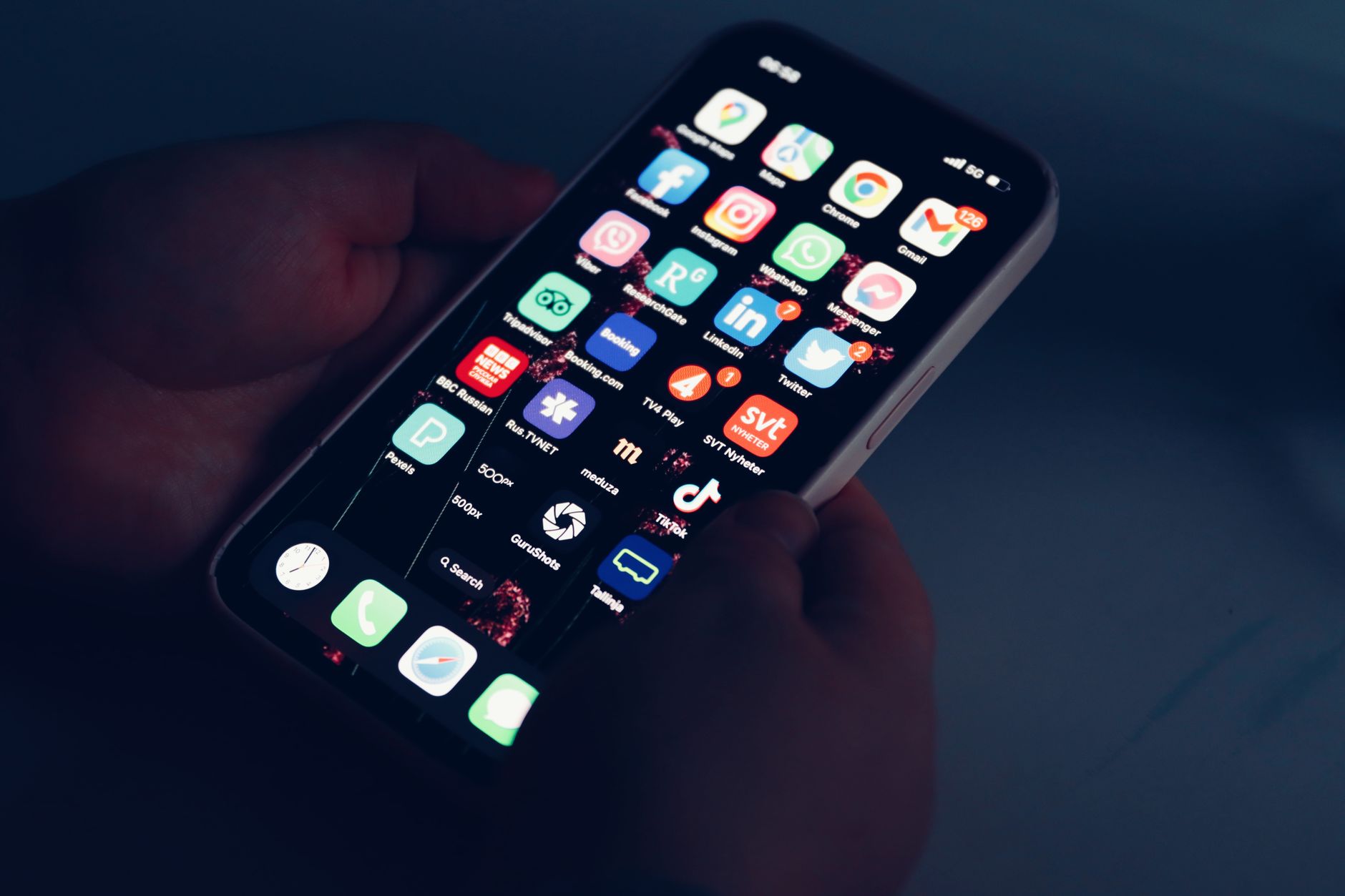
Provenance: Licensed Pexels photo by Mateusz Dach. Source: Pexels listing.
Provenance: Licensed Pexels photo by Efrem Efre. Source: Pexels listing.
iOS quick tips most people miss
- Per-App Focus Filters: In Mail, show only the inbox that matters. In Calendar, hide busy-work calendars during Deep Focus.
- Silence by app in Settings > Notifications: Set Deliver Quietly for social and promos; they go to Notification Center without sounds or banners.
- Smart Activation: Let iOS auto-enable Work when you enter your office location.
Apple’s documentation stays current: Set up a Focus and Notification settings.
Android quick tips most people miss
- Star contacts first. Then allow Starred in DND. It’s cleaner than app-wide exceptions.
- Use Focus Mode to pause app icons. It removes the urge to just check.
- Rules by event: Some devices can tie DND to calendar events. Use it for Focus blocks.
See Google’s guides: Control notifications, Use Do Not Disturb, and Set up Digital Wellbeing.
Watch: triage tasks into Reminders (iOS)
Sometimes you need to capture and defer, not respond. This short video shows how to use the Reminders app. Pair it with Deep Focus so pings become tasks without breaking flow.
If the video doesn’t load, open it here: How to Use Reminder App on iPhone New Update.
Printable checklist: your four-mode reset
- Work: Manager + 3 teammates; Calendar, project tool, email, chat; badges off; 9 6 schedule; Filters on.
- Deep Focus: No people; no apps; badges off; Focus Mode (Android) or Filters (iOS); manual 25 60 min.
- Commute: Family; Maps/ride-share; repeated calls; car Bluetooth trigger; auto-reply (iOS).
- Sleep: Favorites/Starred; Alarms; bedtime schedule; dim screen; Wind Down.
Paste this into your notes right under mindful notification settings template for iOS and Android.
FAQ
Can I make Work different on travel days?
Yes. On iOS, duplicate Work Focus and name it Work (Travel), then allow airline and transit apps. On Android, add a second DND schedule with those apps allowed. Keep the rest the same.
How do I stop random marketing alerts?
Turn off notifications per app in Settings. On iOS, set Deliver Quietly. On Android, long-press a notification and switch its channel off. Then check monthly for new culprits.
What if my boss needs me after hours?
Put your boss in Favorites (iOS) or Starred (Android). Enable repeat callers. Teach your team that two calls in three minutes is the urgent path.
Do I need more than four modes?
Usually not. Most people thrive with Work, Deep Focus, Commute, and Sleep. Add one special-purpose mode only if you need it weekly.
Will this block two-factor codes?
Time-sensitive codes often respect your current Focus or DND. If one is blocked during Deep Focus, pull down Notification Center and fetch it manually, or add your authenticator app to Work only.
Next steps to stay consistent
- Pin a note titled Mindful Notification Templates with your four mini checklists and screenshots.
- Schedule a 10-minute monthly review. Trim one app every time.
- Share your setup with one friend or teammate. Teach each other and reduce broadcast pings.
If you run a team, standardize the mindful notification settings template for iOS and Android so on-call paths are clear and calm.
More guides for building better focus habits
Want a deeper reset? Explore our Books hub for practical reads on attention and digital boundaries, and check current reviews to pick helpful tools.
Helpful resources for your next step
Affiliate disclosure: As an Amazon Associate, Mind Clarity Hub may earn from qualifying purchases at no extra cost to you. Use this link only if it genuinely helps your planning.
If Mindful Notification Settings Templates for iOS and Android is a routine you want to keep using, a simple workbook, planner, or desk tool can make the steps easier to repeat.
Compare related planners, workbooks, and organization tools on Amazon.
