...

Tag: Do Not Disturb

  • Digital Hygiene for Slack and Teams: A Weekly Reset Routine

    Digital Hygiene for Slack and Teams: A Weekly Reset Routine

    If your day disappears into pings and pop-ups, this weekly Slack and Teams digital hygiene routine to reduce notifications will help you regain calm, protect deep work, and still respond when it matters. Use it as a 30–40 minute Friday reset or a Monday kickoff.

    In hybrid teams, your attention is a shared resource. A small, steady routine beats a once-a-year cleanup. The steps below turn notification chaos into a quiet, predictable signal system everyone can trust.

    Key takeaways β€” Slack and Teams weekly reset to cut notifications

    • Make noise intentional: keep urgent signals on, mute the rest.
    • Do a fast channel audit weekly; archive or hide stale rooms.
    • Use Do Not Disturb and quiet hours to create focus blocks.
    • Set keyword alerts only for true risks or deadlines.
    • Document team norms so people know how to reach you in a pinch.

    What is a weekly Slack and Teams digital hygiene routine to reduce notifications?

    It’s a short, structured sweep that prunes channels, resets notification rules, reviews keyword alerts, sets Do Not Disturb hours, and archives or hides stale chats. The outcome is fewer surprises and faster focus. Done weekly, it prevents drift back into noisy defaults and supports predictable collaboration for hybrid teams.

    How to use this guide β€” weekly Slack and Teams notification cleanup

    Block 30–40 minutes at the same time every week. Move through the steps in order. If your team owns organization-wide settings, adapt the team-level notes. If not, apply the personal settings now and propose the shared norms at your next working agreement review.

    First, silence interruptions while you run your weekly Slack and Teams digital hygiene routine to reduce notifications. Turn on DND, close email, and set a 7‑minute timer per step. Next, open both Slack and Teams side by side so choices match across tools. Then, keep your calendar visible so you can align DND and quiet hours to real focus blocks.

    As you go, write one sentence that explains your urgent path (for example, β€œUse @mention + the word β€˜urgent’ for blockers, else I reply by 3 PM”). After the reset, post that sentence to your status and team space. Finally, save a simple checklist so the routine feels light. Consistency matters more than perfection.

    The 30-minute Weekly Reset at a glance β€” weekly Slack and Teams notification cleanup

    1. Channel audit: leave, mute, pin.
    2. Notification rules: set global, then per-channel.
    3. Keyword alerts: keep only high-signal terms.
    4. DND/Quiet Hours: protect focus blocks.
    5. Archive stale chats and tidy threads.
    6. Share norms and update status.

    Tip: Timebox each step to 5–7 minutes so you finish in one sitting.

    Before you start β€” weekly chat hygiene routine for Slack and Teams

    Map your week. Look at deadlines, on-call windows, and meetings with real stakes. Decide where you must see activity right away and where a twice‑daily check is fine. This upfront clarity reduces second‑guessing in the settings that follow.

    Define β€œurgent” with your team. Urgent should mean β€œblocks delivery” or β€œsafety” or β€œcustomer impact,” not β€œa preference.” Choose one urgent path and publish it. For example: β€œIf something blocks you, @mention me with β€˜urgent’ in the same message.” That simple rule improves triage.

    Create a notification budget. Pick a daily cap for banners (for instance, 10). If you hit it, you must mute, narrow, or archive something. Because you set a limit, every alert has to earn its place on your screen.

    Finally, decide where you will review non‑urgent work. You might use the Slack Later queue and the Teams Activity feed at two fixed times. During this weekly Slack and Teams digital hygiene routine to reduce notifications, you are redesigning your environment to support those habits.

    Step 1 β€” Channel audit: what should stay, move, or go? β€” weekly chat hygiene routine for Slack and Teams

    Start your sweep with a channel inventory. Use this weekly Slack and Teams digital hygiene routine to reduce notifications to prune down to what really supports your work this week. Keep only the rooms tied to current deliverables and the small number that cover risk and care (on‑call, incidents, customer escalations).

    In Slack β€” weekly Slack and Teams notification cleanup

    Open your channel list and pin the 5–8 rooms where you will ship this week. Mute social or low‑signal rooms so badges do not stack up; you can still peek when you choose. If a channel has been quiet for a month and you do not rely on it, leave it or hide it. Use sections (for example, Priority, Projects, Learning) so the most important rooms sit at the top of your list. See Slack’s help on muting: Mute channels and DMs.

    In Microsoft Teams β€” Slack and Teams weekly reset to cut notifications

    Pin the teams and channels that matter this week and unpin the rest. Turn off channel notifications for low‑signal rooms; keep @mentions on for critical ones. Hide channels you rarely open and follow a few key channels so activity appears in your feed. Reference: Manage notifications in Teams.

    Fast channel audit: Slack vs. Teams (5–7 minutes)
    Action Slack Teams
    Pin priorities Pin 5–8 must-watch channels Pin channels inside key teams
    Mute low-signal Mute social/noise rooms Set channel notifications to Off
    Leave/Hide Leave unused channels Hide unused channels
    Group Use sections (Priority, Projects) Group by pin order; name pins by phase

    Step 2 β€” Reset notification rules so only signal gets through β€” Slack and Teams weekly reset to cut notifications

    Next, tune notifications globally, then per channel. This weekly Slack and Teams digital hygiene routine to reduce notifications keeps alerts rare and clear, while mentions and direct messages still get through.

    In Slack β€” weekly chat hygiene routine for Slack and Teams

    Set your global setting to Mentions & direct messages. Turn on notifications for threads you reply to so follow‑ups do not get lost. At the channel level, switch only a few urgent rooms to All new messages, and return them to Mentions when the risk window ends. Keep a subtle sound for DMs and disable banners for everything else. Guide: Manage your notifications.

    In Microsoft Teams β€” weekly Slack and Teams notification cleanup

    Open Settings β†’ Notifications and use Custom. Let @mentions and replies alert you. Send likes and reactions to the feed. For key channels, use All activity only while you are on‑call; otherwise use Mentions & replies. During focus time, filter the Activity feed by Unread or @mentions.

    Default vs. Focus-mode notifications
    Setting Default (collab) Focus mode
    Slack global Mentions & DMs Mentions & DMs
    Slack per-channel Mentions (most), All (few) Mentions only
    Teams global Custom: @mentions, replies on Custom: fewer banners, feed-only
    Teams per-channel Mentions & replies Mentions only

    Step 3 β€” Keyword alerts: only for true risks and time-critical work β€” Slack and Teams weekly reset to cut notifications

    Keyword alerts can save a launch or wake you for an outage. They can also flood your phone if you overuse them. Keep them narrow, time‑bound, and shared with your team so expectations match the noise you accept.

    In Slack β€” weekly Slack and Teams notification cleanup

    Use highlight words for 3–7 terms that reflect active risks, SLAs, or sprint goals. Scope alerts to business hours unless you are on‑call, and remove or pause expired keywords during the weekly reset. Docs: Set keywords to highlight important messages.

    In Microsoft Teams β€” weekly chat hygiene routine for Slack and Teams

    Teams does not have built‑in highlight words like Slack. For critical channels, set channel notifications to All activity only during the window that matters. If your organization allows it, create a Microsoft Power Automate flow that alerts you when a message includes a defined term in a specific channel. Turn the flow off as soon as the risk window closes. Start here: Power Automate + Teams overview.

    Keyword alert options
    Platform Built-in feature Automation option Good use cases
    Slack Highlight words None needed for basics Incident terms, customer names, ticket IDs
    Teams Channel notifications (no highlight words) Power Automate keyword flow* On-call alerts, go-live windows, escalation

    >m>*Check your org policies before enabling flows.

    Step 4 β€” Do Not Disturb and quiet hours: protect deep work β€” weekly Slack and Teams notification cleanup

    Even perfect notification rules will interrupt deep work if you never close the door. Use Do Not Disturb (Slack) and Quiet Hours/Days (Teams mobile) as the door. Also pair them with your OS focus features (Windows Focus assist, macOS Focus) so banners pause across apps.

    In Slack β€” Slack and Teams weekly reset to cut notifications

    Set a daily DND block during your focus window. Allow overrides only for true emergencies and share who can override DND. Add a short status such as β€œHeads down 9–11; mention β€˜urgent’ if blocking.” Reference: Set your Do Not Disturb hours.

    In Microsoft Teams β€” weekly chat hygiene routine for Slack and Teams

    On mobile, set Quiet hours and Quiet days so off‑hours stay off. During a focus block on desktop, reduce banners and use feed‑only alerts. Add a presence note such as β€œFocus until 2 PM; reply after.” Guide: Set quiet hours and quiet days.

    Map your focus blocks
    Day Focus window Slack DND Teams quiet hours
    Mon 9:30–11:30 DND 9:25–11:35 Quiet notifications during block
    Wed 1:00–3:00 DND 12:55–3:05 Quiet notifications during block
    Fri 10:00–12:00 DND 9:55–12:05 Quiet notifications during block

    Step 5 β€” Archive stale chats and sunset old teams β€” weekly Slack and Teams notification cleanup

    Dead rooms create anxiety and search noise. When work is done, close the door. Archiving puts a clear finish line on a project and keeps history searchable.

    In Slack β€” weekly chat hygiene routine for Slack and Teams

    Archive channels when the project ends or the work moves to a permanent space. Before archiving, post a final note with links to docs and decisions so people know where to look next. Guide: Archive or unarchive a channel.

    In Microsoft Teams β€” Slack and Teams weekly reset to cut notifications

    Archive a team to make it read‑only while keeping content searchable. For channels that are simply low‑use, hide them instead of archiving the entire team. Guide: Archive or restore a team.

    Therefore, fewer active rooms mean fewer alerts competing for your brain. This weekly Slack and Teams digital hygiene routine to reduce notifications turns closure into an advantage.

    Step 6 β€” Put focus time on the calendar and align team norms β€” Slack and Teams weekly reset to cut notifications

    Protecting your time works best when others support it. Add two or three focus blocks to your calendar and set Slack DND and Teams Quiet hours to match. This weekly Slack and Teams digital hygiene routine to reduce notifications works because the boundaries are visible, consistent, and shared.

    Publish your urgent path and expected response times. For example: β€œI check the Activity feed at 11:30 and 4:00. If you are blocked, @mention me with β€˜urgent’ for a same‑day reply.” Pin that note in a team space and put a short version in your status.

    Finally, agree on when to use chat vs. email vs. the task tool. Push decisions and next steps to the task tool so chat can stay lighter and searchable.
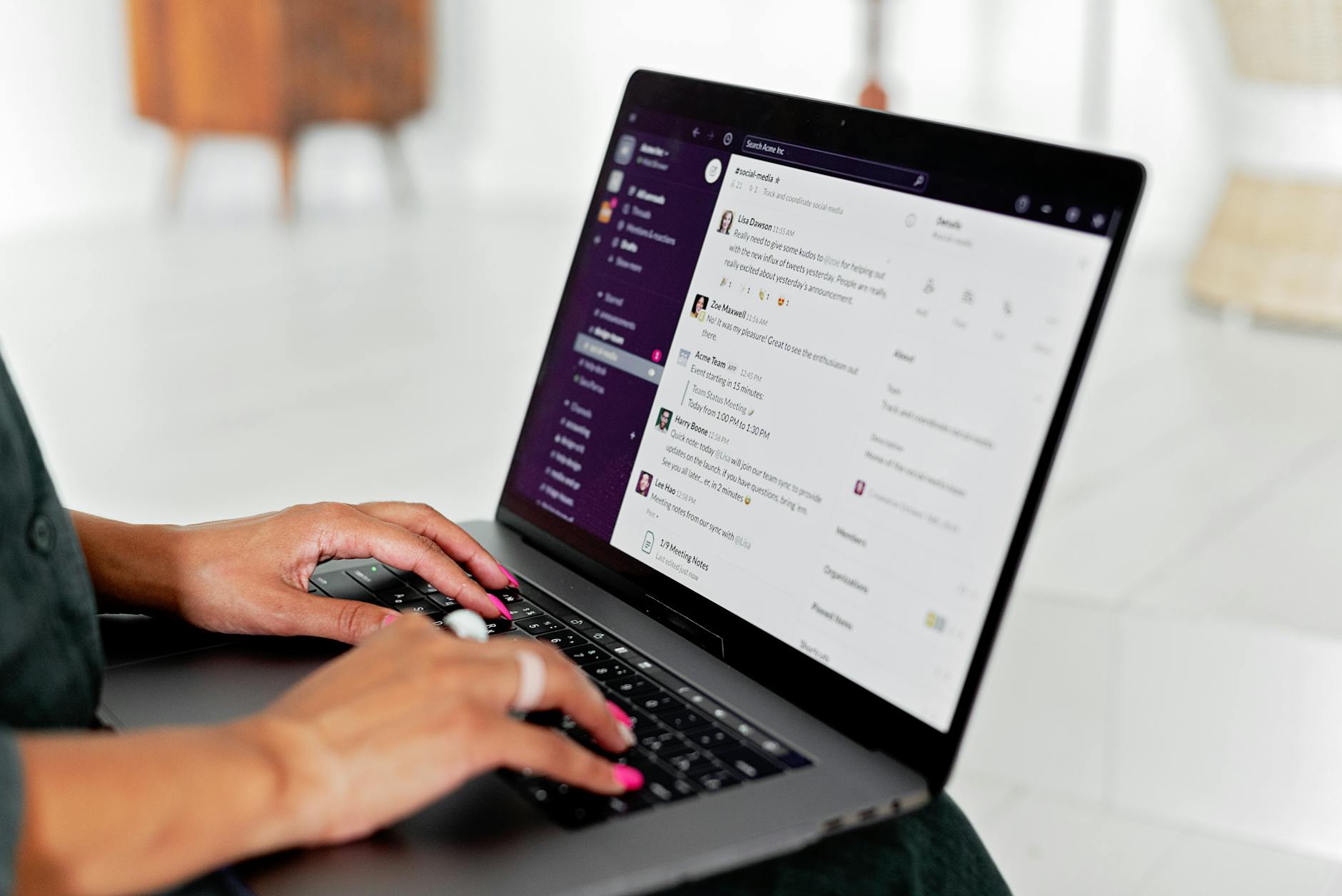
    Hybrid teammate typing in Slack and Teams while tuning notification settings during a weekly Slack and Teams digital hygiene routine to reduce notifications
    Pin the few channels that matter this week, and mute the rest. Photo: Mikhail Nilov via Pexels.

    Source: Pexels β€” Mikhail Nilov

    Settings checklist β€” Slack weekly reset to cut notifications

    Run this exact list each week. The small upkeep keeps chaos away. This weekly Slack and Teams digital hygiene routine to reduce notifications is most effective when you repeat it.

    • Channels: Pin 5–8 priority rooms; mute social/low-signal; leave unused.
    • Notifications (global): Mentions & DMs; thread replies on; subtle sound for DMs.
    • Per-channel rules: Mentions for most; All for truly urgent rooms only.
    • Highlight words: Keep 3–7 active terms; remove expired ones.
    • Do Not Disturb: Daily focus block set; allow limited overrides.
    • Status: β€œHeads down until [time], tag @me for blockers.”
    • Archive: Close completed project channels with a final summary post.

    Settings checklist β€” Microsoft Teams weekly reset to cut notifications

    Mirror the same intent with Teams’ features. The goal is less noise, faster signal. Use this weekly Slack and Teams digital hygiene routine to reduce notifications as your model.

    • Pin channels you need; hide the rest. Follow key channels for feed visibility.
    • Notifications (global): Custom for @mentions and replies; reactions off.
    • Per-channel rules: Mentions for most; All activity during on-call windows only.
    • Keyword-like alerts: Only if needed via Power Automate; disable when the window closes.
    • Quiet hours/days (mobile): Match your focus calendar blocks.
    • Status/presence: β€œFocus until [time]; reply after.”
    • Archive or hide: Archive completed teams; hide stale channels.

    Hybrid team norms that make the tech work better β€” weekly Slack and Teams notification cleanup

    • Define β€œurgent” and list the approved way to reach someone after hours.
    • Post your team’s standard focus windows so meetings avoid those times.
    • Choose one channel for decisions and one for drafts to stop duplication.
    • Rotate on-call windows rather than keeping all alerts on, all the time.

    Common pitfalls (and fixes) β€” weekly chat hygiene routine for Slack and Teams

    • Turning on All messages everywhere. Fix: Reserve it for a few rooms during short risk windows.
    • Too many highlight words or flows. Fix: Cap at 3–7, remove weekly.
    • No archive habit. Fix: Close rooms at project wrap; link to docs first.
    • Unknown urgent path. Fix: Publish the after-hours plan in your team README.
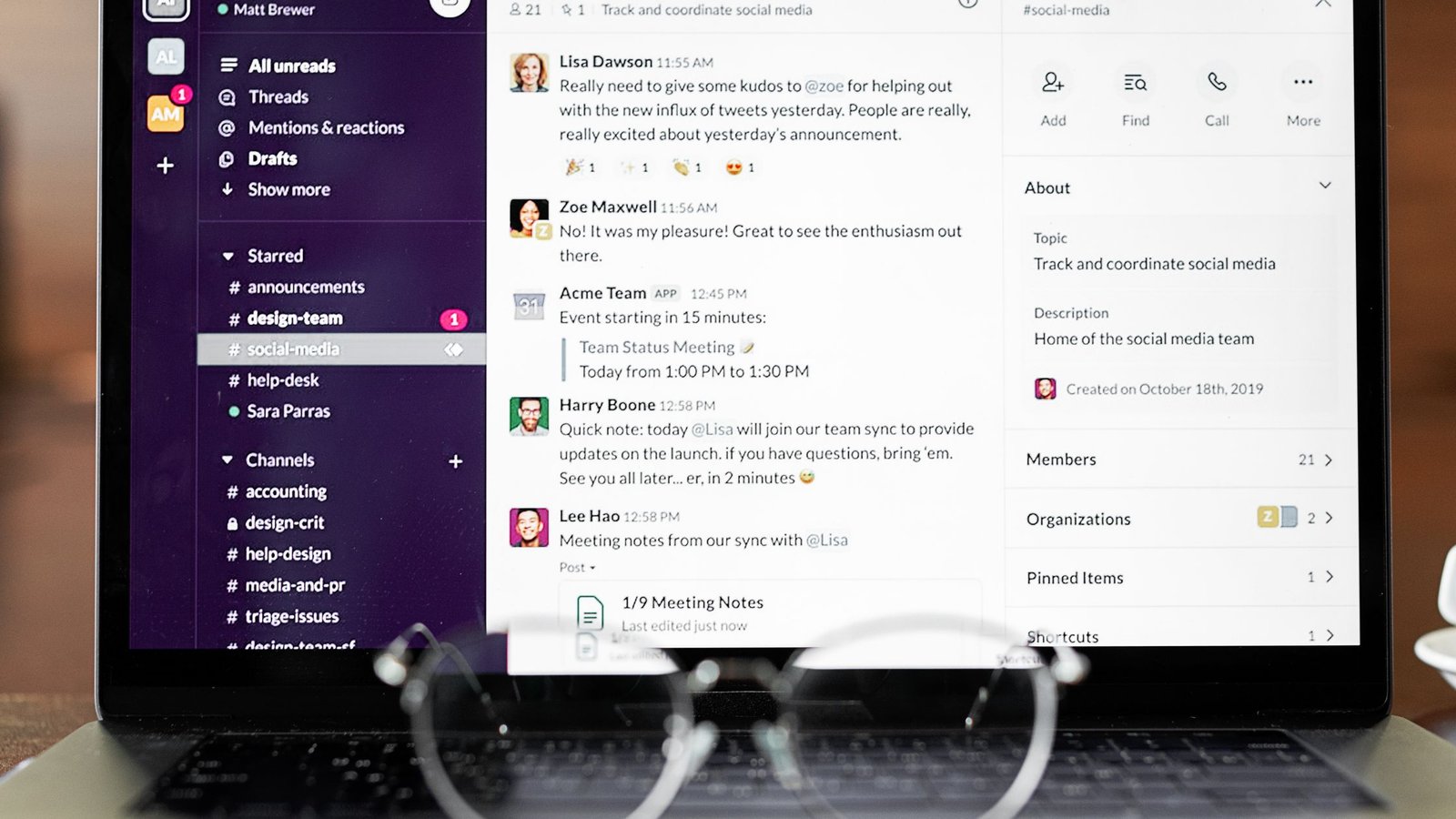
    Laptop with chat apps open during a weekly Slack and Teams digital hygiene routine to reduce notifications
    Set quiet hours to match your calendar so notifications pause during deep work. Photo: Mikhail Nilov via Pexels.

    Source: Pexels β€” Mikhail Nilov

    Weekly, monthly, and quarterly maintenance β€” Slack and Teams weekly reset to cut notifications

    Maintenance cadence
    Cadence Actions
    Weekly Channel audit; reset per-channel rules; prune keywords; confirm DND/quiet hours; archive finished rooms
    Monthly Review team norms; update focus blocks for the next sprint; remove unused pins
    Quarterly Full channel/teams cleanup; refresh sections/pins; re-educate on urgent pathways

    Mini playbooks for common roles β€” Slack and Teams weekly reset to cut notifications

    Product manager: Keep pins tight to the current roadmap, one decision room, and one stakeholder channel. Turn off channel banners for general chatter. Use keyword alerts for the sprint name and the release train only during the go‑live window. Archive last sprint’s war‑room channel after you post a wrap‑up with links to the retro and the final scope.

    Engineer on‑call week: For 5 days, switch the incident and on‑call channels to All activity. Everywhere else, use Mentions only. Add an on‑call status with a phone backup if your org requires it. When your shift ends, revert those rooms to Mentions, remove temporary keywords, and turn off automation flows so your weekend stays quiet.

    Marketing lead in launch mode: Pin the owner channel, approvals, and the channel where paid media updates land. Use a short set of highlight words (launch code name, promo hash) for one week. After launch day, reduce to Mentions, remove keywords, and archive the temporary approvals channel with a final post that points to the campaign report.

    Metrics: how to know it’s working β€” weekly Slack and Teams notification cleanup

    Track banners per day. If you still see more than your budget, mute more rooms or push more activity to feed‑only. Count how many times you break DND for non‑emergencies; work with your team to fix the root cause instead.

    Look at your signal mix. Mentions and DMs should account for most interruptions. If most alerts come from All activity channels, you likely need to reduce them. As a test, switch one busy room to Mentions only for a week and measure output.

    Finally, check how often you repeat instructions about reaching you. If confusion persists, restate the urgent path in your status and channel descriptions. A clear path is a key outcome of a weekly Slack and Teams digital hygiene routine to reduce notifications.

    Troubleshooting β€” weekly chat hygiene routine for Slack and Teams

    β€œI missed something urgent.” Tighten the urgent path and reduce ambiguity. Ask people to @mention you with one agreed keyword. For a short risk window, switch only the relevant channel to All activity and set a reminder to switch back.

    β€œI still get pinged too much.” Start with the loudest channel. Move it to Mentions only for seven days. If pushback appears, share your goal and the team’s urgent path. Most teams adapt quickly once the path is obvious.

    β€œMobile duplicates every alert.” In Slack, limit mobile push to when you are inactive on desktop. In Teams, set Quiet hours on your phone. Align both with calendar focus blocks so only one device talks at a time.

    β€œKeywords are noisy.” Keep them time‑bound and few. Three to seven terms are enough. Remove them at the end of each reset. This habit is central to a weekly Slack and Teams digital hygiene routine to reduce notifications.

    β€œMy team won’t follow norms.” Write them down, keep them short, and revisit monthly. Celebrate when people use the urgent path well. Small wins make the norms stick.

    Why this works for hybrid teams β€” weekly Slack and Teams notification cleanup

    Hybrid work adds time zones and office days. Signals scatter. A light, repeatable routine ensures everyone knows when and how to reach you. As a result, you get fewer interruptions, steadier progress, and friendlier handoffs.

    Because you reset weekly, small mistakes do not compound. You pin what matters now, remove what expired, and post clear norms. This loop builds trust: people see you reply fast to true urgency and they learn to route non‑urgent work into threads and the task tool.

    Over time, your team’s language tightens too. Mentions become precise. Threads carry decisions. And your calendar reflects real focus, reinforced by a weekly Slack and Teams digital hygiene routine to reduce notifications.

    FAQ β€” weekly Slack and Teams notification cleanup

    How often should hybrid teams revisit these settings?

    Do the short sweep weekly and the deeper review monthly. The weekly Slack and Teams digital hygiene routine to reduce notifications keeps drift away. The monthly review catches structural shifts like a new project or team.

    Which notifications should I keep on during focus time?

    Keep direct messages and @mentions. Turn channel banners off except for short risk windows. Use your Activity feed in Teams and thread alerts in Slack to check on your terms.

    Can I do this if I don’t control our org’s settings?

    Yes. Personal settings, pins, mutes, and DND/quiet hours are all in your control. Propose the shared norms to your manager and teammates so emergency paths are clear.

    What’s a healthy number of pinned channels?

    Five to eight pins is a good weekly target. If you need more, group by phase (Now/Next/Later) so your eyes land on the right list first.

    How do I avoid overusing keyword alerts?

    Use them for time‑bound risks and remove them during your weekly reset. If you automate in Teams with Power Automate, turn the flow off when the window ends.

    More guides to build a calmer workday β€” Slack and Teams weekly reset to cut notifications

    Optional tools that pair well with your weekly reset β€” weekly Slack and Teams notification cleanup

    Affiliate disclosure: Some links in this guide may be affiliate links. If you buy through them, Mind Clarity Hub may earn a commission at no extra cost to you.

    Want a short, practical read on guarding attention? Consider the book Deep Work by Cal Newport. Use it to reinforce your focus blocks and team norms.


    >m>Last reviewed: 2026-06-27. Product interfaces and settings can change. See the official help articles linked above for the latest steps.

    Sources and official guides β€” weekly Slack and Teams notification cleanup

  • Mindful Notification Settings Templates for iOS and Android

    Mindful Notification Settings Templates for iOS and Android

    Use this mindful notification settings template for iOS and Android to cut noise and protect your attention. You will craft four practical profilesβ€”Work, Deep Focus, Commute, and Sleepβ€”using Apple Focus, Android Do Not Disturb, Focus Mode, and Bedtime Mode. Every step is simple. Each section lists the exact toggles to change, when to use a schedule, and what to screenshot so you can check your setup later.

    Key takeaways

    • Build four profiles: Work (allow priority people and work apps), Deep Focus (allow almost nothing), Commute (allow time-sensitive travel and safety), and Sleep (allow emergencies only).
    • Use schedules and triggers so modes switch without effort. Tie Work to your calendar, Deep Focus to a one-tap toggle, Commute to car Bluetooth, and Sleep to your bedtime.
    • On iOS, use Focus Filters to tame badges and app inboxes. On Android, use Do Not Disturb priority lists plus Digital Wellbeing for app pauses.
    • Keep screenshots of each Focus/DND screen so you can review or share your setup with a teammate or family member.

    How to use this guide

    Follow the steps in order. First, skim the overview so you can see how Work, Deep Focus, Commute, and Sleep differ. Next, set up iOS or Android (or both). Then, save a copy of this mindful notification settings template for iOS and Android in your notes app. Finally, return here when you refresh your settings each quarter.

    Because platforms update often, we include official sources for key features. If a label looks slightly different on your device, use the closest match. Also, take a quick screenshot at the end of each sub-step. It creates your own mini playbook.

    Which profile should you use right now?

    • Question 1: Are you doing maker work or study that needs silence? 1 86c Go Deep Focus
    • Else: Are you collaborating or on-call? 1 86c Go Work
    • Else: Are you in transit or driving? 1 86c Go Commute
    • Else: Is it evening or bedtime? 1 86c Go Sleep

    Tip: Pin Deep Focus and Work to quick toggles (Control Center on iOS, Quick Settings on Android) so you can switch in one tap.

    What is a mindful notification system?

    A mindful notification system is a small set of intentional rules that let the right alerts through at the right time. It replaces the default all-on buzz with a few clear profiles you can trust. You choose who and what can reach you, and you control when.

    Think of it as the opposite of doom pings. Instead of reacting to every vibration, you decide: during Work you allow a narrow set of people and tools; during Deep Focus you silence everything except emergencies; during Commute you keep navigation and safety active; during Sleep you let urgent calls through and block the rest.

    Notification types at a glance

    Type Examples When to allow
    Critical/Emergency Emergency calls, medical alerts Always allow or allow in Sleep, Commute
    Time-sensitive Calendar starts, Uber arrival, navigation turns Work, Commute; off in Deep Focus and Sleep
    Conversations Family, manager, project channel Work; family in Sleep as repeat callers; off in Deep Focus
    General app alerts Likes, promos, follower counts Usually off; Summary or Deliver Quietly

    On iOS, Focus can treat Time Sensitive notifications differently and show a Summary at set times. On Android, Do Not Disturb has Priority conversations, Alarms, and app-level overrides. See Apple’s Focus overview and Android’s DND docs for details.

    Sources: Apple: Set up a Focus; Apple: Change notification settings; Android: Control notifications; Android: Use Do Not Disturb.

    The four templates you’ll build

    Profile Allow Block Schedule/Trigger
    Work Manager, key teammates, calendar, project tools Social, promos, random pings Weekdays 9 6 or based on calendar
    Deep Focus None or emergency repeat callers Everything else Manual toggle for 25 60 min blocks
    Commute Navigation, ride-share, emergency calls Chats, socials Car Bluetooth or set times
    Sleep Alarms, emergency repeat callers, health apps All others Bedtime schedule

    We’ll map each one on iOS Focus and Android Do Not Disturb + Digital Wellbeing.

    Download or copy this mindful notification settings template for iOS and Android

    You can mirror each step into your Notes or task manager. At the end of each profile, copy the short checklist header and add it to a pinned note. This way, the mindful notification settings template for iOS and Android lives where you can use it in seconds.

    Before you start: core principles that keep you calm

    • Small allow lists win. Start with the few people and apps that truly matter.
    • Schedules prevent friction. Let automation switch most profiles.
    • Manual for special cases. Keep Deep Focus as a one-tap manual mode.
    • Silence badges. Badges are ambient anxiety. Hide them in work and deep focus.
    • Screenshot the end state. Each setup ends with a snapshot checklist.

    iOS setup: use Focus, Focus Filters, and Notification Summary

    On iPhone, you’ll build each profile as a Focus with Allow lists, options for Time Sensitive notifications, and schedules. Where helpful, use Focus Filters to curb badges and inboxes inside apps (Mail accounts, Calendar visibility, Messages, Slack status, and more). See Apple’s guides for Set up a Focus and Change notification settings.

    Work: teammates and tools, nothing else

    1. Open Settings > Focus > Add Focus > Work.
    2. Allowed People: Add your manager, 1 3 key teammates. Turn on Allow Repeated Calls from Favorites if your team uses this for urgent items.
    3. Allowed Apps: Add Calendar, your project tool (e.g., Asana, Jira), email, and chat (e.g., Slack, Teams). Turn on Time Sensitive if your calendar or tasks use it well.
    4. Options: Turn off Lock Screen dimming if you want a normal screen, but turn off Badges for allowed apps to avoid number anxiety.
    5. Focus Filters (optional but powerful):
      • Mail: Show only your work inbox.
      • Calendar: Show work calendars, hide personal.
      • Messages or Slack: Pause non-urgent channels; set a status like Heads-down work.
    6. Set a Schedule: Weekdays, 9:00 6:00. Also add Smart Activation so iOS learns your routine.
    7. Control Center: Add Work Focus to your iPhone Control Center for quick toggling.

    Screenshot guidance: Capture People, Apps, Options, Filters, and Schedule screens. Save them in a Work Focus album.

    Mini checklist to copy: Work 7 people added, 4 apps allowed, badges hidden, mail filter set, weekdays 9 6.

    Reminder: If your team sometimes needs you outside hours, teach them to call twice if urgent. iOS will let repeat calls through (if enabled).

    Save this mindful notification settings template for iOS and Android to your notes so you can mirror it for Android later.

    Deep Focus: protected time for deep work or study

    1. Settings > Focus > Add Focus > Custom > Name it Deep Focus.
    2. Allowed People: None (or just Favorites with Repeated Calls to capture emergencies).
    3. Allowed Apps: None. Turn off Time Sensitive here so nothing slips through.
    4. Options: Hide notifications on Lock Screen; disable banners; hide badges globally while this Focus is on.
    5. Focus Filters: In Mail, hide all inboxes. In Calendar, show only today’s single focus block if you like. In messaging apps, set status to In deep work.
    6. Schedule: None. Keep it manual. Add a Focus Filter for a Pomodoro timer app if you use one.

    Screenshot guidance: People (none), Apps (none), Options, Filters screens. Add a photo of your Control Center tile for Deep Focus.

    Mini checklist to copy: Deep Focus none allowed, badges hidden, banners off, manual toggle, Pomodoro ready.

    This is the purest form of the mindful notification settings template for iOS and Android. Use it for 25 60 minute blocks when you need flow.

    Commute: navigation and safety first

    1. Settings > Focus > Add Focus > Driving (or Custom if you prefer Commute).
    2. Allowed People: Favorites only, with Repeated Calls on. Add family and one backup contact.
    3. Allowed Apps: Maps, your ride-share app (e.g., Uber, Lyft), transit app, and Time Sensitive. Do not allow chats.
    4. Auto-Reply: If using Driving Focus, set an auto-reply like I’m driving. I’ll reply when I arrive. Call twice if urgent.
    5. Schedule/Trigger: Turn on Automatically when connected to car Bluetooth. Also allow manual activation for subway or bus.

    Screenshot guidance: People, Apps, Auto-Reply, and Activate screens. Save as Commute Focus album.

    Mini checklist to copy: Commute maps + rides allowed, Favorites only, repeated calls on, auto-reply set, car Bluetooth trigger.

    Because safety matters, the mindful notification settings template for iOS and Android always keeps navigation audible during Commute.

    Sleep: alarms and emergencies only

    1. Settings > Focus > Sleep (or Add Focus > Sleep if not enabled via Health).
    2. Allowed People: Favorites with Repeated Calls on. Keep the list short.
    3. Allowed Apps: Clock/Alarm and any health or sleep tracker you trust. No others.
    4. Options: Dim Lock Screen, silence notifications, hide all badges.
    5. Schedule: Set Bedtime and Wake Up times from Health > Sleep or within Sleep Focus. Enable Wind Down 30 60 minutes before bed.

    Screenshot guidance: People, Apps, Options, and Schedule screens, plus Health > Sleep screen.

    Mini checklist to copy: Sleep favorites only, repeated calls on, dim lock screen, bedtime schedule + wind down.

    For iOS, Apple’s Focus setup guide and notifications help show the latest interface labels.

    Android setup: Do Not Disturb, Focus Mode, and Bedtime Mode

    On Android, you’ll pair Do Not Disturb (DND) priority lists with Digital Wellbeing tools. The mindful notification settings template for iOS and Android ports cleanly: Work maps to DND Priority mode with allowed people and apps; Deep Focus maps to DND with almost nothing allowed plus Focus Mode to pause apps; Commute maps to DND triggered by car Bluetooth; Sleep maps to Bedtime Mode and DND at night. See Google’s docs for notifications, Do Not Disturb, and Digital Wellbeing & Bedtime Mode.

    Work: priority people and work apps

    1. Settings > Sound & vibration > Do Not Disturb (DND).
    2. People: Allow calls and messages from Starred contacts only. Star your manager and 1 3 key teammates in Contacts.
    3. Apps: Add exceptions for Calendar, work email, project tool, and chat. Optionally allow Time Sensitive equivalents (varies by OEM).
    4. Alarms & media: Keep alarms on. Mute other sounds.
    5. Schedule: Add a Work schedule for weekdays 9:00 6:00. Also add a rule During events to mirror your work calendar if available on your device.
    6. Quick Settings: Pin DND tile. Create a Work mode preset if your device supports multiple DND presets.

    Screenshot guidance: DND main screen, People (Starred), Apps exceptions, Schedule. Save as Work DND album.

    Mini checklist to copy: Work Starred only, 4 work apps allowed, alarms on, weekdays schedule set.

    Deep Focus: pause all but emergencies

    1. Settings > Sound & vibration > DND. Create a Deep Focus preset (or reuse DND if single-preset only).
    2. People: None, or allow repeat callers only if your OEM supports it. Keep Starred off.
    3. Apps: None. No exceptions. Let nothing through.
    4. Quick toggle: Add DND to Quick Settings. Long-press to pick For 25 minutes or a custom timer.
    5. Digital Wellbeing > Focus Mode: Pause social, news, shopping, and chat apps. Add a schedule only if you want recurring deep work blocks.

    Screenshot guidance: DND People (none), Apps (none), Focus Mode app list, Quick Settings tile with timer.

    Mini checklist to copy: Deep Focus no people, no apps, Focus Mode pauses, quick 25 60 min timer.

    When you need flow, start DND + Focus Mode. This is the Android twin of the mindful notification settings template for iOS and Android.

    Commute: navigation and safety

    1. Settings > Sound & vibration > DND > Schedules > Add rule Driving/Commute.
    2. Trigger: When connected to car Bluetooth (or specific WiFi on trains if your device allows it).
    3. People: Allow Starred + repeat callers. Star family and one emergency backup.
    4. Apps: Allow Maps, ride-share, and transit apps. Block chat and socials.
    5. Google Maps: Settings > Navigation settings > Play voice over Bluetooth. Enable traffic alerts.

    Screenshot guidance: DND rule, allowed apps, Bluetooth trigger, Maps navigation settings.

    Mini checklist to copy: Commute car Bluetooth trigger, maps + rides allowed, repeat callers on, voice over Bluetooth.

    Sleep: Bedtime and DND

    1. Settings > Digital Wellbeing & parental controls > Bedtime Mode.
    2. Schedule: Set Bedtime and Wake times. Enable Grayscale and Do Not Disturb during bedtime.
    3. DND exceptions: Allow Alarms. Allow repeat callers from Starred. Keep everything else off.
    4. Optional: Turn on Turn off AOD (Always On Display) if available.

    Screenshot guidance: Bedtime Mode screen, DND exceptions, Starred contacts.

    Mini checklist to copy: Sleep bedtime schedule on, alarms only, repeat callers allowed, screen dims.

    What should be on each allow list?

    Profile People Apps Notes
    Work Manager, 1 3 core teammates Calendar, email, project tool, chat Hide badges to prevent count-chasing
    Deep Focus None, or repeat callers only None Manual timer for 25 60 minutes
    Commute Family in Favorites/Starred Maps, ride-share, transit Bluetooth trigger if driving
    Sleep Favorites/Starred + repeat callers Clock/health Bedtime schedule + Wind Down

    Tip: Review this list quarterly. Remove any app you didn’t miss. Add a new tool only after a week of real need.

    iOS and Android feature differences you should know

    Feature iOS Focus Android DND & Wellbeing Impact
    Time Sensitive alerts Built-in toggle per Focus OEM-dependent; use app priority Use sparingly for calendar & safety
    Focus Filters App filters (Mail, Calendar, Safari, etc.) No exact match; rely on app settings Filters reduce badge and inbox noise
    Driving/Commute Driving Focus + auto-reply DND rule via car Bluetooth; optional Assistant driving Ensure nav voices always pass through
    Bedtime Sleep Focus + Health schedule Bedtime Mode + DND Both silence almost everything

    Source docs: Apple Focus, Android DND, Digital Wellbeing.

    Step-by-step screenshots you should capture

    For each profile, take screenshots of the final state. Label them by profile so you can spot drift quickly.

    • iOS Work: Focus > People, Apps, Options, Focus Filters, Schedule.
    • iOS Deep Focus: People (none), Apps (none), Options, Filters, Control Center tile.
    • iOS Commute/Driving: People, Apps, Auto-Reply, Activate settings.
    • iOS Sleep: People, Apps, Options, Health > Sleep schedule.
    • Android Work: DND > People (Starred), Apps exceptions, Schedules.
    • Android Deep Focus: DND (none allowed), Digital Wellbeing > Focus Mode apps, Quick Settings timer.
    • Android Commute: DND rule (car Bluetooth), allowed apps, Maps nav settings.
    • Android Sleep: Bedtime Mode, DND exceptions.

    Keep these in a shared album if your family or team wants to copy your mindful notification settings template for iOS and Android.

    Which notifications should stay on during Work?

    Allow only what moves work forward. Calendar alerts that indicate a meeting start, your project tool’s @mentions, and messages from your manager or direct collaborators are enough. Silence everything else and hide badges. The goal is not zero messages; it is the right few.

    How do you keep true emergencies unblocked?

    On iOS, enable Allow Repeated Calls from Favorites inside allowed people for each Focus. On Android, allow repeat callers if your OEM supports it and keep Starred as your emergency list. Teach family and your manager that two calls in three minutes means urgency; all else can wait.

    What about banners, badges, and lock screen previews?

    Banners grab the eye. Badges tug at your mood. Previews expose private info. During Work and Deep Focus, disable banners for most apps and hide badges. During Sleep, dim the lock screen and hide previews. You can keep normal previews in Commute if navigation is active and you’re not reading the screen.

    Simple maintenance routine

    • Weekly: Quick scan. Remove one noisy app or channel.
    • Monthly: Add 10 minutes to your systems check. Confirm schedules still match your calendar.
    • Quarterly: Rebuild allow lists from scratch. If you don’t miss an app in seven days, it stays off.

    Write Q refresh next to your mindful notification settings template for iOS and Android so you actually run it.

    Common mistakes to avoid

    • Allowing an entire messaging app instead of specific people or channels.
    • Leaving badges on for email or social apps during Work.
    • Building ten modes. Four is enough for most people.
    • Skipping a car Bluetooth trigger for Commute.
    • Letting schedules drift without a monthly check.

    Instead, keep your mindful notification settings template for iOS and Android lean. Small lists beat complex rules.

    Helpful images

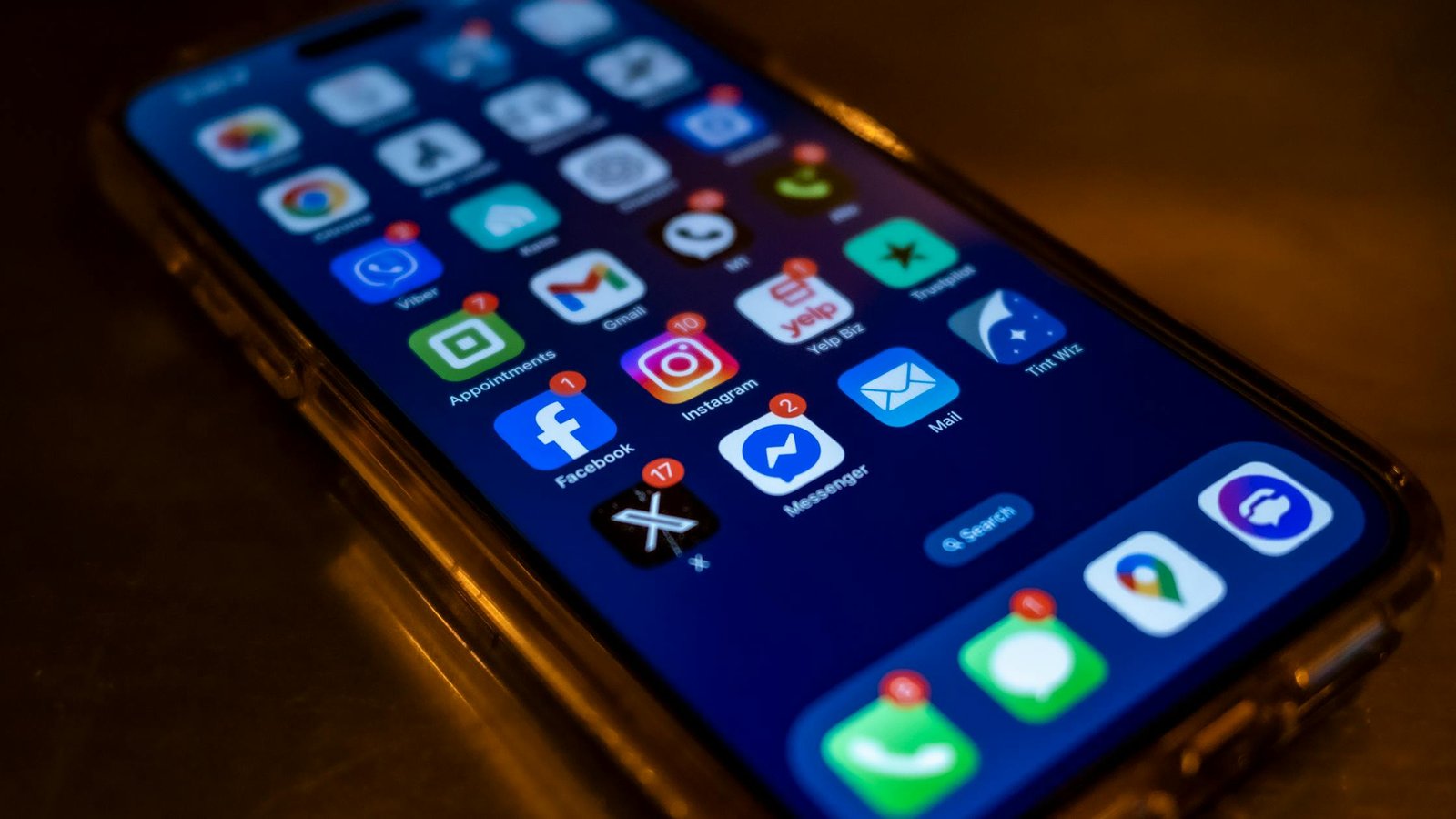
    Home screen apps to allow in a mindful notification settings template for iOS and Android
    Example home screen. Let only a few work-critical apps notify you during Work Focus or DND priority hours. Photo: Pexels / Mateusz Dach.

    Provenance: Licensed Pexels photo by Mateusz Dach. Source: Pexels listing.

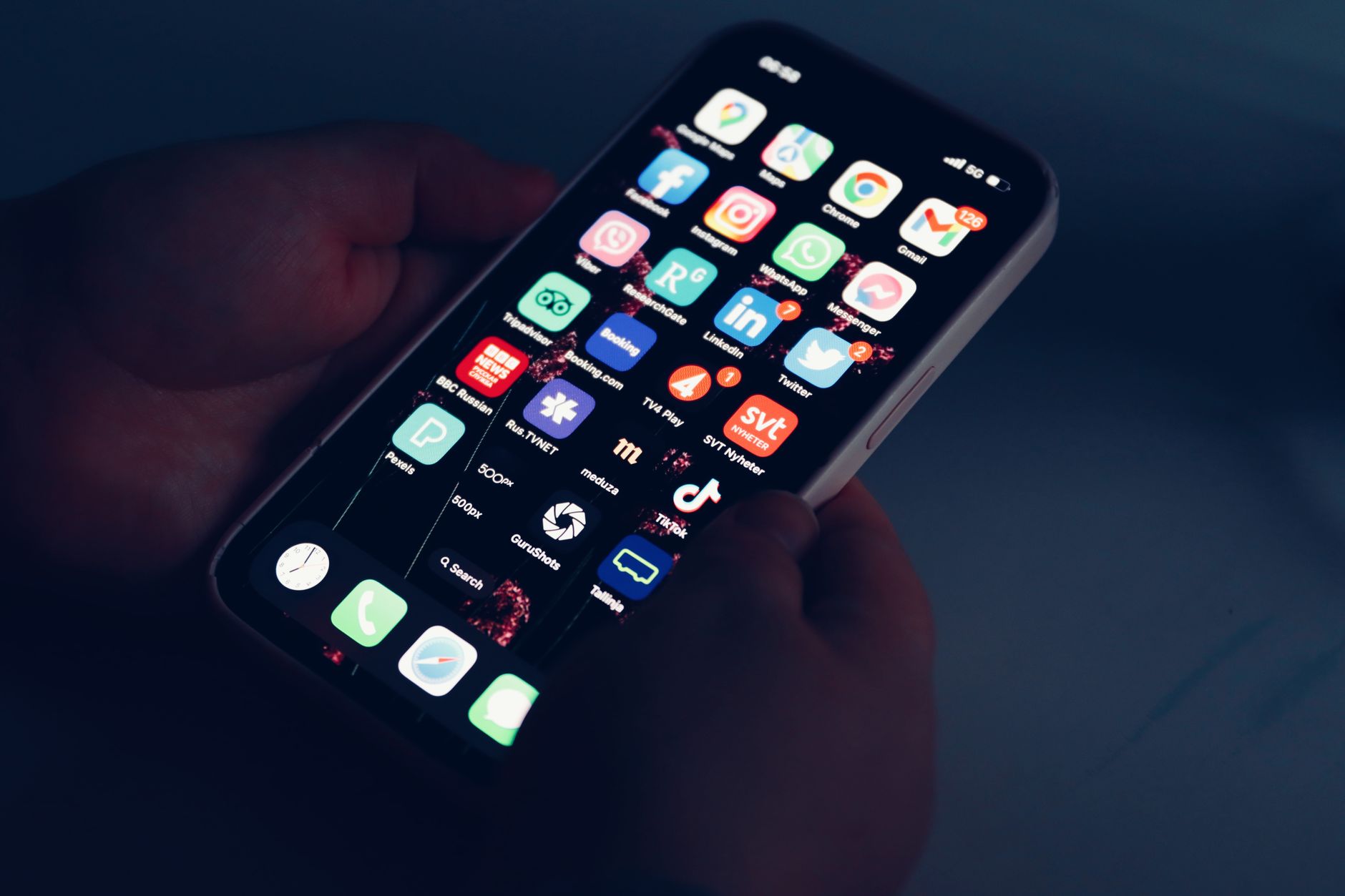
    Dim room with phone icons: a reminder to silence badges in focus modes
    Hide badges during Work and Sleep so numbers don’t pull attention. Photo: Pexels / Efrem Efre.

    Provenance: Licensed Pexels photo by Efrem Efre. Source: Pexels listing.

    iOS quick tips most people miss

    • Per-App Focus Filters: In Mail, show only the inbox that matters. In Calendar, hide busy-work calendars during Deep Focus.
    • Silence by app in Settings > Notifications: Set Deliver Quietly for social and promos; they go to Notification Center without sounds or banners.
    • Smart Activation: Let iOS auto-enable Work when you enter your office location.

    Apple’s documentation stays current: Set up a Focus and Notification settings.

    Android quick tips most people miss

    • Star contacts first. Then allow Starred in DND. It’s cleaner than app-wide exceptions.
    • Use Focus Mode to pause app icons. It removes the urge to just check.
    • Rules by event: Some devices can tie DND to calendar events. Use it for Focus blocks.

    See Google’s guides: Control notifications, Use Do Not Disturb, and Set up Digital Wellbeing.

    Watch: triage tasks into Reminders (iOS)

    Sometimes you need to capture and defer, not respond. This short video shows how to use the Reminders app. Pair it with Deep Focus so pings become tasks without breaking flow.

    If the video doesn’t load, open it here: How to Use Reminder App on iPhone New Update.

    Printable checklist: your four-mode reset

    • Work: Manager + 3 teammates; Calendar, project tool, email, chat; badges off; 9 6 schedule; Filters on.
    • Deep Focus: No people; no apps; badges off; Focus Mode (Android) or Filters (iOS); manual 25 60 min.
    • Commute: Family; Maps/ride-share; repeated calls; car Bluetooth trigger; auto-reply (iOS).
    • Sleep: Favorites/Starred; Alarms; bedtime schedule; dim screen; Wind Down.

    Paste this into your notes right under mindful notification settings template for iOS and Android.

    FAQ

    Can I make Work different on travel days?

    Yes. On iOS, duplicate Work Focus and name it Work (Travel), then allow airline and transit apps. On Android, add a second DND schedule with those apps allowed. Keep the rest the same.

    How do I stop random marketing alerts?

    Turn off notifications per app in Settings. On iOS, set Deliver Quietly. On Android, long-press a notification and switch its channel off. Then check monthly for new culprits.

    What if my boss needs me after hours?

    Put your boss in Favorites (iOS) or Starred (Android). Enable repeat callers. Teach your team that two calls in three minutes is the urgent path.

    Do I need more than four modes?

    Usually not. Most people thrive with Work, Deep Focus, Commute, and Sleep. Add one special-purpose mode only if you need it weekly.

    Will this block two-factor codes?

    Time-sensitive codes often respect your current Focus or DND. If one is blocked during Deep Focus, pull down Notification Center and fetch it manually, or add your authenticator app to Work only.

    Next steps to stay consistent

    • Pin a note titled Mindful Notification Templates with your four mini checklists and screenshots.
    • Schedule a 10-minute monthly review. Trim one app every time.
    • Share your setup with one friend or teammate. Teach each other and reduce broadcast pings.

    If you run a team, standardize the mindful notification settings template for iOS and Android so on-call paths are clear and calm.

    More guides for building better focus habits

    Want a deeper reset? Explore our Books hub for practical reads on attention and digital boundaries, and check current reviews to pick helpful tools.

    Helpful resources for your next step

    Affiliate disclosure: As an Amazon Associate, Mind Clarity Hub may earn from qualifying purchases at no extra cost to you. Use this link only if it genuinely helps your planning.

    If Mindful Notification Settings Templates for iOS and Android is a routine you want to keep using, a simple workbook, planner, or desk tool can make the steps easier to repeat.

    Compare related planners, workbooks, and organization tools on Amazon.

    Related guides

Link.