...

Tag: screen time

  • Timebox Social Media With Timers and Focus Modes

    Timebox Social Media With Timers and Focus Modes

    Last reviewed: September 1, 2026. Editorial responsibility: the Mind Clarity Hub team. This guide was researched and written by our editorial staff; it is not a substitute for medical or clinical care.

    If you want to timebox social media without deleting the apps you actually enjoy, the trick is to put a clock, a focus mode, and a small backstop around the same habit. The timer tells you when the session starts and when it ends. Focus mode silences the pull of new notifications. Meanwhile, a backstop catches the moment you forget the plan and reach for the app anyway. Together, those three layers turn a fuzzy habit into a contained one. That is the whole point of the routine this guide walks through.

    If this post is describing your situation with focus, I built FocusFix: The Emotional Clarity Kit for Real-World Distraction Killers as the step-by-step version of what this article covers. It is my own product, and it goes considerably deeper than a blog post can.

    The pages below cover the setup step by step. You will see how to choose a sensible interval, how to use the focus tools that ship with iOS, Android, Windows. And macOS, how to wire quick shortcut automations that start and end a session for you. And what to do when the timer rings and you still want to keep scrolling. There is also a comparison table, a checklist, a generated graphic you can screenshot, and an FAQ at the end. Read it once, copy the setup that fits your device, and you will have a working timebox by the end of the afternoon.

    What β€œtimebox social media” actually means

    To timebox social media is to give each app a fixed slot on the clock instead of letting it run in the background all day. The slot has a clear start, a clear end, and a clear reason for existing. When the timer ends, the session ends with it, and the rest of the hour goes back to your real work.

    Two ideas carry the routine. The first is that attention behaves like a budget, and untracked scrolling spends it without you noticing. The second is that any tool that opens a feed will keep trying to pull you back in. So the routine has to assume that pull is always there. Timers and focus modes are not willpower; they are guardrails that make willpower less important.

    Why a focus mode is the spine of the timebox

    A focus mode on its own is just a quieter phone. Inside a timebox, it becomes a boundary. It switches on at the start of the slot and switches off at the end, so the slot has clear borders. On iOS, Android, Windows, and macOS, the focus or Do Not Disturb setting can be scheduled, tied to a location, or triggered by a shortcut. That scheduling is what lets a timer and a focus mode act as one habit.

    The behavior change is small but real. Instead of opening an app and then trying to remember to leave, you start a timer, the focus mode mutes the noise. And a closing notification tells you the slot is over. The reader’s job is to set the slot, not to police the slot.

    Pick a sensible social-media timebox interval

    Most readers do well with a short interval the first week and a slightly longer one once the routine feels natural. The list below gives a starting point you can tune. Pick one, write it on a sticky note, and run it for seven days before you change it.

    • 15 minutes, twice a day. Good for the first week if your current habit is heavy.
    • 20 minutes, twice a day. A common default for news feeds and short-form video.
    • 25 minutes, twice a day. Pairs naturally with a pomodoro-style work block.
    • 30 minutes, once a day. A flatter pattern for people who want one check-in window.
    • 45 minutes, once a day. Useful on weekends when you actually want a longer catch-up.

    Two cautions matter. First, do not start with the longest interval. Longer windows feel generous but usually slide into longer scrolling. Second, do not split the day into five small slots. The point is fewer, clearer windows, not more of them.

    The four-layer setup that makes the habit stick

    The setup that works in practice has four layers, and each layer covers a failure mode of the layer below it. Skip one and the routine wobbles.

    1. Timer. Names the start, names the end, and counts down.
    2. Focus mode. Mutes the noise during the slot and removes badges.
    3. Shortcut or automation. Starts the timer and the focus mode in the same tap.
    4. Backstop. Catches the moment you forget the plan.

    Read the rest of the guide as a tour of those four layers, in that order.

    Timebox social media, layer 1: set the timer

    You do not need a special app to start. The Clock app on iOS and Android has a countdown timer that survives when you leave the app. And a third-party timer like the pomodoro apps in the comparison table below adds session counts and break reminders. The job of the timer is simple. When it ends, the social-media slot ends with it.

    How to set the timer on iPhone

    Open the Clock app, switch to the Timer tab, set the duration to your chosen interval, and tap When Timer Ends. Scroll to the bottom of the sound list and choose Stop Playing. This turns the timer into a hard stop rather than a sound that fades out. Then tap Start.

    How to set the timer on Android

    Open the Clock app, choose Timer, set the duration, and tap the three-dot menu to confirm the timer keeps running in the background. Android timers do not always play a sound after the screen sleeps, so enable a sound or a vibration in the timer settings. A hard-stop option exists on Pixel Clock and on Samsung Clock; otherwise a third-party timer app is the simplest path.

    How to set the timer on Windows and macOS

    On Windows 11, open Settings > System > Focus, set a focus session length, and pair it with the Clock app timer that counts down on the desktop. On macOS, the built-in Timer in the Clock menu bar runs a countdown that notifies you when it ends. Pair either with the social-media site you want to limit, and the timer becomes the closing bell for the session.

    Layer 2: Tie a focus mode to the social-media timebox

    The focus mode is what keeps the slot clean while it runs. Without it, the timer is counting down while your phone is still buzzing with new posts from accounts you do not follow. With it, the timer and the silence work together.

    How to schedule a focus mode on iOS

    Open Settings > Focus, choose an existing mode such as Do Not Disturb or create a new Social mode. Under Allowed Notifications, allow only the people you actually need to hear from. Under Apps, silence every social app. Then add a schedule that matches your social-media window. When the schedule starts, the focus mode mutes new posts; when the schedule ends, normal delivery returns.

    How to schedule Focus mode on Android

    On Android 13 and later, open Settings > Digital Wellbeing > Focus modes. Create a mode called Social and pick the apps it pauses. You can set a schedule that turns it on and off at fixed times. To pause the apps inside the slot, you still need to start the mode manually or with a shortcut, since scheduling only governs the start.

    How to schedule Focus on Windows and macOS

    On Windows, the same Settings > System > Focus panel from the timer section accepts a schedule. On macOS, System Settings > Focus lets you create a focus filter that hides notifications from specific apps during a window. Pair the schedule with the timer so the two start and end together.

    Layer 3: Build a one-tap shortcut for the social-media timebox

    A shortcut is the layer that makes the routine stick. One tap starts the timer, the focus mode, and the slot. One tap at the end of the slot turns the focus mode off. The shortcuts below are starting points; the exact names of your apps may differ.

    iPhone Shortcuts: a Social Slot routine

    Open the Shortcuts app, tap the plus icon to create a new shortcut, and add three actions in this order. Set Timer with your chosen duration and the When Timer Ends sound set to Stop Playing. Set Focus with the focus mode turned on. Speak Text with a phrase like β€œsocial slot started.” Save the shortcut to your Home Screen as Start Social Slot. Create a second shortcut that turns the focus mode off and calls it End Social Slot.

    Android Tasker or MacroDroid: a Social Slot routine

    Open your automation app and create a macro called Start Social Slot. The first action starts a timer of your chosen length. Next, turn on Focus mode with your Social profile. Finally, open the social app you want to use. Save the macro and pin it to a widget. Create a matching macro called End Social Slot that turns the focus mode off and returns you to your home screen.

    Windows and macOS: a one-click focus session

    On Windows 11, open the Focus panel, choose a session length, and add it to the taskbar. The button starts the session and silences notifications from the apps you have paused. On macOS, create a Timer shortcut in the Shortcuts app that starts a countdown and turns on a focus filter for your social apps. Both flows replace the manual steps with one click.

    Layer 4: Add a backstop to the social-media timebox

    Every routine breaks at one moment. And for timebox social media that moment is the one where you meant to open a calendar and tapped the feed instead. A backstop catches that moment without needing you to notice it.

    • App Timer. On iOS, set an App Limit for the social app at five minutes below your chosen interval so the timer is the second warning.
    • Digital Wellbeing app timer. On Android, set a Timer for each social app. When the app’s own timer expires, the home screen locks the app for the rest of the day.
    • Website blocker. On desktop, install a blocker such as LeechBlock or Cold Turkey and set a daily allowance that matches your interval.
    • DNS-level filter. Services like NextDNS or CleanBrowsing can throttle social domains during your focus window on every device on the network.

    The backstop is not a punishment. It is a guardrail that gives you a second chance to notice the timer.

    Comparison table: which timer and focus setup fits which reader

    The table below compares common setups. The features are taken from each tool’s published documentation; pick the column that matches your device and your tolerance for setup time.

    Setup Best for Time to configure Hard stop Focus integration
    iPhone Shortcuts + Clock + Focus Readers on iOS 16 and later About 10 minutes Yes, when timer sound is set to Stop Playing Native
    Android Focus modes + Digital Wellbeing Readers on Android 13 and later About 8 minutes Yes, via app timer lockout Native
    Tasker or MacroDroid macro Readers who want one-tap routines on Android About 20 minutes Yes, via tasker alert and app killer Yes, via system intent
    Windows 11 Focus + Clock Readers who use a desktop browser About 6 minutes Yes, when paired with a website blocker Native
    macOS Focus filter + Shortcuts Readers on Sonoma and later About 10 minutes Yes, when the Shortcut turns off the filter at the end Native
    Dedicated pomodoro app Readers who want session counts and break reminders About 15 minutes Depends on the app Via automation hooks
    LeechBlock or Cold Turkey on desktop Readers whose main feed is the browser About 12 minutes Yes, the block holds until the timer ends Not native, can pair with OS focus

    Sources used to build this comparison include Apple’s user guide for Focus on iPhone, the Android Help page for Focus modes, and Microsoft Support for Windows Focus sessions. Each tool’s hard-stop behavior is described in its own documentation.

    Keep the social-media timebox visible

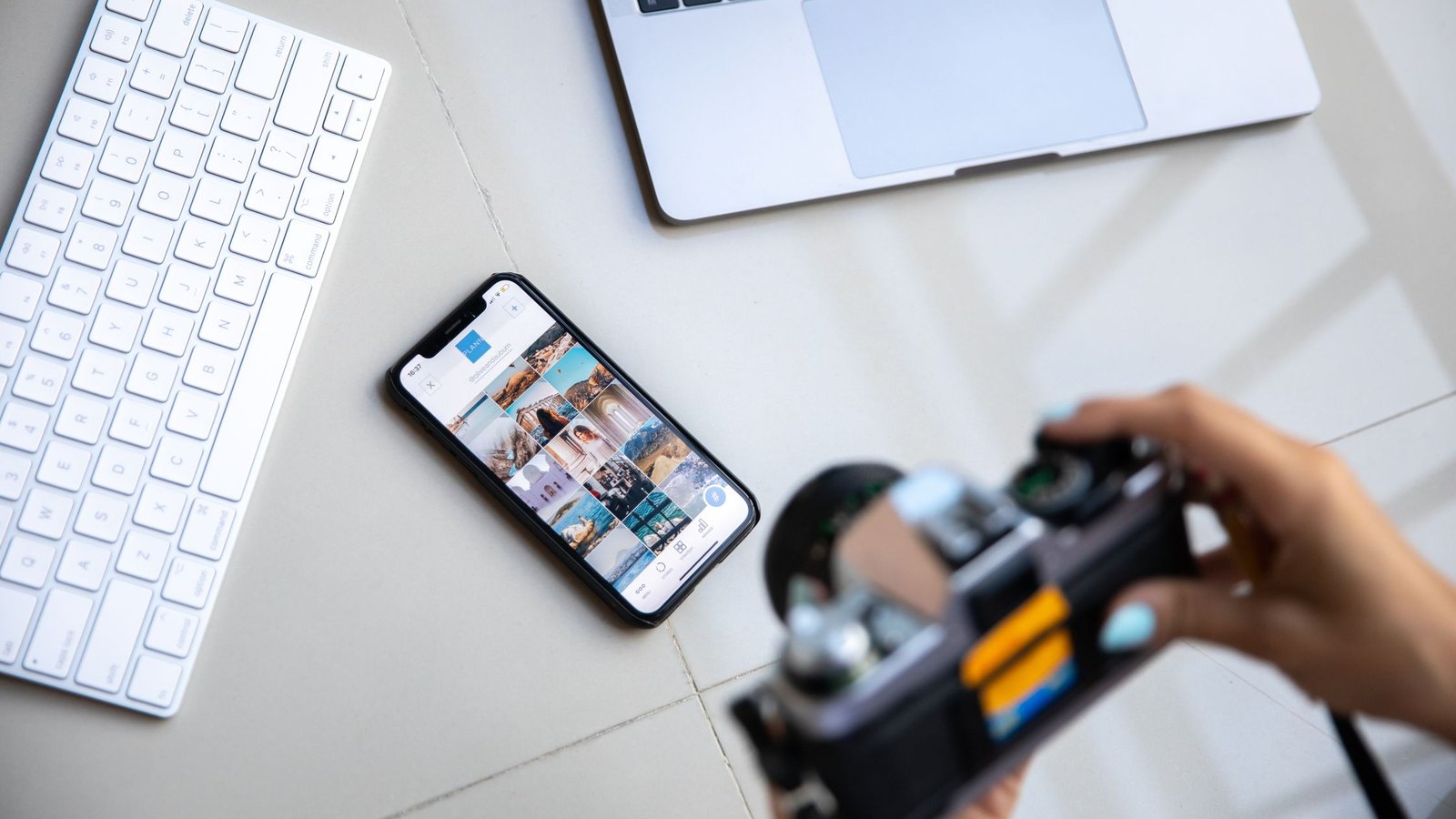
    Person setting a social-media timebox on a smartphone beside a computer
    A visible timer makes the boundary easier to follow. Photo: Darlene Alderson via Pexels.

    The Social Slot checklist you can print

    Print this list, run through it once, and pin it near your desk. It covers the four layers in the order they appear in this guide.

    • Pick a slot length from the list above. Write it on the sticky note.
    • Open the Clock app, set the countdown, and set the timer sound to Stop Playing on iPhone.
    • Create a Focus mode or Do Not Disturb profile that pauses the social apps and silences their notifications.
    • Schedule the focus mode to match the slot, or wire it to a Shortcut or Tasker macro.
    • Save the Start Social Slot shortcut or macro on your Home Screen.
    • Save the End Social Slot shortcut or macro right next to it.
    • Set an App Timer five minutes below the slot, or install a website blocker for the same window.
    • Run the routine for seven days before changing the slot length.

    How to handle the moment the timer rings

    The hardest part of any timebox is the moment it ends. The slot is over, the feed is still interesting, and your thumb is still hovering. Decide in advance what you will do, because deciding in the moment is the trap.

    Pick one of the three patterns below and stick with it for the first two weeks.

    1. Hard close. Put the device down, turn the focus mode off, and switch to a five-minute stretch or a glass of water. This pattern trains the easiest closing reflex.
    2. Soft close. Finish the post you are reading, leave one comment, and close the app. The point is to land the plane, not to add a new take-off.
    3. Defer. Add the post or video to a reading list and leave the app. Most reels and posts are still there next slot.

    Whichever pattern you choose, run it for at least two weeks before you judge it. The first week is the week you are learning the closing reflex, not the week you are judging it.

    How the routine changes by device

    Each platform has its own quirks, and a routine that works on one phone does not always work on another. The subsections below call out the small differences that matter.

    Use the Shortcuts app for the one-tap slot, the Focus setting for the silence. And an App Limit set five minutes below the slot for the backstop. The Screen Time setting lives in Settings, and the App Limit is what locks the app for the rest of the day once the timer expires.

    Android phones

    Use Focus modes for the silence, the Digital Wellbeing app timer for the backstop. And either a MacroDroid macro or a Tasker task for the one-tap slot. The Pixel Clock app includes a hard-stop option that other Android clocks do not always include. So on non-Pixel devices a third-party pomodoro app is a reasonable swap.

    Windows 11 and macOS

    Use the built-in Focus session for the silence, a website blocker for the backstop. And a Shortcuts app shortcut on macOS or a Power Automate flow on Windows for the one-tap slot. The browser is the social-media app on most desktops, so the blocker carries most of the weight.

    What changes the answer: tradeoffs to weigh

    The same routine is not right for every reader. The four tradeoffs below are the ones that change the answer most often.

    • Length of the work day. A short work day pairs with one slot; a long work day pairs with two.
    • Type of feed. Short-form video slots end faster than long-form reading. Adjust the interval accordingly.
    • Shared device. A shared family tablet or a partner’s laptop should use an account-level focus filter, not just a personal one.
    • Notifications during emergencies. Allow a small list of people through every focus mode so emergencies still reach you.

    Common mistakes when readers first try to timebox social media

    Most readers trip on the same small mistakes. The list below names each one and what to do instead.

    • Setting the timer and forgetting the focus mode. The timer ends, but the phone keeps buzzing, and the slot bleeds.
    • Skipping the backstop. The backstop is what catches the accidental tap. Without it, the routine wobbles.
    • Adding too many slots. Three slots a day is not a timebox; it is the original habit with a clock on it.
    • Starting too long. A 45-minute slot in week one is a kindness to your future regret.
    • Editing the routine daily. Run it for a week, then change one thing. Frequent edits prevent learning.

    How to know the routine is working

    You do not need a metric to know the routine is working, but a few small signals help. The screen-time report on the device should show the chosen app hovering near the slot length on most days, not blowing past it. Unplanned reaches for the app should become less frequent. Ending the slot should feel like a normal stopping point instead of a fight.

    If two of those three signals are present after two weeks, the routine is doing its job. If none are present, shorten the slot, simplify the shortcut, and timebox social media again for one week.

    Where to go next on Mind Clarity Hub

    This guide is one of a small set of routines built around the same idea: keep the digital layer useful. And let the rest of the day have more of your attention. Other posts on the site cover reading plans, focus routines, screen-time reduction without deleting timebox social media, and remote-work clarity. The Mind Clarity Hub home page collects them in one place, and the supporting posts in the digital-clarity cluster point back to this routine as a complement to a focus block.

    How this guide was researched

    This guide is built from published sources: official guidance from Apple, Google, and Microsoft on Focus modes and timer behavior, plus published documentation for the website blockers and automation apps mentioned above. It is research, not first-hand testing, travel, or ownership by this site. Where a setting, limit, or menu path is named, it is what the source published at the time of review. So confirm the current terms with the provider before you act on them.

    FAQ: timeboxing social media with timers and focus modes

    What does it mean to timebox social media?

    To timebox social media means giving each app a fixed slot on the clock instead of letting it run all day. The slot has a clear start, a clear end, and a clear reason for existing. When the timer ends, the session ends with it.

    How long should my social-media timebox be?

    Most readers do well with a 20- to 25-minute slot, twice a day. Heavy users often start with 15 minutes, twice a day, and stretch the slot once the routine feels natural. The exact length matters less than sticking to it for at least a week.

    Do focus modes actually reduce scrolling?

    Focus modes reduce the pull of new notifications while the slot runs, which removes a large part of the accidental scrolling. They do not, on their own, close the app when the timer ends. That is why the timer and the focus mode work as a pair.

    Can I timebox social media without an app?

    Yes. The Clock app on iOS and Android includes a countdown timer, and Windows 11 and macOS both include a built-in focus session. A website blocker is the only extra piece most readers need on a desktop.

    What is the difference between a focus mode and a website blocker?

    A focus mode silences notifications and pauses apps inside the slot. A website blocker closes the page or the app when the timer expires. The two work as a pair: the focus mode keeps the slot quiet, and the blocker makes sure the slot actually ends.

    How do I avoid breaking the routine the first week?

    Decide in advance how you will close the slot, save the End Social Slot shortcut or macro next to the Start one. And set an App Timer five minutes below the slot as the backstop. After seven days, change one setting at a time.

    What if my job requires me to use social apps?

    Allow the social apps you need for work through the focus mode, and set the slot for personal use at a different window. The routine separates personal scrolling from work use, which is often the missing piece.

    Helpful resources for your next step

    Affiliate disclosure: As an Amazon Associate, Mind Clarity Hub may earn from qualifying purchases at no extra cost to you. Use this link only if it genuinely helps your planning.

    If Timebox Social Media With Timers and Focus Modes is a routine you want to keep using, a simple workbook, planner, or desk tool can make the steps easier to repeat.

    Compare related planners, workbooks, and organization tools on Amazon.

  • Digital Detox Strategies: A Practical Guide With Real Numbers

    Digital Detox Strategies: A Practical Guide With Real Numbers

    Last reviewed: August 20, 2026. How this guide was researched: We compared official guidance, reputable planning sources, and the practical questions travelers or readers ask about digital detox strategies. This is an evidence-based editorial guide, not a claim of unperformed first-hand testing.

    Digital detox strategies are essential in today’s digital age, where screens dominate our lives. According to the American Psychological Association (APA), the average person spends over 3 hours per day on social media. This can lead to reduced productivity, increased stress, and diminished cognitive clarity. In this guide, we will explore practical strategies to help you reduce screen time and improve focus and cognitive clarity. By the end of this article, you will have a clear understanding of how to implement these strategies in your daily life.

    Let’s dive into the benefits of a digital detox. Studies show that reducing screen time can lead to improved sleep quality and reduced stress. For instance, a study published in the Journal of Sleep Research found that participants who reduced their screen time before bedtime experienced better sleep quality and fewer sleep disturbances. Additionally, a review by the National Institute of Mental Health (NIMH) highlights the positive impact of digital detox on mental well-being, suggesting that regular breaks from digital devices can enhance cognitive function and focus.

    Why Digital Detox is Important

    The importance of a digital detox cannot be overstated. In today’s fast-paced world, we are constantly bombarded with notifications and distractions from our devices. This can lead to a phenomenon known as cognitive overload, where the brain becomes overwhelmed by too much information. According to Harvard Business Review (HBR), taking a digital detox can help you regain control over your time and focus, leading to increased productivity and better work-life balance.

    Strategies for Reducing Screen Time

    Now that we understand the importance of a digital detox, let’s explore some practical strategies to help you reduce screen time and improve your focus.

    Set Clear Boundaries

    The first step in reducing screen time is to set clear boundaries. This can be as simple as designating specific times of the day when you will check your devices, such as during breakfast and before bed. By setting these boundaries, you can create a more structured routine that helps you stay focused and productive.

    Use Time Management Tools

    Time management tools can be a valuable asset in reducing screen time. Apps like Forest and Moment can help you track your screen time and set limits. These tools provide visual feedback, allowing you to see how much time you are spending on your devices and encouraging you to reduce that time.

    Implement Digital Detox Days

    Digital detox days can be a powerful way to break the habit of constant screen use. Choose a day each week where you completely disconnect from all digital devices. This can be a challenging task, but it can also be incredibly rewarding. By taking a break from screens, you can focus on other activities that bring you joy and help you recharge.

    Benefits of a Digital Detox

    The benefits of a digital detox extend beyond just reducing screen time. By taking a break from digital devices, you can experience a range of positive effects on your mental and physical well-being. For instance, a study published in the Journal of Medical Internet Research found that participants who took a digital detox experienced reduced stress levels and improved sleep quality. Additionally, a review by TechCrunch highlights the benefits of digital detox, including increased productivity and better work-life balance.

    Conclusion

    In conclusion, digital detox strategies are essential for maintaining focus and cognitive clarity in today’s digital age. By implementing practical strategies such as setting clear boundaries, using time management tools, and implementing digital detox days, you can reduce screen time and improve your overall well-being. Remember, the key is to find a balance that works for you and to make these strategies a part of your daily routine. Start small and gradually build up to more significant changes. With persistence and dedication, you can achieve a healthier and more balanced relationship with technology.

    A woman meditates in a bright, cozy living room with plants and a sofa.
    A woman meditates in a bright, cozy living room with plants and a sofa. Photo by Vitaly Gariev via Pexels.

    Who Should Consider Digital Detox Strategies?

    Digital detox strategies are beneficial for a wide range of individuals, but certain groups may find them particularly useful. For instance, those who spend long hours in front of screens, such as office workers and students, can significantly reduce eye strain and improve their overall well-being. Parents with young children can also benefit from setting boundaries to ensure a healthy balance between technology and family time. Additionally, individuals who feel overwhelmed by the constant influx of information and notifications can regain control and focus on more meaningful activities.

    Decision Criteria for Choosing Digital Detox Strategies

    When deciding on digital detox strategies, consider the following criteria:

    • Personal Goals: Determine what you hope to achieve through a digital detox, such as reducing stress, improving sleep, or increasing productivity.
    • Current Habits: Assess your current screen usage and identify areas where you can make changes. For example, if you find yourself checking your phone every few minutes, setting specific times to check it can be a good strategy.
    • Support System: Consider whether you have a support system in place, such as family or friends, who can help you stick to your detox plan.

    By evaluating these criteria, you can choose the most suitable digital detox strategies that align with your personal goals and lifestyle.

    Realistic Comparisons of Digital Detox Strategies

    To help you make an informed decision, let’s compare some common digital detox strategies:

    Strategy Pros Cons
    Implementing Digital Detox Days – Helps establish a routine
    – Can be a significant break from technology
    – Improves mental health and productivity
    – May be challenging to start
    – Requires planning and commitment
    – Can be disruptive to work or social life
    Using Time Management Tools – Easy to integrate into daily routine
    – Can be automated
    – Helps track and limit screen time
    – May require initial setup
    – Can be intrusive if not used properly
    – May not completely eliminate distractions
    Setting Clear Boundaries – Simple to implement
    – Can be tailored to individual needs
    – Helps maintain a healthy work-life balance
    – May require discipline to stick to boundaries
    – Can be difficult to enforce
    – May not address underlying issues

    Each strategy has its own set of advantages and disadvantages. By comparing these options, you can choose the one that best fits your needs and lifestyle.

    Frequently Asked Questions About Digital Detox Strategies

    How Long Should a Digital Detox Last?

    The duration of a digital detox can vary depending on your goals. For short-term detoxes, a few days to a week can be effective. For longer-term changes, consider setting a goal of a month or more. The key is to find a balance that works for you and your lifestyle.

    Are There Any Risks Associated with Digital Detox Strategies?

    While digital detox strategies are generally safe, there are some potential risks to be aware of. For example, sudden withdrawal from technology can lead to feelings of anxiety or frustration. Additionally, if you rely heavily on technology for work or social interactions, a complete detox might be too extreme. It’s important to approach the process gradually and with a support system in place.

    Can Digital Detox Strategies Improve Mental Health?

    Yes, digital detox strategies can significantly improve mental health. By reducing screen time and disconnecting from technology, you can reduce stress, anxiety, and feelings of overwhelm. This can lead to improved mood, better sleep quality, and increased overall well-being. Regularly taking breaks from technology can help you maintain a healthier balance and enhance your mental resilience.

    Step-by-Step Planning Workflow for Digital Detox Strategies

    Planning a digital detox involves several steps to ensure you can effectively reduce screen time and improve your mental health. HereÒ€ℒs a step-by-step workflow to help you get started:

    Step 1: Define Your Goals

    Identify why you want to detox. Are you looking to reduce stress, improve sleep, or simply spend more quality time with your loved ones? Setting clear goals will help you stay motivated throughout the process.

    Step 2: Assess Your Current Digital Habits

    Keep a log of your daily screen time for a week. This will give you a baseline to measure your progress against. Use apps like Moment or Offtime to track your usage.

    Step 3: Choose Your Detox Strategies

    Select a combination of strategies that align with your goals. For example, if you want to improve sleep, you might choose to implement a digital detox before bed. If youÒ€ℒre trying to reduce stress, you might opt for a full day of no screens on weekends.

    Step 4: Create a Checklist

    Develop a checklist to help you stay on track. For instance:

    • Set specific times for checking emails and social media.
    • Designate screen-free zones in your home, like the bedroom or dining room.
    • Plan alternative activities, such as reading, exercising, or spending time outdoors.

    Step 5: Implement and Adjust

    Start with small changes and gradually increase the intensity. For example, you might begin by setting a 30-minute limit on social media in the evening and then extend this to an hour. Regularly review your progress and adjust your strategies as needed.

    Step 6: Stay Committed

    Commit to your chosen strategies and be patient. Digital detox is a journey, not a one-time event. Celebrate small victories and stay committed to your goals.

    Realistic Comparisons of Digital Detox Strategies

    Comparing different digital detox strategies can help you find the best fit for your lifestyle. Here are some common strategies and their potential impacts:

    Digital Detox Days vs. Screen-Free Zones

    Strategy Benefits Challenges
    Digital Detox Days Completely removes screens for a set period, promoting a break from constant connectivity. May be challenging to maintain discipline, especially if work or social obligations require screen use.
    Screen-Free Zones Allows for more flexibility, as you can still use screens in other parts of your home. Promotes a healthier balance. May be harder to enforce, as you can easily access screens from other rooms.

    Both strategies can be effective, but the best choice depends on your personal circumstances and preferences.

    Frequently Asked Questions About Digital Detox Strategies

    How Long Should a Digital Detox Last?

    The duration of a digital detox can vary based on your goals and lifestyle. Short detoxes, such as a weekend or a week, can be a good starting point. Longer detoxes, such as a month or more, can provide deeper benefits but may be more challenging to maintain.

    Are There Any Risks Associated with Digital Detox Strategies?

    While digital detox strategies are generally safe, abrupt changes in screen time can sometimes lead to withdrawal symptoms, such as irritability or anxiety. ItÒ€ℒs important to approach detoxes gradually and with a supportive mindset.

    Can Digital Detox Strategies Improve Mental Health?

    Yes, digital detox strategies can significantly improve mental health by reducing stress, improving sleep quality, and enhancing overall well-being. By giving your mind a break from constant stimulation, you can experience reduced anxiety and increased focus and creativity.

    Common Mistakes in Digital Detox Strategies

    Many people make common mistakes when attempting a digital detox, which can undermine their efforts. Here are some pitfalls to avoid:

    • Overly Rigid Rules: Setting strict, unrealistic rules can lead to frustration and failure. For example, completely avoiding social media for a week might be too much for some.
    • Ignoring Hidden Tradeoffs: Some strategies might seem beneficial but come with hidden costs. For instance, using a screen-free zone might mean missing out on important work communications.
    • Lack of Support: Going it alone can be challenging. Having a support system or accountability partner can make a significant difference.

    Hidden Tradeoffs in Digital Detox Strategies

    Understanding the hidden tradeoffs is crucial for making informed decisions. Here are a few examples:

    • Productivity vs. Relaxation: While reducing screen time can lead to better mental health, it might also reduce productivity. Balancing these needs is key.
    • Isolation vs. Connection: Detaching from digital devices can lead to a sense of isolation, but staying connected can be vital for maintaining relationships.
    • Learning vs. Entertainment: While entertainment can be a distraction, it can also be a source of learning and personal growth. Finding a balance is essential.

    Troubleshooting Common Issues

    Here are some tips to help you troubleshoot common issues that might arise during a digital detox:

    • Feeling Anxious: If you feel anxious or stressed, try engaging in relaxation techniques like meditation or deep breathing exercises.
    • Missing Out on Information: Stay informed by setting up a daily news summary or checking in with trusted sources at specific times.
    • Feeling Bored: Combat boredom by engaging in hobbies, reading, or spending time with friends and family.

    Safe Alternatives to Digital Detox Strategies

    While a full digital detox can be beneficial, it might not be feasible for everyone. Here are some safer alternatives:

    • Digital Detox Days: Instead of a full detox, consider setting aside specific days each week to reduce screen time.
    • Screen-Free Zones: Designate certain areas of your home as screen-free zones, such as the dining room or bedroom.
    • Time Management Tools: Use apps and tools to manage your screen time more effectively, such as setting daily limits or blocking distracting websites.

    Frequently Asked Questions About Digital Detox Strategies

    How Can I Stay Committed to a Digital Detox?

    Staying committed requires a combination of setting clear goals, finding support, and celebrating small victories. Regularly remind yourself of the benefits and progress you’ve made.

    Are There Any Risks Associated with Digital Detox Strategies?

    While digital detox strategies can be beneficial, they can also pose risks, such as missing important information or feeling isolated. It’s important to find a balance that works for you.

    Can Digital Detox Strategies Improve Mental Health?

    Yes, digital detox strategies can significantly improve mental health by reducing stress, anxiety, and improving overall well-being. However, it’s important to approach it with a balanced and realistic mindset.

    Which evidence sources keep this advice grounded?

    Simple follow-through check for digital detox strategies

    Before you turn this advice into a new system, choose one small action that can be repeated on a normal day. The best clarity tools are the ones that still work when the calendar is full, energy is low, or the workspace is imperfect. For digital detox strategies, start with the lowest-friction step, then notice whether it makes the next task easier to begin.

    Keep the routine visible and easy to reset. A short checklist, a labeled folder, a planning page, or a single reminder can do more than a complicated setup that only works once. If the process feels heavy, reduce the number of steps until it becomes something you can trust again tomorrow.

    How can you make digital detox strategies easier to keep?

    A helpful routine should reduce friction rather than become another task to manage. Start by deciding where the action will happen, what cue will start it, and what counts as enough on a low-energy day. This keeps the plan grounded in real life. It also prevents the common mistake of building a system that only works when everything is quiet.

    Use source-backed claims carefully. Everyday planning, sleep, stress, and focus habits can support wellbeing, but they are not medical treatment. If a symptom is severe, persistent, or unsafe, professional support matters. For ordinary habit design, the practical goal is smaller: create a repeatable cue, remove one avoidable barrier, and give yourself a way to restart without shame.

    Check What to confirm Best next step
    Energy Choose one low-friction step that works on a normal weekday. Shorten the routine before adding tools.
    Environment Check whether the setup works in the real room, desk, or schedule you use. Move the cue into sight and remove one barrier.
    Evidence Use credible health or productivity sources for claims. Avoid treatment promises and keep advice practical.
    Follow-through Decide how you will reset after a missed day. Use a two-minute restart instead of an all-or-nothing plan.

    Which sources can keep the advice grounded?

    What should you test this week?

    • Pick one cue that already happens daily, such as opening a laptop, making coffee, or closing a notebook.
    • Choose a version of the habit that takes two minutes or less.
    • Write the restart rule before you miss a day.
    • Review after seven days and remove the step that caused the most friction.

    This simple review turns digital detox strategies from a vague intention into a small operating loop. You are not trying to prove discipline. You are trying to make the next useful action easier to notice and easier to repeat.

    Helpful resources for your next step

    Affiliate disclosure: As an Amazon Associate, Mind Clarity Hub may earn from qualifying purchases at no extra cost to you. Use this link only if it genuinely helps your planning.

    If Digital Detox Strategies: A Practical Guide With Real Numbers is a routine you want to keep using, a simple workbook, planner, or desk tool can make the steps easier to repeat.

    Compare related planners, workbooks, and organization tools on Amazon.

  • Evening Smartphone Boundaries Checklist for Better Sleep

    Evening Smartphone Boundaries Checklist for Better Sleep

    Quick answer: an evening smartphone boundaries checklist for better sleep is a small set of phone rules you run before bedtime: silence nonessential alerts, park high-stimulation apps, dim the screen, move the charger away from the bed, and decide when the phone is allowed back in the morning. The goal is not to become anti-technology. The goal is to keep your phone from making the last hour of the day louder than it needs to be.

    This guide is written for adults who use a phone for work, family, alarms, or reading, yet want a calmer night without a dramatic digital detox. It also supports readers building a bigger digital clarity plan through Break the Scroll, Restful Nights, and the full Jeremy Jarvis books hub.

    What is an evening smartphone boundaries checklist for better sleep?

    An evening smartphone boundaries checklist for better sleep is a repeatable shutdown routine for your phone. It decides what your phone can interrupt, where it sleeps, which apps are available, and what you do when you are tempted to reopen it. A checklist works better than a vague promise because bedtime decisions happen when willpower is already low.

    The checklist is not medical treatment, and it does not replace care for insomnia, anxiety, shift-work sleep problems, or other sleep conditions. It is a practical environment design tool. You are reducing light, alerts, novelty, and late-night decision friction so your evening has a clearer finish line.

    Why phone boundaries work better than willpower at night

    Phone use near bedtime is hard to manage because the phone mixes practical tools with high-reward distractions. The same device can hold your alarm, family messages, meditation app, shopping tabs, work chat, breaking news, and short videos. A tired brain treats that mix as one open door.

    Sleep education sources commonly recommend reducing electronic stimulation before bed because light, alerts, and emotionally engaging content can delay wind-down. The Sleep Foundation explains how electronics can affect sleep, while CDC sleep guidance emphasizes regular sleep habits and a supportive routine. A recent open-access study in PMC on adult screen use and sleep timing also reinforces why evening screen habits deserve specific boundaries.

    That does not mean every person needs a two-hour phone ban. It means your phone should stop behaving like an always-open room. The strongest evening smartphone boundaries checklist for better sleep is usually simple enough to repeat on a normal Tuesday.

    How do you use this checklist tonight?

    Use the checklist in three passes. First, set the phone rules while you are still alert. Second, move the phone out of your easiest reach. Third, create a morning re-entry point so the boundary feels complete rather than punitive.

    Pass What to decide Fast option Better option
    Notifications Who can interrupt? Do Not Disturb Sleep Focus or Bedtime mode with allowed contacts
    Apps What is off limits? Move social apps off the home screen Set app limits or block lists after a fixed time
    Placement Where does the phone sleep? Across the room Outside the bedroom with a backup alarm
    Re-entry When can you check it? After getting out of bed After light, water, and first planned action

    If you only do one thing tonight, move the charger. A phone on the pillow side of the bed asks for attention even when it is silent. A phone across the room becomes a tool again.

    Evening smartphone boundaries checklist for better sleep shown as a four step phone boundary loop
    Use this loop to set phone boundaries before you are tired.

    The 10-minute evening phone boundary routine

    This routine is designed to fit inside the last practical part of the evening, before teeth brushing, reading, journaling, or lights out. Start about 30 to 60 minutes before bed if you can. If that is unrealistic, start with the last 10 minutes.

    Minute 1: choose the phone’s bedtime

    Pick a clear time, not a mood. For example: β€œAt 9:45, the phone goes to the charger.” A clock time is easier to honor than β€œwhen I feel done scrolling.” If your evening schedule changes, tie the boundary to an anchor such as after dishes, after the kids are down, or after the final work check.

    Minute 2: turn on the right mode

    On iPhone, Apple provides Focus and Sleep tools that can allow chosen people, customize screens, and quiet apps. Apple documents those settings in its Focus setup guide. On Android, Google Digital Wellbeing includes Bedtime mode, app timers, Focus mode, grayscale, and Do Not Disturb options through the Digital Wellbeing feature set.

    Minute 3: allow the real exceptions

    A good boundary has humane exceptions. Allow partner, caregiver, school, emergency, or work-on-call contacts if needed. Do not make the boundary so strict that you feel anxious about missing something important. The point is to remove noise, not support a brittle rule.

    Minute 4: hide the apps that pull you back

    Put the most tempting apps behind friction. Move them off the home screen. Log out if needed. Use app limits for social, shopping, short video, news, and work chat. If you need one calming app, place only that app on a low-stimulation evening screen.

    Minute 5: dim and simplify the screen

    Lower brightness, use night shift or night light tools, and try grayscale if color pulls you into browsing. This is not magic. It is a cue. A duller phone is less inviting, and that makes the next boundary easier.

    Minute 6: write tomorrow’s first action

    Many people reopen the phone because the next day feels unresolved. Before you park the device, write one small first action for tomorrow. It can be β€œsend invoice,” β€œpack lunch,” or β€œopen draft.” This gives your brain a handoff.

    Minute 7: move the charger

    Place the charger across the room, in the hallway, in the kitchen, or at a small charging station. If you need your phone as an alarm, put it far enough away that you must stand up to turn it off. If that creates stress, use a separate alarm clock.

    Minute 8: choose a replacement cue

    Do not leave a blank space and expect it to feel relaxing. Replace phone time with one small cue: a book, a paper checklist, a stretch, a glass of water, a two-minute tidy, or the pre-sleep journaling template. The replacement should be boring in a good way.

    Minute 9: close open loops

    If a task feels urgent, write it down instead of solving it from bed. A parking list keeps the thought from becoming a search session. Use one line per task. Stop when you have captured enough to continue tomorrow.

    Minute 10: decide the morning rule

    The evening boundary is easier when the morning is clear. Decide whether the phone returns after you stand up, after water, after breakfast, or after the first focus block. A morning rule prevents revenge checking from becoming the first habit of the day.

    What should be on the checklist?

    Use this as the default evening smartphone boundaries checklist for better sleep. Keep it visible for one week, then simplify it to the three steps you actually need.

    • Sleep Focus, Do Not Disturb, or Bedtime mode is scheduled.
    • Emergency contacts are allowed, and everything else is quiet.
    • Social, shopping, news, short video, and work chat are hidden or limited.
    • Brightness is low, and grayscale or night mode is on if helpful.
    • The next morning’s first action is written outside the phone.
    • The phone is charging away from the bed.
    • A replacement cue is ready: book, paper note, stretch, water, or journal.
    • The morning re-entry rule is clear.

    If that list feels like too much, use the short version: quiet it, park it, replace it. A simple evening smartphone boundaries checklist for better sleep repeated nightly beats a perfect checklist used twice.

    Bedtime phone settings checklist for an evening smartphone boundaries routine
    A quick settings checklist for putting the phone to bed before you go to bed.

    iPhone settings that support evening phone boundaries

    For iPhone users, the most useful starting point is Focus. You can create a Sleep Focus, choose allowed people, choose allowed apps, and simplify the Lock Screen. The official Apple guidance is the best place to check exact menus because iOS labels change over time.

    Need iPhone setting Boundary it supports
    Allow family but silence noise Sleep Focus allowed people Important contact access without every app alert
    Reduce visual prompts Custom Lock Screen and Home Screen Fewer tempting apps at bedtime
    Protect the sleep window Sleep schedule and Focus schedule Automatic evening start
    Reduce repeated checking Notification summaries and app limits Less novelty in the final hour

    The key is to make the setting match your life. If a parent, partner, or client must reach you, allow that route. If one reading or sound app helps you wind down, keep it available. Remove the rest from the bedtime path so the evening smartphone boundaries checklist for better sleep stays focused.

    Android settings that support evening phone boundaries

    Android phones vary by manufacturer, but the Digital Wellbeing and Bedtime mode pattern is similar: reduce notifications, fade the screen, and set a schedule. Google describes Digital Wellbeing tools such as app timers, Focus mode, and Bedtime mode on the Digital Wellbeing app page and related Android support materials.

    Need Android setting Boundary it supports
    Quiet the phone Do Not Disturb or Bedtime mode Fewer sleep interruptions
    Make scrolling less rewarding Grayscale during Bedtime mode Lower pull from colorful feeds
    Limit problem apps App timers or Focus mode Clear stop point for distracting apps
    Start automatically Bedtime schedule Boundary runs without a nightly debate

    If your phone brand uses different labels, search Settings for β€œDigital Wellbeing,” β€œBedtime,” β€œFocus,” β€œDo Not Disturb,” or β€œModes.” The exact path matters less than the outcome: fewer alerts, fewer triggers, and a phone that is not waiting beside your pillow. This keeps the evening smartphone boundaries checklist for better sleep practical across devices.

    Where should your phone charge at night?

    The best charging spot is the nearest place that makes checking inconvenient without making life harder. For some readers, that is a dresser. For others, it is the kitchen, hallway, office, or a shelf outside the bedroom. Start with distance before you buy anything.

    Charging spot Best for Watch out for
    Across the bedroom People who use a phone alarm You may still check it after lights out
    Hallway shelf Light sleepers and couples Emergency contact settings need to be right
    Kitchen station Strongest separation Needs a separate alarm or smart speaker alarm
    Home office Remote workers Can reopen work if the room is not closed

    Do not turn the charger into a productivity shrine. A cable, a small tray, and a paper note are enough. If the charging station becomes complicated, the phone will migrate back to the bed.

    What if you need the phone for sleep sounds, alarms, or family?

    Keep the useful function and remove the open-ended browsing. A phone can still provide a white-noise app, audiobook timer, medication reminder, or family emergency route. The boundary is not β€œnever use your phone.” It is β€œonly the intended tool remains easy.”

    For sleep sounds, start the audio before the phone goes to its spot. For alarms, place the phone across the room or use a separate clock. For family, allow selected contacts through Sleep Focus or Do Not Disturb. For on-call work, keep the on-call route but block every nonessential app.

    This is where many plans fail: they confuse access with invitation. You may need access. You do not need the phone inviting you into every feed at midnight.

    What should you do instead of scrolling?

    The replacement should be short, repeatable, and not more stimulating than the phone. If you replace scrolling with an ambitious routine, you may avoid both. Choose a small action that gives your nervous system a familiar closing cue.

    • Read two pages of a paper book.
    • Write tomorrow’s first action on a sticky note.
    • Do a three-minute stretch with the lights low.
    • Set clothes, water, or breakfast supplies for the morning.
    • Use the pre-sleep journaling template if looping thoughts are the real pull.
    • Use the gentle evening wind-down routine if you want a fuller shutdown.

    The best replacement is not necessarily relaxing on the first night. It is simply less stimulating and easier to repeat.

    Common mistakes with evening phone boundaries

    Most people do not fail because they lack discipline. They fail because the boundary has too many loopholes, starts too late, or depends on a future tired version of themselves to make a good decision.

    Mistake Why it breaks Better rule
    Keeping the phone beside the pillow Reach turns into checking Charge across the room or outside the bedroom
    Blocking every contact Creates anxiety about emergencies Allow a short emergency contact list
    Starting after you are exhausted Too much decision friction Start after a stable evening anchor
    Using the phone for every replacement habit The tool reopens the feeds Use paper, a book, or a simple offline cue
    Making a huge detox rule Feels like punishment Use a narrow bedtime rule first

    If you already have a broader digital declutter plan, this article should not replace it. Use the digital declutter checklist for screens across the week, then use this page for the evening sleep boundary.

    A seven-night phone boundary experiment

    Run the experiment for seven nights before judging it. One night can be distorted by stress, weather, family needs, caffeine, work, travel, or a bad mattress. Seven nights give you enough repetition to see what actually helps.

    1. First night: choose the phone bedtime and charger spot.
    2. Second evening: add Sleep Focus, Do Not Disturb, or Bedtime mode.
    3. Third pass: remove the top two tempting apps from the evening screen.
    4. Fourth reset: write tomorrow’s first action before parking the phone.
    5. Fifth trial: test a replacement cue for 10 minutes.
    6. Sixth check: adjust emergency contacts and app exceptions.
    7. Final review: keep the three rules that made the largest difference.

    Track only three things: when the phone was parked, whether it stayed parked, and how the morning felt. Do not over-measure. The point is a cleaner routine, not another dashboard.

    Examples for different households

    For parents: allow school, family, and emergency contacts, then block everything else. Keep the phone on a dresser if a child may need you. Put a paper card beside the charger that says what is allowed: family calls, medication reminders, and alarms. Everything else can wait.

    For remote workers: create a separate work shutdown before the phone boundary. Close team chat, write the next work action, and set a morning re-entry rule. If the phone is your work device, move work apps into a folder named Tomorrow so the label itself becomes a cue.

    For students: park the phone after the last study block and keep only alarm, calendar, and a calm audio app available. If group chats run late, use a status message that says you check again in the morning.

    For couples: agree on light, sound, and charging zones. One person can keep an emergency phone nearby while the other charges outside the room. The shared goal is less interruption, not identical behavior.

    Make the boundary easier to keep

    The environment should do most of the work. Put a book where the phone used to sit. Place the charger where you naturally walk after brushing your teeth. Keep a pen and paper at the charging station. If you use smart lights or a routine app, set the evening cue to start before your usual scrolling window.

    Expect friction for the first few nights. The habit may feel strangely quiet. That is useful feedback. You are noticing how much stimulation the phone had been adding. Keep the rule small, repeat it, and let the evening become more predictable. Over time, the evening smartphone boundaries checklist for better sleep should feel like a normal closeout rather than a restriction.

    How this connects to digital clarity

    An evening smartphone boundaries checklist for better sleep is one piece of digital clarity. It gives your day a boundary. That boundary protects rest, and rest protects attention the next day. If your larger issue is constant screen pull, read Digital Clarity vs Digital Detox next. If the issue is a phone habit that feels automatic, Break the Scroll is the more direct book path.

    If sleep anxiety, racing thoughts, or bedtime worry are the main problem, Restful Nights is the more relevant reader path. If you want the full shelf by topic, start at the Mind Clarity books hub.

    When should you get more help?

    Phone boundaries can support better sleep habits, but they are not a cure-all. If you regularly cannot sleep, wake often, feel unsafe, experience severe anxiety, or feel exhausted despite enough time in bed, consider talking with a qualified health professional. Practical routines are useful, but persistent sleep problems deserve real support.

    Also look beyond the phone. Caffeine timing, alcohol, shift work, pain, room temperature, caregiving, workload, and stress can all affect sleep. A phone boundary is one lever. It works best when it is part of a realistic evening system.

    The simplest version to save

    Save this version if the full article feels like too much: at the same time each evening, turn on Sleep Focus or Bedtime mode, write tomorrow’s first action, charge the phone outside easy reach, and do one low-stimulation replacement for 10 minutes. That is the core evening smartphone boundaries checklist for better sleep.

    Frequently asked questions

    Is it bad to sleep with your phone next to your bed?

    For many people, the issue is not the phone’s existence. It is easy access to alerts, light, and stimulating content. If the bedside phone leads to checking, move it farther away and keep only essential interruptions enabled.

    How long before bed should I stop using my phone?

    Start with 30 minutes if a longer window feels unrealistic. Some sleep guidance recommends a longer electronics buffer, but a consistent 30-minute boundary is better than an ideal rule you never use.

    What phone settings are best for sleep?

    Use Sleep Focus, Do Not Disturb, Bedtime mode, grayscale, app limits, and a schedule. The best settings are the ones that silence nonessential alerts while preserving true emergency access.

    Can I still use my phone as an alarm?

    Yes, but place it across the room so turning it off requires standing up. If that still leads to checking, use a separate alarm clock and charge the phone outside the bedroom.

    What if my partner does not want the same phone rules?

    Make the boundary personal and practical. Use your own charger spot, your own Focus settings, and a low-light agreement. You do not need identical rules to reduce your own friction.

    Should I buy a lockbox or phone safe?

    Only if simpler steps fail. Try charger placement, app limits, Focus settings, and a paper replacement first. A lockbox can help some people, but it is not required for a strong evening boundary.

    Sources and update note

    Last reviewed: June 20, 2026. This guide uses practical sleep-habit framing and current public documentation from CDC sleep and health guidance, Sleep Foundation electronics and sleep guidance, Sleep Foundation blue light guidance, Apple Focus support, Google Digital Wellbeing information, and the open-access PMC study linked above.

    Helpful resources for your next step

    Affiliate disclosure: As an Amazon Associate, Mind Clarity Hub may earn from qualifying purchases at no extra cost to you. Use this link only if it genuinely helps your planning.

    If Evening Smartphone Boundaries Checklist for Better Sleep is a routine you want to keep using, a simple workbook, planner, or desk tool can make the steps easier to repeat.

    Compare related planners, workbooks, and organization tools on Amazon.

  • Digital Declutter Checklist: Reset Your Screens Without Overwhelm

    Digital Declutter Checklist: Reset Your Screens Without Overwhelm

    When your phone pings all day and tabs pile up, your mind never gets a true pause. This digital declutter checklist gives you a calm, step-by-step way to reset screens, files, and feeds without wiping your life. You will move from noise to clarity, one small, confident action at a time.

    Key takeaways before you start

    • Back up first so you can delete with confidence.
    • Cut notifications to only what you must act on now.
    • Use one simple folder system across devices.
    • Build tiny upkeep habits so clutter does not return.
    • Protect attention with Focus/Do Not Disturb modes and clear app limits.

    Digital Declutter Checklist: Quick Start

    If you only have 30 minutes, this digital declutter checklist gets you a fast win and visible relief.

    1. Silence the noise: Turn on Focus/Do Not Disturb for one hour.
    2. Close chaos: Bookmark open tabs you still need, then close all tabs.
    3. Clear space: Empty Trash/Recycle Bin and delete Downloads older than 30 days.
    4. Tame your phone: Move only your 4–6 daily apps to the dock; move the rest off your first screen.
    5. Email triage: Unsubscribe from 10 low‑value senders; archive the rest.
    6. Set a rule: Create one new inbox filter or rule that files newsletters automatically.

    What is a digital declutter checklist?

    A digital declutter checklist is a focused list of actions that reduces screen noise, cleans storage, and protects attention. It turns a fuzzy goalβ€”β€œget organized online”—into small moves you can finish today. Because interruptions and clutter tax working memory and raise error risk, a simple process helps you make fewer, better decisions. Research shows interruptions and task switching degrade performance and increase time to complete work (Nielsen Norman Group) and carry measurable switching costs (American Psychological Association).

    If your main goal is to cut total daily screen hours, start with our guide to ways to reduce screen time. This digital declutter checklist is narrower: it helps you clean the digital environment itself so your devices feel calmer and easier to use.

    Set your scope and rules up front

    Decide your limits before you sort. That way, choices get easier and faster. First, set a time box. Work in short passes: 25–30 minutes, then a break. Next, pick a target area for today: phone home screen, inbox, or filesβ€”one at a time. Finally, write down three simple rules you will follow.

    Rule 1: One home screen, one dock. Only daily tools live here. Everything else moves to folders or the app library. Because this trims choice, you save time each unlock.

    Rule 2: One folder map across devices. Mirror the same top‑level names on your computer and cloud drive. Consistency cuts search time and prevents re‑sorting later.

    Rule 3: Two message windows per day. Check email and chat at set times (for example, 11:30 a.m. and 4:30 p.m.). Outside those windows, use Focus/DND. If you must stay reachable, allow exceptions for key people and calls.

    Before you touch apps, capture your digital declutter checklist in three rules like these. Put them on a sticky note or a note pinned in your task app. Then start. Small, steady moves win.

    Backup steps for your digital cleanup checklist

    Before bulk deletes, make a fresh backup so you can move faster with less fear.

    • Computer: Create a system image or full user‑folder backup to an external drive.
    • Phone: Ensure iCloud or Google One backup is current.
    • Cloud: Export a copy of critical folders to local storage.

    Why it matters: Backups protect you from accidental loss and ransomware. See guidance on regular backups from CISA (U.S. Cybersecurity & Infrastructure Security Agency).

    Device and account audit for this screen declutter plan

    Start with the places that hit your attention every hour. Then sweep the rest.

    Phone home screen: Keep only everyday tools on page one; everything else moves to labeled folders.

    Notifications: Off by default. Turn on only for time‑critical people, calls, or logistics.

    Email: Unsubscribe and filter. Make your inbox a to‑do, not a storage unit.

    Downloads/Desktop: Clear or file everything into a simple folder tree.

    Browser: Close stacks of tabs. Capture anything still needed into bookmarks or a reading queue.

    Photos: Remove obvious duplicates and screenshots. Add albums for key life areas.

    Security: Turn on 2FA. Update weak or reused passwords.

    How do you calm notifications without missing what matters?

    Notifications are not all equal. You need only a few to reach you now. The rest can wait in an inbox or app badge.

    Goal iPhone/iPad Android
    Silence non‑urgent alerts Use Focus to allow only specific people/apps (Apple Support) Use Do Not Disturb with exceptions (Android Help)
    Batch the rest Schedule a Summary for low‑priority apps Set Notification categories to Silent
    Stop lock‑screen hijacks Turn off Time Sensitive for non‑essentials Disable pop‑ups; allow badges only

    Tip: Allow messages and calls from your inner circle. Also allow calendar alerts for travel or meetings. However, block social, shopping, and news pings; check them on your terms.

    Home screens: tidy layout in your device declutter guide

    Less on the screen means faster choices. Design your first screen like a calm desk.

    • Dock: Phone, messages, calendar, maps, notes, and your task appβ€”no more than six.
    • First page: Create two rows of your top eight tools.
    • Folders: Group by verbβ€”Read, Create, Money, Learnβ€”instead of brand names.
    • Widgets: Keep one glanceable widget if it truly saves time (calendar, to‑do, timer).
    Using a digital declutter checklist to streamline a tablet home screen with only essential apps.
    Streamline your first screen so choices are fast. Photo: Jakub Zerdzicki via Pexels (source).

    Use your email for action, not storage

    Email becomes calm when you make it automatic and short‑lived.

    • Create one filter that files newsletters to a β€œRead Later” label/folder (Gmail filters).
    • Unsubscribe from at least 10 senders today.
    • Archive messages after you act; do not keep a crowded inbox as a reminder list.
    • Use canned replies for routine requests.

    Templates you can copy:

    Goal Gmail example Outlook example
    Newsletters to Read Later Match: has:newsletter OR category:promotions; Action: Skip Inbox, Apply label β€œRead Later” Condition: Subject includes β€œunsubscribe”; Action: Move to β€œRead Later”
    Receipts and invoices to Finance Match: subject:(receipt OR invoice) OR from:(no-reply@paypal.com); Action: Apply label β€œFinance”, Mark as read Condition: Subject contains β€œreceipt” or β€œinvoice”; Action: Move to β€œFinance”
    VIP always visible Match: from:(boss@example.com OR team@company.com); Action: Star, Never send to Spam Condition: From contains key contacts; Action: Mark as Important

    Rule of thumb: If an email will take under two minutes, do it now. If it takes longer, move it to your task app with a due date.

    A digital declutter checklist for files and folders

    Files clutter drives your attention too. Build one simple structure, then stick to it across devices.

    Action Examples Result
    Delete Duplicates, installers, old screenshots Instant space gain and faster search
    Keep Active projects, legal docs, current receipts Easy access to what you use now
    Archive Past years, finished work, tax receipts Out of sight but safe for reference

    Folder map idea:

    • Home/Work split at the top level.
    • Inside each: 01-Admin, 02-Finance, 03-Projects, 04-Assets, 05-Archive.
    • Use dates like 2026-05-14 for sortable names.

    Now sweep: Clear Desktop into Projects or Archive. Empty Downloads except installers you still need.

    Naming rules that save clicks

    Clear, consistent names make search and sorting effortless. Use short words, dates, and versions. Avoid spaces when tools are picky; hyphens and underscores are safe. Most of all, keep the pattern the same everywhere.

    Pattern Example When to use
    YYYY-MM-DD_Project_Name 2026-05-14_Project-Brief.docx Daily notes, briefs, and logs you sort by date
    Area-Topic_v## ClientA-Proposal_v03.pdf Anything with versions; keeps the latest obvious
    Type_Project_Asset IMG_ProjectA_Header_1920x1080.png Design/media assets where size matters

    Tip: When you export files from apps, rename them at once. Then file them into your map. This two‑step loop keeps your system clean by default.

    Photos and media: a device declutter guide

    Photos should spark memory, not guilt. Start with easy wins.

    • Delete recent duplicates and throwaway screenshots.
    • Create three simple albums: Family & Friends, Work & Docs, Travel & Places (or your life roles).
    • Set automatic upload so you never think about backups.
    • Use β€œFree up space” after upload on your phone (Google Photos help).

    Do a 15‑minute sweep each month. Small passes beat heroic once‑a‑year efforts.

    Reviewing a digital declutter checklist while organizing photos and documents on a tablet.
    Keep photos meaningful. Remove duplicates and file the rest into a few clear albums. Photo: Jakub Zerdzicki via Pexels (source).

    Smarter browsing for your screen declutter plan

    Tabs are not a to‑do list. They are a tax. Turn clutter into lists you control.

    • Close all tabs after saving active ones to a single β€œNext” folder.
    • Use a read‑it‑later app or your browser’s reading list for long articles.
    • Bookmark by verb or outcome (β€œResearch”, β€œBuy soon”, β€œLearn”) instead of site names.
    • Set your browser to open a calm start page, not yesterday’s tab pile.

    Security basics in your digital cleanup checklist

    Peace of mind is part of clarity. A few moves raise your baseline security fast.

    • Use a password manager to create long, unique passwords; this aligns with modern guidance for memorized secrets (NIST SP 800‑63B).
    • Turn on two‑factor authentication (2FA) wherever possible (National Cybersecurity Alliance).
    • Review app permissions quarterly; remove camera, mic, and location access that apps do not need.
    • Update your OS and apps; schedule auto‑updates outside work hours.

    Also review recovery info. Confirm your recovery email and phone number are current. Store backup codes in your password manager’s secure notes.

    Platform recipes: Focus and Do Not Disturb

    iPhone and iPad: Open Settings > Focus. Create a Work Focus and a Personal Focus. Allow calls from Favorites and your team as needed. Add only essential apps to Allowed Notifications. Then, under Focus Filters, hide personal calendars during Work and mute work email in Personal. Finally, schedule each Focus to turn on at set times or when you arrive at key locations.

    Android: Open Settings > Notifications > Do Not Disturb. In Schedules, set work hours and sleep hours. Add exceptions for calls from starred contacts. Then visit per‑app settings to demote social and shopping alerts to Silent. If your phone supports it, use Modes or Routines to switch wallpapers, enable Dark theme, and adjust volume when DND activates. This gives a clear visual cue and saves taps.

    After setup, test it. Ask a friend to message you from a non‑priority app. You should see nothing during DND. Then send a call from a priority contact. It should come through. Tweak until it fits your day.

    Calm your feeds: social, news, and subscriptions

    Unfollow and mute: Trim accounts that spark stress or low‑value scrolling. Keep a short list of people and topics you truly care about. Because your feed trains your attention, choose what it teaches you.

    Stop autoplay: Turn off autoplay video in each app. This one switch returns minutes per session and cuts the urge to binge.

    Replace doomscroll time: Keep a goal‑tied reading list. Queue long‑form pieces that serve your work or learning. Open that list when you catch yourself opening a feed.

    Consolidate newsletters: Send them to one folder with a rule. Review weekly. If you skip an author three weeks in a row, unsubscribe.

    Cloud cleanup and one clear folder tree

    Using one structure across services keeps your brain from context switching. Mirror your local folder map in your cloud drive.

    Top Folder Examples Action
    01-Admin ID scans, HR docs, policies Keep; set read‑only for originals
    02-Finance Invoices, receipts, taxes Archive by year; encrypt sensitive files
    03-Projects Current work, drafts, assets Keep active; archive finished items
    04-Assets Logos, templates, photos Standardize names; dedupe
    05-Archive Past clients, old versions Zip and store; remove from search scope

    See the whole flow at a glance

    1. Pause

    Focus/DND on

    2. Backup

    Phone β€’ Computer β€’ Cloud

    3. Reduce

    Notifications β€’ Tabs β€’ Trash

    4. Organize

    Home screens β€’ Folders β€’ Filters

    5. Protect

    Password manager β€’ 2FA β€’ Updates

    6. Maintain

    Daily 5 β€’ Weekly 20 β€’ Monthly 60

    This simple visual mirrors the steps in your plan. Move left to right, then loop back for quick upkeep passes.

    Upkeep routines for your digital cleanup checklist

    Habits keep your gains. Make them tiny, timed, and tied to routines you already do.

    Daily 5 minutes

    • Clear today’s screenshots and downloads.
    • Archive or reply to any email that takes under two minutes.
    • Check your calendar and top 3 tasks for tomorrow.

    Weekly 20 minutes

    • Run updates on phone and computer.
    • Sweep your desktop and inbox to zero or to a short action list.
    • Review Focus/DND exceptions; remove noisy apps.
    • Add the digital declutter checklist to a recurring reminder.

    Monthly 60 minutes

    • Photo sweep: delete dupes, file the rest into albums.
    • Cloud drive sweep: archive finished projects.
    • Browser sweep: clear old bookmarks and reading list items.
    • Security sweep: rotate any weak or reused passwords; verify 2FA backup codes.

    Measure your progress

    What you track improves. Pick a few simple metrics and review them after two weeks. Then adjust your rules. After two weeks, compare numbers to the day you started this digital declutter checklist.

    Metric How to measure Good target
    Notifications per day Check weekly average in Screen Time/Digital Wellbeing Down 30–50%
    Inbox at day’s end Count messages in Inbox at 5 p.m. < 20, with rules handling the rest
    Files on Desktop Count items each Friday < 10, all current
    Open tabs Count before shutdown < 8, all active

    If a target feels hard, lower it. Then raise it again next month. Progress over perfection.

    Automation ideas: small helpers, big win

    Automation keeps clutter from growing back. Start with one helper per area.

    Email: Add a second rule that files shipping updates and receipts to Finance. Star VIPs. Everything else can wait for your two windows.

    Files: Use your OS to auto‑move new screenshots to a Screenshots folder. On export, your editor can write to the right folder and name patternβ€”set that once.

    Mobile routines: Schedule Focus/DND and Sleep modes. Let your device change wallpapers and hide badges at night. A visual shift lowers the urge to check.

    Notes and scans: Set your scanner app to save PDFs straight into 01‑Admin or 02‑Finance. Name them with dates by default. Less dragging, fewer piles.

    Example walkthrough: a one-hour reset

    Minutes 0–5: Turn on Focus/DND. Start a timer for 25 minutes. Open your cloud or external drive and confirm backups are current.

    Minutes 5–15: Home screen. Move only six daily apps to the dock. Create two rows of top tools. Everything else goes into four verb‑named folders.

    Minutes 15–25: Notifications. Allow calls and messages from favorites. Demote social, shopping, and news to Silent. Turn off lock‑screen banners for non‑essentials.

    Break 5 minutes: Stand, breathe, drink water. Short breaks help you think better.

    Minutes 30–45: Inbox. Create a Read Later rule for newsletters. Unsubscribe from ten senders. Archive everything older than last week that does not need action.

    Minutes 45–55: Files. Clear your Desktop into Projects or Archive. Delete junk from Downloads older than 30 days.

    Minutes 55–60: Browser. Save active tabs to a single Next folder. Close all tabs. Set a clean start page.

    Results: Fewer pings, a calmer first screen, and an inbox that can breathe. Next, schedule your weekly 20 and monthly 60. Small loops keep gains alive.

    Accessibility and energy settings that help focus

    Comfort supports attention. If screens feel harsh, try Dark mode or reduce white point (iOS) or enable Dark theme and color correction (Android). Lowering motion and parallax can also help some people feel calmer.

    Consider turning off icon badges for non‑essential apps. Badges act like red stop signs. If you need reachability, keep badges only for messages, calendar, and calls. Everything else can wait for your review windows.

    Finally, enable Low Power/Power Saving modes during deep work. You will get fewer background refreshes and, often, fewer distractions.

    When should you run a digital declutter checklist?

    Use it when friction rises. If you hesitate before tapping your phone or dread your inbox, it is time. Also, run it before a new season or big project. Fresh structure makes deep work easier.

    Troubleshooting: when clutter keeps coming back

    If your system drifts, the cause is usually scope or rules. First, your scope may be too big. Shrink it to one screen or one folder. Then schedule a 20‑minute loop. Next, your rules may be unclear. Rewrite them in one line each and pin them. Finally, your devices may not match. Mirror your folder map and favorites across phone and computer so moves feel the same.

    When in doubt, return to the steps in your plan. Reset Focus/DND, clear one surface (screen, inbox, or desktop), and archive what is done. Repeat next week. Consistency beats intensity.

    Common pitfalls to avoid

    • Deleting before backing up. Always back up first.
    • Organizing before reducing. First remove, then sort.
    • Over‑labeling folders. Names should be short and obvious.
    • Letting exceptions pile up. Review Focus/DND rules monthly.
    • Making it a weekend marathon. Short, regular passes win.

    Practical examples for fast wins

    Rename with dates: Use a YYYY‑MM‑DD prefix so files sort by day. Example: 2026‑05‑14_Project‑Brief.docx.

    One Intake folder: Save all new files to a single Intake spot. Then sort during your weekly 20 minutes.

    One task app: Move todos out of notes and email. Create tasks with clear verbs and due dates.

    Close tabs with a timer: Set 10 minutes. Save the keepers to a Next folder. Close the rest without guilt.

    Will this work across work and personal life?

    Yes, because it is principle‑based. You apply the same steps to both, but keep them separate in your folder tree and calendars. Boundaries reduce accidental leakage and stress.

    References and further reading

    The Cost of Interrupted Work (Nielsen Norman Group)

    Multitasking: Switching Costs (American Psychological Association)

    The Importance of Backing Up Your Data (CISA)

    Use Focus on iPhone (Apple Support)

    Use Do Not Disturb on Android (Google Support)

    Digital Identity Guidelines: Authentication and Lifecycle (NIST SP 800‑63B)

    Enable Two‑Factor Authentication (NCA)

    Free Up Space in Google Photos (Google Support)

    Create Rules and Filters in Gmail (Google Support)

    FAQ: device declutter guide

    How often should I run a digital declutter checklist?

    Run a light pass weekly and a deeper pass monthly. Also, run it before large projects or season changes, when your tools and focus need a reset.

    What should I declutter first?

    Start with notifications and your first phone screen. Those hit your attention all day. Then sweep your inbox, desktop, and Downloads.

    Will deleting apps speed up my phone?

    It can help if storage is tight or background activity is heavy. The bigger win is fewer interruptions and faster choices on your home screen.

    How do I choose what to delete vs. archive?

    Delete duplicates, installers, and throwaway files. Archive finished projects and records you may need later. Keep only current work at hand.

    What if I work in a regulated industry?

    Follow your organization’s retention rules first. When in doubt, archive with clear labels and dates, and confirm policies before deletion.

    Next steps for deeper focus

    Want to go further with calm attention and digital clarity? Explore our book recommendations and in‑depth reviews for building a focused reading plan that sticks:

    Wrap‑up

    Clarity grows when your tools get simpler. Use this digital declutter checklist to reset, then protect your gains with tiny upkeep. As your screens quiet down, your mind gets room to think.

    Helpful resources for your next step

    Affiliate disclosure: As an Amazon Associate, Mind Clarity Hub may earn from qualifying purchases at no extra cost to you. Use this link only if it genuinely helps your planning.

    If Digital Declutter Checklist: Reset Your Screens Without Overwhelm is a routine you want to keep using, a simple workbook, planner, or desk tool can make the steps easier to repeat.

    Compare related planners, workbooks, and organization tools on Amazon.

  • Digital Clarity vs Digital Detox: Which Reset Fits You?

    Digital Clarity vs Digital Detox: Which Reset Fits You?

    Digital clarity is not about throwing your phone into a drawer and pretending modern life does not exist. It is about deciding what your screens are allowed to do for you, what they are no longer allowed to take from you, and how you can use technology without letting it set the pace of your day.

    A digital detox can help when your habits feel messy. But a detox is usually temporary. Digital clarity is the system you keep after the reset ends. That matters if you use screens for work, books, banking, family, learning, travel, shopping, and almost everything else.

    This guide will help you compare digital clarity and digital detox plans, choose the right reset for your season, and build a practical screen routine that supports focus without making life harder.

    Reader note: This is educational self-improvement content, not medical advice. If screen use feels compulsive, is tied to anxiety or depression, or is disrupting sleep, work, school, or relationships in a serious way, consider talking with a qualified health professional.

    What Is Digital Clarity?

    Digital clarity is the practice of using your devices on purpose. It asks a simple question before every app, tool, notification, and habit: does this help the life I am trying to build?

    That question is different from β€œIs technology bad?” Technology is not the enemy. Unchecked defaults are the problem. A phone can help you read, write, learn, relax, manage money, and connect with people you love. The same phone can also pull you into loops that leave you tired, scattered, and strangely unsatisfied.

    Digital clarity gives each tool a job. A calendar helps protect time. Notes capture ideas. A reading app supports learning. Social apps get boundaries. The phone stops being one giant slot machine of possible interruptions and becomes a tool cabinet.

    If you want the deeper book-based framework behind this idea, start with Digital Clarity or browse the full Mind Clarity Hub book library. The goal is not perfection. The goal is a calmer relationship with attention.

    What Is A Digital Detox?

    A digital detox is a planned break from certain screens, apps, platforms, or online behaviors. Some people do a full weekend away from social media. Others block short-video apps for seven days, keep the phone out of the bedroom, or remove shopping apps during a spending reset.

    A detox can be useful because it interrupts momentum. When a habit is automatic, you may not notice how often you reach for the device until the normal path is blocked. That friction creates a pause. In that pause, you can see what you were actually looking for: rest, escape, stimulation, reassurance, novelty, or connection.

    The weak point is that a detox can become a dramatic event instead of a repeatable system. You may feel better for three days, reinstall everything, and return to the same pattern. That does not mean the digital detox failed. It means the detox needs to hand off to digital clarity.

    For a deeper look at the popular dopamine-reset idea, read What Is a Dopamine Detox?. For a behavior-focused version, see how to overcome social media addiction.

    Digital Clarity vs Digital Detox: Which One Fits?

    Most people do not need to choose one forever. Use a digital detox when you need a clean break. Use digital clarity when you need a daily operating system.

    Goal Best Fit Why It Helps Example
    Stop a specific habit quickly Digital detox Creates immediate friction and distance Remove short-video apps for 7 days
    Build a calmer daily routine Digital clarity Creates rules you can keep long term Check messages at set times instead of all day
    Improve sleep boundaries Both A detox clears the bedroom; clarity keeps the rule Charge your phone outside the room
    Use technology for work Digital clarity Protects focus without blocking useful tools Keep research tabs open, block social tabs
    Reset after burnout Both Reduce noise first, then rebuild intentionally Take a quiet weekend, then create app limits
    person journaling beside a phone during a digital clarity reset
    A simple notebook check-in can turn a digital detox into a clearer screen routine.

    If you are exhausted, reactive, or checking your phone before you even know why, start with a short detox. If your life requires screens and you need a realistic system, start with digital clarity.

    Why Does Your Phone Feel So Hard To Put Down?

    Your phone is not hard to put down because you are weak. It is hard because it combines novelty, social feedback, entertainment, convenience, and unfinished loops in one object. Every check might contain something useful, urgent, funny, flattering, scary, or distracting.

    Research on media multitasking is still debated, but a 2023 paper in Technology, Mind, and Behavior found a negative link between media multitasking and sustained attention across three samples. The practical lesson is modest but helpful: frequent switching can make focus feel less stable, especially when the switches are driven by apps instead of by your own plan.

    Sleep is another reason to treat screens carefully. The National Heart, Lung, and Blood Institute recommends using the hour before bed for quiet time and avoiding bright artificial light from screens because it can signal the brain to stay awake. You do not have to become extreme. You do need an evening boundary that your future self can trust.

    Mindfulness can also help because it trains the pause between urge and action. NIH News in Health describes mindfulness as learning to return attention to the present moment when the mind wanders. That is the same small skill you use when you notice the urge to scroll and choose a better next step.

    How Do You Start A 7-Day Digital Clarity Reset?

    A 7-day reset works best when it is small enough to finish. Do not try to rebuild your entire digital life in one weekend. Pick the few habits causing the most friction and use this sequence.

    seven day digital clarity reset map showing trigger mapping app restriction phone parking replacement habits focus evening cutoff and kept rules
    A 7-day reset map helps readers move from a short digital detox to lasting digital clarity.

    Day 1: Map The Triggers

    Write down the moments when you reach for your phone without a clear reason. Common triggers include waking up, waiting in line, feeling stuck on a task, eating alone, avoiding a hard conversation, or trying to wind down at night.

    • Which app do you open first?
    • What feeling comes right before the reach?
    • Name the need you actually had in that moment.
    • Did the app meet that need or delay it?

    This is digital clarity in its most basic form. You are not judging yourself. You are collecting evidence.

    Day 2: Choose One App To Restrict

    Pick one app or category that gives you the lowest return on attention. For many people, it is short-form video, social feeds, news loops, shopping, or work email after dinner.

    Remove it from your home screen. Turn off notifications. If needed, delete it for the week. A digital detox works better when the target is specific. β€œUse my phone less” is vague. β€œNo short-video apps before noon or after 8 p.m.” is a rule you can follow.

    Day 3: Create A Phone Parking Spot

    Choose a physical place where your phone rests when you are eating, reading, working, or sleeping. The parking spot should not be your pocket. It should be across the room, in a drawer, on a charger, or beside a notebook.

    Distance matters because attention often fails in the first second. When the phone is already in your hand, you need willpower. When it is across the room, you get a moment to decide.

    Day 4: Build A Replacement Menu

    A digital detox that only removes stimulation can feel flat. Digital clarity replaces the loop with something that actually meets the need.

    • Rest: try a short walk, music, stretching, or breathing.
    • Connection: text one person directly instead of scrolling a feed.
    • Stimulation: read five pages, make tea, or clean one small area.
    • Progress: open a notebook and write the next tiny action.

    The replacement does not need to be noble. It needs to be better than the loop you are trying to leave.

    Day 5: Protect One Deep Work Block

    Pick a 45 to 90 minute block where your phone is out of reach and only the tools needed for the task are open. If you work at a computer, close messaging tabs and use full-screen mode when possible.

    This is where digital clarity supports real productivity. You are not trying to become unavailable all day. You are proving that a protected block can still exist inside a connected life. For more focus tools, read how to train your brain to focus.

    Day 6: Reset The Evening

    Choose a screen cutoff that feels realistic. If one hour before bed feels impossible, start with 20 minutes. Put the phone on its charger, dim the lights, and switch to a quiet routine.

    Good options include reading, a paper planner, gentle stretching, a shower, prayer, journaling, or a simple body scan. NIH News in Health lists deep breathing, mindful walking, mindful eating, and body scans as practical mindfulness options. Pick one that you would actually repeat.

    Day 7: Write The Rules You Are Keeping

    The last day is not about celebrating a perfect week. It is about choosing the rules that worked. Keep the rules that gave you more calm, more sleep, more focus, or more presence. Drop rules that were too strict, too vague, or too annoying to maintain.

    1. Keep one morning rule.
    2. Choose one work rule.
    3. Protect one evening rule.
    4. Repeat one replacement habit.
    5. Schedule one weekly check-in.

    That is the bridge from digital detox to digital clarity.

    How Do You Keep Digital Clarity After The Reset?

    The week after a digital detox matters more than the detox itself. That is when old defaults try to return. Digital clarity turns the reset into a living system by deciding what happens on ordinary Tuesdays, not just during a special challenge.

    Start with three default rules. First, choose when attention-heavy apps are allowed. Second, choose where your phone sleeps. Third, choose which alerts can interrupt you. These rules are simple enough to remember and strong enough to change the shape of the day.

    A good rule should pass the real-life test. Can you follow it when work is busy? Will it still work when you are tired? Is it simple enough to explain in one sentence? If the answer is no, simplify the rule until it works.

    Use A Weekly Screen Review

    Set a 10-minute review once a week. Look at screen time, app categories, sleep, focus blocks, and mood after use. The numbers are useful, but the pattern matters more. A week with more screen time may still be healthy if the time supported work, learning, family, or reading.

    Ask three questions during the review:

    • Which digital habit gave me a real benefit this week?
    • Which digital habit made me feel scattered, rushed, or behind?
    • What is one rule I can adjust for the next seven days?

    This keeps digital clarity flexible. You are not locking yourself into one perfect system forever. You are training yourself to notice, adjust, and protect attention before small leaks become a flood.

    Keep Friction Low And Meaning High

    The best screen boundaries are easy to repeat. Put distracting apps in a folder. Move the phone charger away from the bed. Use a website blocker during writing or work blocks. Keep one book, journal, or offline task where you usually scroll.

    Meaning matters too. If your phone is the only easy source of fun, comfort, or connection, removing it will feel like deprivation. Add good alternatives before you remove the loop. Call one person. Read something physical. Take a walk without audio. Build a small evening ritual that feels like recovery instead of punishment.

    That is the heart of digital clarity. You are not only reducing screen time. You are making offline life easier to reach.

    What Should You Track During A Digital Clarity Reset?

    Tracking should help you notice patterns, not make you obsessive. Use a simple scorecard for seven days. Give each item a yes or no.

    Metric Question Why It Matters
    Morning control Did I avoid feeds for the first 30 minutes? Protects the tone of the day
    Focus block Did I complete one protected work block? Builds confidence and momentum
    Evening boundary Did I stop high-stimulation apps before bed? Supports better wind-down habits
    Replacement habit Did I choose a better action when I wanted to scroll? Turns restriction into a real alternative
    Mood after use Did my screen time leave me better, neutral, or worse? Reveals which tools are worth keeping

    At the end of the week, look for the easiest win. Maybe your sleep improved when the phone charged outside the bedroom. Work may have improved when notifications stayed off until lunch. Stress may have dropped when you stopped checking news first thing in the morning.

    How Can You Make A Digital Detox Less Extreme?

    Many people fail with detoxes because the rules are too dramatic. A complete screen break may be useful for a retreat, but it is not realistic for a parent, creator, freelancer, student, or business owner.

    Use a partial detox instead. Remove one type of input while keeping useful tools. You can block social media while keeping maps. News can pause while email stays available. Shopping apps can disappear while banking remains. This keeps the reset from becoming a punishment.

    Here are simple detox formats that pair well with digital clarity:

    • Bedroom detox: no phone in the bedroom for seven nights.
    • Morning detox: no feeds before breakfast or before your first work block.
    • Platform detox: remove one app category for a week.
    • Notification detox: turn off all non-human alerts, then add back only what matters.
    • Social comparison detox: pause accounts that make you feel behind, resentful, or scattered.

    A detox should create space. Digital clarity tells you what belongs in that space next.

    Where Do Books And Tools Fit Into Digital Clarity?

    Books help because they slow the mind down. A book is not just content. It is a different relationship with attention. You follow one argument, one chapter, one idea, and one page at a time.

    That is why Mind Clarity Hub should use new articles to guide readers toward the right book, not just send them to random product links. If your main struggle is scattered focus, start with The Power of Clarity. For phone noise and online overwhelm, start with Digital Clarity. When burnout is part of the pattern, the books page can help you choose a better match.

    Useful tools can support the same system. A paper notebook, a basic alarm clock, website blocker, app timer, reading app, or focus playlist can all help. The key is to choose tools that reduce decisions, not tools that add one more dashboard to manage.

    Can A YouTube Video Help With A Digital Reset?

    Yes, if it is used on purpose. A video can explain a concept quickly, create motivation, or give you a starting point. The trap is letting one helpful video turn into an hour of autoplay.

    If you watch a video during a reset, decide the job before you press play. Are you learning one idea? Choosing one action? Getting a reminder? Once the job is done, close the tab.

    A short video on reducing screen time can be useful when it leads to one clear action.

    When Should You Get Extra Support?

    Most screen habits can improve with better boundaries. Some patterns need more support. Pay attention if your screen use regularly causes missed sleep, missed work, relationship conflict, panic when separated from your phone, secretive behavior, compulsive spending, or a sense that you cannot stop even when you want to.

    In those cases, digital clarity can still help, but it should not be the only tool. A therapist, physician, counselor, support group, or trusted mentor can help you understand what the screen habit is protecting you from or helping you avoid.

    Be especially careful if you are using screens to numb intense anxiety, depression, loneliness, grief, or shame. The goal is not to remove coping before you have better support. The goal is to build a healthier plan with the right help.

    FAQ About Digital Clarity And Digital Detox

    Is digital clarity better than a digital detox?

    Digital clarity is better for daily life because it creates a long-term system. A digital detox is better when you need a short reset from a specific app, platform, or behavior. The strongest plan often uses both.

    How long should a digital detox last?

    Start with 24 hours, three days, or seven days. Longer is not always better. The best digital detox is long enough to reveal the habit and short enough that you can finish it without turning the reset into a source of stress.

    Can digital clarity help if I have ADHD?

    Digital clarity can help reduce friction, distractions, and decision fatigue, but it is not a treatment for ADHD. If ADHD symptoms are affecting work, school, finances, or relationships, use screen boundaries alongside professional support and evidence-based strategies.

    What if my job requires screens all day?

    Then avoid extreme rules. Focus on work screens versus distraction screens. Keep the tools required for your job, but remove unnecessary alerts, batch messages, block distracting sites during focus blocks, and protect your evening recovery time.

    What is the first rule I should try?

    Try a no-feeds morning rule. Do not open social feeds, news, or short-video apps for the first 30 minutes after waking. It is simple, measurable, and powerful because it lets your own priorities touch the day before everyone else’s noise arrives.

    The Bottom Line

    Digital clarity is the long game. A digital detox can give you a clean break, but digital clarity gives you rules, replacements, and a better relationship with attention.

    Start small. Pick one app, one morning boundary, one focus block, and one evening rule. Keep what works. Adjust what does not. Technology should support your life, not silently organize it around distraction.

    Next step: read Digital Clarity for the full system, or explore all Mind Clarity Hub books to choose the guide that best fits your season.

    Sources used: NHLBI sleep habit guidance, NIH News in Health on mindfulness, NCCIH meditation and mindfulness overview, and Technology, Mind, and Behavior research on media multitasking and attention.

    Free download: 7-Day Mind Clarity Reset preview

    Free download: 7-Day Mind Clarity Reset

    A short daily reset you can actually stick with (no fluff).

    Helpful resources for your next step

    Affiliate disclosure: As an Amazon Associate, Mind Clarity Hub may earn from qualifying purchases at no extra cost to you. Use this link only if it genuinely helps your planning.

    If Digital Clarity vs Digital Detox: Which Reset Fits You is a routine you want to keep using, a simple workbook, planner, or desk tool can make the steps easier to repeat.

    Compare related planners, workbooks, and organization tools on Amazon.