...

Tag: productivity

  • One-Hour Life Admin Reset: Bills, Inbox, Calendar, and Next Steps

    One-Hour Life Admin Reset: Bills, Inbox, Calendar, and Next Steps

    If the loose ends of adult life keep stacking up, use this one hour life admin reset to clear bills, tame your inbox, audit your calendar, and set next steps you’ll actually keep. In 60 focused minutes, you’ll sweep the small but important tasks that steal attention and create a clean runway for your week.

    Key takeaways for your weekly life admin reset

    • Work in tight 10-minute blocks with a clear focus each block.
    • Use simple decision rules: delete, defer, do, delegate.
    • Separate β€œnext steps” from β€œnice-to-do” items to protect your future time.
    • End with 3-5 concrete follow-up appointments and reminders, not a long wish list.
    • Repeat the reset weekly or biweekly so mess never piles too high.

    What is a one hour life admin reset?

    A one hour life admin reset is a short, structured sprint to clear small tasks that weigh on your mind: unpaid bills, lingering emails, calendar conflicts, loose forms, and tiny fixes. It is not a marathon. It is a timed, practical sweep so you leave with fewer open loops and a light plan for what comes next.

    Because the window is short, you rely on rules more than willpower. You make quick calls, capture a few follow-ups, and protect your attention. This lowers decision fatigue and frees energy for the work that matters most. Research shows switching tasks comes with mental costs; fewer switches and clear rules reduce that friction (see APA on task switching and multitasking).

    In practice, it feels like clearing a jammed drawer. First, you surface what is on top. Next, you make simple β€œkeep or toss” calls. Finally, you put back only what supports the week ahead. Because the scope is small, you finish the hour with momentum rather than fatigue.

    Example: It’s Friday at 4:00 p.m. You pay two utility bills, archive 28 emails, send two quick replies, block 90 minutes Tuesday for the DMV, and set three follow-ups. You end with a lighter inbox, a settled calendar, and a dated note to handle the slower insurance claim.

    Why a 60-minute window works

    Short, time-boxed bursts help you focus and finish. You decide in advance what you will do in each block and when you will stop. This is a classic timeboxing move: define a task and bind it to a fixed, short block so you avoid perfection traps and endless rabbit holes.

    Also, constraints create clarity. When you only have 10 minutes, you stop polishing and start deciding. Because the finish line is near, it is easier to start and keep moving. You get a quick win, which builds momentum for the next block.

    In addition, β€œimplementation intentions” (the if-then plans of when and where you act) help turn intentions into actions. For example: β€œIf it’s Friday at 4:00 p.m., then I start my reset with bills.” Anchoring your reset to a cue improves follow-through. Likewise, ending with a brief β€œnext steps” ritual gives your brain closure so you can switch off more easily after work.

    Before you start: your reset kit

    Set the stage so your hour runs smooth. Silence notifications, clear your desk, and fill a glass of water. If possible, open a single browser window with only the tabs you need. Small setup moves reduce friction and help you stay on track when the timer is running.

    • Timer: set 6 blocks of 10 minutes each.
    • Short list: bills to check, inbox to triage, calendar to review, quick tasks basket.
    • Decision rules posted where you can see them.
    • Login details and 2-step verification ready for bill portals.
    • Notebook or notes app open for β€œNext Steps” and a β€œParking Lot.”
    Reset kit at a glance
    Item Why it helps Notes
    10-minute timer Creates urgency and focus Use a phone timer or a simple web timer
    Rules card Reduces decision fatigue Delete, Defer, Do, Delegate
    Secure logins Fast, safe bill management Enable 2-step verification where possible
    Notes app Capture next steps Keep β€œNext Steps” separate from β€œParking Lot”

    One hour life admin reset: 60-minute playbook

    Here is your minute-by-minute plan. Start your one hour life admin reset with a visible timer. Stop when the timer ends. If an item runs long, move on and place it in the Parking Lot with a date.

    Customize the blocks if you need to. For instance, if bills are quiet this week, shorten that block to five minutes and give the extra five to your inbox. Conversely, if your calendar is chaotic, extend the calendar audit and trim quick tasks. The rules stay the same: keep blocks short, make fast calls, and avoid rabbit holes.

    Suggested 60-minute block plan
    Minutes Focus Goal Examples
    0–5 Prep & rules Open tools, list targets, start timer Open bills, inbox, calendar tabs; rules card in view
    5–15 Bills sweep Pay/confirm 2–4 items Utilities, rent, subscriptions check, note due dates
    15–25 Inbox triage Clear 20–40 emails Delete, archive, 2-minute replies, flag 3 follow-ups
    25–35 Calendar audit Resolve conflicts and block key work Confirm meetings, add buffers, schedule errands
    35–50 Quick tasks Finish 5–10 tiny items Forms, renewals, address updates, password reset
    50–60 Next steps & close 3–5 dated follow-ups Create calendar holds and reminders, review wins

    Step 1 (0–5): Set rules and targets

    Write your top three areas: bills, inbox, calendar. Post your rules where you can see them. Decide now: when the timer buzzes, you move on. This tiny agreement with yourself keeps the hour from expanding and protects your attention.

    Step 2 (5–15): Bills sweepβ€”life admin power hour

    Open your bill accounts and recent statements. Pay or confirm what you can in this block. If a bill requires extra documents, note the item in Next Steps and move on.

    • Confirm due dates.
    • Check for surprise charges or duplicate subscriptions.
    • Set or review autopay and reminders for stable bills.

    Be careful with recurring payments. Free trials and auto-renewals can create unwanted charges if you forget to cancel. Set calendar reminders for trial end dates and review your subscriptions regularly.

    Step 3 (15–25): Inbox triage for your weekly life admin reset

    Move fast. Do not read every word of every message. Use the subject, sender, and first line to decide. Then apply your rules.

    Fast email decisions
    Action Trigger Example
    Delete Not needed, no action, or duplicate Expired sale, old newsletter, duplicate alert
    Defer Takes more than 2 minutes Form to complete, long request, research item
    Do Under 2 minutes Confirm, quick reply, file attachment
    Delegate Not yours to handle Forward with context to the right person

    For deferred emails, add a one-line next step to your list (e.g., β€œWed 10:00β€”send proof to Alex”). Then archive or snooze the message to the date you chose so it resurfaces when you can act. If you have a large backlog, search for easy wins first (for example, sort by sender or use a query like older_than:30d to archive stale notices quickly). Next, create a lightweight β€œVIP” filter so important senders never get lost.

    Step 4 (25–35): Calendar audit

    Scan the next two weeks. First, clear conflicts. Second, add buffers around demanding blocks. Third, time-box priority work and errands. Finally, confirm key meetings.

    • Block preparation time for any meeting that needs it.
    • Add 5–10 minute buffers between long calls to reset.
    • Bundle errands in one trip to avoid scattered drives.

    Time-boxing your day can help limit context switching. Short, named blocks for focused tasks protect attention and make completion likely. As you review, ask three questions: Can this be shorter? Can this move later? Can this be declined or replaced with an async update?

    Step 5 (35–50): Quick tasks

    Pull from your β€œtwo-minute” bin. Do not start anything that needs deep work. Keep items tiny. If a task grows, stop and park it with a date.

    • Renew a library card or membership.
    • Update a shipping address or profile.
    • Download and file a receipt.
    • Resend a calendar invite with the correct link.
    • Request a missing statement.

    Step 6 (50–60): Next steps and close for the one hour life admin reset

    End strong. Choose 3–5 concrete follow-ups and place them on dates and times. Then pick a day and time for your next one hour life admin reset. Take a breath. You are done.

    Two helpful add-ons: First, write a one-line summary of what you finished (this locks in the win). Second, leave yourself a short β€œstart here” note for the next session so future-you can jump in without hesitation.

    Decision rules you can trust

    Simple rules reduce mental strain. When you know the rule, you can act right away. Print this small table and keep it near your desk.

    Decision rules for life admin
    Rule Definition When to use it
    Delete Remove it permanently Not useful, not actionable, or out of date
    Defer Schedule it for the right time Needs more than 2–5 minutes or more info
    Do Finish now Under 2 minutes, low risk, high clarity
    Delegate Hand it to the right person Not your role or best done by someone else

    When in doubt, size the task. If it is under 2 minutes and low risk, do it now. If it needs thought, write a one-line next action and date it. Because the rule is simple, you avoid rethinking the same small choice over and over.

    What tools do you need?

    Use what you have. Keep it simple. A notes app for two pages (one for dated Next Steps and one for a Parking Lot), your email client with archive shortcuts and snooze, and your calendar showing the next two weeks will cover almost everything. If you prefer paper, keep a single page for Next Steps and a single page for the Parking Lot. For passwords, rely on a secure manager and turn on 2-step verification for bill sites. Above all, avoid changing tools during the reset itselfβ€”consistency beats novelty here.

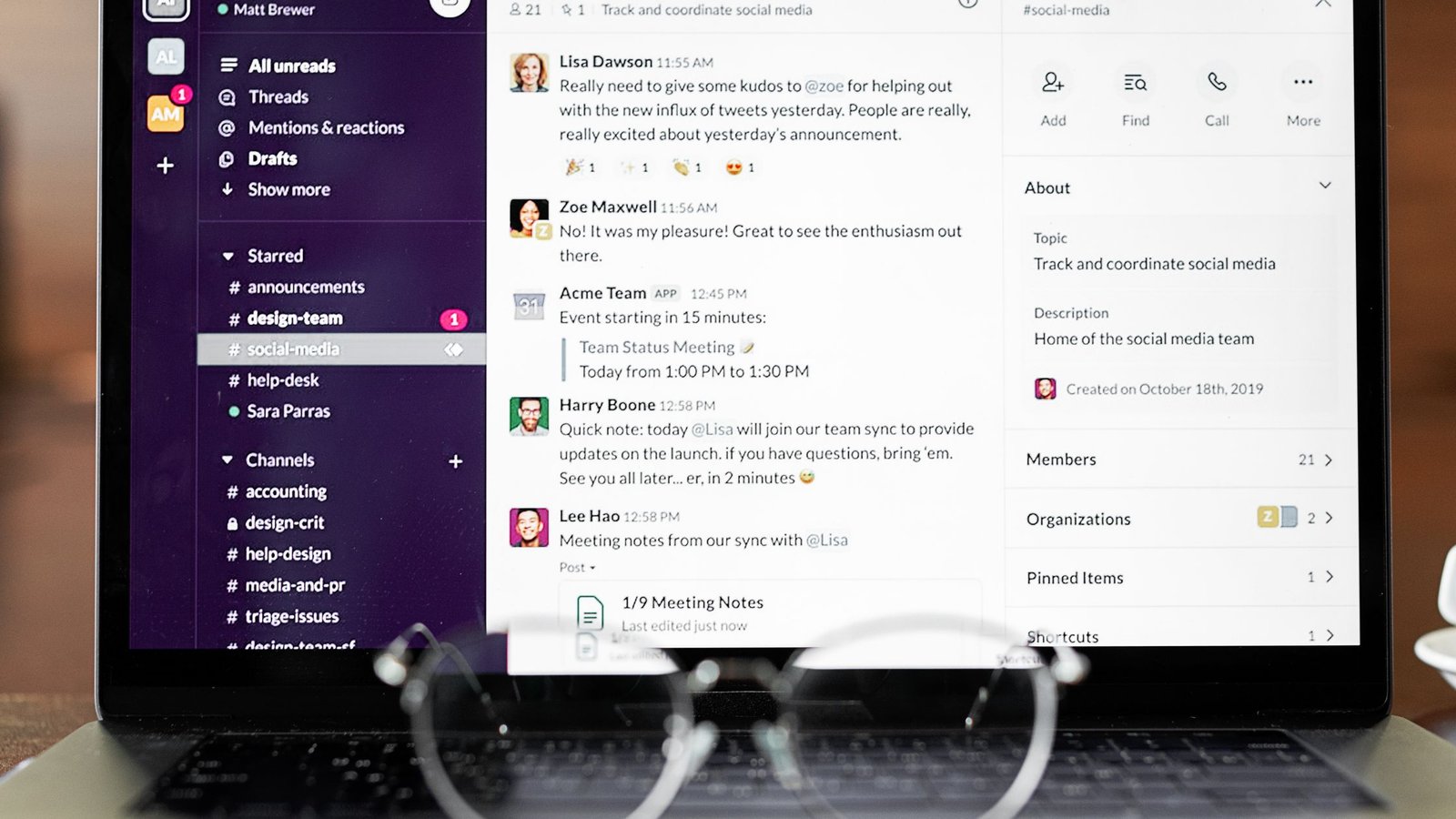
    Brief desk reset during a 60-minute life admin reset: a person pauses at a laptop with notes and glasses nearby.
    Short breaks help you protect focus. Photo by www.kaboompics.com via Pexels.

    Source: Pexels. Photographer: www.kaboompics.com.

    How should you handle bills in your reset?

    Keep bill time short and secure. Pay or schedule what you can. If a site needs you to hunt through old paperwork, stop and schedule a 20-minute follow-up. Do not let a single complex bill eat your entire hour.

    • Use 2-step verification on bill portals for added safety.
    • Set calendar reminders for trial end dates and renewals.
    • Consider autopay for stable, predictable bills; still review monthly.

    Also, be cautious with free trials and subscriptions. Many renew by default, and forgetting to cancel can cost you. Put a reminder on the date you should review the charge.

    Autopay quick guide
    Bill type Stable? Suggested action Safety note
    Fixed utilities (internet, rent) Yes Enable autopay Set a monthly β€œreview charges” reminder
    Variable services (electricity) Sometimes Consider autopay + alert Enable usage alerts to catch spikes
    Free trials / promos No Avoid autopay Set a reminder before the renewal date

    How can you triage email faster without missing important messages?

    Work top-down and apply the rules. Start with obvious deletions. Then hit 2-minute replies. Finally, flag and defer 3–5 messages that deserve focus later. Use filters to keep newsletters out of your main inbox and send billing alerts to a folder you check in your reset.

    • Unsubscribe from content you no longer read.
    • Create a β€œWaiting” label for items that need someone else’s action.
    • Use snooze to bring a message back on the date you can respond.

    For noisy lists, auto-archive newsletters with a label so you can read them on your terms. Meanwhile, pin deadlines and approvals. Because the reset is short, capture a next action for anything complex and move on.

    How do you time-box calendar work without overfilling days?

    Be realistic. Name blocks by outcome, not by effort. β€œSubmit tax form” is clear. β€œTaxes???” is vague. Add buffers before and after intense blocks. Keep at least one open hour daily for the unexpected.

    • Rename blocks as verbs: β€œCall”, β€œDraft”, β€œSubmit”, β€œPay”.
    • Place deep work before noon if your energy is higher then.
    • Batch errands into a single window once per week.

    As you place holds, think in themes: admin, calls, errands, decision time. Grouping similar work reduces the cost of switching. If a day is already packed, move a non-urgent item to your next reset instead of cramming it in.

    Quick sizing: Do it now or schedule it?
    Item type Time needed Action
    Tiny confirmation Under 2 minutes Do now
    Short form or call 5–10 minutes Finish in Quick Tasks block
    Document hunt 15–30 minutes Schedule a dated follow-up
    Complex decision 30+ minutes Park it and plan a focused session

    When should you run a one hour life admin reset?

    Pick a consistent cue so it becomes automatic. For many, Friday afternoon works well. The week is fresh in mind, and you can roll into the weekend lighter. Others prefer Monday first thing or Sunday evening. The best time is the one you protect.

    As a result, the habit forms. A repeating slot prevents pile-ups. Your brain learns that loose ends get handled soon, which reduces background stress the rest of the week. If it helps, stack the reset with something you already do (for example, right after your weekly team wrap-up).

    If your one hour life admin reset doesn’t finish everything

    That is normal. The goal is not to clear every inbox or task. The goal is to reduce clutter, make fast calls, and date the few follow-ups that matter. Perfection is not needed. Progress is.

    Therefore, use your Parking Lot. Anything that does not fit goes there with a review date. In your next reset, start by skimming that list and pulling in what still matters.

    Use an β€œexit ramp” if you feel behind: in the last minute, stop doing and write three quick linesβ€”what you finished, what you will do next, and when. This keeps the reset contained and sets up a clean restart.

    Mistakes to avoid

    • Letting one tricky bill eat 30 minutes. Stop and schedule it.
    • Turning the inbox block into a reading session. Skim, then decide.
    • Overfilling your calendar with back-to-back blocks. Leave buffers.
    • Capturing 20 β€œmaybes” as Next Steps. Choose 3–5 real ones.
    • Switching tools mid-session. Use the same simple setup each week.

    Security and privacy basics for your reset

    • Use a password manager rather than reusing passwords.
    • Turn on 2-step verification for financial and billing portals.
    • Be cautious with links in emails; go directly to the site when paying.
    • Put trial renewals and subscription checks on your calendar.
    Timer for a 60-minute life admin reset on a clean desk.
    Short, named blocks keep your reset moving. Photo by Surja Raj via Pexels.

    Source: Pexels. Photographer: Surja Raj.

    Automation you can set in 10 minutes

    Do not automate everything at once. Start small. Pick one stable bill (such as internet) to put on autopay and add a monthly β€œreview charges” reminder. Set a simple email filter so newsletters skip the inbox into a β€œRead Later” label you check on your terms. Finally, create a recurring calendar reminder called β€œSubscriptions reviewβ€”15 minutes” so renewals never sneak past you. Because you are layering these automations over a weekly reset, they make life easier without hiding important details.

    Why a one hour life admin reset reduces stress

    Life admin tasks linger as mental tabs. When you sweep them quickly and place follow-ups on dates, you close loops and reduce background tension. Short, committed plans (if-then cues) increase the odds you act. Also, limiting context switching preserves energy for deeper work later. The point is not to do everything; it is to remove friction so the right things happen at the right time.

    Lightweight templates to copy

    Use these short lines during your reset and tweak as needed: Quick replyβ€”β€œThanks for this. I’ll review and get back to you by [day].”; Delegateβ€”β€œAdding [Name] here. They’re the best person to help with this.”; Confirmβ€”β€œConfirming [meeting] on [date/time]. See you then.” Saving a few simple scripts removes typing friction and keeps your tone consistent.

    Daily micro-reset vs the one hour life admin reset

    Many people like a 10-minute daily micro-reset. It is not a replacement for your weekly life admin reset, but it can keep small items from piling up. Use it to clear a handful of messages and check tomorrow’s calendar. Meanwhile, keep the deeper cleanup and decision-making in the weekly session where it fits best.

    Optional Amazon resources

    Affiliate disclosure: Some links in this guide may be affiliate links. If you buy through them, Mind Clarity Hub may earn a commission at no extra cost to you.

    If you like paper tools, a simple undated weekly planner or a small habit tracker can make your one hour life admin reset smoother. Choose clean layouts with space for 3–5 priorities.

    Browse undated weekly planners on Amazon

    One hour life admin reset: FAQs

    How often should a one hour life admin reset happen?

    Run it weekly or every other week. Consistency matters more than the exact day. Anchor it to the same cueβ€”like Friday at 4:00 p.m.β€”so it becomes automatic.

    What if I have only 30 minutes?

    Halve the plan. Do bills for 8–10 minutes, inbox for 10–12 minutes, and a 5–8 minute Next Steps block. Still end by dating 3 follow-ups.

    Can I share the reset with a partner or roommate?

    Yes. A joint session can align bills, schedules, and errands. Keep shared tasks in one list, agree on 3–5 follow-ups, and put holds on the calendar while you are together.

    What if new urgent items pop up during the hour?

    Capture them in the Parking Lot. Only break the block if the item is truly time-sensitive and cannot wait 30–40 minutes.

    How do I stop the one hour life admin reset from growing into a big cleanup project?

    Honor the timer. Move on when time is up. If you uncover a project (like changing banks), park it and schedule a separate focused session.

    Next steps you can take today

    • Pick your weekly cue and add your first one hour life admin reset to the calendar.
    • Print or save the decision rules table.
    • Set up 2-step verification on at least one bill account.

    Helpful sources

    More guides to support your plan

    Finally, book your first slot now. Then run your one hour life admin reset this week. You will finish lighter, clearer, and ready for the work that matters most.

  • How to Organize Digital Notes Without Building a Complicated System

    How to Organize Digital Notes Without Building a Complicated System

    If you’ve ever wondered how to organize digital notes without building a maze of folders, you’re in the right place. This guide shows a small, durable setup that works in almost any app. It relies on one inbox, four top-level buckets, a clear naming rule, a short weekly review, and two or three saved searches. You will be able to capture fast and find things laterβ€”without learning a complex system.

    How to organize digital notes: quick start

    This 10-minute plan shows how to organize digital notes without overthinking. Start here:

    • Create one capture inbox for everything.
    • Set four top-level buckets: Projects, Areas, Resources, Archive.
    • Name notes with a simple, consistent pattern.
    • Tag lightly (3–7 tags total), only when it helps search.
    • Process your inbox weekly in 15–20 minutes.
    • Use two or three saved searches or smart folders to surface what matters.
    • Automate one capture path (email-to-notes or web clipper).

    Three principles tie this together: a small set of rules is enough for how to organize digital notes; folders give you a spine while tags and search do the fine work; and saved searches beat deep hierarchies when you need speed.

    Why this works: Research on cognitive offloading shows that moving details out of your head reduces mental load and improves performance. You just need light structure, not a perfect taxonomy. See the review by Risko & Gilbert for a clear summary of how external notes support memory and planning (Risko & Gilbert, 2016).

    how to organize digital notes with simple sticky-note tags on a laptop
    Sticky-note style tags can inspire simple digital tags. Photo by kaboompics.com via Pexels.

    Source: Pexels

    Organize digital notes in 7 steps (minimum-viable system)

    Before you learn how to organize digital notes, set one single capture point. Then add a clear but shallow structure. Keep it the same across devices. The goal is frictionless capture and fast retrieval, not elegance.

    Step 1: Create one inbox for organizing digital notes

    Put everything you captureβ€”ideas, links, quotes, tasksβ€”into a single default notebook or folder called β€œInbox.” Make this the default on phone, tablet, and laptop so notes land in the same place. No choices at capture time means no friction and fewer lost thoughts.

    On mobile, add a home-screen shortcut that opens a blank note in Inbox. Turn on any email‑to‑notes address your app offers and forward low‑value messages there. Finally, install the web clipper so articles and receipts land in Inbox by default.

    Reduce capture friction further by keeping titles short at first. A fast β€œIdea β€” keyword” is enough. During your weekly review you can expand titles and sort items to the right bucket. The point of the inbox is to be a funnel, not a filing cabinet.

    Step 2: Use four buckets to organize digital notes

    Set up four top-level folders or notebooks: Projects, Areas, Resources, Archive. This mirrors the well-known PARA pattern and works in any tool (Forte Labs).

    • Projects: Short-term efforts with a clear outcome (e.g., β€œPlan Q4 offsite”).
    • Areas: Ongoing responsibilities without an end date (e.g., β€œFinances,” β€œHealth”).
    • Resources: Useful references you may need later (e.g., β€œWriting,” β€œHome maintenance”).
    • Archive: Inactive or finished items from any of the above.

    Use this as a shallow spine. Do not add subfolders until a folder has more than ~50 notes and you truly need a split.

    When in doubt, file to Projects or Areas first. Those two buckets map to what is moving now (Projects) and what you’re responsible for over time (Areas). Resources are for background material and inspiration that does not demand action. Archive is a relief valveβ€”send finished project notes there so your active views stay lean.

    Step 3: Naming rules for digital note organization

    Names matter more than tags. A good rule puts time and topic first so your list scans well. Here is a simple pattern:

    Pattern Example Why it helps
    YYYY-MM-DD – Title β€” Keywords 2026-07-10 – Sprint review β€” action items Sorts by date and reads clearly.
    ProjectCode – Title β€” YYYY-MM Q4Offsite – Venue shortlist β€” 2026-07 Groups project notes together.
    Area – Title β€” Verb Finances – Budget notes β€” adjust Signals purpose at a glance.

    Keep punctuation simple (dash or em dash) and avoid long strings. A clear date-prefix is one of the easiest ways for how to organize digital notes consistently.

    Make your titles searchable. Include names, places, or verbs you would actually type later. Avoid β€œMisc,” β€œStuff,” or vague labels. If two notes have similar titles, add a date, a person, or a short qualifier to separate them.

    Templates help. For recurring note typesβ€”like 1:1s or meetingsβ€”start with a title stub you reuse every time. Consistency turns your titles into an index you can trust.

    Step 4: Tags that help digital note organization

    Tags should be few, stable, and generic. Too many tags slow you down. Start with 3–7 tags such as #todo, #idea, #meeting, #reference, #waiting. Add a tag only if it helps you re-find the note later.

    Prefer lowercase, one-word tags you can remember. Don’t mirror your folder names as tagsβ€”folders are the spine while tags are cross-cuts. If your app lacks statuses, a small workflow set like #next and #waiting can stand in without bloat.

    When a tag stops earning its keepβ€”meaning you rarely use or search for itβ€”merge or delete it. Trimming keeps your tag set learnable.

    Step 5: Weekly review to organize digital notes

    Book a 15–20 minute slot each week. Move each Inbox item to Projects, Areas, or Resources; rename it; and add a tag only if helpful. Archive what’s done. Set reminders for time-bound notes in your calendar or task app.

    A simple cadence works well: minutes 0–5 to clear obvious junk and rename quick wins; minutes 5–12 to file the rest into Projects, Areas, or Resources; minutes 12–20 to scan your β€œNext actions” smart folder and nudge two items forward. The same routine, every week, is what builds trust.

    Set a time to practice how to organize digital notes each week. It builds trust in your system.

    Step 6: Smart searches for organizing digital notes

    Search is powerful. In fact, research from Microsoft suggests search is central in personal information management, often beating complex filing (Microsoft Research). Use saved searches or smart folders to surface what you need:

    • Active this month: notes updated in the last 30 days.
    • Next actions: notes tagged #todo or containing verbs like β€œcall,” β€œsend,” β€œdraft.”
    • Meetings: notes with #meeting or titles starting with a date.

    Examples: Apple Notes smart folders can include notes with a specific tag and a date range; Evernote saved searches support updated:day-30 and tag:todo; Obsidian searches can look like path:Projects updated:month with a community plugin. Start with one or two saved views you’ll check daily.

    Smart folders are the secret in how to organize digital notes you actually find later.

    Step 7: One automation for digital note organization

    Keep it simple. Automate only the highest-friction capture path.

    • Email β†’ Notes: Forward receipts or confirmations to Inbox.
    • Web clipper: Save articles to Resources with a standard template.
    • Template: Pre-fill β€œMeeting” notes with date, attendees, and bullets.

    Favor built-in automations firstβ€”they are easier to maintain than third-party chains. Name your rules in plain language (for example, β€œReceipts β†’ Inbox”) so you remember why they exist during quarterly cleanup.

    Folders vs tags for digital note organization

    Short answer: Use both. Let folders be your spine. Let tags and search do the fine work. When you plan how to organize digital notes, think of folders as containers for meaning and tags as spray paint to mark cross-cutting themes.

    Use this when… Choose folders Choose tags
    You want a simple place to put things Yes No
    You need cross-topic views (e.g., all meetings) No Yes
    You collaborate and others expect a structure Yes Maybe
    You re-find by search terms more than browsing Maybe Yes
    You hate moving items around No Yes

    Studies in personal information management show most people still prefer folders for storing and retrieving items, even when tags exist (Bergman et al., 2013). But modern search is strong, and saved searches can remove the need for deep hierarchies (Microsoft Research).

    As a rule of thumb, start with one level of folders (your four buckets) and let saved searches give you dynamic views across them. This hybrid keeps your system understandable to collaborators and your future self.

    Note naming for digital note organization

    Names should scan well and sort well. Use dates, short titles, and a few consistent keywords. Keep verbs up front for action. Avoid vague names like β€œIdeas” or β€œMisc.” Here is a quick cheat sheet you can copy:

    Type Good name Poor name
    Meeting 2026-07-10 – Client sync β€” decisions Client meeting
    Article notes Read – Shallow work traps β€” quotes Notes from reading
    Idea Idea – Habit cue stack β€” prototype New idea
    Task note Send – Q3 goals draft β€” to Sam Goals

    Because naming drives re-finding, keep words you would actually search for in the title. A clear name is a built-in reminder.

    If you collaborate, align on one title pattern and share two examples per note type. Consistent titles make shared smart searches far more useful.

    How often to review when you organize digital notes

    Once per week is enough for most people. That cadence keeps Inbox small, files new notes where they belong, and updates smart folders. During your review, empty Inbox by moving and renaming what matters, archive stale notes older than 90 days, scan your β€œNext actions” view and move two items forward, and capture highlights from the weekβ€”wins, ideas, issues. You will trust your system more each week you follow the same flow.

    Set up digital note organization in your favorite app

    No matter the app, the steps for how to organize digital notes stay the same. Below are app-agnostic moves and one official reference where features differ.

    Apple Notes

    Create an β€œInbox” folder and set it as the default for new notes (Settings β†’ Notes). Add four foldersβ€”Projects, Areas, Resources, Archiveβ€”and avoid deep nesting. Add tags at the bottom of a note (for example, #meeting) and use Smart Folders to auto-collect notes by tag or date (Apple Support: Tags & Smart Folders).

    Microsoft OneNote

    Create one default notebook with a section called β€œInbox.” Use sections for Projects, Areas, Resources, and Archive, and pages for individual notes. Lean on page titles for naming; OneNote search covers titles and content across notebooks, so clear titles pay off.

    Evernote

    Set β€œInbox” as the default notebook (Preferences). Use notebooks or one notebook with stacks for Projects, Areas, Resources, and Archive. Tag sparingly and save searches like β€œupdated:day-30,” β€œtag:todo,” and title-based meeting queries to surface recent work.

    Obsidian

    Choose one Inbox folder as the default location in Settings β†’ Files & Links. Create top-level folders for Projects, Areas, Resources, and Archive. Rely on search and simple tags; consider a Dataview or saved search for β€œActive this month” if you use community plugins.

    Notion

    Build a β€œNotes” database with a simple template. Add properties such as Status (Inbox, Project, Area, Resource, Archive), Tags, and Updated. Create views that act like smart folders (for example, Status = Project AND Updated within 30 days) to replace deep nesting.

    Tip: Print or save this mini-map until the flow is second nature.

    What does the science say about keeping it simple?

    Two practical findings support this approach:

    1. Externalizing reduces mental load. Offloading details to notes helps you perform better on tasks and make fewer mistakes (Risko & Gilbert, 2016).
    2. People prefer folders, but search wins often. Users consistently rely on folders to store and browse, while search and saved queries help them re-find items fast (Bergman et al., 2013; Microsoft Research).

    Therefore, a shallow folder spine plus a few saved searches is a sound default for most busy adults.

    Common mistakes in digital note organization

    • Over-tagging. If you have to scroll a tag list, it’s too long.
    • Deep nesting. Three levels deep is a red flag; use search instead.
    • Renaming every week. Pick a naming pattern and stick with it.
    • Mixing tasks and notes without clarity. Give tasks a tag like #todo or send them to a task manager.
    • Skipping the weekly review. That’s where trust is built.

    When you feel friction, remove a rule rather than add one. Simpler beats perfect, because you will actually use it on your busiest days.

    Capture tips for organizing digital notes

    • Use a β€œQuick Note” or β€œNew note in Inbox” shortcut on your phone.
    • Start titles with a verb: β€œDecide”, β€œDraft”, β€œCall,” β€œCompare.”
    • Clip web pages with a standard template (Summary, Quote, Next).
    • Dictate short ideas while walking; rename them during review.

    Keep capture atomic. One idea per note makes sorting and linking easier later.

    Light automations for digital note organization

    • Auto-tag by keyword: Some apps let you add a rule to tag notes with words like β€œinvoice.”
    • Calendar links: Paste a link to the calendar event into your meeting note (or vice versa).
    • Email rules: Auto-forward receipts or statements to your notes app’s email address.

    Test each automation for a week before adding another. Less is more. Also, avoid rules that silently delete contentβ€”prefer safe defaults you can review.

    Laptop covered with colorful sticky notes for organizing ideas
    Visual cues can inspire your tag set and saved searches. Photo by DS stories via Pexels.

    Source: Pexels

    Watch: how to organize digital notes walkthrough

    If the video does not load, open it here: How to organize your digital notes to remember, connect and create with ease by Greg Wheeler.

    Collaboration patterns for digital note organization

    Keep your personal spine (Inbox + four buckets) even inside shared spaces. For shared notes, agree on a naming rule and one or two shared tags. Use shared smart views to track β€œActive this month” or β€œNext actions” across the team. Keep ownership clear so notes do not drift. When confidentiality matters, store sensitive files in the approved storage tool and link from your note rather than attaching the file.

    Keep your digital note organization flexible over time

    As buckets grow beyond a few hundred notes, split them into two broad subfolders only where the split reduces decision time. Remove or merge tags that you haven’t used in 90 days. Review smart searches each quarter and prune anything you no longer check. Finally, export critical notes quarterly as a portable backup (PDF or Markdown) so you can move tools without stress.

    FAQ on digital note organization

    Should I keep tasks in my notes?

    It depends. When tasks are small and tied to context in a note, keep them and tag #todo. For many or time-bound items, send them to a task app and link back to the note. Use one place to track deadlines.

    How many tags are too many?

    More than 7–10 tags is usually too many for a simple system. Tags should be stable and helpful. If you forget to use a tag, it is probably not worth keeping.

    Can I migrate later without losing everything?

    Yes. The structure here is app-agnostic. Folders (or notebook stacks), titles, and plain-text tags survive exports far better than complex databases. Keep a simple backbone and you can switch tools later.

    How do I handle images, PDFs, or scans?

    Store them as notes with the same naming rule. Use a keyword like β€œreceipt,” β€œscan,” or β€œdiagram” in the title. Add one tag if it improves search. If files are large, store the file in cloud storage and link it in your note.

    What if I already have 1,000 messy notes?

    Start fresh with the new spine. Leave old notes where they are. Each week, during your review, move 10–20 old notes into Projects, Areas, Resources, or Archive and rename them. In a month you will feel the difference.

    Resources to support digital note organization

    Mind Clarity Hub/Amazon Associate disclosure: Some links in this section may be affiliate links. If you buy through them, Mind Clarity Hub may earn a commission at no extra cost to you.

    Want a concise primer on building a light, flexible knowledge system? Consider Building a Second Brain (book). Use its PARA framing to label your four buckets and keep your system consistent across tools.

    Further reading on digital note organization

    Next steps to master how to organize digital notes

    Block 20 minutes to build your Inbox and four buckets. Rename your last 10 notes with the new pattern. Save two smart searches. Then schedule a weekly review. You now know how to organize digital notes with a simple, durable setup. Keep it small. Keep it steady. Your future self will thank you.


    More resources from Mind Clarity Hub

  • How to Make Routines Stick Without Starting Over Every Week

    How to Make Routines Stick Without Starting Over Every Week

    Quick answer: To make routines stick, make the routine small, attach it to a stable cue, remove friction, rehearse the same first step, and review it weekly. A routine fails less often when it is built as a low-pressure system instead of a promise to become a different person overnight.

    Most people do not need a more intense routine. They need a routine that survives normal life. The useful question is not β€œHow do I become perfectly consistent?” It is β€œWhat version of this routine can I restart quickly after a busy day, low-energy morning, sick child, late meeting, or rough night of sleep?”

    This guide shows how to make routines stick without starting over every week. It is designed for readers who want calmer mornings, better focus, tidier evenings, and a realistic path back after missed days. It also connects naturally to the Mind Clarity Hub reading path, because routines become easier when your books, tools, and environment all point toward the same next action.

    What makes routines stick?

    Routines stick when they have a clear cue, a small enough action, a repeatable context, and a quick reward or relief signal. In plain terms, the routine needs an obvious starting bell, a first step you can do even when tired, and a reason your brain believes the action is worth repeating.

    The habit formation literature supports this practical pattern. A widely cited review in the British Journal of General Practice explains that repeating a chosen behavior in a consistent context helps a behavior become more automatic over time. That does not mean a routine becomes effortless in one week. It means repetition plus context gives the routine a better chance than motivation alone.

    A sticky routine is also specific. β€œBe more organized” is a hope. β€œAfter I pour coffee, I open my planner and choose one must-do task” is a routine. The second version has a cue, an action, and a finish line.

    Why do routines fall apart after a few days?

    Routines usually fall apart because they are too large, too vague, too dependent on mood, or too disconnected from the day you actually live. A perfect morning routine that needs ninety quiet minutes will not survive a home, commute, family, or workday that rarely offers ninety quiet minutes.

    Another common problem is hidden friction. The notebook is in another room. Workout clothes are in the laundry. A crowded app has too many screens. A vague task is written in a way that requires deciding again. Each tiny barrier makes the routine easier to skip.

    Stress also changes what people can execute. The CDC notes that work stress and mental health are shaped by demands, resources, and working conditions. A personal routine cannot fix every workload or life constraint. It can, however, reduce avoidable decisions and make the next step easier to find when capacity is limited.

    How to make routines stick in real life

    Start with the smallest version that still proves the identity of the routine. To build a reading routine, read one page. For a desk reset, clear only the cup, trash, and notebook. When planning is the goal, choose one task for tomorrow. Small routines matter because they protect the repetition before you expand the result.

    Use the same cue for at least two weeks. The cue can be time, place, or a prior action. After brushing teeth, open the book. Once work is logged off, clear the desk for three minutes. After dinner, put the phone on the charger. A stable cue reduces the need to negotiate with yourself each time.

    Then remove the first barrier. Put the book on the pillow, the planner beside the coffee maker, the shoes by the door, or the timer button on your phone home screen. The goal is to make starting the routine feel like the easiest available path.

    How to make routines stick with a short written checklist
    A routine is easier to repeat when the next step is visible. Photo by Lukas via Pexels.

    The how to make routines stick framework

    Use this five-part framework before blaming yourself for a routine that keeps breaking. Most routines need one small design repair, not a total restart. If you are learning how to make routines stick, work through the columns and fix the weakest part first.

    Part Question to ask Simple repair
    Cue What tells me to begin? Attach the routine to a stable action that already happens.
    Size Can I do the first version on a hard day? Shrink the routine until it takes five minutes or less.
    Friction What makes starting annoying? Put supplies in place before the cue arrives.
    Reward What relief do I notice after finishing? Name the benefit immediately: clearer desk, calmer morning, easier tomorrow.
    Review How will I adjust without quitting? Use a weekly check instead of daily self-criticism.

    This is intentionally plain. Complicated habit dashboards can be motivating for some people, but many readers need fewer moving parts. If tracking the routine becomes harder than doing the routine, track less.

    How long does it take for a routine to stick?

    There is no universal number of days. Habit formation depends on the behavior, person, context, and consistency. A 2024 systematic review and meta-analysis in Healthcare found that habit-based interventions vary widely, which is a better practical message than the old idea that every habit takes the same number of days.

    Use a two-week test for design and a two-month runway for automaticity. After two weeks, you can usually tell whether the routine is too large, badly timed, or missing a cue. After two months, you have more evidence about whether the context and reward are strong enough to keep repeating. That slower view is central to how to make routines stick without chasing a new method every Monday.

    Do not treat a missed day as proof that the routine failed. Missed days are data. When the cue was weak, strengthen the cue. If the routine was too long, shrink the minimum version. When the routine did not matter, replace it with one that solves a real problem.

    What is the best first routine to build?

    The best first routine is the one that makes tomorrow easier. For most people, that is a closing routine, not a dramatic morning routine. A five-minute evening close can set out supplies, choose the first task, and reduce morning decisions.

    If mornings are the main pain point, build a launch routine with only three pieces: wake cue, body cue, and first useful action. For example, drink water, open the curtains, and write the first task. Avoid adding exercise, journaling, reading, meditation, inbox review, cleaning, and meal prep all at once.

    If workdays are messy, choose a work-start or work-shutdown routine. Mind Clarity Hub already has a dedicated guide for an evening shutdown routine for remote workers, so this article focuses on the habit mechanics that help any routine survive.

    How can habit stacking help routines stick?

    Habit stacking means placing a new action next to an existing action. The existing action becomes the cue. The new routine borrows reliability from something you already do. This works best when the new action is tiny and the cue is stable.

    The American Psychological Association has summarized habit research around context, cues, and repeated behavior. The practical takeaway is simple: do not wait for a perfect mental state. Put the behavior where a reliable cue can find it.

    Habit stack examples

    • After I start the coffee, I open my planner and choose one must-do task.
    • Laptop charger cue: I clear my desk for three minutes.
    • Toothbrush cue: I read one page of a book.
    • Last-meeting cue: I write tomorrow’s first task.
    • Dinner cue: I put the phone outside the bedroom for the first hour of wind-down.

    Each example is small on purpose. You can always add more later. The first goal is not to impress yourself. The first goal is to create a repeatable path back. In practice, how to make routines stick often comes down to making the first step obvious enough to repeat.

    How to make routines stick on low-energy days

    Design every important routine with a minimum version. A minimum version is the smallest action that keeps the routine alive. It protects continuity when the full routine is not realistic.

    For a cleaning routine, the minimum may be clearing one surface. A reading routine may shrink to one page. Focus can begin by opening the task list and setting a ten-minute timer. Planning may mean writing tomorrow’s first task on a sticky note.

    Routine Full version Minimum version
    Morning reset Water, light, planner, movement, first task Water, light, one task
    Desk reset Clear desk, file notes, set tomorrow’s work Remove trash and place notebook beside laptop
    Reading Twenty minutes with notes One page with no notes
    Exercise Thirty-minute workout Shoes on and five minutes of movement
    Weekly planning Calendar, tasks, meals, budget, errands Calendar scan and three outcomes

    Minimum versions are not cheating. They are how a routine stays connected to real life. The more often you restart quickly, the less often you need a dramatic reset. If someone asks how to make routines stick during stressful weeks, the honest answer usually starts with the minimum version.

    What role does environment play in making routines stick?

    Environment shapes routines because cues often live outside your head. A stable place, time, object, or sequence can trigger the next action before you spend energy deciding. Research in Frontiers in Psychology has examined context stability and automaticity in intentional habit building, which fits the everyday idea that routines become easier when the setting is predictable.

    Change the room before you change the whole routine. Put the planner where you drink coffee. Keep the book where you sit at night. Move the charger outside the bedroom. Place a small basket by the door. The visible cue should make the next step obvious.

    Environment can also block the old pattern. If the phone is the problem, do not depend only on willpower. Move it, charge it elsewhere, turn on focus mode, or place a book in the spot where the phone usually lands.

    How to make routines stick with simple tracking

    Track the minimum signal that helps you learn. For many routines, a simple check mark is enough. If a tracker creates pressure, switch to a weekly review question: What helped this routine happen, and what got in the way?

    Use three labels if you need nuance: full, minimum, missed. A minimum day still counts because the routine stayed alive. A missed day counts as information. This prevents the all-or-nothing thinking that makes people abandon routines after one imperfect week.

    For readers who enjoy trackers, the guide to simple habit tracker ideas can help. Keep the tracker in service of the routine, not the other way around.

    How to make routines stick after missed days

    Restart with the next cue, not with a punishment plan. If you missed last night, use tonight’s cue. If you missed this morning, use tomorrow’s wake cue. Do not add extra work to β€œmake up” for the miss unless the task truly requires it.

    A restart script helps. Write one sentence before the miss happens: β€œWhen I miss a day, I do the minimum version at the next cue.” That sentence removes a future argument. You are not deciding whether you failed. You are following the restart rule. This is one of the most practical parts of how to make routines stick because it protects the second start.

    This is especially useful for routines tied to mental clarity. Stressful weeks can disrupt even well-designed systems. A routine that includes a built-in restart is more durable than a routine that depends on a perfect streak.

    What routines support books, focus, and deeper learning?

    A reading routine is one of the best ways to make self-improvement practical. Instead of collecting more advice, choose a small reading block and one place for notes. The Jeremy Jarvis books hub is the broad starting point if you want a guided path through focus, digital clarity, and practical self-improvement books.

    If your routine problem is digital distraction, Digital Clarity and Break the Scroll are better next steps than adding another app. If your routine problem is follow-through at work, Focus Recharged fits the reader who wants clearer priorities and fewer attention leaks.

    For product-style choices, such as planners, timers, lamps, or focus tools, use the reviews and science deep dives hub. A routine article should not force product decisions into the middle of habit design.

    Simple planning board for making routines stick in a busy week
    Shared routines need clear ownership, not just good intentions. Photo by fauxels via Pexels.

    How do you make family or shared routines stick?

    Shared routines need ownership and visible handoffs. A family routine, team routine, or household routine fails when everyone agrees in theory but no one knows who does the next visible action. Put names, times, and backup rules on the routine.

    For example, a school-night routine might include packing bags after dinner, checking tomorrow’s calendar, and placing shoes by the door. Each step needs one owner. A team shutdown routine might include updating the project board, naming the next blocker, and sending one handoff note before the day ends.

    Keep shared routines shorter than you think they should be. If a routine requires everyone to be patient, rested, and fully available, it is too fragile. The goal is a simple sequence that still works when people are distracted.

    What should you avoid when learning how to make routines stick?

    Avoid building a routine around guilt. Guilt can create a short burst of action, but it does not make the routine easier to repeat. The routine should solve a real friction point, not prove your worth.

    Avoid adding too many routines at once. One new routine that works is more valuable than six routines that collapse by Thursday. Once the cue and minimum version feel reliable, add one small layer.

    Avoid copying a routine without adapting it. A creator’s 5 a.m. routine, a CEO’s calendar block, or a wellness influencer’s reset may not fit your constraints. Borrow the design principle, not the entire schedule.

    A seven-day plan for how to make routines stick

    Use this seven-day plan as a low-pressure experiment. The plan is not meant to transform everything in a week. It helps you build one routine well enough to test.

    1. Day 1: Pick one routine and write the real problem it solves.
    2. Second day: Choose the cue and put the supplies where the cue happens.
    3. Third day: Do only the minimum version and stop while it still feels easy.
    4. Fourth day: Repeat the cue and minimum version. Notice friction without judging it.
    5. Fifth day: Add one small upgrade if the minimum version is stable.
    6. Sixth day: Practice the restart rule on purpose by naming the next cue.
    7. Seventh day: Review what helped, what blocked you, and what to shrink or move.

    This plan works because it treats routine design as a learning loop. You are not proving discipline. You are discovering the cue, size, and environment that make the behavior repeatable. That is how to make routines stick with evidence from your real week, not just advice from a template.

    How do you know a routine is finally sticking?

    A routine is sticking when starting takes less negotiation, missed days are easier to recover from, and the routine creates a real benefit you can feel. You may still need reminders. That is fine. The signal is that the routine has become easier to restart and less dependent on a big emotional push.

    Signal What it means Next adjustment
    You start with less debate The cue is working Keep the cue stable for another two weeks.
    You use the minimum version on hard days The routine can survive stress Protect the minimum version before expanding.
    You recover after missed days The restart rule is working Keep misses neutral and specific.
    The routine solves a real pain The reward is clear Name the benefit after each repetition.
    Tracking feels light The system supports action Avoid adding extra metrics too soon.

    If none of these signals appear, the routine may be too large, too vague, or attached to the wrong cue. Repair one part at a time. A routine that needs repair is not a failed routine. It is a draft.

    Frequently asked questions about making routines stick

    How do I make routines stick if I get bored quickly?

    Keep the cue stable but vary the optional layer. For example, keep the same reading cue, but choose different books. Keep the same desk-reset cue, but rotate music or timer length. Stability belongs in the start; variety belongs after the routine begins.

    Should I build a morning routine or evening routine first?

    Build the routine that removes the most friction from tomorrow. For many people, an evening close is easier because it prepares the morning. If mornings are chaotic, start with a three-step launch routine instead of a long ideal schedule.

    What if my routine depends on other people?

    Turn the routine into a visible handoff. Name the owner, time, and backup rule for each step. Shared routines need fewer assumptions and more visible signals.

    Do habit trackers help routines stick?

    Habit trackers help when they keep the routine visible and simple. They hurt when tracking becomes a second chore or creates all-or-nothing pressure. Track full, minimum, and missed days if a binary streak feels too harsh.

    Can AI help me make routines stick?

    AI can help turn a messy goal into a short checklist, suggest a minimum version, or summarize weekly patterns. Feed the result back into your normal planner or notes so the AI output does not become another place to manage.

    The bottom line on how to make routines stick

    The most reliable way to make routines stick is to design for repeatability before intensity. Choose one routine, attach it to a stable cue, shrink the first action, remove friction, and review it weekly. Keep a minimum version for hard days and a restart rule for missed days.

    Once the routine is stable, expand it slowly. Add a longer reading block, a fuller planning session, or a deeper desk reset only after the first step is easy to repeat. A routine that can restart quickly is more valuable than a routine that looks perfect and disappears by Friday.

    Helpful resources for your next step

    Affiliate disclosure: As an Amazon Associate, Mind Clarity Hub may earn from qualifying purchases at no extra cost to you. Use this link only if it genuinely helps your planning.

    If How to Make Routines Stick Without Starting Over Every Week is a routine you want to keep using, a simple workbook, planner, or desk tool can make the steps easier to repeat.

    Compare related planners, workbooks, and organization tools on Amazon.

  • Minimalist Productivity System: Fewer Tools, Better Follow-Through

    Minimalist Productivity System: Fewer Tools, Better Follow-Through

    Quick answer: A minimalist productivity system is a small set of trusted places for tasks, calendar commitments, notes, and review. It works because it reduces capture points, lowers switching, and makes the next action obvious without asking you to manage a complicated tool stack.

    A minimalist productivity system is not about doing less work that matters. It is about removing the extra decisions around the work. When every task lives in a different app, every reminder has a different rule, and every note has a different home, the system itself becomes another job. A lighter setup gives you one place to look, one way to choose, and one habit for closing the loop.

    This guide is for busy adults, remote workers, creators, students, and small teams who want better follow-through without rebuilding life around a new app. You will build a simple four-part system, test it for two weeks, and connect it to the broader Mind Clarity Hub reading path only where it helps. The goal is calm control, not a perfect dashboard.

    What is a minimalist productivity system?

    A minimalist productivity system is a repeatable workflow with the fewest tools needed to capture, decide, do, and review work. In practice, that usually means one calendar, one task list, one note home, and one short review ritual. Anything else has to earn its place by making decisions easier.

    The system should answer four questions quickly: What must happen on a specific day? What is the next action? Where are the supporting notes? When will I review open loops? If those answers are scattered, the setup is not minimalist yet, even if the interface looks clean.

    Research on attention supports the practical reason for this approach. The American Psychological Association explains task-switching costs and notes that moving between complex tasks can take a toll on productivity. A system with fewer places to check reduces avoidable switching before the work even begins.

    Who needs a minimalist productivity system most?

    You may need a minimalist productivity system if you keep improving your tools but still miss tasks, avoid planning, or feel tense when you open your dashboard. The problem may not be discipline. It may be tool sprawl. Each extra inbox, board, label, and automation asks for attention.

    This is especially common for people who read productivity advice often. A method sounds useful, so you add it. A template looks impressive, so you copy it. Another app promises focus, so you test it. After a while, your planning system has more moving parts than the week it was meant to support.

    • You capture tasks in messages, sticky notes, apps, notebooks, and memory.
    • You spend more time reorganizing tasks than completing them.
    • Your calendar and task list disagree about what matters today.
    • Project notes become hard to find.
    • Reviews feel too large to face.
    • A new app becomes tempting every few weeks.

    Why does a minimalist productivity system improve follow-through?

    A minimalist productivity system improves follow-through by making the next step easier to see. Follow-through often fails before the work starts. You open the laptop, look at five possible places, remember several half-finished plans, and lose energy deciding where to begin. A small system removes that first layer of friction.

    The workplace context matters too. CDC worker mental health guidance points to demands, resources, stress, and job conditions as real factors in burnout and strain. A personal system cannot fix every workload problem. Still, it can create clearer boundaries around what is yours, what is waiting, and what needs a conversation.

    The practical win is not aesthetic minimalism. It is trust. If your task list is short enough to review, your calendar is honest enough to protect time, and your notes are easy enough to find, you stop carrying every open loop in your head.

    Minimalist productivity system notebook with a small daily task list
    A small task list is easier to trust than a crowded dashboard. Photo by Lukas via Pexels.

    The four parts of a minimalist productivity system

    Keep the system to four homes: calendar, tasks, notes, and review. Each home has one job. The calendar holds time-specific commitments. The task list holds next actions. Notes hold reference material. The review catches loose ends before they become stress.

    Do not let one tool do every job unless it truly stays simple. Many people can keep tasks and notes in the same app, but the jobs should remain separate. A note about a project is not the same thing as the next action. A someday idea is not the same thing as a dated commitment.

    System part What belongs there What does not belong there
    Calendar Appointments, deadlines, focus blocks, review time Every possible task
    Task list Clear next actions you can finish or move Long reference notes
    Notes Project context, links, drafts, decisions Unprocessed obligations
    Review Loose ends, stalled work, cleanup choices A full life audit every day

    How do you build a minimalist productivity system in one hour?

    Build the first version quickly. A minimalist productivity system should start plain, because the first week is a test. You can make it prettier later if it keeps working. Set a timer for one hour and make decisions that are good enough to use tomorrow.

    Step 1: Pick one capture inbox

    Choose one place where new tasks go before they are sorted. It can be a notebook page, an app inbox, or a single document. The rule matters more than the tool: new obligations go there first. If something arrives by email or chat, convert it into the capture inbox when it becomes a real task.

    Step 2: Create three task lanes

    Use three lanes: today, this week, and later. Today should stay short. This week holds real commitments that are not due today. Later catches useful tasks that should not compete for current attention. More lanes may feel precise, but precision can become maintenance.

    Step 3: Make the calendar honest

    Put meetings, appointments, deadlines, and real focus blocks on the calendar. Add buffers if work often runs long. Microsoft Work Trend Index research on the infinite workday describes how meetings, messages, and after-hours work can fragment focus, so your calendar should protect work time instead of only recording meetings.

    Step 4: Choose one note home

    Pick one place for project notes and reference material. Use plain titles, such as β€œClient launch notes” or β€œHome office reset ideas.” Avoid building a complex taxonomy at the start. Search and a few simple names are usually enough for the first month.

    Step 5: Schedule one weekly review

    Add a 20-minute weekly review. The review clears the capture inbox, moves tasks between lanes, checks the calendar, and closes finished work. Without a review, even the cleanest system slowly becomes a storage closet.

    What should stay out of a minimalist productivity system?

    Keep out anything that creates more sorting than action. A system can become cluttered even when every piece is useful in theory. If a field, label, or automation does not help you choose the next action, remove it for now.

    • Status labels you rarely use.
    • Priority systems with more than three levels.
    • Separate apps for similar tasks.
    • Daily templates that take longer to fill out than to act on.
    • Automations you do not understand well enough to repair.
    • Habit trackers for habits you are not currently practicing.

    This is where minimalism becomes practical. The best system is not the one with the fewest features. It is the one with the fewest features that still handles your real life.

    Minimalist productivity system examples for different lives

    Your setup should match the kind of work you actually do. A freelancer, parent, manager, student, and creator may all use the same four-part structure, but their rules will differ. Start with the smallest version that protects the decisions you make most often.

    Situation Minimal setup Most important rule
    Remote worker Calendar, task app, weekly review note Protect two focus blocks before checking low-priority messages.
    Freelancer Client board, invoice reminder, project notes Every client task gets a next action and due date.
    Student Class calendar, assignment list, study notes Assignments enter the system the day they are assigned.
    Parent or caregiver Shared calendar, family admin list, simple notes Home tasks need owners, not just reminders.
    Creator Idea inbox, production list, publishing calendar Ideas do not become projects until they have a next action.

    Notice that each example avoids a giant command center. A minimalist productivity system works best when it fits into a normal week. The system should be visible enough to guide you and small enough to survive a busy day.

    How do you choose tools without overbuilding?

    Choose tools by friction, not reputation. A beautiful app is a poor fit if you avoid opening it. Paper is not outdated if it helps you think. Shared spreadsheets are not boring if they keep team work clear. The right tool is the one you trust under pressure.

    Use a three-question test before adding anything new. Does this tool remove a repeated decision? Does it replace an existing tool instead of adding another place to check? Will I still understand the system when I am tired? If the answer is no, wait.

    Paper, app, or hybrid?

    Paper works well for daily focus because it limits overediting. Apps work well for recurring reminders, search, and shared work. A hybrid setup can work if the boundary is clear. For example, use paper for today’s plan and an app for weekly tasks. Do not keep full duplicate lists in both places.

    What about AI tools?

    AI can help summarize notes, draft checklists, or turn a messy brain dump into categories. It should not become a second brain that you never review. If you use AI, feed the result back into your normal task, calendar, or note home. Otherwise, AI output becomes another loose end.

    How can a minimalist productivity system reduce mental load?

    A minimalist productivity system reduces mental load by replacing memory with trusted defaults. Instead of deciding where to put every task, you already know. Rather than rereading every note, you know which review will surface it. For options that are not active today, you park them outside the current field.

    The NIOSH Science Bulletin on workplace mental health summarizes research showing that chronic exposure to occupational stress can affect mental health. A simple personal system is not a treatment plan, and it cannot repair harmful work design by itself. It can, however, make workload visible enough to discuss, renegotiate, or reduce.

    That visibility is a form of relief. When commitments are written down, sorted, and reviewed, you can stop using worry as a reminder system.

    Simple team planning board for a minimalist productivity system
    Minimal systems still need clear ownership, especially when work is shared. Photo by fauxels via Pexels.

    What daily routine keeps the system working?

    Use a daily open and close. The open takes five minutes. Check the calendar, choose one must-do task, and pick two smaller actions if capacity allows. The close takes five minutes. Mark what finished, move what did not, and write the first task for tomorrow.

    Keep the routine short enough that it still works on tired days. A minimalist productivity system fails when the review ritual becomes too precious. If only two minutes are available, check the calendar and choose the next action. That still counts.

    1. Open: Check fixed commitments first.
    2. Choose: Pick one task that makes the day meaningful or lighter.
    3. Limit: Keep today’s list short enough to finish.
    4. Close: Move unfinished items without self-criticism.
    5. Prepare: Write tomorrow’s first action in plain words.

    What weekly review keeps a minimalist productivity system clean?

    The weekly review is the maintenance habit. It prevents the system from becoming a pile of good intentions. Set a 20-minute timer and move through the same checklist each week. Stop when the timer ends. A partial review done weekly is better than a perfect review you avoid.

    A 20-minute weekly review checklist

    • Clear the capture inbox into today, this week, later, or delete.
    • Scan the calendar for deadlines, meetings, travel, errands, and recovery time.
    • Choose three outcomes that would make the week feel stable.
    • Check stalled projects for a missing next action.
    • Archive notes that are no longer active.
    • Pick one system rule to simplify if the week felt heavy.

    The last item matters. A minimalist productivity system should get lighter as you learn. If a rule creates resistance, adjust it. Remove categories that never help. Add structure only to projects that truly need it.

    For shared work, add one extra review question: who owns the next visible action? Microsoft has also reported that inefficient meetings and unclear goals are common productivity disruptors in Work Trend Index research. A short ownership check can prevent a simple personal system from hiding team ambiguity.

    How do you avoid keyword and task cannibalization in your own system?

    Writers use the word cannibalization when pages compete for the same search intent. Personal systems can have a similar problem. Two lists compete for the same task. Two calendars compete for the same time. Three note apps compete for the same idea. The result is uncertainty.

    Fix overlap by assigning one job to one place. The calendar owns time. The task list owns next actions. Notes own support material. The review owns cleanup. When a new tool appears, ask which job it replaces. If it does not replace a job, it probably adds one.

    How should this connect to books and deeper learning?

    Use deeper reading when it supports a specific change. The Jeremy Jarvis books hub is the broadest starting point for Mind Clarity Hub readers. If your main problem is attention and follow-through, Focus Recharged is the cleaner next step. If the issue is digital noise, compare it with Digital Clarity or Break the Scroll.

    For tools, supplements, or product-style decisions, use the reviews and science deep dives hub instead of forcing product research into this setup guide. A minimalist productivity system should keep the next step clear, so each internal link should answer a real reader need.

    Common mistakes with a minimalist productivity system

    The first mistake is making the system too pretty before it proves useful. Good design can help, but decoration often hides uncertainty. Build the rule first, then improve the surface.

    The second mistake is confusing simple with vague. A short task such as β€œwebsite” is not a next action. Write β€œdraft intro for website page” or β€œsend homepage notes to designer.” Minimalism needs clarity, not shorthand that only makes sense when you are already calm.

    The third mistake is adding categories to avoid decisions. Tags can be useful, but they should not replace choosing. If everything is marked important, nothing is important. If every task has five labels, the labels are probably serving the system more than the user.

    How do you know the system is working?

    A minimalist productivity system is working when you can find the next action quickly, trust the calendar, review open loops without dread, and finish more of what matters without constantly changing tools. The signal is not that life becomes empty. The signal is that work feels easier to enter and easier to leave.

    Track a few light metrics for two weeks. Count how many days you used the open and close routine. Notice whether missed tasks declined. Ask whether your task list feels smaller at the end of the week. The best metric is honest follow-through, not the number of features used.

    Signal Good direction Adjustment if it stalls
    Daily list size Shorter and more realistic Move optional items to later.
    Task starts Less delay before beginning Rewrite tasks as smaller actions.
    Calendar trust Fewer surprise conflicts Add buffers and review deadlines weekly.
    Review habit More consistent Cut review time to 10 minutes for two weeks.
    Tool switching Less checking and copying Remove one duplicate capture point.

    FAQ about a minimalist productivity system

    How many tools should a minimalist productivity system use?

    Most people can start with two or three tools: a calendar, a task list, and a note home. Paper can replace the daily task list if you still keep one trusted place for weekly tasks.

    Is a minimalist productivity system enough for complex projects?

    Yes, if you add structure only where complexity exists. Keep the main system simple, then give large projects their own notes, milestones, or shared boards when needed.

    What is the best app for a minimalist productivity system?

    The best app is the one you already trust and can open quickly. Todoist, Apple Reminders, Google Tasks, Notion, Trello, a spreadsheet, or a notebook can all work if the rules stay clear.

    Should I track habits in the same system?

    Track only the habits you are actively practicing. Too many habit rows turn the system into a scoreboard. Start with one habit that supports follow-through, such as a daily close routine.

    How long should I test the system before changing it?

    Test it for two weeks before making major changes. Small fixes are fine, but constant redesign prevents trust. The system needs enough normal days to show what works.

    Minimalist productivity system bottom line

    A minimalist productivity system gives every commitment a clear home and every day a short starting point. Use one calendar, one task list, one note home, and one review ritual. Remove tools that duplicate decisions. Keep the system plain until it earns more structure. Better follow-through usually comes from less friction, not more control panels.

    If the first version feels too small, that may be a feature. Small systems reveal whether the rule works before you invest in a bigger structure. Once the habit is stable, you can add a project board, recurring checklist, or automation for one repeated pain point at a time.

    Helpful resources for your next step

    Affiliate disclosure: As an Amazon Associate, Mind Clarity Hub may earn from qualifying purchases at no extra cost to you. Use this link only if it genuinely helps your planning.

    If Minimalist Productivity System: Fewer Tools, Better Follow-Through is a routine you want to keep using, a simple workbook, planner, or desk tool can make the steps easier to repeat.

    Compare related planners, workbooks, and organization tools on Amazon.

  • Mental Clutter Examples: How to Notice and Reduce the Noise

    Mental Clutter Examples: How to Notice and Reduce the Noise

    If your head feels loud even in a quiet room, you are not alone. This guide shows mental clutter examples you can spot today and simple ways to reduce them without complex systems. These patterns are common, human, and fixable with small steps you can repeat.

    Quick promise: you will learn how to name what<ces noisy, pick a tiny next step, and give your brain a breather without shaming yourself. This is educational support, not medical advice.

    Here is how we will work: notice the noise, lower new input, and take one small action that moves you forward. As you practice, your attention will feel steadier for longer. You do not need to overhaul your life to feel relief. You only need one clear move, repeated often.

    Key takeaways

    • Name it to tame it: labeling a thought pattern reduces its grip.
    • Small resets beat big makeovers: start with 30-second actions.
    • Clear inputs first: fewer alerts and tabs create instant space.
    • Use a weekly reset to close loops and prevent backlog.
    • Compassion is fuel: progress grows when pressure drops.

    What are mental clutter examples?

    Mental clutter is the backlog of thoughts, open loops, pings, and self-talk that compete for your attention. It can come from stress, lack of sleep, too many choices, or unfinished tasks. Mental clutter does not mean there a flaw in you. It often means your brain is juggling too much with too little recovery.

    In practice, mental clutter examples often look like rumination about the past, worry about the future, alerts that break your focus, and piles of half-finished notes. You might also notice messy handoffs between apps, vague reminders that make you stall, or a calendar with no breathing room.

    Try a quick self-check: ask, What is pulling my mind right now? If you can list three unrelated pulls within 30 seconds, your load is likely high. That is a cue to pause input and take one reset. You can return to the rest after you come up for air.

    For example, imagine you are preparing a report while your phone buzzes with social alerts and a teammate DM. Your mind also loops on a conversation from yesterday. That mixβ€”context switching plus unfinished emotionβ€”makes the work feel heavier than it is. One focused reset can unlock the next step.

    Mental clutter examples shown by a messy desk with notes and alerts.
    A cluttered desk can mirror a cluttered mind. Photo by Tara Winstead, via Pexels. Source: Pexels page.

    Which mental clutter examples show up at work?

    • Decision fatigue: too many choices for small tasks drain energy.
    • Notification overload: chats, emails, and badges break deep work.
    • Tab sprawl: dozens of open tabs just in case.
    • Zombie meetings: recurring calls without a clear purpose.
    • Vague tasks: to-dos like Start report without a first action.
    • Parking-lot promises: Ill circle back with no place to track it.
    • Perfection loops: endless tweaking that never ships.
    • Guess-work priorities: not knowing what matters today.
    • Unbatched email: constant checking instead of using focused blocks.
    • Invisible work: small favors that eat an afternoon.

    At work, start by protecting one block for deep focus. Mute non-urgent alerts, close extra tabs, and rewrite one vague task as a clear next action. If meetings drain you, insert a 10-minute buffer between calls and keep a running doc for decisions and follow-ups. When a request arrives, ask, Where does this fit among today top three? That simple question reduces guess-work priorities.

    Perfection loops deserve a kind boundary. Try this script: This is good enough for the goal. Ill ship the 80%, collect feedback, and improve next round. Shipping creates relief and real data. Tinkering creates delay.

    Which examples of mental clutter show up at home?

    Home clutter often hides in open loops. Laundry waits in the washer; dishes soak; mail piles. Each one tugs at your attention. Pick one surface you see dailyβ€”like the kitchen counterβ€”set a 5-minute timer, and clear only that sightline. The small win lowers noise across the evening.

    Calendars can create clutter too. Back-to-back plans remove your recovery time, so light frictions (like cooking dinner) feel heavy. Add two 10-minute buffers to your week and decline one low-value event. If family logistics live in your head, move them to a shared note or a simple wall calendar. Write who, where, and when in plain words.

    Food and sleep add hidden load. Whats for dinner? can become a nightly debate. Make a short list of three default meals and keep the ingredients on hand. Late-night scrolling also steals tomorrows focus. Choose a bedtime range and plug in your phone across the room. A simple alarm clock helps you keep the boundary.

    Mindset clutter shows up at home as I should statements, comparison traps on social feeds, and DIY projects started before the last one is done. Replace I should work out with a plan: Walk 10 minutes after lunch. Replace Ill fix the sink today with a first move: Order the part. You can add more laterβ€”after the first step is done.

    What about inner talk and moodare those examples of mental clutter too?

    Yes. Thought patterns can add load even when the room is tidy. Here are inner-focused examples you can listen for:

    • Rumination: replaying past scenes you cannot change. The APA defines rumination as repetitive, passive focus on distress and its possible causes and consequences, which can deepen distress (APA Dictionary).
    • Catastrophizing: assuming the worst outcome and planning for disaster.
    • All-or-nothing thinking: If its not perfect, its a failure.
    • Mind reading: believing you know others thoughts without evidence.
    • Unclear boundaries: saying yes when you want to say no.
    • Unfinished business: delayed conversations and avoided decisions.
    • Identity clutter: labels like Im bad at focus that block change.

    A short practice helps: write the loud thought in 35 words, label it (fear, plan, or story), and choose a 5-minute action. If the thought is a story about what someone thinks, you might decide to wait for actual data. If its a plan, you can schedule it or take its first step now.

    How do mental clutter examples affect attention and energy?

    Because your attention is limited, every alert, worry, and open loop competes with work that matters. Cognitive load theory shows that excess input harms learning and performance. You do not need the theory to act, but it helps to remember this: fewer inputs free more working memory for deep tasks. Also, sleep changes how well you regulate attention and emotion. The National Heart, Lung, and Blood Institute notes that sleep supports memory, learning, and moodconsistent sleep improves function the next day (NHLBI).

    In short: limit fresh input, close one loop, and give your brain a little rest. Those three moves return more energy than they cost.

    Which mental clutter examples signal overload right now?

    Use this quick scan to check your load today. If two or more are true, reduce inputs before adding new tasks.

    • You cannot recall what you did in the last 90 minutes.
    • You open an app and forget why.
    • You re-read the same line three times.
    • You feel jumpy when a notification sounds.
    • Small asks feel giant.
    • Your shoulders and jaw stay tight.

    These mental clutter examples are signals, not verdicts. Use them as data to pick a reset below.

    Examples of mental clutter by type: how do they compare?

    Different kinds of input need different first steps. Compare common types and a starter move.

    Type Typical signs Risk if ignored First move
    Digital clutter Badges, tabs, auto-play, inbox pings Constant context switching Mute non-urgent alerts for 60 minutes
    Task clutter Vague to-dos, no next action Procrastination loops Rewrite 3 items as verb + object + context
    Calendar clutter Back-to-back meetings Decision fatigue Insert 10-min buffers, decline 1 low-value event
    Thought clutter Rumination, all-or-nothing talk Low mood, tunnel thinking Write-and-shelve: 2-minute brain dump
    Environment clutter Visual mess in sightline Background stress Clear 1 surface you see while working

    How can I reduce examples of mental clutter quickly?

    Speed matters when you feel overloaded. Use this menu to turn common friction into action, fast.

    Reset Time What to do Why it helps
    30-second breath 0:30 Inhale 4, hold 4, exhale 6, repeat 4 times Downshifts arousal, increases control
    One-note brain dump 2:00 Write every worry as a 35 word line Externalizes load so you can sort later
    Mute storm 1:00 Snooze non-urgent alerts for an hour Stops new input while you clear old
    Next action rewrite 5:00 Pick 3 vague tasks and rewrite as verbs Removes friction to start
    Surface sweep 5:00 Clear one visual field you stare at in work Reduces background stress
    Focus block 15:00 One task, timer on, do not check apps Builds momentum and proof you can act

    Stuck? First steps to cut mental clutter signs

    1. Stop new inputs. Mute chats and email for 3060 minutes.
    2. Do a fast scan. Write 5 noisy items in 35 words each.
    3. Sort. Mark each as task, note, boundary, or feeling.
    4. Act small. Pick one 5-minute action you can finish now.
    5. Close well. Log what you did. Breathe. Reopen inputs with care.

    Because the goal is relief, not perfection, you can repeat this flow anytime. Keep it light so it is easy to use when you are tired. If you stall, halve the action and try again.

    A weekly reset to prevent mental clutter signs

    Prevention beats cleanup. Use a 3045 minute reset once a week to lower next weeks noise. Many people find Sunday or Friday afternoon helpful.

    • Calendar: decline one low-value meeting, add two 10-minute buffers.
    • Tasks: pick your Big 3 for the week and first next actions.
    • Inbox: archive old threads; star or flag only what youll touch Monday.
    • Surfaces: clear your main sightline at work and one spot at home.
    • Energy: choose two sleep anchors (bed and wake time ranges).

    Meanwhile, keep a small log of items you cleared. Reviewing your list builds confidence and shows what to prevent next time. If your week overloads often, protect one no-meeting block and one admin block. Tiny guardrails prevent big messes.

    How to write better tasks so they start faster

    Vague tasks are friction. Use this pattern to make starting easy:

    • Verb + object + context: Draft 3 bullets for Q2 intro in Notion.
    • Make it visible: put the next action where you will see it during work.
    • Size for now: if you have 15 minutes, write a 15-minute version.

    If you feel stuck, ask: What would a 2-minute version look like? Write that version. Starting small is not giving up; it is getting real.

    Digital boundaries to cut mental clutter signs

    Many examples of mental clutter come from phones and laptops. Try this two-step change that keeps you in control without going off-grid:

    1. Shape the defaults. Turn off badges for social apps, set Do Not Disturb for one daily focus block, and move tempting apps off the first screen.
    2. Use batch windows. Check email and messages in blocks (for example, 11:30 and 4:00). In between, close the apps.

    Harvard Health notes that mindfulness practices can reduce stress and help regulate attention, which pairs well with digital boundaries (Harvard Health). Even two minutes of breath plus mute can change your next hour.

    Reduce decision fatigue and mental clutter examples

    Decision fatigue makes each later choice harder. The Cleveland Clinic explains that too many decisions can reduce willpower and lead to avoidance (Cleveland Clinic). Use small templates to keep energy for work that counts:

    • Create a default lunch list of 3 easy options.
    • Use a simple outfit capsule for workdays.
    • Set a standard start routine for the first 20 minutes of work.
    • Batch small yes/no choices once a day.

    A short script lowers choice friction: What is my default here? If the default is good enough, go with it and move on. Save custom decisions for high-impact work.

    Sleep and movement: fewer mental clutter signs

    Sleep and light movement are quiet superpowers. Sleep loss raises stress reactivity and reduces focus. The National Heart, Lung, and Blood Institute links good sleep to better mood and cognition (NHLBI). Gentle movementlike a 10-minute walk can lift energy without overdoing it. You do not need a perfect plan. Aim for a bit better, most days.

    Try habit stacking: pair a 10-minute walk with something you already do (after coffee or lunch). For sleep, choose a calming cue 30 minutes before bed: dim lights, light stretch, or a warm shower. Consistency beats intensity.

    Tired person at a desk clearing small tasks to reduce mental clutter.
    Small wins add up. Photo by Cup of Couple, via Pexels. Source: Pexels page.

    Turn mental clutter examples into a 10-day micro-plan

    Use this light plan to build momentum. Repeat any day that helps. Skip what does not. The goal is steadier focus, not perfection.

    Day Focus Action Why it helps
    1 Alerts Mute 3 non-urgent app alerts for 24 hours Cuts fresh input so you can clear backlog
    2 Tasks Rewrite 5 vague tasks into clear next actions Removes start friction and confusion
    3 Mind dump Brain dump for 2 minutes; star 1 item to do now Externalizes load and creates a next move
    4 Calendar Insert two 10-minute buffers this week Adds recovery to protect focus
    5 Environment Clear one sightline surface where you work Reduces visual noise and stress
    6 Movement Take a 10-minute walk after lunch, no phone Boosts mood without heavy effort
    7 Sleep Choose a bedtime range and stay within 30 minutes Stabilizes energy and focus the next day
    8 Food Create 3 default meals for busy days Fewer decisions; steady fuel
    9 Email Batch email into two windows; close it outside those times Stops drip-distraction and context loss
    10 Review Review your list of examples of mental clutter and note 3 wins Reinforces progress and reveals patterns to prevent

    Tools that help without becoming clutter

    Use light tools that reduce friction. Paper index cards, a single-notebook list, or a simple notes app can be enough. The goal is to make your next step visible when you need it, not to build a perfect system.

    A simple two-bucket setup works well: Capture (everything lands here) and Today (35 items you will actually do). Move items from Capture to Today during a short morning plan or your weekly reset. If an item lingers for weeks, downgrade it or delete it. Space is a resource.

    Affiliate disclosure: Some links in this guide may be affiliate links. If you buy through them, Mind Clarity Hub may earn a commission at no extra cost to you. As an Amazon Associate, Mind Clarity Hub may earn from qualifying purchases.

    Optional resource: a dated or undated focus planner can make next actions and buffers easier to see. See focus planners on Amazon.

    Keep progress gentle: fewer examples of mental clutter

    • Track wins, not just tasks. Note one clear thing you finished.
    • Use a done for now rule. Ship the 80% that solves the core need.
    • Limit to one change per area per week.
    • Ask for help when needed. Shared logistics lower load for everyone.

    When your energy dips, shrink the plan: pick a 2-minute action, breathe, and log the win. Progress compounds when pressure drops.

    FAQ

    Is mental clutter the same as a diagnosis?

    No. Mental clutter is a common experience, not a diagnosis. If worries, low mood, or focus problems disrupt daily life, a licensed clinician can help. This guide offers education and simple habits only.

    Are mental clutter examples the same as procrastination?

    They overlap. Some mental clutter examples are the result of procrastination (like a growing task list). Others cause it (like vague tasks or too many alerts). Clear the input first, then take one small action.

    How long does it take to feel relief?

    Often minutes. Muting alerts, breathing for 30 seconds, or rewriting three tasks can ease pressure today. Bigger relief builds over a few weeks as resets become a routine.

    What if journaling makes me spiral?

    Keep it brief and bounded. Use a 2-minute timer, write short lines, and end by picking one small action. If writing still pulls you into rumination, skip it and use physical resets (walk, breath, clear a surface).

    How do I help a partner or teammate?

    Model small changes and invite, do not insist. Share one tactic that helped you, such as 10-minute buffers or batch messaging. Respect different work styles and any medical needs.

    What if my workload is the real issue?

    Sometimes the system is the problem, not you. Log the scope, ask about priorities, and show trade-offs. Then remove low-value work or delay it. Use your weekly reset to protect deep-work blocks.

    More ways to cut mental clutter examples daily

    Finally, remember this: the goal is not to eliminate every distraction. The goal is to build a life where the important things have room. Keep this list of mental clutter examples nearby, and use one tiny step to reclaim the next hour.


    Sources for further reading:

  • Simple Habit Tracker Ideas That Do Not Feel Overwhelming

    Simple Habit Tracker Ideas That Do Not Feel Overwhelming

    If you want a calmer way to build routines, this guide is for you. It collects simple habit tracker ideas that feel light, flexible, and easy to start today. You will find tiny formats, practical prompts, and quick weekly reviews you can keep up on busy days.

    However, the goal is not perfect streaks. Instead, it is a steady loop: choose one small habit, track it with a low‑friction tool, and adjust each week. Because small wins lift motivation, you will see progress without the pressure.

    So let’s keep things simple. You will pick one tiny action, make one fast mark, and learn from one short review. With that rhythm, your attention stays on the behavior that matters most.

    Key takeaways: simple habit tracker ideas

    • Start tiny. Tie a two‑minute habit to a daily anchor (for example, after coffee, stand up and stretch).
    • Use the least complex tracker that you will actually open. Paper, a single emoji in Notes, or one checkbox in an app are all enough.
    • Review weekly. Keep a light check‑in: what worked, what felt heavy, and one adjustment.
    • Protect your energy. Lower the bar on hard days and keep your identity as a person who shows up.
    • Prefer visible cues. Place the tracker at the point of performance so the next step is obvious.
    • Count half‑wins. If you do half your plan, mark it and move on; this keeps momentum without perfection pressure.

    Why some habit trackers feel overwhelming (and how simple habit tracker ideas fix it)

    Often, it is not the habit. It is the friction around tracking. For example, long spreads, too many colors, or a dozen daily metrics add overhead. In addition, strict streaks create all‑or‑nothing thinking. Therefore, we want small actions, single‑tap or single‑mark logging, and weekly resets rather than rigid streak goals.

    • Too many steps: if logging takes more than 10 seconds, it competes with the habit.
    • Invisible tools: hidden notebooks or buried apps do not cue action.
    • Fragile rules: one miss collapses a streak mindset, even when progress is fine.
    • Crowded goals: tracking five habits at once dilutes attention and energy.

    Evidence helps set expectations. A classic study on habit formation found it can take about 66 days on average to feel automatic, with a wide range of 18 to 254 days. The path is not linear, and missing days does not reset progress. See the European Journal of Social Psychology and UCL’s summary for context: UCL: How long does it take to form a habit? and the original paper reference via Wiley: Lally et al., 2009/2010.

    In short, simplify the log, lower the bar, and allow variability. That is how simple habit tracker ideas turn effort into a doable routine.

    How to choose simple habit trackers that you’ll use

    Use the β€œsmallest useful thing.” Choose the format that removes the most steps between you and one quick mark. For some, that is a sticky note with boxes. For others, it is a single checkbox widget on the phone’s home screen. Also, shape your action with an if‑then plan, known as an implementation intention: β€œAfter I [anchor], I will [tiny behavior].” See the Tiny Habits Toolkit (PDF) and APA: Implementation intention for a quick primer.

    • If you touch it daily, it can hold your log (fridge, kettle, desk, watch, phone home screen).
    • One habit first. Add a second only after two calm weeks with the first.
    • Make the mark obvious: a single box, a tick, an emoji, or an X.
    • Decide the reset cycle now: daily marks, weekly review, monthly archive.
    • Plan a β€œbad‑day” version in advance (half‑win counts).

    What are simple habit tracker ideas I can start today?

    Here are practical, low‑friction formats. These easy habit tracker ideas remove setup time so you can act in under a minute.

    Fast formats you can copy

    Simple habit tracker ideas you can set up in minutes
    Tracker idea How to use it Best fit
    One-line index card Write the habit at the top and add one tick per day. Desk, wallet, bedside table
    Sticky-note boxes Draw seven boxes for the week and keep the note beside the habit. Coffee, vitamins, water
    Emoji log in Notes Add one simple mark per day, such as done, skipped, or reduced. Phone-first tracking
    Wall calendar X Mark a small X on the date and keep the streak pressure low. Visible daily cues
    Dot grid row Draw one row of dots in a notebook and fill one dot daily. Planner users
    Phone widget checkbox Use one recurring checkbox on the home screen and tap once. Busy workdays
    Wearable tap Add one gentle daily reminder and tap done after the action. Movement, water, breathing
    Habit pair tally Track two linked habits in one short line, such as wind-down and lights off. Sleep or routine pairs
    Weekly 3-by-5 grid Track three habits across five weekdays and treat weekends as bonus space. Workweek habits
    Photo proof album Snap one fast photo of the book, shoes, glass, or cleared desk. Visual proof and memories

    Low-effort physical and shared trackers

    Simple habit tracker ideas for desks, kitchens, and bags
    Tracker idea How to use it Best fit
    Binder-clip flip Flip a small card after you act, then reset it at night. Monitor or kitchen counter
    Dot stickers Place one small dot on a planner date after the action. Paper planners
    Whiteboard tick line Add one tick in a kitchen or office line, then wipe it weekly. Shared spaces
    Pocket card Carry a small card and add one mark before lunch. Portable routines
    Keychain bead slider Slide a bead after the habit and slide it back at night. No-writing tracking
    Email draft ledger Keep a pinned draft titled β€œDaily ticks” and add one mark from any device. Cross-device access
    Fridge magnet row Use seven tiny boxes and move one magnet to done each day. Food, water, family habits

    Pick one option and try it for seven days. If it feels heavy, switch to a simpler mark rather than quitting the habit itself.

    Open the video on YouTube if the embed does not load.

    Paper, digital, or hybrid?

    Pick the one you will open without thinking. Paper sits in your environment and provides a tactile cue. Digital can reduce clutter and add reminders. Hybrid uses a tiny paper mark for the day and a weekly digital note for reflection.

    Quick comparison of tracking formats
    Format Best for Friction level Notes
    Paper (card, sticky) Visible cues, hands‑on people Very low Keep pen next to the habit location
    Notebook row One‑page weekly view Low Draw dots once; fill quickly each day
    Phone widget On‑the‑go, single tap Low One recurring checkbox only
    Wearable reminder Gentle nudges Low Use a single daily alert; avoid stacks
    Spreadsheet Monthly trends Medium Use keyboard shortcuts; one sheet per habit
    Hybrid (paper + digital) Daily speed + weekly reflection Low Make a tiny mark on paper, write one line in a weekly note

    Therefore, choose a starter format today and revise later. The tool should bend to you, not the other way around. This is how you keep using your simple habit tracker ideas when life gets busy.

    Which simple habit tracker ideas fit different goals?

    Match the format to the behavior and its context. Because context drives action, put the tracker where the habit lives.

    • Water or meds: Keep a sticky‑note boxes tracker on the fridge or cabinet door.
    • Stretching: Use an index card and pen by your mat; add one tally after 60 seconds.
    • Reading: Place a dot grid row inside your book cover; fill one dot per 5 minutes.
    • Sleep: Track two paired items (wind‑down start and lights off) on a bedside card.
    • Deep work: Tap one checkbox on a phone widget after your first 25‑minute block.
    • Language or practice reps: Add one emoji per session to a Notes line; keep the bar at 2 minutes.
    • Food prep: Place a single box list on the fridge; mark once when you chop or prep for tomorrow.
    • Finances: Keep a weekly β€œopened my budget app” tick to build the check‑in habit before analysis.

    Write tiny habits that match simple habit tracker ideas

    Use if‑then wording and keep it small. For example: β€œAfter I start the shower, I will do 10 seconds of deep breathing.” Then, log one small mark. This approach is supported by research on implementation intentions and tiny habits. See Tiny Habits Toolkit and APA Dictionary.

    • After I pour coffee, I will stretch for 60 seconds. Mark one box on the sticky.
    • After I open my laptop, I will type one sentence. Tap the checkbox widget.
    • After brushing teeth, I will fill my water bottle. Place a dot sticker on the planner.

    ADHD‑friendly tweaks for easy habit tracker ideas

    These adjustments can help you keep showing up with your simple habit tracker ideas even when focus or energy shifts.

    • One place, one pen: Store the tracker and pen where the habit happens. Fewer steps, more checks.
    • Use loud cues: Pair a tracker with a sound, timer, or visual pop (bright sticky note).
    • Make the first step physical: Put the book on your pillow or the water bottle on your desk.
    • Allow a half‑win: Count 50% as a win on tough days. Protect identity, not perfection.
    • Keep one daily focus: Track one habit for two weeks, then add another if the first feels automatic.
    • Use a single‑tap widget: If you like apps, keep it to one on your home screen. See our guide to the best free ADHD planning apps for adults for ideas.
    • Reset rules weekly: Let every Monday be a fresh start; this reduces all‑or‑nothing spirals.
    • Simplify visuals: Use one color and one mark so your brain does not stall on choices.

    Size your habit to fit minimal habit tracker ideas

    Start below your ambition. Because confidence grows from success, begin with a version you can do on a bad day. Use this quick calibrator to shrink goals to two minutes.

    Two‑minute habit calibrator
    Ambitious habit Two‑minute version Where to place tracker
    Run 5K daily Put on shoes and step outside Index card by shoes
    Read 30 minutes Open book and read one page Dot row inside cover
    Meditate 15 minutes Three breaths after sitting Sticky note on chair
    Write 1,000 words Open doc and type one sentence Phone checkbox widget
    Drink 8 glasses Fill bottle after breakfast Fridge sticky boxes
    Inbox zero Open email and archive one non‑critical message Desk card under keyboard
    Daily sketch Draw one line or shape Notebook on coffee table

    How often to log and review simple habit tracker ideas

    Log daily with one mark and review once per week. A light weekly check‑in turns data into small adjustments. Research on self‑monitoring shows that tracking itself supports behavior change when it stays simple. See this review of self‑monitoring and behavior change: Self‑monitoring and health behavior change (PMC).

    During the review, look for friction and remove one step. Because progress compounds, a tiny change each week is enough to keep moving.

    Five‑minute weekly review
    Prompt Example
    What worked? Phone checkbox kept me consistent before work
    What felt heavy? Evening reminder was too late
    One change Move reminder to 5 minutes after lunch
    Keep tiny Stick to one page read per day
    Celebrate 5/7 days done; still a win
    Re‑anchor Attach habit to β€œafter coffee” instead of late evening

    As a result, a five‑minute review keeps your loop alive and supports your simple habit trackers without adding load.

    Common mistakes that sabotage simple habit tracker ideas

    • Too many metrics: Track one thing first. Add a second only after two calm weeks.
    • Perfection pressure: Replace streak goals with weekly counts (for example, 4 of 7).
    • Hidden trackers: Make them visible at the point of performance.
    • Big first steps: Shrink to the two‑minute version. Consistency beats volume early.
    • Tool hopping: Keep the current tool for a full week, then review.
    • Late‑night logging: If you forget, move the mark to earlier in the day or attach it to a fixed anchor.

    Instead of chasing motivation, reduce steps and make a single clear mark. That is how you keep momentum with easy habit tracker ideas.

    Simple habit tracker ideas: examples you can copy this week

    Pick one from each row and start today.

    Starter menu
    Anchor Tiny behavior Tracker
    After brewing coffee Stretch 60 seconds Sticky‑note boxes on machine
    After opening your laptop Type one sentence Phone widget checkbox
    After brushing teeth Fill water bottle Fridge sticky boxes
    After lunch Walk 2 minutes Index card tally by door
    Before bed Read one page Dot row inside book cover
    After dinner Prep tomorrow’s outfit Wall calendar X
    Desk with a notepad and pen showing simple habit tracker ideas in a clean, one-line format.
    Keep the format tiny: one line, one mark. Photo by KawΓͺ Rodrigues via Pexels.

    Source: KawΓͺ Rodrigues on Pexels. Used under the Pexels License.

    Close-up of a hand checking a small box on a minimal habit card.
    Small marks beat big plans on busy days. Photo by Cottonbro Studio via Pexels.

    Source: Cottonbro Studio on Pexels. Used under the Pexels License.

    Where to place simple habit trackers for follow‑through

    Place it at the point of performance. If you want to stretch, keep the tracker and pen by the mat. If you want to read, tuck a dot row inside the book cover. Because visibility drives action, location choices often matter more than which tool you pick.

    • Kitchen: fridge, coffee maker, or a cabinet you open every morning.
    • Desk: under keyboard, monitor edge, or a sticky on the laptop lid.
    • Bedroom: bedside table card, lamp base, or book jacket.
    • Phone/watch: home screen widget or single recurring alert.

    How to use reminders without creating noise

    • Use one reminder per habit. Also, set it for when you can act within two minutes.
    • Pair with a visible tracker in the same spot (for example, fridge note plus phone ping).
    • Silence the reminder after you mark it done. Avoid stacking multiple alerts.
    • Shift time instead of adding more alerts if you miss it two days in a row.
    • Use labels like β€œtwo‑minute stretch now” so the next step is clear.

    Lightweight reflection prompts

    • What made today’s check easy?
    • Where did I get blocked for two minutes?
    • Which one change will remove that block tomorrow?
    • Name one small win I can note right now.

    Write your answers in the same place as your tracker. Because the context is the same, you will actually review it.

    Minimal to-do list with pens on a clean desk for a low-friction daily habit log.
    Minimal setup beats complex spreads for daily marks. Photo by RDNE Stock project via Pexels.

    Source: RDNE Stock project on Pexels. Used under the Pexels License.

    Optional printables and books

    You can stay 100% free with cards and notes. However, some readers like structured pages or bound planners for routine building. If that is you, explore our short list below.

    Browse the Mind Clarity Hub books page for planning and focus titles that pair well with a tiny tracking routine.

    Affiliate disclosure: Some links in this guide may be affiliate links. If you buy through them, Mind Clarity Hub may earn a commission at no extra cost to you.

    Mind Clarity Hub is a participant in the Amazon Services LLC Associates Program.

    • Prefer a bound tracker? Consider a simple weekly layout notebook with checkboxes and notes. For a plain, flexible option: A minimal habit tracker notebook. Use it with the two‑minute rule and your simple habit tracker ideas.

    FAQs about simple habit tracker ideas

    What are the best simple habit tracker ideas for beginners?

    Start with sticky‑note boxes, an index card tally, or a single phone checkbox widget. These easy habit tracker ideas take seconds to set up and seconds to log, which keeps you consistent.

    If I miss a day or two, what should I do?

    Nothing breaks. Habits form over weeks, not single days. Return to your tiny version and make one small change (time, location, or cue). A classic study found wide ranges for habit automaticity, so flexibility is normal. Shrink the behavior and move the anchor if needed.

    Should I track multiple habits at once?

    Begin with one. After two steady weeks, add a second if the first feels automatic. This reduces cognitive load and preserves attention for action. If you add a second, keep the marks identical to stay simple.

    How do I avoid perfection pressure?

    Use weekly counts (for example, 4 of 7) and celebrate half‑wins on tough days. Also, keep the track mark tiny so it does not become its own project. If a streak helps you, make a range goal (e.g., 4–6 days) rather than 7/7.

    Which weekly review routine works best?

    Spend five minutes: what worked, what felt heavy, one adjustment, and one small celebration. Keep notes on the same card or a single phone note. Then, reset the week and start fresh on Monday.

    Next steps: keep your simple habit tracker ideas going

    Choose one format from this page, tie it to a daily anchor, and make a mark today. Then, do a five‑minute review at the end of the week. If you want book‑length guidance and printable pages, see our books hub. With a tiny start, you can keep your simple habit tracker ideas working through real life.

  • Home Office Reset Checklist: Clear Your Desk, Mind, and Week

    Home Office Reset Checklist: Clear Your Desk, Mind, and Week

    You do not need a huge makeover to work with calm focus. You need one simple rhythm you can keep. This home office reset checklist gives you a fast, repeatable system to clear your desk, tune your setup, and plan your next week. It blends surface declutter, safe electronics care, ergonomic checks, quick digital hygiene, and a short planning ritual. Use it once a week. Keep it light. Then start Monday clear.

    Here is the promise: in 30 minutes you lower friction, see your next step, and remove the tiny snags that waste energy. The steps are short. The rules are simple. Because the order stays the same, your brain can cruise. Over time, the small wins add up to a desk that is ready and a mind that feels steady.

    Quick start: weekly home office reset (30 minutes)

    • Set a 30-minute timer. Put your phone on Do Not Disturb.
    • Clear surfaces with a two-box sort: keep here, move elsewhere.
    • Wipe dust safely, then check cables and tools.
    • Recheck ergonomics (chair, desk, monitor, keyboard, mouse).
    • Do a mini digital tidy: desktop, downloads, inbox, updates, backup.
    • Plan your week: review calendar, pick your Top 3, block time, add buffers.
    • Close with a reset ritual: lights, scent, music, and a one-line intention.

    Print this page or save it as a note. Then use this home office reset checklist every Friday or Monday for a clean slate.

    What is a home office reset checklist?

    A home office reset checklist is a short, repeatable set of actions that return your workspace to ready. It is not a deep clean. It is not a full rewire of your desk. Instead, it is a weekly sequence that removes friction you will feel Monday morning: clutter on surfaces, smudged screens, tangled cables, a chair that slowly sank, a desktop packed with screenshots, and a vague plan. Because the steps are the same each week, you spend less energy deciding and more energy doing. The result is a clear desk, a tuned setup, and a calm brain.

    Think of it as a preflight check. Pilots run the same order before every takeoff so nothing vital is missed. You will do the same for your week: clear, clean, check, tidy, plan, close. No drama. No dithering. Just a steady system that gets you to your first block of real work.

    Your home office reset checklist in 8 steps (30 minutes)

    Here is the exact flow. Follow it once a week. Adapt the times to fit a 15-, 30-, or 60-minute window. As you practice, it will get faster.

    Step 1: Prepare the space for your weekly home office reset (2 minutes)

    • Silence notifications. Turn on a short playlist.
    • Open a window if the weather allows. Fresh air helps you move.
    • Set a single timer for this run. When it ends, you stop. Done is better than perfect.

    Because this is a weekly task, keep it light. Your goal is flow, not perfection. If you are low on energy, tell yourself you are only doing the next two minutes. Often, momentum will carry you.

    Step 2: Clear surfaces fast with a two-box sort (6 minutes)

    Stand up. Sweep everything that does not belong on your main working surface into two containers:

    • Keep here: items you use daily (notebooks, pens, current project).
    • Move elsewhere: things that belong in other rooms, archives, or recycling.

    Return the daily items neatly. Stage the β€œmove elsewhere” box by your door. You will relocate it after the timer. This simple rule keeps the home office reset checklist from turning into house cleaning. If you find sentimental or tricky items, set them aside for a monthly block so today’s reset stays short.

    Step 3: Dust and clean electronics safely (workspace reset checklist) (6 minutes)

    Unplug what you can safely reach. Use a dry microfiber cloth to dust. For smudges, use 70% isopropyl alcohol wipes or a cloth lightly dampened with 70% alcohol. Avoid spraying liquid directly on screens or ports. Follow manufacturer instructions and let surfaces dry fully before powering on. The U.S. Centers for Disease Control and Prevention advises using alcohol-based wipes for electronics when appropriate and to follow device guidance for safe cleaning.

    • Monitor and laptop screens: gentle, circular motions; no harsh pressure.
    • Keyboard and mouse: tap debris out, then wipe tops and sides.
    • Desk: wipe where your wrists rest. Clean your phone case, too.

    Source guidance: see CDC cleaning advice for electronics and follow your device maker’s instructions for materials and moisture limits. Keep a small cloth in a drawer so future resets are faster.

    Step 4: Cable and tool check (desk reset checklist) (3 minutes)

    • Look for frayed cables. Replace any that show damage.
    • Coil slack with reusable ties. Keep one spare tie in a drawer.
    • Confirm surge protectors are on and not overloaded.
    • Return tools to a single zone: stapler, scissors, batteries, chargers.

    Small fixes prevent bigger issues. A one-minute cable tidy now saves minutes of snagging later. If you label one cable per week, you will have a clean cluster by the end of the quarter.

    Step 5: Ergonomic recheck (weekly home office reset) (5 minutes)

    A few millimeters of drift across a week can lead to tension. Recalibrate key points using trusted guidance from workplace ergonomics resources.

    • Chair: feet flat on the floor or a footrest; slight recline; lumbar support meets your lower back.
    • Desk: forearms roughly parallel to the floor when typing.
    • Monitor: top of the screen at or slightly below eye level; about an arm’s length away; center the content you view most.
    • Keyboard and mouse: keep them close and at the same level; keep wrists neutral.
    • Breaks: use micro-breaks and the 20-20-20 rule for eyes (every 20 minutes, look at something 20 feet away for 20 seconds).

    Occupational safety resources such as the OSHA Computer Workstations eTool outline practical guidance for desk, chair, keyboard, and mouse placement. The American Academy of Ophthalmology describes the 20-20-20 rule to reduce eye strain from screens. If you only change one thing, adjust monitor heightβ€”it pays off fast.

    Step 6: Digital tidy and backup (workspace reset checklist) (5 minutes)

    • Desktop and downloads: delete or file items into project folders.
    • Email: do an β€œinbox zero lite.” Archive. Star or flag the 3 messages that truly need action next week.
    • Updates: install pending OS and app updates.
    • Backup: confirm your 3-2-1 backup coverage (3 copies, 2 different media, 1 offsite). If you use a cloud backup, check the β€œlast successful backup” time.

    As part of your home office reset checklist, this two-to-five-minute pass prevents a slow creep of digital clutter. The U.S. Cybersecurity and Infrastructure Security Agency explains the 3-2-1 backup strategy as a simple, resilient way to protect your files. If you are tight on time, file only what sits on your desktop and queue the rest for a monthly sweep.

    Step 7: Plan your week with a short review (weekly home office reset) (5 minutes)

    • Calendar: scan the next two weeks. Add commute or prep buffers where needed.
    • Top 3 outcomes: name the three outcomes that would make the week a win.
    • Block time: put focused blocks on the calendar for the Top 3.
    • Admin batch: set one block for email, bills, or errands.
    • Protect energy: leave a daily catch-all buffer at the end of the day.

    Planning is short because doing is the goal. If your plan takes more than five minutes, simplify it next time. A clear β€œTop 3” helps you say no to extra inputs that do not fit.

    Step 8: Close with a reset ritual (weekly home office reset) (3 minutes)

    • Lights: set your light to a warm evening tone, or power off the bright lamp.
    • Scent or music: a short cue tells your brain β€œwe are done.”
    • One-line intention: write a sentence on a sticky note for next time: β€œStart with slide 3 edits.” Place it in the center of your desk.

    Rituals help you switch off and return ready. Small cues add up over time. If you share space, a closing photo of your ideal setup is a quick reset guide for next time.

    How long should a weekly home office reset take?

    Most people do well with 30 minutes. If you are new, allow 45–60 minutes for the first two runs. Then tighten to 30 or even 15 minutes as you build muscle memory. Use this table to right-size today’s session.

    Time budget Focus areas Notes
    15 minutes Surface sweep, quick wipe, pick Top 3 Skip deep digital tidy. Do a 60-minute reset monthly.
    30 minutes Full weekly run (8 steps) Recommended default for most weeks.
    60 minutes Weekly run + mini deep clean Dust under desk, vacuum, archive old notebooks, update labels.

    If the home office reset checklist feels long, choose the 15-minute version this week. Consistency matters more than completeness. Later, add a quarterly 60-minute tune-up to catch anything that slips.

    Home office reset checklist items on a desk with notebook and pens
    Simple tools, simple system. Photo credit: RDNE Stock project via Pexels.

    Supplies for your workspace reset checklist

    • Microfiber cloth and 70% isopropyl alcohol wipes for electronics (follow device guidance).
    • Reusable cable ties and a small cable box or sleeve.
    • Compressed air for keyboard crevices (optional; short bursts only).
    • Sticky notes or a small desk pad for your weekly Top 3.
    • Two containers or trays for the two-box sort.

    Keep these in one drawer or a small caddy. When tools live together, starting is easy. If you stock extrasβ€”like one spare cable and two fresh wipesβ€”you remove excuses and keep the reset on autopilot.

    Ergonomics check for a weekly home office reset

    Include an ergonomic check in your home office reset checklist. Use this table for a fast recheck.

    Element Quick target Why it helps
    Chair & feet Feet flat; slight recline; back support at lumbar Reduces lower-back strain and thigh pressure.
    Keyboard height Forearms near parallel to floor; wrists neutral Limits wrist extension and shoulder lift.
    Mouse position Close to keyboard; same level Avoids overreaching and shoulder rotation.
    Monitor height Top at or just below eye level Prevents neck flexion and eye strain.
    Monitor distance About an arm’s length Keeps text readable without leaning in.
    Eye breaks 20-20-20 rule Relaxes focusing muscles and reduces fatigue.

    Guidance informed by OSHA’s Computer Workstations eTool and the American Academy of Ophthalmology’s 20-20-20 rule. If glare is an issue, shift your monitor a few degrees or soften overhead light instead of increasing brightness.

    Clean electronics for your workspace reset checklist (and what to avoid)

    Always power down and unplug if possible before cleaning. Use 70% alcohol wipes or a cloth lightly dampened with 70% isopropyl alcohol, and never spray liquid directly on screens or into ports. Avoid bleach on electronics and skip paper towels on screens since they can scratch. Follow your device maker’s guidance first, and if you are unsure, test a small corner and let it dry fully before wider cleaning. CDC guidance notes that alcohol-based wipes can be used on electronics when appropriate; the theme is simple: less liquid, more caution.

    Friday or Monday? When to run your weekly home office reset

    Both work. Choose the one that reduces stress for you. Use this quick comparison to decide.

    Reset day Pros Cons
    Friday afternoon End the week clean; Monday starts fast Energy dip; risk of rushing
    Monday morning Fresh eyes; plan matches live calendar Delays deep work by 30 minutes
    Sunday evening Quiet time; sets calm tone May intrude on rest time

    Adapt the home office reset checklist to your calendar. If a week feels packed, do a shorter 15-minute version and move on. The point is rhythm, not rigid rules.

    Digital hygiene for your weekly home office reset

    Your files and login security deserve a regular glance. Keep it simple.

    • Password manager: store unique passwords; enable two-factor authentication where possible.
    • Software updates: set to automatic when you can. Check firmware updates quarterly.
    • 3-2-1 backups: 3 copies, 2 different media, 1 offsite. Test a restore monthly.
    • Power settings: set your computer and monitor to sleep after inactivity to save energy.

    The 3-2-1 model is described by CISA as a robust baseline. ENERGY STAR notes that power management modes reduce wasted energy and heat. A one-minute check now can spare you from data loss and fan noise later.

    Organized desk with keyboard and notebook ready for the weekly reset
    Lay out your next step where you can see it. Photo credit: Jakub Zerdzicki via Pexels.

    Monthly and quarterly extras for your weekly home office reset (optional)

    Keep the weekly run brief. Then add these less frequent tasks on a rotating schedule.

    • Monthly: vacuum under desk; wipe baseboards; deep-clean keyboard; review subscriptions.
    • Quarterly: re-route cables; review labels and folders; recycle old tech responsibly; test surge protectors; assess chair cushion and casters.

    Put a 30-minute block on the first Friday of the month for the monthly list. Add a 60-minute block per quarter for the bigger tune-ups. If time is tight, split the quarterly list over two weeks so the load stays light.

    Where to keep your weekly home office reset

    Visibility beats memory. Keep your checklist where you will see it at the right moment. A printed card taped inside a cabinet door is hard to miss when you reach for supplies. A pinned digital note in your phone or notes app travels with you and is easy to edit. A recurring calendar event with the steps in the description is best if you live by your calendar. Whichever format you choose, keep the sequence in the same order so it becomes automatic.

    Weekly home office reset: mistakes and fixes

    • Trying to do a full deep clean weekly. Fix: keep the weekly run at 15–30 minutes. Save deep cleaning for monthly or quarterly blocks.
    • Letting digital tasks eat the session. Fix: cap email to three starred items. File only what is on your desktop and in downloads.
    • Skipping ergonomics. Fix: run the 60-second cheat sheet each time. Your neck and back will thank you.
    • Rushing the close ritual. Fix: write one clear next-step note. This makes Monday smooth.

    Perfection is the enemy of a habit. If you overstuff the reset, you will avoid it. Keep it brief, pick one small improvement each week, and let wins compound.

    Declutter method to speed your weekly home office reset

    Here is a short, practical video on decluttering and organizing basics. Watch if you want extra ideas for your weekly sweep.

    Open the video on YouTube if the embed does not load.

    Timer plan for a weekly home office reset

    Use this as a training wheel while you build the habit. Adjust as you learn your pace.

    Minute Action Tip
    0–2 Prepare space Set DND; start music; open a window.
    2–8 Clear surfaces Two-box sort; stand while you sweep.
    8–14 Clean electronics Microfiber + 70% alcohol; unplug first.
    14–17 Cable and tool check Tie slack; spot frays; stage replacements.
    17–22 Ergonomic check Chair, desk, monitor, keyboard, mouse.
    22–27 Digital tidy Desktop, downloads, inbox star x3, updates.
    27–30 Plan + close ritual Top 3; time blocks; one-line intention.

    If your timer rings and you are mid-task, finish that line and stop. The point of the home office reset checklist is to reset, not to perfect. Next week, you will be faster.

    Energy and focus tips for your weekly home office reset

    Stand while you clear to add a little movement. Play a short, upbeat playlist that matches your session length so the music ends with your timer. Pair the reset with a small rewardβ€”tea or a short walkβ€”so your brain links the habit to something pleasant. Finally, set a visual cue for β€œdone,” like turning off your desk lamp or closing your notebook.

    Optional tools for your desk reset checklist

    Affiliate disclosure: Some links in this guide may be affiliate links. If you buy through them, Mind Clarity Hub may earn a commission at no extra cost to you.

    Prefer paper for weekly planning? A simple weekly desk pad planner gives you space for your Top 3 and time blocks. Keep it under your keyboard so it is always in reach. If you prefer digital, pin your Top 3 in a notes widget on your desktop for a similar always-visible effect.

    Missed your weekly home office reset? Start again fast

    It happens. If you skip a week, do a 10-minute mini reset right now: sweep surfaces into the two boxes, wipe your keyboard and mouse, and write a one-line next step. That is enough to unclog Monday. Next week, return to the full 30 minutes.

    If clutter has built up, do not wait for the β€œperfect” day. Set a 20-minute catch-up block midweek, do the steps in order, and stop on time. Progress beats perfection. Your system works because it is short and steady.

    Paper and notebook mini-rules for a tidy desk reset

    Paper piles grow when decisions stall. Use three quick rules: current paper lives in one tray, reference paper is scanned or filed once a week, and sticky notes hold only the very next action. If a note lasts more than a week, turn it into a calendar block or a task in your app.

    Notebooks work best when they are easy to find and easy to archive. Keep only one active notebook on your desk. When it fills, label the spine with dates and move it to a single shelf. This tiny habit keeps your desk clean and your past work searchable.

    Weekly home office reset: FAQs

    How often should I do a home office reset?

    Once a week is enough for most people. Run the short version if you are busy. Add a monthly deep clean to catch the rest. If your schedule shifts, move the resetβ€”do not skip it.

    Can I split the reset across two days?

    Yes. Do surfaces and cleaning on Friday. Do digital tidy and planning on Monday. The sequence still works because it is simple. Keep the same order each time so it stays automatic.

    What if I share a space?

    Use a caddy for your tools and cables. End with a quick photo of your ideal setup. Recreate it in two minutes when you return. If you must pack up daily, keep a small zipper pouch for keyboard and mouse.

    Will this help with focus on Monday?

    Yes. Clear surfaces, tuned ergonomics, and a short plan reduce friction. With this home office reset checklist, you remove guesswork and start with intent.

    What is the best time of day for the reset?

    When energy is steady and interruptions are rare. Friday late afternoon or Monday first thing both work well. Try one time for three weeks before switching.

    Do I need special cleaners?

    No. A microfiber cloth and 70% alcohol wipes cover most cases. Always follow your device maker’s guidance for materials and moisture. When in doubt, use less liquid.

    Sources for your workspace reset checklist

    OSHA Computer Workstations eTool β€” desks, chairs, keyboards, and monitors. American Academy of Ophthalmology β€” computer use and the 20-20-20 rule. CDC electronics cleaning guidance. CISA: The 3-2-1 backup strategy. ENERGY STAR: Power management.

    Next steps for your weekly home office reset

    Save this page and schedule your first 30-minute reset. If you want deeper help building personal systems, explore the book recommendations on our Books hub. Also, share this checklist with a teammate who works from home. Good systems spread. When this loop feels natural, add one small upgrade each monthβ€”like a cable label pass or a template for your Top 3.

    Finally, print the steps below as a one-page reference. Tape it inside a drawer, or pin it to your notes app. Then use your home office reset checklist every week so you always return to a desk that is ready for work.

  • Weekly Reflection Questions for Clarity, Energy, and Better Decisions

    Weekly Reflection Questions for Clarity, Energy, and Better Decisions

    Weekly reflection questions are a short set of prompts you answer once a week so you can notice what worked, what drained you, what still matters, and what deserves a clearer next step. The point is not to grade your life. The point is to slow the week down long enough to make better choices.

    If your days blur together, a weekly review can give you a calmer place to think. You look back at real evidence from the week, name the lesson, and choose a small adjustment before the next week starts. That rhythm supports focus, energy, reading plans, work routines, home habits, and better decisions without turning reflection into another heavy productivity system.

    This guide gives you practical weekly reflection questions you can use in 10 to 25 minutes. It also shows how to choose the right prompts for your season, how to avoid overthinking, and how to turn answers into one useful action.

    Quick Answer: What Are Weekly Reflection Questions?

    Weekly reflection questions are prompts that help you review the last seven days and decide what to repeat, change, pause, or plan next. A good weekly reflection asks about wins, friction, energy, attention, relationships, unfinished work, and the next small choice. It should leave you with clarity, not a longer guilt list.

    • Best time: Friday afternoon, Sunday evening, or Monday morning.
    • Best length: 10 to 25 minutes for most busy adults.
    • Best output: one lesson, one priority, one repair, and one next step.
    • Best tools: a notebook, notes app, voice memo, or a simple weekly template.

    For readers building a deeper self-improvement habit, pair this practice with the Jeremy Jarvis books hub. The books and digital clarity guides can help you turn weekly insights into repeatable systems instead of one-off motivation.

    Why Weekly Reflection Questions Improve Clarity

    Reflection works because it separates experience from interpretation. During the week, you react. At the end of the week, you can review. That simple distance helps you see patterns you miss while you are inside the rush.

    Writing is one useful way to create that distance. The American Psychological Association has covered research on expressive writing and how writing can help people work through difficult experiences and make meaning from them. Harvard Health has also discussed expressive writing as a way some people process worry, stress, and emotions. These sources do not mean a weekly review is medical treatment. They do support a practical point: putting thoughts into words can make them easier to examine.

    Weekly reflection is different from daily journaling. Daily writing captures the weather of the day. Weekly writing looks for the climate. You are asking: What kept showing up? What did I keep postponing? What gave me energy more than once? What problem deserves a system rather than another promise?

    How Weekly Reflection Questions Support Better Decisions

    Better decisions usually need better inputs. A weekly review gives you a small evidence base. Instead of deciding from memory, mood, or pressure, you review what actually happened.

    For example, you may think you need more discipline. Your reflection may show that the real issue was a calendar with no margin. You may think you are tired because you are lazy. Your answers may show three late nights, skipped meals, and too many context switches. You may think a book, course, or app failed you. Your review may show that you never gave it a consistent place in your week.

    Good weekly reflection questions turn vague feelings into usable information. They do not make every choice easy. They do help you choose from a cleaner view of reality.

    SEO Booster Notes for This Topic

    The search intent behind this post is practical and informational. Readers want prompts they can use tonight, not a theory lecture. Related searches tend to cluster around weekly review questions, journal prompts for clarity, self-reflection questions, productivity review templates, and end-of-week reflection. Question-style searches often ask what to write in a weekly review, how to reflect on the week, and how to make better decisions with journaling.

    Common SERP gaps are clear. Many articles list dozens of prompts without showing how to pick the right ones. Others turn reflection into a large life audit that feels hard to repeat. Some productivity posts focus only on goals and tasks while ignoring energy, attention, relationships, and recovery. This article keeps the structure simple: choose a small prompt set, answer honestly, and convert the answer into one next action.

    Start With These 12 Weekly Reflection Questions

    If you want a simple template, start here. Answer each prompt in one to three sentences. Skip any question that feels irrelevant this week.

    1. What gave me the most energy this week?
    2. What drained more energy than it deserved?
    3. What did I finish, even if it was small?
    4. What stayed unfinished, and why?
    5. Where did I make a decision from pressure instead of clarity?
    6. What helped me focus?
    7. What kept pulling my attention away?
    8. What conversation, task, or commitment needs a cleaner next step?
    9. What did I learn about my current season of life?
    10. What should I repeat next week?
    11. What should I simplify, pause, or stop?
    12. What is the one next action that would make next week calmer?

    Do not try to produce perfect answers. Useful reflection often sounds plain. A sentence like, β€œI need to stop checking email before breakfast,” can be more valuable than a full page of polished writing.

    Notebook and pen for weekly reflection questions on a calm desk
    Use a simple notebook or notes app so weekly reflection questions stay easy to repeat. Photo: Pexels.

    Which Weekly Reflection Questions Should You Pick?

    You do not need every question every week. Choose prompts based on what feels noisy right now. If your calendar is packed, use time and energy questions. If you feel stuck, use decision questions. If you are trying to build a reading or self-improvement habit, use learning questions.

    Current problem Best question type Useful prompt Next action
    You feel scattered Attention What pulled my focus most often? Remove or schedule one distraction trigger.
    You feel tired Energy What gave energy and what drained it? Protect one energy-giving block next week.
    You feel behind Priority What truly needed my attention? Choose one priority before adding new tasks.
    You keep avoiding something Friction What made this task feel hard to start? Define the smallest visible first step.
    You want to grow Learning What lesson should I carry forward? Turn the lesson into a rule or reminder.

    What Is the Best Weekly Reflection Routine?

    The best weekly reflection routine is short enough to repeat when life is busy. A useful structure is review, name, choose, and schedule.

    1. Review the week without judging it

    Open your calendar, task list, notes, and photos if they help. Look at what happened. You are not building a case against yourself. You are gathering facts. Notice finished work, skipped plans, stressful moments, helpful routines, and moments that felt clear.

    2. Name the pattern

    Write one sentence that starts with, β€œThis week showed me…” Keep it honest and specific. Examples: β€œThis week showed me that late meetings make my mornings harder,” or β€œThis week showed me that I read more when the book is visible on my desk.”

    3. Choose one adjustment

    Pick one change. One is enough. If your review creates seven new rules, you may ignore all of them. A strong adjustment is small, visible, and tied to a real pattern.

    4. Schedule the next step

    Put the next action somewhere it can survive the week. Add it to your calendar, place it on a sticky note, write it on your weekly page, or attach it to an existing routine. Reflection is useful when it changes the environment, not just your mood.

    Weekly Reflection Questions for Clarity

    Use these prompts when you feel mentally crowded or unsure what matters next.

    • What felt mentally loud this week?
    • What decision became easier once I slowed down?
    • What am I carrying that does not belong to this week?
    • Which commitment still feels aligned?
    • Which commitment needs a cleaner boundary?
    • What information do I need before I decide?
    • What would make next week 10 percent simpler?

    These questions are especially helpful when you are reading, studying, or working through a personal reset. If you want a reading path that supports this kind of clarity, start with mental clarity books for a practical reading plan.

    Weekly Reflection Questions for Energy

    Energy questions help you stop treating every task as equal. A task can be quick and still draining. A task can be challenging and still meaningful. Your weekly review should notice the difference.

    • When did I feel most like myself this week?
    • What task took more energy than expected?
    • What helped me recover after a hard day?
    • Where did I ignore a body signal, such as hunger, fatigue, or tension?
    • What environment made focus easier?
    • What should I do earlier in the day next week?
    • What can I lower, delegate, batch, or remove?

    Keep this practical and non-clinical. If you are dealing with serious fatigue, anxiety, depression, or burnout symptoms, use reflection as a support tool and consider professional care. A journal is not a substitute for diagnosis or treatment.

    Weekly Reflection Questions for Better Decisions

    Decision questions are useful when you keep changing plans, buying new tools, or saying yes before checking capacity.

    • What decision did I avoid this week?
    • What decision did I make too quickly?
    • Where did I confuse urgency with importance?
    • What did I say yes to that deserves a better boundary?
    • What did I say no to that protected something important?
    • What tradeoff am I pretending not to see?
    • What would I choose if I trusted the evidence from this week?

    These prompts work well before a weekly planning session. They keep the plan tied to your real life instead of a fantasy version of your week.

    Weekly Reflection Questions for Reading and Self-Improvement

    Reflection can make reading more useful. A book can inspire you, but a weekly review helps you apply one idea at a time. That matters for self-help, productivity, focus, burnout recovery, and digital clarity books.

    • What did I read, watch, or learn this week?
    • Which idea felt immediately useful?
    • Which idea sounded good but does not fit my current season?
    • What quote, exercise, or framework should I revisit?
    • What action did this book or guide make easier?
    • What question do I want my next book to help answer?

    For a focused next step, browse Jeremy Jarvis books and digital self-help guides. If you want more science and product context before choosing tools, use the Mind Clarity Hub reviews and science deep dives.

    How Do You Turn Reflection Into Action?

    The fastest way is to end with a three-line closeout:

    1. Keep: One thing that worked and deserves a repeat.
    2. Change: One friction point that deserves a small adjustment.
    3. Next: One action that belongs on the calendar, task list, or daily page.

    Here is an example. Keep: I read for 12 minutes after lunch three times. Change: I checked messages before writing and lost focus. Next: Put the phone across the room during the first writing block on Monday, Wednesday, and Friday.

    That is enough. You do not need a life manifesto. You need a small bridge between what you noticed and what you will do.

    How Long Should a Weekly Reflection Take?

    A weekly reflection should take 10 to 25 minutes for most people. If you are new, set a timer for 12 minutes. Spend four minutes reviewing the week, five minutes answering questions, and three minutes choosing the next action.

    Longer reviews can help during transitions, launches, burnout recovery, or major planning seasons. Still, the habit should have a small version. A weekly reflection that only works during a quiet weekend will disappear when life gets full.

    What Should You Avoid During Weekly Reflection?

    The main mistake is turning reflection into self-criticism. You can be honest without being harsh. Ask what happened, what helped, what hurt, and what deserves a better system.

    • Avoid rewriting the whole week: You cannot fix last Tuesday. You can learn from it.
    • Avoid tracking too many metrics: Three useful signals beat 20 numbers you will ignore.
    • Avoid vague promises: Replace β€œbe better” with a scheduled action.
    • Avoid copying someone else’s template exactly: Your questions should match your real friction.
    • Avoid all-or-nothing reviews: A five-minute reflection still counts.

    A Simple Weekly Reflection Template

    Copy this structure into a notebook or notes app. Use it as written for two weeks, then remove prompts you do not need.

    Date:
    One sentence about this week:
    What worked:
    What drained energy:
    What I learned:
    What needs a next step:
    One thing to repeat:
    One thing to simplify:
    One scheduled action:

    If you prefer a verbal review, record a short voice memo using the same headings. Then write only the final action. The best system is the one you can repeat without making reflection feel like homework.

    Can Weekly Reflection Questions Help With Focus?

    Yes, weekly reflection questions can help focus because they reveal what repeatedly steals attention and what conditions support deeper work. They do not force focus by themselves. They help you design a better week.

    For example, your review may show that focus improves when your first work block starts before meetings. It may show that reading at night fails because your phone is nearby. It may show that your best thinking happens after a walk. Each answer points to a design choice: protect the first block, move the phone, or schedule the walk before planning.

    For more help with attention, read the neuroscience guide to improving focus and concentration after this post.

    Should You Use Paper or Digital Notes?

    Use the tool that reduces friction. Paper can slow your thoughts down and make the review feel more grounded. Digital notes are easier to search, duplicate, and connect to reminders. A hybrid works well for many people: answer the reflection on paper, then move one next action into your digital calendar or task app.

    The tool matters less than the loop. Review the week. Name the lesson. Choose the action. Put the action where you will see it.

    Example Weekly Reflection for a Busy Adult

    Here is a realistic example:

    One sentence about this week: I completed the urgent work but let small messages split my attention every morning.

    What worked: Reading after lunch helped me reset and gave me a clear break between morning work and afternoon calls.

    What drained energy: Checking messages before choosing the day’s first priority made everything feel urgent.

    What I learned: I need a short focus setup before I open communication tools.

    One scheduled action: On Monday, Wednesday, and Friday, write the first priority on paper before opening email.

    This is not dramatic. That is why it works. The answer is clear enough to act on next week.

    Two Short Examples You Can Reuse

    If you are reviewing a work-heavy week, use this version: What moved the most important project forward? What meeting or message created avoidable friction? What boundary would make the next work block easier? What should I prepare before Monday so I do not start from urgency?

    If you are reviewing a personal reset week, use this version: What helped my home, body, or attention feel calmer? What small habit was easier than expected? What did I keep postponing because the first step was unclear? What support, tool, or reading guide would make the next step more realistic?

    These examples keep weekly reflection questions close to real life. They also prevent the review from becoming abstract. You are not trying to discover a perfect life philosophy every Sunday. You are trying to notice one useful pattern and make the next week easier to enter.

    Frequently Asked Questions About Weekly Reflection Questions

    What are the best weekly reflection questions?

    The best weekly reflection questions ask what worked, what drained energy, what stayed unfinished, what you learned, and what one action would make next week clearer. Start with fewer than 12 prompts so the habit stays repeatable.

    How often should I answer weekly reflection questions?

    Answer them once a week. Friday, Sunday, and Monday are the easiest anchors. If you miss a week, restart with three prompts: what worked, what was hard, and what is next.

    Are weekly reflection questions the same as journaling?

    They overlap, but they are not identical. Journaling can be open-ended. Weekly reflection is a structured review of the last seven days with a clear next action.

    Can weekly reflection replace therapy or coaching?

    No. Weekly reflection is a self-management and learning habit. It can support clarity, but it does not replace professional mental health care, coaching, financial advice, or medical guidance when those are needed.

    What if my weekly reflection becomes negative?

    Add balance prompts. Ask what worked, what you handled, what helped, and what you want to repeat. Honest reflection should include friction, but it should not become a weekly self-attack.

    Final Takeaway

    Weekly reflection questions help you turn a busy week into a clearer next step. Keep the habit small. Review real evidence. Choose one lesson. Schedule one action. Over time, that steady loop can support better focus, calmer decisions, and a more useful reading and self-improvement plan.

    Source notes: This guide uses practical reflection advice alongside source-backed context from the American Psychological Association on expressive writing, APA Monitor coverage of writing to heal, Harvard Health on writing worries down, and Harvard Health on gratitude and well-being.

    Watch on YouTube if the weekly reflection checklist video does not load.

    Helpful resources for your next step

    Affiliate disclosure: As an Amazon Associate, Mind Clarity Hub may earn from qualifying purchases at no extra cost to you. Use this link only if it genuinely helps your planning.

    If Weekly Reflection Questions for Clarity, Energy, and Better Decisions is a routine you want to keep using, a simple workbook, planner, or desk tool can make the steps easier to repeat.

    Compare related planners, workbooks, and organization tools on Amazon.

  • ADHD-Friendly Decluttering Tips: Small Steps That Reduce Friction

    ADHD-Friendly Decluttering Tips: Small Steps That Reduce Friction

    ADHD-friendly decluttering tips work best when they reduce decisions, movement, and shame at the same time. The goal is not to turn your home into a staged photo. The goal is to make one small zone easier to use today.

    Here is the quick answer. Pick one visible zone, set a short timer, remove only the obvious trash and obvious returns first, park uncertain items in one labeled reset bin, and stop before the task turns into a whole-room project. Then give the items you keep a visible home that is easy to reach and easy to reset.

    This guide is educational, not medical advice. If ADHD symptoms are disrupting work, relationships, finances, sleep, or safety, it is worth talking with a qualified clinician. For the practical clutter problem, though, you do not need a perfect system. You need a kind system that works on a low-energy day.

    Quick Answer: What Are ADHD-Friendly Decluttering Tips?

    ADHD-friendly decluttering tips are small, low-friction ways to clear clutter without relying on long motivation, perfect categorizing, or an all-day reset. They use short time boxes, visible containers, fewer categories, body-doubling options, and simple maintenance loops.

    • Start with one zone: a chair, counter, drawer, nightstand, desk corner, or entryway bowl.
    • Make the first pass decision-free: trash, dishes, laundry, items that already have a home, and obvious donations.
    • Use one reset bin: park unclear items so you do not stop the whole session.
    • Choose visible storage: clear bins, open baskets, hooks, labels, trays, and drop zones beat hidden perfection.
    • End with a reset cue: a photo, checklist, timer, or daily two-minute return.

    The difference is compassion plus design. A typical decluttering plan says, β€œsort everything.” An ADHD-friendly plan says, β€œremove the friction that makes sorting collapse.”

    Why ADHD-Friendly Decluttering Tips Need a Different Shape

    ADHD can affect attention, task completion, organization, and impulse control. The CDC notes that adults with ADHD can struggle with staying organized and completing lengthy tasks unless they are interesting. Source: CDC ADHD in adults overview. That matters because traditional decluttering advice often depends on exactly those pressure points.

    A long sorting session asks you to hold categories in mind, remember the purpose of the room, decide the future value of every object, carry items to multiple places, and keep working after the novelty fades. That is a lot of executive function for a task that already feels emotionally loaded.

    CHADD, an ADHD education and advocacy organization, describes organization as a real challenge for many adults with ADHD and recommends practical structure for home and office spaces. Source: CHADD on organizing home and office space.

    So the better question is not β€œWhy can’t I just clean this up?” The better question is β€œWhat part of this system is asking for too many steps?” Once you answer that, the clutter stops being a character problem and becomes a design problem.

    What Should You Declutter First When Everything Feels Urgent?

    Start with the zone that creates the most daily friction. Do not start with the largest room. Start with the area that repeatedly steals time, attention, or emotional energy.

    Good first zones include the landing spot where keys disappear, the desk corner where bills pile up, the bathroom counter that slows your morning, the nightstand that keeps you scrolling, or the kitchen surface that blocks meals. These zones are small enough to finish and visible enough to reward your brain.

    Use this selection rule: choose the smallest area that, once clearer, will make tomorrow easier. A five-minute entryway reset may do more for your daily life than a heroic garage cleanout that remains unfinished.

    Clutter pain First zone Best first move Stop point
    You lose essentials Entryway, bag, or desk tray Create one visible drop zone Keys, wallet, glasses, and badge have homes
    You avoid paperwork One paper stack Separate action papers from archive papers One action folder exists
    Mornings feel chaotic Bathroom counter or dresser top Remove items not used tomorrow morning Only daily items remain visible
    Work feels noisy Desk surface Clear a laptop-width work zone You can start work without moving piles
    Decisions freeze you One drawer or shelf Make a no-decision pass first Unclear items are in one reset bin

    The No-Decision Pass: The Easiest ADHD-Friendly Decluttering Tip

    The no-decision pass is the best first move because it creates visible progress before your brain has to solve harder questions. Set a timer for five to ten minutes. Touch only items that require almost no thought.

    1. Throw away obvious trash.
    2. Carry dishes to the kitchen.
    3. Put dirty clothes in the laundry.
    4. Return obvious items that already have a home.
    5. Place obvious donations in a bag by the door.
    6. Put uncertain items into one reset bin.

    Do not open the reset bin during the first pass. The bin is not a failure. It is a pause button. It keeps one hard decision from stopping the whole reset.

    This is one reason ADHD-friendly decluttering tips should use phases instead of giant categories. The first phase creates motion. Next, the second phase makes decisions. Finally, the third phase creates homes. Trying to do all three at once is what turns a drawer into a floor-wide project.

    ADHD-friendly decluttering tips shown with a calm desk, notebook, and organized work surface.
    A clear work surface gives your brain one visible starting point. Photo by cottonbro studio via Pexels.

    How Long Should an ADHD Decluttering Session Be?

    Most people do better with a short session they can repeat than a long session they dread. Try 10 minutes for a starter reset, 20 minutes for a normal zone, and 45 minutes only when you have energy, supplies, and a clear endpoint.

    NIMH describes ADHD as involving persistent patterns of inattention, hyperactivity, and impulsivity that can interfere with daily functioning. Source: NIMH ADHD overview. For decluttering, this means a session should protect attention instead of testing it.

    A timer helps because it gives the task a wall. Without a wall, the brain may treat decluttering as endless, which makes starting harder. With a wall, the agreement is simple: work until the timer ends, then stop or intentionally choose one more round.

    • Five minutes: clear one micro-zone, such as a chair or sink edge.
    • Ten minutes: complete a no-decision pass.
    • Twenty minutes: sort one drawer, counter, or bag.
    • Forty-five minutes: reset a small room only if the exit plan is ready.

    Stopping on purpose is part of the system. If you push until you are exhausted, your brain may learn that decluttering is unsafe, boring, and too expensive. A repeatable stop builds trust.

    ADHD-Friendly Decluttering Tips for Decision Fatigue

    Decision fatigue is often the hidden blocker. The item is not physically heavy, but the question around it is. Do I need this? What if I need it later? Where should it go? Who gave it to me? What if I waste money by letting it go?

    Use fewer categories. Four is usually enough: keep here, return elsewhere, donate, and unsure. If that still feels hard, use only two categories for the first round: obvious yes and not now.

    The β€œnot now” category matters because it keeps momentum alive. Put those items into a reset bin with a date. If you do not open the bin for 30 to 60 days, you have useful evidence. You may still keep some things, but the decision is no longer happening in the middle of a clutter pile.

    For sentimental items, use a photo-first rule. Take a picture, write one sentence about the memory, and then decide whether the physical object still deserves space. Sometimes the memory needs honoring, not the item.

    What Storage Works Best for ADHD Brains?

    The best storage is visible, reachable, labeled, and forgiving. If a system requires opening a closet, lifting a lid, moving three things, and remembering a category name, it may fail on a busy day.

    Use storage that reduces the steps between noticing an item and putting it away. Hooks beat hangers for daily jackets. Open bins beat stacked boxes for active supplies. Clear containers beat mystery tubs. A tray beats a pile when the contents belong together.

    Item type ADHD-friendly home Why it helps
    Keys, wallet, glasses Entry tray or wall hook One visible landing spot removes searching
    Mail and forms One action folder plus one archive box Prevents mixed paper stacks
    Chargers and cables Clear pouch by device type Makes duplicates easier to spot
    Daily toiletries Counter tray or top drawer divider Keeps morning steps visible
    Hobby supplies Open bin with a large label Supports starting and stopping

    Labels do not need to be cute. Large, plain labels are often better. The system should make the next action obvious when you are tired, distracted, or moving quickly.

    ADHD-Friendly Decluttering Tips for Paper, Clothes, and Digital Spillover

    Paper clutter, clothes, and digital clutter often feed each other. A bill is missed because it is under clothes. Returns get delayed because the receipt is in email. Desks stay crowded when the laptop remains open and the physical surface never gets reset.

    How ADHD-friendly decluttering tips handle paper without sorting everything

    Make one action folder. During the first pass, do not create ten paper categories. Pull only papers that require action: pay, sign, call, schedule, submit, return, or scan. Everything else can go into an archive box for later sorting.

    For a deeper paper method, use Mind Clarity Hub’s paper clutter triage system. That guide focuses on paper decisions so this article can stay focused on ADHD-friendly decluttering tips for the whole space.

    How ADHD-friendly decluttering tips handle clothes mixed with clutter

    Do not start by deciding your whole wardrobe. First separate clean, dirty, and not-sure. Move dirty clothes to laundry. Keep clean clothes in one visible basket if folding is too much today. Place not-sure clothes in a dated try-on bag or donation bag.

    If a clothing system only works when everything is folded perfectly, it may be too fragile. Use drawer dividers, open bins, hooks, or outfit zones if they make the return step easier.

    How ADHD-friendly decluttering tips handle digital spillover

    Digital clutter can keep physical clutter alive. If receipts, screenshots, reminders, and notes live everywhere, you may keep paper β€œjust in case.” Use one capture inbox for tasks and one folder for records. For screens, pair this with the digital declutter checklist.

    Can Body Doubling Help With Decluttering?

    Body doubling means doing a task while another person is present, either in the room, on a call, or through a virtual co-working session. The other person does not need to supervise. Their presence can make starting and continuing easier.

    Understood has discussed how clutter can carry emotion and frustration for people with ADHD, and its ADHD coach episode frames the problem with practical support rather than blame. Source: Understood ADHD coach episode on clutter.

    Use body doubling carefully. Ask for presence, not criticism. A useful script is: β€œI am clearing this desk for 20 minutes. Please stay on the call while I do the no-decision pass. I do not need advice unless I ask.”

    If another person tends to increase shame, use a quieter form: a video timer, a decluttering podcast, a muted co-working room, or a written text check-in with a friend.

    ADHD-Friendly Decluttering Tips for Low-Energy Days

    Low-energy days need a different version of the plan. Do not wait for the day when you feel ready to overhaul the room. Build a fallback version that works when you have only a little attention, a little patience, and a small window before the next obligation.

    Use the minimum viable reset. Pick up five items, empty one bag, clear one chair, or return only the objects that belong in another room. If that is all you do, the session still counts. The point is to keep the relationship with decluttering small enough that you do not avoid it next time.

    A useful low-energy rule is β€œmake it easier to restart.” You do not have to finish the whole zone. You can gather loose items into one bin, put the bin where you will see it, and leave a note with the next action. For example: β€œSort desk bin for 10 minutes,” or β€œTake donation bag to car.”

    • When you are tired: remove only trash and dishes.
    • For restless energy: use a carry basket and return items room by room.
    • When overwhelm hits: sit down and sort one small container.
    • For decision avoidance: create a dated reset bin and stop.

    These ADHD-friendly decluttering tips are deliberately modest. A system that only works on your best day is not really your system. A system that works on an ordinary day is more valuable.

    ADHD-Friendly Decluttering Tips for Maintenance

    The reset is only half the work. Maintenance is where many systems fail because the new setup demands more effort than the old habit. A good maintenance system should be short, visible, and tied to something already happening.

    1. Use a closing shift: reset one surface for two minutes before bed.
    2. Keep returns near exits: put library books, donations, packages, and errands by the door.
    3. Make supplies local: keep wipes, trash bags, or a mini bin near the area that needs them.
    4. Take a reset photo: use it as a visual target, not a perfection standard.
    5. Schedule a weekly sweep: choose one repeating 20-minute slot for reset bins.

    The maintenance goal is not spotless. The goal is β€œeasy to return.” If a zone takes more than a few minutes to reset, the storage may need changing.

    What Mistakes Make Decluttering Harder With ADHD?

    The biggest mistake is pulling everything out before you know where your energy will end. That creates a larger visual mess, adds urgency, and makes stopping feel like failure.

    • Starting too large: whole-room resets create too many decisions.
    • Buying bins first: containers should solve a known problem, not create a fantasy system.
    • Hiding active items: if you use it daily, make it easy to see and return.
    • Mixing memory with utility: sentimental sorting needs a different pace than daily clutter.
    • Skipping the exit plan: donation bags and trash need a next destination.
    • Using shame as fuel: shame may start a sprint, but it rarely builds a maintainable system.

    When a mistake happens, shrink the task. Return to one zone, one timer, one bin, and one visible home.

    A 30-Minute ADHD-Friendly Decluttering Plan

    Use this when you want a complete, realistic session that does not take over the day.

    Minutes 0-3: choose the zone

    Name the exact boundary. β€œDesk” is too vague. β€œThe left side of my desk and the mail pile” is better. Take a quick before photo if visual progress helps.

    Minutes 3-10: no-decision pass

    Remove trash, dishes, laundry, and obvious returns. Do not sort the hard stuff yet. Put unclear items in the reset bin.

    Minutes 10-20: make the useful items visible

    Group active items by use. Create one home for essentials. Use a tray, open bin, folder, or hook. Avoid complex categories.

    Minutes 20-27: handle the exit pile

    Take trash out. Put donations by the door. Move returns to the room where they belong. If you cannot finish, label the bag with the next action.

    Minutes 27-30: set the next reset cue

    Take an after photo, write one maintenance rule, or add a weekly timer. The cue should be tiny enough that you can do it on a tired day.

    How This Supports a Calmer Reading and Planning Habit

    Decluttering supports more than the room. It protects the attention you need for reading, planning, and follow-through. If you are building a personal reset routine, the Jeremy Jarvis books hub collects practical workbooks and self-help guides that pair well with small home and focus resets.

    If you want to compare tools before buying anything, the Mind Clarity Hub reviews and science deep dives page is the better next stop. It keeps product and book decisions separate from the immediate decluttering task.

    For a related home reset that does not focus on ADHD, read Small Space Reset Routine. For a planning companion, try Paper Planner vs Digital Planner.

    First-Hand Editor Note

    This article is built from a practical workflow lens: reduce the number of choices, make next actions visible, and separate starting from sorting. The advice is intentionally modest because the most useful clutter system is one you can repeat when motivation is low.

    Last reviewed: July 4, 2026. Medical and mental-health source links were checked for general educational alignment, but this guide does not diagnose or treat ADHD.

    FAQ About ADHD-Friendly Decluttering Tips

    What is the fastest ADHD-friendly decluttering tip?

    The fastest tip is the no-decision pass. Set a timer for five to ten minutes and remove only trash, dishes, laundry, obvious returns, and obvious donations. Put uncertain items in one reset bin.

    Should I declutter by room or by category?

    For ADHD-friendly decluttering, start by zone rather than room or category. A small zone gives you a clear finish line. Categories can work later, but they often create too many decisions at the start.

    Are clear bins better for ADHD?

    Clear bins can help when visibility matters. They are not required, but visible storage, large labels, open baskets, hooks, and trays often reduce the memory load of putting things away.

    What should I do with items I cannot decide about?

    Use a dated reset bin. Put uncertain items in the bin, write the date on it, and review it later. This keeps the session moving without forcing every decision at once.

    How do I keep clutter from coming back?

    Build a short maintenance loop. Reset one surface for two minutes, keep exit items by the door, and review the reset bin weekly. If the loop feels too hard, simplify the storage.

    Helpful next step: If this topic is something you want to keep practicing, compare simple tools that can support the routine.

    Affiliate disclosure: Mind Clarity Hub may earn a commission when you use qualifying partner links, at no extra cost to you. Recommendations are chosen for reader usefulness and fit.

    Compare useful tools and planners on Amazon

  • Paper Planner vs Digital Planner: How to Choose the Right System

    Paper Planner vs Digital Planner: How to Choose the Right System

    Paper planner vs digital planner is not a personality test. It is a fit question: which planning surface helps you remember, choose, and follow through with less friction this week?

    The short answer is simple. Use a paper planner when you need calm focus, memory, sketching, or a daily commitment you can see. Use a digital planner when you need reminders, repeating tasks, search, sharing, and a calendar that travels with you. Use a hybrid system when your real life includes both deep focus and moving deadlines.

    This guide gives you a practical way to choose. It does not assume that paper is wiser or that apps are more modern. The best planner is the one that lowers mental clutter, captures what matters, and gives you a clear next action when your day gets noisy.

    Quick Answer: Which Planner Should You Choose?

    Choose paper if your main problem is scattered attention, overplanning, or forgetting what you decided. Choose digital if your main problem is missed reminders, changing schedules, shared commitments, or tasks that need to repeat automatically. Choose both if you want a dependable calendar plus a calm daily page.

    • Best paper use: daily top three, weekly intention, brain dump, reflection, habit marks, and project sketching.
    • Best digital use: appointments, recurring bills, reminders, shared events, time blocks, searchable notes, and task handoff.
    • Best hybrid use: digital calendar as the source of truth, paper page as the daily focus board.

    If you already own both, do not add another tool yet. Instead, decide what each planner is allowed to hold. Most planner stress comes from duplicate systems, not from the planner format itself.

    The real paper planner vs digital planner decision should begin with your failure point. If tasks disappear after you write them, you need better reminders. If tasks multiply until the day feels impossible, you need a calmer decision surface. If both happen, you need a hybrid plan with fewer rules.

    Why The Paper Planner vs Digital Planner Debate Feels So Personal

    Planning is not just storage. A planner becomes a small map of what you think deserves your attention. That is why switching tools can feel surprisingly emotional. A paper planner feels steady because it has physical edges. A digital planner feels freeing because it follows you across devices.

    The problem starts when one tool is asked to do every job. A notebook is great at slowing you down enough to decide, but it will not ping you before a dentist appointment. A calendar app can remind you at the right time, but it can also turn into a crowded stack of alerts you stop trusting.

    A calmer planning system separates three jobs: capture, decide, and remind. Capture means getting the thought out of your head. Decide means choosing what matters. Remind means surfacing the action at the right time. Paper is often strongest at decide. Digital is often strongest at remind.

    That is why a useful paper planner vs digital planner comparison should not ask which tool is more serious. It should ask which tool protects attention at the moment you usually lose it.

    What Does Research Suggest About Paper Planning?

    Paper planning has one clear advantage: it creates a richer physical memory trace for many people. A University of Tokyo study found that students who used a paper datebook showed stronger brain activity during later memory retrieval than students who used tablet or phone calendars. The researchers pointed to the spatial and tactile details of paper as one likely reason. Source: University of Tokyo paper notebook study.

    That does not mean a paper planner is always better. The study was about recording and remembering a schedule, not running a whole modern life. Still, it matches what many people feel: handwriting forces a tiny pause. You have to choose words, place them on a page, and see the shape of the week. That pause can be useful when your real problem is not lack of storage, but lack of clarity.

    Paper also reduces some decision noise. You cannot open one more tab inside a notebook. You cannot accidentally check email from a weekly spread. If screens pull your attention away from the thing you were planning, paper can act as a quiet boundary.

    In a practical paper planner vs digital planner setup, this makes paper especially useful for the moment of commitment. Write the task, rewrite it in simpler language, and decide what done will look like before the day starts.

    Paper planner vs digital planner setup with a notebook and laptop on a calm desk.
    Use the paper page for deciding and the digital calendar for reminders. Photo by cottonbro studio via Pexels.

    What Does Digital Planning Do Better?

    Digital planning wins when timing, repetition, search, and sharing matter. Google Calendar can create tasks, show dated tasks on the calendar, add notifications, and display pending tasks. Source: Google Calendar Help. Google Tasks also connects with Workspace apps and can place dated tasks on Calendar. Source: Google Workspace Tasks.

    That matters because memory is unreliable when life gets full. A paper list can help you choose the right action, but a digital reminder can bring that action back when the context changes. If your appointments move, your partner needs visibility, or your work depends on recurring due dates, a digital planner is not a distraction. It is infrastructure.

    Digital tools are also better for review. You can search for a meeting note, drag a task to next week, attach a file, or duplicate a project checklist. For people who manage family logistics, client work, health appointments, travel dates, or team deadlines, a digital planner can protect commitments that would otherwise be easy to miss.

    That is the digital side of the paper planner vs digital planner tradeoff: the app may feel less calming, but it can prevent missed handoffs, forgotten dates, and repeated manual rewriting.

    Paper Planner vs Digital Planner: Side-by-Side Comparison

    Need Paper planner Digital planner Best choice
    Remembering priorities Strong because handwriting and page layout create context Useful, but easy to bury in lists Paper or hybrid
    Appointments Simple if dates rarely change Strong because alerts and edits are easy Digital
    Recurring tasks Manual rewriting required Strong for repeat rules and notifications Digital
    Daily focus Excellent for one visible page Good if the app stays uncluttered Paper
    Shared planning Weak unless everyone sees the notebook Strong for family or team visibility Digital
    Stress reduction Strong when it limits inputs Strong when it prevents missed tasks Hybrid

    Paper Planner vs Digital Planner Decision Rules

    Use these rules when you feel stuck between tools. First, anything with a clock belongs in digital. Second, anything that needs reflection belongs on paper. Third, anything that repeats belongs in digital until it becomes automatic. Fourth, anything that creates a meaningful choice belongs on paper before it becomes a commitment.

    This keeps the paper planner vs digital planner choice grounded in behavior instead of aesthetics. A beautiful notebook will not solve missed reminders. A powerful app will not solve unclear priorities. The tool should meet the friction directly.

    For example, a weekly workout plan can live in both places without becoming duplicate work. The recurring workout block belongs on the digital calendar. The paper planner holds today’s version: β€œWalk 20 minutes after lunch” or β€œStrength circuit before dinner.” One system remembers. The other system focuses.

    Who Should Use A Paper Planner?

    A paper planner is a good fit if your biggest planning problem is deciding what deserves attention. It works well for people who overcollect tasks, bounce between apps, or feel more grounded when they can physically write the day.

    Paper is especially useful for weekly reviews. You can draw boxes, circle themes, make arrows, and notice patterns without turning the review into database maintenance. If your work requires thinking, writing, teaching, coaching, designing, planning content, or leading yourself through complex projects, the slower pace can be a feature.

    Paper also helps when your nervous system needs a lower-stimulation surface. A notebook does not show notifications. It does not tempt you to optimize the template. You open the page, write the date, choose the next step, and move.

    Choose paper if these sound familiar

    • You remember better when you write things by hand.
    • You abandon apps after over-customizing them.
    • You need a daily page that stays visible on your desk.
    • You want a calmer evening or morning planning ritual.
    • You think better with arrows, boxes, margins, and sketches.

    Who Should Use A Digital Planner?

    A digital planner is a good fit if your biggest planning problem is timing. Maybe deadlines change. Maybe you need repeating reminders. Maybe other people need to see your calendar. Maybe you have too many appointments to trust a notebook that stays on one desk.

    Digital planning is not just about being more productive. It is about reducing avoidable memory load. The Google Calendar API documentation defines reminders as alarms triggered before events. Source: Google Calendar reminders documentation. That simple feature can protect your attention because you do not have to keep checking the time in your head.

    Digital is also better for long-term storage. You can search years of notes, move a task to next month, or attach a document. If your life includes clients, school portals, medical appointments, travel, shared parenting, or team projects, digital planning can keep the moving parts from becoming mental clutter.

    Choose digital if these sound familiar

    • You miss tasks unless a device reminds you.
    • Your schedule changes several times a week.
    • You coordinate plans with family, clients, or coworkers.
    • You need recurring tasks for bills, workouts, chores, or reviews.
    • You want search, attachments, and cross-device access.

    What Is The Best Hybrid Planning System?

    The best hybrid planning system has one rule: digital stores the calendar; paper runs the day. That keeps your digital planner as the trusted source for dates and reminders while your paper planner becomes a calm decision surface.

    Here is the simplest version. Put every appointment, deadline, recurring task, and shared commitment in your digital calendar or task app. Then, once a day, copy only the useful parts into your paper planner: top three tasks, one time block, one errand, and one small recovery cue.

    This avoids the trap of maintaining two complete systems. Your paper planner does not need every future event. Your digital planner does not need every thought. Each tool has a job.

    If you remember only one paper planner vs digital planner rule, make it this: do not copy everything. Transfer decisions, not databases. A paper page should shrink the day, not recreate your app by hand.

    A 10-minute weekly setup

    1. Open your digital calendar and scan the next seven days.
    2. Write fixed appointments into your weekly paper spread only if they affect your daily decisions.
    3. Choose three weekly priorities, not twelve.
    4. Assign one focus block to each priority in the digital calendar.
    5. Move repeating chores and reminders into the app so you stop rewriting them.
    6. Leave open space on paper for real life.

    That last step matters. A packed page can feel productive when you write it, then punishing when life changes. Calm planning leaves margin on purpose.

    How Do You Prevent Planner Overload?

    Planner overload happens when every tool becomes a second brain, a calendar, a diary, a project manager, and a wish list at the same time. The fix is not a prettier template. The fix is a boundary.

    Use the three-lane rule. Lane one is the calendar: events, deadlines, reminders, and time blocks. Lane two is the focus page: today, this week, and the next visible action. Lane three is the someday list: ideas that are not commitments yet. Do not let someday items crowd the daily page.

    This also reduces decision fatigue. A conceptual analysis published in the nursing literature describes decision fatigue as a state linked to impaired decision-making after repeated choices. Source: Decision Fatigue: A Conceptual Analysis. For everyday planning, the lesson is practical: fewer active choices can make follow-through easier.

    What Should Go In Each Planner?

    Use this list as a quick boundary map. You can adjust it, but do not skip the act of assigning jobs.

    Put these in your digital planner

    • Appointments with times.
    • Shared family, client, or team events.
    • Recurring tasks and bills.
    • Travel dates and confirmation details.
    • Reminders that need to surface away from your desk.
    • Reference notes you may need to search later.

    Put these in your paper planner

    • Your top three tasks for the day.
    • A short brain dump before planning.
    • Weekly intention and reflection prompts.
    • Habit marks that benefit from visibility.
    • Project sketches, outlines, and decision notes.
    • One small recovery cue, such as a walk or screen break.

    Which Planner Is Better For ADHD, Anxiety, Or Burnout?

    There is no universal best planner for ADHD, anxiety, burnout, or any other lived experience. A planner is not treatment. It is a support tool, and the right tool depends on what kind of friction you are trying to lower.

    If reminders are the issue, digital is often safer. If visual overwhelm is the issue, paper may feel calmer. If task initiation is the issue, a hybrid setup can help: the phone reminds you, the paper page tells you exactly where to start.

    Use compassionate language with yourself. A missed task is data, not proof that you need a more complicated system. Ask one question: did the task fail because I did not see it, did not choose it, or did not have energy for it? Visibility, choice, and energy need different fixes.

    What About Planner Apps, Notion, Todoist, And Apple Calendar?

    The same principle applies no matter which app you use. Notion is strong for dashboards and project notes. Todoist is strong for tasks and recurring lists. Apple Calendar, Google Calendar, and Outlook are strong for appointments and shared schedules. A tablet planner can feel close to paper if you handwrite, but it still lives on a device that can invite distraction.

    Do not choose an app because it looks impressive in a setup video. Choose it because it makes the next action easier to see. If an app needs an hour of maintenance every week before it helps you, it may be a hobby, not a planning system.

    A Simple Decision Tree For Your Next Planner

    Use these questions before buying anything new.

    1. Do I miss appointments? If yes, digital calendar first.
    2. Do I overfill my day? If yes, paper daily page first.
    3. Do other people need my schedule? If yes, digital source of truth.
    4. Do I forget what I decided? If yes, handwriting and weekly review.
    5. Do I keep rewriting the same tasks? If yes, digital repeating tasks.
    6. Do I avoid planning because the system is too complex? If yes, remove one tool for two weeks.

    If two answers point in different directions, you probably need hybrid planning. That is not failure. It is normal life.

    This is the most honest answer in the paper planner vs digital planner debate. A single tool can be elegant, but a simple two-tool system can be more resilient when your week includes focus work, family logistics, deadlines, and recovery.

    Try This 7-Day Planner Fit Test

    Run a one-week test before changing your whole setup. A week is long enough to reveal friction and short enough to avoid another abandoned system.

    Day 1: Set the rules

    Write one sentence for each tool. Example: β€œGoogle Calendar holds dates and reminders. My notebook holds today’s focus.” Put the rules where you can see them.

    Days 2-5: Use the daily transfer

    Each morning, scan your digital calendar. Copy only today’s top three and one time-sensitive item onto paper. If a task needs a reminder, leave it digital too.

    Day 6: Review friction

    Ask what failed. Did you forget to check the notebook? Did an app send too many alerts? Did you copy too much? Fix one friction point only.

    Day 7: Decide what stays

    Keep the parts that helped. Remove the parts you maintained only because they looked organized. A planning system should earn its place by making your week easier to run.

    How This Supports A Clearer Reading And Growth Plan

    A planner is also a reading tool. If you want to use books for real change, you need a place where insights become actions. The Jeremy Jarvis books hub can help you choose practical self-help and focus books, but the gain comes from scheduling one idea into life.

    Try this after your next chapter. Write one sentence on paper: β€œThe idea I will test is…” Then put the test on your digital calendar. That turns reading into a visible experiment instead of another highlight you never revisit.

    For deeper comparisons and evidence-aware guides, the Mind Clarity Hub reviews and science deep dives page is a useful next stop. Pair research with a planner you will actually open.

    Common Mistakes To Avoid

    • Keeping two complete calendars. This creates duplicate maintenance and conflicting truth.
    • Buying a new planner before naming the problem. Start with friction, not stationery.
    • Using paper for reminders away from home. Put time-sensitive alerts in digital.
    • Using digital tools for every thought. Keep a low-stakes brain dump surface.
    • Turning planning into procrastination. Stop when the next action is clear.

    FAQ: Paper Planner vs Digital Planner

    Is a paper planner better than a digital planner?

    A paper planner is better for daily focus, handwriting, reflection, and reducing screen distraction. A digital planner is better for reminders, recurring tasks, shared calendars, and search. The best choice depends on the job.

    Can I use a paper planner and Google Calendar together?

    Yes. Use Google Calendar for appointments and reminders, then copy only the daily priorities into your paper planner. This keeps one digital source of truth while preserving a calm paper focus page.

    What is the best planner for people who forget tasks?

    If you forget tasks because you do not see them at the right time, use a digital planner with reminders. If you forget tasks because you never choose priorities, use a paper daily page or a hybrid system.

    Should I buy a new planner or fix my current system?

    Fix your current system first. Remove duplicate lists, assign one job to each tool, and run a seven-day fit test. Buy something new only when you can name the exact friction it solves.

    How many planners should I use?

    Most people need one calendar source, one daily focus surface, and one someday list. That can be one app, one notebook, or a simple hybrid. More tools usually mean more maintenance.

    Final Recommendation

    If you want the calmest answer, use a hybrid setup: digital for the calendar, paper for the day. This gives your future self reminders and your present self focus. It also keeps planning from becoming another complicated project.

    Start tonight with a small test. Put every appointment in your digital calendar. Open one paper page. Write tomorrow’s top three, one time block, and one thing you will not do. That is enough structure to move without carrying the whole week in your head.

    Helpful resources for your next step

    Affiliate disclosure: As an Amazon Associate, Mind Clarity Hub may earn from qualifying purchases at no extra cost to you. Use this link only if it genuinely helps your planning.

    If Paper Planner vs Digital Planner: How to Choose the Right System is a routine you want to keep using, a simple workbook, planner, or desk tool can make the steps easier to repeat.

    Compare related planners, workbooks, and organization tools on Amazon.

  • Morning Reset Routine for Focus: A Gentle Start That Works

    Morning Reset Routine for Focus: A Gentle Start That Works

    Quick answer: A morning reset routine for focus is a short sequence that helps you land in the day, clear mental clutter, choose one priority, and begin with a small focus sprint. It is not a perfect 5 a.m. lifestyle plan. It is a practical reset you can run in 10 to 20 minutes before email, messages, and other people start shaping your attention.

    If your mornings start with a phone, a rushed drink, and an instant list of everyone else’s needs, focus has to fight uphill. The goal of this routine is simple: remove avoidable friction before the first real task. You give your body a few cues, move loose thoughts out of your head, pick the next useful action, and start before the day becomes noisy.

    This guide is written for busy adults, remote workers, students, creators, and anyone who wants a calmer first hour without pretending life is perfectly controllable. Use the whole flow when you can. Use the three-minute version when the morning is already messy.

    What Is a Morning Reset Routine for Focus?

    A morning reset routine for focus is a repeatable set of small actions that lowers decision load before your first meaningful work block. It usually includes a body cue, a quick capture step, one priority decision, and a protected start.

    The reset works because it separates preparation from performance. Instead of asking your brain to wake up, triage, plan, and produce at the same time, you give each job a small place. You do not need a special planner, a long meditation, or a productivity app. You need a sequence you can trust even when you are tired.

    For Mind Clarity Hub readers, this routine also supports the same idea behind the Jeremy Jarvis books hub: clear systems beat vague motivation. If you want a deeper companion for daily attention and follow-through, the Focus Recharged productivity book is the most natural next step.

    Why Does Morning Focus Break So Easily?

    Morning focus breaks when your attention gets claimed before you choose where it should go. A phone notification, an open inbox, a messy desk, or a half-remembered obligation can become the first steering wheel of the day.

    Sleep quality matters too. The National Heart, Lung, and Blood Institute notes that poor or insufficient sleep can make it harder to focus on tasks and think clearly. That does not mean a morning routine can replace rest. It means the routine should be gentle enough for a real human morning, not built around heroic willpower.

    Movement also helps. The CDC explains that physical activity can support thinking, learning, and problem-solving. A focus reset does not need to become a workout. Even a short walk, light mobility, or a few minutes of standing movement can tell your body that the day has started.

    The third pressure is work design. Microsoft WorkLab has reported that meetings, messages, and app switching can crowd the hours when many people are trying to do focused work. That is why this routine protects the start. It gives your best attention somewhere to go before scattered inputs multiply.

    Morning Reset Routine for Focus: The 5-Step Flow

    The easiest version of a morning reset routine for focus has five steps: land, clear, choose, prime, and begin. Each step is small. Each step answers one question your brain would otherwise keep reopening.

    Morning reset routine for focus five-step workflow: land, clear, choose, prime, and begin
    A five-step visual workflow for turning a rushed morning into one clear focus sprint.

    Step 1: Land Before You Plan

    Start with a physical cue before you ask your mind to make decisions. Drink water. Open a curtain. Step outside for a minute if that is realistic. Stretch your neck and shoulders. Put both feet on the floor and take a few slower breaths.

    This step is intentionally basic. It prevents the routine from becoming another thinking task. You are not trying to optimize your nervous system with a complicated protocol. You are helping your body receive the message that it is morning and that you are safe enough to choose the next action.

    Step 2: Clear the Open Loops

    Write down the loose thoughts that are already trying to pull attention: errands, replies, worries, ideas, reminders, and small tasks. Keep this to three minutes. The goal is capture, not organization.

    A good brain dump might include β€œsend invoice,” β€œcheck school form,” β€œfinish outline,” β€œreply to Jordan,” and β€œbuy coffee filters.” Once those thoughts are outside your head, they stop competing as loudly with your first focus block. If your list is long, circle only the items that matter today.

    Step 3: Choose One Focus Target

    Ask: What would make this morning feel meaningfully started? Pick one answer. Not five. Not a full life plan. One focus target.

    Good targets are concrete: draft the introduction, review the budget, outline the client email, process ten receipts, read one chapter, or plan the top three tasks. Weak targets are vague: be productive, catch up, get organized, or fix everything. A morning reset routine for focus works best when the target can survive contact with a normal day.

    Step 4: Prime the Space

    Prepare only what the first task needs. Close unrelated tabs. Put the phone away or turn on a focus mode. Place the notebook, document, or tool in front of you. Set a timer for 10, 15, or 25 minutes.

    Priming is not procrastination if it is short and specific. It becomes avoidance when you spend 45 minutes choosing music, cleaning the whole room, or rebuilding your task system. Keep the rule simple: prepare the launchpad, then launch.

    Step 5: Begin With a Small Sprint

    Start the first focus sprint before checking the inbox. Ten minutes is enough. The goal is not to finish the project. The goal is to prove that attention has a direction.

    Once the sprint starts, do not renegotiate the whole day. If a thought appears, write it on a capture line and return to the task. If the task is too large, shrink it. Write the first paragraph. Name the file. Open the spreadsheet. Sort the first five items. Progress that can be seen is easier to continue.

    How Long Should a Morning Reset Routine for Focus Take?

    A morning reset routine for focus should take 10 to 20 minutes on a normal day. On a rushed day, use the three-minute version: water, one-line brain dump, one next action.

    Longer is not always better. A routine that takes 60 minutes may feel good on a quiet weekend and fail on a Tuesday. The best routine is short enough to repeat when the house is loud, the calendar is crowded, or you did not sleep perfectly.

    Available Time What to Do Best Use Case
    3 minutes Water, capture three thoughts, choose one next action Late start or family-heavy morning
    10 minutes Land, brain dump, pick focus, clear space, start timer Most workdays
    20 minutes Add light movement, quick review, and a longer first sprint Deep work, studying, writing, planning

    What Should You Avoid During a Morning Reset Routine for Focus?

    Avoid anything that turns the reset into a second job. The morning reset should reduce choices, not create a new performance standard.

    • Avoid the inbox first. Email turns your morning into a reaction list before you choose a direction.
    • Avoid social feeds. They add other people’s urgency, mood, and comparison before your own priorities are named.
    • Avoid full-system rebuilding. Do not redesign your planner during the reset. Use the system you have today.
    • Avoid vague goals. β€œFocus more” is not a task. β€œOutline the first section” is a task.
    • Avoid self-criticism. A reset is a return point, not proof that you failed yesterday.

    How Do You Pick the First Priority in a Morning Reset Routine for Focus?

    Pick the first priority by looking for the task that reduces the most useful friction. It may be important, urgent, emotionally heavy, or simply the task that unlocks the rest of the day.

    Use this quick filter when everything feels equally loud:

    1. What has a real deadline or consequence?
    2. Which task would make other tasks easier once it is started?
    3. Name the thing that has been mentally open for too long.
    4. What can I move forward in 10 minutes?

    If two tasks compete, choose the one with the clearest next action. Clarity beats size in the first sprint. You can handle larger planning later, after attention has warmed up.

    Morning Reset Routine for Focus Examples

    Examples make the routine easier to adapt. The structure stays the same, but the first priority changes by life context.

    Reader Reset Focus First Sprint
    Remote worker Close yesterday’s open loops before meetings start Write the status update and send one key reply
    Student Begin the hardest study block before checking messages Review notes and create five recall questions
    Parent Protect one small adult priority after the household launch Process the appointment form or plan dinner
    Creator Make one draft move before research expands Write the opening scene, outline, or script hook

    How Can You Personalize the Morning Reset Without Overbuilding It?

    Personalize the reset by changing the cue, the capture tool, and the first sprint length while keeping the same order. The order matters because it protects attention from jumping straight into planning before your body and environment are ready.

    If you like paper, keep one index card near your desk. Write the date, one focus target, and the first visible action. When the sprint ends, move the card into a small stack. This gives you proof that the routine is working without building a complicated tracking system.

    If you prefer digital tools, use one pinned note called β€œmorning reset.” Keep the note boring. Add five lines only: land, clear, choose, prime, begin. A notes app can support attention, but it can also become a doorway into messages, files, and tabs. Open only the reset note before the first sprint.

    If you are a verbal processor, record a 60-second voice note. Say what is on your mind, name the priority, and state the next action. Then stop. Do not turn the reset into a morning podcast to yourself. The value comes from choosing a direction, not from explaining every detail.

    If you share space with other people, make the routine visible and quiet. A small card on the table can say, β€œfirst focus sprint.” Headphones, a closed door, or a specific chair can become the signal. The reset should not require everyone else to change their morning before you can begin.

    Morning Reset Routine for Focus Mistakes to Avoid

    The most common mistake is making the routine too impressive. A reset that looks beautiful but needs perfect conditions will disappear when life gets normal. Build the version you can do on an average weekday.

    Another mistake is adding too many wellness goals. Morning sunlight, movement, journaling, breakfast, reading, and planning can all be useful. Still, the reset has one job: help you begin the first meaningful focus block. Add other habits only when they support that job.

    A third mistake is treating the reset as a mood test. You do not have to feel inspired before you begin. You only have to make the next action visible enough that starting is easier than avoiding. In practice, the first five minutes often create the focus you were waiting to feel.

    Finally, do not use the reset to hide from hard prioritizing. If every day begins with easy admin while the important work keeps moving forward untouched, the routine has become a comfort loop. Put one meaningful task near the front at least a few days each week.

    What If You Wake Up Tired?

    If you wake up tired, make the routine smaller and more physical. Do not punish yourself with a complex planning session. Start with water, light, a gentle movement cue, and one low-friction task.

    The NHLBI’s sleep guidance is a useful reminder: lack of quality sleep can affect clear thinking and attention. A morning routine can help you begin, but it cannot erase a pattern of poor sleep. If sleep problems are persistent or disruptive, treat sleep as a core system to improve and talk with a qualified clinician when needed.

    On low-energy days, choose a β€œminimum viable focus” target. That might mean answering the one message blocking a project, creating a rough outline, or setting up tomorrow’s first task. This keeps trust with yourself without pretending your energy is unlimited.

    How Can Remote Workers Use a Morning Reset Routine for Focus?

    Remote workers can use a morning reset routine for focus to create a boundary between home mode and work mode. Without a commute, the brain often lacks a clear transition. A short reset can become that transition.

    Try this version:

    • Leave the phone outside the workspace for the first sprint.
    • Write the first work block on paper before opening chat.
    • Check the calendar only after the focus target is named.
    • Set one visible stop point for the first task.
    • Keep a capture note for messages that can wait.

    The American Psychological Association has also highlighted the value of breaks for energy and well-being. For remote work, that matters because the morning reset is only the first anchor. You still need pauses during the day so your focus does not depend on one perfect start.

    How Is a Morning Reset Routine for Focus Different From a Morning Routine?

    A morning routine may include exercise, breakfast, reading, journaling, family care, chores, or commuting. A morning reset routine for focus is narrower. It exists to help attention choose a direction.

    That difference is helpful. You can keep your normal morning life and still add the reset. It does not require replacing breakfast, parenting, prayer, exercise, or quiet time. It simply creates a short bridge between waking up and beginning meaningful work.

    What Tools Do You Need for a Morning Reset Routine for Focus?

    You need fewer tools than you think. A notebook and timer are enough. Notes apps can work. Task apps can work too. Even a sticky note is fine.

    Useful tools include:

    • A capture page for open loops
    • A daily card with one focus target
    • A timer for the first sprint
    • A focus mode or app blocker if your phone is the main leak
    • A short checklist you can reuse without thinking

    If tools become the main project, simplify. The reset should be portable. It should work in a notebook, on a hotel desk, at a kitchen table, or before a work shift.

    How Should You Review the Routine Each Week?

    Review the routine once a week for five minutes. Ask what helped, what dragged, and what made starting harder than it needed to be. This review is not a grade. It is a design check.

    Look for patterns. Maybe the routine works when your phone stays in another room. The brain dump may get too large when you skip a weekly planning session. Your first sprint might be easier after movement but harder after opening news. These observations tell you where the system needs less friction.

    Keep one small adjustment for the next week. Move the checklist. Shorten the capture step. Choose the first task the night before. Put the book, notebook, or laptop file in place before bed. Small changes compound because they make the reset easier to start.

    How Do You Make the Routine Stick?

    Make the routine stick by attaching it to a cue you already have. Try it after coffee. Use it after brushing teeth. Start after school drop-off. Run it after opening the laptop. The cue matters more than the perfect time.

    Keep the checklist visible for two weeks. Use the same words every day: land, clear, choose, prime, begin. Repetition lowers the decision cost. Once the pattern feels familiar, you will not need to negotiate every step.

    Also track friction, not perfection. If you skip three days, ask what made the reset too hard. Was it too long? Did it require a quiet room? Did it start after the inbox was already open? Fix the design instead of blaming your character.

    What If Your Morning Is Chaotic?

    If your morning is chaotic, run the reset after the chaos settles. A reset does not have to happen at sunrise. It can happen at 8:47 a.m., in a parked car, at a desk, or after the kids leave.

    Use this short script:

    I am here. The day has already started, but I can still choose the next useful action.

    Then write one sentence: β€œThe next useful action is…” Finish the sentence. Start there. This is the entire emergency version of the morning reset routine for focus.

    How We Use This Advice at Mind Clarity Hub

    Mind Clarity Hub publishes practical systems for attention, reading, planning, and calmer follow-through. This article is based on a tool-agnostic method: reduce morning decision load, protect one first focus block, and support the body without making medical promises.

    Source-backed claims in this guide are limited to broad, practical points about sleep, physical activity, breaks, and attention pressure. For deeper reading, see the CDC on physical activity and brain health, the NHLBI on sleep and clear thinking, the APA on breaks, and Microsoft WorkLab on modern focus pressure.

    For a book-based next step, visit the Mind Clarity books hub. A focused productivity path starts with Focus Recharged. Comparison-style guides and evidence notes live in the reviews and science deep dives hub.

    Morning Reset Routine for Focus Checklist

    Use this checklist tomorrow. Keep it short enough that you can finish before the day gets crowded.

    1. Drink water or use another simple body cue.
    2. Open light or step outside briefly when possible.
    3. Capture loose thoughts for three minutes.
    4. Choose one focus target for the morning.
    5. Write the next visible action.
    6. Close unrelated tabs and move the phone away.
    7. Set a timer for 10 to 25 minutes.
    8. Begin before checking the inbox.

    FAQ

    What is the best morning reset routine for focus?

    The best morning reset routine for focus is one you can repeat: land with a body cue, clear open loops, choose one priority, prime your space, and begin a short focus sprint.

    Can a morning reset routine replace sleep?

    No. A morning reset can help you start with less friction, but it does not replace enough quality sleep. If poor sleep is frequent, treat sleep as a separate health and schedule priority.

    Should I meditate during the reset?

    Meditation can help some people, but it is optional. If it supports your attention, use two to five minutes. If it becomes another obstacle, use breathing, light movement, or a short written check-in.

    How do I use this if I have ADHD?

    Keep the reset external and visible: a printed checklist, a timer, a short capture list, and one next action. This guide is educational and not a treatment plan, so adapt it with professional support if needed.

    Should I check my calendar before choosing a priority?

    Yes, but keep it brief. Look for fixed commitments, then choose your first focus target. Avoid opening messages or inboxes until the target is written down.

    What is the three-minute version?

    The three-minute version is water, capture, choose. Drink water, write down the loudest loose thoughts, and name the next useful action. Then begin for five to ten minutes.

    Helpful Sources

    Helpful resources for your next step

    Affiliate disclosure: As an Amazon Associate, Mind Clarity Hub may earn from qualifying purchases at no extra cost to you. Use this link only if it genuinely helps your planning.

    If Morning Reset Routine for Focus: A Gentle Start That Works is a routine you want to keep using, a simple workbook, planner, or desk tool can make the steps easier to repeat.

    Compare related planners, workbooks, and organization tools on Amazon.

  • Evening Shutdown Routine for Remote Workers: Close the Day With Less Stress

    Evening Shutdown Routine for Remote Workers: Close the Day With Less Stress

    An evening shutdown routine for remote workers helps you close loops, switch off, and start tomorrow calm. In this guide, you will get a clear plan you can run in 10Γ’β‚¬β€œ45 minutes, along with scripts, templates, a checklist, and simple tools that make it stick.

    Key takeaways

    • End your day on purpose. A brief shutdown removes loose ends and protects your off-time.
    • Use a short checklist. It keeps the routine fast and repeatable, even on busy days.
    • Write a one-line plan for tomorrow. Your brain stops spinning when it knows the next move.
    • Reduce friction. Fewer tabs, tighter notifications, and a clean desk help you switch off.
    • Start small. Ten minutes is enough to change how your evening feels.

    What is an evening shutdown routine for remote workers?

    It is a short, repeatable process that closes your workday so you can detach from work and rest. You make a quick pass through your open loops, set a realistic plan for tomorrow, and build a small Ò€œoff switchÒ€ ritual. Because the steps are simple and written down, you can run them even when you are tired. This is why an evening shutdown routine for remote workers works so well: it takes decision-making out of the moment and replaces it with a friendly script.

    Why a remote work evening routine helps your brain and sleep

    Our brains need clear boundaries to recover after work. Research shows that psychological detachment from work supports well-being and reduces burnout risk. The American Psychological Association reports that detachment and recovery experiences are linked to improved energy and less stress after hours.

    • Psychological detachment improves next-day focus and mood (see APA overview).
    • Good sleep begins before bed. Healthy sleep hygiene and a calm wind-down improve both sleep quality and timing (CDC guidance).
    • Evening screen exposure can delay sleep by affecting melatonin. A calmer, low-light close helps signal shutdown to your brain (Harvard Health on blue light).

    Also, remote workers often see Ò€œafter-hours creep.Ò€ MicrosoftÒ€ℒs Work Trend Index found a rise in later-evening work peaks, which can blur the line between life and work. A clear, fast shutdown pushes back against this trend and protects your evenings.

    Sources: APA: Detaching from work to recover; CDC: Sleep hygiene basics; Harvard Health: Blue light and sleep; Microsoft WorkLab: The triple-peak workday.

    Build your evening shutdown routine for remote workers in 10 steps

    You can customize these steps, but keep the order steady. A consistent script makes your evening shutdown routine for remote workers fast and automatic.

    1. Close with a phrase. Say a simple line out loud: Ò€œShutdown complete. IÒ€ℒm off until tomorrow.Ò€ It sounds small, but it marks the boundary.
    2. Zero your inboxes. Triage email, DMs, and missed calls with the 4 Ds: Do (2 minutes or less), Defer (into a task), Delegate, or Delete. Avoid deep replies now.
    3. Capture loose ends. Dump any open tasks, ideas, or worries into your single task list. DonÒ€ℒt keep it in your head.
    4. Scan your calendar. Look at tomorrowÒ€ℒs meetings and hard commitments. Spot prep needs now.
    5. Pick the next three. Choose up to three important tasks for tomorrow. Fewer is better. Write them where you will see them first thing.
    6. Write your one-line plan. Ò€œAt 8:30 a.m., open Project X doc and draft the intro.Ò€ Make it tiny and concrete. This is the bridge back to work.
    7. Park your work. Save files, close project tabs, and put your to-do tool at the top of tomorrowÒ€ℒs view. Leave the path clean.
    8. Set guardrails. Silence work apps outside your chosen hours. Turn off badges and lock away your laptop if you can.
    9. Reset your space. Tidy your desk. Fill your water. Put your notebook and pen where your hands land in the morning.
    10. Do a 60-second mind exhale. Breathe, stretch, or take a short walk. This is the body signal that work is done.

    How long should a workday shutdown routine take?

    Most days, 10Γ’β‚¬β€œ15 minutes is enough. Complex project days may need 25Γ’β‚¬β€œ30 minutes. High-stakes deadlines can take 45 minutes if you must create a detailed handoff or plan. What matters is that you pick a realistic window and run it. If time is tight, a three-step close still works: triage, pick the next three, write a one-line plan. That keeps your evening shutdown routine for remote workers alive on the busiest days.

    Evening shutdown routine for remote workers: time ranges

    Time Window When to Use Focus Outcome
    10Γ’β‚¬β€œ12 min Normal days Triage, plan three, park tabs Fast, clean exit
    20Γ’β‚¬β€œ25 min Heavy email or shifting priorities Deeper triage, clearer plan No loose ends
    35Γ’β‚¬β€œ45 min Complex handoffs or deadlines Notes, files, calendar buffers Strong morning ramp

    Two styles for your remote work evening routine

    Not every day needs the same level of shutdown. You can keep two versions and choose the one that fits your energy and workload.

    The minimal close is the safety net. It is three parts: triage light, pick the next three, write a one-line plan. That is it. You still say your closing phrase. You still park tabs. Yet you stop before you start fixing things. Use it on days with back-to-back calls or when family needs you now.

    The full close follows the 10 steps. It cleans up the day, leaves notes for your future self, and locks down devices. Use it when stakes are higher, or when tomorrow has meetings you cannot miss. The point is choice with a rule: you always do one of the two. This reduces decision fatigue and builds trust in your shutdown ritual for remote work.

    Here is a simple way to decide. When you have less than 12 minutes, run the minimal version. With 20 minutes or more, run the full version. If you are unsure, start small. You can always add five minutes to finish parking tabs or writing a handoff note.

    Role-specific examples that make it real

    Engineers can end with a tiny commit and a note. Save work-in-progress with a short comment: what you changed and what comes next. Park tabs to the code review page. Your one-line plan can be Ò€œ9:00, run failing test, fix null check in auth.Ò€ It is short and specific. You will be back in flow fast.

    Designers can capture open questions. Drop a line in the file: what problem the next frame solves and which constraints matter most. Close the big artboards and leave the exact next frame zoomed in. Write a one-liner like Ò€œ10:00, sketch mobile nav variant B, compare tap targets.Ò€

    Remote roles that need clearer handoffs

    Product managers can leave a decision log bullet. If a choice is pending, write the options and who owns the call. Put a 15-minute buffer before the standup to prep the talking points. Your one-line plan could be Ò€œ8:45, pull dashboard, confirm NPS trend for slide 3.Ò€

    Sales or support roles can separate the urgent from the open. Reply fast to anything you can close in two minutes. Everything else becomes a task with a due date. Leave your CRM on tomorrowÒ€ℒs filter. Use a one-liner like Ò€œ9:15, call ACME, confirm renewal terms first.Ò€ That sequence prevents late-night checking.

    People managers can collect wins and blockers. Jot two lines for your team note: who shipped what, and which blocker needs help tomorrow. Park your performance doc at the top. Your one-line plan could be Ò€œ9:30, send kudos to Maya; book 20 min to unblock FE deploy.Ò€ Clarity fuels calm leadership.

    Founders and solo operators can protect the edge between tasks and vision. End by moving one tiny strategic action into tomorrowÒ€ℒs first 30 minutes. Your one-liner might be Ò€œ7:45, outline 3 bullets for pricing page test.Ò€ This stops the blend of admin and strategy from leaking into the evening.

    Habit science: make your shutdown ritual for remote work automatic

    Habits form when a clear cue leads to a small routine and a quick reward. Use that loop here. Start with a fixed cue. It can be a calendar alert, a desk lamp, or the end of your last recurring meeting. Keep the action tiny at first: open your checklist and say your phrase. Then give yourself a low-effort reward, like starting a playlist you love while you tidy your desk.

    Design the path. Put your checklist where your eyes land. Pin it in your task tool. Keep a Ò€œShutdownÒ€ bookmark folder with the tabs you need only for closing time: inbox, calendar, task list. Remove everything that tempts deep work. The easier the path, the more days you will run the routine.

    Stack it on top of something you already do. For example, finish your last call, open the checklist at once, and then make tea. That stack keeps the order the same. Over time, you will feel the urge to close things as soon as the cue fires. That is the sign the habit is taking root.

    Finally, remove friction at night. Turn on a Do Not Disturb schedule that starts at your stop time. Put your laptop on a shelf or in a bag. If you must check something, use a single allowed channel. Everything else can wait for your next workday.

    ADHD, anxiety, and caregiver realities

    Some days are loud or chaotic. If you live with ADHD, anxiety, or care for others, a rigid routine can feel brittle. So build a softer version that still protects you. Anchor it to a strong cue, like the start of meal prep, school pickup, or a daily medication time. Then cap the routine at 10 minutes. A short, repeatable close beats a long, skipped one.

    Externalize wins. At the end of your three steps, write one line about what went well. This calms worry and reduces the drive to reopen your laptop. If you feel stuck, use a Ò€œbody doubleÒ€ by sitting in a quiet coworking room or on a video call while you run the steps. The shared presence helps you finish.

    Keep capture simple. Use voice notes to dump tasks when energy is low. Drop them into your task app in the morning. Use a single sticky phrase for anxiety spirals: Ò€œCaptured for tomorrow.Ò€ Then read your one-line plan out loud and leave the room. Small physical cues matter.

    Time zones, on-call, and weekend resets

    Global teams need tighter handoffs. When you work across time zones, pick a clear overlap window and a standard handoff format. In your shutdown, add one sentence that states owner, next step, and deadline. That single line can save hours of back-and-forth while others sleep.

    On-call weeks are different. Define one urgent channel and silence the rest. Keep a tiny Ò€œre-shutdownÒ€ if a page arrives. After the fix, write a next-step note and say your closing phrase again. This helps your brain switch off twice in one night.

    Weekends benefit from a Ò€œdouble-close.Ò€ Do the normal shutdown on Friday. Then, on Sunday evening, run a 10-minute reset: check your calendar, pick the next three, and write the one-liner. Monday morning will feel lighter, and you will sleep better on Sunday night.

    How to measure your workday shutdown routine

    You can track progress without heavy tools. Use two kinds of measures. Lead measures are actions you control. Lag measures are results you notice. A simple lead measure is Ò€œDid I run the shutdown today?Ò€ Log yes or no. Another is Ò€œDid I write a one-line plan?Ò€ Keep a streak on a small calendar.

    Lag measures can be simple, too. How many nights did you avoid reopening your laptop? How many weekdays did you stop within 15 minutes of your target time? How many mornings did you start with your one-liner instead of email? Check these each week. If numbers drift, return to the minimal version and rebuild the habit.

    Qualitative signs matter. Are evenings calmer? Do you fall asleep faster? Do you feel less dread on Sunday night? These are valid signals. Write one line each Friday about how the routine felt. Over a month, trends will show up.

    What goes in the last 30 minutes of your remote work evening routine?

    Use this map to decide what to do now versus tomorrow morning. Keep it light late in the day. Protect deep work for daylight hours.

    Task Type Examples Time Needed Place It
    Housekeeping File save, repo commit, desk reset 1Γ’β‚¬β€œ5 min Now
    Triage Inbox zero, DM replies under 2 min 5Γ’β‚¬β€œ15 min Now
    Light planning Pick the next three, write a one-liner 3Γ’β‚¬β€œ6 min Now
    Deep thinking Architecture, long proposals 30Γ’β‚¬β€œ90+ min Tomorrow
    Quick reviews Skim doc, drop 2Γ’β‚¬β€œ3 bullets 5Γ’β‚¬β€œ10 min Now (if helpful)
    Admin Timesheet, expense snapshot 5Γ’β‚¬β€œ10 min Now or Friday
    Casual man buttoning shirt in home kitchen while running an evening shutdown routine for remote workers
    Transition cues matter. A simple change of clothes can signal Ò€œwork is over.Ò€ Photo by RDNE Stock project via Pexels.

    Boundaries that support your remote work evening routine

    Boundaries work best when they are simple and visible. Also, you need both digital and physical guardrails.

    • Pick hard stop times for your workdays. Put them on your calendar as daily events.
    • Silence work apps outside work hours. Turn off badges and banners.
    • Use separate profiles or users for work and personal. Different wallpapers help your brain switch modes.
    • Park your laptop in a cabinet or bag after the shutdown. Out of sight helps.
    • Leave a handoff note if others depend on you. Ò€œNext step is X; blocked on Y; ETA Z.Ò€

    Short video: boundaries and small routines reduce after-hours creep and support your evening shutdown routine for remote workers.

    If the video does not load, open it here: Remote Work Habits: Use Boundaries and Routines to Stay Productive.

    Emergency protocol for your workday shutdown routine

    Real emergencies happen. However, you can still protect most of your evening with a clear playbook.

    • Define Ò€œemergency.Ò€ Agree as a team what truly needs same-day attention.
    • Set one path in. Use a single channel for urgent pings. Mute everything else.
    • Time-box it. Offer a short window for a triage response, not a full work session.
    • Make a next-step note. Add a handoff in your task tool and return to your evening.
    • Run a tiny re-shutdown. One line in your notes and your closing phrase bring the boundary back.

    Sync your household to protect your shutdown ritual for remote work

    Remote work lives inside a home with other people. Therefore, align cues and expectations so your evening starts smoothly.

    • Use a visible signal. A lamp, door hanger, or status tile that flips to Ò€œoff.Ò€
    • Share your stop time. Tell your household when you plan to finish, and what help you need to protect it.
    • Create a handoff activity. A 10-minute walk, music, or making tea with someone at home marks the shift.
    • Set device rules. Put phones and laptops away during meals or first-hour-after-work time.
    A person preparing coffee while working remotely on a laptop in a cozy kitchen setup
    Pair your shutdown with a simple habit, like making tea. It becomes a reliable Ò€œwork is overÒ€ anchor. Photo by Vlada Karpovich via Pexels.

    Optional tools that support your shutdown ritual for remote work

    Tools are optional. Use them to remove friction, not to create more steps. Keep your stack light.

    • Task capture: Any notes app or a task manager you already trust.
    • Calendar buffers: Add 10Γ’β‚¬β€œ15 minute daily events for shutdown and Ò€œfirst focus.Ò€
    • Notification profiles: Set a Work profile that turns off at your stop time.
    • Space reset: A tray or shelf where the laptop lives after hours.

    Affiliate disclosure: Some links in this guide may be affiliate links. If you buy through them, Mind Clarity Hub may earn a commission at no extra cost to you.

    Helpful, low-fuss resources (optional): Simple evening routine planners on Amazon Ò€” paper prompts that support an evening shutdown routine for remote workers. Also see Deep Work by Cal Newport (search) for ideas on focus and boundaries.

    Mistakes that break a shutdown ritual for remote work

    • Making it too long. Keep it tight. Ten minutes most days.
    • Doing real work in shutdown time. Triage and park, not build.
    • Changing the order every day. A fixed script makes habits easy.
    • Skipping the one-line plan. This small step relieves worry at night.
    • Leaving notifications on. One badge can pull you back in.

    Sample scripts for your remote work evening routine: 15, 30, and 45 minutes

    Use these as-is or tweak them to fit your role.

    Evening shutdown routine for remote workers: 15Γ’β‚¬β€˜min script

    • 00:00Γ’β‚¬β€œ02:00 Ò€” Say your closing phrase and open your checklist.
    • 02:00Γ’β‚¬β€œ07:00 Ò€” Inbox triage with the 4 Ds. No deep replies.
    • 07:00Γ’β‚¬β€œ09:00 Ò€” Calendar scan for tomorrow; spot prep and blockers.
    • 09:00Γ’β‚¬β€œ12:00 Ò€” Pick the next three; write a one-line plan.
    • 12:00Γ’β‚¬β€œ15:00 Ò€” Save files, close tabs, reset desk, silence work apps.

    Evening shutdown routine for remote workers: 30Γ’β‚¬β€˜min script

    • 00:00Γ’β‚¬β€œ05:00 Ò€” Close with phrase; quick review of todayÒ€ℒs wins and lessons.
    • 05:00Γ’β‚¬β€œ15:00 Ò€” Inbox/DM triage, task capture, delegate or defer.
    • 15:00Γ’β‚¬β€œ20:00 Ò€” Calendar and prep notes for key meetings.
    • 20:00Γ’β‚¬β€œ25:00 Ò€” Pick three priorities; add buffers; leave a handoff note.
    • 25:00Γ’β‚¬β€œ30:00 Ò€” Park tabs and tools; space reset; 60-second breathing.

    45Γ’β‚¬β€˜min deep handoff for your remote work evening routine

    • 00:00Γ’β‚¬β€œ10:00 Ò€” Full triage, backlog sweep for any dangling threads.
    • 10:00Γ’β‚¬β€œ20:00 Ò€” Draft a brief status note for your team or future self.
    • 20:00Γ’β‚¬β€œ30:00 Ò€” Prep files, links, and calendar blocks for tomorrow.
    • 30:00Γ’β‚¬β€œ40:00 Ò€” Choose three, write your one-line plan, and schedule buffers.
    • 40:00Γ’β‚¬β€œ45:00 Ò€” Final check; shutdown phrase; step away.

    FAQs

    Is an evening shutdown routine for remote workers different from an office routine?

    The core steps are the same. However, remote work needs stronger physical cues (close the laptop, change clothes, leave the room) because the environment is shared with your personal life.

    What if my team expects instant replies at night?

    Agree on a true-emergency channel and response window. Then, document normal response times for non-urgent messages. Boundaries are clearer when they are visible and shared.

    Can I do my shutdown at a different time?

    Yes. If evenings are hectic, run it 30 minutes before your last meeting, then do a 60-second close when you actually stop. Consistency matters more than the exact time.

    Will this help my sleep?

    It can. A short, calm close reduces mental load and late-night rumination. Pair it with healthy sleep habits, like dim light and fewer screens before bed (see CDC and Harvard Health resources above).

    How do I keep it from growing too big?

    Lock the steps and the time box. If the box overflows, move work to tomorrow, not into the shutdown. Keep the routine small and sacred.

    Next steps to strengthen your remote work evening routine

    Wrap-up

    Start an evening shutdown routine for remote workers tonight. Keep it short. Write your one-line plan. Say your closing phrase. Then step into your evening with less stress and more clarity.

  • Morning Reset Routine for Focus: A Gentle Start That Works

    Morning Reset Routine for Focus: A Gentle Start That Works

    A morning reset routine for focus is a short, repeatable sequence that helps you move from waking up to one clear first task without turning the morning into a performance project. The goal is not to create a perfect routine. The goal is to reduce early friction: hydrate, get light, empty your head, choose one useful priority, and begin with a small timed block.

    If your mornings often start with phone scrolling, scattered tasks, or a vague feeling that you are already behind, this guide gives you a calmer path. Use the full routine when you have 25 minutes. Use the shorter version when you have 7 minutes. Either way, the same order matters because your brain has fewer choices to negotiate.

    Quick answer: what is a morning reset routine for focus?

    A morning reset routine for focus is a low-friction checklist you complete before your first demanding task. It usually includes water, light exposure, a short brain dump, one priority decision, and a timed start. That sequence helps you shift from reactive inputs to intentional action.

    • Best length: 15 to 25 minutes on normal days.
    • Fast version: 7 minutes when the morning is compressed.
    • Best first task: one task that makes the rest of the day easier.
    • Best rule: no inbox, social feed, or news before the first chosen task starts.

    This article supports the Mind Clarity book path because it turns planning advice into a daily behavior. If you want a broader reading path after you build the routine, start with the Jeremy Jarvis books hub and the focus guides linked near the end.

    Why the first 30 minutes shape focus

    The first 30 minutes do not magically decide your whole day, but they often set the default direction. When your first inputs are alerts, unread messages, and other people's priorities, your attention starts in response mode. When your first inputs are water, light, a short plan, and one selected task, your attention starts with a clearer cue.

    Sleep researchers and public health sources consistently treat regular sleep timing, light, and screen boundaries as practical supports for alertness and sleep quality. The CDC sleep hygiene guidance recommends consistency, a good sleep environment, and reducing disruptive habits around sleep. The National Heart, Lung, and Blood Institute also notes that sleep deficiency can affect attention, decision-making, and performance.

    That does not mean a morning routine should make medical promises. It means the routine should respect the basics: wake your body gently, reduce avoidable noise, and make the first work decision before the day gets crowded.

    The five-step morning reset routine for focus

    Use this five-step morning reset routine for focus as your default. Keep the order stable for two weeks before changing it. A stable order is easier to repeat than a routine that changes every time you read a new productivity tip.

    Five step morning reset routine for focus checklist: water, light, capture, choose, and start.
    A five-step morning reset routine for focus: water, light, capture, choose, and start.

    1. Drink water before screens

    Start with water because it is simple, physical, and hard to overthink. Put a glass or bottle where you will see it. Drink before you check the phone. This tiny rule gives your morning one completed action before the first digital input arrives.

    You do not need a complicated hydration target in this routine. The focus benefit is partly behavioral: water becomes the cue that says, "I am beginning on purpose." If coffee is part of your morning, keep it. Just let water come first.

    2. Get light and orient your body

    Open curtains, step outside, or sit near a bright window. Morning light is a useful cue for the body's daily rhythm, and it also gives you a clean transition between sleep and work mode. If the weather is bad, use the brightest normal indoor light you have while you complete the next step.

    Add one minute of easy movement while you are there: shoulder rolls, a short walk through the room, or a few slow squats. The Physical Activity Guidelines for Americans support regular movement for health, and a small morning movement cue can help you feel less stuck before desk work.

    3. Capture every loose thought

    Next, write everything that is tugging at your attention. Use paper, a notes app, or a planner. Do not organize yet. Capture work tasks, errands, texts to send, household chores, worries, and "I should remember this" items. A brain dump works because it separates remembering from deciding.

    Keep this step under five minutes. If you write for too long, the routine becomes a journaling session instead of a launch sequence. When the list feels messy, that is fine. Messy capture is better than carrying the list in your head.

    4. Choose one priority that reduces friction

    Look at the list and ask one question: "Which task would make the rest of today easier?" Choose one. It may be a work deliverable, a bill, a message, a school task, or a 15-minute cleanup that removes visual stress. The right first task is not always the most impressive task. It is the task that lowers pressure.

    Write the task as a next action, not a project. "Open the draft and write the first 150 words" is better than "finish article." "Put laundry in the washer" is better than "fix the house." Clear language makes the start line visible.

    5. Start with a 15-minute container

    Set a timer for 15 minutes and begin the chosen task. The timer is not a race. It is a container. It tells your brain that you are not committing to an endless work block; you are only starting. When the timer ends, you can continue, pause, or plan the next block.

    This final step is what makes a morning reset routine for focus different from a pleasant morning ritual. The routine earns its place because it leads to action.

    Morning reset routine for focus: 7-minute, 15-minute, and 25-minute versions

    Your routine should survive real mornings. Use the version that fits the day instead of skipping the reset because you cannot do the ideal version.

    VersionUse it whenSequenceFinish line
    7 minutesYou are late or tired.Water, open light, write three loose thoughts, choose one task.Start the task for 5 minutes.
    15 minutesYou have a normal weekday morning.Water, light, short movement, brain dump, choose one task.Start the task for 10-15 minutes.
    25 minutesYou need a calmer reset after a hard night.Water, light, movement, brain dump, priority sort, workspace reset.Start one deep-work block.

    Notice that the routine does not expand into email, cleaning the whole house, or planning the entire week. Those may be useful later, but they are too large for the morning launch window.

    How do you stop the phone from taking over?

    The easiest phone rule is not "never use your phone." The better rule is: no feed, inbox, or news until the first chosen task has started. You can still use the phone for music, timer, weather, calendar, or an emergency message. The boundary is about input quality, not moral purity.

    • Charge the phone outside arm's reach when possible.
    • Put the timer app on the first screen and move social apps away from it.
    • Use a paper checklist if the phone keeps pulling you into other apps.
    • Write your first task the night before if mornings feel foggy.

    The point is to protect the first decision. Once your attention is already moving, you can decide when to check messages with more control.

    What should you write in the brain dump?

    Write any thought that is using mental space. Do not judge whether it is important. The list can include serious work, tiny chores, worries, reminders, ideas, and unfinished conversations. You are not promising to do everything. You are creating an external place to hold it.

    • Tasks: "send invoice," "outline meeting notes," "book dentist."
    • Home friction: "clear counter," "start laundry," "pack lunch."
    • People: "text Sam," "reply to teacher," "confirm Friday."
    • Mental loops: "worried about budget," "need decision on trip."

    After capture, circle only one starting task. If everything feels urgent, choose the item with the clearest next physical action. Clarity often returns after the first small completion.

    How this routine supports readers of Mind Clarity books

    Many focus systems fail because they stay abstract. A morning reset routine for focus turns the idea into a daily handoff: from sleep to light, from mental noise to a list, from list to one action. That makes it a natural companion to practical self-help reading.

    For a broader reading path, use the Mind Clarity Hub books collection. If your biggest blocker is burnout or work-life spillover, compare the routine with Burnout Breakthrough. If your biggest blocker is decision fog, pair it with The Power of Clarity.

    Common mistakes that make morning routines collapse

    Most routine failures are design failures, not character failures. The routine asks too much, starts too late, or depends on a mood that does not appear every morning.

    1. Starting with the hardest task. Begin with the most useful next action, not the most intimidating project.
    2. Adding too many wellness steps. Meditation, journaling, exercise, reading, and cleaning can all help, but they do not all belong in the launch sequence.
    3. Checking the inbox for direction. The inbox is useful after you choose your first task. Before that, it can replace your priorities with other people's urgency.
    4. Expecting the routine to fix sleep debt. A routine can support focus, but it cannot cancel chronic sleep loss. Treat poor sleep as useful information.
    5. Changing the routine too soon. Repeat the same version for two weeks before optimizing.

    Can a morning reset routine for focus help with stress?

    It can help reduce everyday friction, but it is not treatment for anxiety, depression, ADHD, or burnout. The practical value is that it gives you a predictable starting path when the day feels noisy. Predictability can lower the number of decisions you face before work begins.

    The American Psychological Association recommends practical stress steps such as movement, sleep, and support. A morning routine fits that style of advice when it stays realistic and does not promise clinical outcomes.

    A simple two-week practice plan

    Use this plan if you want the routine to become automatic. Do not track everything. Track the smallest behavior that proves the routine happened.

    • Start with days 1-3: water, light, and one written task.
    • Then use days 4-7: add a five-minute brain dump before choosing the task.
    • Next try days 8-10: add the 15-minute timer block.
    • Finally review days 11-14: notice which step breaks first and make that step easier.

    If you miss a day, restart with the 7-minute version. A flexible routine is more useful than a fragile ideal.

    What if mornings are chaotic?

    Chaotic mornings need a smaller routine, not a louder one. Prepare the first two cues the night before: put water where you will see it and write tomorrow's first possible task on a note. In the morning, your job is only to confirm or change the task.

    Parents, caregivers, shift workers, and people sharing small spaces may need to move the reset later. That still counts. The routine is a transition into focused work, not a rule that must happen at sunrise.

    How to personalize a morning reset routine for focus

    The best routine is the one you can repeat when energy is average. Personalize the sequence by changing the surface details, not the purpose of each step. Water can be tea if that is what you will actually prepare. Light can be a window, porch, balcony, or bright lamp. Capture can happen on a sticky note, index card, planner, or notes app. The routine stays intact as long as it moves from body cue to light cue to mental capture to one chosen start.

    If you work from home, add one environmental cue before the timer starts. Clear only the area your hands touch: keyboard, notebook, mouse, mug, and the one document you need. Do not reset the whole room. A full room cleanup can become a way to delay the work. A small desk reset gives your attention a clean landing zone without stealing the morning.

    If you commute, move the capture step earlier and the start step later. Write the brain dump before leaving. Choose one priority while you are still home. When you arrive, your first work block begins from a decision you already made instead of from a crowded inbox. This is especially helpful if your workday starts with meetings, because the routine gives you one private decision before the public schedule begins.

    If you are a student, make the first task smaller than a study goal. "Review the first page of notes" works better than "study biology." If you are a caregiver, make the first task something that can survive interruption. "Open the budget tab and mark three bills" works better than "finish finances." A morning reset routine for focus should respect the life it is entering.

    Morning reset routine for focus examples by goal

    Different goals need different first tasks. The reset sequence stays the same, but the final 15-minute container changes. Use these examples as starting points, then write your own version in plain language.

    GoalBetter first taskWhy it works
    Write or createOpen the draft and write 150 rough words.It removes blank-page pressure and creates visible progress.
    Clean up mental clutterSort the brain dump into today, later, and waiting.It turns worry into a list you can revisit.
    Handle adminPay one bill, send one form, or schedule one appointment.It lowers background pressure before the workday expands.
    StudyReview one page of notes and write three recall questions.It starts active learning without a long setup.
    Work remotelyChoose the first deliverable before opening chat.It keeps messaging from becoming the day's steering wheel.

    The pattern is simple: choose a task with a visible start line. If you cannot start it within two minutes, it is probably still a project. Break it down again. This keeps the morning reset routine for focus grounded in behavior instead of wishful planning.

    How to measure whether the morning reset routine for focus is working

    Do not measure the routine by whether every morning feels good. Some mornings will still feel slow, distracted, or emotionally heavy. Measure whether the routine helps you begin with less negotiation. A useful routine should make the first task clearer, reduce early phone drift, and leave fewer loose thoughts in your head.

    Use a tiny weekly review. On Friday or Sunday, answer three questions: Did I start one chosen task before reactive inputs on at least three days? Which step created the most friction? What can I make easier next week? The answer might be as small as placing the notebook beside the kettle or writing tomorrow's first task before closing the laptop.

    Avoid turning the review into a scorecard about personal discipline. The point is system design. When the routine fails, ask what cue was missing, what step was too large, or what obstacle appeared before you started. That question keeps the process practical and kinder than simply telling yourself to try harder.

    When to skip or shrink the routine

    Some mornings call for care before productivity. If you are sick, underslept, grieving, recovering from a hard event, or dealing with an urgent family need, shrink the routine to the smallest useful cue. Drink water, get light if possible, and write one next step. That is enough. The routine should support your capacity, not deny it.

    Also shrink it when the routine starts becoming another source of delay. If you notice that you keep adding perfect notebooks, long playlists, complicated trackers, or extra reading before the first task, return to the five-step checklist. The reset is a bridge into action. It is not the destination.

    More guides for building your focus plan

    After you test the morning reset routine for focus, build the rest of your system slowly. Read Digital Declutter Checklist if screens are the main distraction. Read Focus Routine for Remote Work if your workday needs stronger boundaries. Browse Mind Clarity Hub reviews and science deep dives when you want tools, books, and evidence checks before choosing what to try next.

    FAQ: morning reset routine for focus

    How long should a morning reset routine for focus take?

    Most people should keep it between 15 and 25 minutes. If the morning is rushed, use a 7-minute version with water, light, a three-line brain dump, and one chosen task.

    Should I meditate during the routine?

    Meditation can help some readers, but it is optional. If it makes the routine feel heavy, skip it and protect the core sequence: water, light, capture, choose, start.

    What is the best first task?

    The best first task is the one that makes the rest of the day easier. Choose a clear next action that can begin in 15 minutes, not a vague project.

    Can I use this routine on weekends?

    Yes. On weekends, swap the work task for a home, reading, planning, or recovery task. Keep the same order so the routine remains familiar.

    Editorial note: This guide is educational and practical, not medical advice. It was built from Mind Clarity Hub's focus and book-support cluster plan, current local Bing query signals, public sleep and stress guidance, and a Semrush-style SEO Booster brief. Last reviewed: June 29, 2026.

    Helpful resources for your next step

    Affiliate disclosure: As an Amazon Associate, Mind Clarity Hub may earn from qualifying purchases at no extra cost to you. Use this link only if it genuinely helps your planning.

    If Morning Reset Routine for Focus: A Gentle Start That Works is a routine you want to keep using, a simple workbook, planner, or desk tool can make the steps easier to repeat.

    Compare related planners, workbooks, and organization tools on Amazon.

  • A Calm Sunday Night Reset to Ease Monday Anxiety

    A Calm Sunday Night Reset to Ease Monday Anxiety

    Monday dread is real. A simple sunday night reset ritual to reduce monday anxiety can turn your weekend close into a calm launchpad. In twenty to thirty unrushed minutes, you can tidy the mental and physical clutter, review your week, pre-commit to small choices, soften your body with a short stretch, and set a clean tech boundary so your brain powers down. This guide gives you a steady flow you can keep even on busy weeks, with a printable checklist and a quick two-song timer version. When you repeat it, your brain learns the cues and settles faster.

    Key takeaways for your Sunday night reset to ease Monday anxiety

    • Use a sunday night reset ritual to reduce monday anxiety in 20-30 minutes: light tidy, calendar glance, outfit/meal pre-commit, gentle stretch, and a firm tech boundary.
    • Keep it light: you are closing a week, not cramming a whole life overhaul into Sunday night.
    • Pair it with a two-song timer on hectic weekends so you still get a quick win.
    • Add clear stop rules (5 minutes for tidy, 4 for plan) so perfectionism cannot take over.
    • Sleep and screen choices matter: dim lights, wind down, and cut blueΓƒΖ’Γ‚Β’ΓƒΒ’Γ’β‚¬Ε‘Γ‚Β¬ΓƒΒ’Γ’β€šΒ¬Γ‹Ε“light screens at least 30ΓƒΖ’Γ‚Β’ΓƒΒ’Γ’β‚¬Ε‘Γ‚Β¬ΓƒΒ’Γ’β€šΒ¬Γ…β€œ60 minutes before bed for better rest.
    • Print the checklist below and keep it where youÒÒҀő¬ÒҀžÂ’ll see it. Small consistency beats big perfection.

    Why does Monday create anxiety for many professionalsΓƒΖ’Γ‚Β’ΓƒΒ’Γ’β‚¬Ε‘Γ‚Β¬ΓƒΒ’Γ’β€šΒ¬Γ‚Βand how a Sunday night routine for Monday calm helps?

    For many knowledge workers, Monday stacks uncertainty (new tasks), social pressure (meetings), and time pressure (deadlines). Your brain tries to predict whatÒÒҀő¬ÒҀžÂ’s coming and, without a plan, fills the gap with worry loops. That mix can show up as restlessness on Sunday evening, a tight chest, or a jumpy mind that wonÒÒҀő¬ÒҀžÂ’t settle. Because your body links predictability with safety, even a small, predictable ritual reduces guesswork and builds a sense of control. Therefore, when you give your brain a short, soothing close to the week, it stops scanning for threats and starts trusting your plan.

    Choice overload feeds the problem. If you face a messy desk, a vague calendar, and a dozen open tabs, your working memory gets crowded. Light order and one clear ÒÒҀő¬ÅҀœfirst moveΓƒΖ’Γ‚Β’ΓƒΒ’Γ’β‚¬Ε‘Γ‚Β¬Γƒβ€šΓ‚Β free up attention so you can sleep. A tidy chair and a one-line plan are small, but they change the tone of Monday morning.

    Sleep also plays a role. LateΓƒΖ’Γ‚Β’ΓƒΒ’Γ’β‚¬Ε‘Γ‚Β¬ΓƒΒ’Γ’β€šΒ¬Γ‹Ε“night scrolling, bright light, or weekend schedule drift can delay melatonin and push your sleep later than usual. That makes Monday feel harsh. Simple windΓƒΖ’Γ‚Β’ΓƒΒ’Γ’β‚¬Ε‘Γ‚Β¬ΓƒΒ’Γ’β€šΒ¬Γ‹Ε“down cues (warm lamp, gentle movement, analog notes) help your brain switch modes. Evidence and expert guidance support these ideas. Clinicians note that the ÒÒҀő¬ÅҀœSunday scariesΓƒΖ’Γ‚Β’ΓƒΒ’Γ’β‚¬Ε‘Γ‚Β¬Γƒβ€šΓ‚Β often blend work stress with poor sleep habits; practical steps like planning and windΓƒΖ’Γ‚Β’ΓƒΒ’Γ’β‚¬Ε‘Γ‚Β¬ΓƒΒ’Γ’β€šΒ¬Γ‹Ε“down help break the cycle (Cleveland Clinic). Broad stress research shows that small, controllable actions ease perceived stress (American Psychological Association). Sleep experts advise reducing evening blueΓƒΖ’Γ‚Β’ΓƒΒ’Γ’β‚¬Ε‘Γ‚Β¬ΓƒΒ’Γ’β€šΒ¬Γ‹Ε“light exposure and keeping regular windΓƒΖ’Γ‚Β’ΓƒΒ’Γ’β‚¬Ε‘Γ‚Β¬ΓƒΒ’Γ’β€šΒ¬Γ‹Ε“down cues (Sleep Foundation; CDC).

    What is a sunday night reset ritual to reduce monday anxiety?

    Think of this sunday night reset ritual to reduce monday anxiety as a gentle weekly close. It is not a strict productivity boot camp. Instead, itÒÒҀő¬ÒҀžÂ’s a short flow that restores order, answers ÒÒҀő¬ÅҀœWhatÒÒҀő¬ÒҀžÂ’s first?ΓƒΖ’Γ‚Β’ΓƒΒ’Γ’β‚¬Ε‘Γ‚Β¬Γƒβ€šΓ‚Β and lets your nervous system know the week is under control. It mixes five moves: a light tidy, a fast calendar glance, a couple of small pre-commitments for tomorrow, a soothing stretch, and a clean tech boundary. As a result, you finish Sunday with less rumination and start Monday with less friction.

    Your 20-30 minute sunday night reset ritual to reduce monday anxiety

    Here is a sunday night reset ritual to reduce monday anxiety you can finish in under half an hour. Keep the tone calm and unhurried. Also, set a soft lamp, play a mellow playlist, and breathe deeply while you move. The phrase sunday night reset ritual to reduce monday anxiety sounds long, but the practice is deliberately short.

    Step 1 ΓƒΖ’Γ‚Β’ΓƒΒ’Γ’β‚¬Ε‘Γ‚Β¬ΓƒΒ’Γ’β€šΒ¬Γ‚Β Light tidy for your Sunday night reset (5 minutes)

    Use one basket or bag. Walk the three main areas youÒÒҀő¬ÒҀžÂ’ll see Monday morning (entry, desk, kitchen). Pick up only what is out of place and put it in the basket. Then make two microΓƒΖ’Γ‚Β’ΓƒΒ’Γ’β‚¬Ε‘Γ‚Β¬ΓƒΒ’Γ’β€šΒ¬Γ‹Ε“resets that matter most to ÒÒҀő¬ÅҀœMondayΓƒΖ’Γ‚Β’ΓƒΒ’Γ’β‚¬Ε‘Γ‚Β¬ΓƒΒ’Γ’β€šΒ¬Γ‹Ε“youΓƒΖ’Γ‚Β’ΓƒΒ’Γ’β‚¬Ε‘Γ‚Β¬Γƒβ€šΓ‚Β: clear your chair and wipe the desk. Because visible order lowers cognitive load, this single sweep cuts Monday friction.

    • Goal: remove obvious clutter from sightlines.
    • Stop rule: five minutes. Do not deep clean. You are setting a floor, not chasing a ceiling.
    • If you work onΓƒΖ’Γ‚Β’ΓƒΒ’Γ’β‚¬Ε‘Γ‚Β¬ΓƒΒ’Γ’β€šΒ¬Γ‹Ε“site: stage your bag, keys, and badge near the door.
    • If you work from home: clear your chair, close your laptop, and put the charger away so the desk looks ÒÒҀő¬ÅҀœdone.ΓƒΖ’Γ‚Β’ΓƒΒ’Γ’β‚¬Ε‘Γ‚Β¬Γƒβ€šΓ‚Β
    • With kids or roommates: do the sweep together for two minutes; set a timer and stop as a team.

    Step 2 ΓƒΖ’Γ‚Β’ΓƒΒ’Γ’β‚¬Ε‘Γ‚Β¬ΓƒΒ’Γ’β€šΒ¬Γ‚Β Calendar glance and one-line plan (4 minutes)

    Sit with your planner or calendar app open. Scan Monday and Tuesday. Also, note the one meeting or deliverable with the biggest stakes. Then write a one-line plan in simple language: ÒÒҀő¬ÅҀœStart report outline before 10 a.m.; slides after lunch.ΓƒΖ’Γ‚Β’ΓƒΒ’Γ’β‚¬Ε‘Γ‚Β¬Γƒβ€šΓ‚Β Because your brain loves specifics, this cuts vague dread.

    • Block your first 60ΓƒΖ’Γ‚Β’ΓƒΒ’Γ’β‚¬Ε‘Γ‚Β¬ΓƒΒ’Γ’β€šΒ¬Γ…β€œ90 minutes for deep work when possible.
    • Also write one sentence to mark a small, doable win for Monday: ÒÒҀő¬ÅҀœSend the kickoff email by 9:30.ΓƒΖ’Γ‚Β’ΓƒΒ’Γ’β‚¬Ε‘Γ‚Β¬Γƒβ€šΓ‚Β

    Examples by role (adapt as needed):

    • Manager: ÒÒҀő¬ÅҀœDraft 3 questions for 10 a.m. oneΓƒΖ’Γ‚Β’ΓƒΒ’Γ’β‚¬Ε‘Γ‚Β¬ΓƒΒ’Γ’β€šΒ¬Γ‹Ε“onΓƒΖ’Γ‚Β’ΓƒΒ’Γ’β‚¬Ε‘Γ‚Β¬ΓƒΒ’Γ’β€šΒ¬Γ‹Ε“one.ΓƒΖ’Γ‚Β’ΓƒΒ’Γ’β‚¬Ε‘Γ‚Β¬Γƒβ€šΓ‚Β
    • Designer: ÒÒҀő¬ÅҀœOpen Figma and outline hero section by 9:45.ΓƒΖ’Γ‚Β’ΓƒΒ’Γ’β‚¬Ε‘Γ‚Β¬Γƒβ€šΓ‚Β
    • Analyst: ÒÒҀő¬ÅҀœRun weekly revenue query; save results to dashboard.ΓƒΖ’Γ‚Β’ΓƒΒ’Γ’β‚¬Ε‘Γ‚Β¬Γƒβ€šΓ‚Β
    • Educator/Student: ÒÒҀő¬ÅҀœPrint lesson outline/pack laptop + charger.ΓƒΖ’Γ‚Β’ΓƒΒ’Γ’β‚¬Ε‘Γ‚Β¬Γƒβ€šΓ‚Β
    • Healthcare shift: ÒÒҀő¬ÅҀœCheck badge, water, and snacks; confirm start time.ΓƒΖ’Γ‚Β’ΓƒΒ’Γ’β‚¬Ε‘Γ‚Β¬Γƒβ€šΓ‚Β

    Step 3 ΓƒΖ’Γ‚Β’ΓƒΒ’Γ’β‚¬Ε‘Γ‚Β¬ΓƒΒ’Γ’β€šΒ¬Γ‚Β Outfit and meal pre-commit for the Sunday scaries reset (5 minutes)

    Decide once for tomorrow. Lay out your outfit down to socks. Then choose a simple breakfast and lunch. In addition, stage what you can now (oats soaking, leftovers portioned). Because decisions drain energy, removing two morning choices gives you a calmer start.

    • Keep a default pair: ÒÒҀő¬ÅҀœBlack pants, neutral top, flats.ΓƒΖ’Γ‚Β’ΓƒΒ’Γ’β‚¬Ε‘Γ‚Β¬Γƒβ€šΓ‚Β
    • Keep a default meal pair: ÒÒҀő¬ÅҀœOats + fruit; salad + protein.ΓƒΖ’Γ‚Β’ΓƒΒ’Γ’β‚¬Ε‘Γ‚Β¬Γƒβ€šΓ‚Β
    • OnΓƒΖ’Γ‚Β’ΓƒΒ’Γ’β‚¬Ε‘Γ‚Β¬ΓƒΒ’Γ’β€šΒ¬Γ‹Ε“site day: add transit pass, ID, and a snack to your bag now.
    • Remote day: set your water bottle and mug on the desk before lightsΓƒΖ’Γ‚Β’ΓƒΒ’Γ’β‚¬Ε‘Γ‚Β¬ΓƒΒ’Γ’β€šΒ¬Γ‹Ε“out.

    Step 4 ΓƒΖ’Γ‚Β’ΓƒΒ’Γ’β‚¬Ε‘Γ‚Β¬ΓƒΒ’Γ’β€šΒ¬Γ‚Β Gentle stretch and breath (5 minutes)

    Use a light sequence: neck rolls, shoulder circles, forward fold, hip opener, and a doorway chest stretch. Meanwhile, breathe in through the nose four counts, out six counts. Also, keep movements slow and pleasant. This signals safety to your body and calms the fightΓƒΖ’Γ‚Β’ΓƒΒ’Γ’β‚¬Ε‘Γ‚Β¬ΓƒΒ’Γ’β€šΒ¬Γ‹Ε“orΓƒΖ’Γ‚Β’ΓƒΒ’Γ’β‚¬Ε‘Γ‚Β¬ΓƒΒ’Γ’β€šΒ¬Γ‹Ε“flight response.

    • Option: lie down with legs up the wall for 1ΓƒΖ’Γ‚Β’ΓƒΒ’Γ’β‚¬Ε‘Γ‚Β¬ΓƒΒ’Γ’β€šΒ¬Γ…β€œ2 minutes to soothe the nervous system.
    • Stop if anything hurts. You are settling, not training.
    • Breath options: try box breathing (4ΓƒΖ’Γ‚Β’ΓƒΒ’Γ’β‚¬Ε‘Γ‚Β¬ΓƒΒ’Γ’β€šΒ¬Γ‹Ε“4ΓƒΖ’Γ‚Β’ΓƒΒ’Γ’β‚¬Ε‘Γ‚Β¬ΓƒΒ’Γ’β€šΒ¬Γ‹Ε“4ΓƒΖ’Γ‚Β’ΓƒΒ’Γ’β‚¬Ε‘Γ‚Β¬ΓƒΒ’Γ’β€šΒ¬Γ‹Ε“4) or lengthen exhale (4 in, 8 out) if you feel wired.

    Step 5 ΓƒΖ’Γ‚Β’ΓƒΒ’Γ’β‚¬Ε‘Γ‚Β¬ΓƒΒ’Γ’β€šΒ¬Γ‚Β Tech boundary in your Sunday night reset to ease Monday anxiety (1ΓƒΖ’Γ‚Β’ΓƒΒ’Γ’β‚¬Ε‘Γ‚Β¬ΓƒΒ’Γ’β€šΒ¬Γ…β€œ3 minutes)

    Decide your last screen time for the night. Then set your phone to Do Not Disturb; leave it charging outside the bedroom if you can. Also, dim lights and switch to analog windΓƒΖ’Γ‚Β’ΓƒΒ’Γ’β‚¬Ε‘Γ‚Β¬ΓƒΒ’Γ’β€šΒ¬Γ‹Ε“down (paper book, soft music, journaling). Research links blue light and lateΓƒΖ’Γ‚Β’ΓƒΒ’Γ’β‚¬Ε‘Γ‚Β¬ΓƒΒ’Γ’β€šΒ¬Γ‹Ε“night scrolling with poorer sleep and alertness the next day (Sleep Foundation), so this small boundary pays off on Monday.

    • Set a windΓƒΖ’Γ‚Β’ΓƒΒ’Γ’β‚¬Ε‘Γ‚Β¬ΓƒΒ’Γ’β€šΒ¬Γ‹Ε“down alarm 60ΓƒΖ’Γ‚Β’ΓƒΒ’Γ’β‚¬Ε‘Γ‚Β¬ΓƒΒ’Γ’β€šΒ¬Γ…β€œ90 minutes before bedtime.
    • Use grayscale or a minimalist home screen to cut doomscrolling.
    • Schedule Do Not Disturb/Focus Mode to turn on automatically every night.
    • If needed, move your charger to another room as a physical cue.

    Bonus ΓƒΖ’Γ‚Β’ΓƒΒ’Γ’β‚¬Ε‘Γ‚Β¬ΓƒΒ’Γ’β€šΒ¬Γ‚Β 3ΓƒΖ’Γ‚Β’ΓƒΒ’Γ’β‚¬Ε‘Γ‚Β¬ΓƒΒ’Γ’β€šΒ¬Γ‹Ε“minute microΓƒΖ’Γ‚Β’ΓƒΒ’Γ’β‚¬Ε‘Γ‚Β¬ΓƒΒ’Γ’β€šΒ¬Γ‹Ε“journal (optional)

    If your mind still hums, write two lines: ÒÒҀő¬ÅҀœWhat I did well this weekΓƒΖ’Γ‚Β’ΓƒΒ’Γ’β‚¬Ε‘Γ‚Β¬Γƒβ€šΓ‚Β¦ΓƒΖ’Γ‚Β’ΓƒΒ’Γ’β‚¬Ε‘Γ‚Β¬Γƒβ€šΓ‚Β and ÒÒҀő¬ÅҀœWhat IÒÒҀő¬ÒҀžÂ’m doing first tomorrowΓƒΖ’Γ‚Β’ΓƒΒ’Γ’β‚¬Ε‘Γ‚Β¬Γƒβ€šΓ‚Β¦ΓƒΖ’Γ‚Β’ΓƒΒ’Γ’β‚¬Ε‘Γ‚Β¬Γƒβ€šΓ‚Β Then close the notebook. As a result, you park the noise and step into evening calm.

    That is the core flow. In practice, this sunday night reset ritual to reduce monday anxiety takes about 22-25 minutes. However, even if it runs long one week, keep the gentle tone and the clear stop rules. Consistency beats scale: a quiet 10/10 on the two-song version will help more than a frantic 0/10 on the full flow you skipped.

    Tools for a sunday night reset ritual to reduce monday anxiety

    You do not need fancy gear. However, a few lowΓƒΖ’Γ‚Β’ΓƒΒ’Γ’β‚¬Ε‘Γ‚Β¬ΓƒΒ’Γ’β€šΒ¬Γ‹Ε“friction helpers make the habit stick. Use what you already own first.

    Item Why it helps Budget option
    Small basket or tote Speeds the tidy sweep without roomΓƒΖ’Γ‚Β’ΓƒΒ’Γ’β‚¬Ε‘Γ‚Β¬ΓƒΒ’Γ’β€šΒ¬Γ‹Ε“byΓƒΖ’Γ‚Β’ΓƒΒ’Γ’β‚¬Ε‘Γ‚Β¬ΓƒΒ’Γ’β€šΒ¬Γ‹Ε“room detours Grocery bag or backpack
    Analog notebook Parks thoughts without screens; anchors the one-line plan Folded paper or sticky notes
    Soft lamp or warm bulbs Signals windΓƒΖ’Γ‚Β’ΓƒΒ’Γ’β‚¬Ε‘Γ‚Β¬ΓƒΒ’Γ’β€šΒ¬Γ‹Ε“down; avoids harsh blue light Use a table lamp with a warm bulb
    Doorway hook PreΓƒΖ’Γ‚Β’ΓƒΒ’Γ’β‚¬Ε‘Γ‚Β¬ΓƒΒ’Γ’β€šΒ¬Γ‹Ε“stage Monday outfit where youÒÒҀő¬ÒҀžÂ’ll see it Back of chair or a hanger on a knob
    Simple timer or calming playlist Keeps steps short and steady; prevents overΓƒΖ’Γ‚Β’ΓƒΒ’Γ’β‚¬Ε‘Γ‚Β¬ΓƒΒ’Γ’β€šΒ¬Γ‹Ε“cleaning Phone timer or free playlist
    Phone Do Not Disturb schedule Automates the tech boundary every night BuiltΓƒΖ’Γ‚Β’ΓƒΒ’Γ’β‚¬Ε‘Γ‚Β¬ΓƒΒ’Γ’β€šΒ¬Γ‹Ε“in DND/Focus mode
    Analog alarm clock Lets you charge the phone outside the bedroom Inexpensive clock or repurpose an old one
    Sticky note or mini whiteboard Makes the one-line plan visible at your desk Index card taped near monitor
    Eye mask or darker curtains Reduces light, supporting easier sleep onset TΓƒΖ’Γ‚Β’ΓƒΒ’Γ’β‚¬Ε‘Γ‚Β¬ΓƒΒ’Γ’β€šΒ¬Γ‹Ε“shirt over eyes or clip curtain closed

    How a Sunday night routine for Monday calm helps sleep and focus

    By clearing visual clutter and naming a first task, you cut uncertainty. Therefore, your mind is less likely to spin on ÒÒҀő¬ÅҀœAm I forgetting something?ΓƒΖ’Γ‚Β’ΓƒΒ’Γ’β‚¬Ε‘Γ‚Β¬Γƒβ€šΓ‚Β As you dim lights and move your body gently, you cue a state change away from work arousal. In addition, by breaking with screens earlier, you reduce blueΓƒΖ’Γ‚Β’ΓƒΒ’Γ’β‚¬Ε‘Γ‚Β¬ΓƒΒ’Γ’β€šΒ¬Γ‹Ε“light exposure that can delay melatonin and disrupt sleep timing (Sleep Foundation). Also, regular windΓƒΖ’Γ‚Β’ΓƒΒ’Γ’β‚¬Ε‘Γ‚Β¬ΓƒΒ’Γ’β€šΒ¬Γ‹Ε“down routines support healthier sleep patterns (CDC: Sleep Hygiene), which improves Monday focus.

    Two more levers help: implementation intentions and friction cuts. When you write ÒÒҀő¬ÅҀœAt 9:15 p.m., IÒÒҀő¬ÒҀžÂ’ll set Do Not Disturb and put the phone on the kitchen charger,ΓƒΖ’Γ‚Β’ΓƒΒ’Γ’β‚¬Ε‘Γ‚Β¬Γƒβ€šΓ‚Β you reduce decisions at the moment of action. When you lay out an outfit and portion leftovers, you remove common snag points that slow mornings.

    Finally, predictable cues teach your brain to downshift. A lamp that switches on at the same time, the same two stretches, and the same notebook all signal safety. Over a few Sundays, those cues begin to calm you faster.

    Only have two songs? Try this Sunday scaries reset

    Busy Sunday? Use the two-song timer. Pick two calm tracks (6ΓƒΖ’Γ‚Β’ΓƒΒ’Γ’β‚¬Ε‘Γ‚Β¬ΓƒΒ’Γ’β€šΒ¬Γ…β€œ8 minutes total). Then do a compressed version: fast tidy in song one, quick calendar glance and pre-commit in song two, and one 60ΓƒΖ’Γ‚Β’ΓƒΒ’Γ’β‚¬Ε‘Γ‚Β¬ΓƒΒ’Γ’β€šΒ¬Γ‹Ε“second stretch before you cut screens. Even a microΓƒΖ’Γ‚Β’ΓƒΒ’Γ’β‚¬Ε‘Γ‚Β¬ΓƒΒ’Γ’β€šΒ¬Γ‹Ε“reset reduces friction and protects sleep.

    TwoΓƒΖ’Γ‚Β’ΓƒΒ’Γ’β‚¬Ε‘Γ‚Β¬ΓƒΒ’Γ’β€šΒ¬Γ‹Ε“song timer variant (simple pacing)
    Track Time Action
    Song 1 3ΓƒΖ’Γ‚Β’ΓƒΒ’Γ’β‚¬Ε‘Γ‚Β¬ΓƒΒ’Γ’β€šΒ¬Γ…β€œ4 min Basket tidy: desk, entry, kitchen; wipe desk
    Song 2 3ΓƒΖ’Γ‚Β’ΓƒΒ’Γ’β‚¬Ε‘Γ‚Β¬ΓƒΒ’Γ’β€šΒ¬Γ…β€œ4 min Glance Monday/Tuesday; write a one-line plan; choose outfit
    Final 60 sec (silence) 1 min One gentle stretch; set Do Not Disturb; lights down

    Can you still keep a sunday night reset ritual to reduce monday anxiety on the busiest weekends? Yes. Because the point is consistency, the two-song version keeps the habit alive without demanding extra time. Choose a playlist you like and reuse it so the cue becomes automatic.

    Common mistakes in a Sunday night reset to ease Monday anxiety

    • Going too big: Keep the tidy light. Also, stop when the timer ends.
    • Screen spiral: Decide the last screen time before you start, then set DND.
    • Unclear first task: Write one clear line you can act on without thinking.
    • Too late: Start the ritual 60ΓƒΖ’Γ‚Β’ΓƒΒ’Γ’β‚¬Ε‘Γ‚Β¬ΓƒΒ’Γ’β€šΒ¬Γ…β€œ90 minutes before bed so you end on a calm note.
    • AllΓƒΖ’Γ‚Β’ΓƒΒ’Γ’β‚¬Ε‘Γ‚Β¬ΓƒΒ’Γ’β€šΒ¬Γ‹Ε“orΓƒΖ’Γ‚Β’ΓƒΒ’Γ’β‚¬Ε‘Γ‚Β¬ΓƒΒ’Γ’β€šΒ¬Γ‹Ε“nothing thinking: If the full flow wonÒÒҀő¬ÒҀžÂ’t fit, run the two-song version.
    • Hidden clutter traps: If one area always eats time (junk drawer, inbox), skip it on Sundays and handle it another day.

    Quick reference for your Sunday night routine for Monday calm

    Element 20-30 minute flow TwoΓƒΖ’Γ‚Β’ΓƒΒ’Γ’β‚¬Ε‘Γ‚Β¬ΓƒΒ’Γ’β€šΒ¬Γ‹Ε“song timer
    Tidy 5 min basket sweep + desk wipe 3ΓƒΖ’Γ‚Β’ΓƒΒ’Γ’β‚¬Ε‘Γ‚Β¬ΓƒΒ’Γ’β€šΒ¬Γ…β€œ4 min basket sweep only
    Plan 4 min calendar glance + one-line plan 2 min glance + one line
    PreΓƒΖ’Γ‚Β’ΓƒΒ’Γ’β‚¬Ε‘Γ‚Β¬ΓƒΒ’Γ’β€šΒ¬Γ‹Ε“commit 5 min outfit + meal stage 2 min outfit only
    Stretch 5 min gentle flow + breath 60 sec favorite stretch
    Tech boundary DND + phone outside bedroom; dim lights DND + dim lights

    Photo examples to cue your Sunday night reset

    Weekly planner ready for a sunday night reset ritual to reduce monday anxiety
    Keep your calendar glance simple: two days, one clear first task. Photo by cottonbro studio via Pexels.

    Provenance: Pexels image ID 7428859 by cottonbro studio ΓƒΖ’Γ‚Β’ΓƒΒ’Γ’β‚¬Ε‘Γ‚Β¬ΓƒΒ’Γ’β€šΒ¬Γ‚Β source.

    Late Sunday desk with signs of overwork: a reminder to keep your reset short and gentle
    If your desk looks like this at 10 p.m., stop, breathe, and run the two-song version. Photo by cottonbro studio via Pexels.

    Provenance: Pexels image ID 9063392 by cottonbro studio ΓƒΖ’Γ‚Β’ΓƒΒ’Γ’β‚¬Ε‘Γ‚Β¬ΓƒΒ’Γ’β€šΒ¬Γ‚Β source.

    Sunday night reset questions to ask yourself

    • Name the single most important thing for Monday morning.
    • Pick two small decisions you can remove from tomorrow.
    • Choose a 5ΓƒΖ’Γ‚Β’ΓƒΒ’Γ’β‚¬Ε‘Γ‚Β¬ΓƒΒ’Γ’β€šΒ¬Γ‹Ε“minute tidy that MondayΓƒΖ’Γ‚Β’ΓƒΒ’Γ’β‚¬Ε‘Γ‚Β¬ΓƒΒ’Γ’β€šΒ¬Γ‹Ε“you will appreciate.
    • Decide when you will stop screens tonight and what youÒÒҀő¬ÒҀžÂ’ll do instead.

    Will this help even if my job is unpredictable?

    Yes. Because the ritual focuses on readiness, not on locking down every detail, it helps even when Monday can change. You are removing friction you can control and setting a clear ÒÒҀő¬ÅҀœfirst moveΓƒΖ’Γ‚Β’ΓƒΒ’Γ’β‚¬Ε‘Γ‚Β¬Γƒβ€šΓ‚Β you can adjust if needed.

    If your week starts on a different day or rotates, run the same steps the night before your workweek starts. Keep the order and stop rules; only the timing shifts.

    Optional addΓƒΖ’Γ‚Β’ΓƒΒ’Γ’β‚¬Ε‘Γ‚Β¬ΓƒΒ’Γ’β€šΒ¬Γ‹Ε“ons for your Sunday scaries reset

    Optional addΓƒΖ’Γ‚Β’ΓƒΒ’Γ’β‚¬Ε‘Γ‚Β¬ΓƒΒ’Γ’β€šΒ¬Γ‹Ε“ons can help, but only if they are truly easy:

    • Fill a water bottle and set it by your bag.
    • Write a quick ÒÒҀő¬ÅҀœnot doing this weekΓƒΖ’Γ‚Β’ΓƒΒ’Γ’β‚¬Ε‘Γ‚Β¬Γƒβ€šΓ‚Β line to protect focus.
    • Place one encouraging note on your desk for Monday morning.
    • Stage keys, transit card, and ID badge in one spot.

    Short video to support your Sunday night reset

    If the embed does not load, watch on YouTube: Experiencing Morning Anxiety? Listen Up.

    Who benefits most from a sunday night reset ritual to reduce monday anxiety?

    Professionals who juggle meetings and deep work, managers who carry the emotional tone for a team, and anyone who sleeps poorly on Sunday nights. Because this ritual is brief and nonΓƒΖ’Γ‚Β’ΓƒΒ’Γ’β‚¬Ε‘Γ‚Β¬ΓƒΒ’Γ’β€šΒ¬Γ‹Ε“perfectionist, it fits new parents, caregivers, and students as well.

    Obstacles and fixes

    Obstacle Why it happens Simple fix
    ÒÒҀő¬ÅҀœI forget on Sundays.ΓƒΖ’Γ‚Β’ΓƒΒ’Γ’β‚¬Ε‘Γ‚Β¬Γƒβ€šΓ‚Β No cue or visual trigger in your space Place the basket and notebook where you sit Sunday evening
    ÒÒҀő¬ÅҀœI get sucked into email.ΓƒΖ’Γ‚Β’ΓƒΒ’Γ’β‚¬Ε‘Γ‚Β¬Γƒβ€šΓ‚Β Screen opens too early in the ritual Do analog steps first; open calendar on paper or a lockΓƒΖ’Γ‚Β’ΓƒΒ’Γ’β‚¬Ε‘Γ‚Β¬ΓƒΒ’Γ’β€šΒ¬Γ‹Ε“screen widget only
    ÒÒҀő¬ÅҀœMy partner needs the living room.ΓƒΖ’Γ‚Β’ΓƒΒ’Γ’β‚¬Ε‘Γ‚Β¬Γƒβ€šΓ‚Β Competing routines at the same time Run the two-song timer in the bedroom or kitchen; stretch beside the bed
    ÒÒҀő¬ÅҀœI overΓƒΖ’Γ‚Β’ΓƒΒ’Γ’β‚¬Ε‘Γ‚Β¬ΓƒΒ’Γ’β€šΒ¬Γ‹Ε“clean and run late.ΓƒΖ’Γ‚Β’ΓƒΒ’Γ’β‚¬Ε‘Γ‚Β¬Γƒβ€šΓ‚Β Perfectionism and no stop rule Set a 5ΓƒΖ’Γ‚Β’ΓƒΒ’Γ’β‚¬Ε‘Γ‚Β¬ΓƒΒ’Γ’β€šΒ¬Γ‹Ε“minute timer and stop on the beep; leave the rest
    ÒÒҀő¬ÅҀœKidsÒÒҀő¬ÒҀžÂ’ bedtime runs long.ΓƒΖ’Γ‚Β’ΓƒΒ’Γ’β‚¬Ε‘Γ‚Β¬Γƒβ€šΓ‚Β Your start time slides past windΓƒΖ’Γ‚Β’ΓƒΒ’Γ’β‚¬Ε‘Γ‚Β¬ΓƒΒ’Γ’β€šΒ¬Γ‹Ε“down Shift the ritual earlier; use the two-song version if itÒÒҀő¬ÒҀžÂ’s already late
    ÒÒҀő¬ÅҀœI scroll in bed anyway.ΓƒΖ’Γ‚Β’ΓƒΒ’Γ’β‚¬Ε‘Γ‚Β¬Γƒβ€šΓ‚Β Phone within reach and no replacement habit Charge in another room; set a book or journal on the pillow as a cue
    ÒÒҀő¬ÅҀœI share a room/walls are thin.ΓƒΖ’Γ‚Β’ΓƒΒ’Γ’β‚¬Ε‘Γ‚Β¬Γƒβ€šΓ‚Β Noise and light make it hard to settle Use earplugs, a soft eye mask, and a lamp with a warm bulb
    ÒÒҀő¬ÅҀœI forget meals and buy fast food.ΓƒΖ’Γ‚Β’ΓƒΒ’Γ’β‚¬Ε‘Γ‚Β¬Γƒβ€šΓ‚Β No default choice and low energy in the morning Pick a standing pair (oats + fruit; salad + protein) every Sunday

    Can a sunday night reset ritual to reduce monday anxiety hurt sleep?

    It should help sleep, not hurt it. However, if you start too late or stare at screens during the plan, you may feel wired. Therefore, begin 60ΓƒΖ’Γ‚Β’ΓƒΒ’Γ’β‚¬Ε‘Γ‚Β¬ΓƒΒ’Γ’β€šΒ¬Γ…β€œ90 minutes before bed, keep lights warm, and shut screens when you hit your last step. Evidence links evening blueΓƒΖ’Γ‚Β’ΓƒΒ’Γ’β‚¬Ε‘Γ‚Β¬ΓƒΒ’Γ’β€šΒ¬Γ‹Ε“light exposure with sleep delays (Sleep Foundation), and general sleep hygiene supports a steady windΓƒΖ’Γ‚Β’ΓƒΒ’Γ’β‚¬Ε‘Γ‚Β¬ΓƒΒ’Γ’β€šΒ¬Γ‹Ε“down (CDC). If sleep is often poor, consider whether caffeine, late meals, or stress are factors and adjust gently.

    Printable checklist

    Print this section or copy it to a single page. Check each box on Sunday night. Keep it easy.

    • [ ] Start soft lamp; play a calm playlist
    • [ ] 5ΓƒΖ’Γ‚Β’ΓƒΒ’Γ’β‚¬Ε‘Γ‚Β¬ΓƒΒ’Γ’β€šΒ¬Γ‹Ε“minute basket tidy: entry, desk, kitchen
    • [ ] Wipe desk; clear chair for MondayΓƒΖ’Γ‚Β’ΓƒΒ’Γ’β‚¬Ε‘Γ‚Β¬ΓƒΒ’Γ’β€šΒ¬Γ‹Ε“you
    • [ ] Calendar glance: Monday + Tuesday
    • [ ] OneΓƒΖ’Γ‚Β’ΓƒΒ’Γ’β‚¬Ε‘Γ‚Β¬ΓƒΒ’Γ’β€šΒ¬Γ‹Ε“line Monday plan: __________________________
    • [ ] Outfit set (top to socks) on the hook/chair
    • [ ] Breakfast and lunch pre-commit
    • [ ] 5ΓƒΖ’Γ‚Β’ΓƒΒ’Γ’β‚¬Ε‘Γ‚Β¬ΓƒΒ’Γ’β€šΒ¬Γ‹Ε“minute gentle stretch + slow breath
    • [ ] Phone to Do Not Disturb; last screen time set
    • [ ] Optional 3ΓƒΖ’Γ‚Β’ΓƒΒ’Γ’β‚¬Ε‘Γ‚Β¬ΓƒΒ’Γ’β€šΒ¬Γ‹Ε“minute microΓƒΖ’Γ‚Β’ΓƒΒ’Γ’β‚¬Ε‘Γ‚Β¬ΓƒΒ’Γ’β€šΒ¬Γ‹Ε“journal

    Tip: Clip this to your fridge or place it on your desk. Because visibility drives behavior, a simple paper cue boosts followΓƒΖ’Γ‚Β’ΓƒΒ’Γ’β‚¬Ε‘Γ‚Β¬ΓƒΒ’Γ’β€šΒ¬Γ‹Ε“through.

    FAQ

    What if my Sunday evenings are already packed?

    Run the two-song timer. You will still get the biggest wins (a quick tidy, a one-line plan, and a phone boundary). Because consistency matters more than duration, the short version protects your Monday without stealing your evening.

    Does a sunday night reset ritual to reduce monday anxiety replace therapy or medical care?

    No. It is a practical routine for organization, sleepΓƒΖ’Γ‚Β’ΓƒΒ’Γ’β‚¬Ε‘Γ‚Β¬ΓƒΒ’Γ’β€šΒ¬Γ‹Ε“friendly choices, and stress reduction. If anxiety disrupts your life or sleep often, consider talking with a licensed clinician. In addition, use reputable health resources to learn more about stress and coping (APA: Stress).

    How long until I notice a difference?

    Many people feel lighter after the first run because clutter drops and the first task is clear. Also, after 2ΓƒΖ’Γ‚Β’ΓƒΒ’Γ’β‚¬Ε‘Γ‚Β¬ΓƒΒ’Γ’β€šΒ¬Γ…β€œ3 Sundays, you will likely notice calmer Monday mornings as the habit sticks and sleep improves.

    Should I avoid screens on Sunday night?

    As much as you can. Dim lights and switch to analog windΓƒΖ’Γ‚Β’ΓƒΒ’Γ’β‚¬Ε‘Γ‚Β¬ΓƒΒ’Γ’β€šΒ¬Γ‹Ε“down 60ΓƒΖ’Γ‚Β’ΓƒΒ’Γ’β‚¬Ε‘Γ‚Β¬ΓƒΒ’Γ’β€šΒ¬Γ…β€œ90 minutes before bed. Because blue light can suppress melatonin, this helps you fall asleep and wake more refreshed (Sleep Foundation).

    What if I work nonΓƒΖ’Γ‚Β’ΓƒΒ’Γ’β‚¬Ε‘Γ‚Β¬ΓƒΒ’Γ’β€šΒ¬Γ‹Ε“traditional hours?

    Shift the ritual to the night before your ÒÒҀő¬ÅҀœMondayΓƒΖ’Γ‚Β’ΓƒΒ’Γ’β‚¬Ε‘Γ‚Β¬Γƒβ€šΓ‚ΒΓƒΖ’Γ‚Β’ΓƒΒ’Γ’β‚¬Ε‘Γ‚Β¬ΓƒΒ’Γ’β€šΒ¬Γ‚Βwhatever day starts your workweek. Keep the same flow and stop rules; only the day changes.

    Putting it together tonight

    Choose your versionΓƒΖ’Γ‚Β’ΓƒΒ’Γ’β‚¬Ε‘Γ‚Β¬ΓƒΒ’Γ’β€šΒ¬Γ‚Βfull flow or two-song timerΓƒΖ’Γ‚Β’ΓƒΒ’Γ’β‚¬Ε‘Γ‚Β¬ΓƒΒ’Γ’β€šΒ¬Γ‚Βand pick a start time that ends at least 60 minutes before bed. Then follow the steps and stop on the timer. Finally, move to a calm, screenΓƒΖ’Γ‚Β’ΓƒΒ’Γ’β‚¬Ε‘Γ‚Β¬ΓƒΒ’Γ’β€šΒ¬Γ‹Ε“free windΓƒΖ’Γ‚Β’ΓƒΒ’Γ’β‚¬Ε‘Γ‚Β¬ΓƒΒ’Γ’β€šΒ¬Γ‹Ε“down. When you wake, you will have fewer choices to make and a clear first step.

    • IfΓƒΖ’Γ‚Β’ΓƒΒ’Γ’β‚¬Ε‘Γ‚Β¬ΓƒΒ’Γ’β€šΒ¬Γ‹Ε“then plan: ÒÒҀő¬ÅҀœIf itÒÒҀő¬ÒҀžÂ’s 8:45 p.m., then I start the reset.ΓƒΖ’Γ‚Β’ΓƒΒ’Γ’β‚¬Ε‘Γ‚Β¬Γƒβ€šΓ‚Β
    • Habit pair: attach the ritual to an existing cue (after dishes, before skincare).
    • Visible cue: place the basket and notebook in your favorite chair at noon on Sunday.
    • Floor version: when tired, do the two-song timer and stop.
    • Morning review: glance at your one-line plan with your first sip of coffee.

    Helpful next steps

    Sources and further reading


    Start your sunday night reset ritual to reduce monday anxiety tonight. Keep it short, kind, and consistent. Your future self will feel the difference Monday morning.

    Helpful resources for your next step

    Affiliate disclosure: As an Amazon Associate, Mind Clarity Hub may earn from qualifying purchases at no extra cost to you. Use this link only if it genuinely helps your planning.

    If A Calm Sunday Night Reset to Ease Monday Anxiety is a routine you want to keep using, a simple workbook, planner, or desk tool can make the steps easier to repeat.

    Compare related planners, workbooks, and organization tools on Amazon.

  • Digital Hygiene for Slack and Teams: A Weekly Reset Routine

    Digital Hygiene for Slack and Teams: A Weekly Reset Routine

    If your day disappears into pings and pop-ups, this weekly Slack and Teams digital hygiene routine to reduce notifications will help you regain calm, protect deep work, and still respond when it matters. Use it as a 30–40 minute Friday reset or a Monday kickoff.

    In hybrid teams, your attention is a shared resource. A small, steady routine beats a once-a-year cleanup. The steps below turn notification chaos into a quiet, predictable signal system everyone can trust.

    Key takeaways β€” Slack and Teams weekly reset to cut notifications

    • Make noise intentional: keep urgent signals on, mute the rest.
    • Do a fast channel audit weekly; archive or hide stale rooms.
    • Use Do Not Disturb and quiet hours to create focus blocks.
    • Set keyword alerts only for true risks or deadlines.
    • Document team norms so people know how to reach you in a pinch.

    What is a weekly Slack and Teams digital hygiene routine to reduce notifications?

    It’s a short, structured sweep that prunes channels, resets notification rules, reviews keyword alerts, sets Do Not Disturb hours, and archives or hides stale chats. The outcome is fewer surprises and faster focus. Done weekly, it prevents drift back into noisy defaults and supports predictable collaboration for hybrid teams.

    How to use this guide β€” weekly Slack and Teams notification cleanup

    Block 30–40 minutes at the same time every week. Move through the steps in order. If your team owns organization-wide settings, adapt the team-level notes. If not, apply the personal settings now and propose the shared norms at your next working agreement review.

    First, silence interruptions while you run your weekly Slack and Teams digital hygiene routine to reduce notifications. Turn on DND, close email, and set a 7‑minute timer per step. Next, open both Slack and Teams side by side so choices match across tools. Then, keep your calendar visible so you can align DND and quiet hours to real focus blocks.

    As you go, write one sentence that explains your urgent path (for example, β€œUse @mention + the word β€˜urgent’ for blockers, else I reply by 3 PM”). After the reset, post that sentence to your status and team space. Finally, save a simple checklist so the routine feels light. Consistency matters more than perfection.

    The 30-minute Weekly Reset at a glance β€” weekly Slack and Teams notification cleanup

    1. Channel audit: leave, mute, pin.
    2. Notification rules: set global, then per-channel.
    3. Keyword alerts: keep only high-signal terms.
    4. DND/Quiet Hours: protect focus blocks.
    5. Archive stale chats and tidy threads.
    6. Share norms and update status.

    Tip: Timebox each step to 5–7 minutes so you finish in one sitting.

    Before you start β€” weekly chat hygiene routine for Slack and Teams

    Map your week. Look at deadlines, on-call windows, and meetings with real stakes. Decide where you must see activity right away and where a twice‑daily check is fine. This upfront clarity reduces second‑guessing in the settings that follow.

    Define β€œurgent” with your team. Urgent should mean β€œblocks delivery” or β€œsafety” or β€œcustomer impact,” not β€œa preference.” Choose one urgent path and publish it. For example: β€œIf something blocks you, @mention me with β€˜urgent’ in the same message.” That simple rule improves triage.

    Create a notification budget. Pick a daily cap for banners (for instance, 10). If you hit it, you must mute, narrow, or archive something. Because you set a limit, every alert has to earn its place on your screen.

    Finally, decide where you will review non‑urgent work. You might use the Slack Later queue and the Teams Activity feed at two fixed times. During this weekly Slack and Teams digital hygiene routine to reduce notifications, you are redesigning your environment to support those habits.

    Step 1 β€” Channel audit: what should stay, move, or go? β€” weekly chat hygiene routine for Slack and Teams

    Start your sweep with a channel inventory. Use this weekly Slack and Teams digital hygiene routine to reduce notifications to prune down to what really supports your work this week. Keep only the rooms tied to current deliverables and the small number that cover risk and care (on‑call, incidents, customer escalations).

    In Slack β€” weekly Slack and Teams notification cleanup

    Open your channel list and pin the 5–8 rooms where you will ship this week. Mute social or low‑signal rooms so badges do not stack up; you can still peek when you choose. If a channel has been quiet for a month and you do not rely on it, leave it or hide it. Use sections (for example, Priority, Projects, Learning) so the most important rooms sit at the top of your list. See Slack’s help on muting: Mute channels and DMs.

    In Microsoft Teams β€” Slack and Teams weekly reset to cut notifications

    Pin the teams and channels that matter this week and unpin the rest. Turn off channel notifications for low‑signal rooms; keep @mentions on for critical ones. Hide channels you rarely open and follow a few key channels so activity appears in your feed. Reference: Manage notifications in Teams.

    Fast channel audit: Slack vs. Teams (5–7 minutes)
    Action Slack Teams
    Pin priorities Pin 5–8 must-watch channels Pin channels inside key teams
    Mute low-signal Mute social/noise rooms Set channel notifications to Off
    Leave/Hide Leave unused channels Hide unused channels
    Group Use sections (Priority, Projects) Group by pin order; name pins by phase

    Step 2 β€” Reset notification rules so only signal gets through β€” Slack and Teams weekly reset to cut notifications

    Next, tune notifications globally, then per channel. This weekly Slack and Teams digital hygiene routine to reduce notifications keeps alerts rare and clear, while mentions and direct messages still get through.

    In Slack β€” weekly chat hygiene routine for Slack and Teams

    Set your global setting to Mentions & direct messages. Turn on notifications for threads you reply to so follow‑ups do not get lost. At the channel level, switch only a few urgent rooms to All new messages, and return them to Mentions when the risk window ends. Keep a subtle sound for DMs and disable banners for everything else. Guide: Manage your notifications.

    In Microsoft Teams β€” weekly Slack and Teams notification cleanup

    Open Settings β†’ Notifications and use Custom. Let @mentions and replies alert you. Send likes and reactions to the feed. For key channels, use All activity only while you are on‑call; otherwise use Mentions & replies. During focus time, filter the Activity feed by Unread or @mentions.

    Default vs. Focus-mode notifications
    Setting Default (collab) Focus mode
    Slack global Mentions & DMs Mentions & DMs
    Slack per-channel Mentions (most), All (few) Mentions only
    Teams global Custom: @mentions, replies on Custom: fewer banners, feed-only
    Teams per-channel Mentions & replies Mentions only

    Step 3 β€” Keyword alerts: only for true risks and time-critical work β€” Slack and Teams weekly reset to cut notifications

    Keyword alerts can save a launch or wake you for an outage. They can also flood your phone if you overuse them. Keep them narrow, time‑bound, and shared with your team so expectations match the noise you accept.

    In Slack β€” weekly Slack and Teams notification cleanup

    Use highlight words for 3–7 terms that reflect active risks, SLAs, or sprint goals. Scope alerts to business hours unless you are on‑call, and remove or pause expired keywords during the weekly reset. Docs: Set keywords to highlight important messages.

    In Microsoft Teams β€” weekly chat hygiene routine for Slack and Teams

    Teams does not have built‑in highlight words like Slack. For critical channels, set channel notifications to All activity only during the window that matters. If your organization allows it, create a Microsoft Power Automate flow that alerts you when a message includes a defined term in a specific channel. Turn the flow off as soon as the risk window closes. Start here: Power Automate + Teams overview.

    Keyword alert options
    Platform Built-in feature Automation option Good use cases
    Slack Highlight words None needed for basics Incident terms, customer names, ticket IDs
    Teams Channel notifications (no highlight words) Power Automate keyword flow* On-call alerts, go-live windows, escalation

    >m>*Check your org policies before enabling flows.

    Step 4 β€” Do Not Disturb and quiet hours: protect deep work β€” weekly Slack and Teams notification cleanup

    Even perfect notification rules will interrupt deep work if you never close the door. Use Do Not Disturb (Slack) and Quiet Hours/Days (Teams mobile) as the door. Also pair them with your OS focus features (Windows Focus assist, macOS Focus) so banners pause across apps.

    In Slack β€” Slack and Teams weekly reset to cut notifications

    Set a daily DND block during your focus window. Allow overrides only for true emergencies and share who can override DND. Add a short status such as β€œHeads down 9–11; mention β€˜urgent’ if blocking.” Reference: Set your Do Not Disturb hours.

    In Microsoft Teams β€” weekly chat hygiene routine for Slack and Teams

    On mobile, set Quiet hours and Quiet days so off‑hours stay off. During a focus block on desktop, reduce banners and use feed‑only alerts. Add a presence note such as β€œFocus until 2 PM; reply after.” Guide: Set quiet hours and quiet days.

    Map your focus blocks
    Day Focus window Slack DND Teams quiet hours
    Mon 9:30–11:30 DND 9:25–11:35 Quiet notifications during block
    Wed 1:00–3:00 DND 12:55–3:05 Quiet notifications during block
    Fri 10:00–12:00 DND 9:55–12:05 Quiet notifications during block

    Step 5 β€” Archive stale chats and sunset old teams β€” weekly Slack and Teams notification cleanup

    Dead rooms create anxiety and search noise. When work is done, close the door. Archiving puts a clear finish line on a project and keeps history searchable.

    In Slack β€” weekly chat hygiene routine for Slack and Teams

    Archive channels when the project ends or the work moves to a permanent space. Before archiving, post a final note with links to docs and decisions so people know where to look next. Guide: Archive or unarchive a channel.

    In Microsoft Teams β€” Slack and Teams weekly reset to cut notifications

    Archive a team to make it read‑only while keeping content searchable. For channels that are simply low‑use, hide them instead of archiving the entire team. Guide: Archive or restore a team.

    Therefore, fewer active rooms mean fewer alerts competing for your brain. This weekly Slack and Teams digital hygiene routine to reduce notifications turns closure into an advantage.

    Step 6 β€” Put focus time on the calendar and align team norms β€” Slack and Teams weekly reset to cut notifications

    Protecting your time works best when others support it. Add two or three focus blocks to your calendar and set Slack DND and Teams Quiet hours to match. This weekly Slack and Teams digital hygiene routine to reduce notifications works because the boundaries are visible, consistent, and shared.

    Publish your urgent path and expected response times. For example: β€œI check the Activity feed at 11:30 and 4:00. If you are blocked, @mention me with β€˜urgent’ for a same‑day reply.” Pin that note in a team space and put a short version in your status.

    Finally, agree on when to use chat vs. email vs. the task tool. Push decisions and next steps to the task tool so chat can stay lighter and searchable.

    Hybrid teammate typing in Slack and Teams while tuning notification settings during a weekly Slack and Teams digital hygiene routine to reduce notifications
    Pin the few channels that matter this week, and mute the rest. Photo: Mikhail Nilov via Pexels.

    Source: Pexels β€” Mikhail Nilov

    Settings checklist β€” Slack weekly reset to cut notifications

    Run this exact list each week. The small upkeep keeps chaos away. This weekly Slack and Teams digital hygiene routine to reduce notifications is most effective when you repeat it.

    • Channels: Pin 5–8 priority rooms; mute social/low-signal; leave unused.
    • Notifications (global): Mentions & DMs; thread replies on; subtle sound for DMs.
    • Per-channel rules: Mentions for most; All for truly urgent rooms only.
    • Highlight words: Keep 3–7 active terms; remove expired ones.
    • Do Not Disturb: Daily focus block set; allow limited overrides.
    • Status: β€œHeads down until [time], tag @me for blockers.”
    • Archive: Close completed project channels with a final summary post.

    Settings checklist β€” Microsoft Teams weekly reset to cut notifications

    Mirror the same intent with Teams’ features. The goal is less noise, faster signal. Use this weekly Slack and Teams digital hygiene routine to reduce notifications as your model.

    • Pin channels you need; hide the rest. Follow key channels for feed visibility.
    • Notifications (global): Custom for @mentions and replies; reactions off.
    • Per-channel rules: Mentions for most; All activity during on-call windows only.
    • Keyword-like alerts: Only if needed via Power Automate; disable when the window closes.
    • Quiet hours/days (mobile): Match your focus calendar blocks.
    • Status/presence: β€œFocus until [time]; reply after.”
    • Archive or hide: Archive completed teams; hide stale channels.

    Hybrid team norms that make the tech work better β€” weekly Slack and Teams notification cleanup

    • Define β€œurgent” and list the approved way to reach someone after hours.
    • Post your team’s standard focus windows so meetings avoid those times.
    • Choose one channel for decisions and one for drafts to stop duplication.
    • Rotate on-call windows rather than keeping all alerts on, all the time.

    Common pitfalls (and fixes) β€” weekly chat hygiene routine for Slack and Teams

    • Turning on All messages everywhere. Fix: Reserve it for a few rooms during short risk windows.
    • Too many highlight words or flows. Fix: Cap at 3–7, remove weekly.
    • No archive habit. Fix: Close rooms at project wrap; link to docs first.
    • Unknown urgent path. Fix: Publish the after-hours plan in your team README.
    Laptop with chat apps open during a weekly Slack and Teams digital hygiene routine to reduce notifications
    Set quiet hours to match your calendar so notifications pause during deep work. Photo: Mikhail Nilov via Pexels.

    Source: Pexels β€” Mikhail Nilov

    Weekly, monthly, and quarterly maintenance β€” Slack and Teams weekly reset to cut notifications

    Maintenance cadence
    Cadence Actions
    Weekly Channel audit; reset per-channel rules; prune keywords; confirm DND/quiet hours; archive finished rooms
    Monthly Review team norms; update focus blocks for the next sprint; remove unused pins
    Quarterly Full channel/teams cleanup; refresh sections/pins; re-educate on urgent pathways

    Mini playbooks for common roles β€” Slack and Teams weekly reset to cut notifications

    Product manager: Keep pins tight to the current roadmap, one decision room, and one stakeholder channel. Turn off channel banners for general chatter. Use keyword alerts for the sprint name and the release train only during the go‑live window. Archive last sprint’s war‑room channel after you post a wrap‑up with links to the retro and the final scope.

    Engineer on‑call week: For 5 days, switch the incident and on‑call channels to All activity. Everywhere else, use Mentions only. Add an on‑call status with a phone backup if your org requires it. When your shift ends, revert those rooms to Mentions, remove temporary keywords, and turn off automation flows so your weekend stays quiet.

    Marketing lead in launch mode: Pin the owner channel, approvals, and the channel where paid media updates land. Use a short set of highlight words (launch code name, promo hash) for one week. After launch day, reduce to Mentions, remove keywords, and archive the temporary approvals channel with a final post that points to the campaign report.

    Metrics: how to know it’s working β€” weekly Slack and Teams notification cleanup

    Track banners per day. If you still see more than your budget, mute more rooms or push more activity to feed‑only. Count how many times you break DND for non‑emergencies; work with your team to fix the root cause instead.

    Look at your signal mix. Mentions and DMs should account for most interruptions. If most alerts come from All activity channels, you likely need to reduce them. As a test, switch one busy room to Mentions only for a week and measure output.

    Finally, check how often you repeat instructions about reaching you. If confusion persists, restate the urgent path in your status and channel descriptions. A clear path is a key outcome of a weekly Slack and Teams digital hygiene routine to reduce notifications.

    Troubleshooting β€” weekly chat hygiene routine for Slack and Teams

    β€œI missed something urgent.” Tighten the urgent path and reduce ambiguity. Ask people to @mention you with one agreed keyword. For a short risk window, switch only the relevant channel to All activity and set a reminder to switch back.

    β€œI still get pinged too much.” Start with the loudest channel. Move it to Mentions only for seven days. If pushback appears, share your goal and the team’s urgent path. Most teams adapt quickly once the path is obvious.

    β€œMobile duplicates every alert.” In Slack, limit mobile push to when you are inactive on desktop. In Teams, set Quiet hours on your phone. Align both with calendar focus blocks so only one device talks at a time.

    β€œKeywords are noisy.” Keep them time‑bound and few. Three to seven terms are enough. Remove them at the end of each reset. This habit is central to a weekly Slack and Teams digital hygiene routine to reduce notifications.

    β€œMy team won’t follow norms.” Write them down, keep them short, and revisit monthly. Celebrate when people use the urgent path well. Small wins make the norms stick.

    Why this works for hybrid teams β€” weekly Slack and Teams notification cleanup

    Hybrid work adds time zones and office days. Signals scatter. A light, repeatable routine ensures everyone knows when and how to reach you. As a result, you get fewer interruptions, steadier progress, and friendlier handoffs.

    Because you reset weekly, small mistakes do not compound. You pin what matters now, remove what expired, and post clear norms. This loop builds trust: people see you reply fast to true urgency and they learn to route non‑urgent work into threads and the task tool.

    Over time, your team’s language tightens too. Mentions become precise. Threads carry decisions. And your calendar reflects real focus, reinforced by a weekly Slack and Teams digital hygiene routine to reduce notifications.

    FAQ β€” weekly Slack and Teams notification cleanup

    How often should hybrid teams revisit these settings?

    Do the short sweep weekly and the deeper review monthly. The weekly Slack and Teams digital hygiene routine to reduce notifications keeps drift away. The monthly review catches structural shifts like a new project or team.

    Which notifications should I keep on during focus time?

    Keep direct messages and @mentions. Turn channel banners off except for short risk windows. Use your Activity feed in Teams and thread alerts in Slack to check on your terms.

    Can I do this if I don’t control our org’s settings?

    Yes. Personal settings, pins, mutes, and DND/quiet hours are all in your control. Propose the shared norms to your manager and teammates so emergency paths are clear.

    What’s a healthy number of pinned channels?

    Five to eight pins is a good weekly target. If you need more, group by phase (Now/Next/Later) so your eyes land on the right list first.

    How do I avoid overusing keyword alerts?

    Use them for time‑bound risks and remove them during your weekly reset. If you automate in Teams with Power Automate, turn the flow off when the window ends.

    More guides to build a calmer workday β€” Slack and Teams weekly reset to cut notifications

    Optional tools that pair well with your weekly reset β€” weekly Slack and Teams notification cleanup

    Affiliate disclosure: Some links in this guide may be affiliate links. If you buy through them, Mind Clarity Hub may earn a commission at no extra cost to you.

    Want a short, practical read on guarding attention? Consider the book Deep Work by Cal Newport. Use it to reinforce your focus blocks and team norms.


    >m>Last reviewed: 2026-06-27. Product interfaces and settings can change. See the official help articles linked above for the latest steps.

    Sources and official guides β€” weekly Slack and Teams notification cleanup

  • The Wednesday Midweek Reset to Prevent Burnout

    The Wednesday Midweek Reset to Prevent Burnout

    Quick answer: This midweek reset routine on Wednesdays to prevent burnout is a short, repeatable pause that trims your calendar, prunes your task list, and resets your space so the rest of the week feels lighter. In 15 minutes, you can remove what does not matter, protect what does, and step back into your day with more energy.

    Burnout is complex and has personal and workplace drivers. It is not solved by a single hack. However, a consistent midweek reset creates a small buffer: it reduces overload, brings clarity, and encourages real rest later in the week. You will run a three-part sweepÒ€”calendar triage, task pruning, and space resetÒ€”and then add a few quick wins.

    Before we start, a quick scope note: the World Health Organization classifies burn-out as an Ò€œoccupational phenomenonÒ€ with three dimensionsÒ€”exhaustion, mental distance, and reduced efficacyÒ€”and not as a medical condition (WHO). If youÒ€ℒre worried about your health or safety, consider speaking with a qualified clinician. For workplace stress basics and prevention concepts, see resources from OSHA and NIOSH/CDC.

    What is a midweek reset routine on Wednesdays to prevent burnout?

    It is a scheduled, 15-minute checkpoint that you run every Wednesday at the same time. The goal is to reduce midweek friction so you do not carry avoidable weight into Thursday and Friday. The reset is not more planning for planningÒ€ℒs sake. It is three quick moves that create relief now and focus for the next 48 hours.

    • Calendar triage (3 minutes): Move, merge, or cancel low-value blocks.
    • Task pruning (7 minutes): Delete, defer, or delegate to cut clutter and keep only what advances your goals.
    • Space reset (5 minutes): Clear the surface, set your next action in view, and remove digital noise.

    Because you repeat the same actions each Wednesday, your brain learns the pattern and resists decision fatigue. Also, short breaks and micro-breaks have evidence for improving well-being and, with longer breaks, performance (PLOS ONE 2022). In addition, psychological detachment from work during nonwork time predicts better later well-being (PLOS ONE 2024). Your Wednesday reset supports both: it shortens load now and sets up easier detachment later.

    Why Wednesday works for a Wednesday reset routine to prevent burnout (and what it cannot do)

    Wednesday sits between early-week ramp up and late-week delivery. You can still influence outcomes, and you can still recover energy for the weekend. Some studies show day-of-week mood patterns, but they are mixed and context-specific; we avoid claims that Wednesday is inherently best or worst (Journal of Positive Psychology, 2012).

    What a Wednesday reset can do:

    • Cut avoidable commitments and busywork.
    • Reduce decision fatigue by using a fixed routine.
    • Protect recovery time later in the week.

    What it cannot do:

    The 15-minute Wednesday sweep: calendar, tasks, space (midweek Wednesday reset)

    Set a timer for 15 minutes. Stand if you can. Breathe. Then move through three fast passes. If you need more time, add a second 15-minute block later in the day. However, do not turn it into a two-hour planning session. Speed is part of the relief.

    Step 1: Calendar triage (3 minutes)

    Open your week view. Focus on the next 48 hours. You will make three kinds of moves: remove, reduce, or rearrange.

    Move When to use it Example
    Remove No owner, no agenda, or not tied to a goal Standing status with no decisions due
    Reduce Value exists, but time is padded 60-minute touch-base to 25 minutes
    Rearrange Right task, wrong time slot Move deep work to your peak focus hour

    Ask: What meeting or block, if removed or reduced, would free the most energy? Then change it now. If you need consent, send a short note with a useful reason and an option: propose an async update, a shorter slot, or a written decision. Keep it kind and clear.

    Step 2: Task pruning (7 minutes)

    Now open your task list. Sort by due date, then by impact. You will delete, defer, or delegate.

    Action Signal Script
    Delete No clear outcome; low impact even if done Ò€œClosing this to focus on X. Reopen if needed.Ò€
    Defer Valuable, but not this weekÒ€ℒs lever Ò€œParking to next sprint; will review Monday.Ò€
    Delegate Someone else can do it well enough Ò€œCould you own this by Friday? HereÒ€ℒs context.Ò€

    Cut 20Γ’β‚¬β€œ30% of what remains for this week. Then pick one move-the-needle task for today and one for tomorrow. Put those two on your calendar. Because decisions drain energy, a simple rule helps: if a task takes less than two minutes, do it now; if it matters and needs an hour, calendar it; if it does neither, remove it.

    Step 3: Space reset (5 minutes)

    Clutter crowds attention. Clear the surface you see most. Put tools you will use in the next block within reach. Close the browser tabs you do not need. Set your next action in viewÒ€”a single sticky, a top card, or a draft window ready to type. Finally, drink water, stretch, and take one deep breath.

    Graphic summary: In 15 minutes, move from Calendar (remove, reduce, rearrange) to Tasks (delete, defer, delegate) to Space (clear, stage, breathe).

    What should your calendar triage remove or move? (Wednesday reset routine to prevent burnout)

    Ask three fast questions:

    1. Is there a decision, deliverable, or learning we need right now? If not, remove or move.
    2. Can we do it async? If yes, switch to a short written update.
    3. Would a shorter slot focus us? If yes, reduce and add an agenda line.

    Use these scripts to make changes with care and respect:

    • Ò€œTo protect delivery this week, can we switch todayÒ€ℒs 60 to a 20-minute check with a written update?Ò€
    • Ò€œNo decision is due. I propose canceling for this week so we can finish X.Ò€
    • Ò€œCould we move this to tomorrow 10:30 so it follows the draft IÒ€ℒm shipping at 9:00?Ò€

    How do you prune tasks without dropping the ball? (midweek Wednesday reset)

    Keep a short Now/Later/Never lens open while you scan your list. You will make mistakes if you try to be perfect. Instead, be explicit and leave breadcrumbs for your future self.

    • Now: The next one to two tasks that change outcomes this week.
    • Later: Real value, wrong week. Move to next weekÒ€ℒs list or calendar.
    • Never: Nice-to-haves that do not earn their keep. Close them.

    Also, for anything you defer or delegate, write a one-sentence status note and a date to revisit. That way, nothing vanishes. This is where a midweek reset routine on Wednesdays to prevent burnout helps most: it gives you a steady place to move tasks with intention, not guilt.

    Checklist for a midweek reset routine on Wednesdays to prevent burnout
    A simple Wednesday checklist helps you move fast without overthinking. Photo by Nataliya Vaitkevich via Pexels. Source: Pexels.

    The 15-minute Wednesday checklist (Wednesday burnout reset)

    Run this fast list without pausing to debate. Use a timer. When the timer ends, end the reset.

    • Open week view; look only at the next 48 hours.
    • Cancel one low-value event or convert it to async.
    • Shorten one meeting by at least 25 minutes.
    • Move one deep-work task into your peak focus hour.
    • Delete three tasks that do not change outcomes.
    • Defer two tasks to next week with a calendar note.
    • Delegate one task with clear context and a due date.
    • Clear your main surface; put the next action in view.
    • Close nonessential tabs; silence one noisy channel.
    • Drink water, breathe, and stand or stretch for 30 seconds.

    This is a midweek reset routine on Wednesdays to prevent burnout because it cuts decision noise and creates small wins you can feel right away.

    Quick wins you can do in under five minutes (midweek Wednesday reset)

    • Send a two-sentence update instead of attending the meeting.
    • Block 45 minutes tomorrow for the true priority and protect it.
    • Archive your read-later pile and start fresh with one item.
    • Write the first sentence of the draft you fear. Then stop.
    • Set your phone to Ò€œDo Not DisturbÒ€ for the next work block.

    Because micro-breaks and brief resets can boost well-being (PLOS ONE 2022), these tiny moves pay off. They also make it easier to detach after work, which supports mental health and reduces spillover fatigue (PLOS ONE 2024).

    Boundaries that protect your reset (Wednesday reset routine to prevent burnout)

    Good routines need protection. A calendar event helps, but culture and norms matter too.

    • Make it visible: Title the block Ò€œWednesday resetÒ€”back at :15.Ò€
    • Limit inputs: Close chat or set a status for 15 minutes.
    • Use scripts: Ò€œIÒ€ℒll confirm by 2 pm after my midweek reset.Ò€
    • Start small: Run the reset solo; then invite a teammate if useful.

    Over time, a simple midweek reset routine on Wednesdays to prevent burnout can spread as a team norm. Still, remember OSHA and NIOSH note that stress is also organizational (OSHA; NIOSH). Advocate for sane workloads, clear roles, and reasonable deadlines.

    Templates you can copy for your Wednesday reset (midweek Wednesday reset)

    Adapt these quick templates to your tools. Copy, paste, and tweak in your calendar or task app.

    Template Text you can paste
    Cancel or convert Ò€œTo protect delivery this week, can we cancel todayÒ€ℒs sync and switch to an async update? IÒ€ℒll send mine by 3 pm.Ò€
    Shorten and focus Ò€œProposing 20 minutes with this agenda: 1) blocker, 2) decision, 3) owner. If no decision is needed, IÒ€ℒll send notes.Ò€
    Delegate with context Ò€œCould you own X by Fri 12:00? HereÒ€ℒs context and the done definition. IÒ€ℒll be available 2Γ’β‚¬β€œ3 pm today for questions.Ò€
    Defer safely Ò€œParking Y to next Wed. Adding a calendar note to review at 9:00. Doing this frees time for Z, which unblocks the team.Ò€
    Workspace staged for a midweek reset routine on Wednesdays to prevent burnout
    Stage your next action and clear visual noise. Photo by Ron Lach via Pexels. Source: Pexels.

    Variations by role and schedule

    Frontline or shift-based work. Keep the reset portable. Do it at the start of a handover, during a short break, or right after a high-intensity task. Use paper or a simple phone note if systems are locked down. The same three passes apply, but you may focus more on deferring noncritical admin and staging safety-critical tools.

    Educators and clinicians. Run a micro version between sessions. First, scan the next block for must-haves. Next, drop one optional item to guard energy. Then, stage your next chart, slide, or resource so re-entry is smooth.

    Remote knowledge workers. Protect a quiet 15-minute slot. Also, convert at least one meeting to async each week. Then, batch pings by using status updates at set times. This reduces context switching and supports a steadier midweek Wednesday reset.

    Students and caregivers. Treat the reset as a quick triage of classes, assignments, and home tasks. Therefore, cancel one nonessential activity, commit to one priority task, and set out what you need for the next morning.

    Common pitfalls and how to avoid them

    Over-planning. The reset is not a full planning session. If you find yourself grooming every task, stop. Instead, pick two high-impact moves and return to work.

    All-or-nothing thinking. If you miss your slot, do a 5-minute mini reset. A small win beats waiting a week. Consistency matters more than length.

    Invisible trade-offs. When you cancel or shorten a meeting, explain the benefit. Say what you will deliver instead and when. This keeps trust and makes a Wednesday reset routine to prevent burnout easier to defend.

    Re-cluttering. A clean desk at noon can be a mess at 4 pm. Close the day with a 60-second sweep so tomorrow starts clear.

    A quick troubleshooting map

    Use this map when the day goes sideways. It turns vague stress into small, concrete steps you can take now.

    Blocker Quick move Why it helps
    Back-to-back meetings Ask for outcomes in minute 1; timebox decisions Sets focus and ends drift
    Too many urgent pings Silence chat for 15 minutes; post a status Reduces context switching
    Low energy Walk or stretch for 3 minutes; water, snack Brief recovery restores attention
    Cluttered tools Close all tabs; reopen only what the next task needs Removes visual noise
    Unclear priority Ask Ò€œWhat unlocks the most by Friday?Ò€ then choose one Aligns work with outcomes

    Make it stick: habit and environment design

    Habits grow when they are easy and tied to a cue. First, anchor the reset to a fixed signal, such as your first Wednesday coffee or the top of your lunch hour. Next, reduce friction by saving a one-click shortcut to your calendar week view and task list. Finally, celebrate a tiny win. A simple Ò€œdoneÒ€ check is enough to keep momentum.

    Environment beats willpower. Put a small note on your monitor that reads Ò€œWed: Trim Ò€’ Prune Ò€’ Reset.Ò€ Place a clean tray or folder labeled Ò€œNext blockÒ€ on your desk so you can stage items in seconds. These nudges turn the midweek Wednesday reset from a nice idea into a reliable habit.

    Accessibility and inclusion considerations

    Design the reset so it works for you and your team. If you use screen readers or prefer large fonts, save a high-contrast, simple checklist. Notification-sensitive readers can use system-wide Focus modes during the reset window. When you share space, use headphones and a status card to signal that you will be back in 15 minutes.

    Also, different brains work in different ways. Short, concrete steps help many people get started. Therefore, keep the checklist visible, avoid vague labels, and break large tasks into the next visible action. A kind, flexible approach supports more people and makes the Wednesday burnout reset more durable.

    What if your midweek reset routine on Wednesdays to prevent burnout fails?

    Sometimes the day derails. That is normal. You can still win the hour.

    • Too many fires? Run a 5-minute mini-reset: cancel one thing, defer one thing, stage one next action.
    • Back-to-back meetings? Use the first two minutes of a call to ask for outcomes and timebox decisions.
    • Low energy? Swap to a brief recovery block: walk, water, snack, or stretch. Then try again in the next slot.

    Also, remember that burnout includes systemic factors. If your workload remains unsafe, raise issues with a manager, HR, or a trusted advisor. The WHO definition helps frame the conversation (WHO), and OSHA/NIOSH have guidance for employers and employees.

    Signs to watch and when to seek help

    Common signs of job burnout include cynicism, irritability, reduced performance, and persistent fatigue. You may also notice sleep changes or trouble focusing. For a fuller list and help-seeking guidance, see Mayo Clinic. If you experience ongoing distress, consider talking with a licensed clinician or calling local support resources.

    Will this routine help a team, not just individuals? (Wednesday reset routine to prevent burnout)

    Yes, and it is better with support. Try a shared 15-minute block where everyone triages, prunes, and resets in parallel with cameras off. Then post one win in a team channel. Over time, track a simple metricÒ€”meetings reduced, tasks closed, or on-time finishesÒ€”to see if your midweek reset routine on Wednesdays to prevent burnout correlates with better weeks. Remember, though, team and organizational changes often matter most (IAOEH 2023).

    How we suggest you use this advice

    • Start next Wednesday. Put a 15-minute block on your calendar now.
    • Use the exact checklist above for two weeks without editing.
    • In week three, tune one lever: meeting scripts, pruning rules, or space cues.
    • After four weeks, review what changed and what still hurts. Then adjust.

    Because this is a behavior change, give it time. Small, consistent steps beat rare Ò€œperfectÒ€ weeks.

    Answering common questions

    Does a Wednesday reset work if I already do a Sunday or Monday reset?

    Yes. Keep your Sunday or Monday planning, then add a midweek relief valve. The point of a midweek reset routine on Wednesdays to prevent burnout is to remove overload that appears after the week starts.

    Should I include personal tasks?

    Include anything that affects your stress or focus. For example, booking a short appointment or planning a simple dinner can reduce evening friction, which improves next-day energy.

    What if my manager controls my calendar?

    Use respectful scripts and show trade-offs. Offer clear outcomes you can deliver if you protect one or two blocks. Managers often support focus when they see the benefit.

    See it in action: a short video (midweek Wednesday reset)

    If your browser blocks embeds, watch here: Weekly reset video.

    Printable Wednesday reset: one-page checklist

    Copy this into a note or print it. Mark each box as you go.

    Ò–‘ Action
    [ ] Cancel one low-value event
    [ ] Shorten one meeting by 25 minutes
    [ ] Move one deep-work block to peak focus hour
    [ ] Delete three tasks
    [ ] Defer two tasks with calendar notes
    [ ] Delegate one task with context
    [ ] Clear main surface
    [ ] Stage next action
    [ ] Close tabs and silence one channel
    [ ] Water, stretch, breathe

    Over time, this midweek reset routine on Wednesdays to prevent burnout becomes muscle memory. That frees your mind for meaningful work.

    When should you skip the reset?

    Skip when an urgent safety or people issue needs you now. Otherwise, do at least a 5-minute mini version. Consistency matters more than length.

    What results should you expect and measure? (Wednesday reset routine to prevent burnout)

    Track simple, behavior-based signals first:

    • Meetings canceled or shortened each Wednesday
    • Two priority tasks scheduled and done (yes/no)
    • Clutter cleared and next action staged (yes/no)

    Subjective signals matter too: a quick 1Γ’β‚¬β€œ5 rating for midweek stress before and after the reset. If trends improve across a month, keep going. If not, adjust rules, or bring the topic to your team or manager.

    Then, look at second-order effects. Are deadlines less rushed by Friday? Do teammates report fewer status meetings and more useful updates? Is progress steadier on the one or two efforts that matter most? Write one short reflection each week so you have data, not fog.

    Finally, involve your manager or team. Share what the midweek Wednesday reset changed for you. Suggest one shared boundary, such as Ò€œno new meetings after noon on Wednesdays,Ò€ and test it for two weeks.

    Key takeaways (midweek Wednesday reset)

    • A 15-minute Wednesday reset cuts noise and protects focus.
    • Use three passes: calendar triage, task pruning, space reset.
    • Pair it with healthy boundaries and team norms.
    • Remember systemic factors. Advocate and seek support when needed.

    Keep it simple. Repeat it weekly. Let the results compound. A steady midweek reset routine on Wednesdays to prevent burnout will not fix everything, but it can give you energy and clarity when you need it most.

    FAQ: midweek Wednesday reset to prevent burnout

    How long should a Wednesday reset take?

    Fifteen minutes is enough for most weeks. If you need more, add a second 15-minute block later. Do not let it sprawl.

    Is this only for office workers?

    No. Teachers, healthcare staff, trades, students, and caregivers can adapt it. Use the same three passes, but tailor the scripts and tools.

    Can a reset reduce burnout by itself?

    It helps, but it is not sufficient alone. Use it alongside healthy workloads, supportive leadership, and real recovery time. See WHO, OSHA, and NIOSH resources for broader strategies.

    What tools do I need?

    Any calendar, any task list, and a timer. Fancy tools are optional. The habit is what matters.

    What if my week changes a lot?

    All the better. A short, fixed routine gives you a stable anchor in a shifting week. Keep it light and flexible.

    Sources and further reading

    Try these next

    Build a reading and reflection habit that supports focus. For a deeper workbook path, see The Work-Life Reset Workbook and Burnout Breakthrough. You can also browse the full Mind Clarity Hub books library or compare balanced, real-world picks in the latest reviews. Your midweek reset routine on Wednesdays to prevent burnout should lead to a calmer next step, not another pile of advice.

    Helpful resources for your next step

    Affiliate disclosure: As an Amazon Associate, Mind Clarity Hub may earn from qualifying purchases at no extra cost to you. Use this link only if it genuinely helps your planning.

    If The Wednesday Midweek Reset to Prevent Burnout is a routine you want to keep using, a simple workbook, planner, or desk tool can make the steps easier to repeat.

    Compare related planners, workbooks, and organization tools on Amazon.

  • A Weekly Planning Routine for Busy Adults Who Need More Calm

    A Weekly Planning Routine for Busy Adults Who Need More Calm

    Short version: If chaos keeps winning your week, this guide gives you a weekly planning routine for busy adults that turns noise into calm. You will capture loose ends, pick only what matters, block time around energy, and leave buffers so real life still fits. The result is a steadier week you can trust.

    Key takeaways from a weekly reset

    • Start with one consistent 60-minute reset. Keep it the same day and time.
    • Brain-dump everything, then choose a few high-impact wins. Less is more.
    • Time-block your must-dos around your best energy windows.
    • Leave buffers. Plans fail when every slot is packed.
    • Review once midweek. Fix the plan, not your willpower.
    • Use simple tools you will open daily. Paper or digital both work.
    • Protect rest and movement like appointments. Energy fuels results.

    Why a weekly planning system lowers stress (and works better than daily scrambling)

    Planning reduces guesswork. It also moves ideas out of your head and onto a page. Because your brain does better at solving problems than at holding dozens of reminders, you feel lighter once tasks live in a trusted list. In addition, a weekly reset lets you choose a few wins before the calendar fills with other peopleΓƒΒ’Γ’β€šΒ¬Γ’β€žΒ’s plans.

    Research supports this. ΓƒΒ’Γ’β€šΒ¬Γ…β€œImplementation intentionsΓƒΒ’Γ’β€šΒ¬Γ‚Β (simple if-then plans) boost follow-through on goals by linking an action to a time and trigger (Gollwitzer, 1999). In parallel, cognitive offloading research shows that writing information down frees mental resources for thinking (Risko & Gilbert, 2016). Finally, broad stress surveys keep finding that uncertainty and workload drive anxiety for many adults, and clear plans can help reduce that pressure by restoring a sense of control (American Psychological Association, Stress in America).

    You can scan the source material here: APA: Stress in America, Gollwitzer on implementation intentions, and Risko & Gilbert on cognitive offloading.

    There is another reason weekly beats daily: decisions. When you decide key outcomes once per week, you avoid dozens of small, in-the-moment choices. That reduces decision fatigue. As a result, you follow your plan more often. Also, a weekly view exposes trade-offs you cannot see on a daily page, like how one long meeting day demands a lighter evening.

    Quick answer: your one-hour weekly reset

    Here is the fast structure you can reuse every week.

    1. Collect (10 min): Inbox-zero sweep, notes, voicemails, sticky notes, brain dump.
    2. Clarify (10 min): Turn each note into a clear next step or drop it.
    3. Choose (10 min): Pick 3 work wins and 2 life wins for the week.
    4. Block (15 min): Time-block your wins and anchor events first. Add buffers.
    5. Prep (10 min): Set up materials, checklists, and if-then plans.
    6. Protect (5 min): Add a midweek review and one recovery block.

    Start with a simple weekly planning routine for busy adults you can finish in 60 minutes. Then adjust once it feels automatic.

    What does a weekly planning routine for busy adults include?

    It includes six parts you repeat. You collect inputs, clarify tasks, select priorities, block time, prep tools, and protect energy. Each part is short. Also, each part has a clear output you can see on paper or screen.

    • Collect: One place where you capture everything.
    • Clarify: Every item is either a task, a date, a note, or trash.
    • Choose: A small set of weekly outcomes that matter.
    • Block: Calendar time that matches energy and focus windows.
    • Prep: Files, links, checklists, and meeting agendas ready.
    • Protect: Buffers, sleep, meals, and movement planned.

    How long should a weekly planning routine for busy adults take?

    About one hour is enough for most people. However, you can do a 30-minute ΓƒΒ’Γ’β€šΒ¬Γ…β€œliteΓƒΒ’Γ’β€šΒ¬Γ‚Β reset in crunch weeks, or a 90-minute deep reset when you are starting fresh or after a big change.

    Where should a weekly planning routine for busy adults live?

    Pick one home base you open every day. For example, a paper weekly planner, a simple notes app, or a calendar-plus-task app. In addition, keep a visible place for a weekly snapshot (a printed page, a pinned note, or a widget). Therefore, you do not need to hunt for your plan.

    Open planner and glasses: a weekly planning routine for busy adults in action.
    Keep your plan visible and easy to open. Photo by Jess Bailey Designs on Pexels.

    Description and source: Close-up of an open planner with glasses. Photographer: Jess Bailey Designs. Licensed via Pexels: view original.

    The 60-minute weekly review, step by step

    This weekly planning routine for busy adults breaks the hour into clear blocks. Use a timer. Also, stop each step when the timer ends. Momentum matters more than perfection.

    1) Collect: empty your head and inboxes (10 minutes)

    Do a quick sweep of email, messages, and voicemails; pull in sticky notes, receipts, and stray pages; then brain dump anything still on your mind. Write fast and avoid sorting yet. Output: one list of everything that has your attention.

    2) Clarify: convert inputs into next steps (10 minutes)

    Turn vague notes into direct actions, dates, or drops. Use short verbs like ΓƒΒ’Γ’β€šΒ¬Γ…β€œemail Alex,ΓƒΒ’Γ’β€šΒ¬Γ‚Β ΓƒΒ’Γ’β€šΒ¬Γ…β€œdraft intro,ΓƒΒ’Γ’β€šΒ¬Γ‚Β or ΓƒΒ’Γ’β€šΒ¬Γ…β€œorder filters.ΓƒΒ’Γ’β€šΒ¬Γ‚Β If a task looks bigger than 60ΓƒΒ’Γ’β€šΒ¬Γ’β‚¬Ε“90 minutes, split it into smaller chunks you can finish in one block. Output: a clean tasks-and-dates list.

    3) Choose: pick 3 work wins and 2 life wins (10 minutes)

    Less is kinder to your future self. Therefore, choose only what moves the needle. You can use the Eisenhower Matrix to sort items by importance and urgency.

    Quadrant What it means Examples Action
    Important & Urgent High impact, time-bound Client deadline, filing forms Do first, time-block early
    Important & Not Urgent High impact, flexible Strategy draft, training Protect blocks; big weekly wins
    Not Important & Urgent Low impact, noisy Most pings and quick asks Delegate or set limits
    Not Important & Not Urgent Low impact, flexible Random browsing, busywork Delete or batch later

    Output: five headline outcomes for the week that fit your life.

    4) Block: map time around your energy (15 minutes)

    Time-block your five wins first. Then fit meetings, errands, and chores around them. Because energy matters more than minutes, place deep work in your best focus window and admin in lighter hours.

    Day Focus window Anchor events Deep work block Admin block
    Mon 8:30ΓƒΒ’Γ’β€šΒ¬Γ’β‚¬Ε“11:00 1:1 at 2:00 Project A draft Inbox + errands
    Tue 9:00ΓƒΒ’Γ’β€šΒ¬Γ’β‚¬Ε“11:30 Team standup 9:00 Proposal build Invoices
    Wed 8:00ΓƒΒ’Γ’β€šΒ¬Γ’β‚¬Ε“10:30 Client call 1:00 Analysis Docs + filing
    Thu 9:00ΓƒΒ’Γ’β€šΒ¬Γ’β‚¬Ε“11:00 On-site 3:00 Strategy write Follow-ups
    Fri 9:00ΓƒΒ’Γ’β€šΒ¬Γ’β‚¬Ε“10:30 Wrap 3:00 QA + review Planning + clean up

    Output: calendar holds for your most important work plus buffers.

    5) Prep: set triggers that make action easy (10 minutes)

    Open the tabs, files, and brief notes you will need for each block; write a one-line if-then for each key task (for example, ΓƒΒ’Γ’β€šΒ¬Γ…β€œIf itΓƒΒ’Γ’β€šΒ¬Γ’β€žΒ’s 9:00 Monday, then start Project A outlineΓƒΒ’Γ’β€šΒ¬Γ‚Β); and gather materials into one folder or tray. Output: your future self can start each block in under one minute.

    6) Protect: add buffers, sleep, and movement (5 minutes)

    Insert 15-minute breathing room after deep work; plan one walk, stretch, or short workout most days; and hold a midweek 15-minute review to reset the plan. Output: a week that cares for your body and fixes small slips fast. For healthy sleep targets by age, see the CDC overview (CDC: How Much Sleep Do I Need?).

    Weekly Calm Cycle (60 minutes)

    Flow: Collect Ã’Ò€ Ò€ℒ Clarify Ã’Ò€ Ò€ℒ Choose Ã’Ò€ Ò€ℒ Block Ã’Ò€ Ò€ℒ Prep Ã’Ò€ Ò€ℒ Protect. Midweek: run a 15-minute micro-review and adjust blocks, not goals. End of week: reflect for 10 minutes and keep what worked.

    Design note: Keep it simple and visible. Use a soft-neutral background, navy accents, and short labels so it is readable on mobile.

    What tools make a weekly planning routine for busy adults easier?

    Use the tools you already open. Also, keep the stack small. One calendar, one task list, and one notes spot is plenty. Calendar: Google Calendar, Outlook, or a paper weekly planner; Tasks: a paper list, Apple Reminders, Microsoft To Do, or Todoist; Notes: Apple Notes, Google Keep, Notion, or a notebook.

    Tip: Pin your weekly snapshot at the top of your task app or print it and keep it by your keyboard.

    Overhead workspace with a weekly planner clipboard, pens, and books to support a calm planning reset.
    Lay out simple tools before you start. Photo by Ron Lach on Pexels.

    Description and source: Overhead workspace with clipboard planner and tools. Photographer: Ron Lach. Licensed via Pexels: view original.

    Inside your weekly review: how to choose priorities

    Pick outcomes, not chores. Because outcomes are specific results, they guide your choices when time runs short. Write them as results (for example, ΓƒΒ’Γ’β€šΒ¬Γ…β€œSend proposal draft to MiaΓƒΒ’Γ’β€šΒ¬Γ‚Β rather than ΓƒΒ’Γ’β€šΒ¬Γ…β€œWork on proposalΓƒΒ’Γ’β€šΒ¬Γ‚Β). Limit to five for the weekΓƒΒ’Γ’β€šΒ¬Γ’β‚¬Βmore is fantasy. Finally, check alignment with your bigger goals and roles.

    Time-blocking in your weekly planning system without losing flexibility

    Blocks should be firm on intention and loose on method. Therefore, name the block for the outcome you chose, but allow optional paths to get there. Also, protect one empty block daily to catch what slips.

    If you want a simple tool to keep blocks visible, see our guide to time blocking apps and pick one you will actually open every day.

    Block name Goal Length Backup plan
    Proposal draft Outline and first section 90 min Outline only + schedule 45 min Friday
    Client prep Slides v1 60 min Agenda + key points if time runs short
    Admin sweep Inbox to 20, pay two bills 45 min Inbox to 50 + flag bills for tomorrow

    Templates: 30-, 60-, and 90-minute weekly resets

    Your life changes week to week. As a result, keep three versions of your reset.

    30-minute ΓƒΒ’Γ’β€šΒ¬Γ…β€œliteΓƒΒ’Γ’β€šΒ¬Γ‚Β reset (when time is tight)

    Collect (5) Ã’Ò€ Ò€ℒ Clarify (5) Ã’Ò€ Ò€ℒ Choose 2 work wins + 1 life win (5) Ã’Ò€ Ò€ℒ Block (10) Ã’Ò€ Ò€ℒ Protect (5). Use a 30-minute weekly planning routine for busy adults in hectic weeks. It keeps momentum without the pressure.

    60-minute standard reset (most weeks)

    Collect (10) Ã’Ò€ Ò€ℒ Clarify (10) Ã’Ò€ Ò€ℒ Choose 3+2 (10) Ã’Ò€ Ò€ℒ Block (15) Ã’Ò€ Ò€ℒ Prep (10) Ã’Ò€ Ò€ℒ Protect (5). This is the steady version to run for several months.

    90-minute deep reset (after big changes)

    Collect (15) Ã’Ò€ Ò€ℒ Clarify (15) Ã’Ò€ Ò€ℒ Choose (15) Ã’Ò€ Ò€ℒ Block (20) Ã’Ò€ Ò€ℒ Prep (15) Ã’Ò€ Ò€ℒ Reflect (10). Use after a role change, a product launch, or a move so you can clear backlog and re-aim.

    Make your weekly reset stick with simple science

    Small structures go a long way. For example, if-then cues (ΓƒΒ’Γ’β€šΒ¬Γ…β€œIf it is 8:30 Monday, then open the budget sheetΓƒΒ’Γ’β€šΒ¬Γ‚Β) raise the chance you start the task. Also, writing down your plan offloads it from memory so your brain has room to think. Finally, protect sleep and recovery because energy supports focus and mood.

    For quick references: implementation intentions help follow-through (APA PsycNet); cognitive offloading reduces memory load (Trends in Cognitive Sciences); sleep is a core input for self-control and health (CDC Sleep); and habits tend to improve with prompts, practice, and patience (NIH News in Health).

    Handle curveballs: keep your weekly review on track

    Expect change. That is why you add buffers and a midweek review. Because you review midweek, you can move blocks, drop one win if needed, and still protect what matters. When a surprise lands, pause, check your five wins, and make one change at a time.

    Use the ΓƒΒ’Γ’β€šΒ¬Γ…β€œswap, shrink, or shiftΓƒΒ’Γ’β€šΒ¬Γ‚Β rule. Swap tasks across blocks; shrink scope (for example, ΓƒΒ’Γ’β€šΒ¬Γ…β€œoutline onlyΓƒΒ’Γ’β€šΒ¬Γ‚Β); or shift to a backup slot. Protect anchors. Sleep, meals, movement, and one deep-work block stay put. Document the change. Writing the new plan helps your brain let the old one go.

    Midweek micro-review: a 15-minute weekly review that saves your plan

    Set a midweek timer. First, glance at your five wins. Cross out anything that no longer matters. Second, drag blocks to better spots or shorten them to protect momentum. Third, add one recovery block for catch-up. End by writing a one-line intention for the next day. You just rescued the week without starting from scratch.

    Adapt your plan to any work style

    Remote or hybrid: Guard your freshest focus window. Batch meetings into one or two afternoons so you still get long creation blocks. Keep a printed weekly snapshot in view to avoid tab-hopping.

    On-site or office-heavy: Use commute time for light admin or learning. Block your top outcome for the first hour on your least meeting-heavy days. Put buffer zones around back-to-back meetings.

    Shift work or variable schedules: Map energy, not clock time. After night shifts, plan recovery first. Use shorter 20ΓƒΒ’Γ’β€šΒ¬Γ’β‚¬Ε“40 minute blocks and a rotating weekly snapshot so you always see the next two to three days.

    Example weekly plans (three common schedules)

    If you are not sure how to translate ΓƒΒ’Γ’β€šΒ¬Γ…β€œwinsΓƒΒ’Γ’β€šΒ¬Γ‚Β into a real calendar, use these examples as starting points. The goal is not to copy them perfectly. The goal is to see how a weekly planning routine for busy adults turns priorities into protected time and realistic buffers.

    Schedule 3 work wins 2 life wins How to time-block Buffer rule
    Remote knowledge worker Ship draft, prep one meeting, clear inbox to 20 Two workouts, one meal plan One 90-minute deep block Mon/Tue/Thu; admin late Keep one empty 45-minute overflow block daily
    Office + meetings One decision doc, one stakeholder follow-up, one weekly report Two walks, one home reset Deep work in first hour on 2 lighter-meeting days Block 15 minutes after every meeting cluster
    Shift / variable week Two small project moves, one admin sweep Sleep catch-up, one family plan Plan in 20ΓƒΒ’Γ’β€šΒ¬Γ’β‚¬Ε“40 minute blocks tied to energy windows Build ΓƒΒ’Γ’β€šΒ¬Γ…β€œrecovery firstΓƒΒ’Γ’β€šΒ¬Γ‚Β holds after late shifts

    Notice the pattern: you always protect one ΓƒΒ’Γ’β€šΒ¬Γ…β€œreal workΓƒΒ’Γ’β€šΒ¬Γ‚Β block, you always name what ΓƒΒ’Γ’β€šΒ¬Γ…β€œdoneΓƒΒ’Γ’β€šΒ¬Γ‚Β looks like, and you always leave space for life to interrupt you. That is why the system stays calm even when your week is not.

    Audit meetings and your calendar

    Meetings crowd out the work that moves outcomes. In your review, ask: Which meetings can I skip, shorten, or combine? Which need a tighter agenda? Then send one polite note each week to improve a single meeting: propose a clear purpose, a timebox, or an async option. Over a month, you free hours without friction.

    Coordinate with family without friction

    Pick a 10-minute home huddle on Sunday night. Share the weekΓƒΒ’Γ’β€šΒ¬Γ’β€žΒ’s five wins, big events, and who covers what. Add two ΓƒΒ’Γ’β€šΒ¬Γ…β€œlife anchorsΓƒΒ’Γ’β€šΒ¬Γ‚Β to your calendars (for example, a shared dinner and a walk). Keep the talk short and clear. This reduces midweek surprises and last-minute scrambles.

    Digital hygiene for a calmer weekly planning system

    Notifications shape your week more than you think. During deep-work blocks, silence all but true emergencies. Batch chat and email twice a day. Set inbox rules to auto-label newsletters and receipts. Keep your task app and calendar clean: archive done items, delete duplicate reminders, and pin only the weekly snapshot. Less screen noise means more steady focus.

    When you miss the weekly reset: restart fast

    It happens. If you skip your reset, do a 10-minute rescue: collect the top loose ends, choose one work win and one life win, and block a single 45-minute focus slot. Then book a proper reset for the next day. Momentum returns when the next step is obvious.

    Make your weekly reset overwhelm-friendly (when your brain is overloaded)

    When you are fried, the goal is not a perfect plan. The goal is a plan you can start. Use these friction reducers so the reset feels lighter than avoidance:

    • Lower the bar: use the 30-minute template and plan just 2 work wins + 1 life win.
    • Make it visible: write your wins on paper or a sticky note and keep it where you work.
    • Write ΓƒΒ’Γ’β€šΒ¬Γ…β€œjust startΓƒΒ’Γ’β€šΒ¬Γ‚Β steps: for each deep-work block, write the first 2 minutes (open doc, write three bullets, send one email).
    • Use movement as a reset: when attention drifts, stand up, drink water, and restart a 10-minute timer.
    • Protect recovery first: if sleep is off, plan around health anchors before extra projects.

    If you have ADHD or another condition that affects attention, a clinician can help tailor strategies to your needs. This guide is general education, not medical advice.

    Weekly reset mistakes and easy fixes

    • Overfilling the week. Fix: Choose fewer wins. Add buffers on purpose.
    • Using too many tools. Fix: One calendar, one task app, one notes app.
    • Skipping the midweek review. Fix: 15 minutes on Wednesday to reset.
    • Vague tasks. Fix: Write clear verbs and outcomes.
    • Ignoring energy. Fix: Put deep work in your best hours.
    • Planning projects instead of next actions. Fix: Turn ΓƒΒ’Γ’β€šΒ¬Γ…β€œWork on taxesΓƒΒ’Γ’β€šΒ¬Γ‚Β into ΓƒΒ’Γ’β€šΒ¬Γ…β€œFind WΓƒΒ’Γ’β€šΒ¬Γ’β‚¬Λœ2ΓƒΒ’Γ’β€šΒ¬Γ‚Β or ΓƒΒ’Γ’β€šΒ¬Γ…β€œEmail CPAΓƒΒ’Γ’β€šΒ¬Γ‚Β. Smaller steps reduce resistance.
    • Not knowing what goes on the calendar. Fix: Calendar is for time-sensitive work, deep blocks, and appointments. The task list is for everything else.
    • No restart ritual. Fix: End each block by writing the next line you will do when you return. Starting becomes automatic.
    • Leaving no ΓƒΒ’Γ’β€šΒ¬Γ…β€œoverflowΓƒΒ’Γ’β€šΒ¬Γ‚Β time. Fix: Add one catch-up block daily. If you do not need it, use it for a quick win or rest.

    Do not turn the weekly planning routine for busy adults into a long meeting. Keep it short, sharp, and repeatable.

    Track simple metrics to improve your weekly review

    Check only a few signals each week. Because data drives change, the right small numbers will show you what to fix. Note your completion rate (did you finish your 3+2 wins?), focus hit rate (how many deep-work blocks started on time), carryover (which tasks moved forward), and energy notes (how sleep and movement affected focus). Review these on Friday for five minutes and pick one tweak for next week.

    FAQ: your biggest questions, answered

    Is Sunday or Monday better for the weekly reset?

    Either is fine. Sunday gives you a calm start and Monday brings fresher context. Pick one and stick with it for a month.

    Can a weekly reset work if my job is all meetings and fire drills?

    Yes. A weekly planning routine for busy adults still helps if your job is reactive. Block shorter wins, protect one deep-work block, and use a midweek reset.

    What if I never finish the plan from my weekly review?

    Shrink it. Choose fewer outcomes, halve task scopes, and add bigger buffers. Also, move deep work into your best hours.

    Weekly planning system: paper or digitalΓƒΒ’Γ’β€šΒ¬Γ’β‚¬Βwhat works best?

    Use the one you will open daily. Paper reduces distraction. Digital helps search and sharing. Many people use paper for the weekly snapshot and digital for tasks.

    How do I plan family, health, and home in a weekly reset?

    Add them to your five wins. Protect sleep, meals, and two movement blocks. Therefore, work supports life instead of pushing it out.

    More guides for a calmer, focused week

    Want hand-picked reading to sharpen focus and routines? See our Books hub for practical titles and takeaways. Also, explore honest opinions in the Reviews hub when you want a second look before you read. If you want a guided reset you can work through week by week, see The WorkΓƒΒ’Γ’β€šΒ¬Γ’β‚¬ΛœLife Reset Workbook.

    Sources and further reading


    Try the weekly planning routine for busy adults for four weeks. Because small, steady systems beat heroic sprints, you will likely feel calmer by the second cycle. Finally, keep the parts that work and drop what does not. That is how you build a plan you trust.

    Helpful resources for your next step

    Affiliate disclosure: As an Amazon Associate, Mind Clarity Hub may earn from qualifying purchases at no extra cost to you. Use this link only if it genuinely helps your planning.

    If A Weekly Planning Routine for Busy Adults Who Need More Calm is a routine you want to keep using, a simple workbook, planner, or desk tool can make the steps easier to repeat.

    Compare related planners, workbooks, and organization tools on Amazon.

  • Tame Your Tabs: Session-Based Browser Groups for Anxious Brains

    Tame Your Tabs: Session-Based Browser Groups for Anxious Brains

    If your browser feels like a second to-do list, the fix is not more willpower. It is a better container. Session-based browser groups give each kind of work its own lane, so research, writing, admin, and personal tabs stop colliding in one noisy strip across the top of your screen.

    This guide shows you a calm browser tab wrangling method for anxious brains: how to group tabs by session instead of by vague intention, how to cap each group before it starts to sprawl, and how to reset your browser at the end of the day without losing what matters. The goal is not a perfect browser. The goal is less cognitive drag and faster re-entry into focused work.

    Editor note: This method is built for people who open tabs as reminders, postpone decisions by leaving pages visible, or feel uneasy closing tabs they might need later. It is also shaped by the practical constraints of knowledge work: switching contexts, saving sources, and coming back to projects after interruptions.

    Key takeaways

    • Session-based browser groups work best when each group matches one active mode of work, not a broad life category.
    • Most people need only four to five active groups: now, next, reference, admin, and personal.
    • A hard cap on tabs per group prevents visual clutter from quietly becoming mental clutter.
    • A short midday reset and a two-minute shutdown stop tab creep better than occasional giant cleanups.
    • This method pairs naturally with digital declutter habits, deeper reading, and calmer work blocks.

    What is a browser tab wrangling method?

    A browser tab wrangling method is a repeatable system for deciding where tabs belong, how long they stay open, and what happens when you are done with them. It replaces emotional tab keeping with rules. Instead of treating every open page as equally urgent, you sort pages by current session, near-term use, long-term reference, or safe closure.

    Many people try to organize tabs by topic alone: work, home, shopping, travel, reading. That looks tidy for a day, then collapses. Why? Because your brain does not work on one topic at a time. It works in sessions. You write for 40 minutes, answer admin messages for 15, review sources for 20, then switch again. Session-based browser groups mirror that real pattern, which is why they feel lighter in practice.

    The method in this article is designed to answer one simple question whenever a new tab appears: What session does this belong to right now? That single question reduces hesitation, duplicate tabs, and the habit of leaving everything open just in case.

    Why do too many tabs make anxious brains feel worse?

    Too many tabs create more than a messy browser. They create constant context cues. Every favicon, half-read headline, and unfinished document becomes a small reminder that something still wants attention. The American Psychological Association notes that switching between tasks carries real efficiency costs and can increase errors, especially when the work is complex and mentally demanding. See the APA overview on multitasking and switching costs.

    That matters because tabs are visual invitations to switch. Even if you stay on one page, the rest of the strip quietly advertises all the other things you could be doing. Gloria MarkÒ€ℒs attention research, summarized by the APA, also links frequent attention switching with more stress and poorer focus regulation. See APAÒ€ℒs interview on shrinking attention spans.

    For an anxious brain, this can feel like unfinished life admin sitting in plain view. You may keep tabs open because closing them feels risky, yet keeping them open keeps the task psychologically active. Session-based browser groups help because they lower decision noise. You are no longer staring at thirty unrelated prompts. You are looking at one active lane.

    How do session-based browser groups work?

    Session-based browser groups organize tabs by the type of attention you need for the next block of work. Instead of a permanent Ò€œresearchÒ€ bucket that grows forever, you create groups like:

    • Work now: the tabs for the task you are actively doing in this block.
    • Waiting or next: pages you will likely need later today, but not right now.
    • Reference: stable sources or tools you return to often.
    • Admin: email, calendars, forms, and account tasks.
    • Personal: optional tabs that should not leak into a focus block.

    The power comes from using time and attention as your sorting system. When your current session ends, you either close the group, archive it, or move the few remaining tabs into a more accurate lane. This keeps your browser aligned with reality instead of with accumulated intentions from three days ago.

    Group What belongs there Suggested cap Close rule
    Work now Draft, source, document, task tracker, and one communication tab if essential 5-7 tabs Close or move leftovers when the block ends
    Waiting / next Tabs for the next block, follow-ups, or items blocked on someone else 5 tabs Promote only when you start that session
    Reference Guidelines, dashboards, stable research pages, and recurring tools 8 tabs Review once a week; close stale items
    Admin Email, billing, calendar, support, and operational forms 4 tabs Shut down when admin time ends
    Personal Shopping, reading for later, travel, social, and non-work errands 4 tabs Keep closed during deep work unless intentional
    A laptop and papers laid out for a session-based browser groups reset routine
    A simple desk reset makes session-based browser groups easier to maintain day after day. Photo: Christina Morillo via Pexels.

    What should go into session-based browser groups?

    The easiest mistake is making groups too broad. Ò€œResearchÒ€ is too broad. Ò€œMarketingÒ€ is too broad. Ò€œThings to readÒ€ is too broad. The group label should tell you what you are doing in this session, not just the subject area.

    Better examples look like this:

    • Write article intro instead of content
    • Compare browser settings instead of research
    • Pay bills and answer invoices instead of admin
    • Plan next week reading list instead of books

    That level of specificity matters because anxious brains often keep tabs open to preserve context. A precise label gives the context back to you. You do not need twelve tabs sitting in sight to remember what they are for. Your group name already holds the intention.

    If you are supporting focus and reading habits, this also creates a cleaner bridge to longer-form attention. You can finish a browser session, close the group, and move into a deeper offline block with one clear next step. That is one reason this article links naturally to the Mind Clarity books hub and to book pages such as Digital Clarity and Break the Scroll.

    How do you set up session-based browser groups in 15 minutes?

    You do not need a giant digital overhaul. A short setup is enough. The purpose is to create an easy default, not an elaborate browser architecture.

    Step 1: Audit what your open tabs are trying to do

    Look at every open tab and sort it mentally into one of four buckets: active work, waiting, reference, or emotional clutter. Emotional clutter includes tabs you opened because you were curious, worried, or afraid to forget something. This step matters because it shows you that many tabs are not active tools. They are placeholders for unfinished decisions.

    Step 2: Create four starter groups

    Create your first four groups as Now, Next, Reference, and Admin. If you want a fifth, use Personal. Keep the names plain. Fancy systems are harder to maintain. The objective is friction reduction.

    All major browsers now support some version of grouping or workspace-based separation. Google explains how to group, move, and save related tabs in Chrome in its official help docs: Manage tabs in Chrome. Firefox now includes built-in tab groups on desktop: Mozilla Support: Tab groups in Firefox. Safari supports tab groups and even Focus-linked separation on Apple devices: Group tabs in Safari on Mac.

    Step 3: Move tabs by session, not by guilt

    Put only the tabs you need for your current block into Now. Move near-term tabs into Next. Put stable references into Reference. If a tab does not fit any real session, close it or bookmark it. This is the moment where the method works or fails. If you keep Ò€œjust in caseÒ€ tabs everywhere, your groups become decorated clutter.

    Step 4: Set a cap before the group starts growing

    Pick a number and commit to it. For most people, five to seven tabs in the active group is enough. When the group hits the cap, you cannot add a tab until you close, replace, or move one. That rule sounds small, but it breaks the habit of using tabs as a stress buffer.

    Step 5: Add a shutdown rule

    At the end of a work block or workday, close the Now group. Move only truly needed leftovers into Next or Reference. This keeps session-based browser groups from turning into permanent storage. Your browser is a work surface, not a museum of unfinished thinking.

    Browser Useful feature Why it helps this method
    Chrome Tab groups Quick color labels and easy drag-and-drop grouping for short work sessions
    Edge Workspaces and sleeping tabs Supports project separation and helps reduce background tab load
    Firefox Built-in tab groups Useful for simple native grouping without extra extensions
    Safari Tab groups and Focus integration Lets you tie a calmer browsing set to a specific work or personal mode

    Which browser features support session-based browser groups best?

    You do not need to switch browsers for this system, but you should use the native features your current browser already offers.

    Chrome: Chrome makes fast grouping easy, which is enough for most people. If your workday changes quickly, ChromeÒ€ℒs group-and-move flow is simple to maintain.

    Microsoft Edge: Edge adds another useful layer with Workspaces, which Microsoft describes as a way to group related tabs into a single workspace you can revisit later. That makes it especially good for project-level separation. See Microsoft Edge Workspaces. Edge also includes performance tools such as sleeping tabs, which can reduce background drag from too many open pages: Edge performance features.

    Firefox: FirefoxÒ€ℒs native tab groups are a strong option if you want fewer account-tied layers and a straightforward desktop grouping flow.

    Safari: Safari becomes especially useful if you already use Apple Focus modes, because you can pair a calmer browsing set with a specific work context. Apple documents both tab groups and Focus-linked filtering in its support pages: Choose a Tab Group for a Focus on Mac.

    The important point is not the feature race. It is consistency. Pick the browser features that make your session labels visible and your cleanup routine easy.

    What should you do when tab anxiety spikes in the middle of the day?

    Sometimes the system breaks because you are tired, rushed, or trying to hold too many decisions at once. When that happens, do not attempt a full reorganization. Run an emergency reset.

    • Pause for 60 seconds and ask, Ò€œWhat is the one session I am actually in?Ò€
    • Move every unrelated tab into Next or Reference.
    • Close duplicates immediately.
    • Bookmark anything that is truly useful but not needed today.
    • Return to one active group with no more than seven tabs.

    This works because you are reducing options, not solving everything. The point of session-based browser groups is to make recovery easier when your attention has already scattered.

    If you notice this It usually means Reset move
    Multiple versions of the same article or doc You are searching for certainty, not information Keep one source of truth and close the rest
    Social, shopping, and work tabs mixed together Your active session has lost boundaries Move non-work tabs into Personal and collapse the group
    So many tabs that titles disappear Your visual field is now carrying memory load Close duplicates and enforce the cap
    Avoiding closure because you might need it later You need a bookmark or notes habit, not more open tabs Save one note, then close the tab

    When should you review session-based browser groups?

    Review them at three levels:

    • Midday: a 90-second cleanup after lunch or after your second major work block.
    • Shutdown: a two-minute end-of-day closeout where the active group disappears.
    • Weekly: a deeper pass on the reference group, bookmarks, and saved reading list.

    A simple weekly rhythm helps. On Monday, create the few groups your week actually needs. From Tuesday through Thursday, keep your active work inside one main group and one backup group only. On Friday, clear the reference lane, save anything worth keeping, and close the rest. This rhythm makes session-based browser groups feel ordinary instead of like another system you have to maintain.

    The weekly review is where this system starts supporting reading, learning, and book traffic more directly. If you are collecting articles, source links, or ideas from Mind Clarity Hub, use the weekly review to decide what becomes a note, what becomes an action, and what becomes a deeper read from the books hub. This is how you stop tabs from impersonating a reading plan.

    If you want a companion routine for the larger digital environment, pair this guide with the newer digital declutter checklist. The declutter piece handles apps, notifications, files, and photos. This article handles the live browser surface where attention usually leaks first.

    Common mistakes that make the system fall apart

    Using groups as archives. If a group becomes permanent storage, it is not a session anymore. Use bookmarks, notes, or a read-later tool for long-term keeping.

    Creating too many groups. Five good groups beat twelve clever ones. The more groups you manage, the more micro-decisions you create.

    Naming groups too vaguely. Vague names force you to inspect tabs to understand what they are for. Good names reduce that extra scan.

    Skipping the shutdown. The method depends on closure. If you never close the active lane, tomorrow inherits yesterdayÒ€ℒs noise.

    Confusing references with active work. Reference tabs should support a task, not dominate your field of view. If you are not using a source in the next block, it should not be in Now.

    How does this method support focus, calmer work, and better reading?

    Tab discipline matters because it protects transition quality. When you finish one online task and shift to another, your brain does not reset instantly. Fewer open cues make it easier to complete the switch cleanly. That is why this system pairs well with calmer focus books and digital clarity titles rather than just with Ò€œproductivity hacks.Ò€

    If your main struggle is digital overstimulation, start with Break the Scroll. If your broader issue is noisy inputs and diffuse attention, Digital Clarity is the more direct match. If you want a wider overview of focus-supporting reads, browse the full Jeremy Jarvis books collection.

    In practical terms, a cleaner browser also improves your reading behavior. You are more likely to finish one article, capture one insight, or move into one chapter when your screen is not broadcasting twelve competing intentions. That is not dramatic. It is just the cumulative effect of fewer friction points.

    How can you make session-based browser groups stick?

    Make the method visible and automatic. Use the same group names every day. Put a sticky note near your desk that says: Now, Next, Reference, Admin. Build one shutdown shortcut into your routine, such as closing the active group right after you note tomorrowÒ€ℒs first task.

    You can also lower friction by pairing the method with one simple rule outside the browser:

    • Keep one capture note for links you want later.
    • Use bookmarks only for stable references, not everything interesting.
    • Run email in its own admin lane instead of keeping inbox tabs open all day.
    • Open social or shopping tabs only inside an intentional personal session.

    If you work remotely, this method can also reduce the visual chaos that often grows around Slack, docs, dashboards, and browser-based tools. It will not solve every remote-work stressor, but it can stop your browser from becoming a live feed of every possible obligation at once.

    Frequently asked questions about session-based browser groups

    Are session-based browser groups better than bookmarking everything?

    They solve a different problem. Bookmarks store information for later. Session-based browser groups keep the current work surface clean and usable. Most people need both: groups for active attention and bookmarks for durable storage.

    How many session-based browser groups should I have open at once?

    Usually four or five. If you often have more than that, the system is probably carrying too much future work in the present moment.

    Should I create separate groups for every project?

    Only if you are actively switching between them the same day. Otherwise, keep project links in notes or bookmarks and activate the project group only when that session starts.

    What if I need lots of tabs for research?

    Use a short research session, capture the useful links, and close the rest. If you need persistent research access, move only the best sources into the reference group. The aim is not zero tabs. It is intentional tabs.

    Can session-based browser groups help with anxiety?

    They can reduce one common trigger: visual overload from too many unfinished digital cues. They are not treatment, but they can make your work surface calmer and easier to trust.

    Try these next

    If this method helped you see your browser more clearly, keep going with a broader digital reset. Start with the Digital Declutter Checklist, then explore the full Mind Clarity books hub for deeper frameworks on focus, digital overload, burnout, and calmer productivity. If digital distraction is your biggest pain point, Break the Scroll is the most direct next read.

    Helpful resources for your next step

    Affiliate disclosure: As an Amazon Associate, Mind Clarity Hub may earn from qualifying purchases at no extra cost to you. Use this link only if it genuinely helps your planning.

    If Tame Your Tabs: Session-Based Browser Groups for Anxious Brains is a routine you want to keep using, a simple workbook, planner, or desk tool can make the steps easier to repeat.

    Compare related planners, workbooks, and organization tools on Amazon.

  • Digital Declutter Checklist: Reset Your Screens Without Overwhelm

    Digital Declutter Checklist: Reset Your Screens Without Overwhelm

    When your phone pings all day and tabs pile up, your mind never gets a true pause. This digital declutter checklist gives you a calm, step-by-step way to reset screens, files, and feeds without wiping your life. You will move from noise to clarity, one small, confident action at a time.

    Key takeaways before you start

    • Back up first so you can delete with confidence.
    • Cut notifications to only what you must act on now.
    • Use one simple folder system across devices.
    • Build tiny upkeep habits so clutter does not return.
    • Protect attention with Focus/Do Not Disturb modes and clear app limits.

    Digital Declutter Checklist: Quick Start

    If you only have 30 minutes, this digital declutter checklist gets you a fast win and visible relief.

    1. Silence the noise: Turn on Focus/Do Not Disturb for one hour.
    2. Close chaos: Bookmark open tabs you still need, then close all tabs.
    3. Clear space: Empty Trash/Recycle Bin and delete Downloads older than 30 days.
    4. Tame your phone: Move only your 4Γ’β‚¬β€œ6 daily apps to the dock; move the rest off your first screen.
    5. Email triage: Unsubscribe from 10 lowΓ’β‚¬β€˜value senders; archive the rest.
    6. Set a rule: Create one new inbox filter or rule that files newsletters automatically.

    What is a digital declutter checklist?

    A digital declutter checklist is a focused list of actions that reduces screen noise, cleans storage, and protects attention. It turns a fuzzy goalÒ€”Ò€œget organized onlineÒ€Ò€”into small moves you can finish today. Because interruptions and clutter tax working memory and raise error risk, a simple process helps you make fewer, better decisions. Research shows interruptions and task switching degrade performance and increase time to complete work (Nielsen Norman Group) and carry measurable switching costs (American Psychological Association).

    If your main goal is to cut total daily screen hours, start with our guide to ways to reduce screen time. This digital declutter checklist is narrower: it helps you clean the digital environment itself so your devices feel calmer and easier to use.

    Set your scope and rules up front

    Decide your limits before you sort. That way, choices get easier and faster. First, set a time box. Work in short passes: 25Γ’β‚¬β€œ30 minutes, then a break. Next, pick a target area for today: phone home screen, inbox, or filesÒ€”one at a time. Finally, write down three simple rules you will follow.

    Rule 1: One home screen, one dock. Only daily tools live here. Everything else moves to folders or the app library. Because this trims choice, you save time each unlock.

    Rule 2: One folder map across devices. Mirror the same topΓ’β‚¬β€˜level names on your computer and cloud drive. Consistency cuts search time and prevents reΓ’β‚¬β€˜sorting later.

    Rule 3: Two message windows per day. Check email and chat at set times (for example, 11:30 a.m. and 4:30 p.m.). Outside those windows, use Focus/DND. If you must stay reachable, allow exceptions for key people and calls.

    Before you touch apps, capture your digital declutter checklist in three rules like these. Put them on a sticky note or a note pinned in your task app. Then start. Small, steady moves win.

    Backup steps for your digital cleanup checklist

    Before bulk deletes, make a fresh backup so you can move faster with less fear.

    • Computer: Create a system image or full userΓ’β‚¬β€˜folder backup to an external drive.
    • Phone: Ensure iCloud or Google One backup is current.
    • Cloud: Export a copy of critical folders to local storage.

    Why it matters: Backups protect you from accidental loss and ransomware. See guidance on regular backups from CISA (U.S. Cybersecurity & Infrastructure Security Agency).

    Device and account audit for this screen declutter plan

    Start with the places that hit your attention every hour. Then sweep the rest.

    Phone home screen: Keep only everyday tools on page one; everything else moves to labeled folders.

    Notifications: Off by default. Turn on only for timeΓ’β‚¬β€˜critical people, calls, or logistics.

    Email: Unsubscribe and filter. Make your inbox a toΓ’β‚¬β€˜do, not a storage unit.

    Downloads/Desktop: Clear or file everything into a simple folder tree.

    Browser: Close stacks of tabs. Capture anything still needed into bookmarks or a reading queue.

    Photos: Remove obvious duplicates and screenshots. Add albums for key life areas.

    Security: Turn on 2FA. Update weak or reused passwords.

    How do you calm notifications without missing what matters?

    Notifications are not all equal. You need only a few to reach you now. The rest can wait in an inbox or app badge.

    Goal iPhone/iPad Android
    Silence nonΓ’β‚¬β€˜urgent alerts Use Focus to allow only specific people/apps (Apple Support) Use Do Not Disturb with exceptions (Android Help)
    Batch the rest Schedule a Summary for lowΓ’β‚¬β€˜priority apps Set Notification categories to Silent
    Stop lockΓ’β‚¬β€˜screen hijacks Turn off Time Sensitive for nonΓ’β‚¬β€˜essentials Disable popΓ’β‚¬β€˜ups; allow badges only

    Tip: Allow messages and calls from your inner circle. Also allow calendar alerts for travel or meetings. However, block social, shopping, and news pings; check them on your terms.

    Home screens: tidy layout in your device declutter guide

    Less on the screen means faster choices. Design your first screen like a calm desk.

    • Dock: Phone, messages, calendar, maps, notes, and your task appÒ€”no more than six.
    • First page: Create two rows of your top eight tools.
    • Folders: Group by verbÒ€”Read, Create, Money, LearnÒ€”instead of brand names.
    • Widgets: Keep one glanceable widget if it truly saves time (calendar, toΓ’β‚¬β€˜do, timer).
    Using a digital declutter checklist to streamline a tablet home screen with only essential apps.
    Streamline your first screen so choices are fast. Photo: Jakub Zerdzicki via Pexels (source).

    Use your email for action, not storage

    Email becomes calm when you make it automatic and shortΓ’β‚¬β€˜lived.

    • Create one filter that files newsletters to a β€œRead Later” label/folder (Gmail filters).
    • Unsubscribe from at least 10 senders today.
    • Archive messages after you act; do not keep a crowded inbox as a reminder list.
    • Use canned replies for routine requests.

    Templates you can copy:

    Goal Gmail example Outlook example
    Newsletters to Read Later Match: has:newsletter OR category:promotions; Action: Skip Inbox, Apply label β€œRead Later” Condition: Subject includes β€œunsubscribe”; Action: Move to β€œRead Later”
    Receipts and invoices to Finance Match: subject:(receipt OR invoice) OR from:(no-reply@paypal.com); Action: Apply label β€œFinance”, Mark as read Condition: Subject contains β€œreceipt” or β€œinvoice”; Action: Move to β€œFinance”
    VIP always visible Match: from:(boss@example.com OR team@company.com); Action: Star, Never send to Spam Condition: From contains key contacts; Action: Mark as Important

    Rule of thumb: If an email will take under two minutes, do it now. If it takes longer, move it to your task app with a due date.

    A digital declutter checklist for files and folders

    Files clutter drives your attention too. Build one simple structure, then stick to it across devices.

    Action Examples Result
    Delete Duplicates, installers, old screenshots Instant space gain and faster search
    Keep Active projects, legal docs, current receipts Easy access to what you use now
    Archive Past years, finished work, tax receipts Out of sight but safe for reference

    Folder map idea:

    • Home/Work split at the top level.
    • Inside each: 01-Admin, 02-Finance, 03-Projects, 04-Assets, 05-Archive.
    • Use dates like 2026-05-14 for sortable names.

    Now sweep: Clear Desktop into Projects or Archive. Empty Downloads except installers you still need.

    Naming rules that save clicks

    Clear, consistent names make search and sorting effortless. Use short words, dates, and versions. Avoid spaces when tools are picky; hyphens and underscores are safe. Most of all, keep the pattern the same everywhere.

    Pattern Example When to use
    YYYY-MM-DD_Project_Name 2026-05-14_Project-Brief.docx Daily notes, briefs, and logs you sort by date
    Area-Topic_v## ClientA-Proposal_v03.pdf Anything with versions; keeps the latest obvious
    Type_Project_Asset IMG_ProjectA_Header_1920x1080.png Design/media assets where size matters

    Tip: When you export files from apps, rename them at once. Then file them into your map. This twoΓ’β‚¬β€˜step loop keeps your system clean by default.

    Photos and media: a device declutter guide

    Photos should spark memory, not guilt. Start with easy wins.

    • Delete recent duplicates and throwaway screenshots.
    • Create three simple albums: Family & Friends, Work & Docs, Travel & Places (or your life roles).
    • Set automatic upload so you never think about backups.
    • Use Ò€œFree up spaceÒ€ after upload on your phone (Google Photos help).

    Do a 15Γ’β‚¬β€˜minute sweep each month. Small passes beat heroic onceΓ’β‚¬β€˜aΓ’β‚¬β€˜year efforts.

    Reviewing a digital declutter checklist while organizing photos and documents on a tablet.
    Keep photos meaningful. Remove duplicates and file the rest into a few clear albums. Photo: Jakub Zerdzicki via Pexels (source).

    Smarter browsing for your screen declutter plan

    Tabs are not a toΓ’β‚¬β€˜do list. They are a tax. Turn clutter into lists you control.

    • Close all tabs after saving active ones to a single β€œNext” folder.
    • Use a readΓ’β‚¬β€˜itΓ’β‚¬β€˜later app or your browserÒ€ℒs reading list for long articles.
    • Bookmark by verb or outcome (β€œResearch”, β€œBuy soon”, β€œLearn”) instead of site names.
    • Set your browser to open a calm start page, not yesterdayÒ€ℒs tab pile.

    Security basics in your digital cleanup checklist

    Peace of mind is part of clarity. A few moves raise your baseline security fast.

    • Use a password manager to create long, unique passwords; this aligns with modern guidance for memorized secrets (NIST SP 800Γ’β‚¬β€˜63B).
    • Turn on twoΓ’β‚¬β€˜factor authentication (2FA) wherever possible (National Cybersecurity Alliance).
    • Review app permissions quarterly; remove camera, mic, and location access that apps do not need.
    • Update your OS and apps; schedule autoΓ’β‚¬β€˜updates outside work hours.

    Also review recovery info. Confirm your recovery email and phone number are current. Store backup codes in your password managerÒ€ℒs secure notes.

    Platform recipes: Focus and Do Not Disturb

    iPhone and iPad: Open Settings > Focus. Create a Work Focus and a Personal Focus. Allow calls from Favorites and your team as needed. Add only essential apps to Allowed Notifications. Then, under Focus Filters, hide personal calendars during Work and mute work email in Personal. Finally, schedule each Focus to turn on at set times or when you arrive at key locations.

    Android: Open Settings > Notifications > Do Not Disturb. In Schedules, set work hours and sleep hours. Add exceptions for calls from starred contacts. Then visit perΓ’β‚¬β€˜app settings to demote social and shopping alerts to Silent. If your phone supports it, use Modes or Routines to switch wallpapers, enable Dark theme, and adjust volume when DND activates. This gives a clear visual cue and saves taps.

    After setup, test it. Ask a friend to message you from a nonΓ’β‚¬β€˜priority app. You should see nothing during DND. Then send a call from a priority contact. It should come through. Tweak until it fits your day.

    Calm your feeds: social, news, and subscriptions

    Unfollow and mute: Trim accounts that spark stress or lowΓ’β‚¬β€˜value scrolling. Keep a short list of people and topics you truly care about. Because your feed trains your attention, choose what it teaches you.

    Stop autoplay: Turn off autoplay video in each app. This one switch returns minutes per session and cuts the urge to binge.

    Replace doomscroll time: Keep a goalΓ’β‚¬β€˜tied reading list. Queue longΓ’β‚¬β€˜form pieces that serve your work or learning. Open that list when you catch yourself opening a feed.

    Consolidate newsletters: Send them to one folder with a rule. Review weekly. If you skip an author three weeks in a row, unsubscribe.

    Cloud cleanup and one clear folder tree

    Using one structure across services keeps your brain from context switching. Mirror your local folder map in your cloud drive.

    Top Folder Examples Action
    01-Admin ID scans, HR docs, policies Keep; set readΓ’β‚¬β€˜only for originals
    02-Finance Invoices, receipts, taxes Archive by year; encrypt sensitive files
    03-Projects Current work, drafts, assets Keep active; archive finished items
    04-Assets Logos, templates, photos Standardize names; dedupe
    05-Archive Past clients, old versions Zip and store; remove from search scope

    See the whole flow at a glance

    1. Pause

    Focus/DND on

    2. Backup

    Phone Ò€’ Computer Ò€’ Cloud

    3. Reduce

    Notifications Ò€’ Tabs Ò€’ Trash

    4. Organize

    Home screens Ò€’ Folders Ò€’ Filters

    5. Protect

    Password manager Ò€’ 2FA Ò€’ Updates

    6. Maintain

    Daily 5 Ò€’ Weekly 20 Ò€’ Monthly 60

    This simple visual mirrors the steps in your plan. Move left to right, then loop back for quick upkeep passes.

    Upkeep routines for your digital cleanup checklist

    Habits keep your gains. Make them tiny, timed, and tied to routines you already do.

    Daily 5 minutes

    • Clear todayÒ€ℒs screenshots and downloads.
    • Archive or reply to any email that takes under two minutes.
    • Check your calendar and top 3 tasks for tomorrow.

    Weekly 20 minutes

    • Run updates on phone and computer.
    • Sweep your desktop and inbox to zero or to a short action list.
    • Review Focus/DND exceptions; remove noisy apps.
    • Add the digital declutter checklist to a recurring reminder.

    Monthly 60 minutes

    • Photo sweep: delete dupes, file the rest into albums.
    • Cloud drive sweep: archive finished projects.
    • Browser sweep: clear old bookmarks and reading list items.
    • Security sweep: rotate any weak or reused passwords; verify 2FA backup codes.

    Measure your progress

    What you track improves. Pick a few simple metrics and review them after two weeks. Then adjust your rules. After two weeks, compare numbers to the day you started this digital declutter checklist.

    Metric How to measure Good target
    Notifications per day Check weekly average in Screen Time/Digital Wellbeing Down 30Γ’β‚¬β€œ50%
    Inbox at dayÒ€ℒs end Count messages in Inbox at 5 p.m. < 20, with rules handling the rest
    Files on Desktop Count items each Friday < 10, all current
    Open tabs Count before shutdown < 8, all active

    If a target feels hard, lower it. Then raise it again next month. Progress over perfection.

    Automation ideas: small helpers, big win

    Automation keeps clutter from growing back. Start with one helper per area.

    Email: Add a second rule that files shipping updates and receipts to Finance. Star VIPs. Everything else can wait for your two windows.

    Files: Use your OS to autoΓ’β‚¬β€˜move new screenshots to a Screenshots folder. On export, your editor can write to the right folder and name patternÒ€”set that once.

    Mobile routines: Schedule Focus/DND and Sleep modes. Let your device change wallpapers and hide badges at night. A visual shift lowers the urge to check.

    Notes and scans: Set your scanner app to save PDFs straight into 01Γ’β‚¬β€˜Admin or 02Γ’β‚¬β€˜Finance. Name them with dates by default. Less dragging, fewer piles.

    Example walkthrough: a one-hour reset

    Minutes 0Γ’β‚¬β€œ5: Turn on Focus/DND. Start a timer for 25 minutes. Open your cloud or external drive and confirm backups are current.

    Minutes 5Γ’β‚¬β€œ15: Home screen. Move only six daily apps to the dock. Create two rows of top tools. Everything else goes into four verbΓ’β‚¬β€˜named folders.

    Minutes 15Γ’β‚¬β€œ25: Notifications. Allow calls and messages from favorites. Demote social, shopping, and news to Silent. Turn off lockΓ’β‚¬β€˜screen banners for nonΓ’β‚¬β€˜essentials.

    Break 5 minutes: Stand, breathe, drink water. Short breaks help you think better.

    Minutes 30Γ’β‚¬β€œ45: Inbox. Create a Read Later rule for newsletters. Unsubscribe from ten senders. Archive everything older than last week that does not need action.

    Minutes 45Γ’β‚¬β€œ55: Files. Clear your Desktop into Projects or Archive. Delete junk from Downloads older than 30 days.

    Minutes 55Γ’β‚¬β€œ60: Browser. Save active tabs to a single Next folder. Close all tabs. Set a clean start page.

    Results: Fewer pings, a calmer first screen, and an inbox that can breathe. Next, schedule your weekly 20 and monthly 60. Small loops keep gains alive.

    Accessibility and energy settings that help focus

    Comfort supports attention. If screens feel harsh, try Dark mode or reduce white point (iOS) or enable Dark theme and color correction (Android). Lowering motion and parallax can also help some people feel calmer.

    Consider turning off icon badges for nonΓ’β‚¬β€˜essential apps. Badges act like red stop signs. If you need reachability, keep badges only for messages, calendar, and calls. Everything else can wait for your review windows.

    Finally, enable Low Power/Power Saving modes during deep work. You will get fewer background refreshes and, often, fewer distractions.

    When should you run a digital declutter checklist?

    Use it when friction rises. If you hesitate before tapping your phone or dread your inbox, it is time. Also, run it before a new season or big project. Fresh structure makes deep work easier.

    Troubleshooting: when clutter keeps coming back

    If your system drifts, the cause is usually scope or rules. First, your scope may be too big. Shrink it to one screen or one folder. Then schedule a 20Γ’β‚¬β€˜minute loop. Next, your rules may be unclear. Rewrite them in one line each and pin them. Finally, your devices may not match. Mirror your folder map and favorites across phone and computer so moves feel the same.

    When in doubt, return to the steps in your plan. Reset Focus/DND, clear one surface (screen, inbox, or desktop), and archive what is done. Repeat next week. Consistency beats intensity.

    Common pitfalls to avoid

    • Deleting before backing up. Always back up first.
    • Organizing before reducing. First remove, then sort.
    • OverΓ’β‚¬β€˜labeling folders. Names should be short and obvious.
    • Letting exceptions pile up. Review Focus/DND rules monthly.
    • Making it a weekend marathon. Short, regular passes win.

    Practical examples for fast wins

    Rename with dates: Use a YYYYΓ’β‚¬β€˜MMΓ’β‚¬β€˜DD prefix so files sort by day. Example: 2026Γ’β‚¬β€˜05Γ’β‚¬β€˜14_ProjectΓ’β‚¬β€˜Brief.docx.

    One Intake folder: Save all new files to a single Intake spot. Then sort during your weekly 20 minutes.

    One task app: Move todos out of notes and email. Create tasks with clear verbs and due dates.

    Close tabs with a timer: Set 10 minutes. Save the keepers to a Next folder. Close the rest without guilt.

    Will this work across work and personal life?

    Yes, because it is principleΓ’β‚¬β€˜based. You apply the same steps to both, but keep them separate in your folder tree and calendars. Boundaries reduce accidental leakage and stress.

    References and further reading

    The Cost of Interrupted Work (Nielsen Norman Group)

    Multitasking: Switching Costs (American Psychological Association)

    The Importance of Backing Up Your Data (CISA)

    Use Focus on iPhone (Apple Support)

    Use Do Not Disturb on Android (Google Support)

    Digital Identity Guidelines: Authentication and Lifecycle (NIST SP 800Γ’β‚¬β€˜63B)

    Enable TwoΓ’β‚¬β€˜Factor Authentication (NCA)

    Free Up Space in Google Photos (Google Support)

    Create Rules and Filters in Gmail (Google Support)

    FAQ: device declutter guide

    How often should I run a digital declutter checklist?

    Run a light pass weekly and a deeper pass monthly. Also, run it before large projects or season changes, when your tools and focus need a reset.

    What should I declutter first?

    Start with notifications and your first phone screen. Those hit your attention all day. Then sweep your inbox, desktop, and Downloads.

    Will deleting apps speed up my phone?

    It can help if storage is tight or background activity is heavy. The bigger win is fewer interruptions and faster choices on your home screen.

    How do I choose what to delete vs. archive?

    Delete duplicates, installers, and throwaway files. Archive finished projects and records you may need later. Keep only current work at hand.

    What if I work in a regulated industry?

    Follow your organizationÒ€ℒs retention rules first. When in doubt, archive with clear labels and dates, and confirm policies before deletion.

    Next steps for deeper focus

    Want to go further with calm attention and digital clarity? Explore our book recommendations and inΓ’β‚¬β€˜depth reviews for building a focused reading plan that sticks:

    WrapΓ’β‚¬β€˜up

    Clarity grows when your tools get simpler. Use this digital declutter checklist to reset, then protect your gains with tiny upkeep. As your screens quiet down, your mind gets room to think.

    Helpful resources for your next step

    Affiliate disclosure: As an Amazon Associate, Mind Clarity Hub may earn from qualifying purchases at no extra cost to you. Use this link only if it genuinely helps your planning.

    If Digital Declutter Checklist: Reset Your Screens Without Overwhelm is a routine you want to keep using, a simple workbook, planner, or desk tool can make the steps easier to repeat.

    Compare related planners, workbooks, and organization tools on Amazon.

  • ADHD-Friendly Task Handoff Checklist for Small Remote Teams

    ADHD-Friendly Task Handoff Checklist for Small Remote Teams

    If your team ships work across time zones, an adhd-friendly task handoff checklist for small remote teams can save focus, cut anxiety, and prevent missed steps. This guide gives you a clear checklist, examples, and a copy‑ready Notion/Doc template so every handoff is fast, kind, and complete.

    Quick answer for your ADHD-friendly handoff template

    This adhd-friendly task handoff checklist for small remote teams works because it removes guesswork. At a glance, you need a single owner, a short Definition of Done, working links, a real deadline with a time zone, a light check‑in plan, clear failure triggers, and a one‑line status and next step. Keep words short. Use the same order every time.

    Essential Why it stops dropped balls
    Owner + role Removes diffusion of responsibility
    Definition of Done Makes finish line testable
    Links to files/docs Prevents hunting and context loss
    Deadline + time zone Eliminates β€œwhich Friday?” confusion
    Check‑in cadence Creates a light feedback loop
    Failure triggers Gives a first move when risk appears
    Status β†’ next step Protects momentum across shifts

    Why ADHD‑friendly handoffs matter in remote work

    Remote work adds lag, context shifts, and tool friction. ADHD can add working‑memory load and time blindness. A consistent handoff reduces cognitive load for everyone. It makes details easy to see, next actions unambiguous, and risks visible in time to adjust.

    Public health perspective: The CDC notes ADHD can involve inattention and executive function challenges that affect task follow‑through. A structured checklist supports consistency and reduces misses. Source: CDC – ADHD.

    Remote operations: Asynchronous norms help remote teams ship without live meetings. Documentation and clear ownership are central. Source: GitLab Handbook – Communication.

    Agile practice: Teams ship faster when β€œdone” is explicit and testable. Source: Atlassian – Definition of Done. That is exactly what an adhd-friendly task handoff checklist for small remote teams reinforces.

    Your adhd-friendly task handoff checklist for small remote teams

    Use this adhd-friendly task handoff checklist for small remote teams whenever work moves between people, shifts, or time zones. Keep it in your template. Trim fields you do not need, but do not rename them often. Stability helps the brain find what it needs fast.

    Handoff fields in a remote task transfer checklist (with examples)

    Field Why it helps 1–2 line example
    Owner Reduces diffusion of responsibility Owner: Jess (Design). Backup: Mo (PM).
    Context Cuts guesswork and rework Goal: ship banner for sale. Audience: repeat buyers. Brand tone: friendly.
    Links Prevents hunting for files Brief, assets, brand guide, task card links in one place.
    Definition of Done (DoD) Makes β€œdone” testable File exported PNG+SVG, 2 sizes, passes contrast check, QA sign‑off.
    Deadline + Timezone Removes ambiguity Due: 2026‑06‑12 16:00 UTC (Fri).
    Check‑ins Builds a light feedback loop Async update Tue + Thu in #design‑handoffs. Tag PM if blocked > 2h.
    Failure Triggers Creates safety valves When assets are missing by Tue 12:00 UTC, ping PM and switch to v1 draft copy.
    Status β†’ Next Step Sets momentum Status: assets approved. Next: export sizes, share for QA by Thu.

    Also add a short, friendly tone. For example, β€œYou’ve got this. Ping me if anything is fuzzy.” Warmth lowers stress and makes questions more likely, which improves quality.

    Copy‑ready template for your adhd-friendly task handoff checklist for small remote teams

    Paste this template into Notion, Google Docs, or your task tool. Keep field names identical so your brain learns the pattern. That speed is the hidden power of an adhd-friendly task handoff checklist for small remote teams.

    Task Handoff
    β€” Owner: [Name] (Role). Backup: [Name].
    β€” One‑line purpose: [What outcome by when, for whom]
    β€” Context (3 bullets max):
       β€’ [Audience or user]
       β€’ [Where this fits]
       β€’ [Constraints]
    β€” Links:
       β€’ Brief: [URL]
       β€’ Files/assets: [URL]
       β€’ Task card: [URL]
       β€’ Brand/tech guide: [URL]
    β€” Definition of Done (checkable):
       β–‘ [Deliverable + format]
       β–‘ [Quality or test requirement]
       β–‘ [Approval/sign‑off]
    β€” Deadline + Timezone: [YYYY‑MM‑DD HH:MM TZ]
    β€” Check‑in cadence + channel:
       β€’ [Day/time, channel, what to post]
    β€” Failure triggers and fallbacks:
       β€’ If [risk or block] by [time], then [who + action]
    β€” Status (today): [Green/Amber/Red] β€” [11 words or fewer]
    β€” Next step: [Owner] will [verb + object] by [time + TZ]
    β€” Notes for Future Me: [1–2 lines to reduce context reload]

    Helpful references if you build templates: Notion – Using templates; W3C – Date and Time Formats (ISO 8601); IANA – Time Zone Database.

    How do you write a strong Definition of Done in an async task handover guide?

    Make β€œdone” observable. Tie it to a file, a test, or a confirmation. Keep it short so it fits on a single screen. Include who confirms it. For example: deliverable + format (PDF + DOCX), a quality gate (Lighthouse 90+ on mobile), any needed policy or accessibility check, and the approver (β€œQA lead sign‑off in ticket”). For more depth, see Atlassian’s overview and then adapt.

    For deeper guidance, see Atlassian’s overview on DoD and acceptance criteria: Definition of Done. Then adjust it to your workflows.

    How do you set deadlines across time zones for a remote task transfer checklist?

    Use a date and a time with a time zone. When your tools support it, store dates in UTC and show the local time. And when tools do not convert time zones, add both the owner’s local time and UTC to reduce error. For example, β€œDue Thu 16:00 UTC (Thu 09:00 PDT).”

    Task type Good deadline phrasing Why it works
    Content draft 2026‑06‑14 13:00 UTC (Sun) Sunday ship reduces weekday collisions; UTC avoids confusion.
    Design asset 2026‑06‑10 17:00 UTC / owner local 10:00 PDT Two times help if the tool cannot convert time zones.
    Hotfix Within 2 hours of issue creation, during on‑call hours Relative window with a clear on‑call rotation avoids burnout.

    Standards help. ISO 8601 date and time formats are readable and unambiguous. See the W3C note on ISO 8601: W3C – Date and Time Formats. For time zones, the IANA database is the common reference: IANA TZ DB.

    How often should remote teams check in in an ADHD-friendly handoff template?

    Pick a cadence based on task risk and cycle time. Use async updates by default. Keep the update format the same every time so it becomes a habit.

    Risk level Cadence Channel Format
    Low (routine) 1 update mid‑cycle #team‑handoffs β€œStatus: Green. Next: [action]. Blocked: None.”
    Medium (new but known) Twice weekly Thread on task β€œG/A/R + link to WIP. Need eyes on [X].”
    High (ambiguous) Daily short async; optional quick call Thread + calendar hold β€œRisks + decisions today. 10‑min call if Red.”

    As GitLab’s remote handbook stresses, default to asynchronous communication and document as you go. Live calls are for rapid decisions, not for status that a checklist can capture: GitLab Handbook.

    What are β€œfailure triggers” and how do you write them for the async task handover guide?

    Failure triggers define early warning signs and the first response. They lower stress because the team knows what to do if a block hits while others are offline. Keep each one short and specific. Tie it to a time or a measurable event.

    Trigger First response
    Vendor link still 404 at Tue 12:00 UTC Switch to backup asset; inform PM in the task thread
    Setup debug exceeds 30 minutes Tag DevOps; pause at step 3 until reply
    Copy feedback not received by Wed 10:00 UTC Publish version A; schedule V2 next sprint

    Write 1–3 of these per handoff. Put the most likely failure first. As a result, you will avoid last‑minute scrambles.

    Examples using the adhd-friendly task handoff checklist for small remote teams

    Example A: Marketing asset handoff

    Field Example
    Owner Jess (Design). Backup: Mo (PM)
    One‑line purpose Launch banner for summer sale on homepage
    Context Returning buyers; mobile first; friendly tone
    Links Brief, asset folder, brand guide, task card
    Definition of Done 2 sizes (1200Γ—628, 1080Γ—1080), PNG+SVG, contrast AA, QA sign‑off
    Deadline Fri 16:00 UTC
    Check‑ins Tue + Thu async in #design‑handoffs; tag PM for copy sync
    Failure trigger Copy not final by Wed 10:00 UTC β†’ use V1 and plan V2
    Status β†’ Next step Assets approved β†’ export sizes; share for QA by Thu

    Example B: Engineering bug fix handoff

    Field Example
    Owner Priya (Backend). Backup: Lee (On‑call)
    One‑line purpose Fix 500 error on profile update
    Context Regression from last deploy; EU users; logs attached
    Links Sentry issue, PR #4321, staging env, Slack thread
    Definition of Done Failing test reproduced; patch merged; staging OK; deploy green; postmortem notes
    Deadline Within 24h during on‑call window
    Check‑ins Daily 14:00 UTC update; extra ping if Red
    Failure trigger Staging down > 30m β†’ call on‑call; roll back to prev build
    Status β†’ Next step Test reproduced β†’ bisect commits; open PR within 2h

    Which tools make handoffs easier for an ADHD-friendly handoff template?

    Use tools you already trust, but standardize how you fill fields. Consistency beats novelty. A short template in your issue tracker or doc tool works best. Notion, Asana, Trello, ClickUp, Linear, Jira, or a plain Google Doc all work if the fields are stable.

    Pin the template where work starts (for example, a Notion database template or a Jira issue template). Link files in the same order each time. Use ISO dates and add UTC. Keep a #handoffs channel for short, predictable updates. This makes the adhd-friendly task handoff checklist for small remote teams feel natural in daily flow.

    When you document by default, you unlock async speed. GitLab’s remote playbook is a useful model: GitLab Handbook – Asynchronous.

    Who owns what? A tiny RACI for small teams in your remote task transfer checklist

    In small teams, full RACI tables can be heavy. Use a β€œlean RACI” that sets one Owner, one Approver, optional Contributors, and who to Inform if the plan changes.

    Role Responsibility 1‑line example
    Owner (O) Delivers the work and posts updates Jess (Design) exports and posts by Thu 16:00 UTC
    Approver (A) Gives the final yes/no Mo (PM) signs off on contrast + sizes
    Contributors (C) Provide inputs on request Copywriter shares final headline
    Informed (I) Gets the outcome, not play‑by‑play Growth lead sees final link in #launches

    Note: β€œOwner” is singular. If two people own it, no one owns it. When you truly need two, split the work into two owned chunks.

    Reduce ADHD‑related friction with design, not willpower in the async task handover guide

    People do not forget on purpose. Instead of relying on memory, design your handoff to do the remembering for you. Keep one screen, no scroll where possible. Prefer short lines over long paragraphs to aid scanning. Use the same order every time so brains can glide on pattern recognition. Make the next step visible because momentum lives in the next verb. Share direct links, not navigation paths. Add realistic time boxes to help planning.

    Helpful primers on ADHD basics: CDC – ADHD and CHADD – ADHD in Adults. Use these to inform empathy and structure, not to diagnose teammates.

    Troubleshooting your ADHD-friendly handoff template

    Sometimes a clean handoff still slips. When that happens, review the last three handoffs and look for patterns. Was the owner unclear? Did links break? Did the Definition of Done include a test someone could run in under a minute? Small gaps compound across time zones.

    Start with the basics from the adhd-friendly task handoff checklist for small remote teams. Tighten owner and backup, move the most used links to the very top, and rephrase the DoD so a new teammate can verify it quickly. Then adjust your check‑ins to match task risk for the next sprint.

    Symptom Likely cause Fix for next handoff
    β€œDone” keeps drifting DoD not testable Add a file, a metric, or a named approver
    Reviewers ask for links Files scattered across tools Collect links under one β€œLinks” field in the card
    Late surprises near deadline No failure triggers Write two β€œwhen X, then Y” rules before starting

    Finally, preview the handoff on a phone. If you cannot scan it in 30 seconds, it is too long. Trim words, not meaning.

    Communication scripts for a remote task transfer checklist

    Scripts lower friction and keep tone warm. Copy and adapt as needed. They pair well with the adhd-friendly task handoff checklist for small remote teams and reduce the urge to jump to a live call.

    Kickoff (thread):
    Owner here. Purpose: <11 words>. DoD: <3 checks>. Due: 16:00 UTC. Links: <1,2,3>.
    Check‑in (green):
    Status Green β†’ Next: <verb + object> by Thu 10:00 UTC. Blocked: none.
    Check‑in (amber):
    Status Amber β†’ Need <X> by Wed 12:00 UTC. See link.
    Check‑in (red):
    Status Red β†’ Trigger fired (see card). Switched to fallback. Approver pinged.
    Review request:
    DoD met. Please verify: <1 line test>. If OK, approve by 15:00 UTC.
    Handoff complete:
    Done per DoD. Artifacts + links locked in card. Rolling learnings into template.

    Metrics to audit your async task handover guide

    What gets measured improves. Track a few small signals and tune the process monthly. The goal is less rework and fewer pings, not more paperwork.

    Metric How to measure What good looks like
    Dropped balls per sprint Count misses caught after due time Trending down and <= 1 per sprint
    Reopen rate % of tasks reopened after β€œdone” < 5% with stable DoD
    Slack pings about links Mentions asking β€œwhere is X?” Near zero after link field standardizes
    Average review cycle time Start of review β†’ approval Shorter after adding check‑ins

    If any metric worsens, revisit the adhd-friendly task handoff checklist for small remote teams and remove friction before adding steps.

    Optional planning aid (if you like paper)

    Mind Clarity Hub/Amazon Associate disclosure: Some links in this section may be affiliate links. If you buy through them, Mind Clarity Hub may earn a commission at no extra cost to you.

    Prefer a simple paper view for daily focus? Try an undated daily planner with time blocks. It pairs well with the handoff template for quick planning. Browse undated daily planners with time blocks.

    Rollout plan to adopt the adhd-friendly task handoff checklist for small remote teams

    Step 1 β€” Add the template where work starts (ADHD-friendly handoff template)

    Pick the tools you already use. Set the default issue or doc template to include the fields above. Do not create new tools. Keep friction low.

    Step 2 β€” Practice with two live examples (remote task transfer checklist)

    Run a 30‑minute session. Write one DoD and one failure trigger together. Keep each line under two sentences. Save the examples.

    Step 3 β€” Agree on channel and cadence (async task handover guide)

    Create a #handoffs channel or a project thread. Decide how often you will post based on risk. Pin the format in the channel topic.

    Step 4 β€” Run a two‑week pilot and measure

    Start with one team. Track dropped balls, rework, and response time. Collect two β€œbefore/after” examples.

    Step 5 β€” Trim, don’t bloat

    Remove any field no one uses. If people still search for key details, reorder fields rather than adding more.

    Step 6 β€” Share and scale

    Publish the template link and the metrics that improved. Invite questions. Fold good suggestions back into the template.

    Because small teams move fast, keep the rollout simple. You can adjust the template without huge meetings. Ship it, observe, and refine.

    Common mistakes to avoid when using the adhd-friendly task handoff checklist for small remote teams

    Mistake Better
    β€œOwner: Team” Use one name; note a backup
    Vague DoD Tie to a file, a check, and an approver
    Missing links Put all links in one β€œLinks” field
    Ambiguous times Add time and time zone; include UTC
    Invisible risks Write at least one failure trigger
    Wall of text Keep the handoff under 150–200 words

    Instead of more words, add clearer structure. That is the essence of an adhd-friendly task handoff checklist for small remote teams.

    Can you skim this? Yes. Extractable answers from the async task handover guide

    What belongs in a handoff? Owner, DoD, links, deadline + time zone, check‑ins, failure triggers, and a one‑line status with the next step.

    How often to check in? Low risk: once mid‑cycle. Medium: twice weekly. High: daily async with an optional short call.

    What is a failure trigger? A short rule for what to do when a predictable block appears so momentum continues while others are offline.

    How to phrase times? Use ISO date + time + time zone and add UTC if tools do not convert time zones.

    Where to store the template? In your default issue or doc template so it appears by default on new work.

    A simple, stable place for your template

    Notion board showing an adhd-friendly task handoff checklist for small remote teams used in a task template
    Pin your handoff template where work starts. Photo: Jakub Zerdzicki via Pexels. Source: Pexels link.

    Description: A person managing tasks on a tablet with a digital pen in a modern office setting. Photographer: Jakub Zerdzicki. Licensed via Pexels.

    Keep the checklist short enough to tick in one sitting

    Paper checklist with short boxes that mirror an adhd-friendly task handoff checklist for small remote teams
    Short boxes beat long paragraphs. Photo: Nataliya Vaitkevich via Pexels. Source: Pexels link.

    Description: A hand drawing checkboxes on a minimalist checklist. Photographer: Nataliya Vaitkevich. Licensed via Pexels.

    FAQ

    What is the fastest way to adopt this without new tools?

    Copy the template into your current issue type or doc. Pin it. Ask everyone to use it for two weeks. Remove any unused field. Keep the order the same.

    How can we keep handoffs inclusive for neurodiverse teammates?

    Use short sentences, consistent field names, and one screen of content. Offer both text and a quick optional walk‑through video when helpful. Invite clarifying questions without judgment.

    Should we ever skip a check‑in?

    Yes, if risk is low and the deadline is near. But write one failure trigger so the next person knows what to do if something slips.

    Can we use this in sprints with Jira or Linear?

    Yes. Create an issue template with the same fields. Pre‑fill the DoD where it repeats. Link the task doc right in the card.

    How detailed should the DoD be?

    Enough that a teammate can verify it in under a minute. If it takes longer, split the task or simplify the DoD.

    Wrap‑up and next steps

    Start small. Ship the template. Use it on three handoffs this week. You will see fewer Slack pings and faster reviews. Most gains come from making β€œdone” visible and reducing hunting for links. As you refine, keep the core stable so brains can glide on pattern recognition.

    If you want more structure for calm focus, explore our book round‑ups and practical guides. You will find next steps you can apply today. See books that support focused work and our hands‑on reviews and summaries.

    Use this adhd-friendly task handoff checklist for small remote teams, keep it short, and let your process carry the load. Your future self will thank you.

    Last reviewed: 2026‑06‑07. This guide shares process design advice for remote teamwork. It does not provide medical advice or diagnosis.

  • ADHD-Friendly Email Batching System for Team Leads

    ADHD-Friendly Email Batching System for Team Leads

    If you lead a team and feel buried by pings, you are not alone. This adhd-friendly email batching system for team leads gives you a clear path to keep response times fair while protecting deep work. You will use three short daily email blocks, triage labels that make choices easy, canned responses to move fast, and simple inbox guards so noise stays low without missing urgent items.

    Key takeaways

    • Use three daily batches (Morning Triage, Midday Reply, Late-Day Close) with clear goals and strict start/stop.
    • Apply triage labels: 2‑min (do now), Delegate (hand off), Schedule (plan it). Never reread the same message twice.
    • Turn off default email pop-ups. Allow only VIP senders and on-call routes to break through.
    • Preload canned replies for the top 10 requests so you can reply in under 30 seconds.
    • Publish your team’s response norms (SLA, escalation path) to reduce β€œis this urgent?” confusion.

    Why an ADHD-friendly email batching system for team leads lowers stress

    Constant email checking drains focus. Experimental field research found that limiting checks reduced daily stress compared with checking as usual. In one study, participants who batched checks felt less stressed and more in control of their time. Another randomized field trial showed that batching smartphone notifications three times per day improved attention and mood, while turning all notifications off increased anxiety for many people. The message is simple: fewer, planned checks beat always-on β€” and β€œnone at all” is not the answer for a manager who supports a team.

    For many team leads, especially those who struggle with working memory or impulsive context switching, batching reduces decision points. You make a plan once. Then you follow it. Short, predictable sessions are easier to enter and to finish. That lowers mental load. It also reduces the urge to β€œjust peek,” which often becomes 15 lost minutes.

    Managers cannot simply mute every channel. People need you. Batching gives you a stable rhythm while VIP and incident rules cover real risks. Your nervous system learns that nothing bad happens when you wait 90 minutes to check. Over a few days, this calm routine pays you back with steadier focus, fewer re-reads, and a kinder mood at the end of the day.

    What is an adhd-friendly email batching system for team leads?

    It is a simple, three-block day with tight guardrails. Each block has a purpose, a time cap, and a short checklist so your brain does not have to renegotiate rules each time.

    • Morning Triage (15–20 min): Clear new mail with labels. Reply only to sub‑2‑minute items.
    • Midday Reply (30–40 min): Work through the β€œSchedule” label. Draft or paste canned replies. Book next steps.
    • Late-Day Close (15–20 min): Tie off Delegated items, send nudges, and set tomorrow’s first task.

    Because the rules are explicit, you spend less energy deciding and more time doing. You do not need to be perfect. You only need to be consistent.

    ADHD-safe email batching for managers: the 3-block day

    Here is the simplest way to place the three blocks during a standard workday. Shift by 30–60 minutes to match your team’s rhythm.

    • Block 1 β€” Morning Triage: 9:15–9:35
    • Block 2 β€” Midday Reply: 12:30–1:10
    • Block 3 β€” Late-Day Close: 4:15–4:35

    If you cover multiple time zones or an on-call rotation, add a micro-check (2–3 minutes) at the top of each hour you are on-call only to look for the agreed β€œurgent” signals, then step out again.

    Build a neurodivergent-friendly email routine

    Make it simple, visual, and consistent. Put each batch on your calendar with a bold color. Add the checklist in the calendar description so you see it every time. Use the same labels and reply templates across your inbox and phone, so no matter where you check from, the rules are the same.

    Team lead email batching workflow: roles and SLAs

    Managers worry that batching slows responses. The fix is to share norms. Post a short β€œemail and escalation policy” in your team space. Keep it kind and clear.

    • Standard email SLA: Replies within one business day. Most replies happen in the two daytime batches.
    • Urgent within 2 hours: Use β€œURGENT:” in subject and ping in chat with the word β€œEscalation”.
    • Emergencies (prod down, safety): Call the on-call number or trigger the incident channel.

    Then make the path visible. Pin it in your chat. Add the key sentence to your email signature if that fits your culture. Remind partners during hand-offs. A simple line such as, β€œI check email in planned batches; for urgent items use β€˜URGENT:’ + chat ping,” creates safety for both sides.

    Tell your team that you run an adhd-friendly email batching system for team leads so you can protect deep work and still be dependable. When people know the rules, they stop guessing and start trusting. Over time, fewer messages will claim to be urgent. The signal improves because the path is clear.

    Make choices easy with triage labels

    The fastest inbox is the one with only three choices. Use these triage labels in every batch. Touch each message once.

    Label What it means Examples
    2‑min Reply or act in under two minutes, now. β€œYes, approved.” β€œLooks good.” β€œHere’s the link.”
    Delegate Hand off with context and a due date. Forward to ops with 2 bullets and a date.
    Schedule Needs >2 minutes. Plan it in the Midday Reply block or book a task. Draft a brief, review a doc, summarize a meeting.

    Rules that stick:

    • If it is a 2‑min reply, do it now. Do not move it.
    • If you delegate, add a date and ask for confirmation. Star it or add β€œWaiting” so it surfaces at Close.
    • If you schedule, create a task or calendar slot right away. Then archive the message so the inbox stays light.

    Inbox guards for a neurodivergent-friendly email routine

    Default notifications are too loud for thoughtful work. Build guards that allow only defined exceptions.

    • Turn off new mail alerts for your desktop and phone.
    • Allow VIP senders (your manager, critical stakeholders) to break through.
    • Route true incidents through a separate channel with push + sound while on-call.

    Set these once, then forget them.

    These guardrails make an adhd-friendly email batching system for team leads reliable. Urgent items still reach you; the rest waits for your next batch. To help your brain switch modes, add a tiny β€œpre-flight”: close chat, open your email tool, set a 15–40 minute timer, and keep only one browser tab open. When the timer ends, stop. This boundary trains focus and keeps the routine from creeping.

    Manager setting up an adhd-friendly email batching system for team leads on a laptop.
    Email batching works best when the rules are visible in your calendar and inbox. Photo: Mikhail Nilov via Pexels.

    Set up Gmail for your ADHD-friendly email batching system for team leads

    Here is how to wire Gmail so your adhd-friendly email batching system for team leads runs on rails. You will create labels, filters, and templates. Then you will turn off pop-ups.

    Start small. Create one filter for VIPs and one for newsletters. Test each by sending yourself a sample message. In the filter builder, use β€œSearch” first to preview results before you click β€œCreate filter.” Pick label colors that pop. Keep the three triage labels pinned near the top. At the end of each batch, star any β€œWaiting” item that needs a later nudge. On Friday, scan your filters and archive stale promos so focus stays clean.

    Labels to create

    • 2‑min
    • Delegate
    • Schedule
    • Waiting
    • VIP

    Sample Gmail filters (copy the idea, adjust to your org)

    If this… Then do this… Why it helps
    From: your manager AND subject has your project name Apply label: VIP; Mark as Important; Never send to spam VIPs can break through Focus modes if you allow VIP alerts.
    Subject starts with: URGENT: OR [INCIDENT] Star it; Apply label: VIP; Skip the inbox for non-urgent newsletters Makes real incidents visible while your other filters keep noise low.
    From: noreply@ OR marketing@ OR contains β€œunsubscribe” Skip Inbox; Apply label: Newsletters Removes bulk mail from your decision space.
    To: team-leads@yourcompany.com Apply label: Schedule Shared updates go to your Midday Reply block.
    From: your direct reports Apply label: Team; Mark Important Team emails are easy to scan during batches.

    Docs: Create Gmail filters and labels. Templates: Create email templates. Notifications: Desktop notifications.

    Gmail canned responses you can paste today

    • Approve (2‑min): β€œApproved. Proceed as outlined. If a blocker appears, ping me in chat.”
    • Not now (Schedule): β€œThanks for the context. I’ve added this to today’s Midday Reply block. Expect an update by [time/day].”
    • Delegate: β€œThanks. I’m handing this to [Name] who owns [area]. They’ll reply by [date]. I’ll stay looped for decisions.”
    • Meeting deflector: β€œCould we confirm by email first? If we still need to meet, please add a 15‑minute slot with 3 goals.”
    • Doc request: β€œPlease link the doc and note the decision you need. I’ll review in my next email batch.”

    Save these under Templates so you can insert with two clicks or a shortcut. Tiny scripts like this make an adhd-friendly email batching system for team leads feel fast without burning decision energy.

    Team lead email batching workflow: Outlook steps

    Outlook has strong tools for your routine: Rules, Categories, Focused Inbox, and Quick Steps. Use them to run your adhd-friendly email batching system for team leads with fewer clicks.

    Quick Steps are the secret sauce. Build one that applies β€œDelegate,” moves the email to a β€œDelegated” folder, and CCs you. Build another that applies β€œSchedule” and creates a To‑Do flag. With one click each, you reduce friction and keep decisions uniform. Train Focused Inbox for a week by moving low‑value mail to β€œOther.” On mobile, match categories and notifications so the same rules apply wherever you check.

    Outlook setup checklist

    • Create Categories: 2‑min (green), Delegate (orange), Schedule (blue), Waiting (gray), VIP (red).
    • Turn on Focused Inbox and train it by moving newsletters to Other.
    • Add Quick Steps: β€œDelegate + Move + CC Me,” β€œSchedule + Move to To‑Do,” and β€œReply with Template.”

    Sample Outlook rules

    Condition Action Note
    From manager OR subject has your project code Assign Category: VIP; Mark as Important; Play sound (optional) Allows VIP alerts during Focus Assist if configured.
    Subject begins with URGENT: or [INCIDENT] Assign Category: VIP; Move copy to a β€œHot” folder Hot folder is your on-call scan source.
    From listserv or contains β€œunsubscribe” Move to β€œNewsletters”; Mark as Read Bulk mail never clogs Focused Inbox.
    From direct reports Assign Category: Team; Keep in Focused Inbox Makes team mail easy to scan in batches.

    Docs: Outlook Rules, Quick Steps, Focused Inbox.

    What belongs in each batch of your team lead email batching workflow

    Use the same checklist every day so your brain can relax into the routine.

    Morning Triage (15–20 minutes)

    • Scan new messages. Apply 2‑min, Delegate, or Schedule. Reply only to 2‑min items.
    • Forward any β€œDelegate” with a due date and context. Add β€œWaiting.”
    • Book time or tasks for all β€œSchedule” items. Archive the original emails.

    Midday Reply (30–40 minutes)

    • Open the β€œSchedule” label/folder. Work top to bottom.
    • Use canned replies to move fast. Attach links, decisions, and dates.
    • Stop on time. Leave anything unfinished for tomorrow’s Midday block.

    Late-Day Close (15–20 minutes)

    • Check β€œWaiting.” Send short nudges if needed.
    • Confirm tomorrow’s first 30 minutes of deep work.
    • Close the day: inbox at zero or a low number you can name.

    If you finish early, stop and step away. If you run out of β€œSchedule” items, review the Team label or plan tomorrow. When you are on-call, add the 2‑minute hourly scan for the β€œHot” folder only. These small rules keep your day stable.

    Sample batch-block calendar template

    Copy this into your calendar notes or task tool. This makes your adhd-friendly email batching system for team leads visible and hard to forget.

    Day Morning Triage Midday Reply Late-Day Close Notes
    Monday 09:15–09:35 12:30–13:10 16:15–16:35 Staff sync at 10:00; use canned updates.
    Tuesday 09:15–09:35 12:30–13:10 16:15–16:35 On-call 13:00–15:00; add 2‑min scans hourly.
    Wednesday 09:15–09:35 12:30–13:10 16:15–16:35 1:1s afternoon; keep Midday tight.
    Thursday 09:15–09:35 12:30–13:10 16:15–16:35 Review backlog in Midday block first.
    Friday 09:15–09:35 12:30–13:10 16:00–16:20 Week wrap: send weekly summary.

    Announce your team lead email batching workflow policy

    Share this short note in your team channel and pin it:

    β€œI run email in three short daily batches to protect deep work and support you well. Most emails get replies by end of day. If something is urgent, start the subject with β€˜URGENT:’ and ping me in chat. For incidents, use the incident channel or call on-call. Thank you for helping us respond fast to the right things.”

    Clarity helps everyone. It also reduces anxiety for team members who worry they are being ignored. If you work with external partners who live in email, adapt the message and include the phone or on-call route. For teams with heavy CC culture, add: β€œPlease avoid FYI CCs unless action is needed.” That line alone can cut dozens of low‑value emails each week.

    ADHD-safe email batching for managers: guardrails that stick

    • Calendar blocks are non‑negotiable. Treat them like meetings with yourself.
    • Close your inbox between batches. If you must peek, use a 2‑minute timer.
    • Keep the three labels visible at all times. Hide everything else behind the β€œMore” fold.
    • Use a small reward after each batch: a walk, tea, or music. Positive loops matter.

    What about chat and meetings?

    Batching email is easier when you also tame chat and calendar noise.

    • Set chat status to β€œHeads down” during deep work. Use DND except for VIP/incident.
    • Decline or shorten recurring meetings without clear outcomes. Offer a template update instead.
    • Bundle 1:1 notes and status updates in a single weekly doc. Reduce off-cycle emails.

    Respect that brains vary. Some teammates do best with clear labels and brief, written updates. Others need a quick call. Keep the rules, but allow small, humane tweaks. Use neutral language like β€œbatch,” β€œguardrails,” and β€œsignals.” That framing avoids blame, supports neurodivergent colleagues, and makes the workflow easier to adopt.

    Tool walkthrough: see one smart Outlook trick

    This short video shows a practical rule flow that pairs well with batching. Watch and then add one Quick Step today.

    If the embed does not load, watch on YouTube: Inbox a mess? Try this Outlook hack I used at Microsoft.

    Quiet home workspace with a laptop and tea for focused email batching.
    Short, calm email blocks help you keep promises and protect deep work. Photo: alleksana via Pexels.

    FAQ: ADHD-friendly email batching system for team leads

    Here are straight answers to common questions from managers who try batching for the first time.

    Won’t batching slow me down with stakeholders?

    No. Most stakeholders want clear expectations. When you share SLAs and escalation paths, people trust your system. The Midday Reply block keeps projects moving. VIP/incident rules catch the rest.

    How do I handle true emergencies?

    Define β€œurgent” with your team. Use clear subject tags like β€œURGENT:” and a chat ping. During on-call windows, add a 2‑minute hourly scan for the Hot folder. Otherwise, do not keep the inbox open.

    What if my executive replies at 11 p.m.?

    Do not mirror unhealthy hours unless agreed for on-call. Reply in your next batch unless the executive used the urgent path. If late-night replies are expected, add a fourth micro-batch in the evening with a 10‑minute cap.

    How do I avoid falling behind?

    Keep the Midday block sacred. Reduce meeting load where possible, and answer common asks with templates. Review your filters every Friday to keep noise out. Spend the final 5 minutes of Close on β€œWaiting.”

    Can I customize times for different time zones?

    Yes. Slide the three blocks so at least one falls in your team’s shared overlap. If you cover APAC and AMER, use an early Morning Triage and a later Close. Keep the Midday Reply near your team’s main overlap.

    Is an adhd-friendly email batching system for team leads too rigid?

    No. It is flexible by design. You can shift block times or add a short fourth check during launches. The point is to make decision rules and guardrails visible so you do not rely on willpower.

    How to review and improve your system

    • Weekly: Check your VIP list and filters. Remove one noisy sender or rule each week.
    • Monthly: Audit your canned replies. Update phrasing and add one new template.
    • Quarterly: Share your norms with new stakeholders. Ask, β€œWhat would make this smoother for you?”

    Measure what matters so you can see progress. Track three simple numbers for two weeks: average response time during business hours, count of emails you processed per batch, and number of inbox peeks outside batches. Look for a steady drop in off‑batch peeks and a rise in messages handled per Midday block. If response time slips, add five minutes to Midday or prune one recurring meeting. Small, steady tweaks beat big swings.

    Quick reference: setup links

    Evidence on batching and stress: Kushlev & Dunn (2015); batching notifications field trial: Fitz et al. (2019); interruptions research: Mark et al.; Gmail filters and templates: Filters, Templates; Outlook rules and Quick Steps: Rules, Quick Steps; device focus modes: Apple Focus, Android DND, Windows Focus Assist.

    Next steps to use your ADHD-friendly email batching system for team leads

    Block your three batches for the next two weeks. Add the triage labels. Load five canned replies. Then review how it felt. Because this adhd-friendly email batching system for team leads is simple and visible, you will feel the relief fast. If you want deeper frameworks for building calm routines, explore our curated books hub or check practical tools in our reviews. Start today with one small change and protect your next hour of focus.

    Helpful resources for your next step

    Affiliate disclosure: As an Amazon Associate, Mind Clarity Hub may earn from qualifying purchases at no extra cost to you. Use this link only if it genuinely helps your planning.

    If ADHD-Friendly Email Batching System for Team Leads is a routine you want to keep using, a simple workbook, planner, or desk tool can make the steps easier to repeat.

    Compare related planners, workbooks, and organization tools on Amazon.

  • A Weekly Meal Planning Routine to Reduce Decision Fatigue

    A Weekly Meal Planning Routine to Reduce Decision Fatigue

    You can build a calmer week with a weekly meal planning routine to reduce decision fatigue. This guide shows you a fast, friendly method that fits a real schedule, a real budget, and a real pantry. You will start with a pantry-first audit, set theme nights to shrink choices, and fill a 10-minute template for the week. As a result, you will make fewer decisions at 6 p.m., waste less food, and feel more steady from Monday to Sunday.

    Think of this as a small system you can trust. You decide once, then glide. The routine is flexible on busy nights and kind when your energy dips. It is also budget-aware: you plan around what you already own and avoid extra trips. Step by step, you will turn mealtime into a simple loop that repeats without fuss.

    Key takeaways for a simple meal planning routine to fight decision fatigue

    • Use a pantry-first audit to plan around what you already own before you shop.
    • Pick simple theme nights to cut choices while keeping variety.
    • Fill a 10-minute template once per week, then run on autopilot.
    • Shop once with a list, batch a few staples, and remove friction.
    • Review on Sunday night; rotate next week’s themes to avoid burnout.

    Start here, not with perfect recipes. The loop is light, repeatable, and forgiving. You can improve as you go.

    Quick start for your weekly dinner plan to cut decision fatigue: the 10-minute template you can run today

    Here is the short version, so you can act now. You can run a weekly meal planning routine to reduce decision fatigue in 10 minutes and still feel flexible during the week.

    1. Open your calendar. Mark the tight nights when cooking time is under 20 minutes.
    2. Do a 3-minute pantry-first scan. List three proteins, three carbs, three veggies already at home.
    3. Choose three theme nights (for example: Pasta Night, Sheet-Pan Night, Leftovers).
    4. Fill a one-page template with 5 dinners + 2 flex meals. Add sides after you pick mains.
    5. Make a grocery list by aisle or section. Plan one shop. Add one backup frozen meal.

    Download the one-page printable weekly meal planner to follow along: Weekly Meal Planner Template (PDF). If you prefer digital, copy the layout into your notes app and reuse it every week.

    What is a weekly meal planning routine to reduce decision fatigue?

    A weekly meal planning routine to reduce decision fatigue is a short, repeatable checklist that locks in the week’s key food choices when your energy is high. During the week, you follow the plan instead of re-deciding dinner from scratch every night. It is not a strict diet or a promise to never order takeout. Instead, it is a flexible structure that reduces choices when you are tired.

    Why do this? Research links planning with better diet variety and alignment with nutrition guidance. An observational study found that people who plan meals tend to report more diverse diets and lower odds of obesity, although correlation does not prove causation (International Journal of Behavioral Nutrition and Physical Activity). Public agencies also show that planning and smart storage help households waste less food and save money (U.S. EPA: Preventing Wasted Food at Home; USDA MyPlate: Budget for Weekly Meals).

    What about decision fatigue itself? In many fields, people make worse choices after long runs of decisions. Reviews of clinical and organizational settings report consistent patterns but also note study differences and measurement limits (NIH/PMC reviews on decision fatigue). In simple terms: your brain has a limited decision budget each day. When you plan once, you spend fewer daily β€œdecision tokens” on dinner.

    The 6-step routine for a weekly meal plan to reduce decision fatigue

    Below is a practical, low-friction system. You can run this whole process in 10–20 minutes once per week. Start small. Keep it kind. If a step feels heavy the first week, do a lighter version and build up.

    Step 1: Do a 3-minute pantry-first audit for a weekly dinner plan to cut decision fatigue

    Start your weekly meal planning routine to reduce decision fatigue with a pantry-first audit. This makes the rest faster and prevents waste. Open your fridge, freezer, and pantry. Jot down ready-to-use items and items that are close to expiring. Build your week around them. Keep a small β€œuse-first” bin in the fridge so high-priority foods are easy to spot.

    • Proteins: eggs, canned beans, frozen chicken, tofu, tuna, leftover roast.
    • Carbs: rice, pasta, tortillas, bread, potatoes, oats.
    • Veggies/Fruit: salad greens, frozen mixed veg, carrots, apples, citrus.
    • Flavor helpers: jarred sauces, spice blends, broth, salsa, pesto.

    Why it matters: Planning around what you have reduces food waste and saves money. The U.S. EPA notes that households can keep more food out of the trash with simple planning and storage habits (EPA guidance). They also discuss the real costs of wasted food for families (EPA: Cost of Wasted Food). Date labels can be confusing; β€œbest by” signals quality, while β€œuse by” is more about safety. Use smell, look, and labels, and when in doubt, do not risk it.

    Step 2: Choose 3–5 theme nights for a simple meal planning routine to fight decision fatigue

    Theme nights keep your weekly plan simple. You do not pick from thousands of recipes. You pick from a few clear lanes. Themes also help family members know what to expect. A theme is not a rule; it is a shortcut that turns β€œWhat’s for dinner?” into β€œWhich option inside Taco Night?”

    Theme Fast examples
    Sheet-Pan Night Chicken + broccoli + potatoes; Tofu + peppers + onions
    Pasta Night Whole-wheat penne + jarred marinara + frozen spinach; Pesto or olive-oil garlic pasta
    Taco/Bowl Night Beans or ground turkey + rice + salsa + slaw
    Soup & Bread Night Lentil soup + salad; Chicken noodle + toast
    Leftover Remix Frittata with odds and ends; Fried rice with mixed veg
    Freezer Rescue Frozen dumplings + greens; Veggie burgers + side salad

    Tip: On your busiest nights, pick themes that take 15–20 minutes total or are fully hands-off. Reserve more involved cooking for nights with more time. If you share cooking, assign each person a theme to own.

    Step 3: Fill the 10-minute weekly template for a weekly meal planning routine to reduce decision fatigue

    Here you lock in the week. Your calendar informs theme placement. Your pantry list informs exact picks. This is the heart of a weekly meal planning routine to reduce decision fatigue. Use a timer for focus. Ten minutes is enough because the lanes are already set.

    Day Theme Main + side
    Mon Sheet-Pan Chicken thighs + broccoli + potatoes; side salad
    Tue Pasta Whole-wheat penne + marinara + spinach; garlic toast
    Wed Taco/Bowl Black beans + rice + salsa + slaw
    Thu Soup & Bread Lentil soup; sliced fruit
    Fri Leftover Remix Veggie fried rice with egg; cucumber slices
    Sat (Flex) Freezer Rescue Veggie burgers; oven fries
    Sun (Flex) Open Takeout or family pick

    Print or save your plan where you see it. If you like paper, grab the Weekly Meal Planner Template. If your week shifts, swap themes across days first, then swap mains inside the theme.

    Step 4: Make a one-and-done grocery list for your weekly meal plan to reduce decision fatigue

    Turn the plan into a list by store section. This step strengthens a weekly meal planning routine to reduce decision fatigue because you will shop once, not three times. Map the list to your usual path through the store to reduce backtracking and impulse grabs.

    • Fresh items: greens, sturdy veg, fruit you will actually eat this week.
    • Proteins & staples: eggs, tofu, beans, pasta, rice, broth, tortillas.
    • Freezer & backups: mixed veg, a reliable frozen entree, and one β€œfreezer rescue.”

    Keep a small β€œbackup box” at home: one shelf-stable soup, one frozen entree, and one jarred sauce. On a tough night, use the backup instead of skipping dinner. Create a simple substitution rule: if an item is out of stock, buy the closest option and move onβ€”no re-deciding the entire plan.

    Step 5: Batch two staples and set defaults for a simple meal planning routine to fight decision fatigue

    Spend 30–40 minutes early in the week to remove friction. Batch two items that appear in multiple dinners. For example, cook a pot of rice and a tray of roasted veggies. Pre-chop onions. Wash greens. These moves make a weekly meal planning routine to reduce decision fatigue almost automatic by midweek.

    • Cook once, eat twice: roast chicken on Monday; tacos on Tuesday.
    • Use β€œdefault sides”: salad + bread, fruit + yogurt, frozen veg + butter.
    • Pre-stage tools: sheet pan out on busy mornings, slow cooker on the counter.

    Micro-prep keeps momentum. If full prep feels heavy, do 10-minute bursts: cook a grain, mix a dressing, or wash produce. Defaults take the edge off choices because the side is already known.

    Step 6: Review on Sunday and rotate to keep your weekly dinner plan to cut decision fatigue flexible

    Close the loop in 5 minutes. What worked? What dragged? Swap one theme for next week to keep it fresh. This feedback keeps a weekly meal planning routine to reduce decision fatigue lively without adding effort.

    Try these prompts: Which item went unused? What felt rushed? What earned repeat status? Jot short notes on your template and carry them into next week. Small tweaks compound into a plan that fits you well.

    Pantry-first audit checklist for your weekly meal plan to reduce decision fatigue

    Use this quick, repeatable list to spot ingredients to feature before they expire. Keep it on the inside of a cabinet door for easy reference.

    • Proteins to feature this week (expires soon): __________
    • Veggies to use early: __________
    • Carbs already on hand: __________
    • Flavor boosts (sauces, spices): __________
    • Leftovers to remix by Wednesday: __________
    • Freezer items to rotate out: __________

    Because you plan around what you own, you save money and reduce waste. The EPA’s household guidance outlines simple stepsβ€”plan, prep, storeβ€”that cut trash and costs (EPA: Prevent Waste at Home).

    How planning supports better choices in a simple meal planning routine to fight decision fatigue

    Planning nudges you to stock balanced basics and to cook at home a bit more often. While not a cure-all, this can improve the average week. Observational data show meal planning is linked with greater variety and better alignment with nutrition guidance (IJBNPA study). Also, simple plate frameworks from public health are easier to follow when you shop with a list (CDC plate method).

    Importantly, β€œlinked with” does not mean β€œcaused by.” Many factors shape diet quality. Still, a plan sets the stage for better choices: you place fruits and vegetables in the cart, you set up fast proteins, and you reduce last-minute stress that can push less balanced options.

    How to write a β€œgood enough” grocery list for a weekly dinner plan to cut decision fatigue in 5 minutes

    Perfection is the enemy here. A β€œgood enough” list matches your plan and the store layout you use most. You can reuse the same sections each week. Add a small space for swaps and note one backup meal.

    Store section Typical adds Notes
    Produce Greens, carrots, onions, bananas Buy pre-cut if it saves you time this week
    Center aisles Beans, pasta, rice, marinara Stock one extra of your most-used item
    Refrigerated Eggs, tofu, yogurt Date-check and rotate older items forward
    Freezer Veg mix, dumplings, burgers Add a true β€œbackup” meal for emergencies
    Bakery Bread, tortillas Freeze half the loaf to reduce waste

    Walk the store on paper first. If two items pull you to a far aisle, consider an alternative at your usual path. Fewer detours mean fewer impulse buys and a faster trip.

    Budget, waste, and time: how a weekly meal plan to reduce decision fatigue pays off

    Families spend real money on food that never gets eaten. The EPA’s analysis discusses annual costs for wasted food, which often come from overbuying and not planning (EPA: Cost estimates). A weekly meal planning routine to reduce decision fatigue helps you buy only what your plan uses. You also shop fewer times, which cuts impulse buys and saves gas and minutes.

    • Shop once per week, list in hand.
    • Buy one extra shelf-stable staple, not five, to avoid clutter.
    • Store smart: freeze half, label leftovers, and use clear bins.
    • Plan β€œLeftover Remix” night to absorb extras.

    Time savings add up. A single planned shop replaces several small, draining trips. Batch-cooked staples cut 10–15 minutes from two or three dinners. And when dinner is pre-decided, you reclaim mental energy for family time.

    Keep variety in a simple meal planning routine to fight decision fatigue

    Variety grows from small swaps inside a stable frame. Change the sauce, protein, or carb, while the theme stays fixed. For example, Pasta Night can be marinara one week, pesto the next, and olive oil with garlic the third. Because you hold the theme constant, you protect the mental space you saved with your weekly meal planning routine to reduce decision fatigue.

    • Pasta Night: marinara, pesto, roasted tomato, or lemon-butter.
    • Sheet-Pan Night: swap broccoli for green beans; chicken for tofu.
    • Taco/Bowl Night: rice or quinoa; beans or ground turkey.

    Rotate sides, too. A leafy salad can become a chopped slaw; roasted potatoes can become couscous. Keep spices visible so flavor changes are easy.

    Adapt the weekly meal plan to reduce decision fatigue for different diets

    You can fit this routine to almost any pattern: vegetarian, high-protein, dairy-free, gluten-free, or budget-first. Use your themes to reflect that pattern. A weekly meal planning routine to reduce decision fatigue does not require advanced cooking. It only needs consistent lanes that suit you.

    • Vegetarian: add tofu, beans, lentils; rely on freezer veg and whole grains.
    • High-protein: add eggs, Greek yogurt, chicken, turkey, edamame.
    • Gluten-free: swap pasta for GF pasta or rice; use corn tortillas.
    • Budget-first: lean on beans, rice, frozen veg, eggs, and sales.

    For budget tips, the USDA’s weekly planning guidance offers clear steps for mixed fresh, frozen, and shelf-stable items (USDA MyPlate). Start with themes you enjoy, then fine-tune ingredients for your needs.

    Use this guide to build a weekly dinner plan to cut decision fatigue

    Start with one small win this week. Pick two themes and run a half-plan. Next week, add a third theme and do the pantry-first audit. By week three, you will likely run the full process in under 15 minutes. Keep notes. Rotate themes lightly to stay fresh.

    Timebox the process. Set a 10-minute timer to fill the template. Set a 5-minute timer for the list. A clear cutoff keeps perfectionism from slowing you down. If you run out of time, mark one flex meal and move on.

    Watch a quick system walkthrough

    If the video does not load, watch it here: The 5-Step Meal Planning System.

    Workflow: the weekly meal plan to reduce decision fatigue loop

    Realistic planning scenes

    Dietitian planning a weekly meal planning routine to reduce decision fatigue with a laptop and calendar
    Planning the week in one sitting keeps nights calmer. Photo by beyzahzah via Pexels. Source: Pexels.
    Simple tabletop with fruit, water, and a planning sheet to support a calm dinner routine
    Keep a simple planning sheet and a glass of water at hand. Photo by Spencer Stone via Pexels. Source: Pexels.

    Use whatever tools you already own: a notepad, a dry-erase board, or your phone. The method matters more than the medium.

    Common mistakes to avoid in your weekly dinner plan to cut decision fatigue

    • Overplanning recipes with 20 ingredients each. Keep it simple.
    • Skipping the pantry-first step. You will overspend and waste food.
    • Forgetting β€œLeftover Remix” night. Extras need a home.
    • Not labeling prepped items. Add a date to prevent mystery containers.
    • Doing it all yourself. Ask family to pick one theme or side each week.

    When something slips, do not scrap the whole plan. Use your freezer backup and move the skipped meal to next week’s template. Progress, not perfection.

    FAQ: your weekly meal plan to reduce decision fatigue questions, answered

    How long should a weekly meal planning routine to reduce decision fatigue take?

    The core plan takes 10–20 minutes once per week. With practice, you will fill the template in about 10 minutes. Shopping is faster because the list follows your store layout.

    Do I need special apps or can I do this on paper?

    You can do either. Many people like a paper template on the fridge. Others use notes apps, calendar blocks, or shared lists. The method, not the tool, reduces choices during the week.

    What if my week changes and the plan no longer fits?

    Build two β€œflex” meals into the template. Keep one freezer backup. Swap theme nights across days when needed. Because you set themes, changes are easy and do not break your flow.

    Can this help me eat healthier without a strict diet?

    It can help. Planning nudges balanced shopping and home cooking. Pair the plan with a simple plate model from public health guidance. Over time, this supports better averages without strict rules.

    Will I get bored if I repeat themes?

    Rotate sauces, proteins, and sides. Swap one theme weekly. That keeps your weekly meal planning routine to reduce decision fatigue fresh while keeping decisions low.

    Next steps to keep your weekly dinner plan to cut decision fatigue calm

    • Print the Weekly Meal Planner Template and run a half-plan today.
    • Save 10 favorite theme-night meals in your notes. Reuse them often.
    • Set a 15-minute Sunday calendar block titled β€œPlan meals and list.”

    Return to this loop next week and reuse your notes. Small wins stack. In a month, this will feel natural.

    Build your reading habit around small, steady systems

    If you like systems that lower stress, explore our book hub for more calm-week ideas. See summaries, frameworks, and simple checklists you can put to work.

    References and further reading

    Recap: one-page checklist for a weekly meal plan to reduce decision fatigue

    • Pantry-first audit (3 minutes)
    • Pick 3–5 theme nights
    • Fill 10-minute template
    • Make a one-and-done list
    • Batch two staples
    • Review and rotate

    Use this loop each week. Over time, a weekly meal planning routine to reduce decision fatigue will feel natural and light.

    Helpful resources for your next step

    Affiliate disclosure: As an Amazon Associate, Mind Clarity Hub may earn from qualifying purchases at no extra cost to you. Use this link only if it genuinely helps your planning.

    If A Weekly Meal Planning Routine to Reduce Decision Fatigue is a routine you want to keep using, a simple workbook, planner, or desk tool can make the steps easier to repeat.

    Compare related planners, workbooks, and organization tools on Amazon.

  • The Capsule To-Do List Method for Overwhelmed Professionals

    The Capsule To-Do List Method for Overwhelmed Professionals

    If your task list feels like quicksand, the capsule to-do list method for overwhelmed professionals can give you a calm, flexible way to plan your day. It combines short lists, tight limits, and a clear Daily Big 3 so you can make steady progress without the noise. This guide shows you how to use the capsule to-do list method for overwhelmed professionals step by step, with a simple template, examples, and proven rules.

    Key takeaways for the capsule planning method

    • Limit your life to just three capsule categories (for example: Core Work, Support, Personal).
    • Choose a Daily Big 3: the three most meaningful tasks you will protect today.
    • Sort everything else into time boxes, quick wins, or a parking lot. Keep it short.
    • Review once in the morning and once near day’s end. Adjust without guilt.
    • Use simple estimates and avoid filling more than 60–70% of your day with planned work.

    What is the capsule to-do list method for overwhelmed professionals?

    It is a light framework that shrinks your task universe into three stable categories, then highlights a Daily Big 3 you will actually finish. Think of it like a minimalist wardrobe for your work: fewer decisions, better fit. You get a compact list that stays readable on one screen or one notebook page, with clear rules for what goes where.

    Why this β€œcapsule” approach works

    Decision fatigue increases as choices pile up, which erodes the quality of your decisions later in the day. Research and commentary from the American Psychological Association discuss the costs of constant choices and switching attention (APA: Multitaskingβ€”Switching Costs). Also, cognitive load builds when information is hard to organize, which raises error rates and slows you down (Nielsen Norman Group: Cognitive Load). Short, consistent categories reduce that load. Finally, unfinished work keeps tugging at your mind (the Zeigarnik effect), so small, closed lists help you feel done more often (Britannica: Zeigarnik Effect).

    Quick-start template for the capsule task list for busy professionals

    Below is a one-page layout you can drop into a notes app or notebook. Keep it visible all day, and reset it each morning.

    Section Purpose How to Use
    Capsule Categories (3 only) Stable buckets for your work and life Define once. Examples: Core Work, Support, Personal. Do not add a fourth.
    Daily Big 3 Protected, meaningful tasks for today Choose 3 max. One per capsule is a good default.
    Time-Boxed Tasks Work with planned duration blocks Plan 30–90 minute blocks. Leave 30–40% of day open.
    Quick Wins (≀2 min) Fast tasks to batch between blocks Do in a small burst. Never let this grow beyond 5–7 items.
    Parking Lot Later candidates, not for today Hold ideas safely. Review during your weekly reset.

    Set up your three categories in a three-category to-do list

    Choose categories that fit 80–90% of your recurring work. Keep them stable for at least a month. Most people do well with one β€œmaker” lane, one β€œsupport” lane, and one β€œlife” lane.

    Capsule Typical Tasks Examples Not Included
    Core Work Deep work that moves key outcomes Design sprint, analysis, writing, coding, client strategy Random Slack pings, admin chores
    Support Coordination and upkeep 1:1s, inbox triage, reporting, handoffs, approvals Long projects that need focus
    Personal Health, home, and learning Workout, meal prep, reading, finance review Work tasks that can live in Core or Support

    Because your categories are stable, your brain burns fewer cycles every morning. Instead of asking β€œWhere should this go?” you can move straight to how and when you will do it. That is the core strength of the capsule to-do list method for overwhelmed professionals.

    Workspace with notes showing the capsule to-do list method for overwhelmed professionals
    Keep your list small and visible. Photo: PNW Production via Pexels. Source: Pexels.

    Choose your Daily Big 3 in the capsule planning method

    The Daily Big 3 anchors your day. Pick three tasks that change outcomes, not just activity. One task per capsule category is a simple default. Also, choose a mix that you can defend when interruptions arrive.

    • Impact first: Will finishing this move a key metric or deliverable?
    • Clarity next: Can you state the finish line in one short sentence?
    • Time last: Will this fit into today’s 60–70% planned time?
    Example Role Daily Big 3 Why These?
    Marketing Manager 1) Draft Q3 campaign brief; 2) Finalize webinar outline; 3) 45-min pipeline review Two maker items, one support review. Clear finish lines.
    Software Engineer 1) Implement auth hook; 2) Write 6 tests for signup; 3) Pair review 1 PR Two code tasks, one collaboration task. Small, shippable chunks.
    Founder 1) Investor update; 2) Hiring scorecard rev 1; 3) 60-min sales calls (2) One narrative, one system, one sales block. Business leverage.
    Teacher 1) Grade period 2 essays (8); 2) Plan Friday lab; 3) Parent email batch One batch, one plan, one support batch. Realistic time boxes.

    Sort tasks fast in a three-category to-do list

    Everything that does not make your Big 3 goes into a time box, a two-minute quick win, or the parking lot. The rules below keep your list from bloating.

    If the task is… Then… Notes
    ≀ 2 minutes Do now or batch 5–7 at a break Keep quick wins small to avoid drift
    15–90 minutes Time-box it on your calendar Prefer 30–60 min for focus
    Big or vague Split into 30–90 minute slices Write a clear β€œdone when…”
    Not needed today Send to parking lot Revisit weekly; no guilt

    Why the capsule to-do list method for overwhelmed professionals works

    Interruptions and task switching carry a cognitive tax that reduces accuracy and speed. The American Psychological Association summarizes how switching tasks hurts performance (APA: Multitaskingβ€”Switching Costs). In addition, UX research groups show that high cognitive load raises error rates and slows problem solving (Nielsen Norman Group). Also, unfinished tasks tug at your attention, which keeps the stress loop going (Britannica). The capsule method breaks this loop by giving you a small, finished list every day.

    Finally, the planning fallacy nudges us to underestimate work. A brief time-box and estimate makes the gap visible before you overbook. See the APA Dictionary entry on the planning fallacy for background.

    Turn your capsule task list into time you can defend

    A plan is only useful if you can keep it safe. Protecting your Daily Big 3 does not mean saying no to everything. It means saying β€œnot now” with context.

    • Block your Big 3 on your calendar first. Treat them like meetings with yourself.
    • Leave white space: 30–40% of your day open for support tasks and surprises.
    • Batch the small stuff: two 20–30 minute windows for quick wins and replies.
    • Put one recovery buffer after your longest deep-work block.

    Simple estimation that is good enough

    Use a tiny scale so you can judge the day fast.

    Size Time Box Use For
    S 15–30 min Replies, micro-edits, small queries
    M 30–45 min Draft a section, fix a bug, outline a lesson
    L 60–90 min Write, code, design, analysis, grading batch

    If more than four L blocks show up in one day, cut or split something. Therefore, you keep energy and accuracy up while making visible progress.

    Grab-and-go capsule planning template (copy/paste)

    Date: ________   Theme (optional): __________
    
    Capsules (3 only)
    1) Core Work: _________________________________
    2) Support: ___________________________________
    3) Personal: __________________________________
    
    Daily Big 3 (finish these)
    1) ____________________________________________
    2) ____________________________________________
    3) ____________________________________________
    
    Time-Boxed Tasks
    - [ ] Task: ____________  Size: S/M/L  Block: ____
    - [ ] Task: ____________  Size: S/M/L  Block: ____
    
    Quick Wins (≀2 min, max 7)
    - [ ] __________________
    - [ ] __________________
    
    Parking Lot (not for today)
    - [ ] __________________
    - [ ] __________________
    
    End of Day Review
    - [ ] Big 3 done?
    - [ ] Move or drop?
    - [ ] Note one lesson.
    

    Visual map of the capsule planning method workflow

    Examples across roles using the capsule task list for busy professionals

    Use these prompts to see how a small page can hold a full day without bloat.

    Example: Product designer

    • Capsules: Core Work (flows), Support (reviews), Personal (health)
    • Daily Big 3: (1) Redesign onboarding step 2 (L); (2) Review 2 PRDs (M); (3) 30‑min run (M)
    • Time-Boxed: (a) User test note pass (M); (b) Research sync (S); (c) Component cleanup (M)
    • Quick Wins: Send 2 stakeholder updates; archive old files
    • Parking Lot: Explore animation for empty state

    Example: Operations lead

    • Capsules: Core Work (process), Support (people), Personal (admin)
    • Daily Big 3: (1) Draft Q4 capacity plan (L); (2) Vendor RFP shortlist (M); (3) Payroll check (S)
    • Time-Boxed: Standup (S); Risk log update (S); Team 1:1s (M/M)
    • Quick Wins: Ship 3 confirmation emails
    • Parking Lot: Warehouse layout change ideas

    Example: Freelancer

    • Capsules: Core Work (client), Support (pipeline), Personal (learning)
    • Daily Big 3: (1) Client A homepage draft (L); (2) Send 2 proposals (M); (3) 45‑min course lesson (M)
    • Time-Boxed: Invoices (S); Proof one article (M)
    • Quick Wins: 4 follow-ups; file receipts
    • Parking Lot: Blog topic brainstorm

    Fit meetings and messages into your three-category to-do list

    Meetings and messages often live in Support. However, not every meeting is support. A design review that produces a decision for a core deliverable can live in Core Work. Meanwhile, a one-off status chat may live in Support. Put work where it changes outcomes, not where it merely happens.

    Defend your Big 3 without burning bridges

    • Use time boxing as your first β€œno.” Point to your schedule and offer the first open block.
    • Offer a lighter alternative. For example, β€œSend me the top 3 questions by noon.”
    • Ask for an exchange. β€œHappy to take that today. Which current item should we delay?”

    Morning setup for the capsule planning method in 10 minutes

    1. Glance at your three capsules. Add any new tasks quickly.
    2. Pick your Daily Big 3. State each finish line (β€œDone when…”).
    3. Time-box 30–90 minute blocks for Big 3 and two support windows.
    4. Place one buffer. As a result, you absorb surprises without breaking.
    5. Confirm that only 60–70% of your day is planned. Drop or split if too full.

    Evening review for the capsule task list for busy professionals

    1. Mark what you finished. Celebrate small wins.
    2. Move or drop anything left. Because dropping is a choice, do it deliberately.
    3. Write one lesson: β€œI started late because… Next time I will…”
    4. Stage one seed for tomorrow’s Big 3 so your morning is fast.
    To-do list and notebook beside a small plant on a desk
    Keep it one page. Limit choices. Source: RDNE Stock project via Pexels.

    Pitfalls to avoid in the capsule planning method

    Most failures come from too many categories, Big 3 items that are too vague, or overbooking. Use this list to steer around the common traps.

    Pitfall Why It Hurts Fix
    Adding a 4th or 5th capsule More choices, more switching Merge into your existing 3. The capsule to-do list method for overwhelmed professionals depends on strict limits.
    Big 3 items that are projects, not tasks No clear finish line; hard to start Split into 30–90 minute slices. Write β€œDone when…”
    Planning 90–100% of your day No slack; stress spikes with any surprise Cap at 60–70% planned time. Reserve buffers.
    Letting Quick Wins swell beyond 7 Churn and drift Batch or drop. Ask if a short email could close it now.
    Vague time boxes Calendar lies to you Give each block a verb and a concrete output.

    When to bend the three-category to-do list rules

    Occasionally, real life needs a fourth temporary capsule, such as β€œCrisis.” If so, pause one of the usual three and add the temporary one for a few days only. Also, if your Big 3 die three days in a row, stop and run a mini-retro: Were tasks too big? Did you have hidden dependencies? Did you plan during your worst energy window?

    How to use this advice

    This is a planning method, not medical advice. It will not remove every stressor. It will help you make better trade-offs. Start small: run the system for one week before you judge it. Then, adjust the names of your capsules and the size of your time boxes to fit your work and life.

    Weekly review and maintenance for the capsule planning method

    The weekly review keeps your three categories crisp and your Daily Big 3 choices easy. With a short reset, the capsule to-do list method for overwhelmed professionals stays light and sharp all week.

    1. Prune the parking lot. Group items by theme, delete stale ideas, and bubble up two candidates for next week.
    2. Refresh capsule examples. Under each category, list two current examples so you remember what β€œbelongs” there.
    3. Scan upcoming deadlines. Mark any must-ship items and pre-slice them into L or M blocks you can place early in the week.
    4. Do a capacity check. Estimate total L/M blocks available (work hours Γ— 0.6 or 0.7). If demand exceeds capacity, drop or delay now.
    5. Write a short intention. One line for the week’s theme helps you pick a clear Big 3 each day.
    Weekly Step Time Output Tip
    Parking Lot Prune 5–10 min 3–5 viable candidates Delete twice as much as you keep
    Capsule Refresh 5 min 2 example tasks per capsule Keep examples visible on your template
    Deadline Scan 5 min List of must-ship items Pre-slice large items into L/M blocks
    Capacity Math 3 min L/M block budget Plan only 60–70% of your hours
    Weekly Intention 2 min One-line theme Use it to break ties in your Big 3

    If your review reveals a patternβ€”such as Support ballooning every Wednesdayβ€”adjust your calendar once. For example, move your longest Core Work block to mornings on Mon/Tue/Thu and reserve a Support-heavy afternoon midweek.

    Integrations: calendar, email, and project tools with a three-category to-do list

    The method is tool-agnostic. Still, a few integrations make the day smoother without adding overhead. You can keep your capsule task list for busy professionals in a notes app and connect it to your calendar and project tools in simple ways.

    • Calendar: Create a color per capsule. Drop L/M blocks directly on your calendar. Name blocks with verbs and outputs (for example, β€œDraft brief v1”).
    • Email: Batch triage during Support windows. Star or label items that will become time-boxed tasks. If a thread takes over two minutes, convert it to a task and schedule it.
    • Project boards: Keep only active slices on your Today swimlane. Everything else lives in the parking lot or the main backlog.
    • Meetings: Add a one-line goal to each invite. During the meeting, list the smallest next step and decide the capsule category before you leave.
    • Notes and docs: Pin your daily template to the top of your notes. Link each Daily Big 3 item to its working document.
    Area Minimal Setup Failure Mode Fix
    Calendar 3 colors, 60–70% planned Overstuffed days Cut or move blocks weekly
    Email 2 daily triage windows All-day drip Turn off notifications outside windows
    Projects Today swimlane only Too many active cards Enforce a small WIP limit
    Meetings One-line goal Vague action items Decide capsule and next step before ending

    When you pair these light integrations with the capsule to-do list method for overwhelmed professionals, you reduce friction without creating a second job of β€œmanaging the system.” Keep it simple and review weekly.

    Metrics and signals: track progress with the capsule to-do list method for overwhelmed professionals

    What you measure shapes your behavior. Pick a few signals that keep you honest and motivated. The goal is not to hit 100% every day, but to see trends and adjust early. A short weekly glance at these numbers will tighten your feedback loop.

    Metric Target Why It Matters Action If Off-Track
    Daily Big 3 completion ~70–90% avg Shows if your priorities are realistic Make Big 3 smaller; schedule earlier
    Plan accuracy ≀ 1 task rolled over/day Signals overbooking or vague tasks Split tasks; add buffers
    Support time 20–40% of day Healthy maintenance vs. thrash Batch messages; tighten meetings
    Deep-work blocks protected 1–3/day Focus time is when outcomes move Block earlier; defend with context
    Quick wins count ≀ 7 Avoids drift into busywork Batch or delete ruthlessly

    If you see two weeks of low Big 3 completion, revisit estimation and dependencies. Because the capsule to-do list method for overwhelmed professionals prizes clarity over volume, shrinking tasks is a winning move, not a failure. Likewise, if Support time is spiking, create one β€œoffice hours” block and direct requests there.

    FAQ

    Who should use the capsule to-do list method for overwhelmed professionals?

    Use it if you juggle deep work and support work daily. It is especially helpful for managers, makers who attend many meetings, solo founders, teachers, and freelancers. The small list and Daily Big 3 reduce switching and decision fatigue.

    How do I review with the capsule to-do list method for overwhelmed professionals?

    Do two short reviews. In the morning, pick the Daily Big 3 and time-box. In the evening, mark done, move or drop leftovers, and write one lesson. Weekly, prune your parking lot and refresh capsule examples.

    Can teams adopt this method together?

    Yes. Teams can name shared capsules (for example, Build, Support, Growth), align on a Daily Big 3 per person, and agree to protect deep-work blocks. Also, use one standup to align time boxes for the day.

    What if my day explodes with emergencies?

    Switch to a crisis capsule for the day. Move unfinished Big 3 to tomorrow’s plan or split them. Then, in your evening review, choose one system fix that would prevent a similar blowup.

    Do I need a special app?

    No. Any notes app or paper works. However, a calendar for time boxing helps. Keep your template one swipe or one page away so you can review it at a glance.

    Further reading and sources

    Next steps

    Want a deeper system for calm focus? Explore our reading hub for productivity frameworks that pair well with capsules. Also, see templates you can print and use this week. To start, try the capsule to-do list method for overwhelmed professionals for five workdays and measure your Big 3 completion rate.


    Editorial note: We keep this guide practical and update references when core research changes. Last reviewed for clarity and sources: .

    Helpful resources for your next step

    Affiliate disclosure: As an Amazon Associate, Mind Clarity Hub may earn from qualifying purchases at no extra cost to you. Use this link only if it genuinely helps your planning.

    If The Capsule To-Do List Method for Overwhelmed Professionals is a routine you want to keep using, a simple workbook, planner, or desk tool can make the steps easier to repeat.

    Compare related planners, workbooks, and organization tools on Amazon.

  • A Microbreak Routine to Cut Screen Fatigue Without Losing Flow

    A Microbreak Routine to Cut Screen Fatigue Without Losing Flow

    If screens tire your eyes and stiffen your back, a microbreak routine for screen fatigue relief can help you reset without losing flow. This guide gives you evidence-backed intervals, a 60-second posture reset, a 20-20-20 eye relief script, and easy browser reminders. You will also get a one-page routine card you can print or pin next to your monitor.

    Key takeaways for your screen break routine

    • Use the 20-20-20 eye rule every 20 minutes for 20 seconds to reduce strain and dryness.
    • Add a 60–90 second posture reset every 30–40 minutes to ease neck, shoulder, and back tension.
    • Stand and walk for 3–5 minutes every 90–120 minutes to refresh blood flow and alertness.
    • Set friction-free browser or OS reminders so breaks happen even on busy days.
    • Keep breaks brief and consistent so you maintain focus and protect your energy.

    What is a microbreak routine for screen fatigue relief?

    A microbreak is a short, planned pause from the screen or static posture. It lasts seconds to a few minutes. The goal is to reset your visual focus, posture, and attention before discomfort builds. A microbreak routine for screen fatigue relief strings these tiny resets together across your day. It uses a simple rhythm and small actions. Because the breaks are short, you return to the task with less strain and steadier focus.

    Research supports short, regular breaks. Brief mental breaks can reset attention and improve performance on sustained tasks. Ergonomic guidance also encourages posture changes and micro-movements to reduce musculoskeletal load at computer workstations. Eye care groups recommend the 20-20-20 rule to ease digital eye strain. These streams of evidence point to a practical plan that fits real work.

    Why this screen break routine works

    Three pillars guide this routine: eyes, posture, and attention. When you manage all three, comfort rises and errors fall.

    • Eyes: The American Academy of Ophthalmology promotes the 20-20-20 rule. Every 20 minutes, look at something 20 feet away for 20 seconds. This reduces accommodative spasm and dryness from reduced blink rates.
    • Posture: OSHA’s computer workstation guidance emphasizes neutral posture and frequent posture change to reduce static load on the neck, shoulders, and lower back. Very short movement breaks can help unload tissues and restore comfort.
    • Attention: Brief and rare breaks in sustained attention tasks can prevent performance drops over time. Even a few seconds to switch focus can help your brain reset.

    Put together, these points favor a microbreak routine for screen fatigue relief that is easy to remember and hard to skip.

    In addition, short resets help with β€œdecision fatigue.” After many small choices, your next choice can slow down. A 20-second distant gaze or a one-minute posture reset offers a micro-reset that restores mental clarity without pulling you into a new task. As a result, you return with steadier attention for the next block of work.

    Sources for the above recommendations:

    How the screen break routine fits a real workday

    Here is a practical structure you can follow from your first email to your shutdown ritual. It is simple on purpose. Also, it scales with your workload.

    Work mode Every 20 min Every 30–40 min Every 90–120 min Notes
    Standard focus (most tasks) 20-20-20 eyes (20s) Posture reset (60–90s) Walk/move (3–5 min) Use this by default for steady output.
    Deep work (high focus) Soft blink + distant gaze (10–20s) Micro-move at 40–50 min Walk/move at 100–120 min Keep breaks predictable to protect flow.
    Meeting-heavy (video calls) Look away during slide changes (10–20s) Neck and shoulder roll between meetings (60s) Stand between back-to-backs (3 min) Use chat breaks to reset posture and eyes.

    Because the actions are short, you can place them at natural seams in the task. For example, run the eye break as you wait for a file to save. Then stand and do the posture reset after you send a draft. Over time, you will see more of these β€œmicro-openings,” such as compile times, page loads, or meeting handoffs.

    Your first week with eye and posture microbreaks

    Start with one rhythm and keep it for five days. This makes tracking and tuning easier.

    1. Pick the Standard focus track from the table above.
    2. Install two reminders: a 20-minute eye cue and a 40-minute posture cue.
    3. Write the eye script on a sticky note until it feels automatic.
    4. Print the routine card below. Keep it next to your keyboard.
    5. At the end of each day, rate eye strain and neck/back comfort from 1–5. Adjust one thing for the next day.

    After a week, you will know which interval needs more support. Then you can swap the 40-minute posture reset to 35 or 45 as needed. If you already feel great, stay the course for another week to lock in the habit.

    How often should you run eye and posture microbreaks?

    Short answer: more often than you think, but for less time. The 20-20-20 rule is a quick and reliable visual reset. A 60–90 second posture break every 30–40 minutes reduces static load. A longer 3–5 minute movement window every 90–120 minutes restores blood flow. This cadence keeps the benefits high and the costs low. It also keeps your microbreak routine for screen fatigue relief easy to remember.

    Posture reset for your screen break routine

    Follow this simple sequence. You can do it seated or standing. Move within a comfortable, pain-free range. If anything hurts, skip it.

    1. Un-hunch and lengthen: Sit tall or stand with feet hip-width. Imagine a string lifting the crown of your head.
    2. Shoulder rolls: 5 slow circles back, then 5 forward. Breathe out as your shoulders drop.
    3. Neck mobility: Look left-right 3 times. Nod yes 3 times. Tilt ear to shoulder 2 times each side.
    4. Open the chest: Interlace fingers behind your back or place hands on the desk edge. Gently draw shoulder blades together for 10 seconds. Release.
    5. Hip and hamstring wake-up: While standing, hinge at hips and reach toward the floor or thighs. Hold a gentle stretch for 10 seconds. Rise slowly.

    That is it. You have unloaded big muscle groups, expanded your breathing, and re-centered your posture. This pairs well with a microbreak routine for screen fatigue relief because it is fast and repeatable.

    20-20-20 eye relief script (say it out loud)

    Try this short script. Saying it helps you follow through.

    β€œEyes up. Find a far point. Breathe in. Blink soft and slow. Twenty seconds. Return.”

    Tips to make it work:

    • Pick a landmark at least 20 feet away. A tree out a window or a wall corner in a big room works.
    • Close your eyes for one breath if they feel dry. Add two slow blinks.
    • As a result, your ciliary muscles relax and tear film can recover.

    Use the script within your microbreak routine for screen fatigue relief so your eyes reset before strain builds.

    Micro-moves for eye and posture microbreaks

    • Calf pumps: Rise onto toes for 10 slow reps. Then rock back on heels 10 reps.
    • Wall or desk push-ups: 10–15 slow reps while keeping shoulders down.
    • Figure-4 hip stretch: Cross ankle over opposite knee. Sit tall and hinge forward for 10–20 seconds each side.
    • Forearm and wrist stretch: Extend one arm. Gently pull fingers back and then flex for 10 seconds each side.
    • Seated march: Sit tall and lift one knee, then the other, for 30–45 seconds.

    These moves are brief. They help you reset blood flow and tissue load so you can return to work ready to focus. If you wear business clothes or work in a shared office, choose discreet options like calf pumps and wrist stretches.

    Worker using a microbreak routine for screen fatigue relief: looking away from laptop and relaxing shoulders.
    Use natural seams in your task to look away, blink, and reset your posture. Photo by Anna Tarazevich via Pexels.

    Description and provenance: Realistic stock photo licensed via Pexels. Photographer: Anna Tarazevich. Source: Pexels image 6173668.

    Tools to cue your screen break routine without derailing flow

    Reminders should be quick to set, hard to miss, and easy to dismiss. Here are three simple routes.

    Option Best for How it cues you Setup speed
    Browser alarms Chromebook, web-first users Tab chime + badge Fast
    OS notifications Windows/macOS power users Native toast/banners Fast
    Calendar pings People who live in calendars Popup at set intervals Moderate

    Add browser reminders for eye and posture microbreaks

    1. In Chrome or Edge, open a new tab. Search β€œonline interval timer 20 minutes.” Pick a simple one that runs in a pinned tab.
    2. Pin the tab. Right-click the tab, choose Pin. Also, set the timer to loop with a soft sound.
    3. Open a second timer for 40 minutes and pin it too. Name tabs β€œEyes 20” and β€œPosture 40.”

    Set OS-level reminders for your screen break routine

    • Windows: Open Clock > Timer. Create 20m and 40m timers. Toggle sound to low. Pin Clock to the taskbar.
    • macOS: Open Reminders. Make a list β€œMicrobreaks.” Add recurring reminders: Every 20m β€œEyes,” Every 40m β€œPosture.” Turn on notifications.
    • Linux: Use your desktop’s clock or a light-weight notifier like a cron job that runs a local notification command.

    Use calendar pings for your digital eye strain microbreak plan

    1. Create a calendar named β€œBreaks.”
    2. Add a repeating event from 9:00–5:00 with 20-minute notifications (some apps allow repeated reminders on one event; if not, create two: one for 20m, one for 40m).
    3. Color it light gray so it stays in the background.

    Whichever method you choose, keep the cue gentle. The goal is a microbreak routine for screen fatigue relief that runs in the background, not a loud interruption.

    Does this screen break routine protect deep work?

    Yes, if you keep actions brief and predictable. The brain handles planned, low-friction switches far better than surprise interruptions. A 10–20 second eye shift and a one-minute posture reset will not erase context. In fact, they reduce fatigue that can push you to task-switch. Therefore, keep the cadence steady. Also, stack the actions at natural seams like compile times, save dialogs, page loads, or meeting transitions.

    Eye and posture microbreaks when you cannot leave your desk

    Stay seated, and do a micro-version:

    • Eyes: Close them for one slow breath, then look far for 10 seconds.
    • Posture: Scoot to the chair edge. Sit tall. Do 5 shoulder rolls and 3 neck nods.
    • Movement: Heel-toe pumps and seated marches for 30 seconds.

    This still counts. Also, the consistency keeps your microbreak routine for screen fatigue relief on track.

    Quick fixes inside a screen break routine

    Symptom Likely driver Quick microbreak fix
    Dry, burning eyes Reduced blink rate 20-20-20 script + two soft blinks
    Neck ache Forward head posture Sit tall, chin tuck, shoulder rolls (60s)
    Upper back tightness Rounded posture Chest openers + standing hinge (60–90s)
    Foggy focus Sustained attention fatigue Look far, 3 deep breaths, short walk (2–3 min)

    Build your cadence for eye and posture microbreaks

    Not everyone needs the same interval. Your work type, display setup, and sleep quality all matter. Use this three-step loop to dial it in:

    1. Start Standard cadence: 20-20-20 every 20 minutes; posture reset every 40 minutes; 3–5 minute walk every 100–120 minutes.
    2. Track comfort and focus once per day. A 1–5 scale is enough.
    3. Adjust only one lever each week. For example, move posture to 35 minutes if neck ache persists, or extend the long break from 100 to 90 minutes if you feel foggy.

    As a result, your microbreak routine for screen fatigue relief will match your body and schedule.

    One-page card for your screen break routine

    Copy, print, or pin this mini card. Keep it in view. Read it once each morning as part of your startup ritual.

    Microbreak Routine β€” Keep Flow, Cut Fatigue

    • Every 20 min: 20-20-20 eyes β€” Look 20 ft away for 20s. Blink softly.
    • Every 35–40 min: Posture reset β€” Sit/stand tall. Shoulder rolls x5. Neck moves x3. Open chest 10s. Hinge 10s.
    • Every 100–120 min: Walk/move 3–5 min β€” breathe, swing arms, reset stance.
    • Script: β€œEyes up, find far point, slow blinks, twenty seconds, return.”
    • Notes: Keep cues gentle. Stack at natural seams. Log comfort 1–5 at day end.

    Make it yours: adjust one lever per week.

    Place this card where you will see it. The visible reminder keeps your microbreak routine for screen fatigue relief on autopilot.

    Visual guide: eye and posture microbreaks loop


    A simple loop showing a focus block leading to brief eye, posture, and movement breaks before returning to focus.

    Focus
    (20–40m)

    Eyes
    20s

    Posture
    60–90s

    Move
    3–5m

    Repeat

    Keep your loop short: Eyes (20s), Posture (60–90s), Move (3–5m), and return to focus.

    Desk setup to support your screen break routine

    Ergonomics will not replace breaks, but it can reduce the strain that forces them. Use these quick checks:

    • Screen height: Top line of text at or just below eye level.
    • Distance: About an arm’s length from your eyes to the display.
    • Chair: Hips slightly above knees. Feet flat. Lumbar support snug.
    • Keyboard and mouse: Elbows near 90Β°. Shoulders relaxed, not hiked.
    • Lighting: Reduce glare. Increase ambient light if your screen is the brightest thing in the room.

    Good setup plus a microbreak routine for screen fatigue relief keeps effort low and gain high.

    Make the habit stick: cues, routine, and reward

    Habits grow when the loop is clear. First, pick a cue you will always notice, like a soft chime or a calendar badge. Next, run the tiny routine: a 20-second gaze or a 60–90 second posture reset. Finally, add a small reward. For example, sip water, check a box on a paper tracker, or tap a streak app. That quick win teaches your brain to repeat the action.

    Here is a simple formula you can use: β€œAfter I hit Save, I look far for 20 seconds.” Or, β€œAfter I send a message, I do shoulder rolls for 60 seconds.” By pairing a fixed work event to each action, you do not have to rely on willpower.

    If you manage a team, consider setting shared norms. For instance, add a 20-second blink-and-breathe pause at the top of long meetings. This models healthy focus without adding meeting time.

    Troubleshoot reminders without losing momentum

    If reminders feel annoying, lower the volume or switch to a silent banner. You can also bundle cues into fewer pop-ups: one calendar event set to alert at 20 and 40 minutes. If you are heads-down, let a single cycle pass and catch up on the next cue. The goal is consistency across the day, not perfection on every tick.

    Prefer tactile prompts? Keep a small stress ball on your desk. When you notice it under your palm, that is your trigger to look far and do two deep breaths. On mobile, use a focus-mode schedule that silences most apps but allows break notifications.

    Accessibility and customization notes

    Contact lenses can dry out during screen work. If you use lenses, the 20-20-20 gaze and soft blinks often help. You can also close your eyes for one relaxed breath. Migraine-prone readers may benefit from warmer display color and reduced brightness, especially in the evening. If you have limited mobility, choose upper-body moves like shoulder rolls, neck mobility, and wrist stretches. Always move within a comfortable, pain-free range. If you have medical questions, consult a qualified clinician for personalized guidance.

    How to use this advice safely

    This guide is educational. It does not diagnose, treat, or prevent disease. If you have pain, vision changes, or other health concerns, talk with a qualified clinician. Move within a comfortable, pain-free range. Stop any action that causes pain, dizziness, or numbness.

    FAQ: digital eye strain microbreak plan

    Will breaks make me lose my place?

    Short, predictable microbreaks help you keep context. You are not switching tasks. You are giving your body and eyes a quick reset so you can stay with the task longer.

    Is the 20-20-20 rule enough by itself?

    No. It helps the eyes, but posture and movement matter too. Pair the eye script with a 60–90 second posture reset every 30–40 minutes for best results.

    What if my job is meeting-heavy?

    Use slide transitions and pauses to look away and blink. Between meetings, stand and do a 60-second reset. Even 30 seconds helps if you are short on time.

    Can I batch breaks into one longer break?

    Long breaks have value, but batching removes the micro-doses that prevent buildup. Keep the microbreak routine for screen fatigue relief, and still enjoy a real lunch and an afternoon walk.

    How do I make this stick?

    Automate reminders, keep actions tiny, and track comfort once a day. Celebrate streaks, not seconds. Over time, you will do the steps by habit.

    Research and further reading

    More ways to support focus between eye and posture microbreaks

    Build a daily system that protects deep work and your well-being. Explore the Mind Clarity Hub books library for frameworks you can use this month, check our reviews hub for tools that support posture, lighting, and healthy breaks, and try a daily focus warmup to prime your brain before you open your inbox.

    At-home desk worker practicing a one-minute posture reset between tasks as part of a microbreak routine.
    A 60–90 second reset helps your neck and shoulders recover while your mind stays on task. Photo by Kaboompics via Pexels.

    Description and provenance: Realistic stock photo licensed via Pexels. Photographer: Kaboompics. Source: Pexels image 5908779.

    Put your screen break routine together today

    Start with two timers and the eye script. Keep the actions tiny and repeatable. Because the routine is simple, you will actually use it. Your body will thank you, and your work will benefit from steadier focus. Most of all, your microbreak routine for screen fatigue relief will become automatic within two weeks.

    Helpful resources for your next step

    Affiliate disclosure: As an Amazon Associate, Mind Clarity Hub may earn from qualifying purchases at no extra cost to you. Use this link only if it genuinely helps your planning.

    If A Microbreak Routine to Cut Screen Fatigue Without Losing Flow is a routine you want to keep using, a simple workbook, planner, or desk tool can make the steps easier to repeat.

    Compare related planners, workbooks, and organization tools on Amazon.

  • Small Space Reset Routine: A Calm Room-by-Room System

    Small Space Reset Routine: A Calm Room-by-Room System

    When your home is tiny, clutter builds fast. A small space reset routine gives you a simple loop you can finish quickly so each zone feels calm again. In this guide, you will get a clear, room-by-room method, short checklists, and science-backed habits that help the order stick.

    Key takeaways for fast calm

    • A small space reset routine should be short, repeatable, and tied to daily cues like meals or leaving for work.
    • Use a tiny timer (5–15 minutes) per zone to keep momentum and avoid perfectionism.
    • Park a one-bag reset caddy so tools are always within reach.
    • Hide friction: pre-label micro-bins, keep one hook per person at the door, and use a single-swipe surface rule.
    • Protect your future time: assign every object a first home (where it lives) and a second home (temporary drop spot).

    Why this works: short cycles cut decisions, visible homes cut hunting, and staging one item for tomorrow gives a tiny reward. As a result, you finish more often and feel done sooner.

    What is a small space reset routine?

    It is a short sequence you repeat to bring any room back to β€œready.” The goal is not deep cleaning. The goal is quick clarity: clear surfaces, reset tools, and restore paths. Because you circle through rooms with the same steps and the same timer, you avoid decision fatigue and reclaim calm in minutes.

    Here is the simple definition you can use today: a reset equals put back, toss/relocate, quick wipe, and stage for next use. That is it. When time is tight, you stop when the timer ends. As a result, you get reliable wins instead of long, stalled cleanups.

    What β€œready” looks like in a small home:

    • Surfaces: one clear surface per zone, nothing stacked on the floor.
    • Traffic: doors and main walkways are open and safe.
    • Tools: the next-use item is out and visible (mug, pen, gym shoes).
    • Trash: bag tied and near the exit if it is close to full.

    Think of it as a maintenance loop, not a makeover. With practice, you will notice how visual noise drops within minutes even when square footage is tight.

    Quick-start small space reset routine: 10 minutes tonight

    Start a small space reset routine tonight with this one-room sprint:

    1. Set a 10-minute timer. Stand where you will start tomorrow morning.
    2. Grab a small tote, 2 microfiber cloths, and a trash bag.
    3. Put back anything that has a clear home (no sorting).
    4. Relocate anything that belongs in another room to the tote.
    5. Wipe the most-touched surface (handles, light switch, desk front).
    6. Stage one thing for tomorrow (coffee mug, workout shoes, lunch box).
    7. Stop when the timer ends. Note one friction you can remove.

    Two-day ramp plan:

    • Day 1: Do the sprint above in your highest-traffic zone. Write your biggest friction on a sticky note.
    • Day 2: Repeat the sprint in a second zone. Remove the friction from Day 1 (add a hook, place a tray, label a bin).

    Micro-journal prompt (30 seconds): β€œWhat cue did I use? Where did I stall? What one fix will make tomorrow easier?” Keep this note at your start point.

    Desk setup for a small space reset routine with a laptop, mug, pen, and notepad on a white desk.
    A tiny desk is easier to reset when tools are few and visible. Photo by Cup of Couple via Pexels.

    Visual loop for a tiny home reset

    This loop helps you see where you are and what comes next at a glance.

    Make the loop even easier:

    • Keep the tote parked at your first zone so you can begin without walking.
    • Use the same color cloth for the same room to reduce thinking.
    • Play a short song you like; when it ends, you are done.

    Room-by-room small space reset routine method

    Use this flow the same way in each zone. Because the steps never change, your pace improves and your brain stays calm.

    Entry or door zone

    Use your small space reset routine at the door to stop clutter before it spreads.

    • Put back: Shoes to rack, coat to hook, keys to tray.
    • Relocate: Mail to a single magazine file; packages to a staging corner.
    • Swipe: Handle, light switch, and tray.
    • Stage: Umbrella on wet days; gym bag on training days.

    Micro-zones to watch:

    • Hooks: one per person, plus one guest hook if space allows.
    • Landing tray: empty coins and earbuds nightly.
    • Shoe rack: cap pairs per person; extras live in a closed bin.

    60-second version: hang coats, drop keys into tray, tie trash if near full, and wipe the handle strip.

    Kitchenette or kitchen corner

    The small space reset routine for the kitchen is about clear counters and a clean sink start.

    • Put back: Spices, utensils, cutting board.
    • Relocate: Pantry items out of the prep zone.
    • Swipe: Counter, faucet handle, appliance fronts.
    • Stage: Coffee setup or water bottle for morning.

    Micro-zones to watch:

    • Sink: commit to an empty sink at shutdown; air-dry rack stays half-clear.
    • Counter: limit tools to a three-item rule (for example: kettle, knife block, board).
    • Fridge door: keep only daily-use items there for fast access.

    Staging ideas: pre-fill the kettle, load the coffee filter, place a lunch container on the top shelf, or set vitamins near a water bottle.

    Bathroom small space reset routine

    A quick bathroom reset keeps moisture and products from spreading.

    • Put back: Toothbrush, skincare, hair tools in a labeled pouch.
    • Relocate: Laundry to the hamper; extras to a single bin.
    • Swipe: Faucet, handle, and mirror strip.
    • Stage: Fresh towel or morning kit.

    Micro-zones to watch:

    • Shower caddy: limit to daily basics; stash spares in a closed bin.
    • Back-of-door hooks: one towel per person; swap when dampness lingers.
    • Drawer top layer: a small insert holds only the items used this week.

    60-second version: hang towel, cap bottles, wipe faucet edge and one mirror strip.

    Living/work area apartment reset routine

    If your desk is in your living room, a tidy end state boosts focus tomorrow.

    • Put back: Remote, chargers, notebooks to a tray or magazine file.
    • Relocate: Dishes to sink, hobby gear to a tote.
    • Swipe: Coffee table edge, desk surface, keyboard.
    • Stage: Open your planner to the next page and place one pen.

    Micro-zones to watch:

    • Charging station: one power strip and labeled cables to end cord clutter.
    • Paper zone: a single magazine file marked β€œAction” for bills and forms.
    • Remote tray: add a divider so remotes and earbuds have visible slots.

    60-second version: collect dishes, align remotes, flip planner open, and wipe one table edge.

    Bed or studio corner mini room reset

    In a studio, your bed is a visual anchor. A quick reset prevents stress at bedtime.

    • Put back: Clothing to hooks or the single chair rule (one chair, one outfit max).
    • Relocate: Books you are not reading to shelf or return bin.
    • Swipe: Nightstand and phone face.
    • Stage: Tomorrow’s outfit on one hanger.

    Micro-zones to watch:

    • Nightstand: allow one book, one light, one water glassβ€”no stacks.
    • Under-bed bin: store off-season items; label the short side for easy reach.
    • Chair rule: the chair holds only today’s outfit; clear it nightly.

    60-second version: fold or hang clothing, set a glass on a coaster, place the hanger on the closet knob.

    Area Target time Trigger (cue) Top actions
    Entry 3–5 min When you arrive home Hook, tray, handle wipe, stage bag
    Kitchen 6–10 min Right after dinner Clear sink, counters, stage coffee/water
    Bathroom 4–6 min After evening wash Put back caddy, wipe faucet/mirror strip
    Living/desk 6–10 min Before TV off or at sign-off Tray items, relocate dishes, open planner
    Bed/studio 3–5 min Before lights out One-hanger outfit, clear nightstand
    Calm bedroom corner with soft light and a simple chair beside a bed.
    Soft light, clear surfaces, and one ready item make a room feel done. Photo by ready made via Pexels.

    When should you run a reset?

    Pick one anchor per room. Also, use a short timer. Instead of waiting for a free hour, you stack resets onto moments that already happen.

    Reset type Best daily anchors Why it works
    Entry reset Walk-in or walk-out Objects are already in hand; fast decisions
    Kitchen reset After meals Hot water is ready; fewer dried-on messes
    Bathroom reset After shower Mirror fog shows swipe zones; limited items out
    Desk reset Before shutdown Natural boundary ends work; one-touch filing
    Bed reset Before sleep Signals rest; easier morning start

    Morning vs evening:

    • Morning micro-resets shine for the entry and desk: you can stage your bag and task list fast.
    • Evening micro-resets shine for the kitchen and bathroom: surfaces are already in use.
    • If in doubt, choose the anchor you never skip (for example, β€œafter teeth” or β€œafter dinner”).
    Day Zones Timer Marker of done
    Mon Entry + Kitchen 5 + 8 min Bag staged; kettle filled
    Tue Bathroom + Desk 5 + 7 min Towel hung; planner open
    Wed Kitchen + Bed 8 + 4 min Empty sink; hanger prepped
    Thu Entry + Living 5 + 8 min Keys in tray; remotes aligned
    Fri Flex zone (messiest today) 10–15 min One before/after photo

    Use a weekly flex day for seasonal swings (packages, guests, projects). If life is hectic, run only the first zone on the chart. Some is enough.

    Small space reset routine tools that fit one tote

    Keep a one-bag kit. Because everything lives together, you start faster and stop without hunting for supplies.

    Tool Size Primary use Storage tip
    Two microfiber cloths Small Dry polish, damp wipe Color-code for rooms
    All-purpose spray Travel bottle Quick surface swipe Refill weekly; label clearly
    Disposable gloves Flat pack Bathroom/food messes Keep one pair per reset
    Mini broom or brush Compact Crumbs at entry/kitchen Hang inside closet door
    Zip pouch + labels Flat Tiny parts, hardware, cords One pouch per category
    13-gal trash bag Folded Relocate/toss shuttle Stash 2–3 behind tote

    Optional add-ons (space allowing): a small squeegee for shower glass, a lint roller for soft surfaces, and a folding grabber for high or low reaches. Store add-ons on a single clip ring so you can remove them when you want a lighter kit.

    Safety and surfaces: use gentle cleaners for daily swipes and follow product labels. For general home care guidance, see the CDC’s advice on cleaning your home. Ventilate if products have a scent and keep supplies out of reach of children and pets.

    Habit science for your apartment reset routine

    Habits stick when the behavior is easy, obvious, and tied to a cue. The Fogg Behavior Model shows that when motivation is average, only very easy actions happen. Therefore, keep resets tiny and visible.

    Also, plan the exact β€œif–then” you will follow. Psychologists call this an implementation intention (for example, β€œIf I turn off the TV, then I clear the coffee table”). This simple line removes guesswork.

    Make the cue hard to miss:

    • Place the tote where your foot will almost touch it at your anchor time.
    • Use a 10-minute sand timer or a kitchen timer with a pleasant chime.
    • Put a tiny checklist on the inside of a cupboard door or near the entry.

    Tracking that takes seconds:

    • Drop one paperclip in a jar per completed room; tip them out on Sunday.
    • Use a sticky note grid: five boxes across for weekdays, one row per room.
    • Take a single β€œready” photo per room each week to see real progress.

    Finally, clean in a safe, routine way. For general home care, see the CDC’s guidance on cleaning your home. You do not need harsh methods for daily resets; a gentle, regular swipe is enough for most surfaces.

    See a quick reset in action

    If the video does not load, watch it on YouTube: Sunday reset routine.

    Try watching at 1.25Γ— speed while you run your own 10-minute timer. Mirror the steps, pause if needed, and stop when your timer ends.

    Small space reset routine blockers and fixes

    Blocker Cause Fix
    β€œNowhere to put this” No first home set Create a labeled bin; use a second-home tray for in-between
    β€œTakes too long” Too many steps Cut to four moves: put back, relocate, swipe, stage
    β€œI forget” Weak cue Attach to a strong daily anchor; place a note at the start point
    β€œRoommates undo it” Rules not visible Make a 3-rule sign; add one hook/bin per person
    β€œPaper piles” Mixed categories One magazine file labeled β€œAction”; clear it at shutdown
    Time/energy Action plan Good enough result
    2–3 minutes Hang coats, clear handles, stage one item Entry looks open; tomorrow is set
    5 minutes Put back + relocate only Surfaces visible again
    10 minutes Full loop: put back, relocate, swipe, stage Room feels done
    15 minutes Full loop + one mini task (empty trash, quick sweep) Room ready and improved

    Renter-friendly tweaks:

    • Use removable hooks for vertical storage in entries and closets.
    • Choose narrow carts on wheels for kitchen or bath and park them in dead corners.
    • Use under-bed boxes with fabric tops to keep dust down without heavy lids.

    Deep clean or small space reset routine first?

    Reset first. Because resets are short, they reduce overwhelm and expose what truly needs deeper work. After a few days of resets, choose one deep-clean task each week when energy is higher.

    Simple deep-clean rotation (one per week):

    • Kitchen: degrease stovetop grates or wipe inside the microwave.
    • Bathroom: scrub shower floor or descale the shower head.
    • Living/desk: dust high shelves or vacuum under the sofa.
    • Entry/bed: wash the door mat or launder pillow covers.

    Keep this list short so it never blocks your daily loop.

    How often is enough?

    Daily is ideal for tiny homes, but the real key is consistency. Pick two to three zones for daily attention and give the rest a weekly reset. Therefore, you keep gains without spending your whole evening cleaning.

    Signals that your frequency is right:

    • You can see at least one clear surface per room without starting a timer.
    • Entry and desk are ready for tomorrow by habit, not by effort.
    • Trash and dishes never surprise you in the morning.

    How do you keep roommates or family on board?

    Keep rules simple and visible. Use one hook and one bin per person at the entry. Also, share a photo of the β€œdone” look for each zone. Then, run a 10-minute group reset before a shared anchor like dinner or a show.

    Shared-space agreements that help:

    • One-in, one-out at the entry tray after 6 p.m.
    • Dish handoff: person who cooks hits the timer while the other clears and stages.
    • Quiet reset: headphones on, timer set, no chatting until the chime.

    Customize your small space reset routine

    • Pick two daily zones and one flex zone (the messiest today).
    • Use a single color label per room so returns are obvious.
    • Give each hobby a tote. If the tote is full, swap before starting a new one.
    • Limit surfaces: if you add a tray, remove a basket.
    • Take one picture of β€œready” in each room; copy it weekly.

    Seasonal swaps:

    • Winter: add a boot tray and a glove bin by the door.
    • Spring: place a small mat for plant repotting tools.
    • Summer: keep a beach tote pre-packed on a hook.
    • Fall: rotate a rain kit (umbrella + towel) to the front.

    Make cues personal: attach your loop to habits you already have. Examples: β€œAfter tea, clear the desk,” or β€œAfter brushing teeth, wipe the faucet and hang towel.”

    A calmer week with tiny anchors

    You do not need more time. You need fewer, clearer moves. When you run your small space reset routine the same way each day, rooms return to ready fast, and your mind has room to think again.

    Next-level idea: keep a 30-day calendar where you mark only the days you start. Streaks grow when starting is easy. Missing a day? Start the next one with a single room and stop at the chime.

    More guides for your next step

    Build a reading list that supports your habits and calm. See the Mind Clarity Books Hub for organization and productivity picks, and visit the Reviews Hub if you like to compare before you buy or borrow.

    FAQ

    What is the difference between a reset and cleaning?

    A reset restores function and clear surfaces fast. Cleaning targets dirt and requires more time and tools. Do a reset daily and clean weekly or as needed.

    How long should a reset take in a studio?

    Most rooms need 5–10 minutes. A full studio often fits in 25–40 minutes when you rotate two daily zones and one flex zone.

    What belongs in my reset caddy?

    Two cloths, a small spray, gloves, a mini brush, labels, a pen, and a folded trash bag. Keep it light so it is easy to grab.

    How do I make a small space reset routine stick?

    Tie it to a strong daily cue, keep steps the same, and end with a visible β€œstage” action that rewards tomorrow’s self.

    What if I miss a day?

    Start with one room today. Because the steps are tiny, momentum returns fast. Avoid catch-up marathons.

    Helpful resources for your next step

    Affiliate disclosure: As an Amazon Associate, Mind Clarity Hub may earn from qualifying purchases at no extra cost to you. Use this link only if it genuinely helps your planning.

    If Small Space Reset Routine: A Calm Room-by-Room System is a routine you want to keep using, a simple workbook, planner, or desk tool can make the steps easier to repeat.

    Compare related planners, workbooks, and organization tools on Amazon.

  • Prompt Routines For Creators

    Prompt Routines For Creators

    Last reviewed: May 2026

    If you often hop into an AI tool, type a quick request, and hope for magic, this guide is for you. In the next 20 minutes, you’ll build simple systems that remove guesswork and increase quality. This guide shows prompt routines for creators that help you plan, draft, and refine work with less friction and more clarity.

    Key takeaways

    • Routines reduce cognitive load so you can focus on taste and decisions, not trial-and-error.
    • Small, repeatable blocks (plan β†’ draft β†’ expand β†’ edit β†’ publish) beat long one-shot prompts.
    • Role-based prompts (writer, video, design, marketing) align AI output with the job to be done.
    • Quality rises when you add constraints, examples, and tight acceptance criteria.
    • Fast feedback loops (rubrics, checklists, and A/B variations) prevent drift and save hours.

    Creator Prompt Cycle

    1. Plan: define audience, goal, and constraints.
    2. Draft: ask for a short, rough cut.
    3. Expand: iterate with examples and source facts.
    4. Edit: apply a rubric, cut fluff, and verify claims.
    5. Publish: create final assets and next-step CTAs.

    Use this five-step loop to keep prompts short, clear, and testable.

    What are prompt routines for creators?

    They are repeatable prompt blocks that map to each stage of creative work. Instead of typing a long catch-all prompt, you run a small sequence for planning, drafting, expanding, editing, and packaging. As a result, you get tighter control, better tone, and fewer rewrites.

    Good routines are:

    • Modular: each block does one job well.
    • Constrained: timebox length, voice, and output format.
    • Documented: saved as snippets with clear variables and examples.
    • Tested: measured against a rubric before you publish.

    For background on why structure improves results, see guidance from OpenAI’s prompt engineering guide, Microsoft’s Azure OpenAI prompt concepts, and Anthropic’s Claude prompting docs. Also, the Nielsen Norman Group on cognitive load explains why chunking tasks reduces mental friction.

    Why do prompt routines for creators beat ad-hoc prompts?

    Because routines shift attention from β€œwhat should I type?” to β€œwhich block should I run now?” That change saves energy. It also makes results easier to review. For example, a separate edit block lets you apply the same rubric every time. Therefore quality is more consistent across projects and teammates.

    Creator builds prompt routines for creators on a notepad before a shoot
    Capture constraints first: audience, tone, and length drive better outputs. Photo by George Milton on Pexels.

    Source: https://www.pexels.com/photo/focused-short-haired-female-photographer-placing-cup-on-opened-book-7014664/

    Build your 5-block daily routine

    Use this compact sequence to run your workday. It’s the simplest way to turn ideas into drafts without losing your voice. Also, it’s easy to teach to a teammate.

    1) Plan block

    Goal: define who the piece is for, what action you want, and constraints.

    Field What to write Example
    Audience Role + pain Solo designers short on brief time
    Goal One clear action Book a 15‑min consult
    Tone 2-3 words Plain, confident
    Format Output shape Outline, 500 words
    Constraints Hard limits Max 10 bullets; cite 2 sources

    Prompt snippet:

    Plan a piece for [AUDIENCE] with goal [GOAL].
    Tone: [TONE]. Format: [FORMAT].
    Constraints: [CONSTRAINTS].
    Return: a one-paragraph intent summary and a 5-bullet outline.
    

    2) Draft block

    Goal: get a short, rough cut fast.

    Using the outline above, write a 200-word rough draft.
    Rules: short sentences, avoid filler, no claims without attribution.
    Return: 3 title options + 1 draft section.

    Because this block is short, you can try two variations in minutes.

    3) Expand block

    Goal: add examples, quotes, and structure. In addition, add tables or checklists when they help the reader act.

    Expand the draft to [LENGTH] words.
    Add: 2 concrete examples, 1 checklist, 2 credible source links.
    Keep the same tone and structure. Use subheads every ~200 words.
    

    4) Edit block

    Goal: cut fluff and raise trust. Meanwhile, apply a strict rubric.

    Edit rule Pass condition
    Clarity Avg sentence ≀ 20 words; no jargon without a simple gloss
    Evidence Every claim links to a credible source
    Action Each section ends with a clear next step
    Originality No clichΓ©s; concrete, specific examples
    Edit the draft against this rubric: [PASTE RULES].
    Return: final draft + a changelog explaining edits.

    5) Publish block

    Goal: prepare assets and conversion steps. Finally, make sure you capture interest at the exact moment readers need help.

    Create: meta title (≀58 chars), meta description (120–145 chars),
    2 social captions, and 1 CTA that links to [YOUR BEST RESOURCE].
    

    Role-based playbooks

    Use short, job-specific blocks. They keep context tight and make results easy to compare.

    For writers

    When your job is long-form or newsletters, reuse this flow. Also, keep your house style doc handy.

    Role: senior editor.
    Task: take this rough section and cut 20% without losing meaning.
    Return: tightened section + 3 notes on phrasing you changed and why.
    

    For ideation, batch 10 ideas with strict criteria:

    Generate 10 article ideas for [AUDIENCE] that solve [PAIN].
    Rules: each title ≀ 60 chars, includes a strong verb, and is not a listicle.
    

    Because writing can sprawl, prompt routines for creators help you keep each step small and verifiable.

    For video creators

    Structure saves you time in pre‑production. Therefore, split tasks into hook, outline, and script polish.

    Write 5 hook lines for a 30–60 sec Short.
    Constraints: audience [AUDIENCE], benefit [BENEFIT], tone [TONE].
    Each hook ≀ 12 words. Return with a predicted watch reason.
    
    Turn this outline into a 300-word script with camera notes.
    Format:
    - Line (on-screen): [TEXT]
    - B‑roll: [SHOT]
    - Voiceover: [VO]
    

    For designers

    Visual briefs win or lose the project. Also, language clarity matters even if the output is an image or layout.

    Design brief: homepage hero for [PRODUCT].
    Audience: [AUDIENCE]. Tone: [TONE].
    Return: 3 headline options (≀ 7 words) + 3 subheads (≀ 12 words)
    + a 3‑bullet art direction note with references.
    

    Then request variants:

    Remix headline option #2 into 3 options using a [STYLE] trope without clichΓ©.
    Return: rationale for each change in ≀ 30 words.
    

    Because design choices stack, a routine prevents moving targets and rework.

    For solo marketers

    You switch contexts more than anyone. In addition, you need repeatable assets that ship fast.

    Write a 4‑email launch sequence for [OFFER].
    Constraints: plain voice, 120–160 words each, 1 story, 1 CTA.
    Return: subject lines (≀ 45 chars) + preview text (≀ 90 chars).
    

    Prompt templates you can reuse today

    Copy these and save them as named snippets. Therefore, you’ll never start from zero.

    Audience and offer clarifier

    Clarify:
    - Audience: [WHO]
    - Pain: [PAIN]
    - Desired action: [ACTION]
    Return: a one‑paragraph job story and 3 success metrics.
    

    Evidence collector

    From this draft, list all factual claims.
    For each claim, suggest a credible source category and a short search query.
    

    Counterexample finder

    List 5 counterexamples that would weaken this argument.
    Return: the counterexample + a 1‑sentence mitigation we could add.
    

    Troubleshooting: when outputs miss the mark

    Most failures trace back to missing constraints, weak examples, or unclear evaluation. Instead of guessing, diagnose with this quick map.

    Symptom Likely cause Fix
    Fluffy, generic copy No constraints or examples Add length caps, tone, and 2 mini examples
    Off-brand voice No style guide Paste a voice sample + list 3 style rules
    Factual errors No sources requested Require links; verify with reliable docs
    Too long or too short No hard limits Set word ranges and section counts
    Inconsistent across drafts No rubric Score drafts against a 1–5 checklist

    Because even good prompts drift, prompt routines for creators keep failures visible and fixable.

    Quality assurance: use a simple rubric

    Evaluate before you publish. Also, explain your edits so you can learn over time.

    Criterion Score 1–5 How to test
    Clarity __ Read aloud; highlight long sentences
    Relevance __ Does each section serve the goal?
    Evidence __ At least 2 credible source links
    Actionability __ Concrete steps or checklist present
    Voice __ Matches 3 rules in the style guide

    See best practices from Microsoft Learn and OpenAI for more ways to tune constraints and evaluation.

    Model-aware prompting (keep it portable)

    Different models can respond to the same structure, but small details help. For example, show examples as distinct, labeled blocks. In addition, avoid tool-specific jargon when you plan to switch providers.

    Provider Docs Notes
    OpenAI Prompt engineering guide Use short system cues + clear examples
    Anthropic Claude Prompting docs State roles and constraints plainly
    Google Gemini Prompting best practices Keep steps explicit; separate objectives

    Your 15-minute weekly routine

    This light maintenance keeps results sharp without a full rewrite.

    • Archive two good and two bad outputs with a one-line lesson each.
    • Trim any prompt that runs longer than 8–10 lines.
    • Add one fresh, real example from your work.
    • Update your rubric if a rule is never used.

    Team workflows and versioning

    When multiple people share prompts, version them like code. Also, add short README notes so new teammates can run them fast.

    • Name clearly: role-task-goal-version (e.g., writer-draft-outline-v3)
    • Store in a shared doc, repo, or notes tool with change logs.
    • Use peer review for rubrics and examples.
    • Track wins and misses with links to the final assets.

    That way, prompt routines for creators remain reliable even as your team changes.

    Ethics, attribution, and claims

    Do not let speed trade away trust. Because readers rely on you, add sources for claims, mark any AI‑generated images as such, and keep edits honest. As a result, your work stays credible and compliant with platform rules and client expectations.

    Watch: a quick primer on creator prompts

    Fast ideas to test in your planning and draft blocks.

    Open the video in a new tab

    Example: the 30/30/30 creative sprint

    Use this timed loop when you need momentum.

    1. 30 minutes: research and Plan block. Save 3 credible links.
    2. 30 minutes: Draft and Expand blocks. Produce a clean, short version.
    3. 30 minutes: Edit block with rubric + Publish assets (title, meta, CTA).

    Comparisons: routines vs. one-shot prompts

    Approach Pros Cons Use when…
    Routines (blocks) Consistent, testable, team-friendly More steps at first Quality, repeat projects, teams
    One-shot Fast setup Variable quality, hard to review Disposable tasks, rough ideation

    Set up your prompt workspace

    A clear workspace makes good results repeatable. First, choose one place to store prompts and examples. A shared doc or note folder works. Next, standardize variables and naming so anyone can fill and run a block without guesswork. Finally, add a short README that explains purpose, inputs, and outputs.

    • Folder layout: 01-plan, 02-draft, 03-expand, 04-edit, 05-publish.
    • Naming: role-task-goal-vX (e.g., writer-expand-examples-v2).
    • Variable style: square brackets with short names.
    • README lines: audience, goal, time to run, pass/fail checks.

    Save prompt routines for creators as templates with defaults. Then, when a new project starts, you only swap variables.

    # Variable guide (paste at top of each block)
    [AUDIENCE] = who you write for
    [GOAL] = the one action you want
    [TONE] = 2–3 words (e.g., plain, confident)
    [FORMAT] = output shape (outline, bullets, script)
    [CONSTRAINTS] = hard limits (word range, links, etc.)
    

    Make examples portable and clear

    Examples steer tone and structure. However, examples must be obvious. Therefore, label each one and separate it from instructions. Also, keep them short so they transfer across tools.

    # EXAMPLE (good):
    Title: "Cut meetings with a 10-minute async brief"
    Style: plain, specific, no buzzwords
    
    # COUNTEREXAMPLE (avoid):
    Title: "Revolutionize productivity with next-gen AI"
    Reason: vague, hype, no action
    
    # TASK:
    Using the EXAMPLE style, write 1 intro paragraph for [AUDIENCE] with goal [GOAL].
    

    When you reuse blocks in another model, these labels reduce confusion. Also, they help you compare outputs line by line.

    Metrics and a one-page review

    Track a few numbers to see if your system works. Keep it light so you will do it every week. Next, look for patterns and trim steps that add no value. Finally, save one win and one miss with a lesson learned.

    Metric How to log Weekly target
    Time to first draft Minutes from Plan to Draft done ≀ 30 minutes
    Edit passes Number of edit cycles to publish ≀ 2 passes
    Rubric average Mean of 5 criteria β‰₯ 4.0
    Sources per 1k words Count of credible links β‰₯ 3 links
    Sentence length Average words per sentence ≀ 20

    Score prompt routines for creators weekly and note one tweak to try. Because you keep evidence, you will see steady gains.

    Accessibility and localization prompts

    Clear content helps everyone. Also, some readers prefer a simpler level or a different region. Use small blocks to tune clarity, alt text, and captions.

    # Reading level
    Rewrite this section for Grade 8 reading level.
    Rules: short sentences; define any jargon in brackets.
    
    # Alt text
    Generate concise alt text (≀ 125 chars) for this image: [IMAGE DESCRIPTION].
    Return: one alt line without emojis.
    
    # Captions
    Create 2 caption options that summarize the key point in ≀ 20 words.
    Tone: [TONE]. Audience: [AUDIENCE].
    

    Adapt prompt routines for creators to your audience’s reading level and locale. Therefore, your work stays usable and inclusive.

    Automation and batching

    Do more by grouping similar tasks. First, batch Plan blocks for the week. Next, run two Draft variants for each outline. Then, expand only the winners. Finally, schedule a 15‑minute Friday review to archive lessons and update templates.

    • Batch inputs: collect audience, goals, and constraints before you open a model.
    • Use checklists: paste the rubric at the top of each Edit block.
    • Standard outputs: always end with meta, social captions, and a CTA.

    Automate parts of prompt routines for creators with simple text snippets and reusable checklists. As a result, you reduce switching costs.

    Case walkthrough: idea to assets

    This neutral example shows the flow from a rough idea to publish-ready elements. Follow the five blocks and keep each step short.

    1. Plan: define audience, goal, tone, and limits.
      Plan a post for [AUDIENCE] with goal [GOAL]. Tone: plain, helpful.
      Format: outline with word ranges. Constraints: cite 2 sources.
      Return: 1-paragraph intent + 5-bullet outline.

    2. Draft: write a fast rough cut.
      Using the outline, write a 180–220 word intro + 3 title options.
      Rules: no hype, short lines, 1 question to engage.

    3. Expand: add two examples and a checklist.
      Expand the intro into a 600–750 word section.
      Add 2 brief examples and a 5‑item checklist with verbs.

    4. Edit: run the rubric and show a changelog.
      Edit against clarity, relevance, evidence, actionability, voice.
      Return: cleaned section + bullet changelog.

    5. Publish: produce meta and captions.
      Create: meta title (≀58), meta description (120–145) using [FOCUS KEYPHRASE],
      2 social captions (≀120 chars), and 1 CTA.

    6. QA sources: verify claims before posting.
      List every factual claim and add a link from vendor docs or established research.
      Flag any claim without a source.

    7. Package: propose one graphic or table.
      Suggest 1 small table or graphic that clarifies the main point.
      Return: title + 3 bullet labels.

    8. Version: name and store assets.
      Save files using the naming scheme and link the final draft.
    9. Review: log metrics on one page.
      Record time to draft, edit passes, and rubric average.
    10. Improve: trim any step that did not add value.
      Keep what worked. Cut what did not.

    This shows prompt routines for creators in action without guesswork.

    Common pitfalls and redesigns

    • Over-abstract prompts: too many placeholders. Fix: include 1 concrete example and a counterexample.
    • Skipping the Plan block: unclear goals. Fix: force a one-line job story before drafting.
    • Style drift: voice changes mid-piece. Fix: paste two short voice samples at the top of Edit.
    • Long outputs: walls of text. Fix: set word ranges per section and require subheads.
    • Weak evidence: claims without links. Fix: run the Evidence collector before editing.
    • Hidden changes: edits without notes. Fix: always return a changelog with why.
    • Messy storage: hard to find prompts. Fix: standard names and a single shared folder.

    Printable one-page routine (copy/paste)

    # PLAN
    Audience: [AUDIENCE] | Goal: [GOAL] | Tone: [TONE]
    Format: [FORMAT] | Constraints: [CONSTRAINTS]
    Return: 1-paragraph intent + 5-bullet outline
    
    # DRAFT
    Write 200 words using the outline. Short sentences.
    Return: 3 titles + 1 section
    
    # EXPAND
    Grow to [LENGTH] words with 2 examples + 1 checklist + 2 credible links
    
    # EDIT (Rubric: clarity, relevance, evidence, actionability, voice)
    Return: final + bullet changelog
    
    # PUBLISH
    Meta title (≀58), meta description (120–145, include keyphrase), 2 captions, 1 CTA
    

    Data, privacy, and compliance

    Treat inputs and outputs with care. Because some work is sensitive, do not paste private details into prompts without review. Also, confirm rights for any images or quotes you share.

    • Remove personal data unless you have consent.
    • Store sources alongside drafts for easy audits.
    • Label AI‑generated media where required by policy.
    • Keep a short log of edits and approvals.

    Store prompt routines for creators without sensitive data. Therefore, you reduce risk while keeping speed.

    Reader resources and next steps

    If you want deeper coverage of prompt routines for creators, browse our curated titles and hands-on frameworks. Because the right book can shorten your learning curve, start where you’ll get the fastest wins.

    Writer refining draft with a clear prompt rubric and checklist
    Small, repeatable edit blocks improve flow and voice. Photo by Andrea Piacquadio on Pexels.

    Source: https://www.pexels.com/photo/woman-in-white-tank-top-wearing-black-framed-eyeglasses-3768176/

    FAQ

    How often should I refresh prompt routines for creators?

    Review them weekly for small tweaks and monthly for bigger changes. Also, archive wins and misses so you can see patterns. Therefore you avoid bloat and keep speed.

    Do I need different routines for each AI model?

    Not if you keep prompts model-agnostic. In addition, isolate examples and constraints in labeled blocks. When you switch tools, you only adjust formatting, not the logic.

    What if I have no style guide?

    Start with three rules: sentence length target, jargon policy, and tone words. Then save two short voice samples you like. Finally, use those samples in every edit block.

    How do I prevent hallucinations or wrong facts?

    Ask for links during the Expand block and verify them. Also, cite credible docs, developer pages, or research summaries. For example, link to vendor prompt guides or trusted UX research.

    What’s the fastest win for busy teams?

    Adopt the 5‑block routine and a one-page rubric. Because both are lightweight, your team can test them today and see smoother drafts this week.

    How do I measure routine success?

    Pick 3 lagging metrics (time to draft, edit rounds, conversion rate) and 3 leading checks (rubric scores, source count, sentence length). Track them on one page.

    Citations

    Free download: 7-Day Mind Clarity Reset preview

    Free download: 7-Day Mind Clarity Reset

    A short daily reset you can actually stick with (no fluff).

    Helpful resources for your next step

    Affiliate disclosure: As an Amazon Associate, Mind Clarity Hub may earn from qualifying purchases at no extra cost to you. Use this link only if it genuinely helps your planning.

    If Prompt Routines For Creators is a routine you want to keep using, a simple workbook, planner, or desk tool can make the steps easier to repeat.

    Compare related planners, workbooks, and organization tools on Amazon.

  • 12 Productivity Tools for Remote Workers You Should Know

    12 Productivity Tools for Remote Workers You Should Know

    Affiliate Disclosure: This article may contain affiliate links. If you purchase a product through one of these links, we may receive a small commission at no extra cost to you. We only recommend tools we trust and believe will add value to your work.

    The transition to remote work has permanently reshaped how we manage our tasks, communicate with colleagues, and maintain focus. Without the structured environment of a traditional office, the right digital toolkit isn’t just helpful; it’s essential for maintaining peak performance and avoiding burnout. Navigating the crowded market of applications, however, can be overwhelming. This guide cuts through the noise to provide a comprehensive roundup of the best productivity tools for remote workers, tailored to solve specific challenges you face daily.

    To thrive in this new landscape, understanding and implementing the best collaboration tools for remote teams is absolutely critical for seamless operations and maintaining strong team cohesion. From project management platforms that centralize your team’s efforts to focus apps grounded in neuroscience, each tool in this list is selected to enhance a specific aspect of your remote workflow. We move beyond generic feature lists to offer practical use cases, honest pros and cons, and clear pricing information.

    This resource is designed to be your definitive guide for building a more efficient and focused remote work system. You’ll find detailed analysis for each platform, including Notion, Asana, Slack, and Zapier, complete with screenshots and direct links to get you started immediately. Whether you’re a freelancer optimizing your day or part of a distributed team aiming for better alignment, you will discover the exact tools needed to streamline your processes, reclaim your attention, and achieve your most important goals. We’ll even explore how a simple time blocking planner can integrate with these digital systems to create a powerful, hybrid approach to managing your schedule.

    1. Mind Clarity Hub: A Resource for Building Focus

    Mind Clarity Hub stands out not as a single app but as a comprehensive knowledge base for mastering deep work and focus. It’s a centralized library of science-backed books and resources from author Jeremy Jarvis, specifically designed for remote workers, freelancers, and professionals navigating the challenges of digital distraction and burnout. Instead of offering another piece of software, this platform provides the underlying mental frameworks needed to use all your other tools more effectively. Grounded in behavioral psychology, it helps you build the habits that make productivity sustainable.

    A person sitting at a desk using a laptop, representing the use of productivity tools for remote workers available through Mind Clarity Hub.

    This hub is an essential resource for anyone looking to build sustainable productivity habits from the ground up. It merges timeless neuroscience-backed principles with modern strategies for using AI without sacrificing attention. For instance, the prefrontal cortex, responsible for executive functions like planning and focus, is easily overwhelmed by digital noise. For remote workers struggling to create structure, books like The Power of Clarity offer actionable roadmaps to reclaim your schedule, while titles like Digital Clarity provide practical protocols for reducing screen fatigue.

    Why This Productivity Resource Excels for Remote Workers

    What makes Mind Clarity Hub exceptional is its evidence-first approach. All guidance is grounded in research from reputable sources like PubMed, NIH, and Harvard Health, providing a trustworthy foundation for rebuilding focus. The platform curates over 27 books covering focus, burnout recovery, and AI-enabled workflows, making it a one-stop shop for self-guided improvement. Many books also include companion worksheets and checklists, helping you translate concepts into daily practice, perhaps tracked in your favorite productivity journal.

    • Mini Scenario: A freelance designer feels constantly distracted by notifications and social media, leading to missed deadlines and anxiety. Instead of just downloading another blocker app, she reads Attention Unleashed to understand the neuroscience of distraction. She then uses the book’s strategies to structure her day, which makes her focus tools far more effective.
    • Best for: Self-directed professionals and freelancers seeking evidence-based systems to improve focus, manage digital burnout, and leverage AI intelligently.
    • Pros: Curated library of actionable, science-backed books; practical companion tools; transparent and trustworthy sourcing.
    • Cons: Content is not free (books require purchase on Amazon); it’s a resource hub, not a substitute for personalized coaching or therapy.
    • Access: Browse titles and free resources at mindclarityhub.com. Books are available on Amazon in Kindle and paperback formats.

    2. Microsoft 365: All-in-One Productivity Tools for Remote Workers

    Microsoft 365 is the definitive all-in-one productivity suite for remote teams that operate within the Microsoft ecosystem. More than just Word and Excel, it combines essential desktop and cloud applications like PowerPoint, Outlook, OneDrive, and SharePoint with the powerful communication hub of Microsoft Teams. This integration creates a seamless environment where file creation, collaboration, and communication converge, making it a cornerstone among productivity tools for remote workers. It’s particularly effective for businesses requiring robust administrative controls, enterprise-grade security, and standardized file formats that are universally recognized.

    Microsoft 365 business plans showing different pricing tiers and features for remote workers

    The platform’s strength lies in the deep, native integration between its services. From a psychological perspective, this reduces β€œcontext switching,” the mental cost of shifting your attention between unrelated tasks. Research shows that frequent context switching drains cognitive resources and increases error rates. By centralizing workflows, Microsoft 365 supports the kind of focused deep work sessions essential for high-value tasks, aligning well with the core principles detailed in our guide on remote work productivity tips.

    Features, Pricing, and Usability

    • Mini Scenario: A remote marketing team is preparing a quarterly report. They co-author the Word document in real-time, pull data from a shared Excel file on OneDrive, discuss edits in a dedicated Teams channel, and then present the final PowerPoint in a Teams meeting without ever leaving the suite.
    • Core Components: Includes the full Office suite (Word, Excel, PowerPoint, Outlook), Teams, 1 TB OneDrive cloud storage per user, and SharePoint.
    • Pricing: Plans for business start at $6.00 per user/month (annual commitment). Tiers add advanced security, device management, and more desktop app features.
    • Collaboration: Real-time co-authoring, integrated Teams chat and video, shared calendars, and centralized file management streamline team projects.
    • Security & Admin: Offers enterprise-level security, data loss prevention, and mobile device management, which is critical for distributed teams.

    Pros

    • Unmatched file compatibility and industry-standard applications.
    • Centralized administration and predictable per-seat billing.
    • Strong security and compliance features built-in.

    Cons

    • Can feel cumbersome and overly complex for very small teams or solo freelancers.
    • The best pricing tiers often require an annual commitment.

    Website: Microsoft 365 for Business

    3. Google Workspace: Cloud-Native Productivity Tools for Remote Workers

    Google Workspace is the quintessential cloud-native suite for modern, agile remote teams who prioritize real-time collaboration and minimal friction. Centered around popular applications like Gmail, Drive, Docs, and Sheets, it provides a highly accessible and intuitive environment that operates seamlessly within a web browser. Its key advantage is its unparalleled co-editing functionality, allowing multiple team members to work on the same document simultaneously with visible, instant updates. This makes it one of the most effective productivity tools for remote workers focused on speed, transparency, and browser-based workflows.

    The homepage for Google Workspace showing its suite of productivity tools for remote workers

    The platform excels at reducing the barriers to teamwork. By keeping communication and creation in one ecosystem, Google Workspace minimizes context switching, a known productivity drain. This streamlined process supports the principles of focused work detailed in our guide on reclaiming your attention. From a behavioral standpoint, the immediate and visible feedback of seeing others’ cursors typing reinforces a sense of shared effort and social connection, which can boost motivation for remote team members.

    Features, Pricing, and Usability

    • Mini Scenario: An HR team is developing a new remote work policy. They create a Google Doc, share the link, and immediately see colleagues from legal and finance adding comments and suggesting edits. The live, synchronous work eliminates the need for version control emails.
    • Core Components: Includes Gmail, Drive, Meet, Calendar, Chat, Docs, Sheets, and Slides with pooled storage. Gemini AI features are being integrated across apps.
    • Pricing: Business Starter plan begins at $6 per user/month. Higher tiers increase storage, participant limits for Meet, and add security features like Vault.
    • Collaboration: Best-in-class real-time co-authoring, shared Drives for team files, and integrated video conferencing and chat for seamless communication.
    • Search & AI: Powerful search functionality across Gmail and Drive. Gemini for Workspace adds AI-powered writing assistance, data analysis, and image generation.

    Pros

    • Extremely intuitive with fast onboarding and minimal device friction.
    • Built-in video (Meet) and chat reduce the need for separate tools.
    • Superior real-time collaboration and version history tracking.

    Cons

    • Users accustomed to advanced Excel or PowerPoint features may find Sheets and Slides limiting.
    • Storage and video conferencing features like recording are heavily dependent on the pricing tier.

    Website: Google Workspace Plans and Pricing

    4. Slack: Centralizing Communication with Productivity Tools for Remote Workers

    Slack is a channel-based messaging platform that has become the central nervous system for countless remote teams. It effectively replaces the cluttered email inbox by organizing conversations, files, and app notifications into dedicated channels. This structure allows for both real-time collaboration and asynchronous catch-ups, making it one of the most versatile productivity tools for remote workers. By centralizing communication and integrating with thousands of other tools, Slack drastically reduces the need to switch between different applications, preserving mental energy for focused work.

    Slack pricing plans showing different tiers and features for remote work productivity

    However, the brain’s reward system, driven by dopamine, can become addicted to the novelty of constant notifications, leading to fractured attention. Slack’s real-time nature demands disciplined usage. Learning some practical digital detox tips and using features like β€œDo Not Disturb” are crucial to prevent the platform from becoming a source of constant distraction rather than a productivity enhancer.

    Features, Pricing, and Usability

    • Mini Scenario: A software development team uses a #dev-alerts channel that automatically reports on code deployments. When a bug is found, they launch a quick β€œhuddle” (audio call) directly in the channel to troubleshoot, keeping the entire conversation and resolution in one place.
    • Core Components: Organized channels, direct messaging, huddles for quick audio/video calls, and searchable message history.
    • Pricing: A functional free plan is available. Paid plans start at $7.25 per user/month (billed annually) and add unlimited message history, more integrations, and AI features.
    • Collaboration: Channels for projects, teams, or topics. Integrates with over 2,600 apps like Google Drive and Asana. Workflow Builder automates routine tasks.
    • AI Features: Paid plans include AI-powered search, channel recaps, and thread summaries to help users quickly catch up on conversations.

    Pros

    • Powerful integrations that centralize workflows and reduce context-switching.
    • Scales well from small teams and startups to large enterprise organizations.
    • Intuitive interface that is easy for new team members to adopt.

    Cons

    • Can become noisy and distracting without strict channel and notification management.
    • Advanced security and governance features are locked behind higher-priced enterprise tiers.

    Website: Slack Pricing

    5. Zoom: Enhancing Remote Video Communication

    Zoom has become synonymous with video conferencing, establishing itself as an essential platform for remote communication through its reliable HD meetings and intuitive interface. It goes beyond simple video calls, offering an ecosystem that includes chat, a cloud phone system, and modules for large-scale webinars and events. Its stability and ease of use have made it a go-to for client-facing calls, team stand-ups, and hybrid meetings, solidifying its place among the top-tier productivity tools for remote workers. The platform excels at creating a consistent user experience across desktop, mobile, and dedicated hardware.

    Productivity tools for remote workers shown in Zoom features for remote teams, including AI Companion, team chat, and phone capabilities.

    The platform’s recent introduction of the AI Companion significantly boosts its productivity credentials. This tool can automatically generate meeting summaries, highlight action items, and help draft responses in chat, reducing the manual administrative work that follows meetings. From a neuroscience perspective, this offloads demands on working memory, allowing participants to stay more present and engaged in the conversation itself. While Zoom is a leading platform for virtual meetings, exploring the best alternative to Skype for modern teams can reveal other powerful tools for collaboration, helping you find the perfect fit for your specific communication needs.

    Features, Pricing, and Usability

    • Mini Scenario: After a project kick-off call, a remote project manager uses the AI Companion summary to instantly generate a list of action items. She then posts this summary in the team’s Asana project, ensuring everyone is aligned without having to re-watch the meeting recording.
    • Core Components: Reliable HD meetings with recording and transcription, Zoom Phone for calling/SMS, plus webinars and events modules.
    • Pricing: A robust free tier is available. Paid plans start at $15.99 per user/month, with costs increasing for Phone, Webinar, and other add-ons.
    • Collaboration: Features breakout rooms, screen sharing, in-meeting chat, and whiteboards. AI Companion offers meeting summaries and action items.
    • Integrations: Broad integration with calendar apps (Google, Outlook), Slack, and an extensive marketplace for third-party hardware and software.

    Pros

    • Excellent video and audio quality, even with large numbers of participants.
    • Wide compatibility with various hardware and major calendar systems.
    • Intuitive and easy-to-use interface for both hosts and attendees.

    Cons

    • The pricing structure can become complex and costly when adding modules like Phone or Webinars.
    • Advanced security and administrative controls are reserved for more expensive Enterprise tiers.

    Website: Zoom

    6. Notion: An All-in-One Workspace for Remote Teams

    Notion is the ultimate all-in-one workspace for remote teams that need a flexible, centralized hub for knowledge management, documentation, and light project tracking. It merges documents, wikis, and databases into a single, highly customizable platform, allowing users to build anything from a simple to-do list to a complex company-wide operating system. This adaptability makes it one of the most versatile productivity tools for remote workers, especially for teams that need to document standard operating procedures, track project roadmaps, and organize research in a collaborative environment.

    Productivity tools for remote workers shown in Notion pricing plans with features for personal, team, and enterprise use.

    The platform’s core strength is its interconnected block-based system, where every piece of content is a movable, linkable object. This mirrors the brain’s own associative network, where ideas are linked together. By creating a β€œsingle source of truth,” Notion reduces the cognitive load of searching for information across multiple platforms. This centralization supports the sustained mental effort required for deep work, a key strategy for improving focus and concentration.

    Features, Pricing, and Usability

    • Mini Scenario: A content marketing team builds a central hub in Notion. It includes a database for blog post ideas, a calendar view for their publishing schedule, and linked pages containing detailed outlines and research for each article. Everything is interconnected and easily accessible.
    • Core Components: A unified workspace with pages, databases, and teamspaces. Features include Notion AI for summaries and search, plus Calendar and Mail integrations.
    • Pricing: A generous Free plan is available for individuals. Paid plans start at $8 per user/month (billed annually) for more collaboration features and unlimited blocks.
    • Collaboration: Real-time page editing, commenting, and granular permissions make it easy for remote teams to work together on documents, wikis, and databases.
    • Flexibility: Its β€˜wiki + database’ structure is highly customizable, allowing teams to build tailored workflows for knowledge management, project tracking, and content calendars.

    Pros

    • Extremely flexible and adaptable to nearly any workflow.
    • Excellent for building a centralized knowledge base or company wiki.
    • Rapid knowledge capture and sharing for distributed teams.

    Cons

    • Can require strong governance to prevent organizational sprawl and chaos.
    • Offline support is limited compared to dedicated native applications.

    Website: Notion Pricing

    7. Asana: Project Management Productivity Tools for Remote Workers

    Asana is a premier work management platform designed for remote teams that need to coordinate complex, cross-functional projects with clarity and accountability. It moves beyond simple to-do lists to offer a comprehensive system for tracking tasks, projects, and entire portfolios. With its visual timelines, boards, and calendars, Asana provides the high-level visibility required to keep distributed teams aligned on strategic goals, making it one of the most effective productivity tools for remote workers managing multi-stage initiatives. Its strength lies in assigning clear ownership and mapping out dependencies, which prevents bottlenecks and ensures everyone knows who is responsible for what.

    Productivity tools for remote workers shown in Asana pricing plans with tiered features for remote teams at each plan level.

    The platform excels at connecting individual tasks to broader company objectives through its Goals feature. From a psychological standpoint, this fosters a sense of purpose and autonomy, which are powerful intrinsic motivators. When remote employees see how their daily work contributes to the bigger picture, it can significantly boost engagement and job satisfaction. This structured approach supports the disciplined planning needed to implement strategies from our guide on how to prioritize tasks effectively.

    Features, Pricing, and Usability

    • Mini Scenario: An event planning team uses Asana’s Timeline view to map out every task for an upcoming virtual conference, from speaker outreach to marketing promotions. They can easily see task dependencies, so they know the email campaign can’t start until the speaker lineup is confirmed.
    • Core Components: Offers multiple project views including Lists, Boards, Timelines (Gantt), and Calendars. Goals and Portfolios are available in higher tiers.
    • Pricing: A free β€œBasic” plan is available for individuals or small teams. Paid plans start at $10.99 per user/month (billed annually) for more features.
    • Collaboration: Features task assignments, comments, file attachments, and a central inbox to track all updates relevant to your work.
    • Automation & Admin: Includes Rules for automating workflows, robust templates, and enterprise-grade security options like SSO, SCIM, and data residency controls.

    Pros

    • Excellent for tracking task ownership and dependencies at scale.
    • Mature reporting and workload management features prevent team burnout.
    • Strong integrations with Slack, Google Workspace, and Microsoft 365.

    Cons

    • Can feel overly complex for very simple personal to-do lists.
    • Key features like Portfolios and advanced reporting require higher-priced tiers.

    Website: Asana Plans & Pricing

    8. Todoist: A Focused Task Management Tool

    Todoist excels as a task manager by perfectly balancing simplicity with powerful features, making it a top choice for individuals and small remote teams. Its core strength is frictionless task capture, allowing users to add and organize to-dos with natural language commands like β€œReview project proposal every Friday at 2pm.” This intuitive interface minimizes the cognitive load associated with task management, enabling remote workers to quickly offload mental clutter and focus on execution. As a streamlined solution among productivity tools for remote workers, it avoids the complexity of larger project management suites while offering robust organizational capabilities.

    This tool leverages a behavioral principle known as the Zeigarnik effect, which states that the brain remembers uncompleted tasks better than completed ones. By capturing every to-do in a trusted system, you free up mental bandwidth that would otherwise be spent trying to remember things. This focus on clear, actionable lists helps users apply principles from my book, The Power of Clarity, to their daily workflow.

    Features, Pricing, and Usability

    • Mini Scenario: A remote writer uses Todoist to manage her articles. She creates a project for each client and uses labels like @writing and @editing. Her β€œToday” view automatically shows her exactly what tasks are due, helping her prioritize without feeling overwhelmed.
    • Task Organization: Uses projects, sub-tasks, labels, and powerful filters to create custom views (List, Board, Calendar) for any workflow.
    • Pricing: A free plan is available for starters. Pro plans start at $4 per month (billed annually), with Business plans at $6 per user/month (billed annually).
    • Natural Language Input: β€œQuick Add” feature intelligently parses dates, priorities, and project assignments from plain text, speeding up task entry.
    • Integrations: Connects with over 100 tools, including Google Calendar, Slack, Zapier, and IFTTT, to automate workflows and consolidate tasks.

    Pros

    • Quick capture with excellent natural-language parsing is best-in-class.
    • Minimalist design and low learning curve make it easy to adopt.
    • Reliable, fast synchronization across a wide range of devices and platforms.

    Cons

    • Lacks native portfolio and high-level program management features.
    • Advanced collaboration is better served by more robust project management suites.

    Website: Todoist Plans & Pricing

    9. Zapier: Automation Tools for Remote Workers

    Zapier is the essential no-code automation platform that acts as the digital glue for modern remote teams. It empowers anyone to connect over 6,000 different web applications, creating automated workflows (called β€œZaps”) that handle repetitive, manual tasks without writing a single line of code. For distributed teams, this ability to link disparate systems like project managers, CRMs, and communication tools is a game-changer. By automating the flow of information, Zapier stands out as one of the most impactful productivity tools for remote workers, freeing up valuable time and mental energy for more critical work.

    Productivity tools for remote workers shown in Zapier pricing plans with tiered features and task limits for individuals and teams.

    Automation helps combat decision fatigue, a psychological phenomenon where the quality of your decisions deteriorates after a long session of decision-making. By creating β€œZaps” for routine processes, you eliminate dozens of small, repetitive choices throughout the day. This conserves your brain’s executive function for the high-impact strategic thinking that truly matters. By implementing these workflows, teams can learn how to automate repetitive tasks and build a more efficient, focused work environment.

    Features, Pricing, and Usability

    • Mini Scenario: A remote sales team creates a Zap that triggers whenever a new lead fills out a website form. The Zap automatically adds the lead to their CRM, creates a follow-up task in Asana for the assigned rep, and sends a notification to a specific Slack channel.
    • Core Components: Connects 6,000+ apps. Includes native tools like Tables and Forms, multi-step Zaps, conditional logic (Paths), and webhooks for custom integrations.
    • Pricing: Offers a free plan with limited tasks. Paid plans start at $19.99/month (billed annually) based on the number of tasks your automations run.
    • Collaboration: Team and Company plans offer shared app connections, user roles and permissions, and centralized billing to manage automations across an organization.
    • Ease of Use: A user-friendly, visual editor makes building complex automations accessible to non-technical users. Recent updates simplified plans and task usage.

    Pros

    • Massive library of integrations, covering nearly every popular SaaS tool.
    • Intuitive, step-by-step workflow builder is fast for prototyping.
    • Clear task-based pricing model that scales with usage.

    Cons

    • High-volume automations can become expensive under the task-based model.
    • Advanced security and governance features are locked into the highest-tier plans.

    Website: Zapier Pricing

    10. Setapp: A Curated App Suite for Mac Users

    Setapp is like a β€œNetflix for Mac apps,” offering a curated subscription that unlocks over 240 premium Mac and iOS applications for a single monthly fee. For Apple-centric remote workers, it eliminates the high cost and risk of buying dozens of individual tools. Instead of paying separately for a focus timer, a file organizer, a clipboard manager, and a menu bar utility, you get them all in one bundle. This makes it one of the most cost-effective productivity tools for remote workers who want to experiment with and build a customized, high-powered software toolkit without the financial commitment of individual purchases. I find a simple pomodoro timer app from the collection helps break my day into manageable focus sprints.

    Setapp pricing plans for remote workers

    The real value of Setapp lies in discovery and efficiency. Remote professionals can find niche apps that solve specific workflow problems they didn’t even know they had, from advanced screen capture tools to sophisticated distraction blockers. This access encourages the kind of system optimization that leads to significant productivity gains. By having the right tool readily available, you reduce friction and stay in your creative flow, a concept central to achieving the deep focus we explore in my book, Reclaiming Silence. It empowers users to build a truly personalized and efficient digital environment.

    Features, Pricing, and Usability

    • Mini Scenario: A remote podcaster uses Setapp to access several key apps: a noise-cancellation tool for clean audio, a markdown editor for show notes, and a file transfer app to send large audio files to her editor, all under one subscription.
    • App Library: Includes 240+ premium Mac and iOS apps covering categories like productivity, creativity, maintenance, and development.
    • Pricing: Plans start at $9.99 per month for use on one Mac. Higher tiers add more devices and access to the iOS app library.
    • User Experience: A single, clean desktop client is used to browse, discover, and install any app in the collection with one click. Updates are automatic.
    • Unique Model: One subscription provides full access to all included apps without ads, in-app purchases, or hidden fees.

    Pros

    • Excellent value for money compared to purchasing apps individually.
    • Encourages discovery of new, high-quality productivity tools.
    • Simple, all-in-one management and billing for a vast software library.

    Cons

    • Exclusively for Apple’s Mac and iOS ecosystems; no support for Windows or Android.
    • The upcoming shutdown of Setapp Mobile in the EU (Feb 2026) may affect some iOS users.

    Website: Setapp

    11. AppSumo: A Marketplace for Software Deals

    AppSumo is a unique marketplace that serves as a launchpad for discovering and acquiring software at a fraction of the typical cost. For solo remote workers and small businesses, it offers a treasure trove of lifetime deals (LTDs) and heavily discounted annual plans on emerging productivity tools for remote workers. Instead of committing to high monthly subscriptions, users can access powerful tools for project management, automation, and marketing with a single, one-time payment, making it an incredibly cost-effective way to build a robust digital toolkit.

    AppSumo showing a lifetime software deal for a productivity tool for remote workers

    The platform’s value extends beyond savings; it provides a low-risk environment to experiment with new software that could transform your workflow. Most deals come with a 60-day refund window, allowing ample time to test if a tool truly fits your needs. The active community reviews and Q&A sections on each product page offer unfiltered user feedback, helping you make informed decisions before purchasing. This model allows you to strategically invest in tools that align with your work habits, such as those that support focused work sessions detailed in my book, Focus Recharged.

    Features, Pricing, and Usability

    • Mini Scenario: A startup founder on a tight budget needs a social media scheduling tool. Instead of paying $50/month for an established player, she finds a promising new competitor on AppSumo and gets lifetime access for a one-time payment of $59.
    • Deal Structure: Primarily features lifetime deals (LTDs) for a one-time fee, alongside discounted annual plans and digital products.
    • Pricing: Varies per deal, often ranging from $39 to $99 for lifetime access. A β€œPlus” membership offers extra discounts and other perks.
    • Community & Trust: Active user reviews and a Q&A section on each deal page. Most purchases are protected by a 60-day money-back guarantee.
    • Tool Variety: Covers a wide range of software categories, including project management, marketing automation, AI assistants, and content creation.

    Pros

    • Exceptional cost savings, especially with lifetime deals on new tools.
    • The 60-day refund policy minimizes the risk of trying new software.
    • Community feedback provides real-world insights into a tool’s performance.

    Cons

    • Deals are temporary and can sell out quickly.
    • Some featured software may be from early-stage startups with evolving features.

    Website: AppSumo

    12. Amazon: The Marketplace for Physical Productivity Tools

    While not a software suite, Amazon serves as the essential marketplace for sourcing the physical and digital productivity tools for remote workers. It’s the go-to platform for everything from core software licenses to the ergonomic hardware that defines a comfortable and efficient home office. For remote professionals, it’s the one-stop shop for acquiring items like a new webcam, a high-quality headset, or a specialized ergonomic mouse to prevent strain during long work sessions. This makes it an indispensable resource for setting up or upgrading a workspace tailored for focus and well-being.

    The platform’s true power for remote workers lies in its sheer breadth of selection and the wealth of user-generated data. Instead of guessing which noise canceling headphones are best for deep work, you can leverage thousands of customer reviews to make an informed decision. With Prime, essential gear can arrive the next day, minimizing downtime. By consolidating purchases for both digital codes and physical goods, Amazon simplifies the logistics of outfitting a productive home environment, a key concept we explore in our guide on creating routines for burnout prevention.

    Features, Pricing, and Usability

    • Mini Scenario: A remote worker experiencing eye strain and back pain after long hours uses Amazon to purchase a complete ergonomic setup. Based on reviews, they select a highly-rated laptop stand for desk, an ergonomic keyboard, and blue light blocking glasses, all arriving within two days.
    • Product Selection: Massive marketplace for office hardware, software, peripherals, and WFH essentials like printers, webcams, and supplies.
    • Pricing: Varies by product and seller. Prime membership ($14.99/month or $139/year) offers free, fast shipping on millions of items.
    • User Reviews: Extensive customer reviews and ratings provide real-world feedback to guide purchasing decisions for productivity gear.
    • Delivery & Returns: Fast shipping options, including same-day and next-day for Prime members in many areas, with a straightforward returns process.

    Pros

    • Unrivaled one-stop shop for both digital and physical work-from-home tools.
    • Fast, reliable shipping and extensive delivery network for quick setup.
    • Customer reviews provide valuable insight into product quality and performance.

    Cons

    • Quality can be inconsistent across third-party sellers; requires careful vetting.
    • The vast selection can feel overwhelming without specific product knowledge.

    Website: Amazon.com

    Editor’s Take

    After reviewing these twelve powerful productivity tools for remote workers, a clear theme emerges: the best tool is the one that fits your specific workflow and cognitive style. For large teams needing an all-in-one ecosystem, Microsoft 365 and Google Workspace are unbeatable. However, for most individuals and smaller, agile teams, a more modular approach works best. Todoist is my top pick for straightforward task management due to its simplicity and speed. For centralizing knowledge and projects, Notion offers unparalleled flexibility, though it requires discipline to keep organized. The real game-changer for any remote worker is Zapier; automating repetitive tasks frees up more mental energy than any other tool on this list. Remember, these tools are meant to reduce friction, not add complexity. Start small, focus on your biggest pain point, and build your stack from there.

    Key Takeaways

    • Choose Tools That Reduce Friction: The goal is to find software that streamlines your workflow, not one that adds more digital clutter.
    • Prioritize Integration: The most powerful tool stacks are interconnected. Use services like Zapier to make your apps communicate with each other, saving you time and mental energy.
    • A Tool is Not a System: Software can’t fix a broken process. Combine your tools with proven productivity methodologies (like time blocking or GTD) for the best results.
    • Physical Tools Matter: Your digital setup is only half the equation. Investing in ergonomic equipment from places like Amazon is crucial for long-term health and focus.
    • Start with Your Biggest Problem: Don’t try to adopt a dozen new tools at once. Identify your primary productivity bottleneck and find the one tool that best solves it.

    Final Thoughts and Disclaimer

    Navigating the vast landscape of digital tools can feel like a full-time job in itself. We’ve explored a wide array of options, from comprehensive ecosystems like Microsoft 365 and Google Workspace to specialized powerhouses like Asana for project management and Zapier for automation. The central theme connecting them all is the pursuit of a more streamlined, focused, and ultimately more human way of working remotely.

    The perfect stack of productivity tools for remote workers is not about having the most applications; it’s about having the right applications. The goal is to build a personalized system that reduces friction, not one that adds more digital noise to your day. As we’ve seen, the most effective approach combines technology with an understanding of our own psychology.

    Disclaimer: This article is for educational and informational purposes only and is not a substitute for professional medical or psychological advice, diagnosis, or treatment. Always seek the advice of your physician or other qualified health provider with any questions you may have regarding a medical condition. This article may also contain affiliate links, which means we may earn a commission if you make a purchase through our links, at no extra cost to you.

    By choosing deliberately and implementing thoughtfully, you can transform your digital workspace from a source of distraction into a powerful engine for success and well-being. Ready to move beyond just tools and build a holistic system for focus and clarity? Explore the books and resources on Mind Clarity Hub to start your journey.

    Frequently Asked Questions (FAQ)

    1. What are the most essential productivity tools for a new remote worker?
    For a new remote worker, the essentials are a reliable communication tool like Slack or Microsoft Teams, a solid task manager like Todoist to track personal to-dos, and a cloud storage solution like Google Drive or OneDrive for file sharing. These form the foundation of an organized remote workspace.

    2. How do I choose the right project management tool for my team?
    Consider your team’s size and project complexity. For simple task tracking, Asana or Todoist are great. For complex projects requiring detailed roadmaps and knowledge bases, a more flexible tool like Notion or a robust platform like Asana’s higher tiers would be more suitable. Always use the free trial to see if the interface clicks with your team’s workflow.

    3. Can productivity tools actually make me less productive?
    Yes, if used improperly. The β€œshiny new tool” syndrome can lead to constantly switching apps, which causes distraction and context-switching. The key is to choose a few core tools that integrate well and stick with them. A tool should solve a problem, not create a new one.

    4. Are free productivity tools good enough for professional remote work?
    Absolutely. Many tools like Slack, Asana, Notion, and Todoist offer robust free-forever plans that are perfect for freelancers or small teams. You often only need to upgrade to a paid plan when you require advanced features like unlimited history, complex automations, or enterprise-level security.

    5. How important is my physical workspace setup for productivity?
    Your physical setup is critically important. An uncomfortable chair or poor lighting can lead to fatigue and distraction. Investing in ergonomic tools like a good chair, an external monitor, and an ergonomic mouseβ€”all available on marketplaces like Amazonβ€”is a crucial step for sustainable remote work productivity and well-being.

    Free download: 7-Day Mind Clarity Reset preview

    Free download: 7-Day Mind Clarity Reset

    A short daily reset you can actually stick with (no fluff).